How to post to TikTok from Munshi
Start a video post in Munshi, pick TikTok and upload the video. Choose who can see it and what viewers can do, then post it.
Before you start
- TikTok connected to the workspace. How to connect TikTok shows how.
- The video as an MP4, MOV or WebM file, up to 1 GB. Files Munshi takes, and how big lists every limit.
-
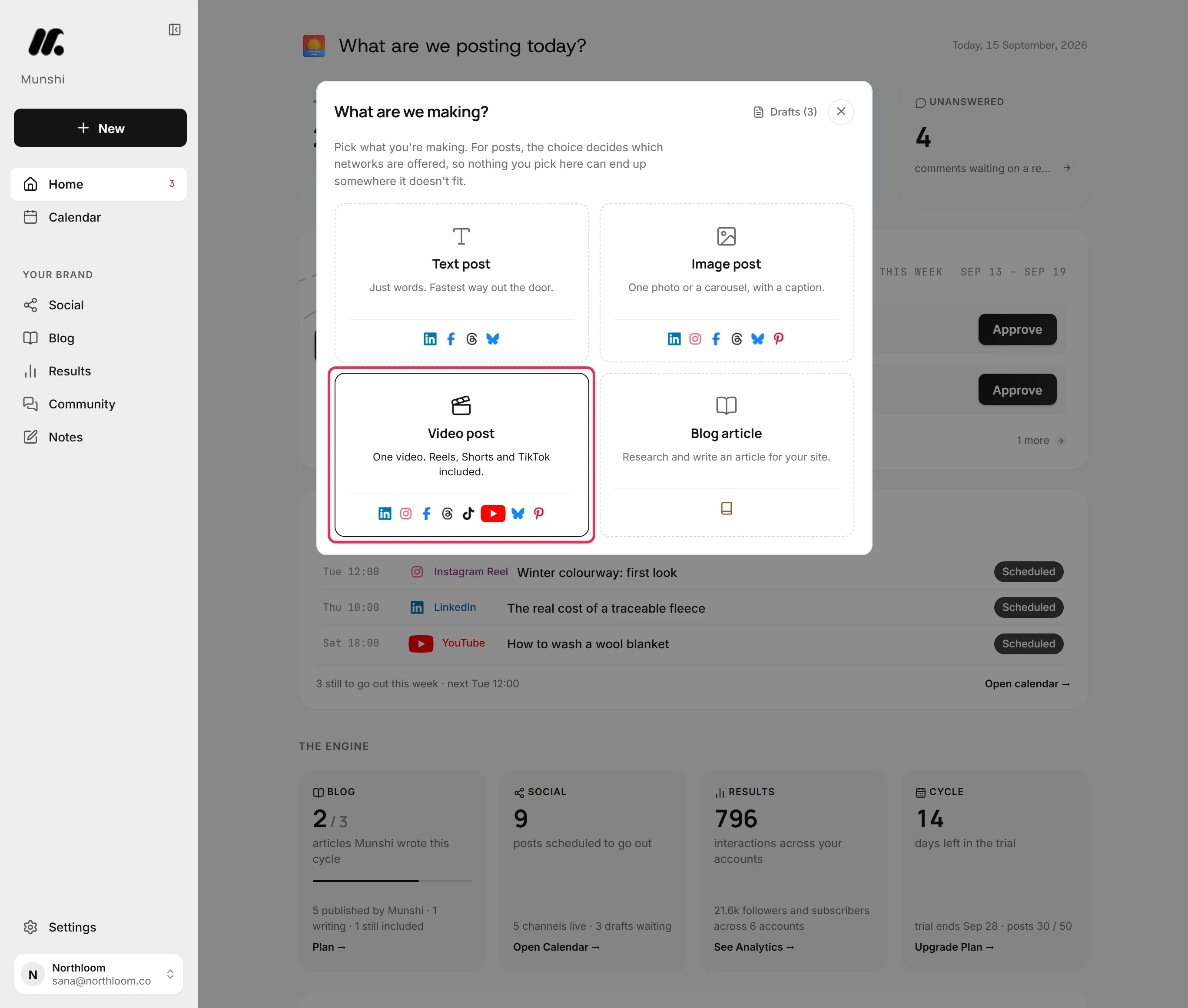
Click New at the top of the sidebar, then pick Video post. TikTok takes videos only. A Text post or an Image post does not offer it.
-
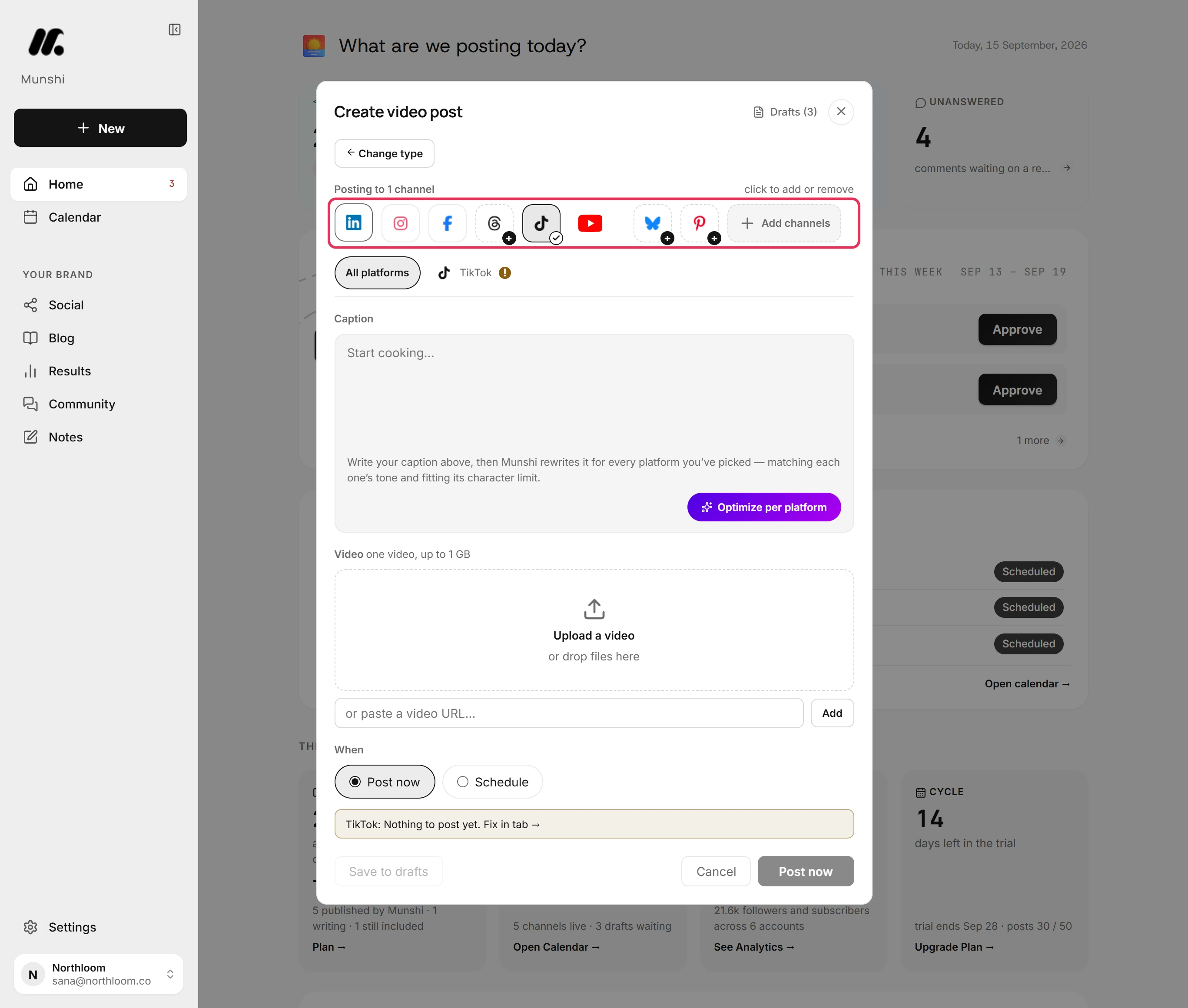
Click TikTok to add it. A new post starts with one network already picked. If the video is only for TikTok, click that one to take it off.
-
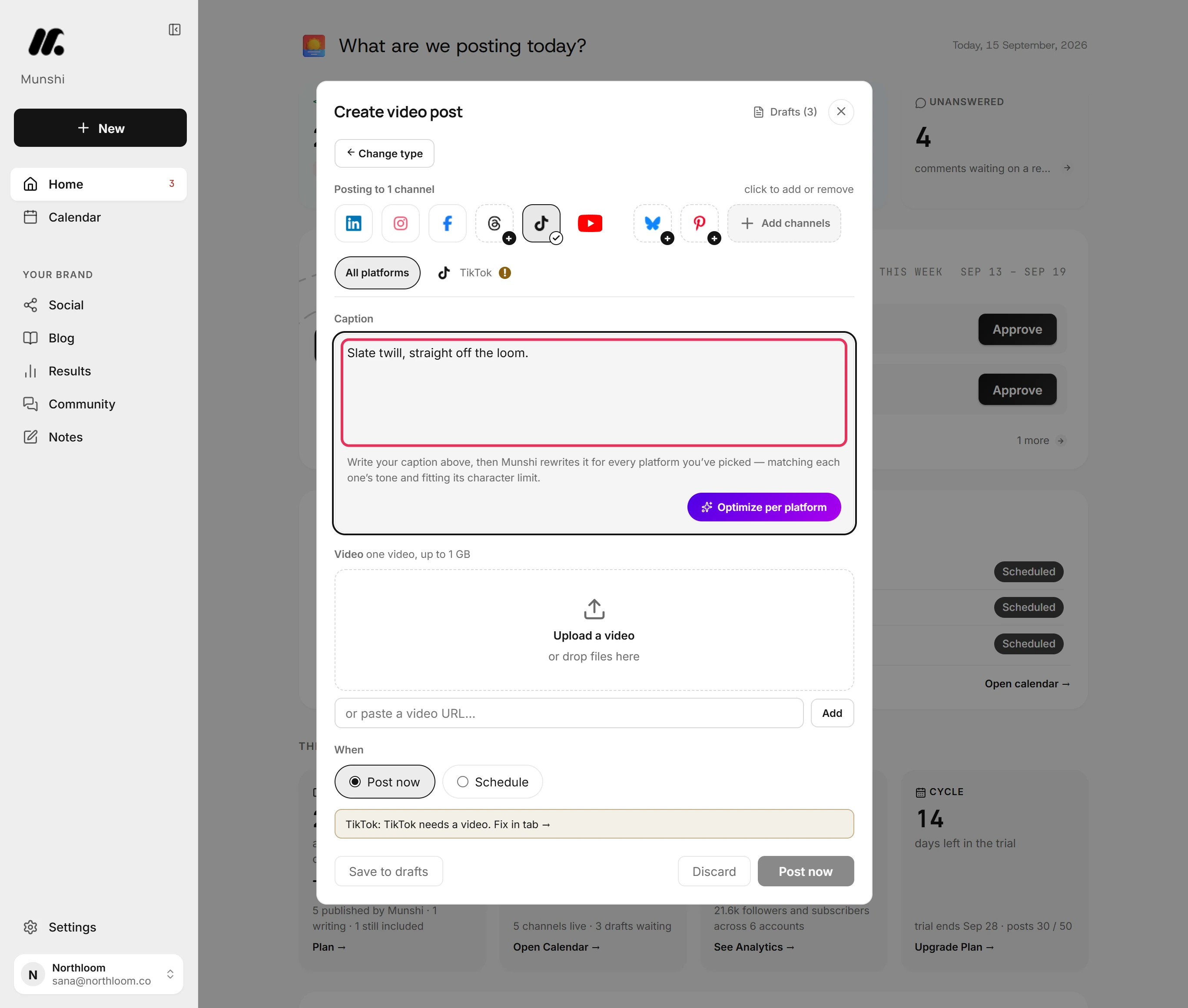
Type the caption in Caption. TikTok takes up to 2,200 characters, and the TikTok tab counts them.
-
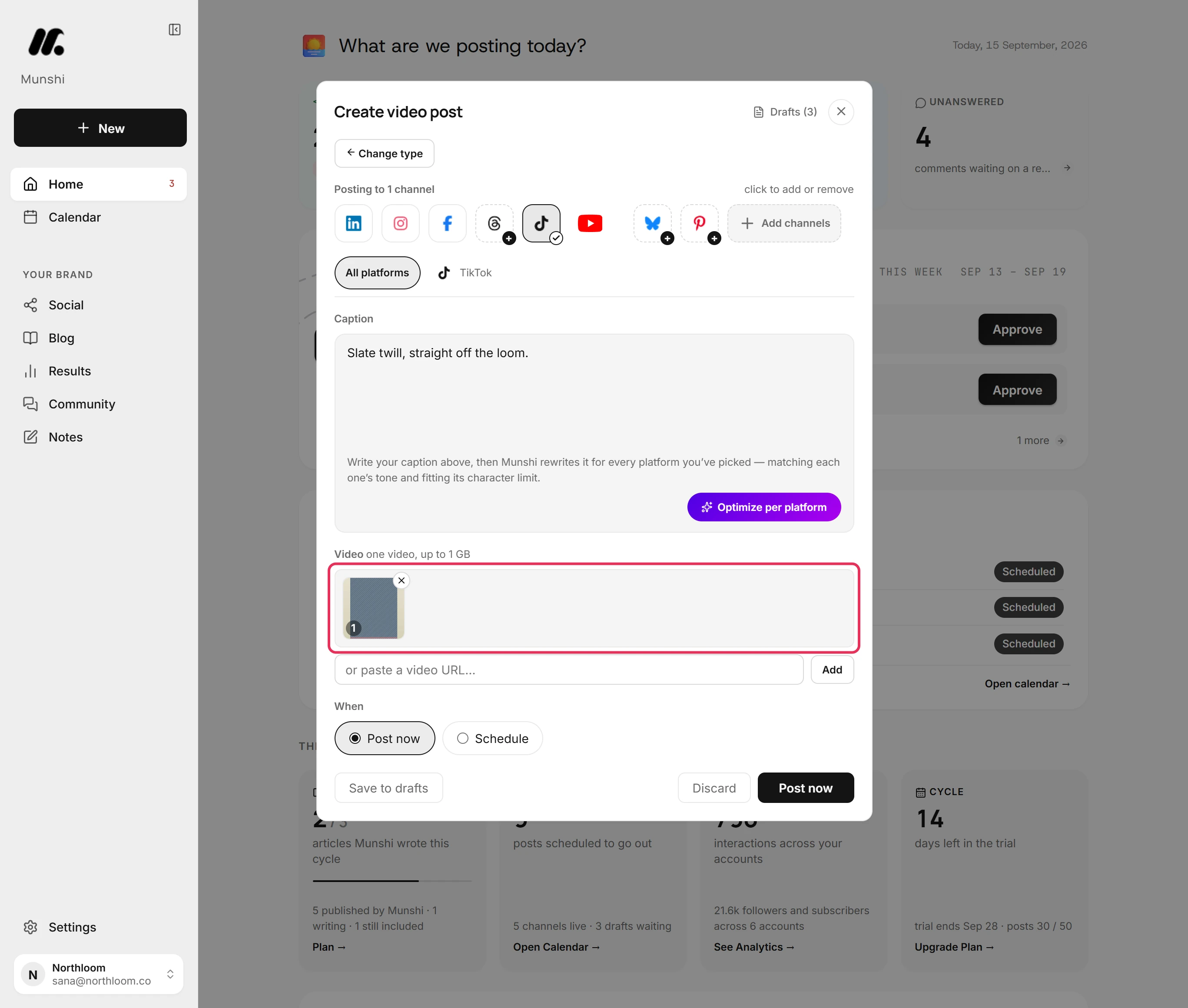
Click Upload a video and pick the file, or drop it on the box. A post carries one video. TikTok does not take a picture in its place.
-
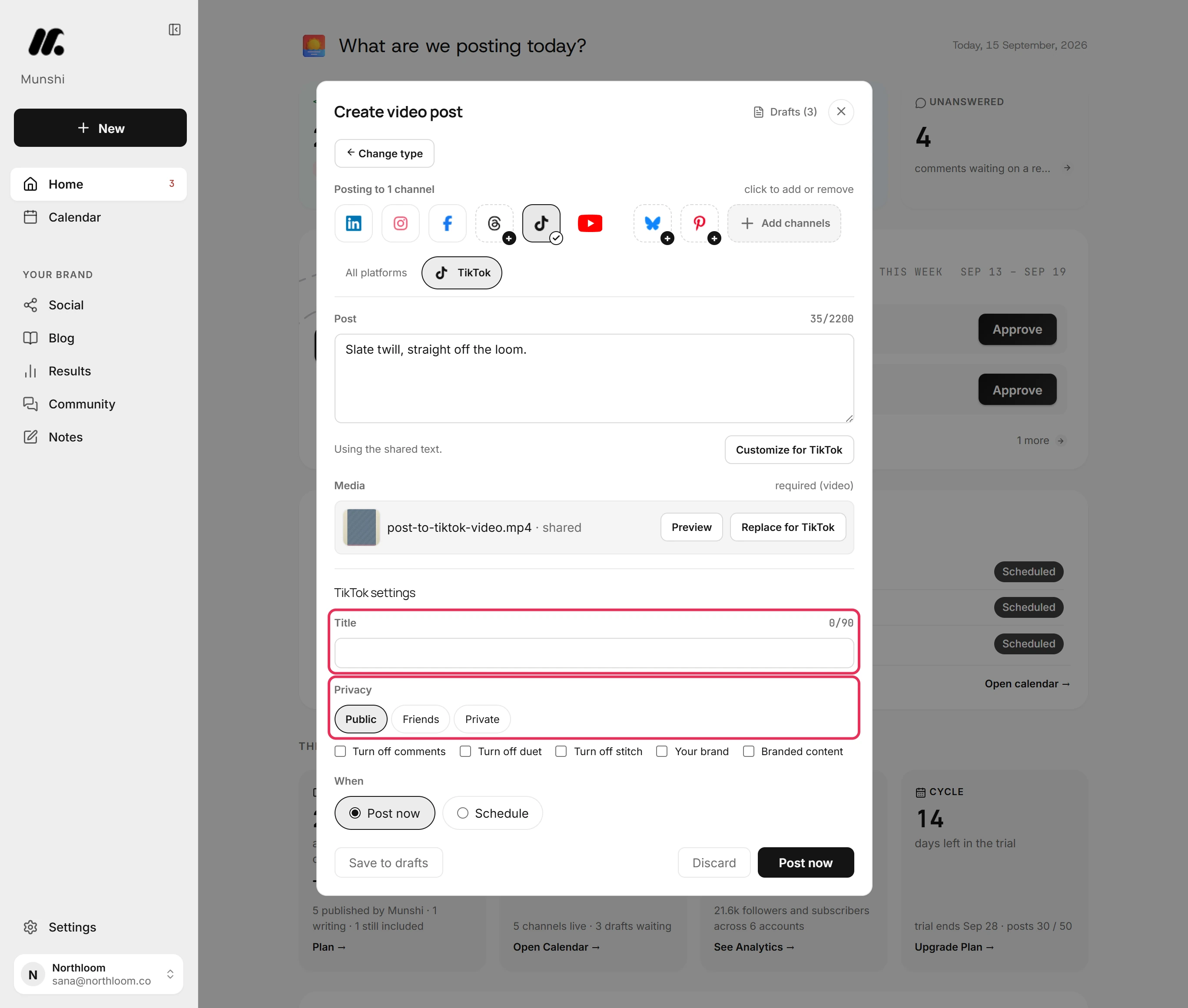
Open the TikTok tab and find TikTok settings. Title is optional and takes up to 90 characters. Privacy offers Public, Friends and Private.
-
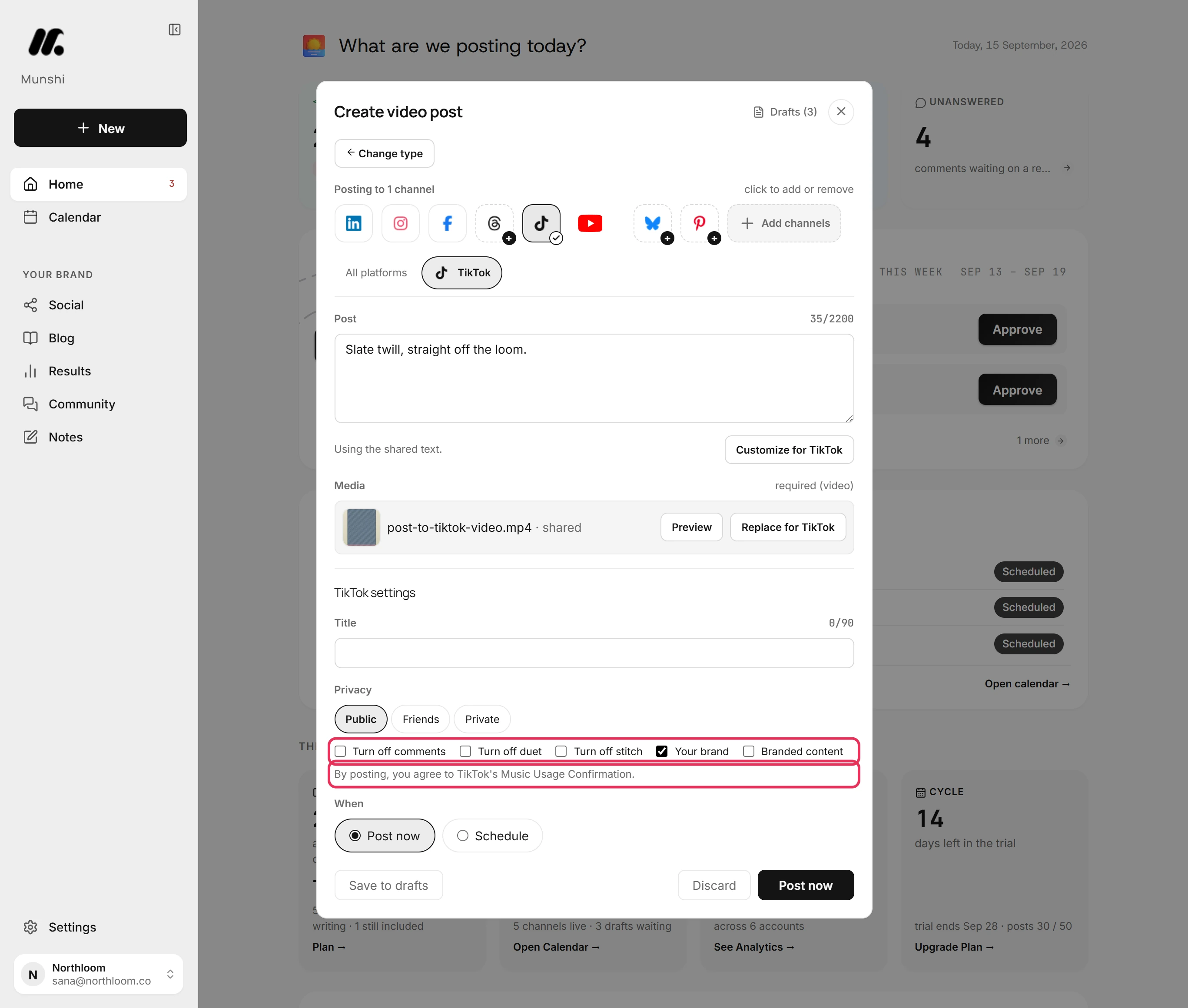
Tick Turn off comments, Turn off duet or Turn off stitch to stop viewers doing that with this video. If the video promotes your own business, tick Your brand. If it is a paid partnership with another brand, tick Branded content.
-
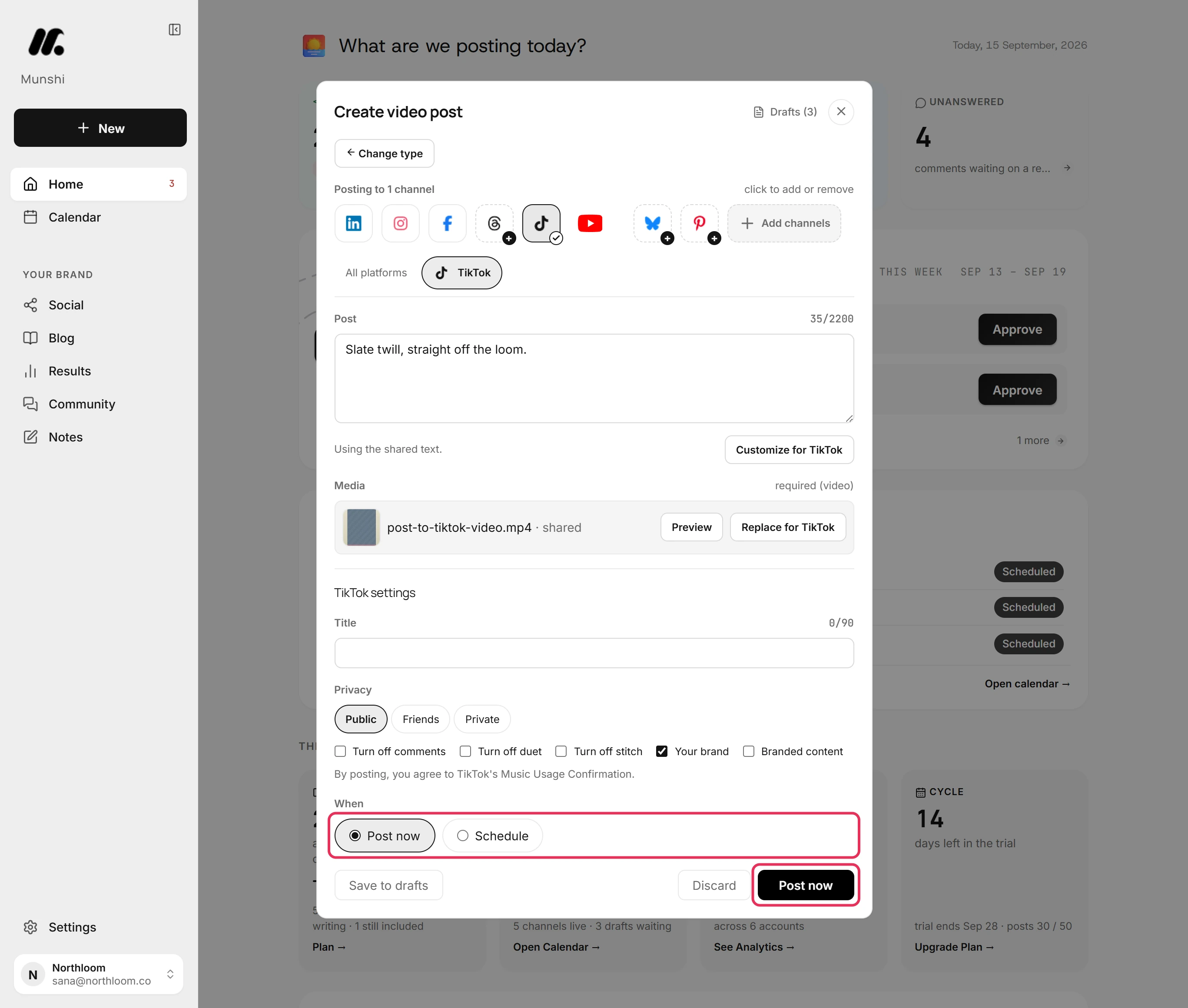
Under When, Post now is already picked. Click Post now, and Munshi says Sent to TikTok. The video appears once TikTok finishes processing it. To send it later, pick Schedule and set the date and time first.
-
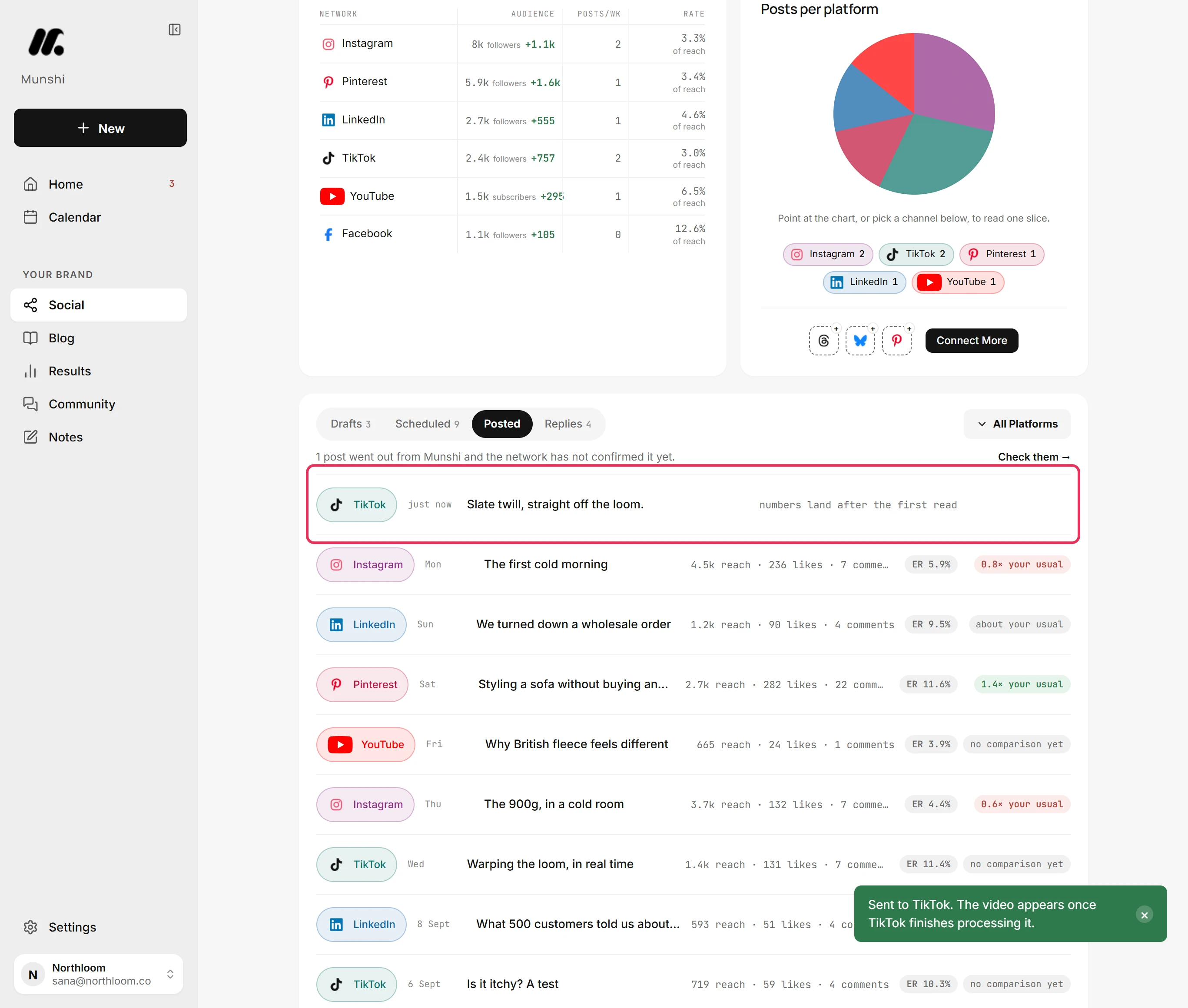
Munshi takes you to Social. Open Posted to see the video at the top. Its numbers fill in once TikTok reports them.
-
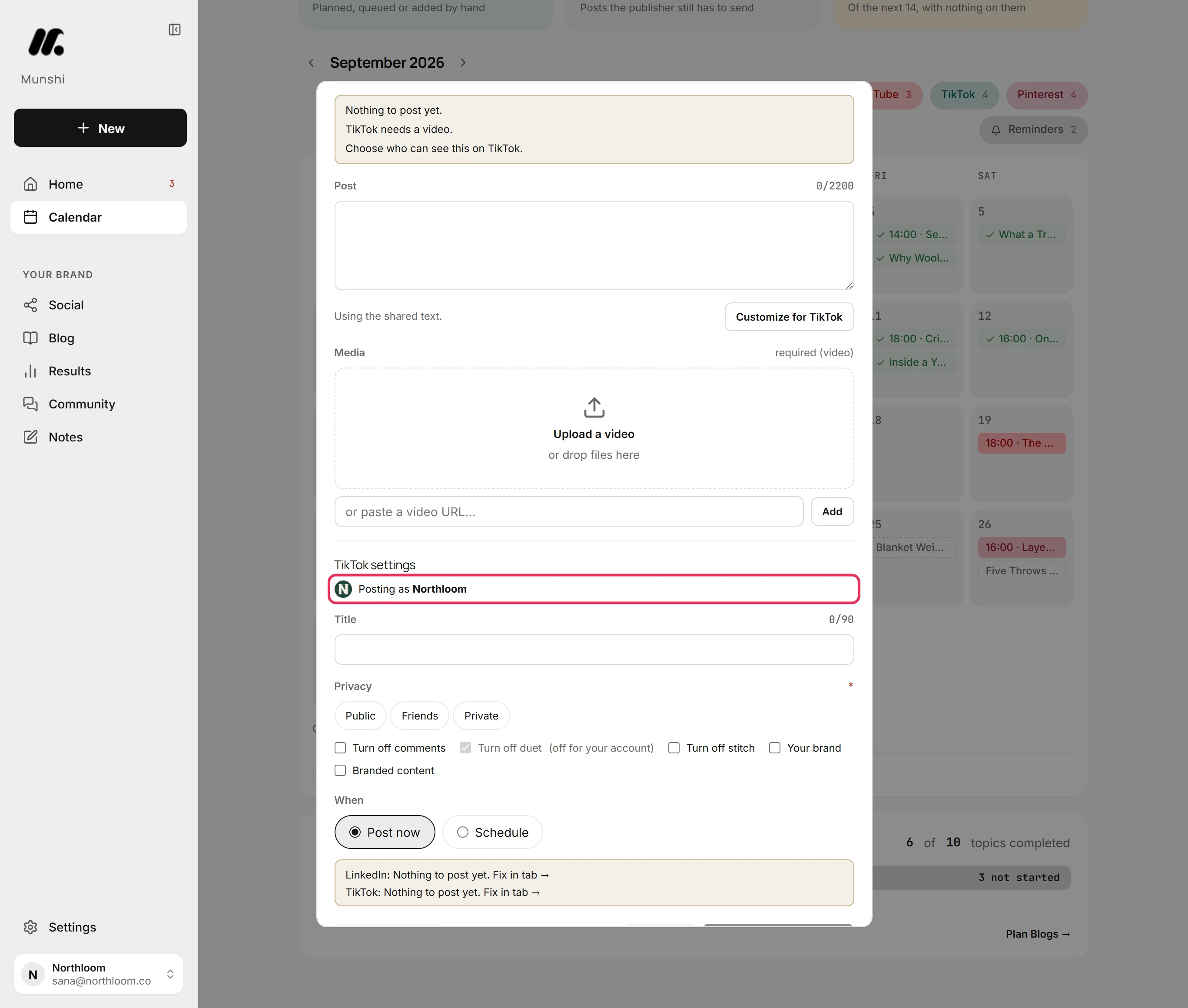
On a direct TikTok connection, the TikTok tab reads your account from TikTok. TikTok settings then starts with Posting as and your TikTok name. Privacy lists only the options your account allows. If your TikTok tab has no Posting as line, skip this step and the next.
-
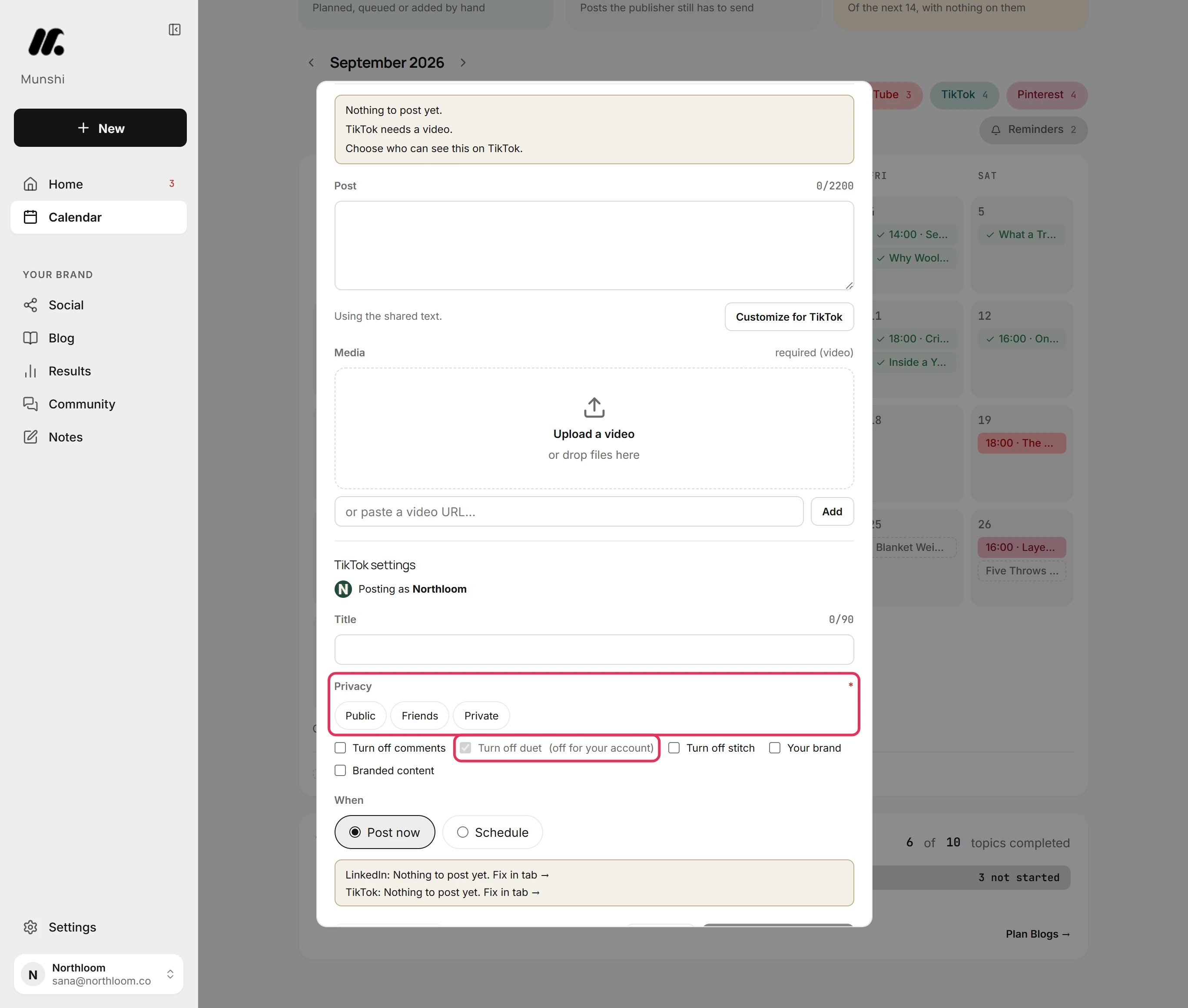
Here you must pick a Privacy option. Until you do, the tab lists Choose who can see this on TikTok. and the video cannot be sent. A switch your TikTok account already has off is ticked, locked and marked (off for your account). Here that switch is Turn off duet.
Where you are now
The video is on its way to TikTok with the settings you chose. It is listed under Posted, and it appears on TikTok once TikTok finishes processing it.
If something goes wrong
“TikTok needs a video.”
Upload a video in All platforms, or take TikTok off the post. TikTok takes a video and nothing else. A picture in its place gets “TikTok needs a video, not an image.”
TikTok is not offered on my post
Click Change type and pick Video post. TikTok appears only on a Video post. A TikTok tile with a plus is not connected yet, so connect TikTok first.
“Choose who can see this on TikTok.”
Open the TikTok tab and pick Public, Friends or Private. This message shows only on a direct TikTok connection, where Privacy is required.
“Branded content can't be private on TikTok”
Pick Public or Friends, or untick Branded content. Branded content and Private cannot go together.
Try it on your own brand this week.
Munshi Social, the AI content marketing engine for small teams, plans, writes, publishes, and tracks your blog and socials. The guide above shows the real app, not a mock-up.
Start your workspace