How to disconnect a network, and what stays
Open the network in Settings > Integrations and click Disconnect. Munshi deletes what it read from that network. Your drafts and posts stay.
Before you start
- You are the workspace owner. Anyone else sees “Only the workspace owner can change this.” where the button would be.
-
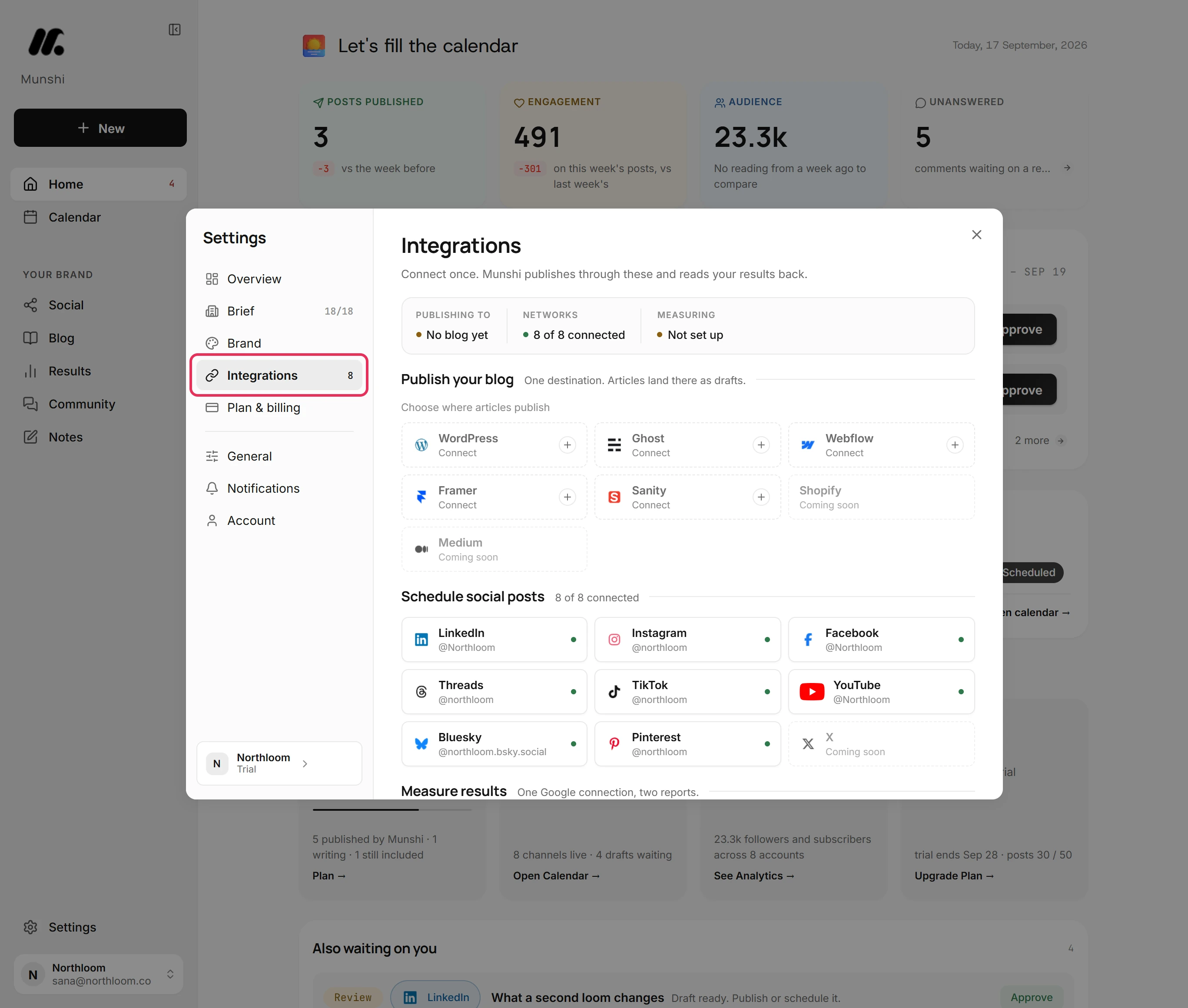
Click Settings at the bottom of the sidebar, then Integrations. Each connected network shows its account under its name.
-
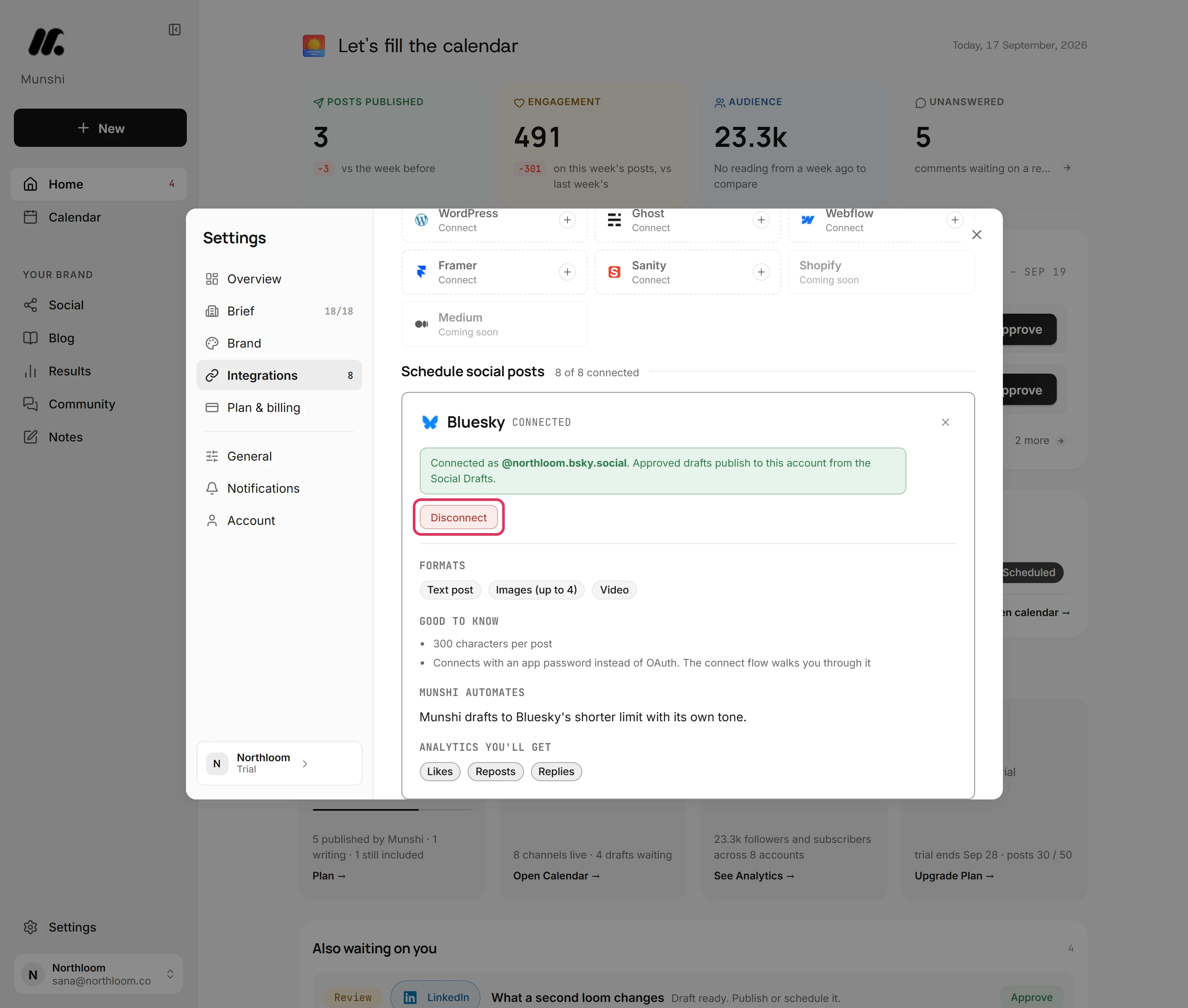
Click the network's tile, here Bluesky. Its card says which account is connected and offers Disconnect.
-
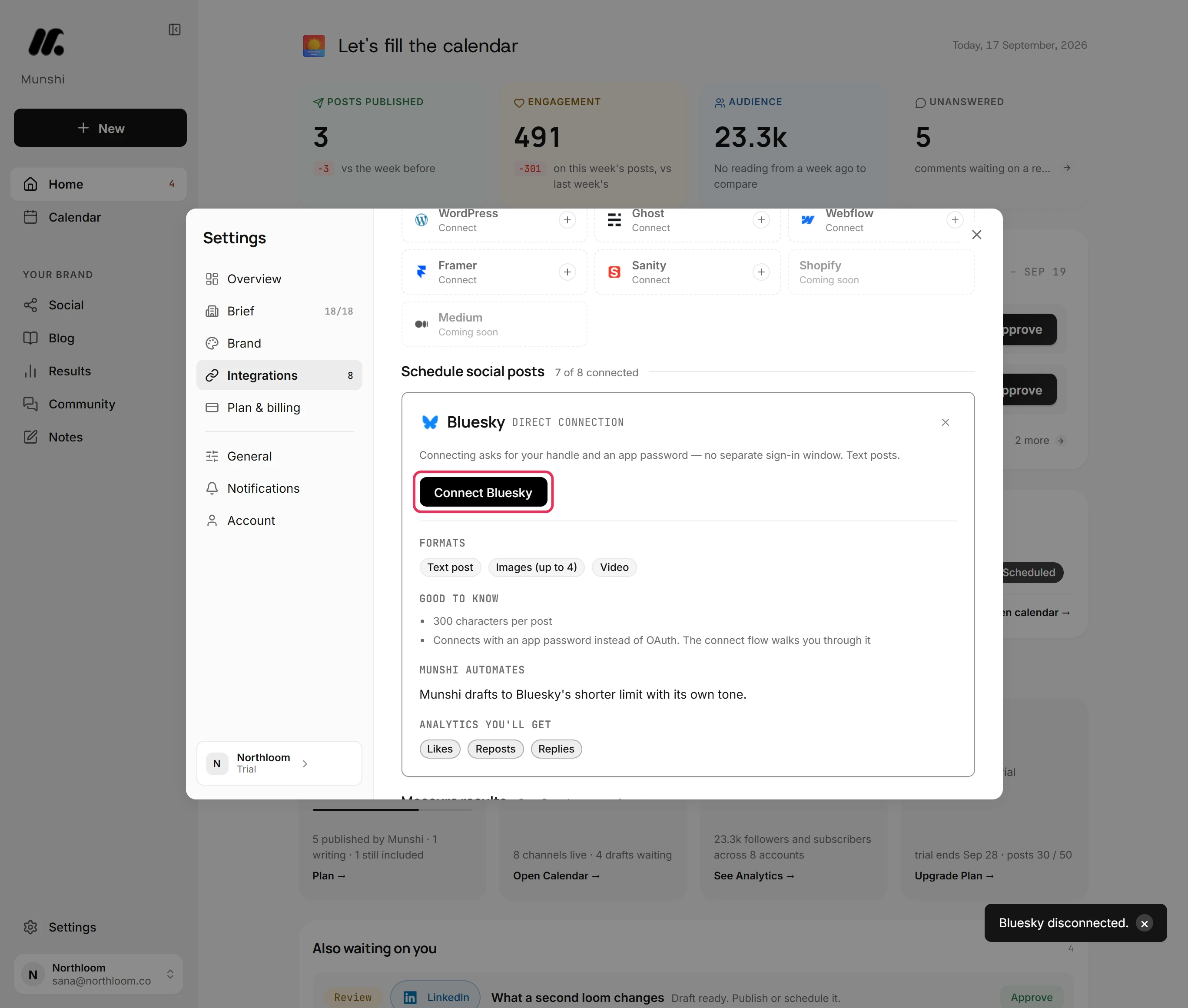
Munshi disconnects the account straight away, with no confirmation step. It says Bluesky disconnected. and the card goes back to Connect Bluesky.
-
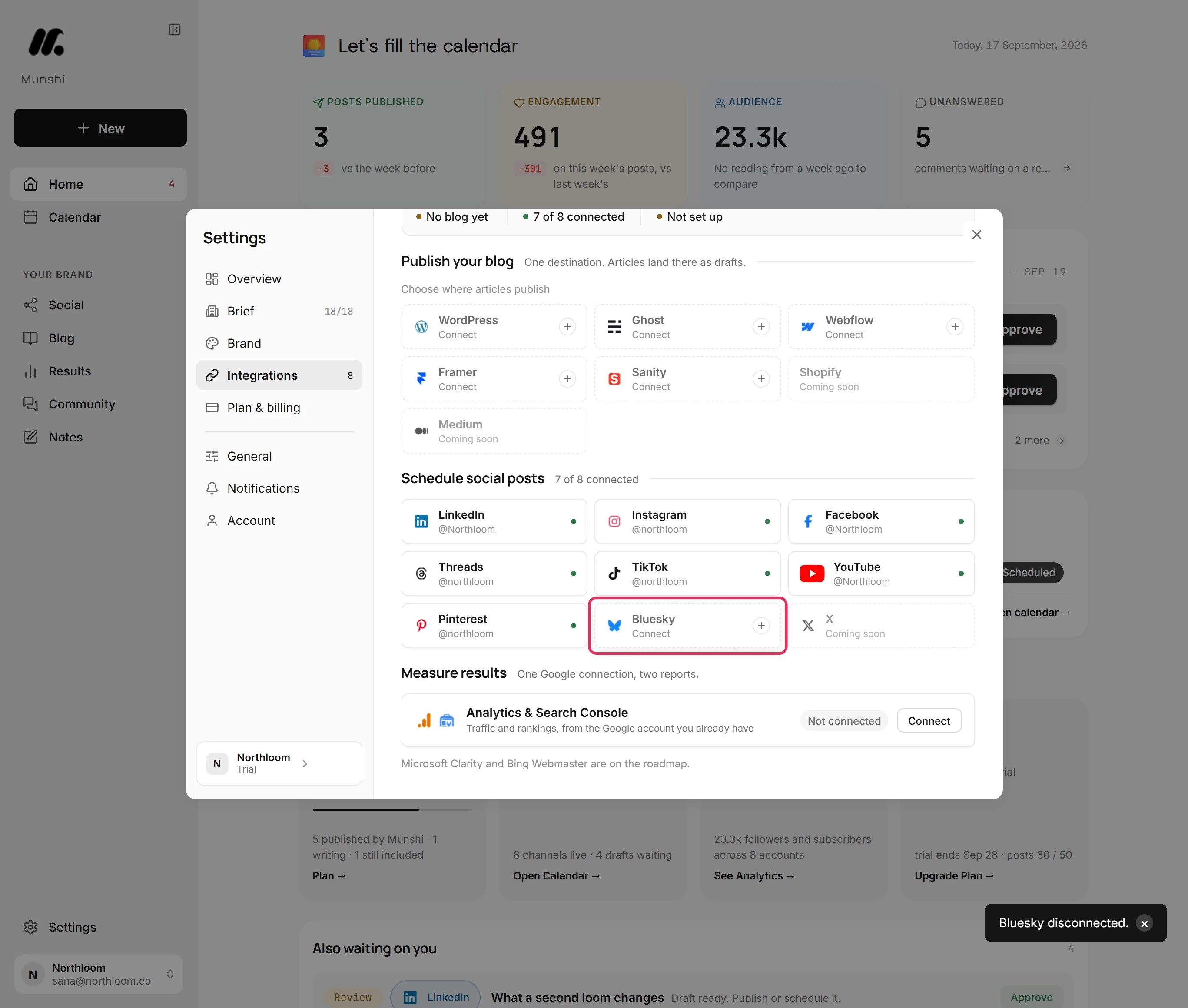
Close the card. The tile reads Connect again, and the count beside Schedule social posts goes down by one.
-
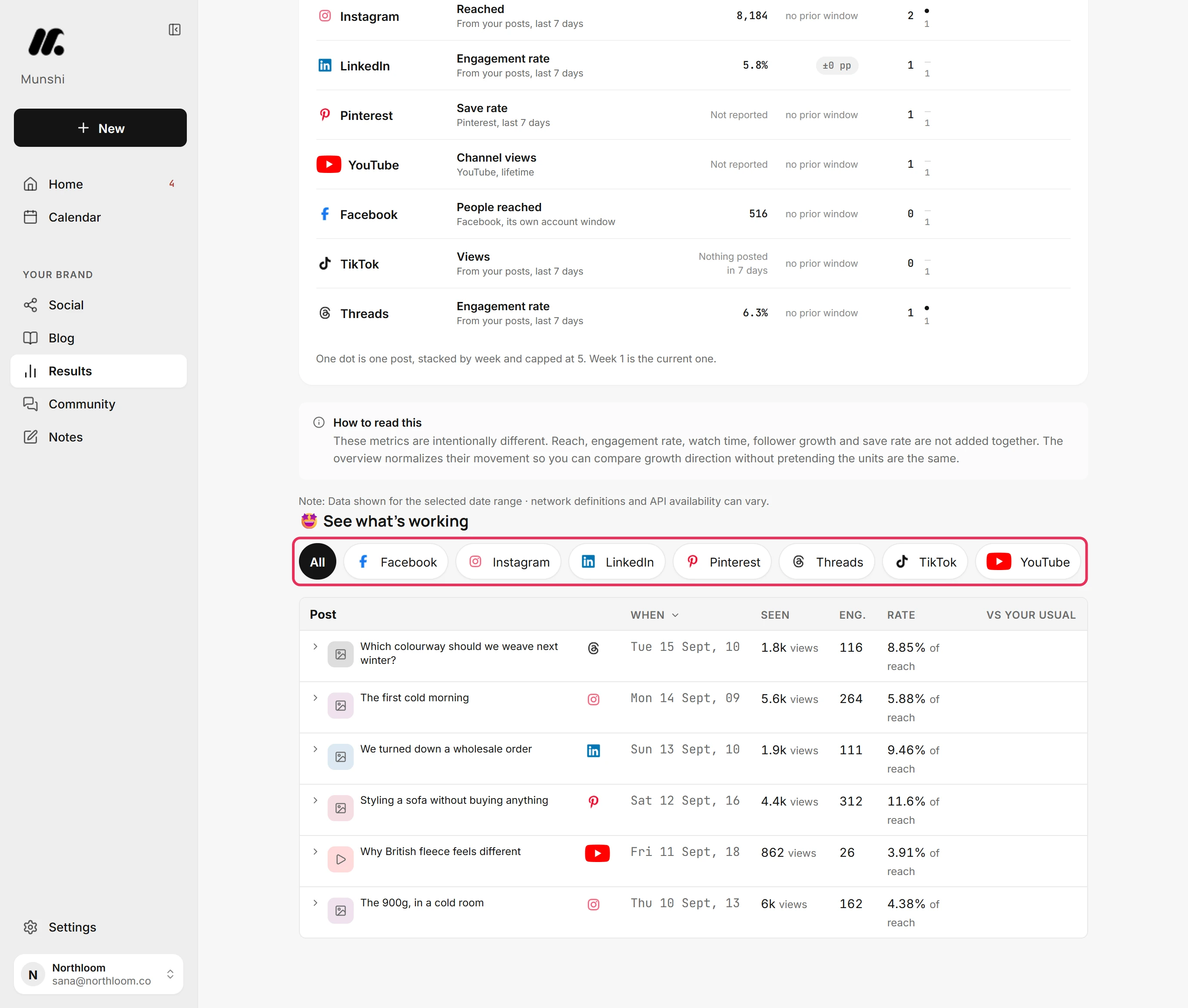
Open Results, then Social. The network is no longer listed. Munshi deleted what it had read from it: the account's numbers, its posts' numbers and the status of its comments.
-
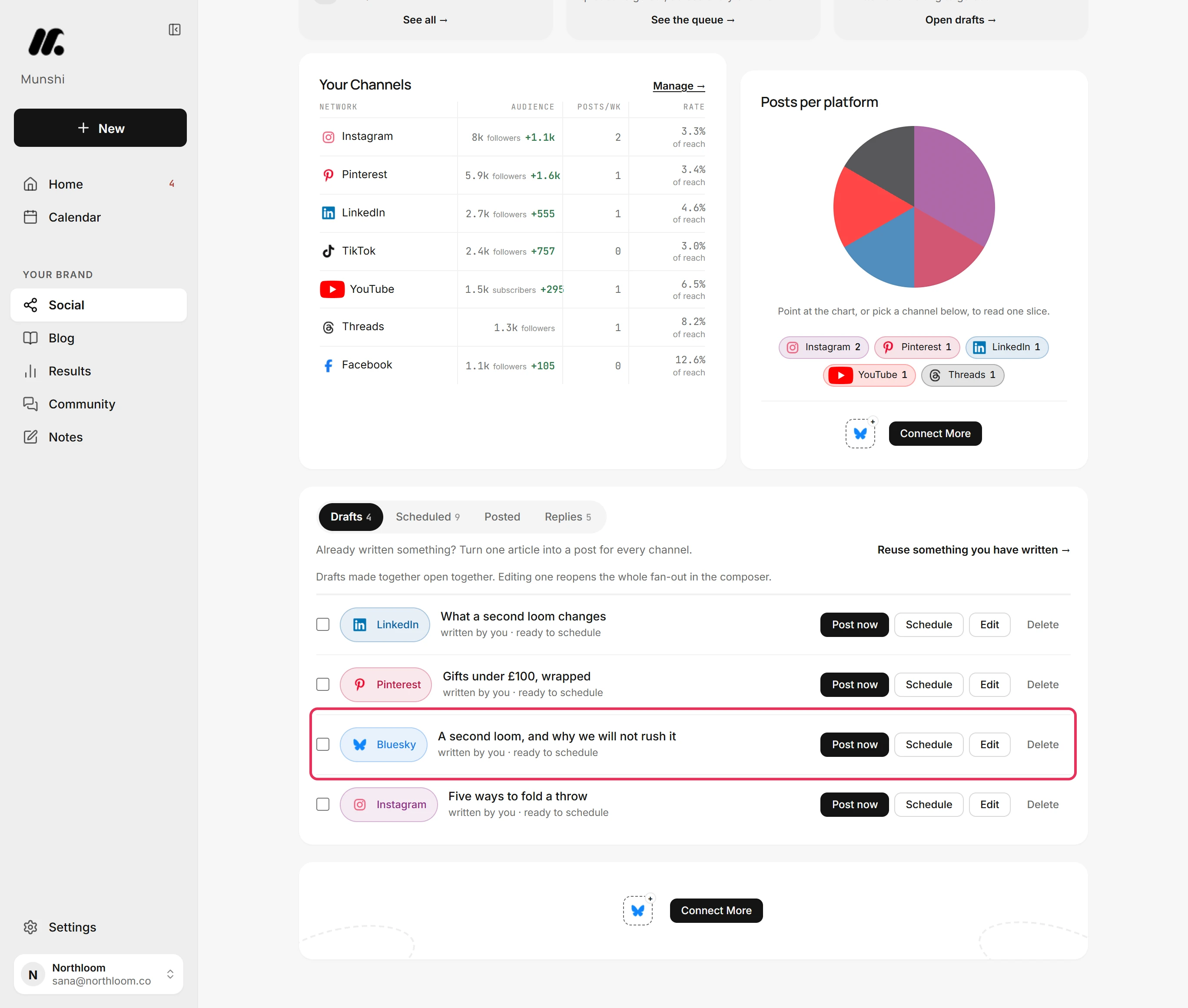
Open Social, then Drafts. A draft written for the network is still there, and so are posts that already went out. They are yours, not the network's, so disconnecting leaves them alone.
Where you are now
The network is disconnected, and what Munshi read from it is gone. Your drafts and posts stay, ready for when you connect it again.
If something goes wrong
“Only the workspace owner can change this.”
Ask the workspace owner to disconnect the network. Only the owner can disconnect.
“Connect your Bluesky account in Integrations first.”
Connect the network again, then send the draft. A draft cannot publish to a network that is not connected.
The network's numbers did not come back after connecting it again
Wait while Munshi reads the account afresh and brings in its past posts in the background. Disconnecting deleted the numbers Munshi had read before.
Try it on your own brand this week.
Munshi Social, the AI content marketing engine for small teams, plans, writes, publishes, and tracks your blog and socials. The guide above shows the real app, not a mock-up.
Start your workspace