On this page15 sections
Day one: Munshi reads your website
Setup opens the first time you sign in, on a screen called Let's see what you're working with. Type your domain and click Scan my site. Munshi reads your homepage for your company name, what you sell and your brand colours. It starts reading your blog at the same time.
Then it shows you what it found. Does this look right? comes back filled in, and you correct anything it got wrong. Here's what we found lists what your site turned up. That might be a blog that has gone quiet, or articles with no meta description for AI search to quote.
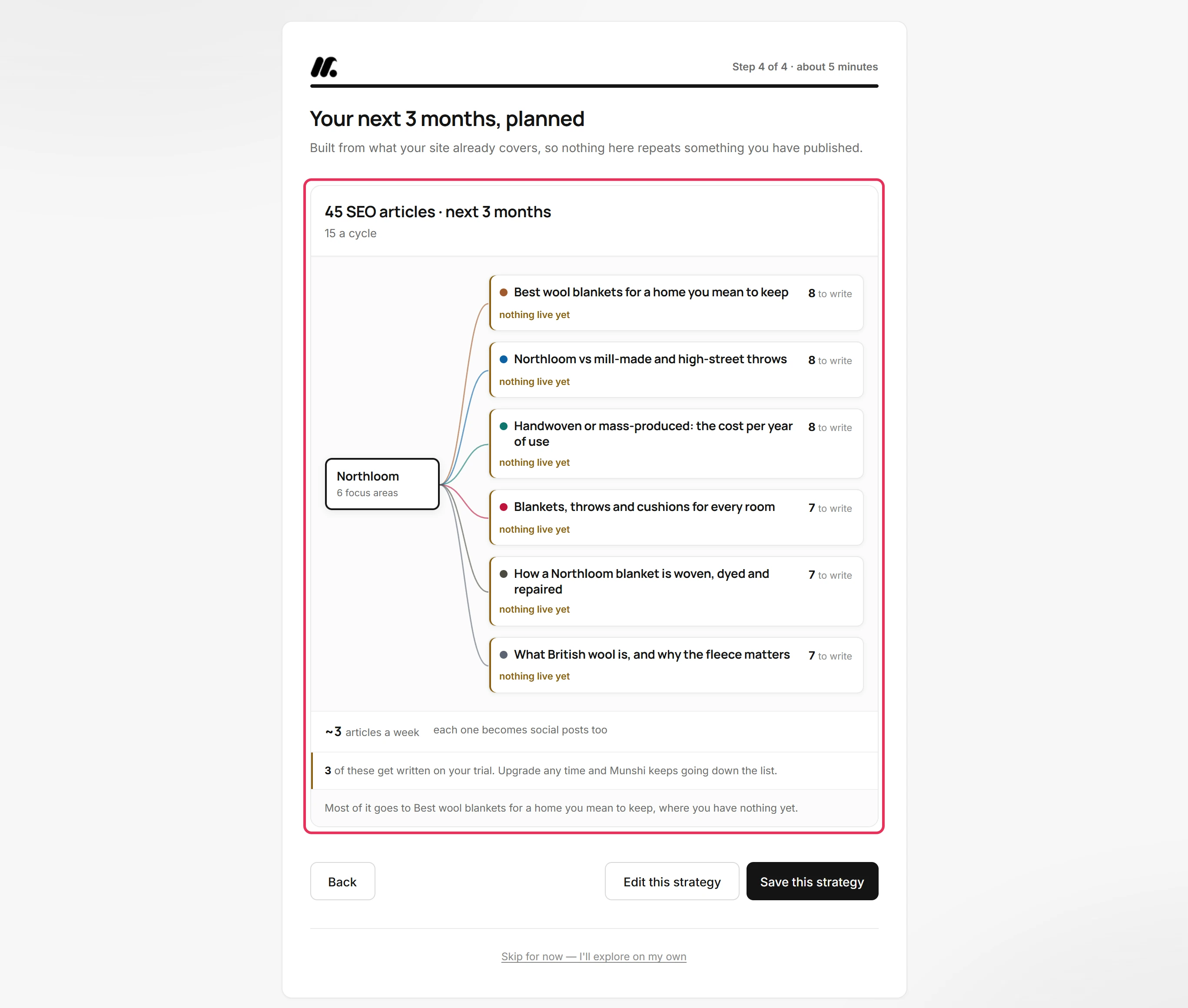
Last comes Your next 3 months, planned. It shows your company branching into focus areas, each with the number of articles it gets.
You can change all of it before a word is written. Edit this strategy reworks the plan, and Save this strategy accepts it. If you have no website yet, I don't have a site lets you fill in the same screens by hand.
Step by step: How to set up your workspace from your website
Day one: fill in the Brief Munshi writes from
Everything Munshi writes comes from one page: Settings, then Brief. A meter at the top counts what it knows, from Munshi knows 11 of 18 things about your business up to all 18. The answers sit in three sections.
The basics holds nine answers. They are your company name, what you do, your space, your website and what you sell. The rest are your content goals, competitors, markets and the author who signs your articles.
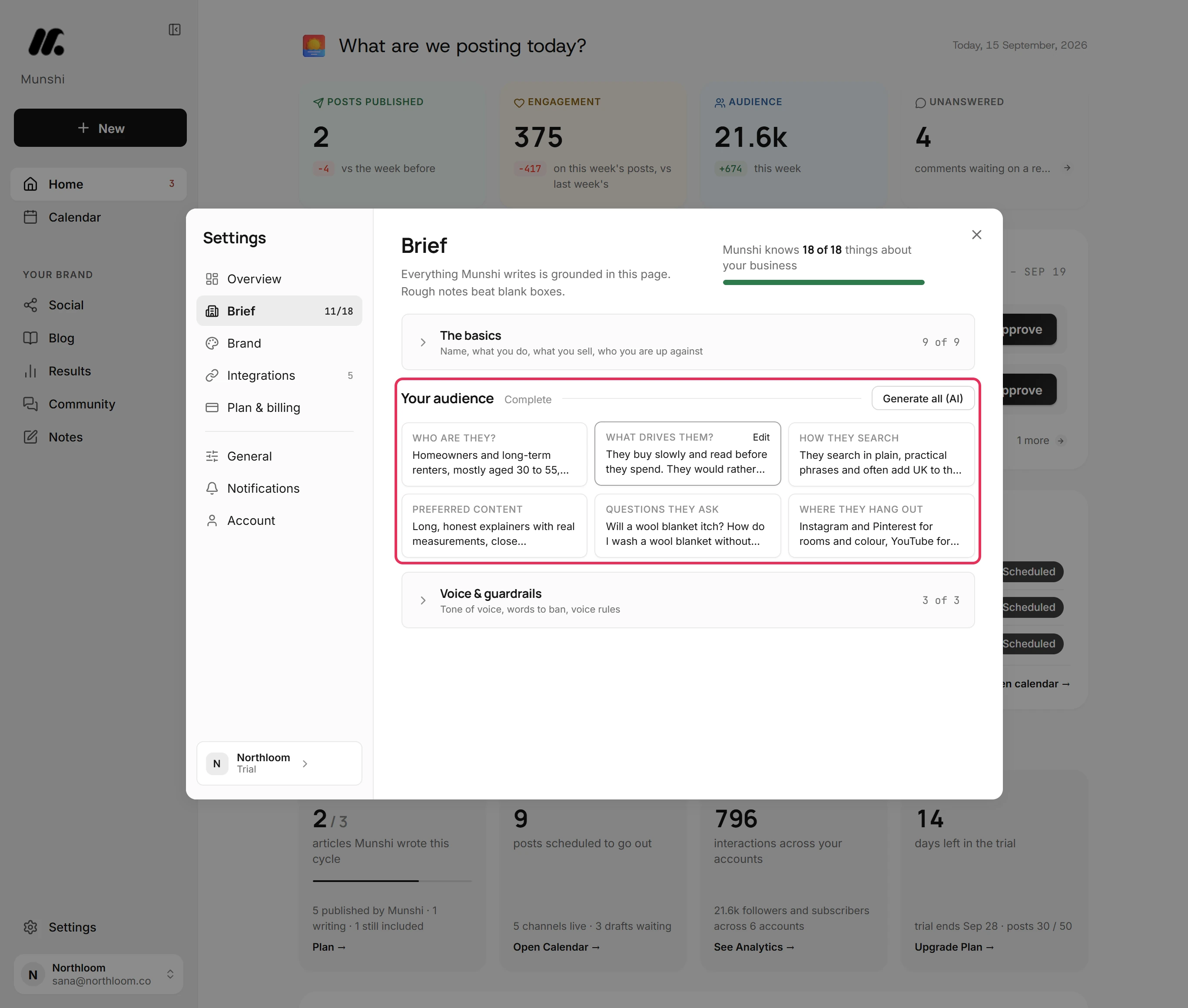
Your audience holds six answers about your readers. They cover who they are, what drives them, how they search and what they like to read. They also cover the questions they ask and where they spend their time.
Voice & guardrails holds your tone, your Words to ban and your own Voice rules, such as short sentences or no exclamation marks.
You do not have to write the audience section yourself. Generate all (AI) researches it from the rest of your Brief, one field at a time. It only fills fields you left empty, so anything you wrote stays. It runs in the background, so you can close Settings and it carries on.
Step by step: How to fill in your Brief
Day one: your brand colours become article covers
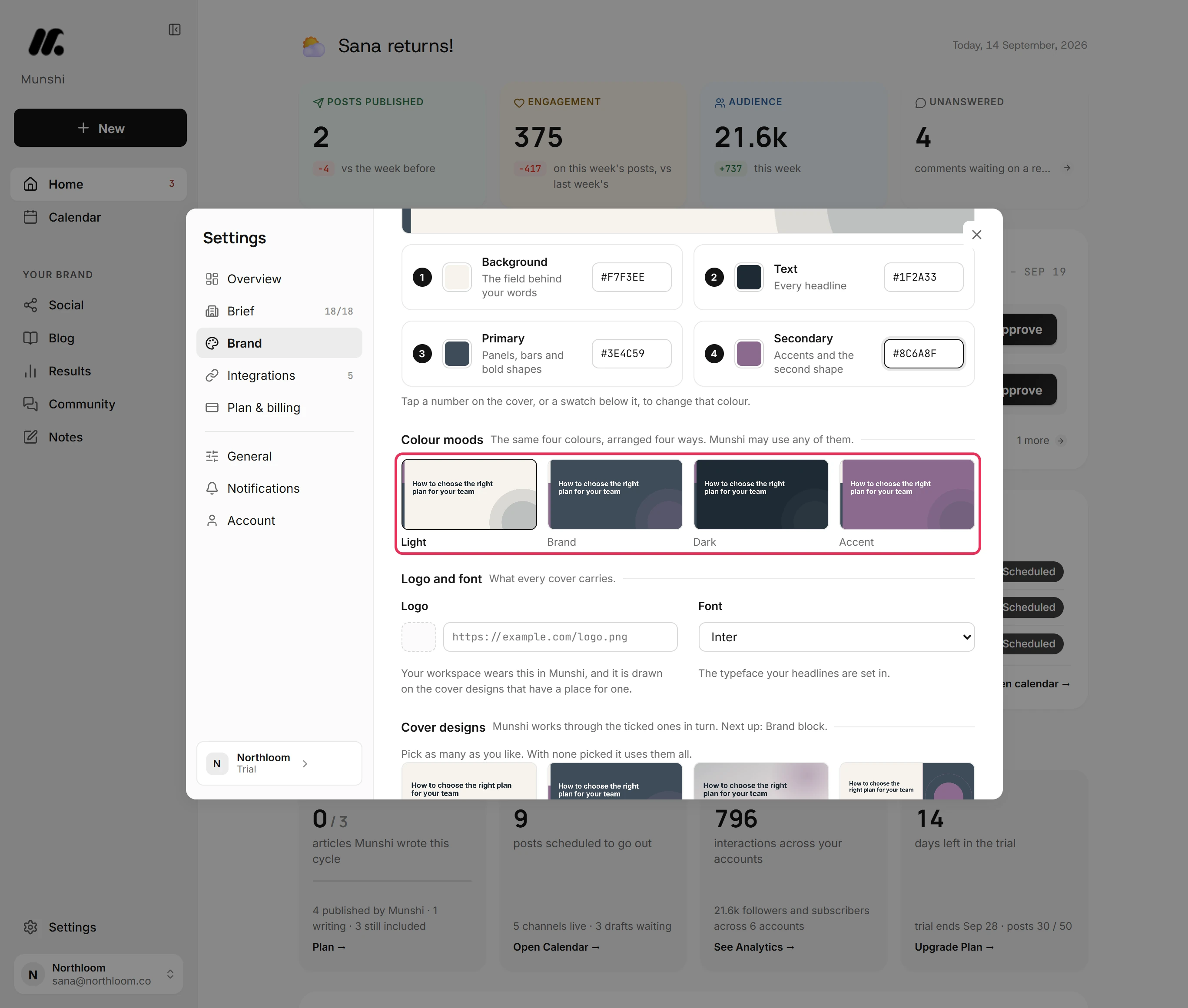
Article covers come from Settings, then Brand. You set four colours: Background, Text, Primary and Secondary. Each takes a six-digit code or a picker, and a real cover redraws above them as you type.
Colour moods shows the same four colours arranged four ways: Light, Brand, Dark and Accent. That lets you check each one reads well before Munshi uses it.
Below that, you add a link to your logo image and pick a typeface. Covers are drawn in six fonts: Inter, Poppins, Manrope, DM Sans, Lora and Playfair Display. After the website scan, Munshi names the one closest to your own.
Under Cover designs, tick the layouts you like, and Munshi works through them in turn. Click Save brand, and every cover made after that is drawn from the kit. That includes covers made for scheduled articles while you are away from the app.
Step by step: How to set up your brand kit for article covers
Day one: connect your networks, blog and Google
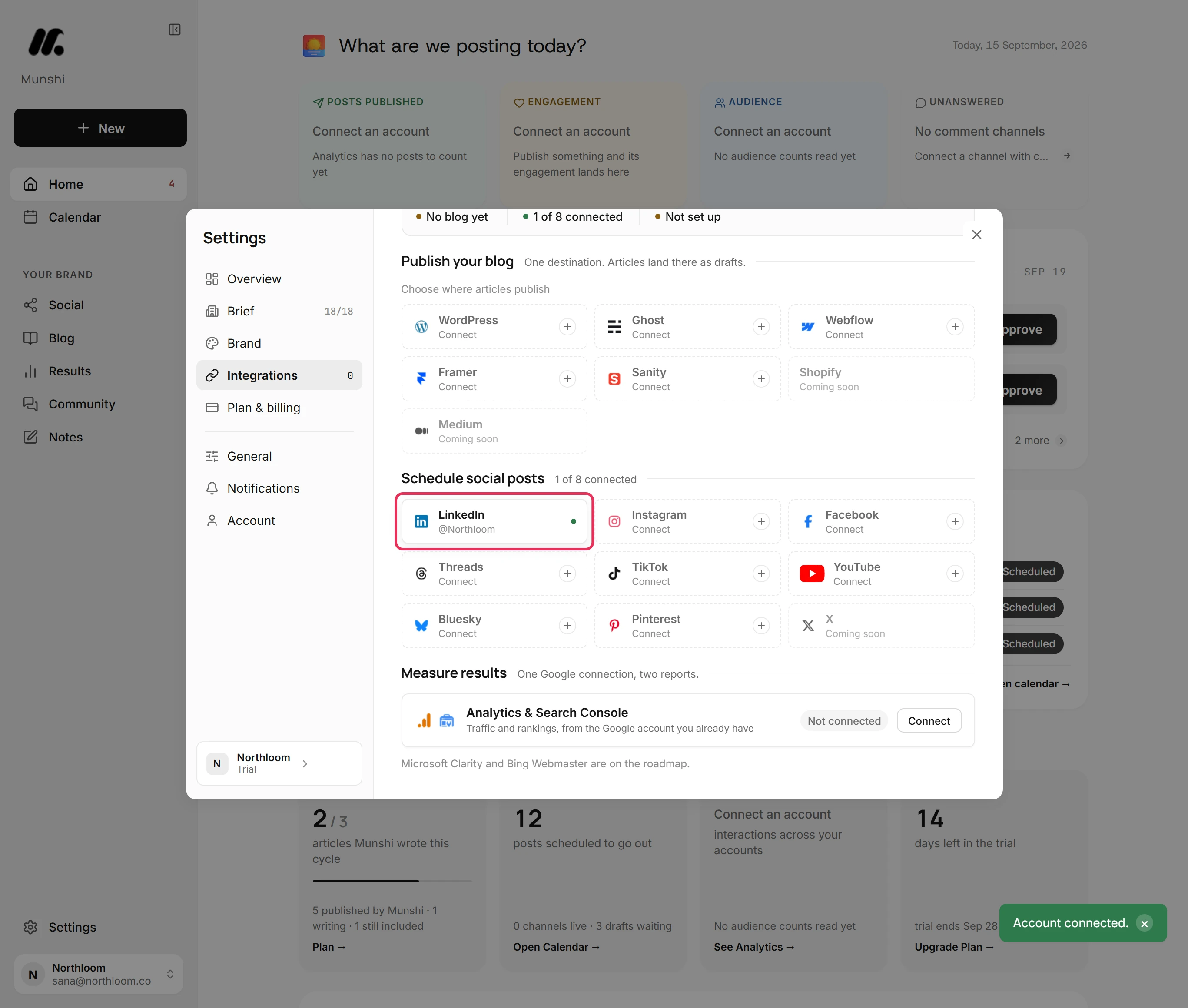
Setup ends in Settings, then Integrations, which has three sections. Schedule social posts reads 0 of 8 connected until you connect one. It lists Instagram, TikTok, LinkedIn, Facebook, Pinterest, Threads, YouTube and Bluesky.
Click a tile and sign in to that network in the window it opens. The tile comes back showing the account with a green dot. LinkedIn and Facebook ask which profile or Page to publish as. Bluesky asks for an app password instead of opening a window.
Publish your blog takes one destination: WordPress, Ghost, Webflow, Framer, or Sanity. WordPress connects through an approve window on your own site, which gives Munshi an application password. That way Munshi never sees your WordPress password.
Munshi writes each article into your CMS, formatted for that platform. Ghost, Webflow, and Framer receive it as a draft you publish from your own dashboard. WordPress receives a draft too, but a scheduled article goes live at its set time. Sanity articles go live on schedule.
Measure results takes one Google connection and reads two reports from it: Google Analytics and Search Console.
None of this has to happen before you write. A network that is not connected shows a plus in the composer. Pick it, and Munshi offers to connect it right there without losing the post you were writing.
Step by step: How to connect your first channel
Every week: start with what needs your yes
The weekly sitting starts on Home. One card counts everything waiting on you and names the week it covers. The first two items sit right under it, each with the one button that clears it.
Above it, four tiles count the week from Sunday to Saturday: Posts published, Engagement, Audience and Unanswered comments. A tile with no reading yet says Collecting instead of showing a zero. The whole app follows that rule: missing is not the same as none.
Further down, past the Engine row, Also waiting on you holds the full queue, with broken things first. Every row carries one verb.
You can Retry a post that failed, Fix an article that did not publish, or Reconnect a network whose connection expired. You can also Approve a draft, Review a finished article, Set up a missing step, or Upgrade when an allowance runs out. When nothing is waiting, the card reads Nothing needs you.
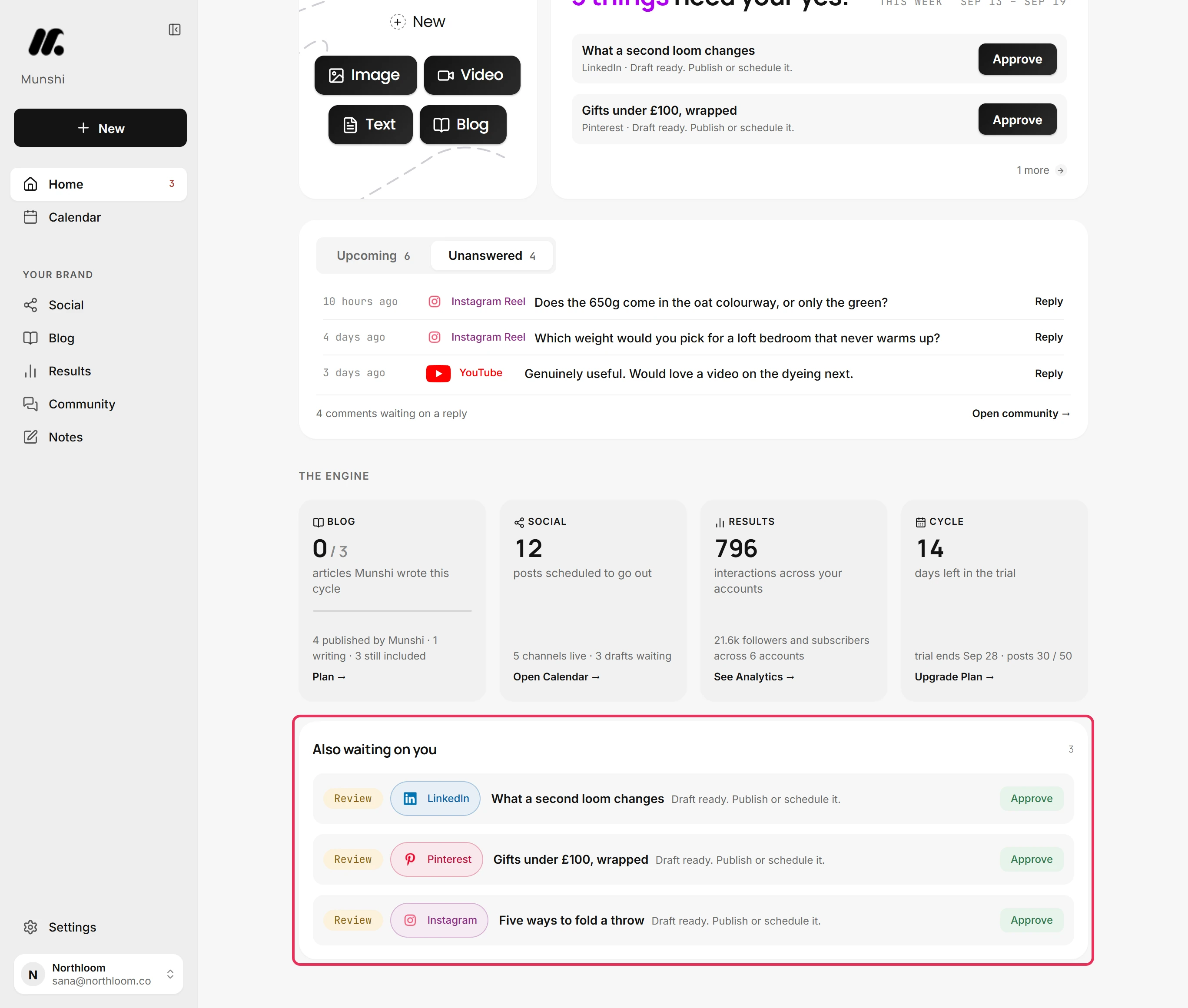
Step by step: Home: what needs your yes
Every week: the work runs in the background
Long tasks run in the background while you do something else. That covers writing an article, researching your audience, adapting a caption for each network, importing your past posts and building a report.
The Background jobs dock opens on the right of the screen, on every page, and follows each job.
A finished job shows a full green bar and Finished. It links to its result where there is one, such as View analytics after an import. A job that stopped reads Failed in red, with the reason written underneath.
If a service it needs did not answer, the job says when it will retry. Then it tries again on its own, up to three tries. Cancel stops a job that is running.
Finished jobs clear after an hour, and failed ones stay for a day. So a failure that happened while you were away is still there at your next sitting. The arrow at the top folds the dock into a tab on the right edge that counts what is running.
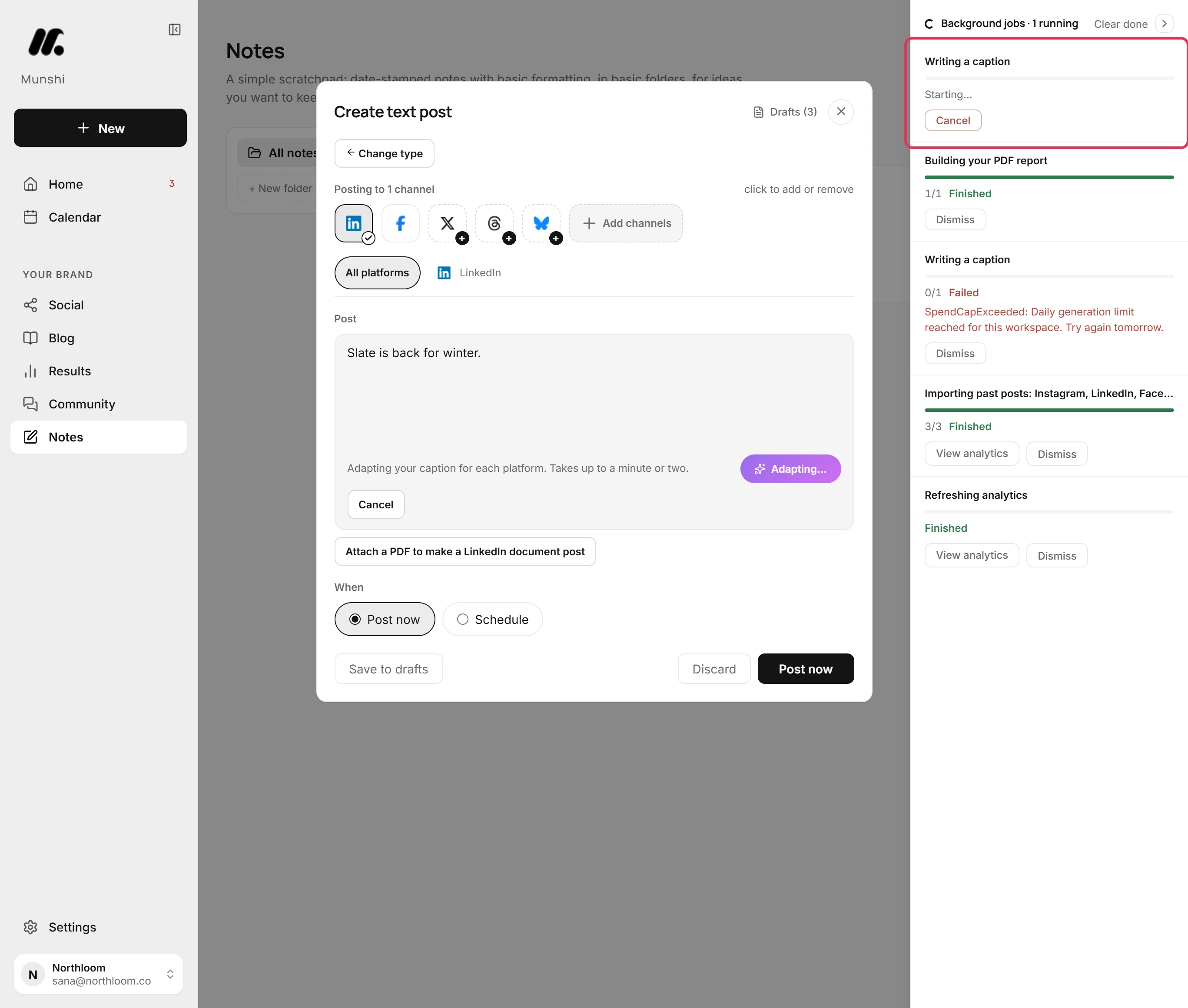
Step by step: The jobs dock: what is running, what failed
Every week: read each article, then approve it
An article with all ten writing steps done lands on Home tagged Review. It reads 10/10 steps done · review & approve. Open it, and it looks the way the published page will, with the cover at the top.
Its word count sits beside the status. Production details below it lists every step behind the piece, including the title tag, meta description and slug.
You can change anything. Editing a step clears its quality scores, and Munshi tells you so: Output saved. Quality scores cleared (re-run to re-check).
When you are happy, Mark completed approves it, and the status reads Approved. Un-approve puts it back in the pipeline if you change your mind.
Approving is not publishing. The banner then offers Schedule on your blog. There, the article's SEO score must reach 60 out of 100 before it can go out. The score is added up from the meta title, meta description, keyword, slug and canonical URL.
This is the part we will not automate away. Your name is on the blog, so you get the last read.
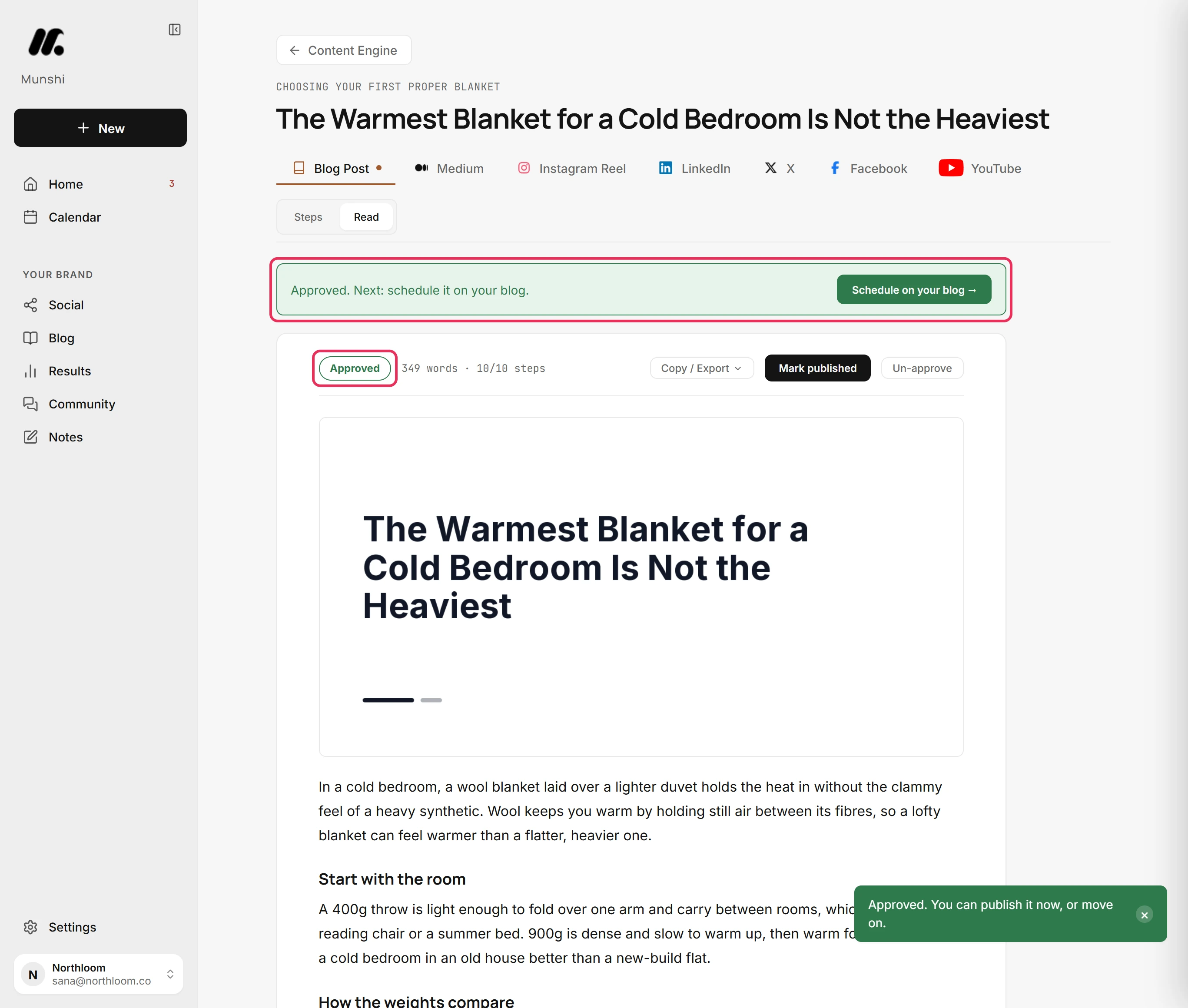
Step by step: How to review, edit and approve an article
Every week: one calendar holds the week
You write a post once and send it to several networks. Write the caption in the All platforms tab, and every network you picked starts from it. Change a network's own tab, and only that network changes.
Munshi keeps each version inside its network's limit: 2,200 characters on Instagram, 3,000 on LinkedIn and 5,000 on Facebook. It will not schedule a post that breaks a rule until you fix it.
Everything booked shows on one Calendar, by month, week or day. In the key under the grid, a dashed outline means planned or added by hand, and a solid chip means scheduled to go out.
A tick means the entry is already out, and a bell is a reminder. A post that failed shows in red as Didn't go out. Channel pills above the grid show or hide one network at a time.
When a slot comes, Munshi sends the post. It moves from Scheduled to Posted on the Social page, and Munshi starts reading its numbers as the network reports them. A new row reads numbers land after the first read until the network reports on it.
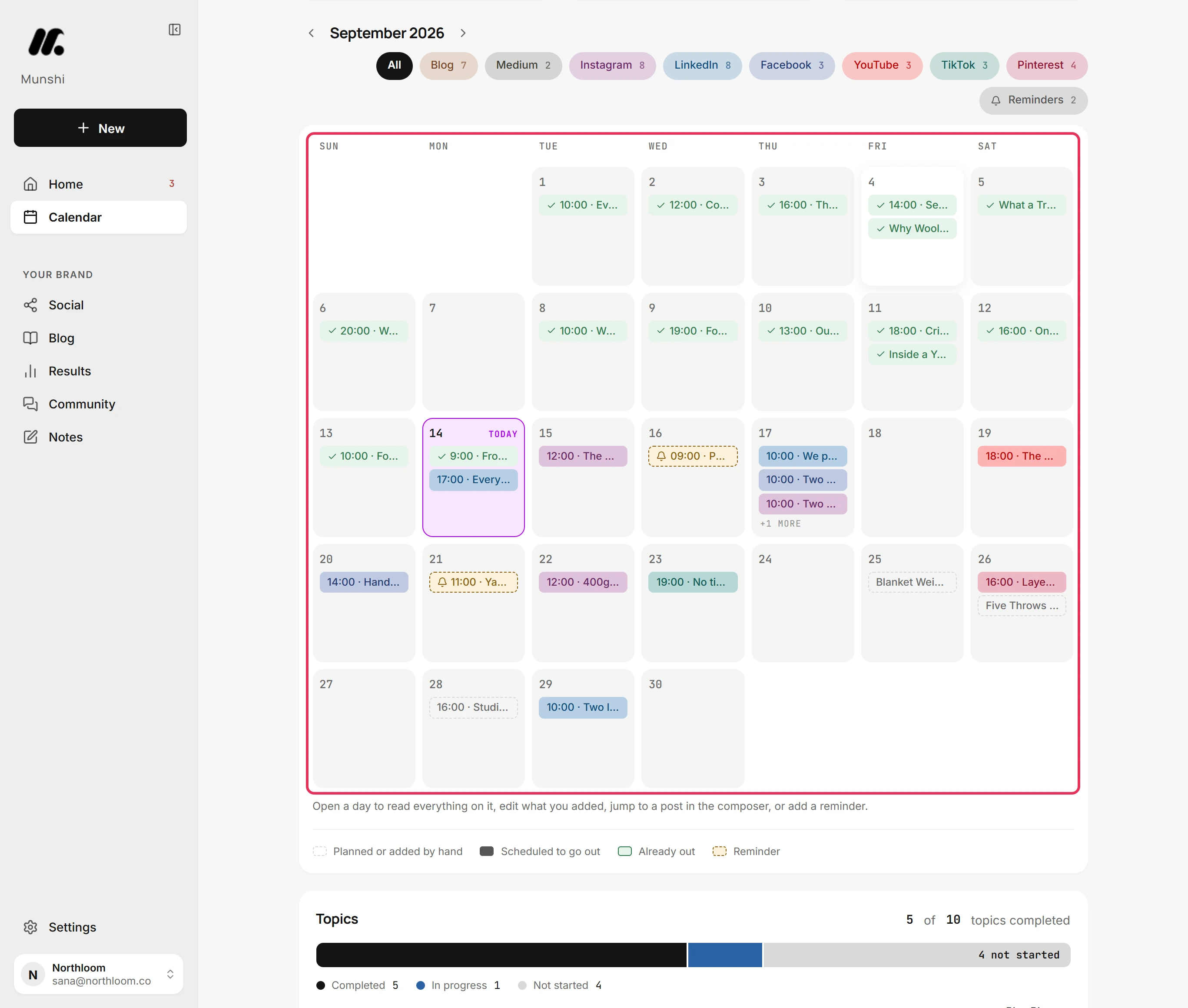
Step by step: How to read the calendar: day, week, month
Every month: read what the month earned
Results shows what the month earned. It opens on Overview, over 7 days, 30 days, 90 days or a custom range going back up to 365 days.
The Social card counts what went out, what it reached and what it earned. The Blogs card counts the articles live on your blog and what Google did with your pages.
Results also says what it does not know. A figure no network sent reads Not reported, which means missing, not zero. Where networks measure reach in different ways, the card says so instead of adding the numbers together.
Anything that needs Google says Not connected, with a link to connect it, instead of showing an empty chart.
The last line names the post with the most interactions in the window. More like this sits beside it to start the next one. With Search Console connected, it names the article with the most search clicks instead.
Higher up, Found through AI assistants lists visits sent by assistants such as ChatGPT and Perplexity, with the page each one landed on. It reads Google Analytics, so it asks you to connect that first.
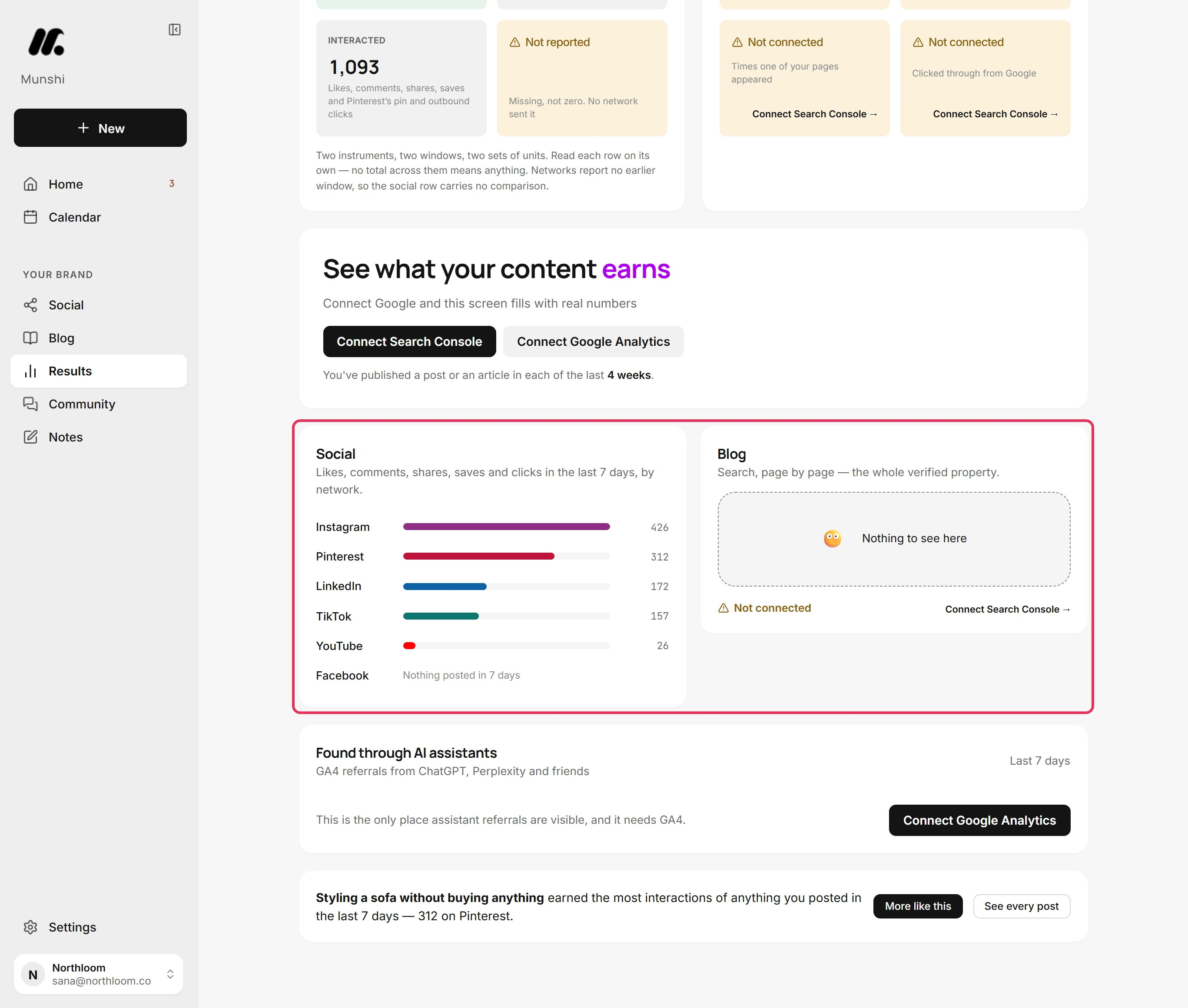
Step by step: Results overview: what landed and where it came from
Every month: update your content strategy
What you read on Results is what you change on Strategy. Open a focus area to rename it, remove a keyword with the cross beside it, or type a new search into the + keyword box. Every change saves as you make it.
Click a keyword with no tick, and Munshi adds a planned article named after it, ready for the writer. Generate articles maps out a fresh set for a focus area and keeps anything you added by hand.
With Search Console connected, the Strategy tab also shows You're being found for. It lists the Google searches that brought people to your site in the last 28 days, with the clicks each one earned. Write more about one sits beside them.
That is the loop. The brief feeds the focus areas, and the focus areas feed the articles. The articles become the week's social posts. What the posts and pages earn tells you which focus areas deserve more next month.
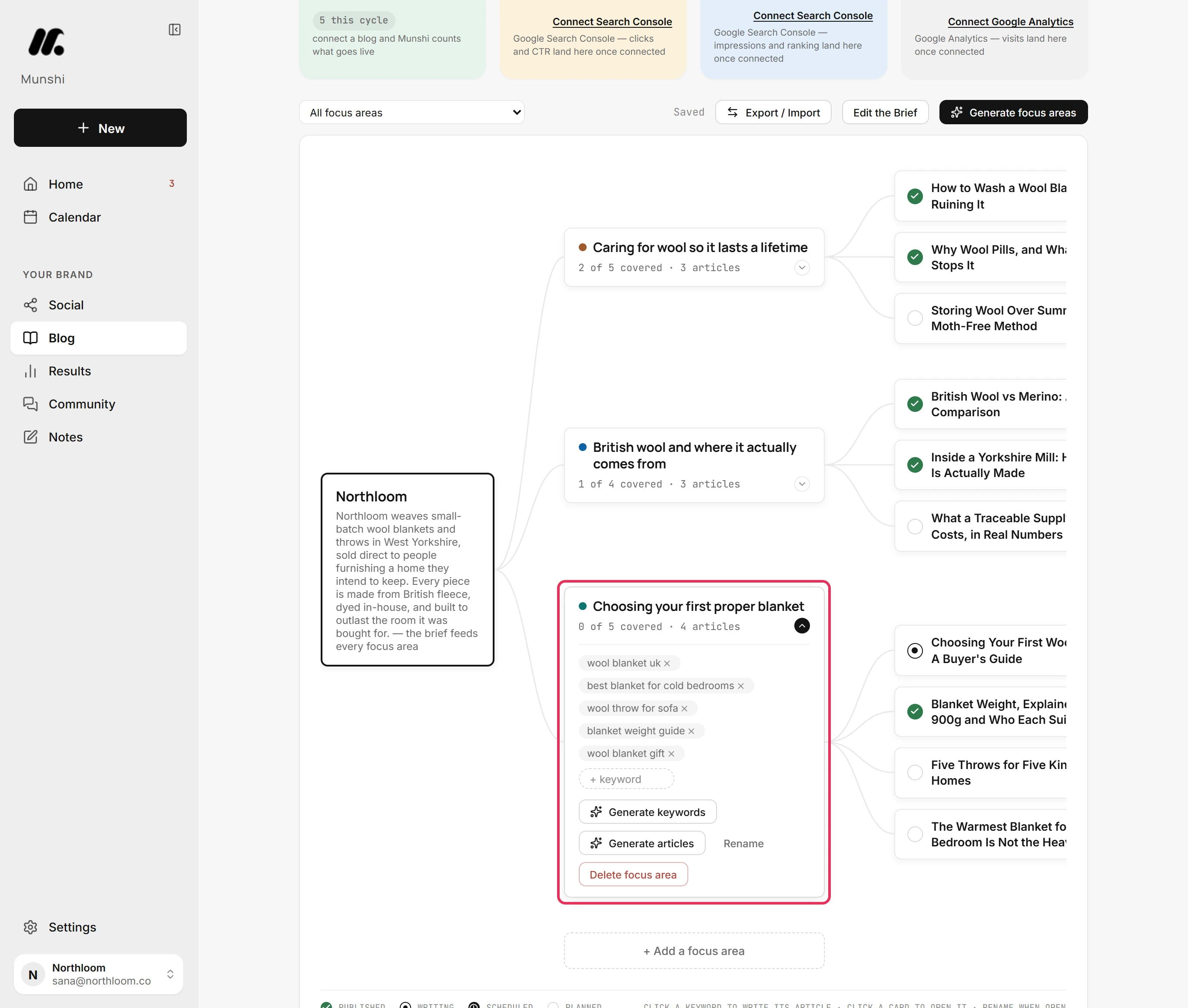
Step by step: How to edit your strategy: focus areas, keywords and content maps
The weekly sitting, stop by stop
The sitting has six stops, in this order, and takes about twenty minutes. Each one has a guide that walks through it.
| Stop | What you do | Where |
|---|---|---|
| Clear what needs your yes | Work down the queue: Approve, Review, Retry, Reconnect, Fix or Set up | Home |
| See what goes out this week | Read Upcoming, and the count of comments waiting on a reply | Home, then Calendar |
| Check the blog | Read Published, Writing now, Backlog and Focus areas; Continue picks up the article in progress | Blog |
| Fill the social week | Look at the Scheduled tab and write a post where the week has a gap | Social |
| Answer comments | Unanswered first, then Reply or Mark resolved | Community |
| Read the results | What your posts did next to what landed on your site | Results |
The full routine is in Twenty minutes a week: the routine.
What each plan gives you a month
| Plan | Articles | Posts | Brands | Price |
|---|---|---|---|---|
| Free trial | 3 | 50 | 1 | Free for 14 days, no card |
| Founding | 15 a month | 1,000 a month | 1 | $15 a month |
| Studio | 45 a month | 3,000 a month | 3 | $29 a month |
Studio splits its articles and posts between the three brands however you like. A daily fair-use cap on generation also applies per workspace, and it resets at 00:00 UTC. See full pricing.
What the cycle does not do
- It does not publish unread. There is no autopilot. Every article and every post waits for you, and approving an article still does not publish it.
- It does not email you when something breaks. A failed post, a stopped job or a network that signed you out shows in the app, on Home and in the jobs dock. Munshi emails you only a welcome, your sign-in codes and a reply to a bug report.
- It does not post to X. X reads Coming soon in Integrations and cannot be connected today. A post can reach the other eight networks.
- It holds one account per network, per workspace. That means one Instagram, one LinkedIn, and so on. An account another workspace already uses is refused, so disconnect it there first. Pinterest is the exception: it does not check, so two workspaces can publish to the same Pinterest account.
- It publishes to one blog. A workspace sends its articles to the one destination you choose in Integrations. Other platforms work by copy or export.
- You cannot drag a post to another day. Open the day, then edit the time in the composer or unschedule the post back to drafts.
Questions people ask
How does Munshi work?
Munshi runs a content cycle with three rhythms, and you approve everything it writes. On day one, Munshi reads your website, and you fill in your Brief and brand and connect your accounts. Every week, one sitting clears what needs your yes, checks the blog and social week, answers comments and reads the results. Every month, you read what the content earned and change your strategy.
How long does setup take?
The app puts about five minutes on the website scan and the plan, which are four screens. The 18 Brief answers and the brand kit take longer, and you can do both after setup. Each network connects with one sign-in window, except Bluesky, which takes an app password.
How much time does it take each week?
About twenty minutes, in one sitting with six stops: Home, the calendar, the blog, the social week, comments and results. Weeks with no failures and a short queue are quicker, because Home tells you when nothing is waiting.
Does anything publish without me approving it?
No. Social drafts wait on the Drafts tab until you pick Post now or Schedule. Articles wait until you click Mark completed, and even that does not publish them. You then fill in the SEO fields until the score reaches 60 out of 100, and choose publish now or a schedule.
What happens if a post fails to go out?
The post goes back to Drafts with the network's reason, and Home lists it with a Retry button on its row. Failed jobs also stay in the jobs dock for a day, with the reason written out. Munshi does not email you about it, so the app is the place to look.
Where does Munshi publish?
Blog articles go to WordPress, Ghost, Webflow, Framer, or Sanity, one destination per workspace. Ghost, Webflow, and Framer take them as drafts you publish from your own dashboard. WordPress does too, except for scheduled articles, and Sanity goes live on schedule. Social posts go to Instagram, TikTok, LinkedIn, Facebook, Pinterest, Threads, YouTube and Bluesky, one account per network per workspace, and X is coming soon.
Can I run the weekly sitting on my phone?
Yes. Munshi runs in a phone browser with the same account and the same workspaces. The bottom bar holds Home, Calendar, Social, Community and Results, and a red number on Home counts what is waiting. The menu holds Blog, Notes and Settings, and the calendar opens on the week instead of the month.
What if the first plan is wrong?
Change it before anything is written. During setup, Edit this strategy reworks the plan. Afterwards, on the Strategy map, you can rename a focus area, add or remove keywords, plan an article from a keyword or replace generated articles. Every change saves as you make it.
Every step of the cycle, in the app
Each one walks a single task through the real app, with a screenshot at every step.
- How to sign in for the first time: email code or Google 2 min · 6 steps
- How to set up your workspace from your website 4 min · 9 steps
- How to fill in your Brief 4 min · 9 steps
- How to set up your brand kit for article covers 3 min · 7 steps
- How to connect your first channel 3 min · 8 steps
- Twenty minutes a week: the routine 20 min · 6 steps
- Home: what needs your yes 2 min · 8 steps
- The jobs dock: what is running, what failed 2 min · 7 steps
- How to review, edit and approve an article 3 min · 7 steps
- How to create and schedule a post 2 min · 10 steps
- How to read the calendar: day, week, month 3 min · 8 steps
- Results overview: what landed on your site and where it came from 3 min · 9 steps
- How to edit your strategy: focus areas, keywords and content maps 3 min · 9 steps
- What Munshi emails you, and what it never does 1 min read
- How to use Munshi on your phone 2 min · 8 steps