How to use Munshi on your phone
On a phone, Munshi puts your daily pages in a bottom bar and everything else in a menu. The plus button at the top starts a post from any page.
Before you start
- Munshi open in your phone's browser and signed in. It is the same account, with the same workspaces, as on your computer. Staying signed in explains how each device signs in.
-
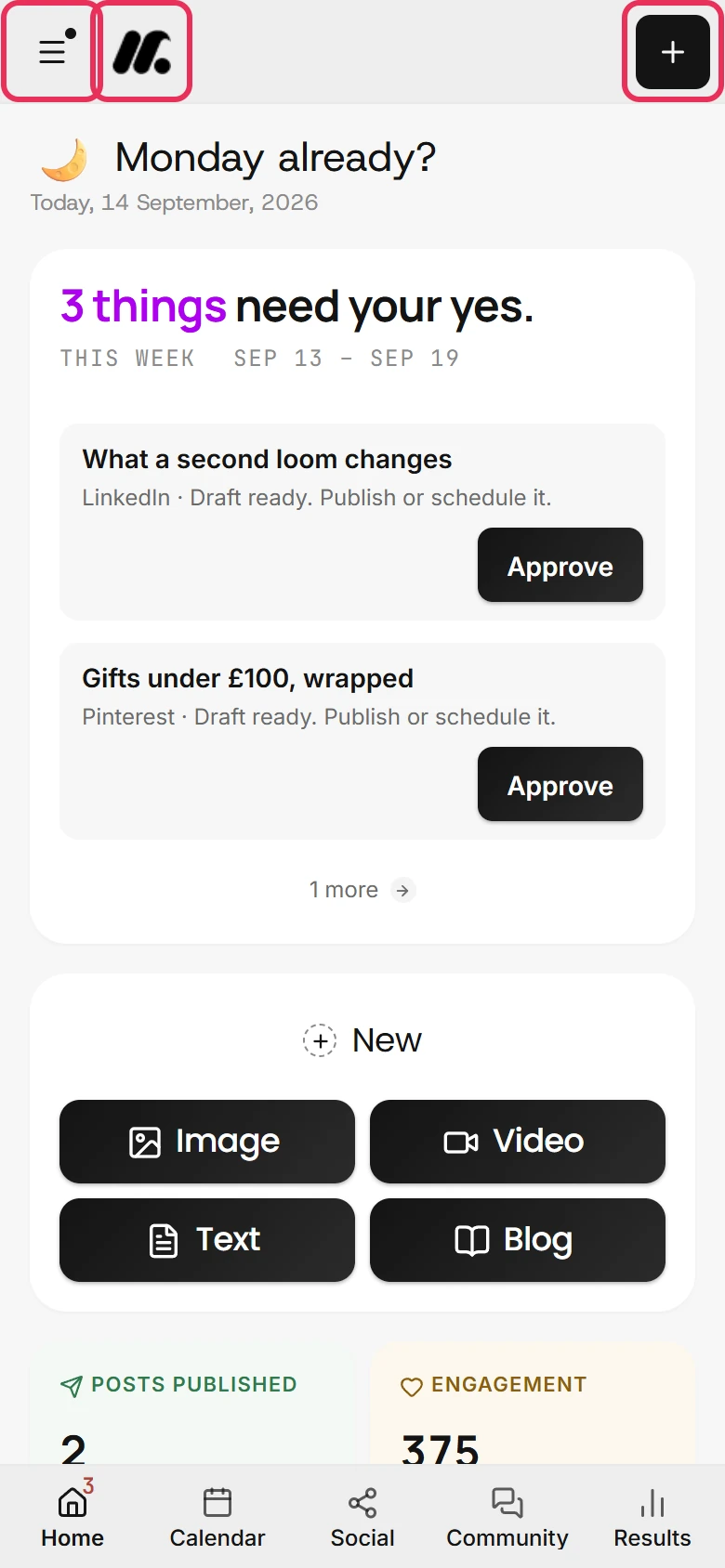
On a phone, Munshi swaps the sidebar for a bar at the top and a bar at the bottom. Both stay in place as you scroll. The top bar holds the menu button, the Munshi mark and the plus button. The Munshi mark takes you back to Home, and the plus button starts a new post or article.
-
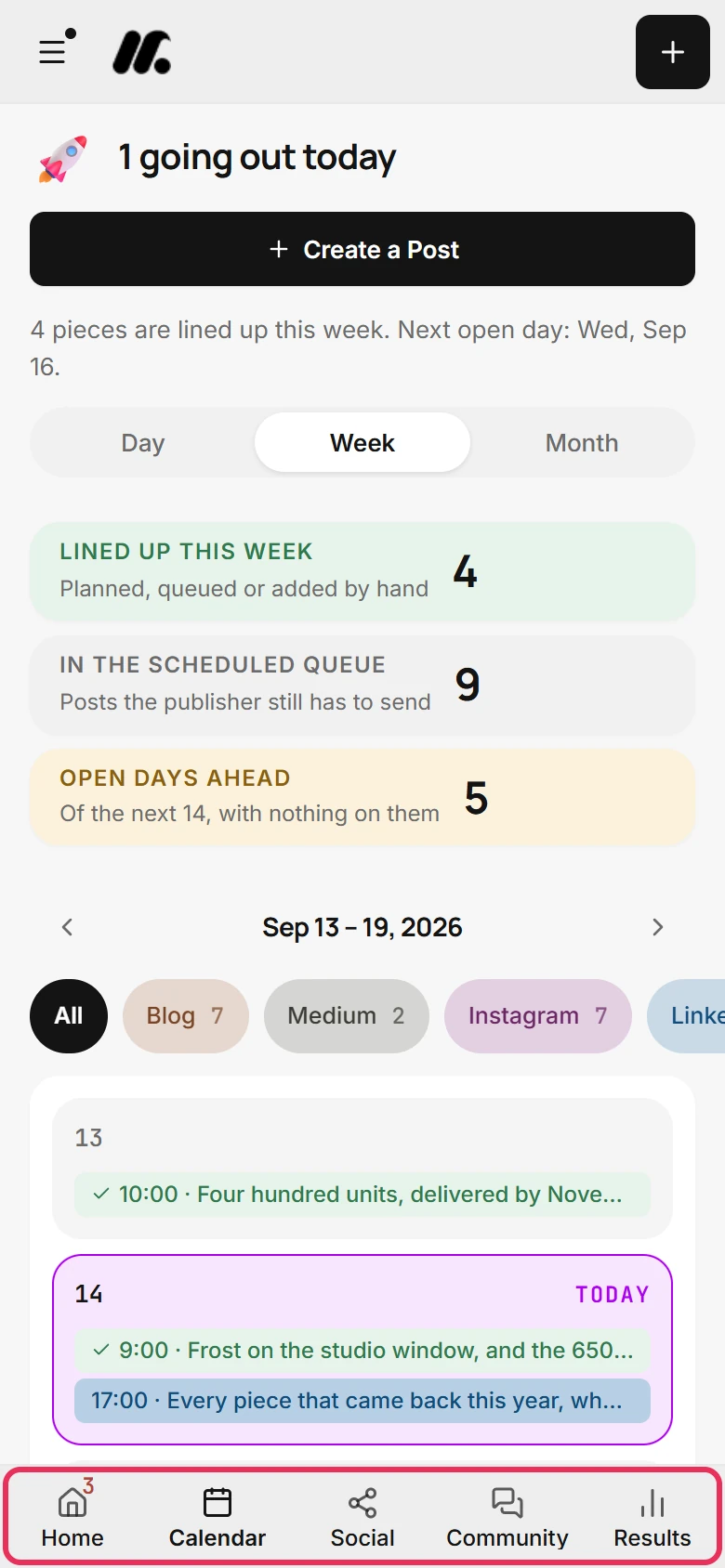
The bottom bar holds Home, Calendar, Social, Community and Results. Tap one to go there. The page you are on shows in bold. The red number on Home counts what is waiting on you, as Home: what needs your yes explains.
-
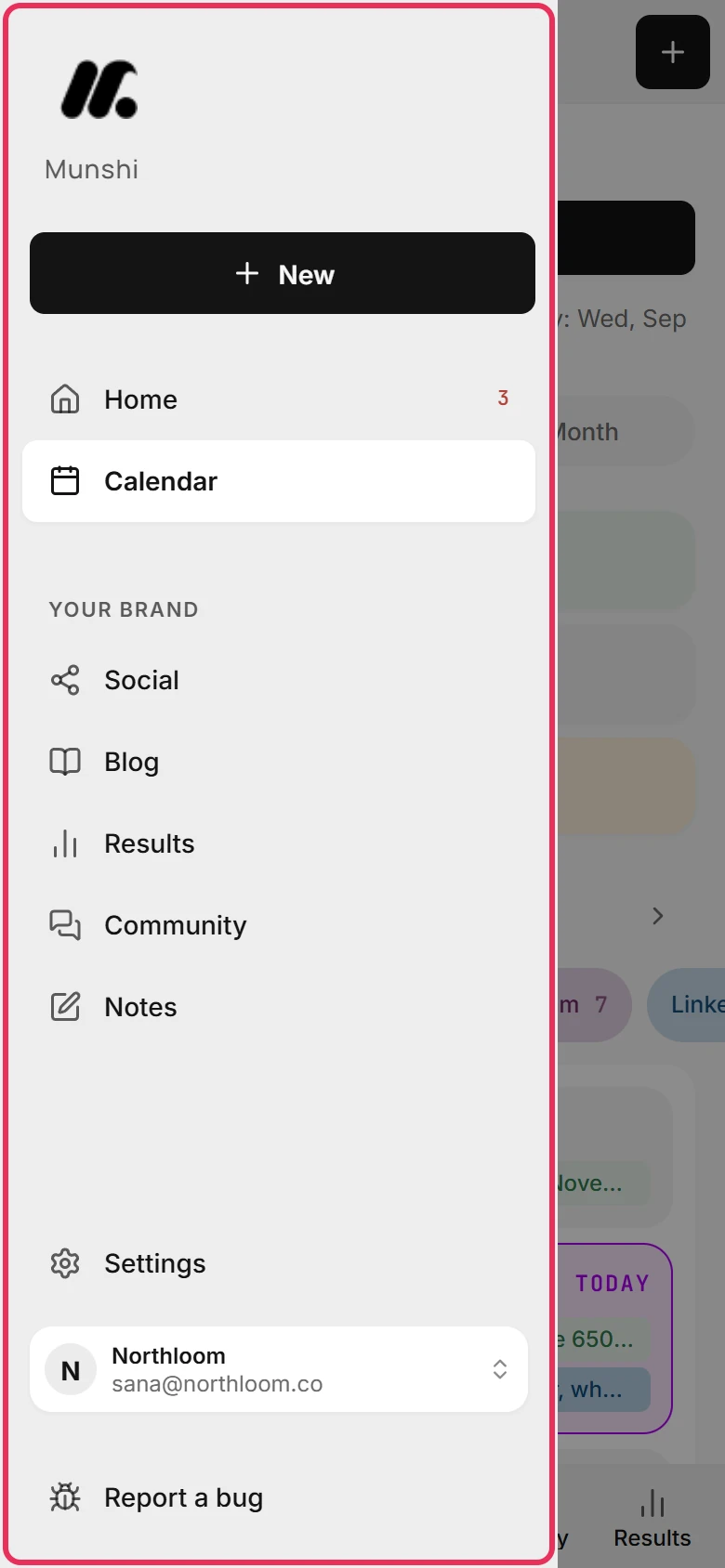
Tap the menu button at the top left. The drawer holds the whole sidebar. At the top are New, Home and Calendar. Under Your brand are Social, Blog, Results, Community and Notes. At the foot are Settings, your workspace and Report a bug. Tap the dimmed page beside the drawer to close it without going anywhere.
-
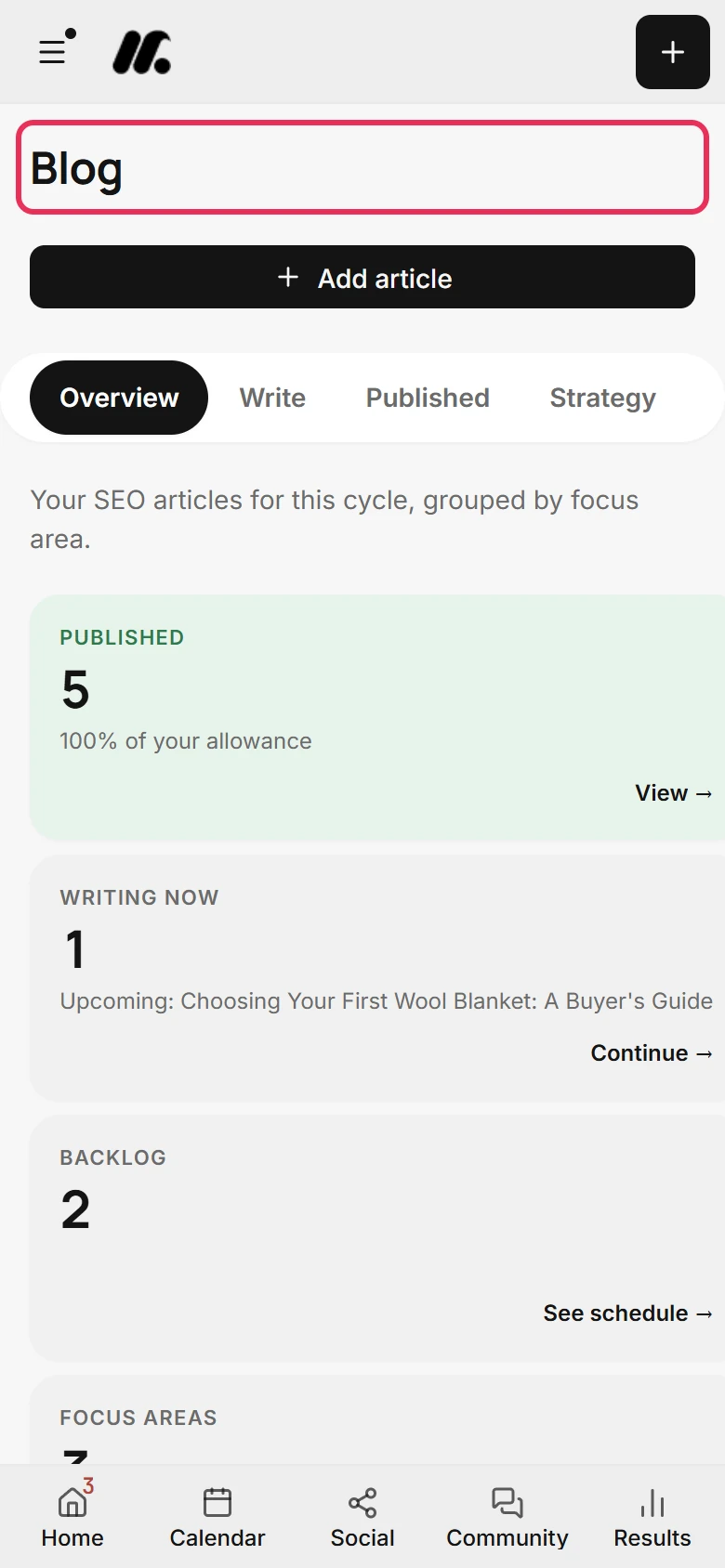
Tap a page in the drawer. The drawer closes as the page opens. Blog and Notes are only in the drawer, so on those pages nothing in the bottom bar is highlighted.
-
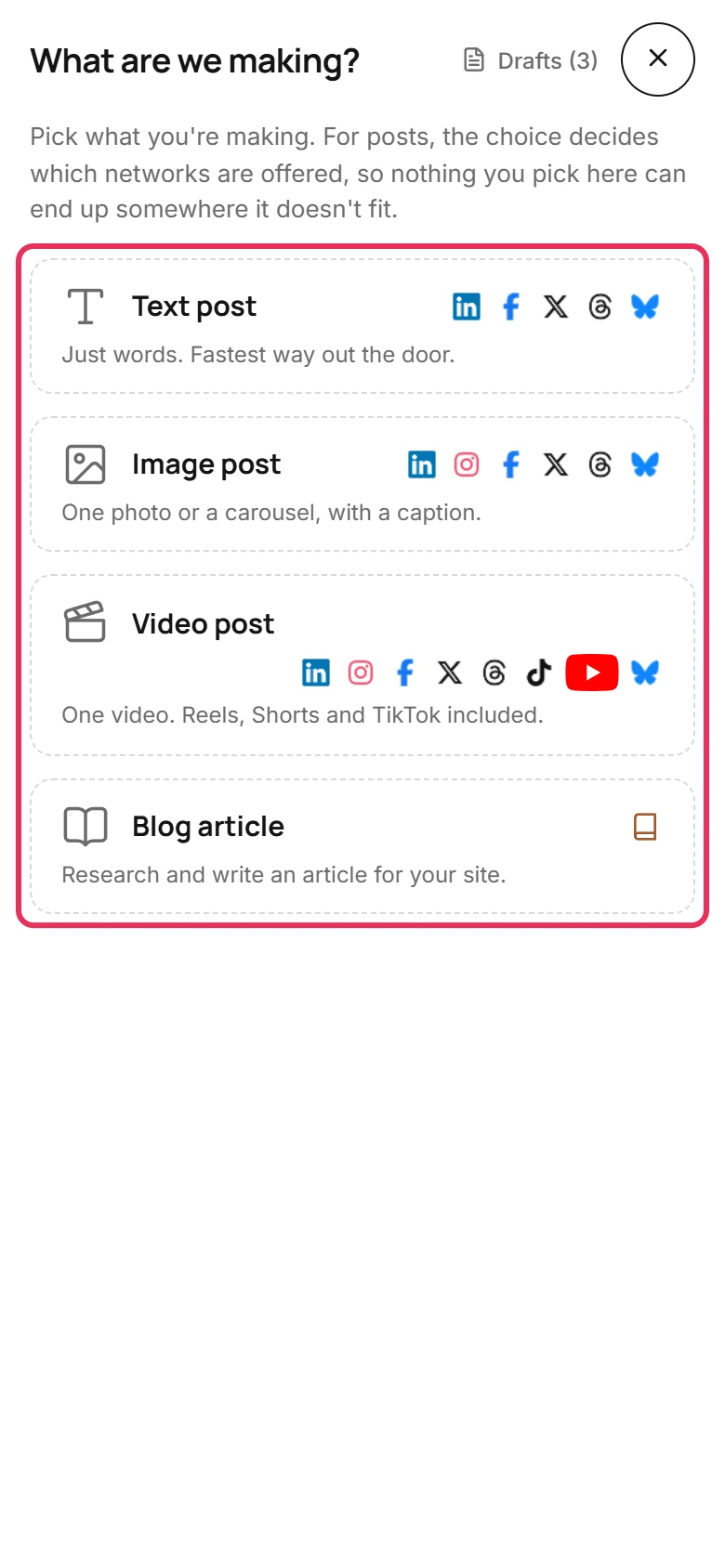
Tap the plus button at the top right, on any page. The composer fills the screen and asks What are we making? Below it, Text post, Image post, Video post and Blog article are stacked one under another.
-
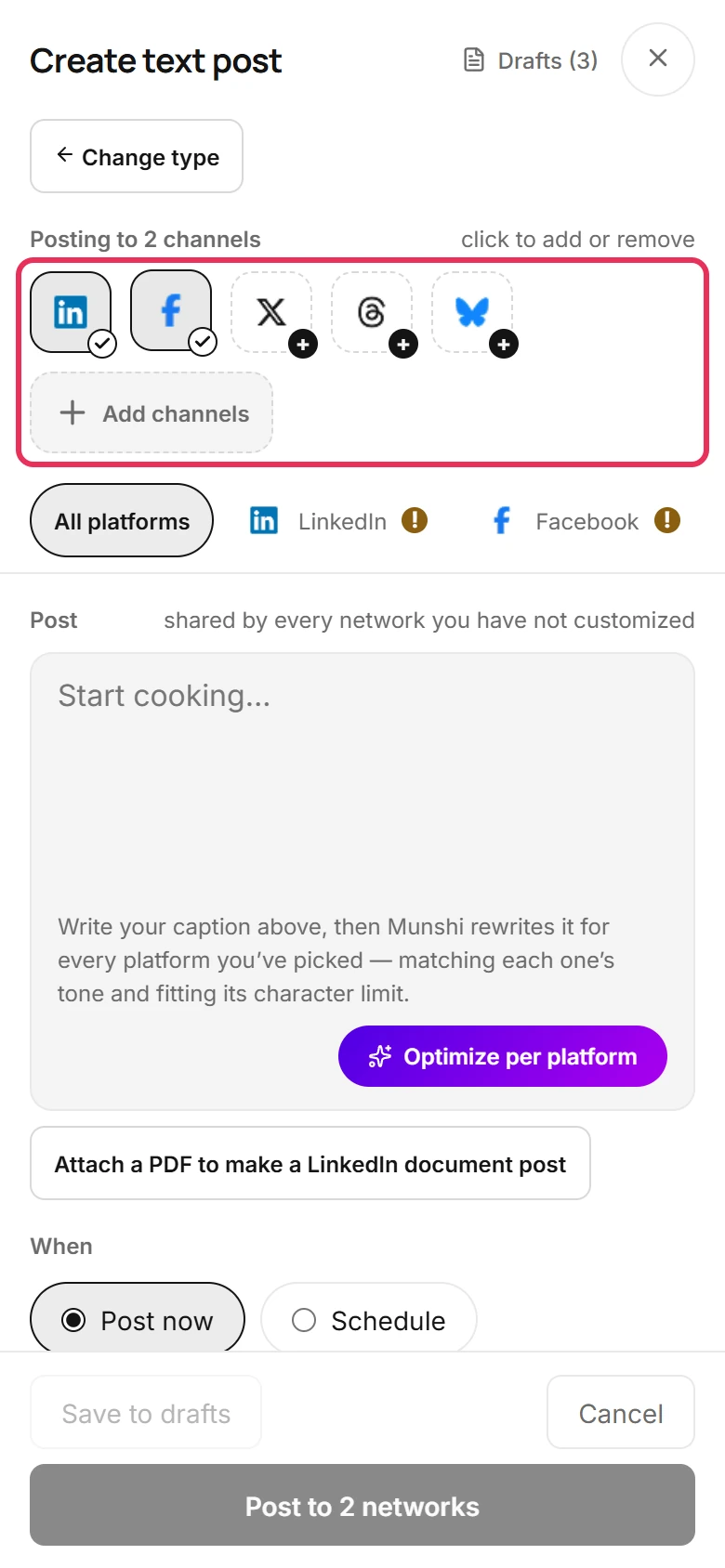
Pick Text post, then tap a network to add it or take it off. Here, Facebook was added. Each network you pick gets its own tab below the row. The tabs scroll sideways when they do not all fit.
-
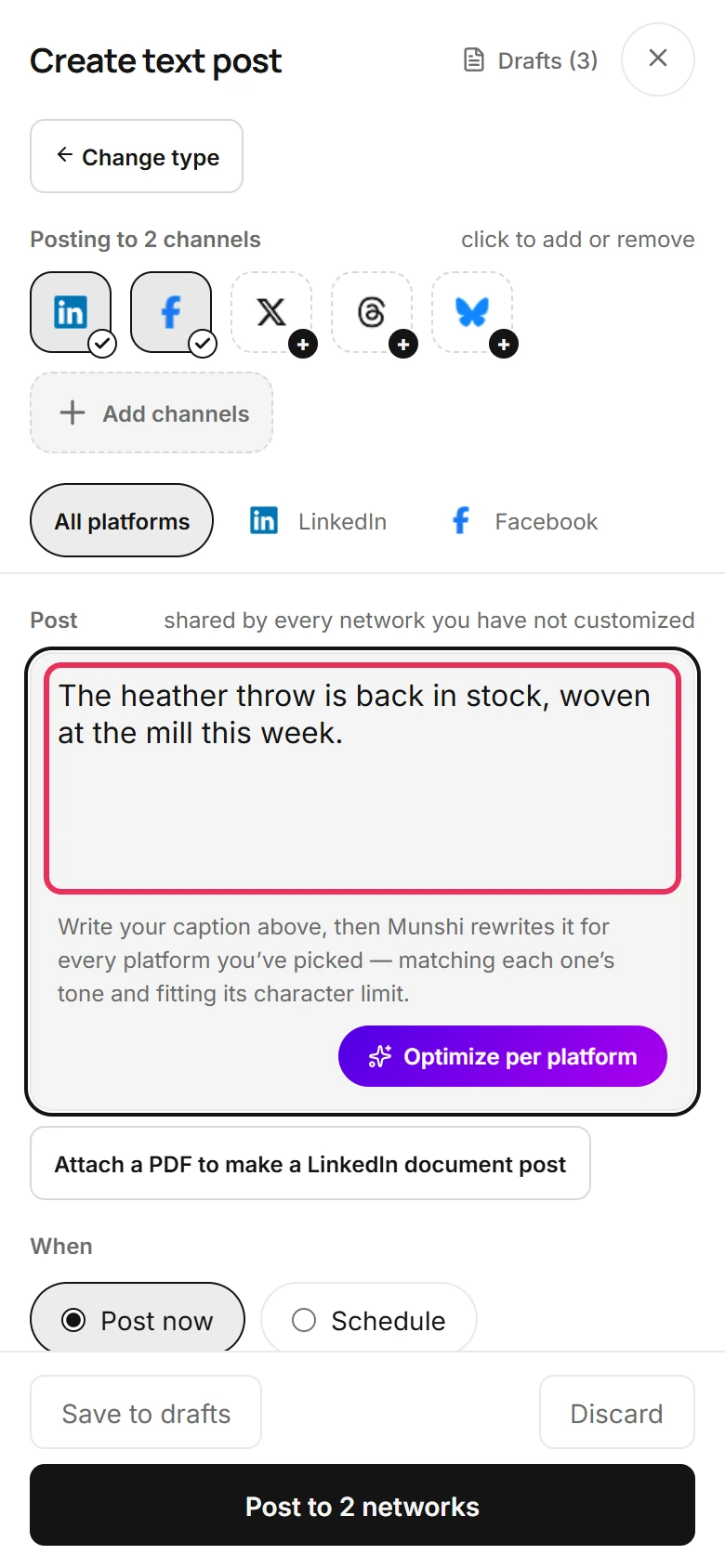
Write in the Post box under All platforms. Every network starts from this version. The composer scrolls on its own, while its title stays at the top and its buttons stay at the bottom.
-
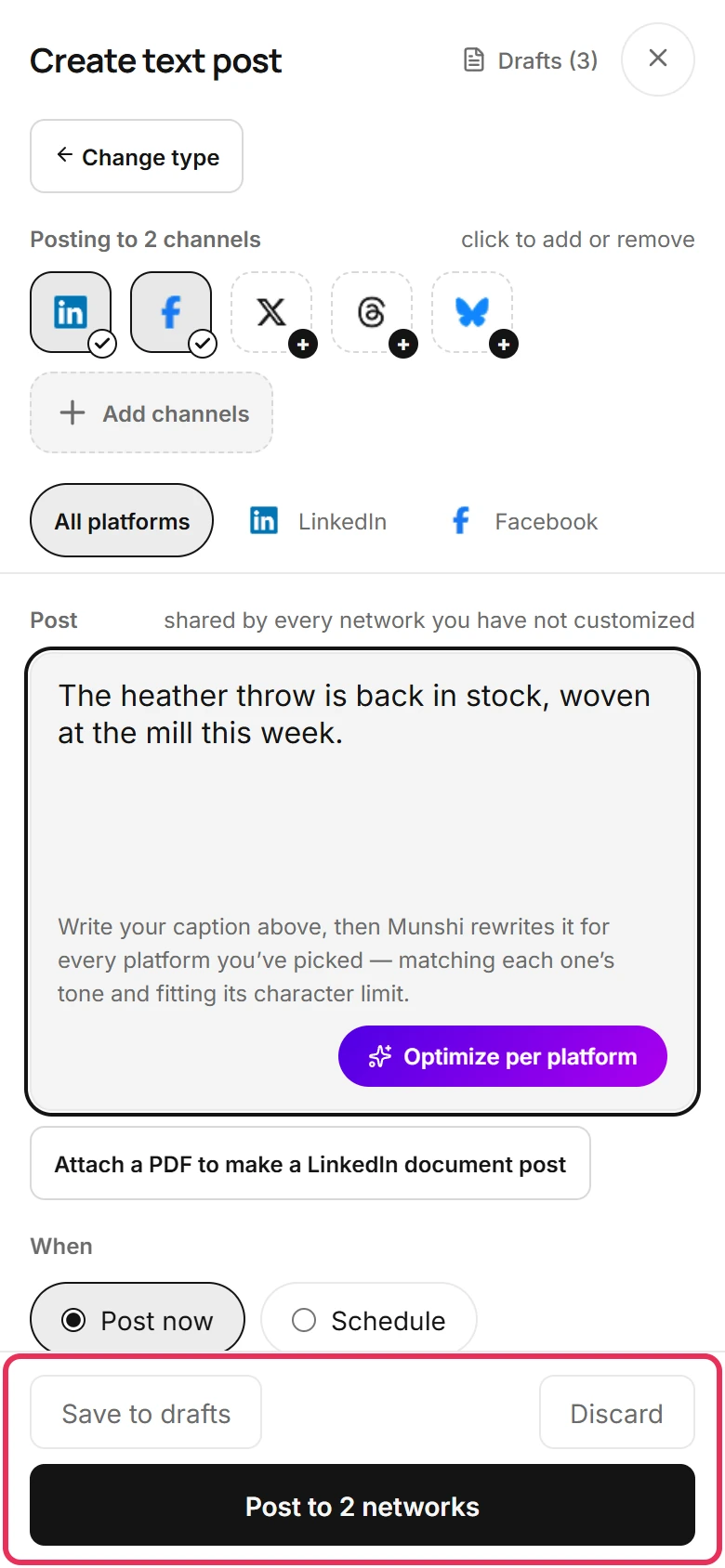
The wide button at the bottom posts or schedules. Its label says which, like Post to 2 networks. Save to drafts keeps the post for later. Discard closes the composer without keeping anything.
Where you are now
Home, Calendar, Social, Community and Results are one tap away in the bottom bar. The menu holds everything else, and the plus button starts a post from any page.
If something goes wrong
“Saved your post to drafts. Delete it there if you meant to discard.”
Open Social and its Drafts tab to finish the post or delete it. You closed the composer with the cross at the top, so Munshi kept what you wrote. To close without keeping anything, tap Discard.
The dot on the menu button does not go away
Work through the list on Home and the dot goes. It stays while something on Home is waiting for you, such as a draft to approve or a post to retry.
I see a column of icons instead of the two bars
Your screen is wider than a phone. Between 721 and 1023 pixels wide, as on most tablets, Munshi shows the sidebar as a narrow rail of icons. The plus button for New is near the top. From 1024 pixels up you get the computer layout.
Try it on your own brand this week.
Munshi Social, the AI content marketing engine for small teams, plans, writes, publishes, and tracks your blog and socials. The guide above shows the real app, not a mock-up.
Start your workspace