How to use Notes: briefs, folders and checklists
Notes keeps campaign briefs and to-do lists next to your content. Make a colour-tagged folder, write a note with a checklist, and it saves as you type.
-
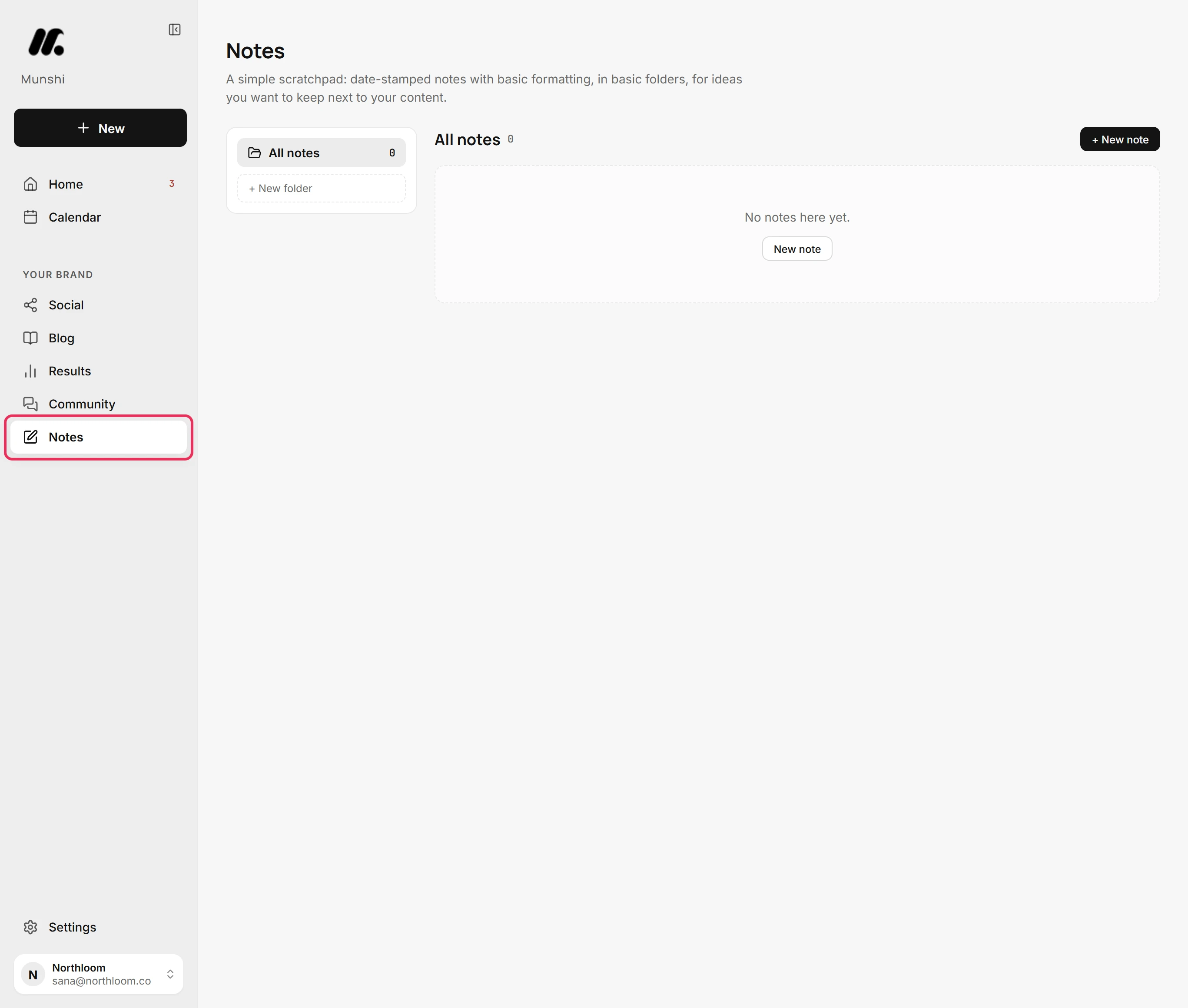
Click Notes in the sidebar, under Your brand. Notes is a scratchpad for what you want to keep next to your content, such as briefs, angles and to-do lists.
-
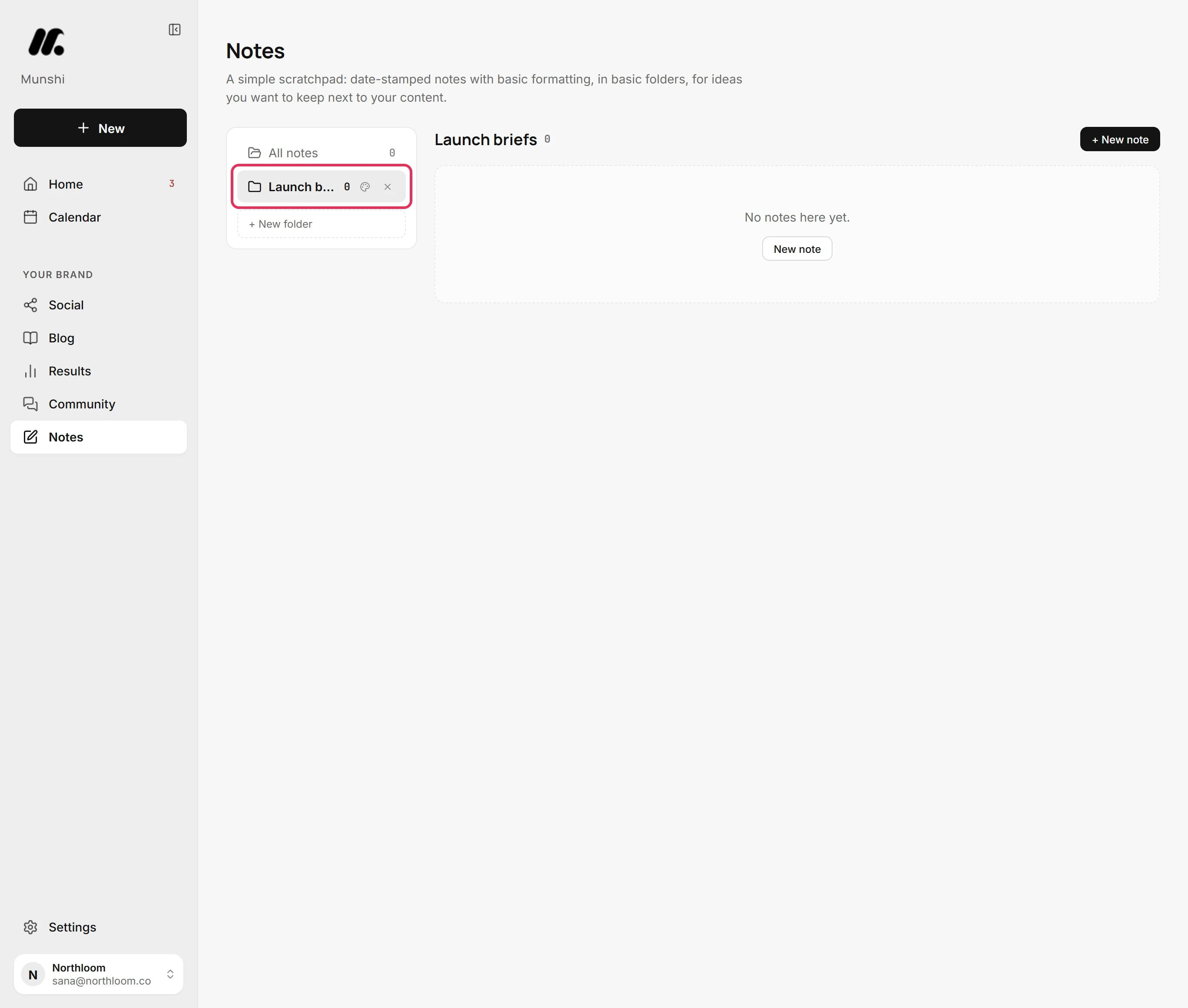
Click + New folder, type a name and press Enter. The folder opens, ready for its first note.
-
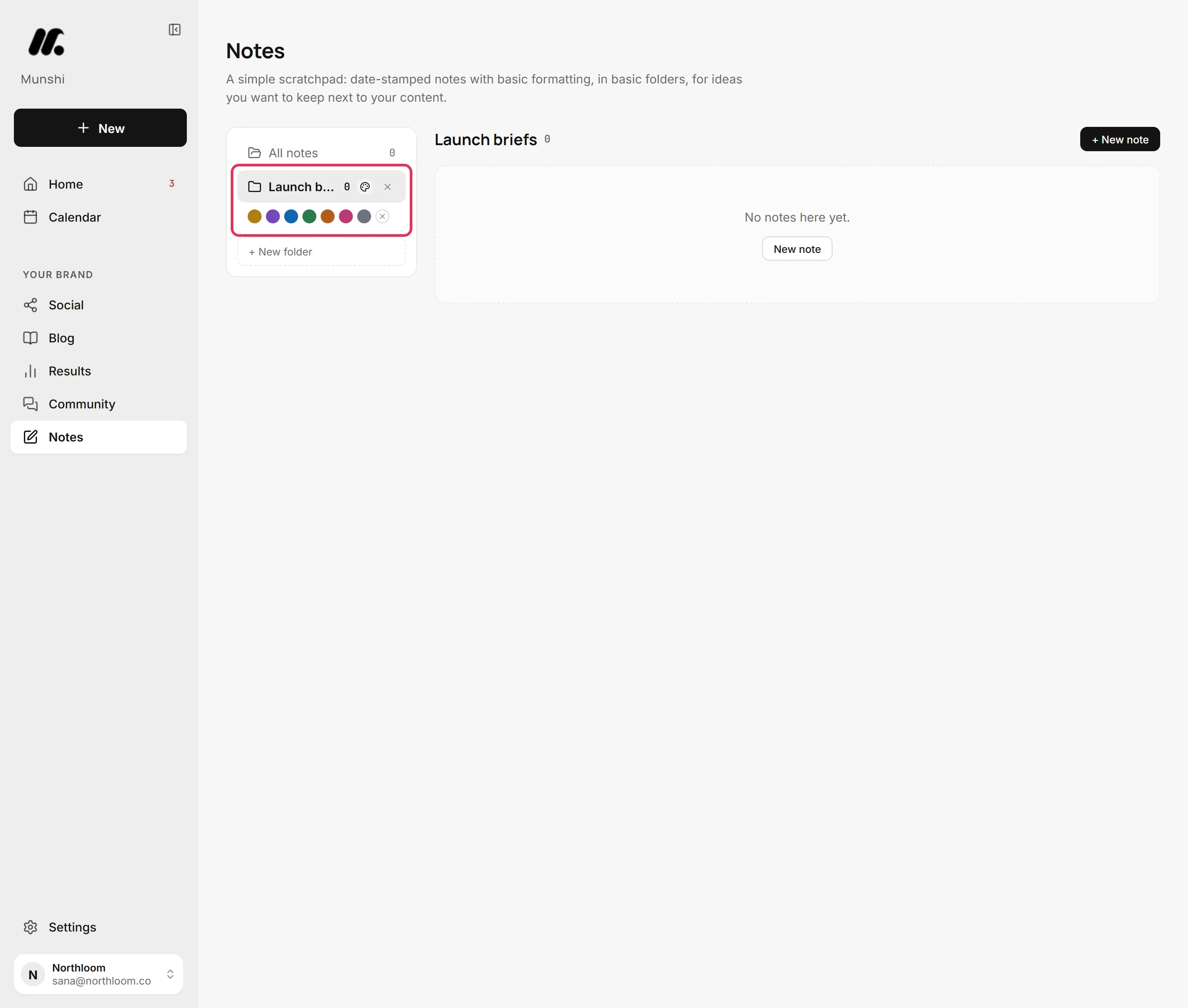
Point at the folder and click the palette beside its name. Pick one of the seven colours. The colour shows on the folder's icon and on the folder's name on every card in All notes.
-
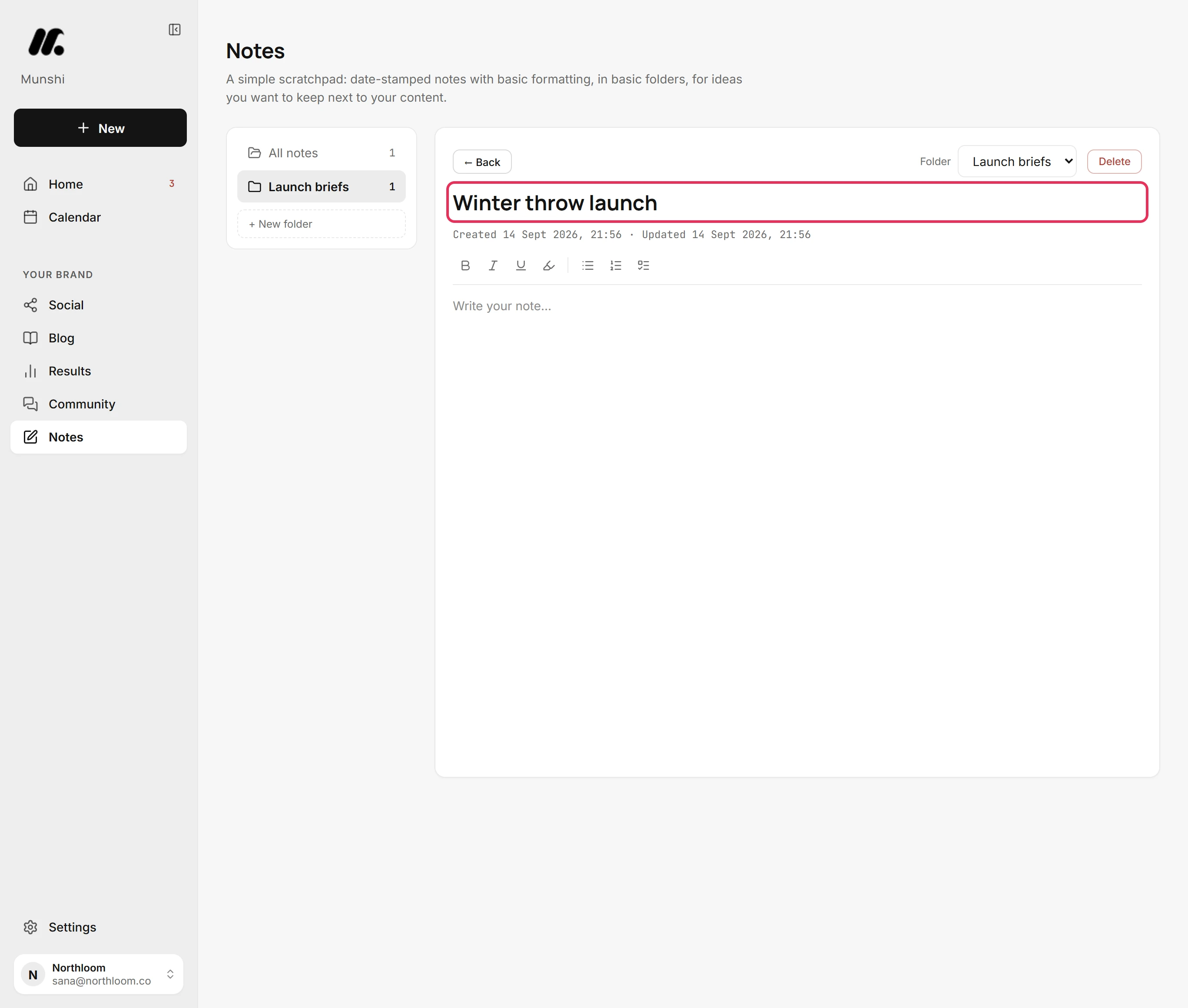
With the folder open, click + New note and type a title. A note starts in the folder you are in.
-
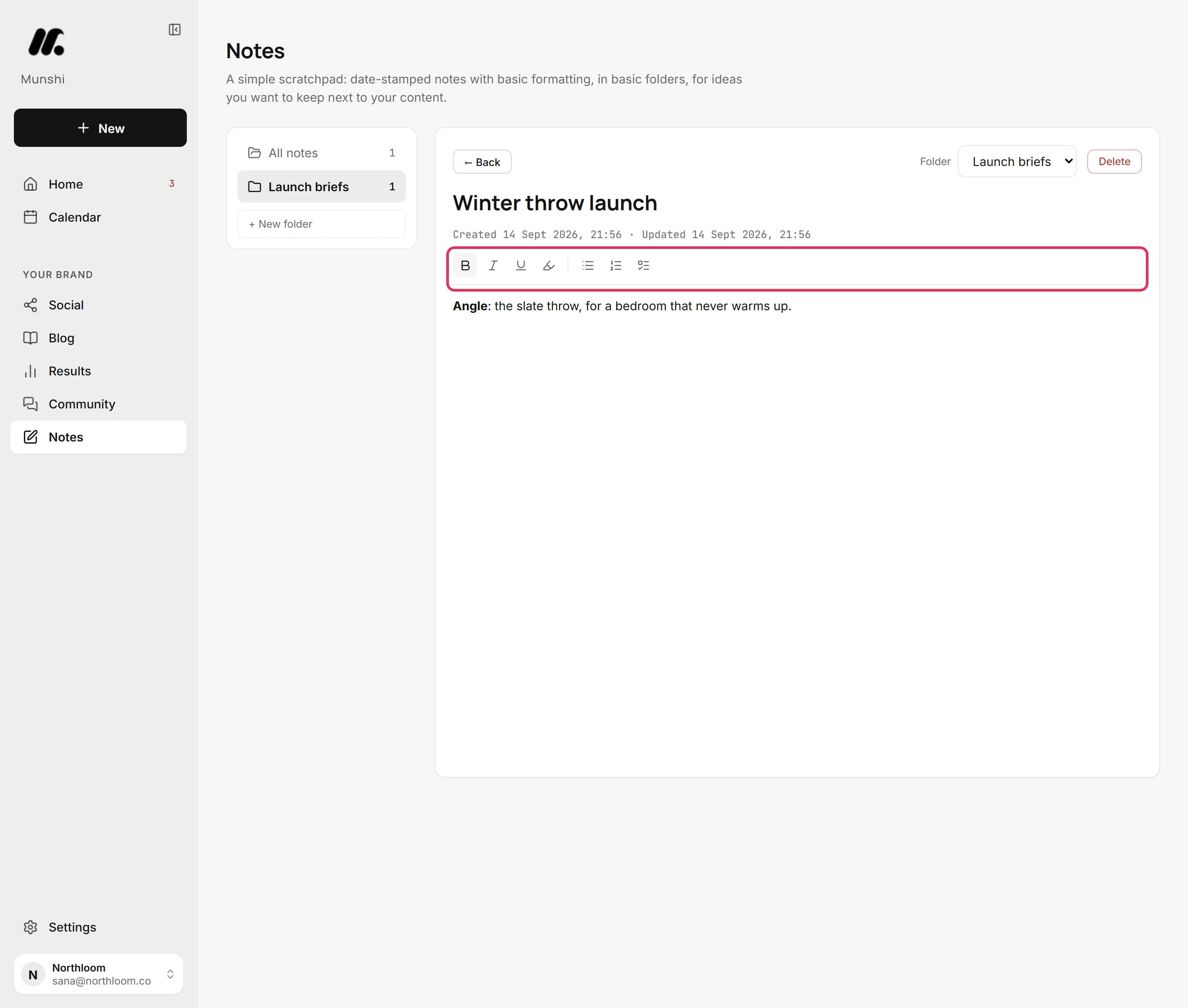
Type under the title. The toolbar above the text sets Bold, Italic, Underline and Highlight. It also starts a Bullet list or a Numbered list.
-
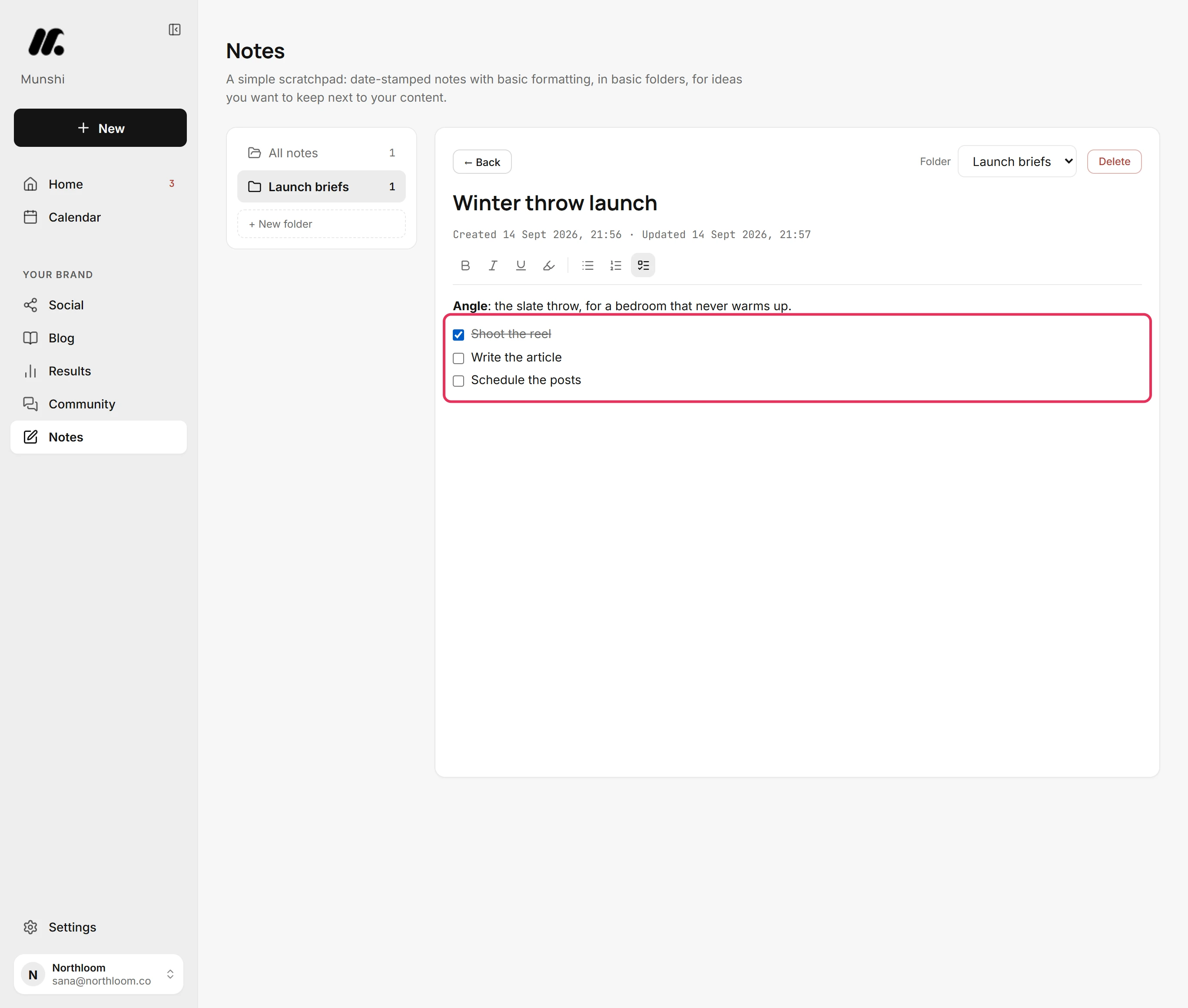
Click Checklist on the toolbar and type one item per line. Tick an item when it is done. It stays in the list, struck through.
-
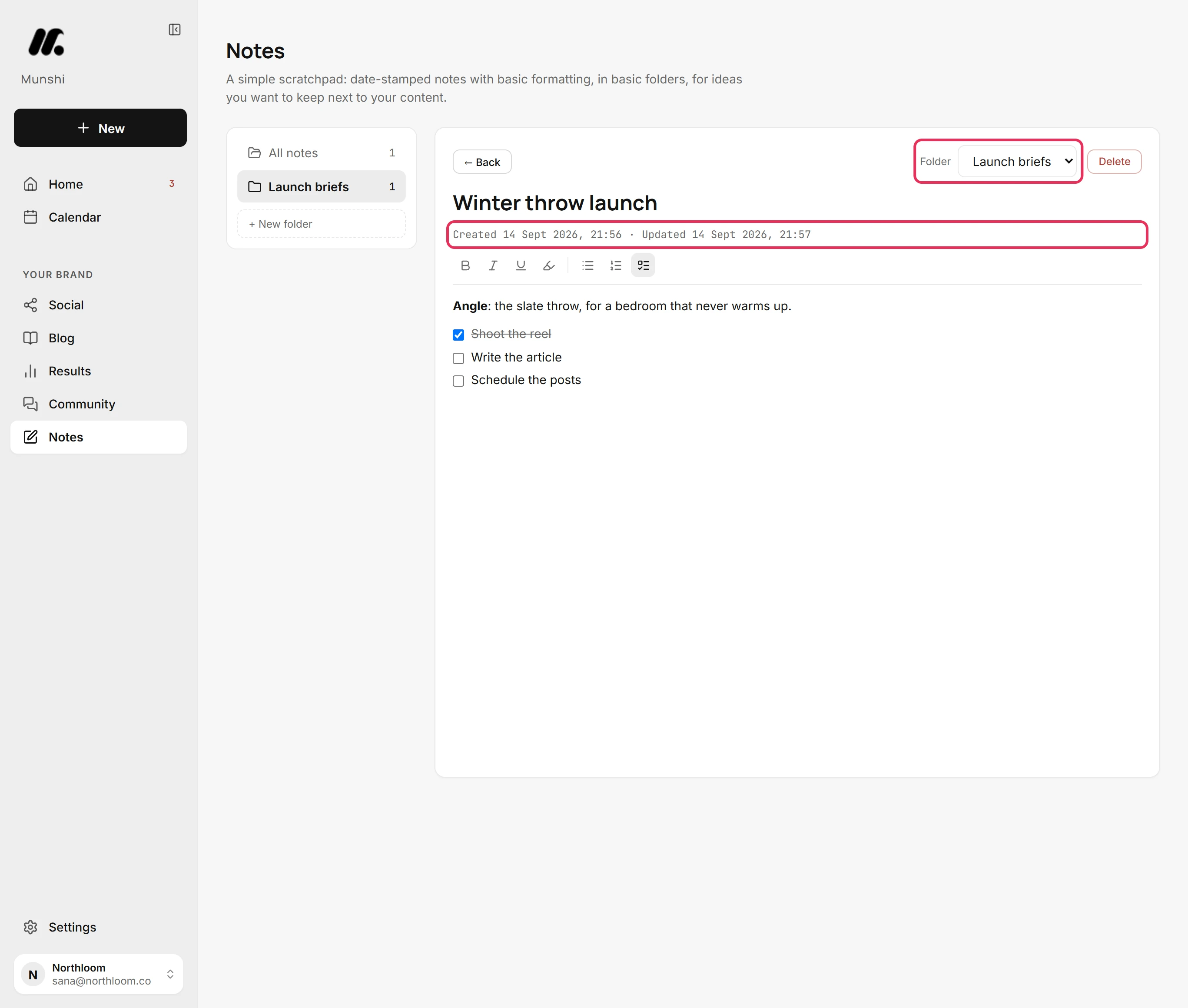
There is no Save button. Each change saves a moment after you type. The line under the title shows when the note was created and last updated. Use the Folder menu to move the note to another folder.
-
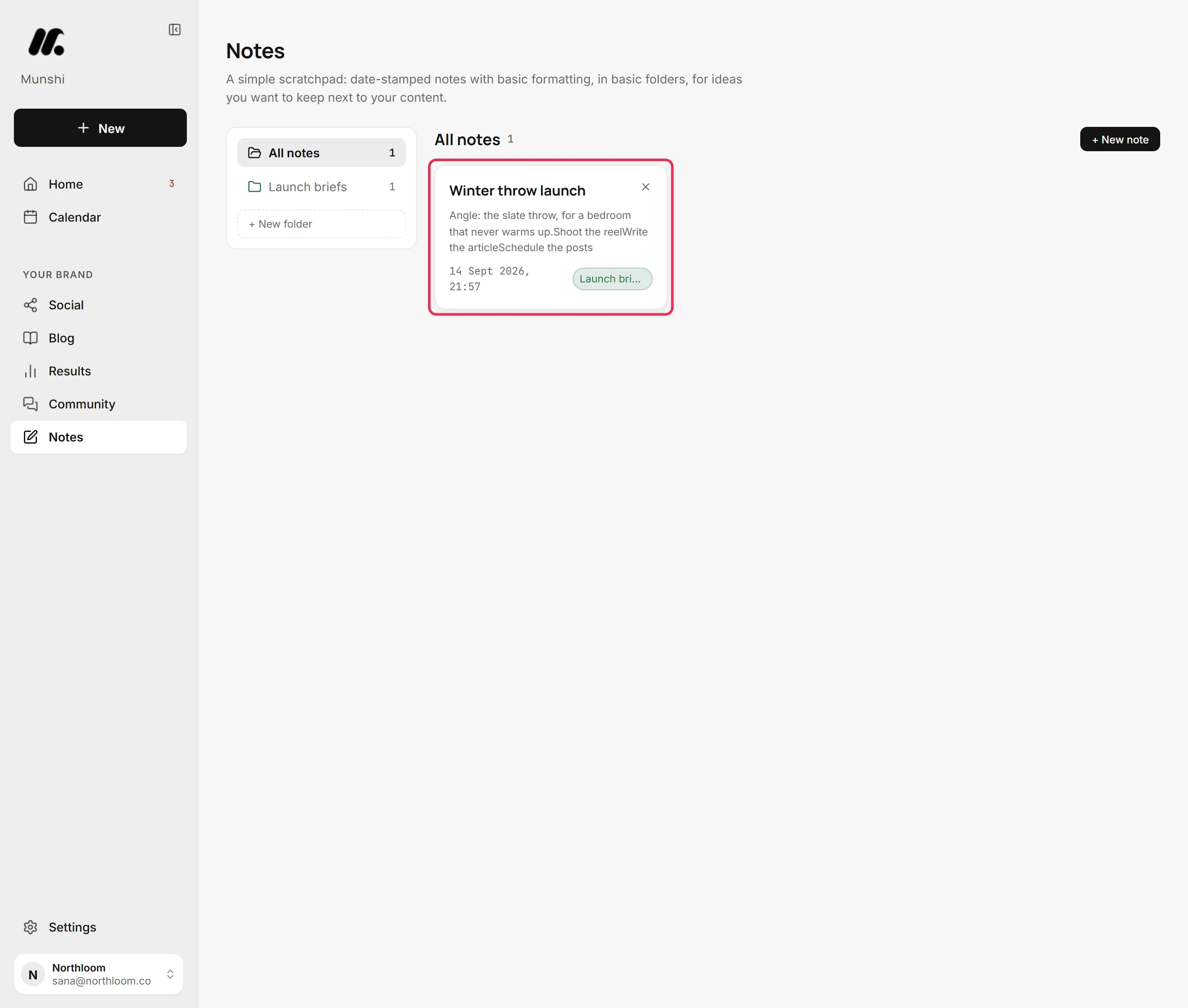
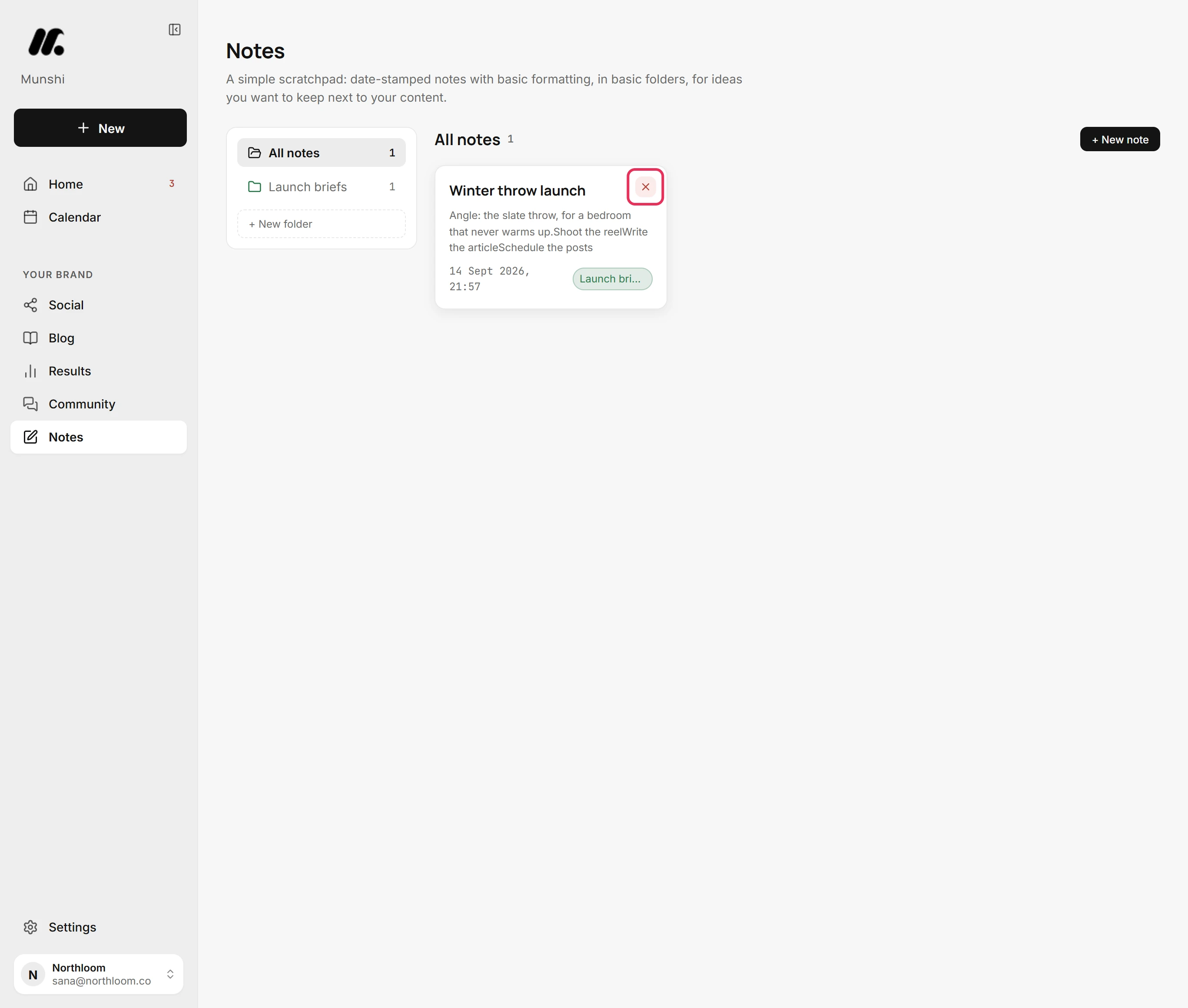
Click Back, then All notes. Every note is a card with the start of its text and its date. In All notes, each card also names its folder in the folder's colour.
-
Click the cross on a card, or Delete inside an open note. The note goes at once, without a confirmation. It cannot be brought back.
Where you are now
You have a colour-tagged folder with a brief and its checklist in it, saved as you typed. The note waits in its folder and in All notes until you need it.
If something goes wrong
“This note is not saved yet. Use Retry next to it.”
Press Retry next to the stamps once you are back online. Two saves in a row did not reach Munshi, usually because the connection dropped. Your text is still in the editor.
“We couldn't load your notes.”
Press Try again. Munshi could not read your notes, which is not the same as having none.
A folder is gone, and its notes are in All notes
Make the folder again and move each note back with the Folder menu. The folder was removed with the cross beside its name. Removing a folder never deletes its notes.
Try it on your own brand this week.
Munshi Social, the AI content marketing engine for small teams, plans, writes, publishes, and tracks your blog and socials. The guide above shows the real app, not a mock-up.
Start your workspace