How to connect Google Analytics
In Settings > Integrations, click Connect with Google under Google Analytics. Then pick your site's property, add one, or set up a new Analytics account.
Before you start
- A Google account that can see your site's Google Analytics property, or one that can create an Analytics account. A property is the place in Analytics that holds one site's data.
-
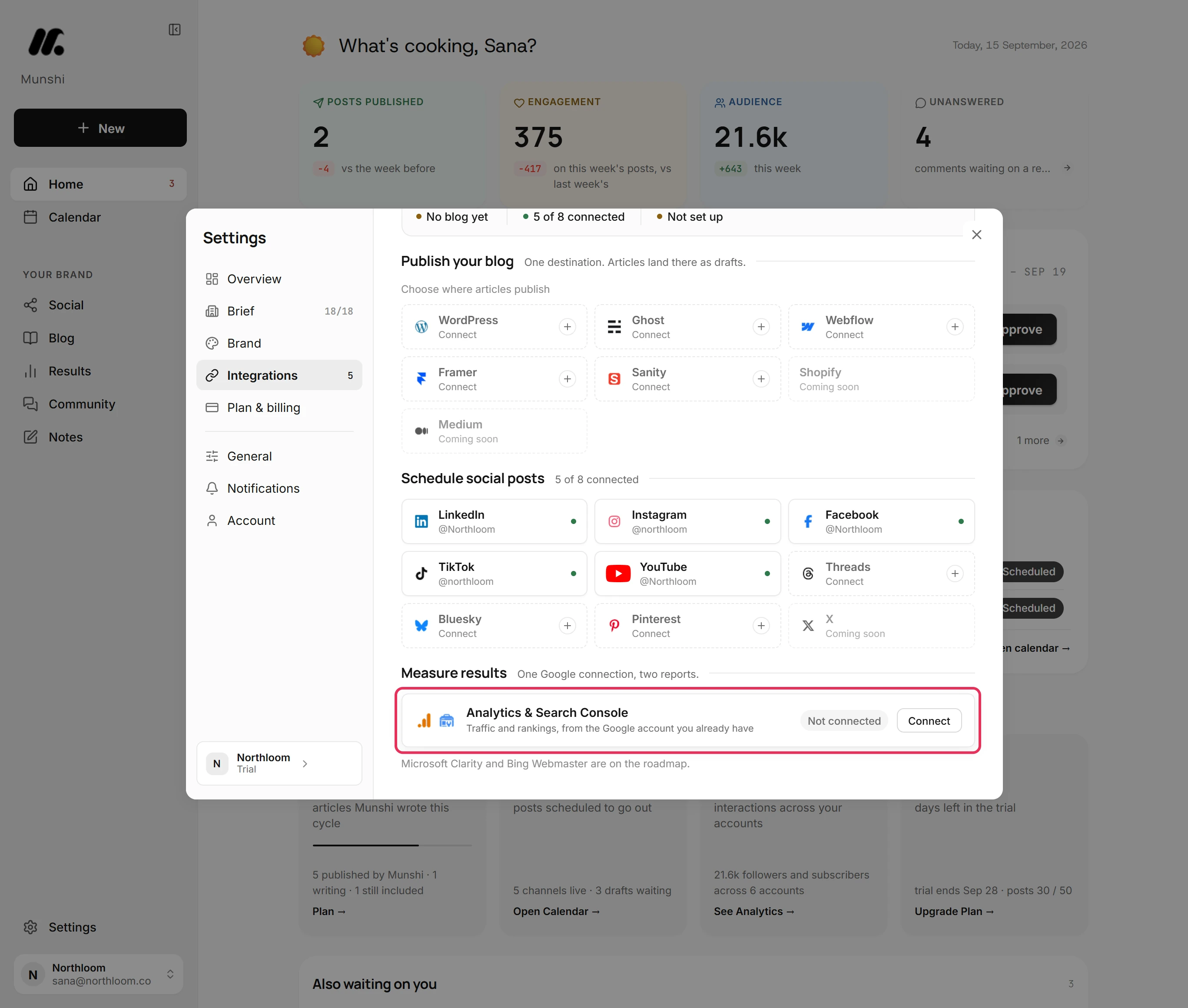
Click Settings at the foot of the sidebar, then Integrations. Google sits under Measure results, in the Analytics & Search Console row. The row reads Not connected until you connect it.
-
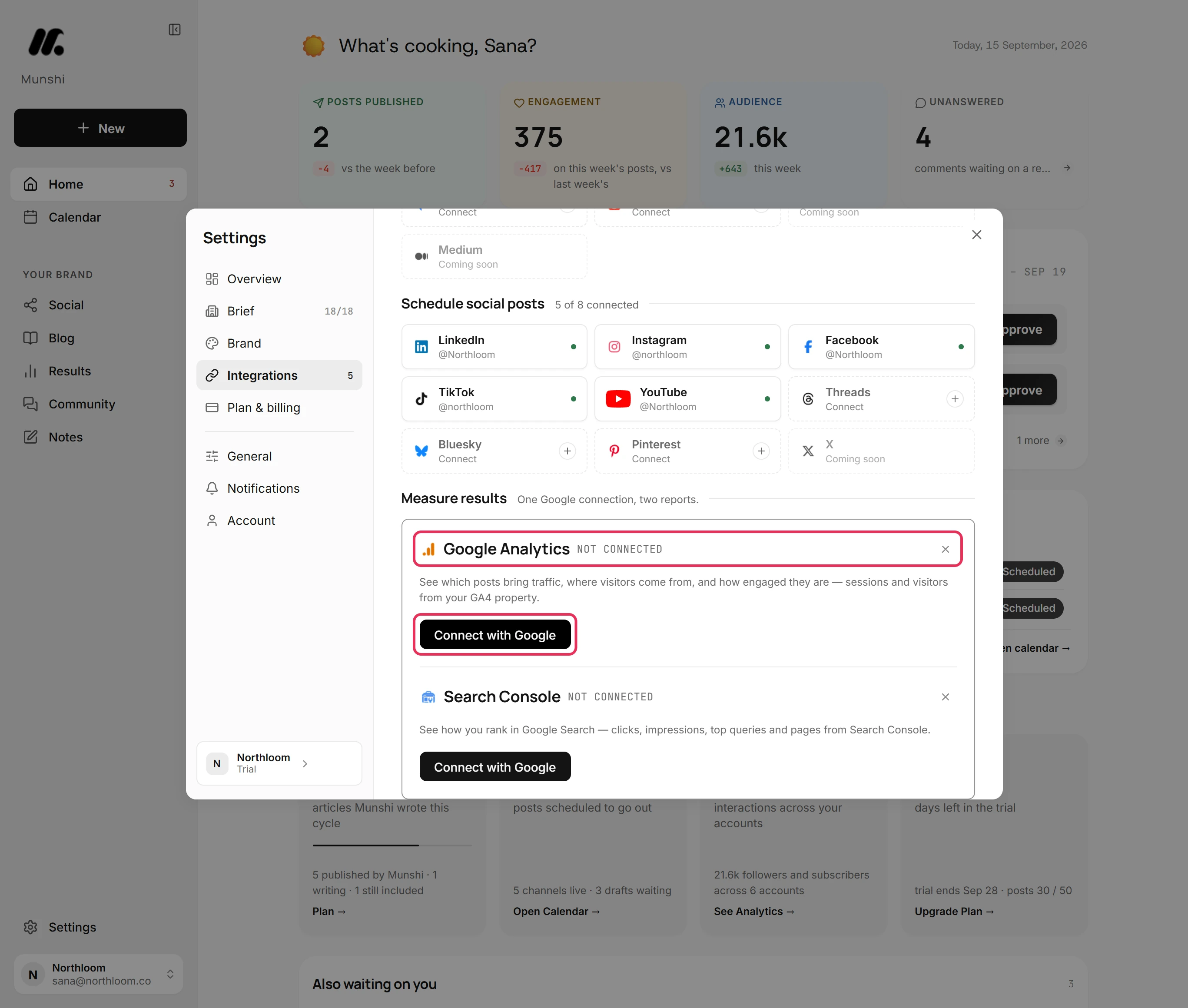
Click the row. Google Analytics and Search Console open together because they share one Google connection. Each has its own Connect with Google, which asks Google only for that report's permissions.
-
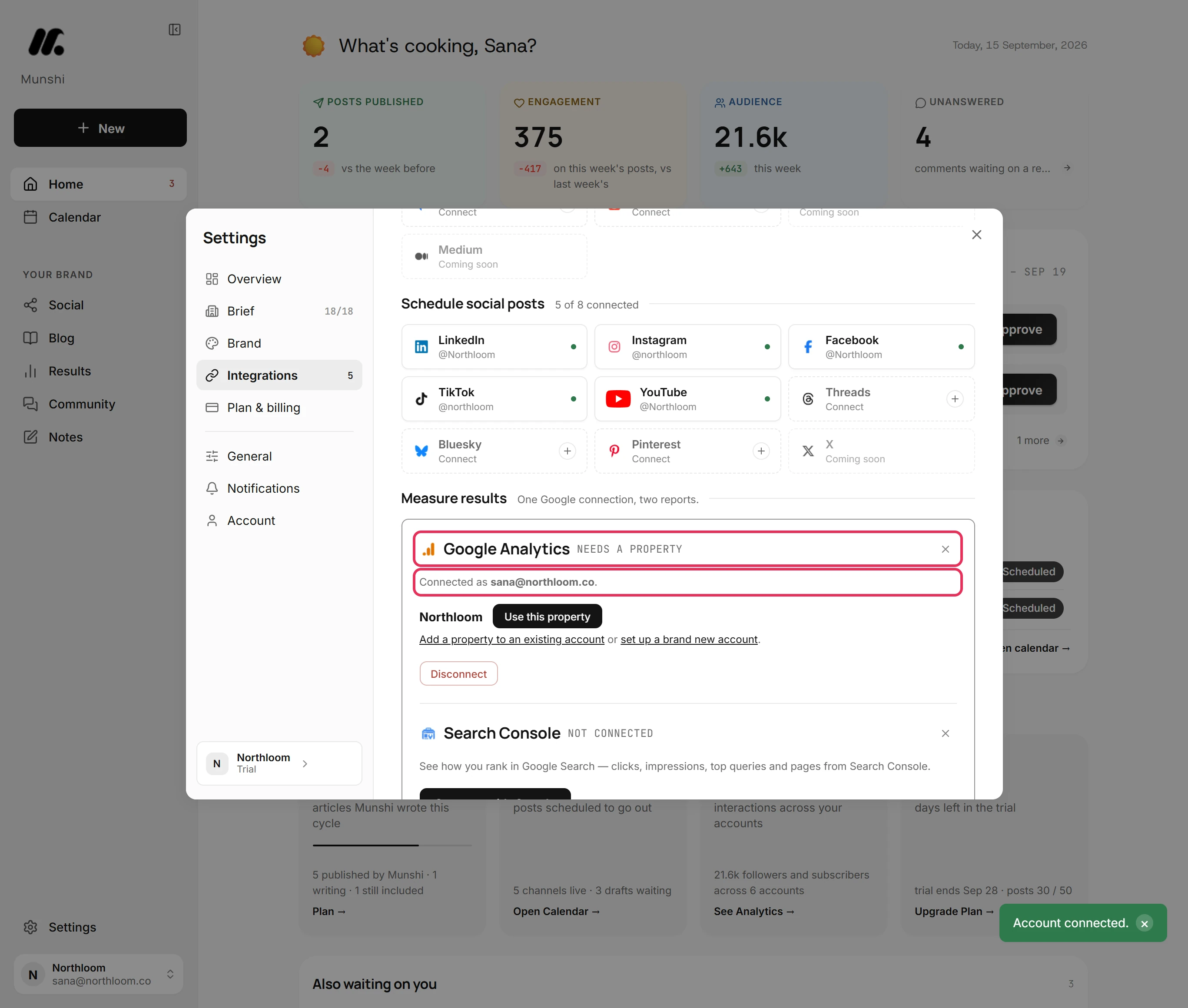
Under Google Analytics, click Connect with Google. In the Google window, choose your account and allow Munshi to read your Analytics data and set up Analytics properties. The window closes, Munshi says Account connected. and the panel shows Connected as with your Google address.
-
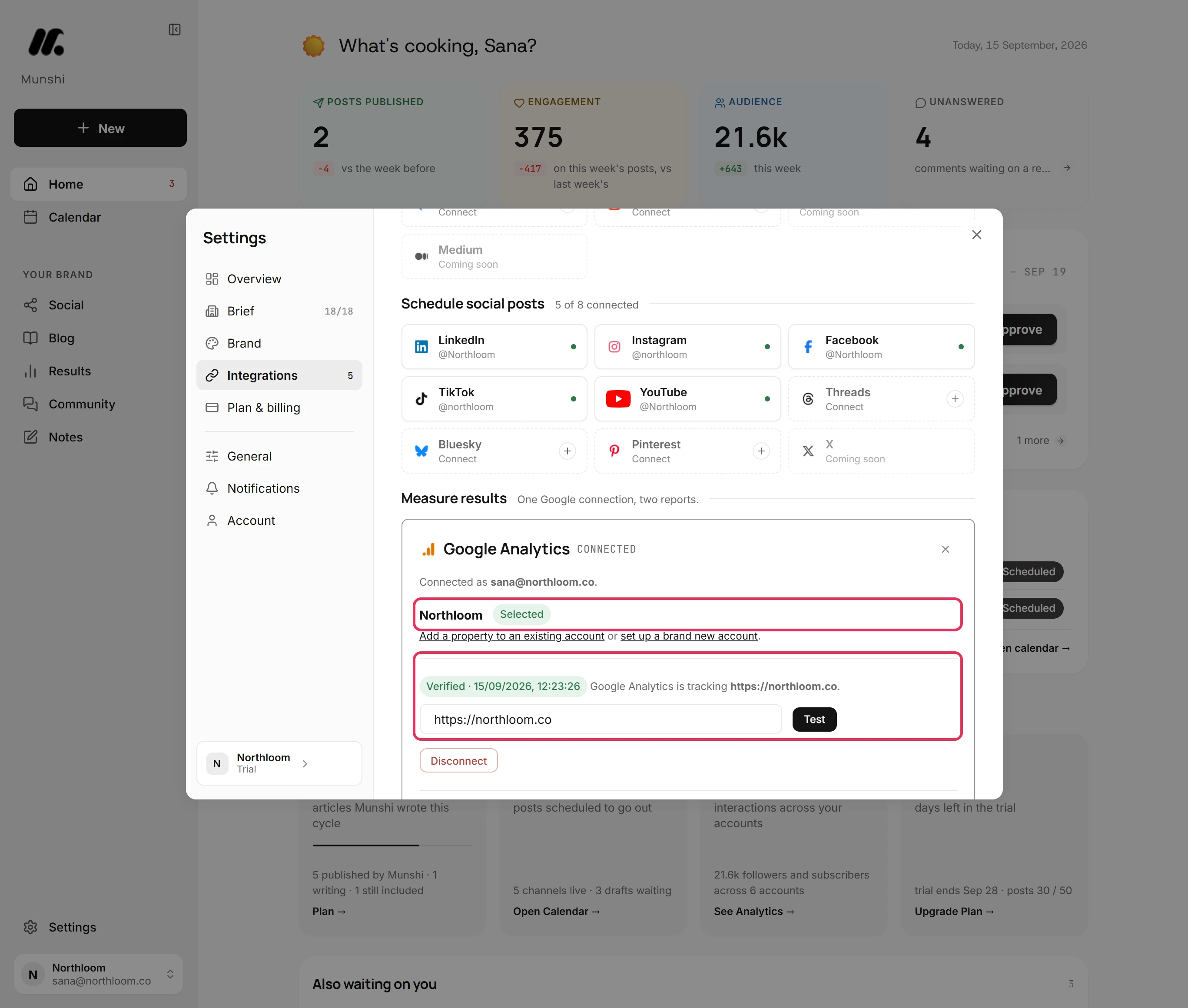
Munshi lists the Analytics properties your Google account can see. Click Use this property beside your site's property, or pick it from the list and click Save if there are several. Munshi then looks for the property's tag on your site. When it finds the tag, the panel reads Connected and Verified.
-
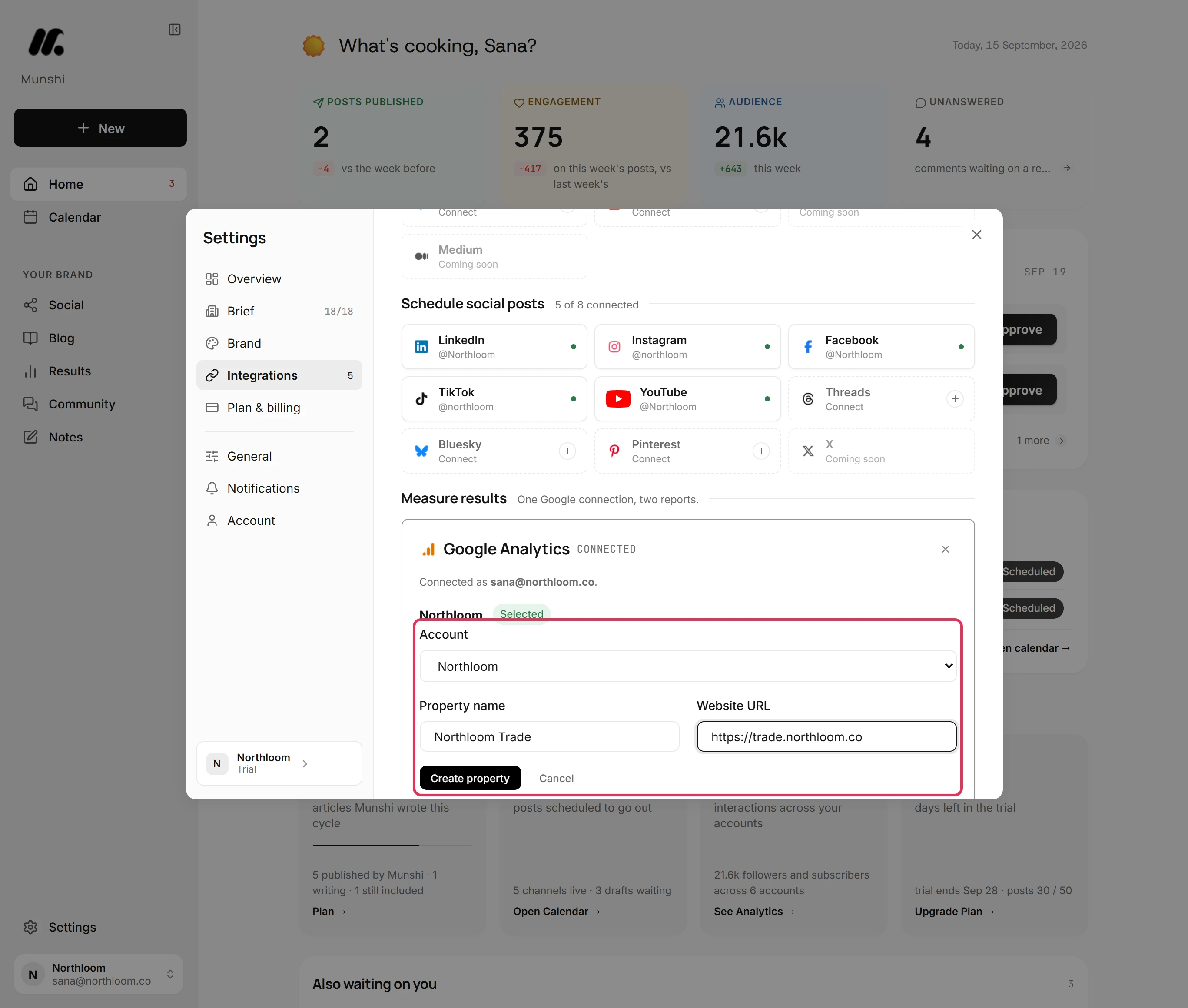
If your site has no property, click Add a property to an existing account. Choose the Account, fill in a Property name and your Website URL, and click Create property. Munshi creates the property with a web data stream for your site and selects it.
-
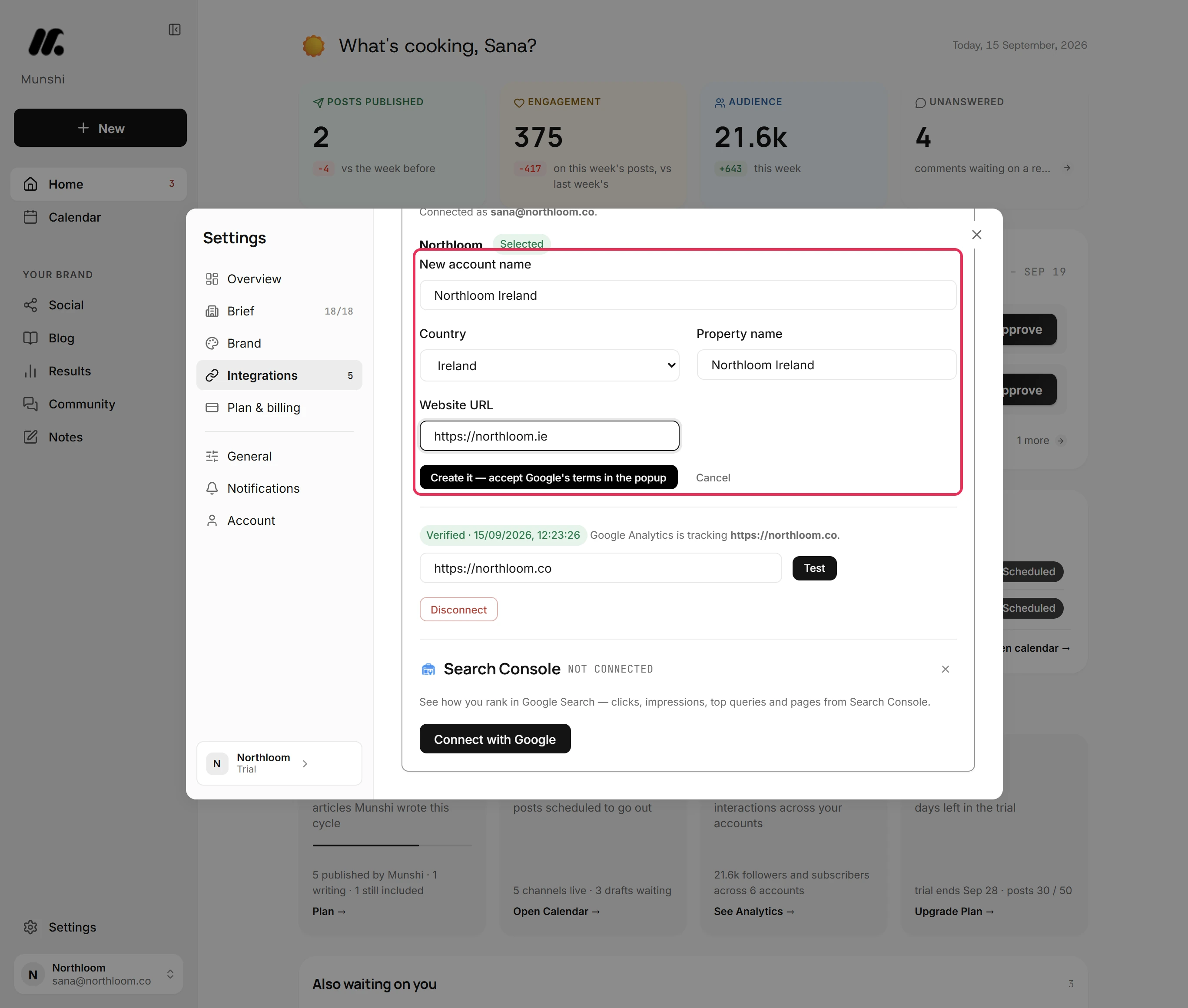
If you have no Analytics account, click set up a brand new account. Fill in New account name, Country, Property name and Website URL, then click Create it. A Google window shows the Google Analytics terms of service. Once you accept them, it closes, Munshi creates the property and says Google Analytics is set up.
-
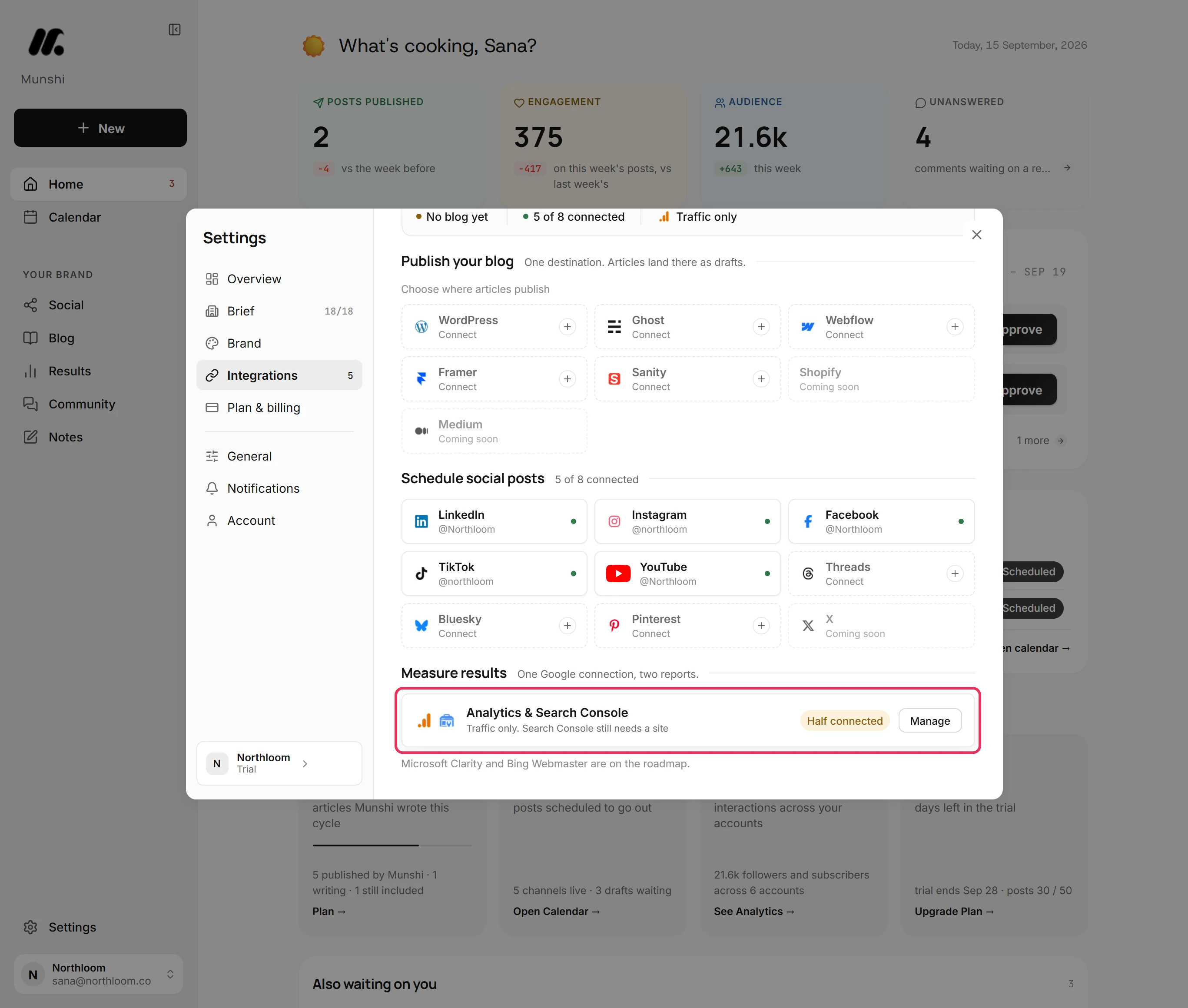
Close the panel. Until Search Console is connected too, the row reads Half connected and Traffic only. Search Console still needs a site. With both connected, it reads Connected.
Where you are now
Google Analytics is connected to the property that tracks your site. Once its tag is verified, Results counts the people who landed on your site and the visits AI assistants sent.
If something goes wrong
“Your browser blocked the popup. Allow popups for Munshi and try again.”
Allow pop-ups for Munshi in your browser, then click the button again. Connect with Google and Create it both open a Google window.
“The connection was declined or cancelled. Nothing was saved.”
Click Connect with Google again and allow access. Google's window was closed, or access was not allowed.
The panel says Needs tag verification
Install the tag and click Test, as the tag guide shows. Munshi could not find the property's tag on your site, so site traffic stays hidden.
“Couldn't find that new Analytics account yet. If you just accepted the terms, wait a moment and try again.”
Wait a little, then click Create it again. Google can take a moment to create the account after you accept its terms.
Try it on your own brand this week.
Munshi Social, the AI content marketing engine for small teams, plans, writes, publishes, and tracks your blog and socials. The guide above shows the real app, not a mock-up.
Start your workspace