How to create and schedule a post
Click New, write the post once, choose the networks, add a picture and pick a time. It takes about two minutes, and the post goes out on its own.
Before you start
- At least one social network connected. If none is yet, the integrations pages say how each one connects.
- A picture, if the post is going to Instagram. Instagram does not take a text-only post, and Munshi tells you before you schedule.
-
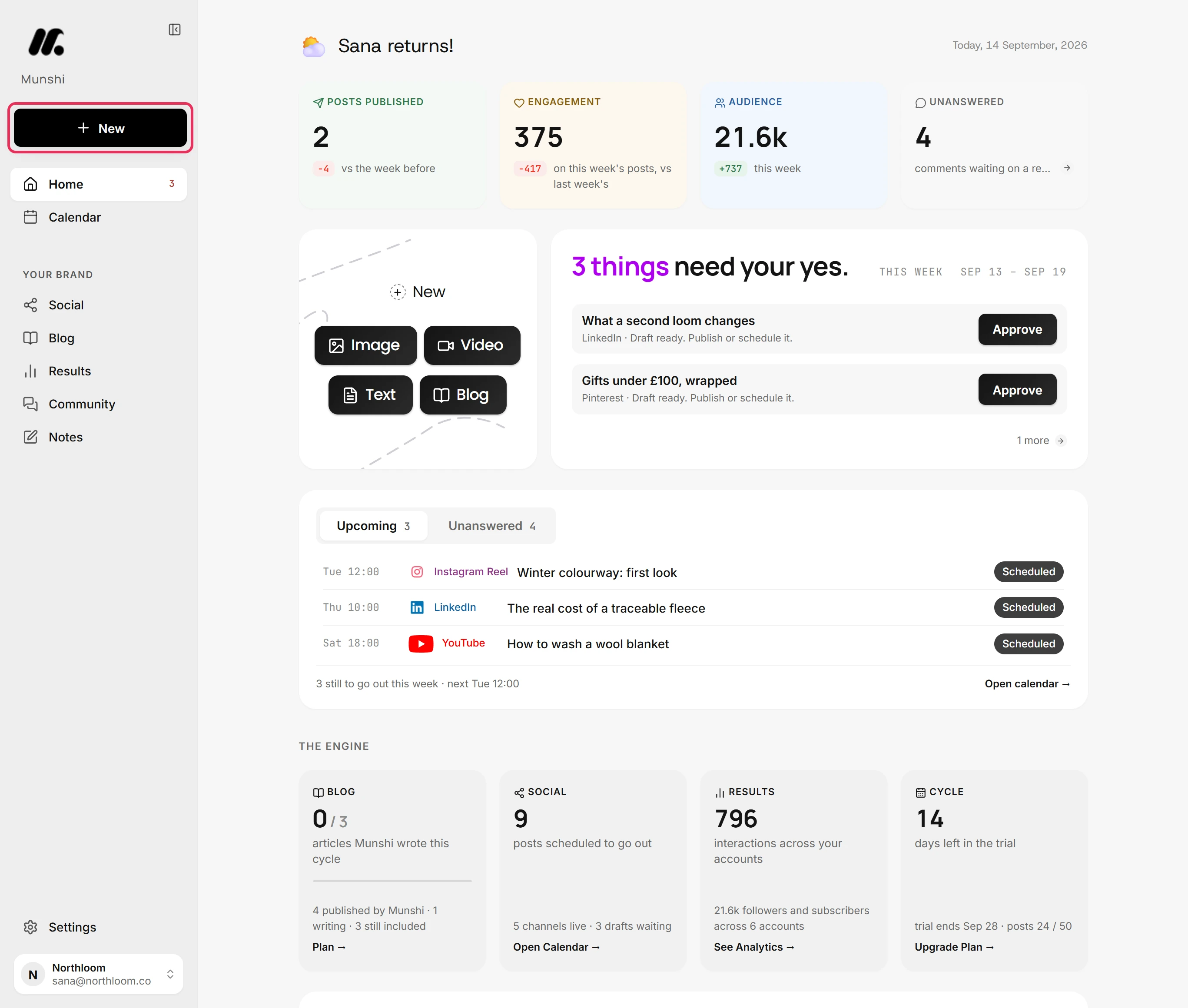
The New button sits at the top of the sidebar on every screen. Home also has Image, Video and Text shortcuts that open the same place.
-
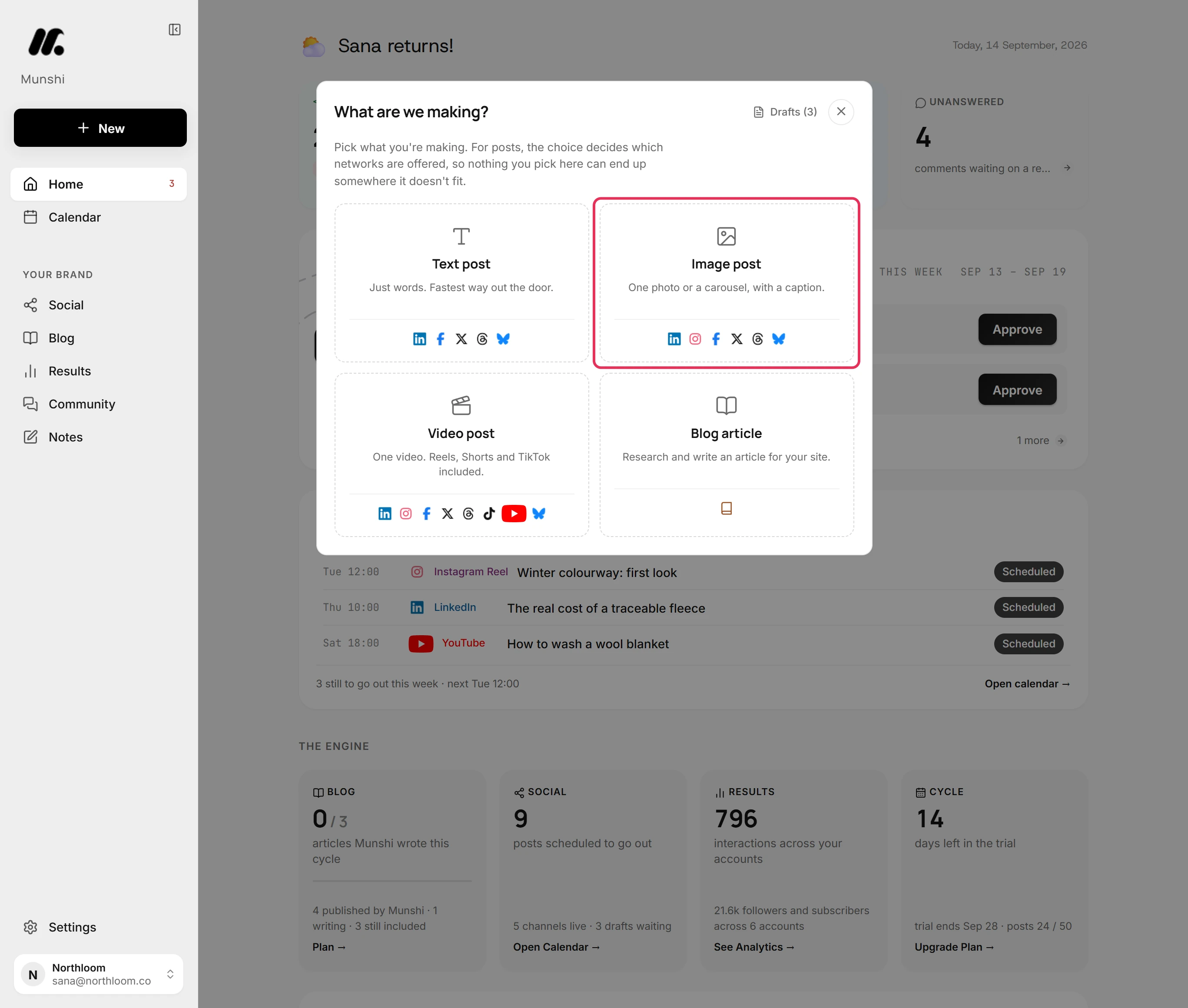
Pick Image post. Your choice decides which networks you are offered next. For example, a video post is only offered to networks that take video, so nothing ends up where it does not fit.
-
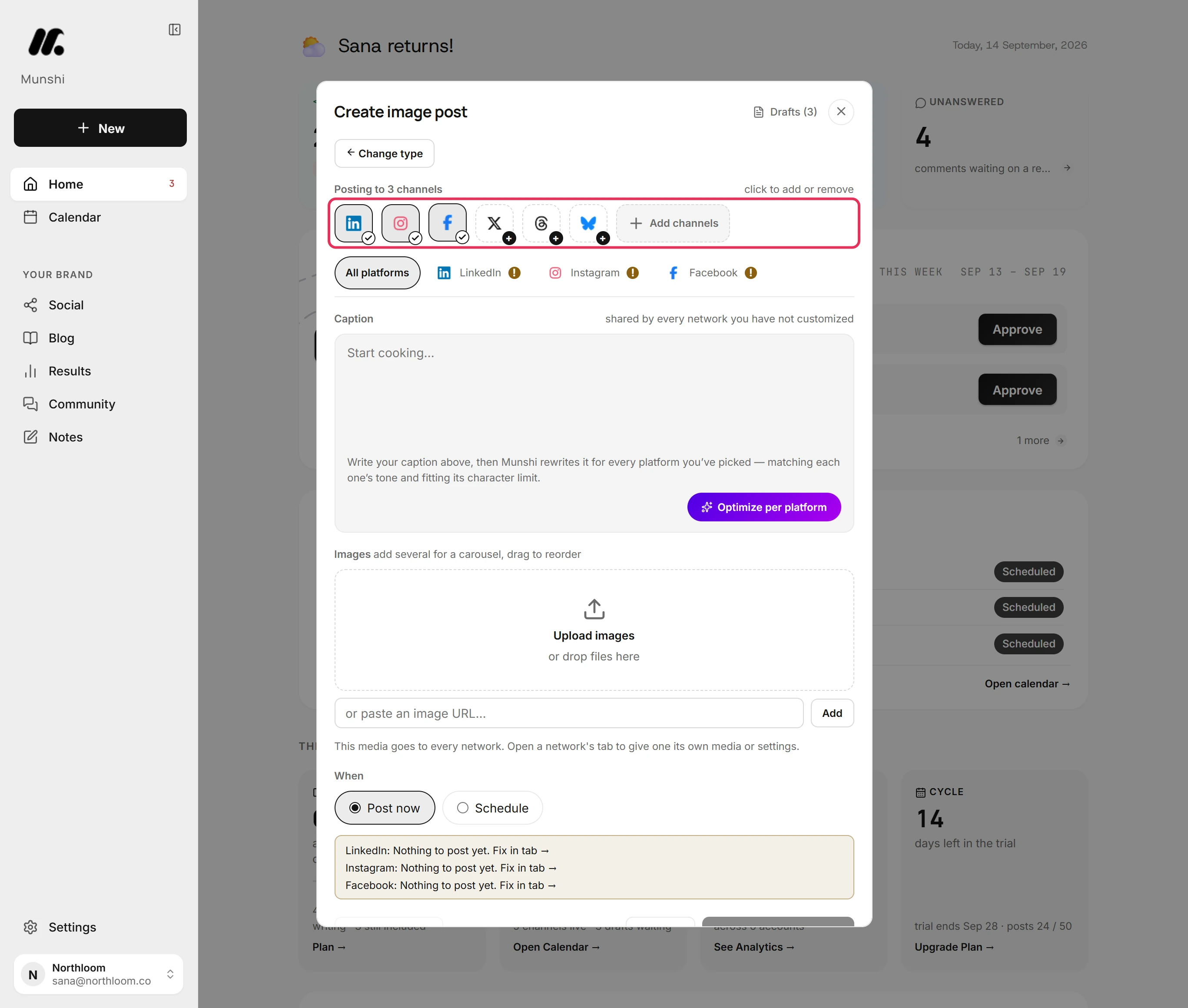
Click a network to add it or take it off. Here LinkedIn was already selected, and Instagram and Facebook took one click each. The header counts the channels the post will reach.
-
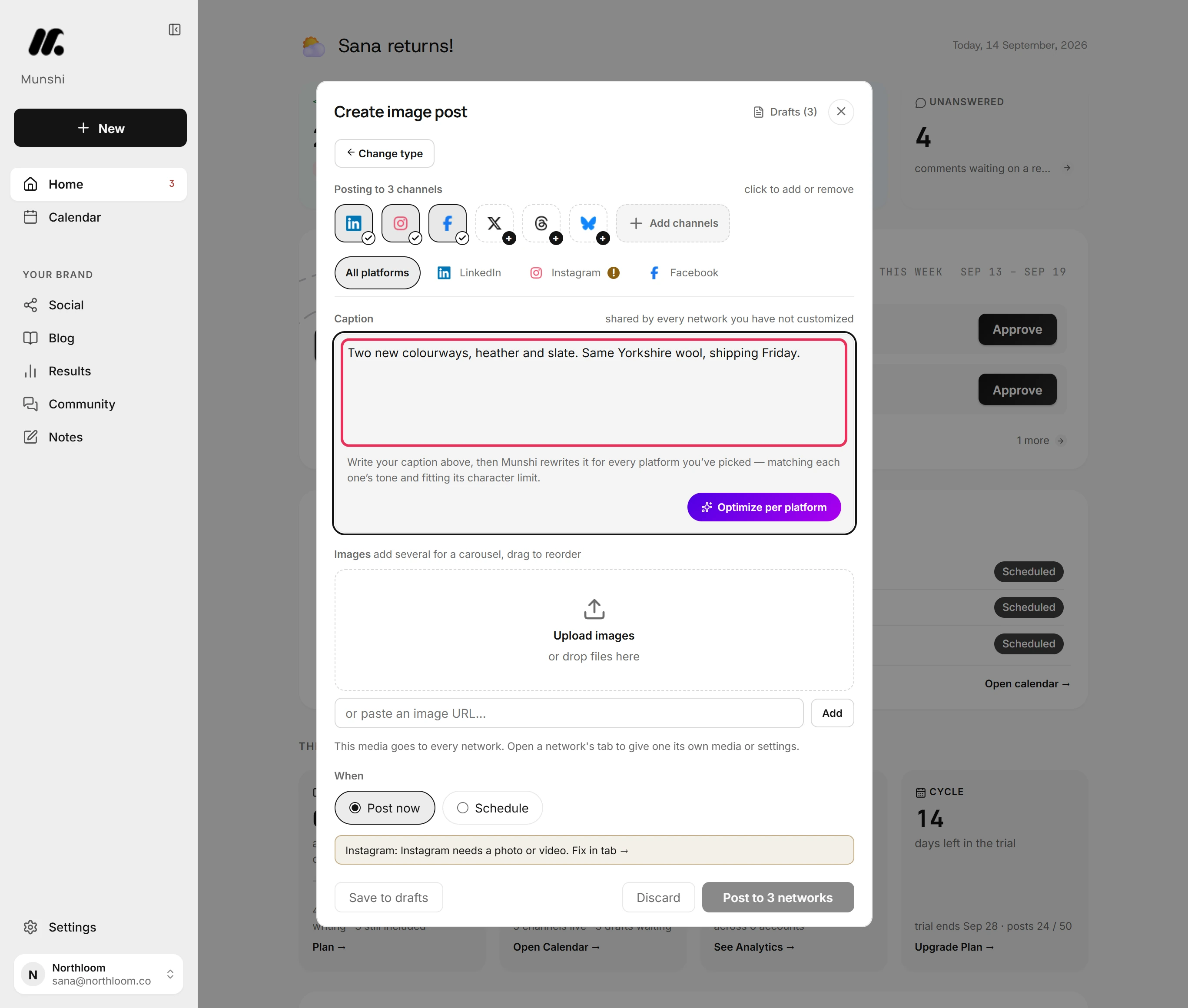
Write in the All platforms tab. Every network starts from this version.
-
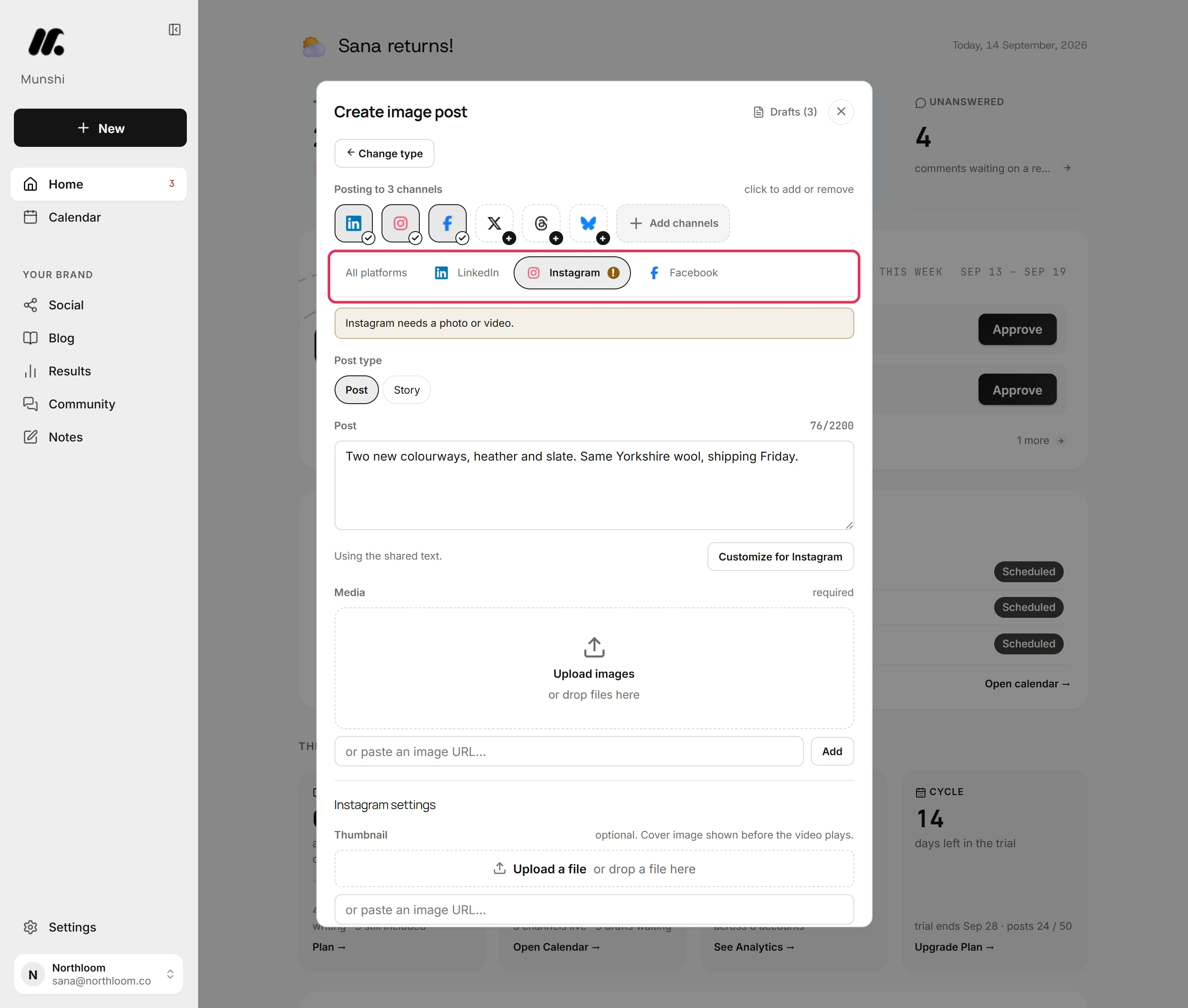
Every network you picked has its own tab. Leave a tab alone and that network posts the caption as written. Change the text in a tab and only that network changes.
-
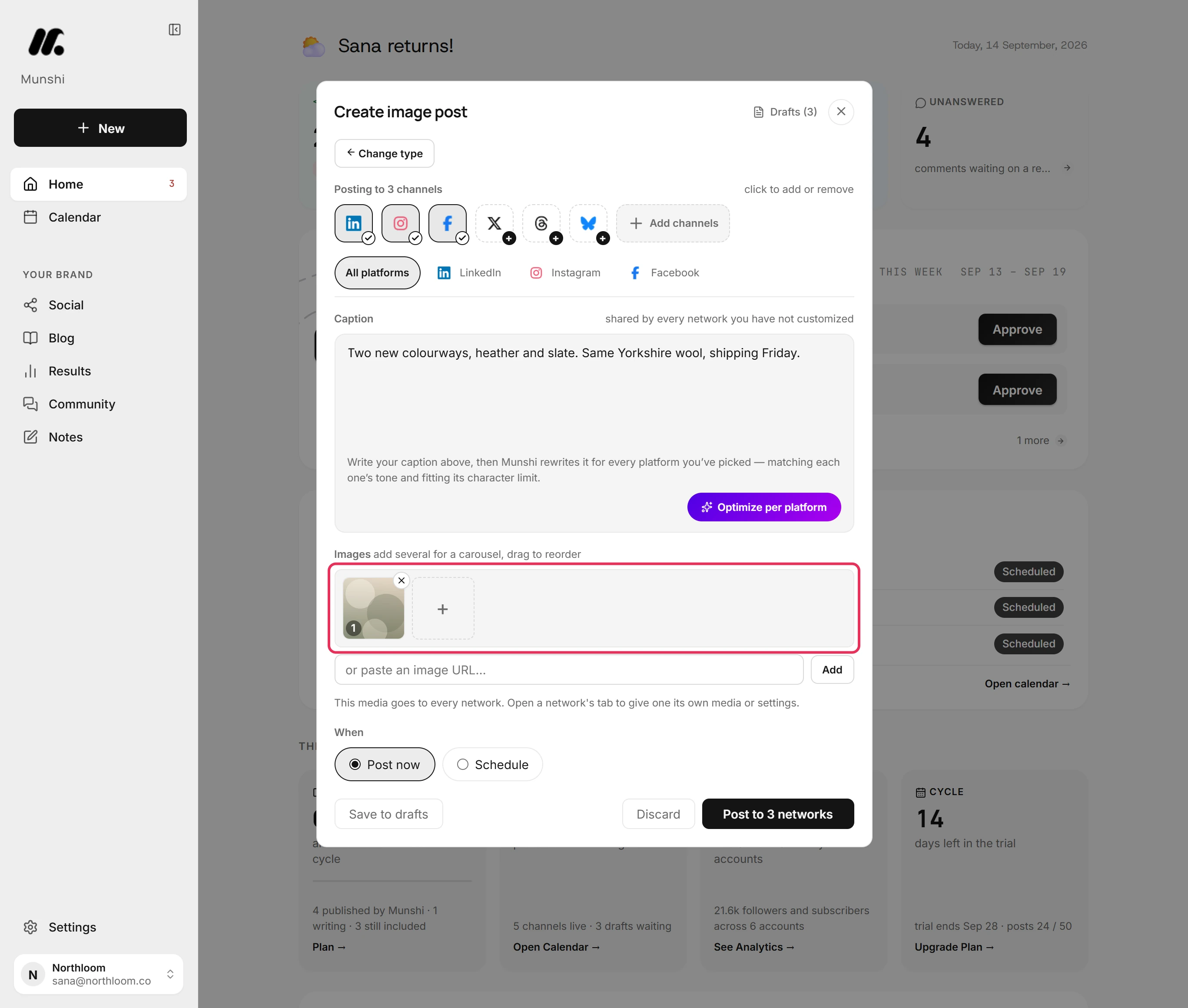
Drop a file onto the images area, or click Upload images. If you add several, Instagram gets a carousel in the order you drag them into.
-
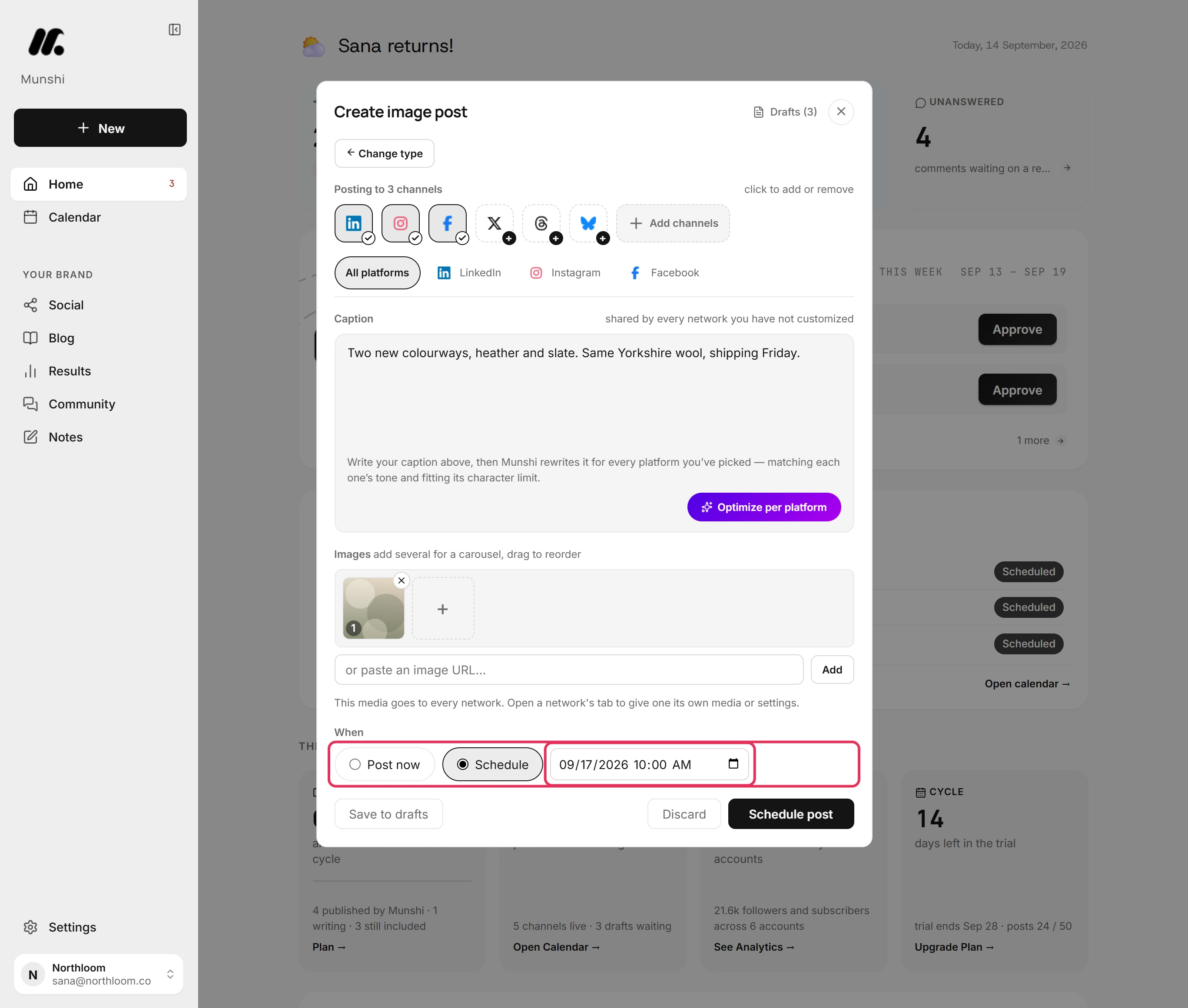
Pick Schedule and set the date and time. The time follows your workspace's clock, set under Settings, General. A post scheduled from a laptop abroad still goes out at home time.
-
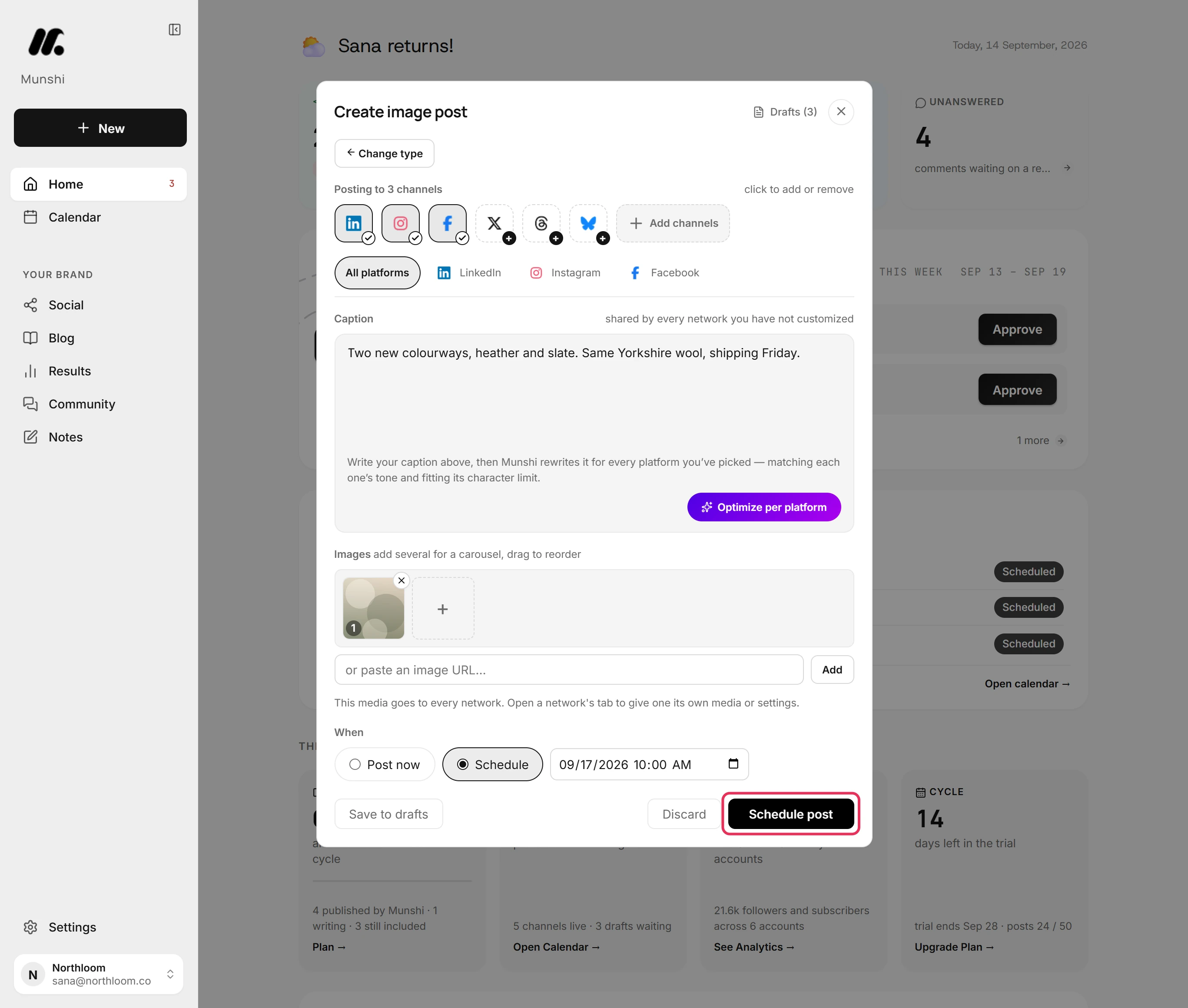
Click Schedule post. Munshi first checks every version against its network's rules. If one is over a limit or missing a picture, Munshi says which, and nothing is scheduled until it is fixed. Once the post is scheduled, Munshi takes you to Social.
-
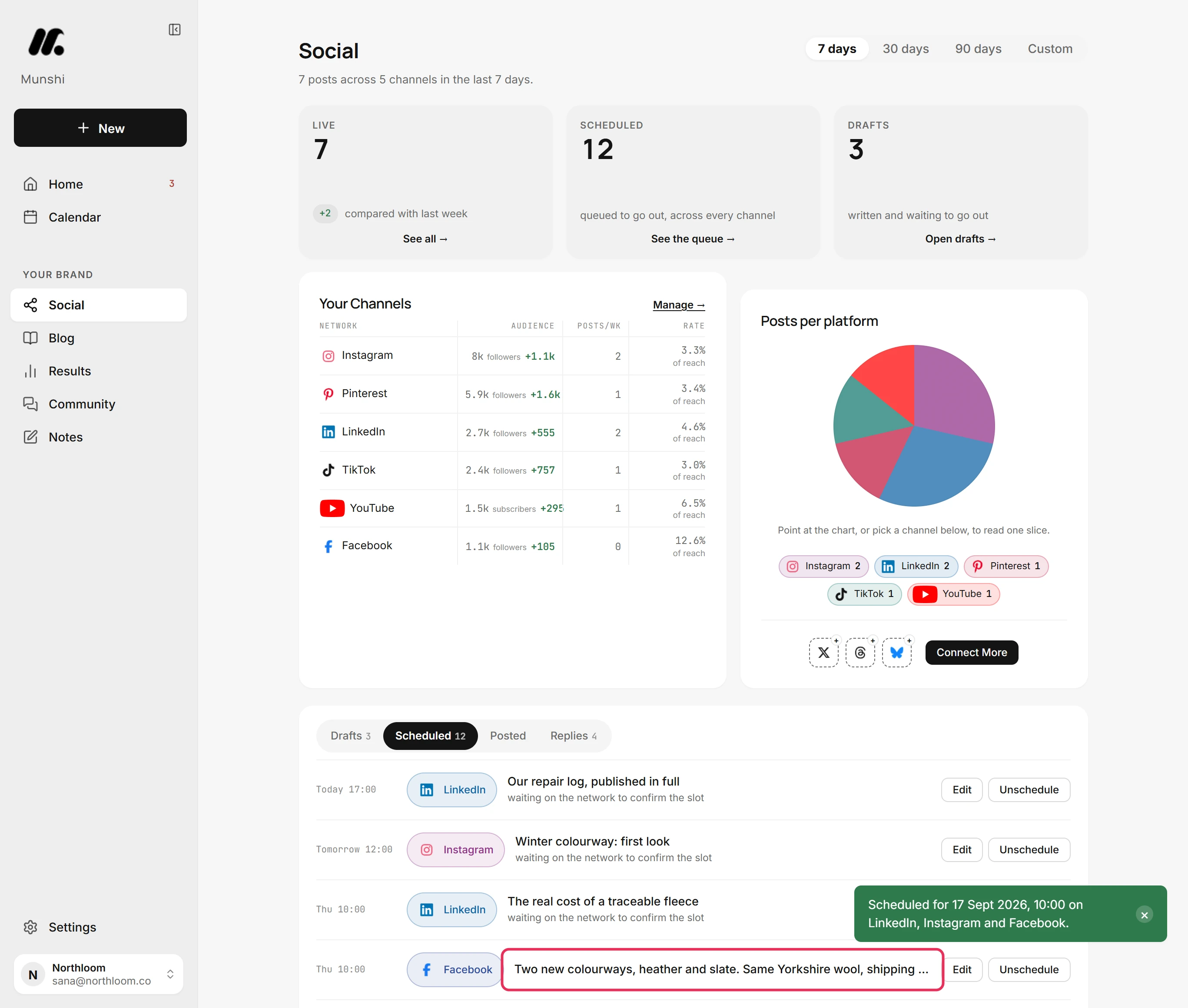
On Social, open the Scheduled tab. The post is there once per network, each with its time. Edit lets you change a version, move the time or post it now, and Unschedule takes it back to drafts.
-
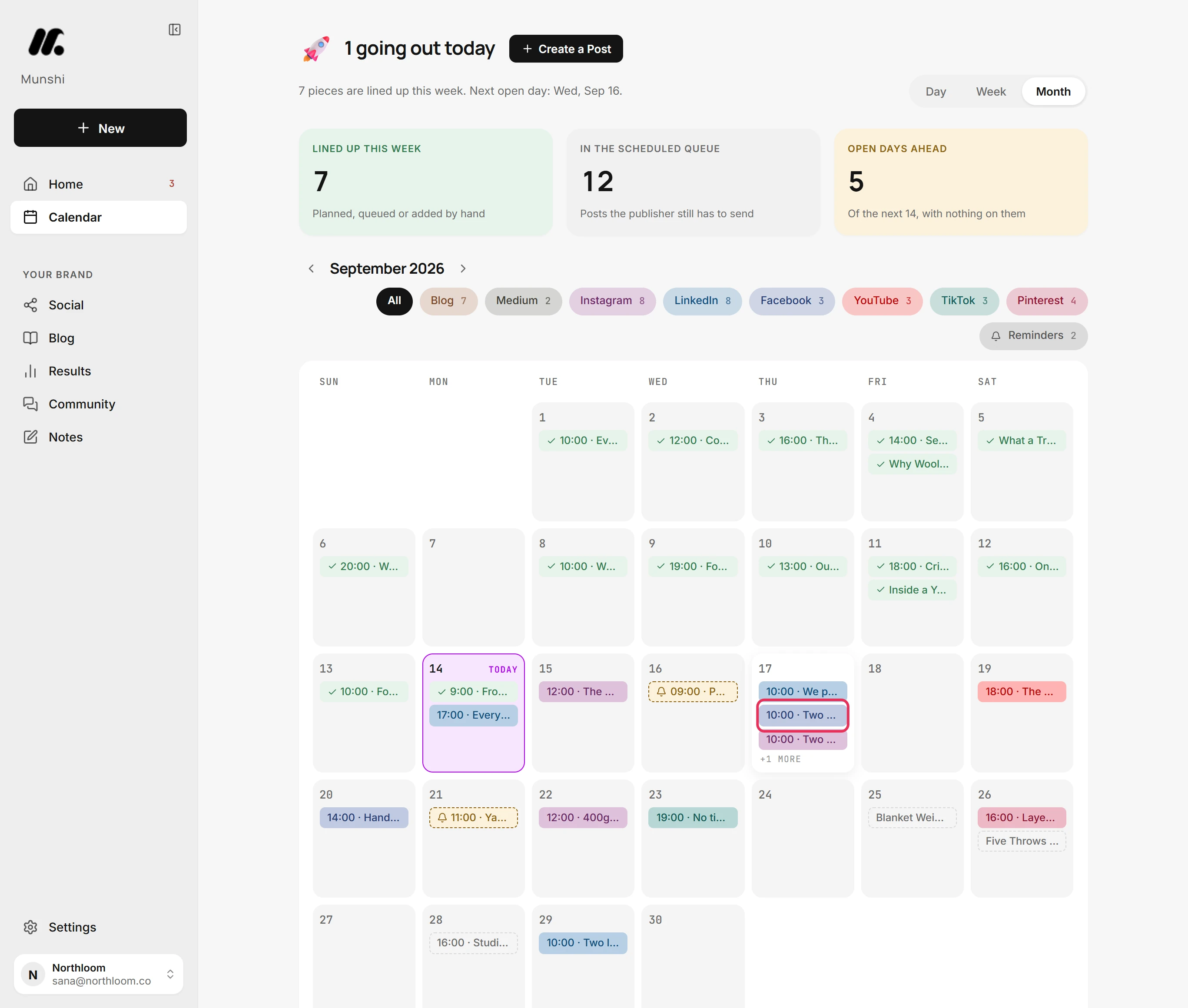
The same post shows on the Calendar in its slot, next to everything else going out that week. Open the day to edit the post or take it back to drafts.
Where you are now
Your post is set for three networks at one time. It waits in the Scheduled queue and on the Calendar, then goes out on its own. Until then you can edit it, move it or unschedule it from either place.
If something goes wrong
A network tab shows a mark and the post will not schedule
Click Fix in tab, next to the reason written above the buttons, and fix that network's version. The mark then clears. It appears when a version breaks a network rule, like a caption over its limit or a missing picture.
A network has a plus on its icon
Pick the network, and its tab offers to connect it right there. The network's own sign-in opens in a window, and the post stays where it is. The plus means it is not connected to this workspace yet.
The time I picked has already passed
Pick a later slot and schedule again. Munshi will not schedule into the past, and the text and picture are still there.
“Instagram needs a photo or video.”
Add a picture or a video in the images area, or take Instagram off this post. Instagram does not take a text-only post, but the other networks can still go out as text.
Try it on your own brand this week.
Munshi Social, the AI content marketing engine for small teams, plans, writes, publishes, and tracks your blog and socials. The guide above shows the real app, not a mock-up.
Start your workspace