How to move a post to another time, or take it back to drafts
Click Unschedule to take a post off the queue, then book it for a new time. You can do it from the Social page or from the Calendar.
Before you start
- A post scheduled in Munshi. The create and schedule guide shows how to book one.
-
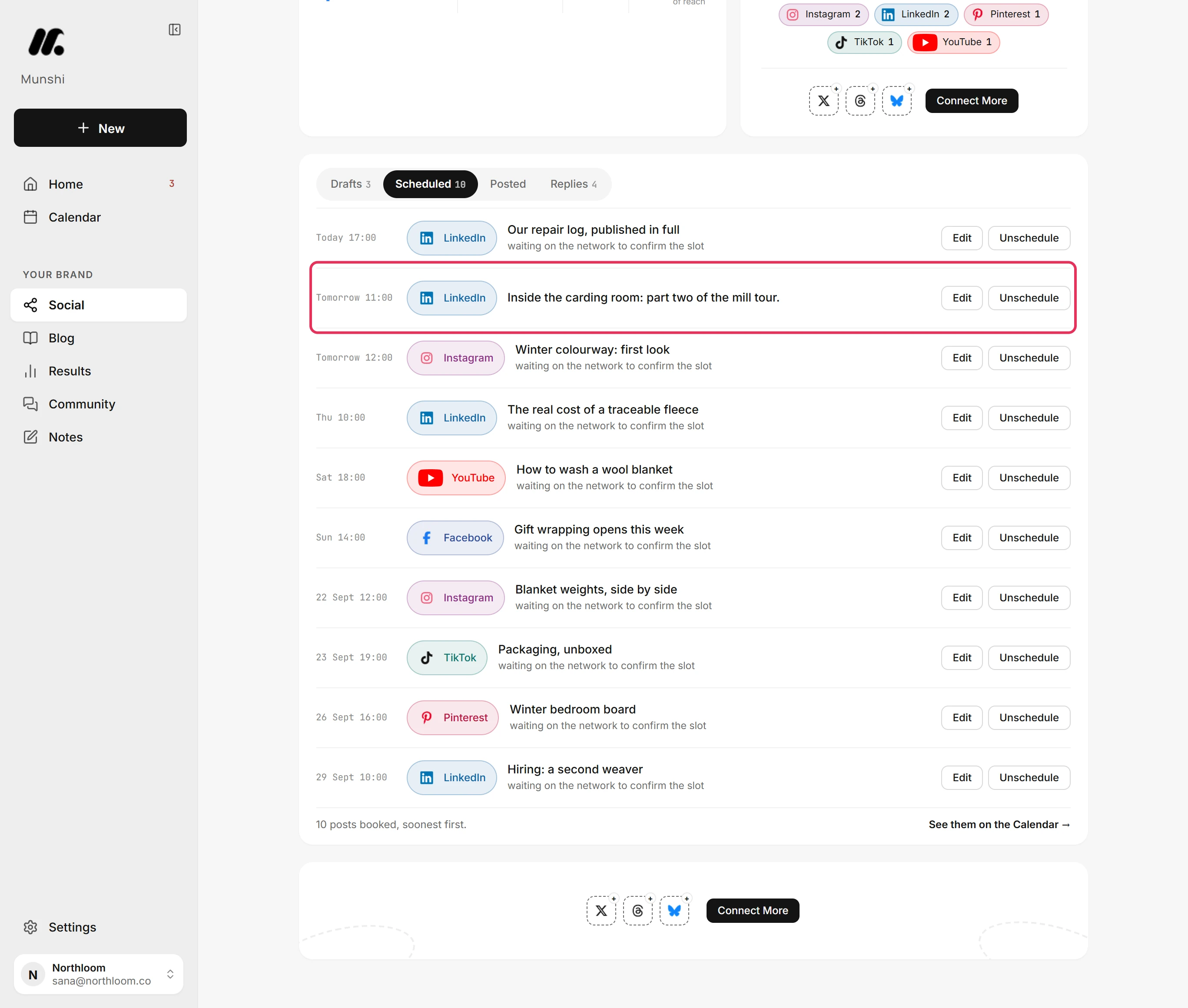
Click Social in the sidebar, then open the Scheduled tab. Posts are listed in the order they go out, once for each network.
-
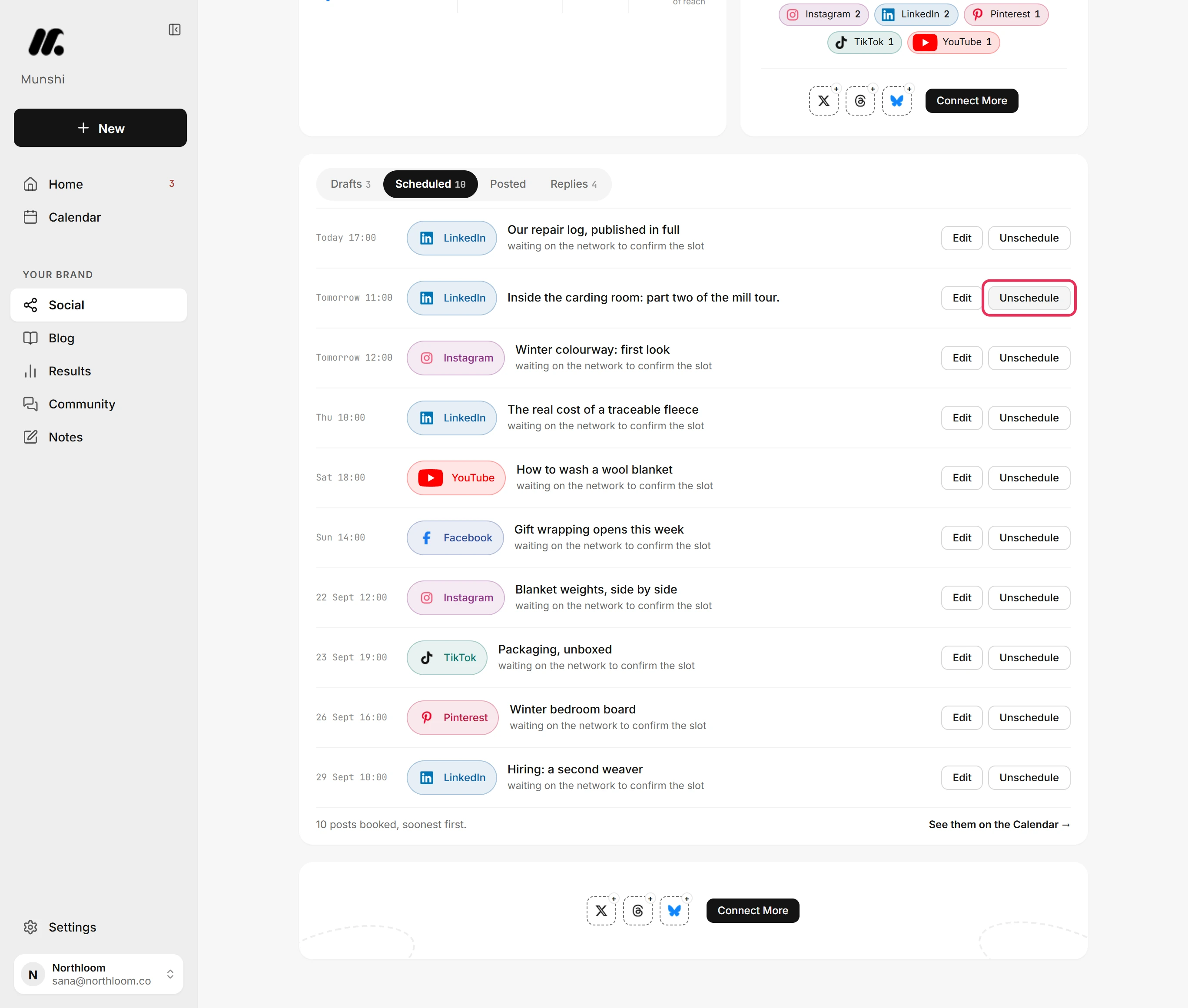
Click Unschedule on the post's row. Munshi first asks the network to let go of the post. It moves the post back to drafts only once the network confirms.
-
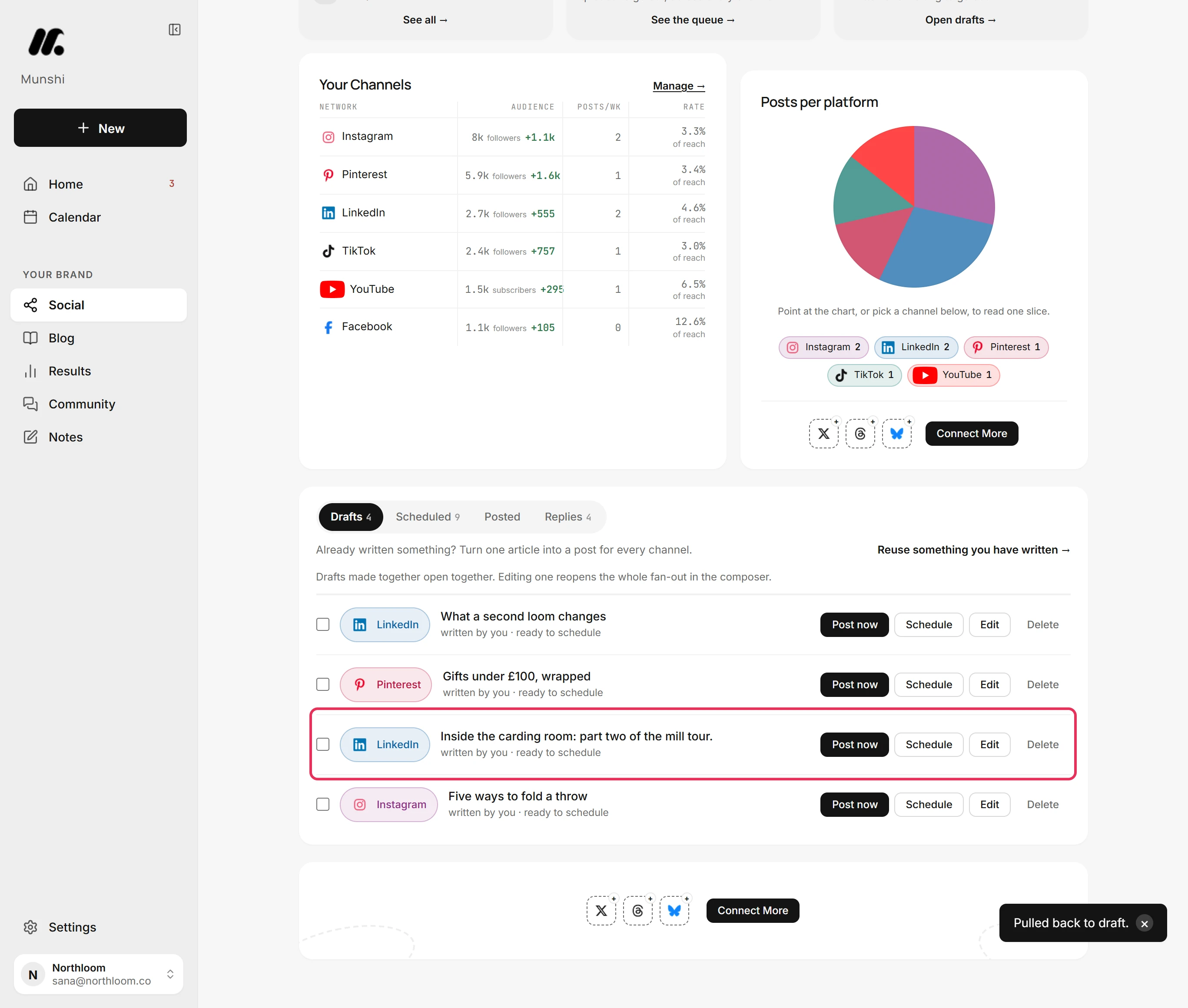
Open the Drafts tab. The post is there with its text and settings as they were, ready to schedule again.
-
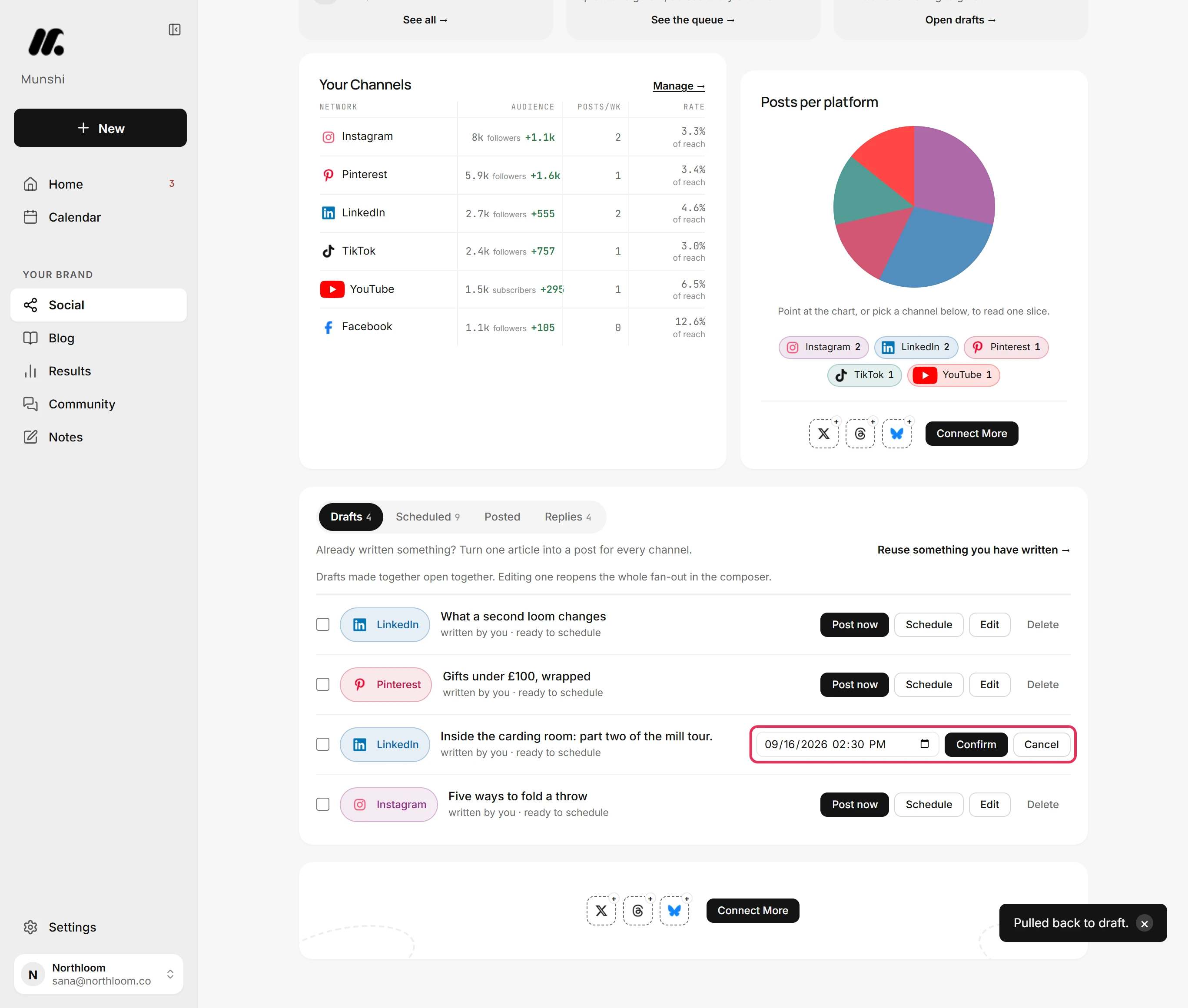
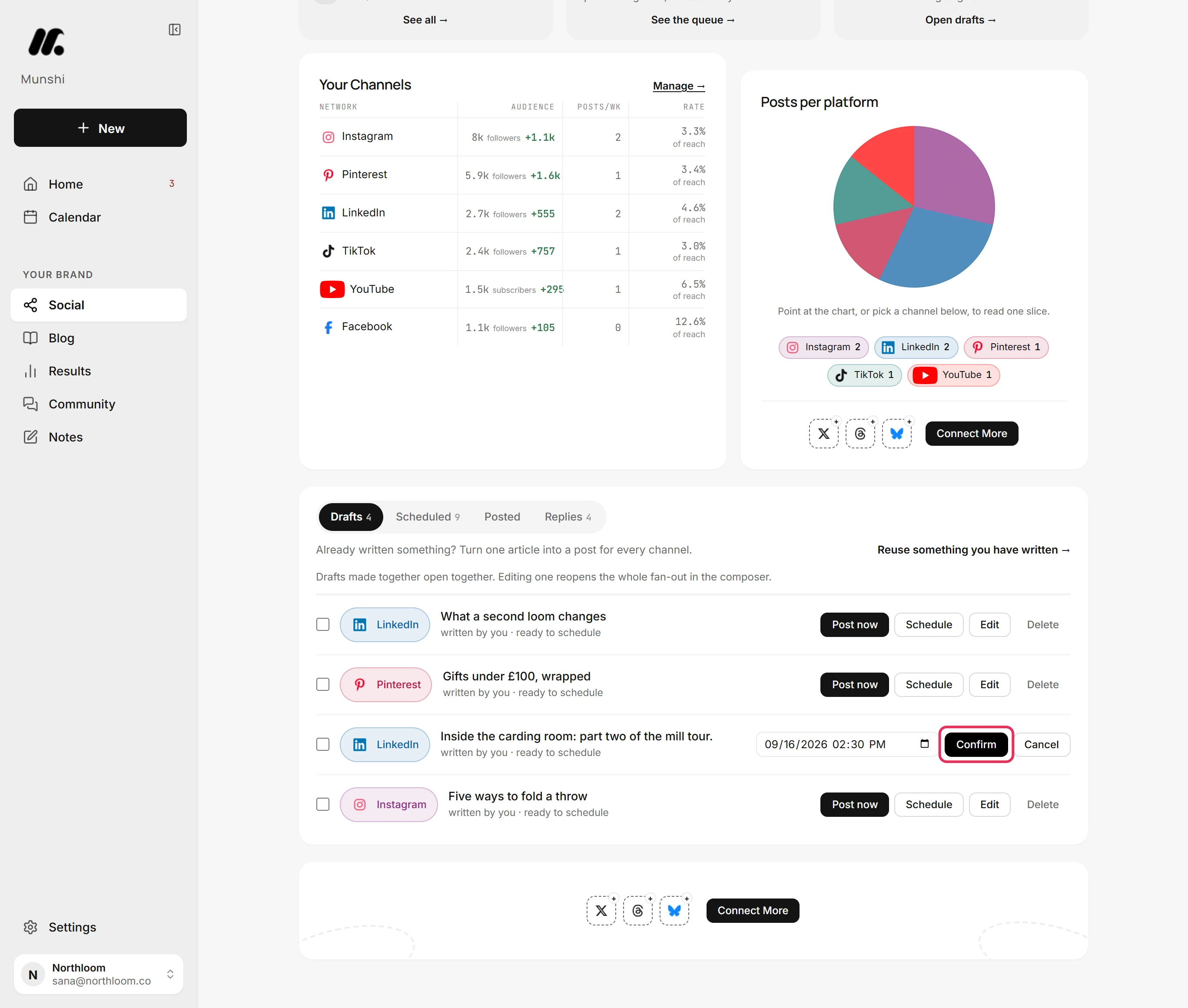
Click Schedule on the post's row and set the date and time. Munshi reads the time in your workspace's time zone.
-
Click Confirm. The post is booked for its new time and leaves Drafts.
-
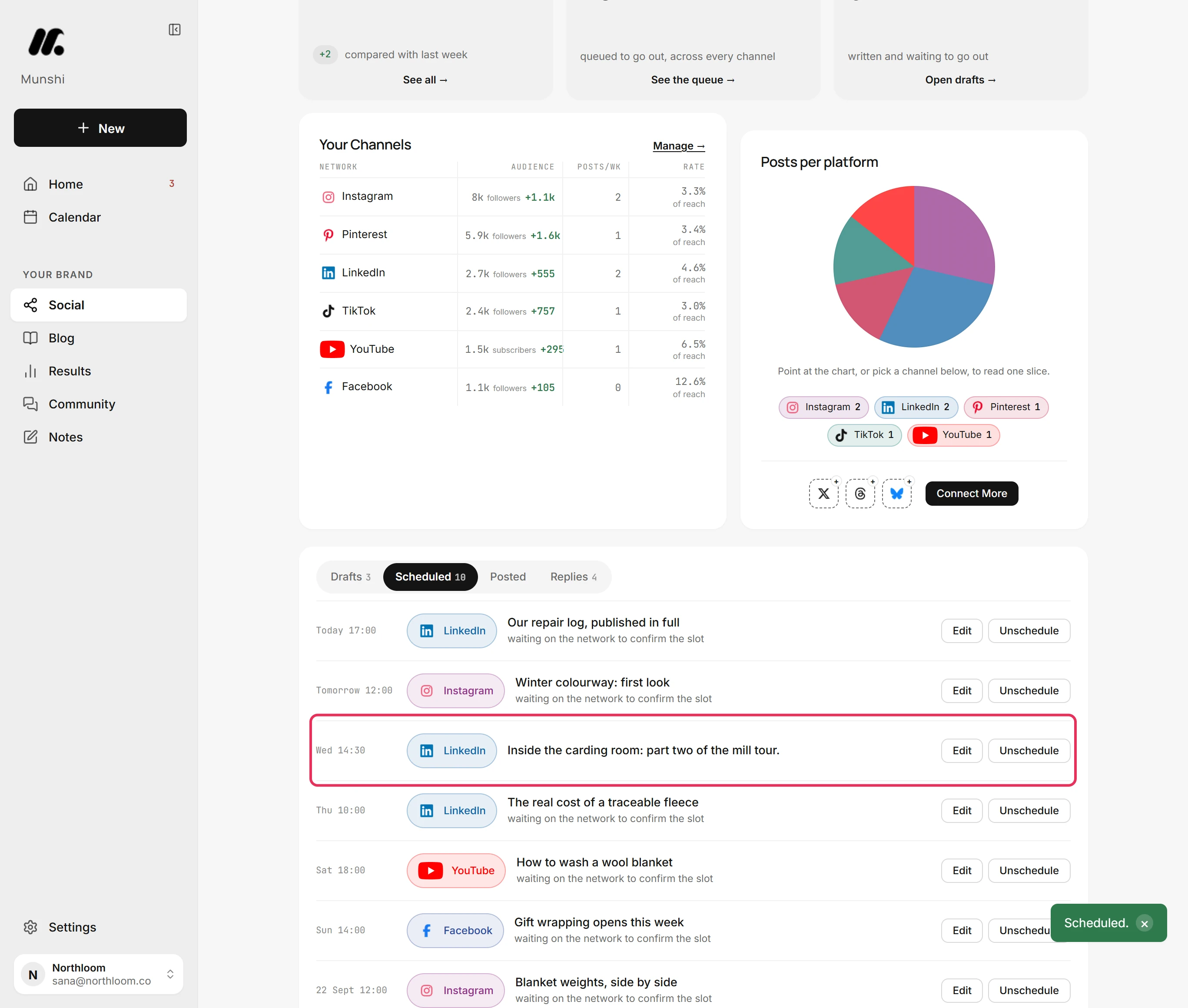
Go back to Scheduled. The post sits at its new time, in order with everything else going out.
-
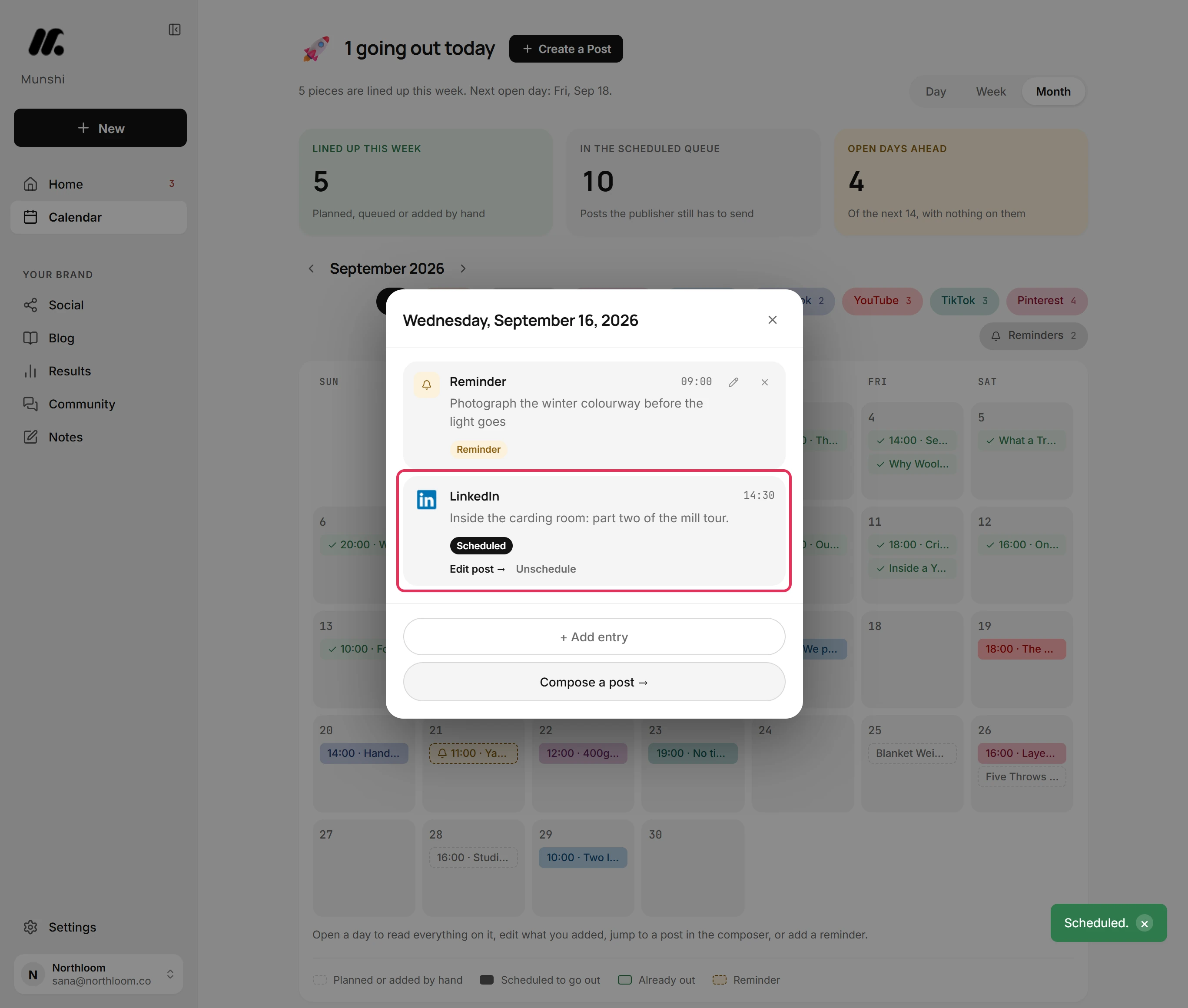
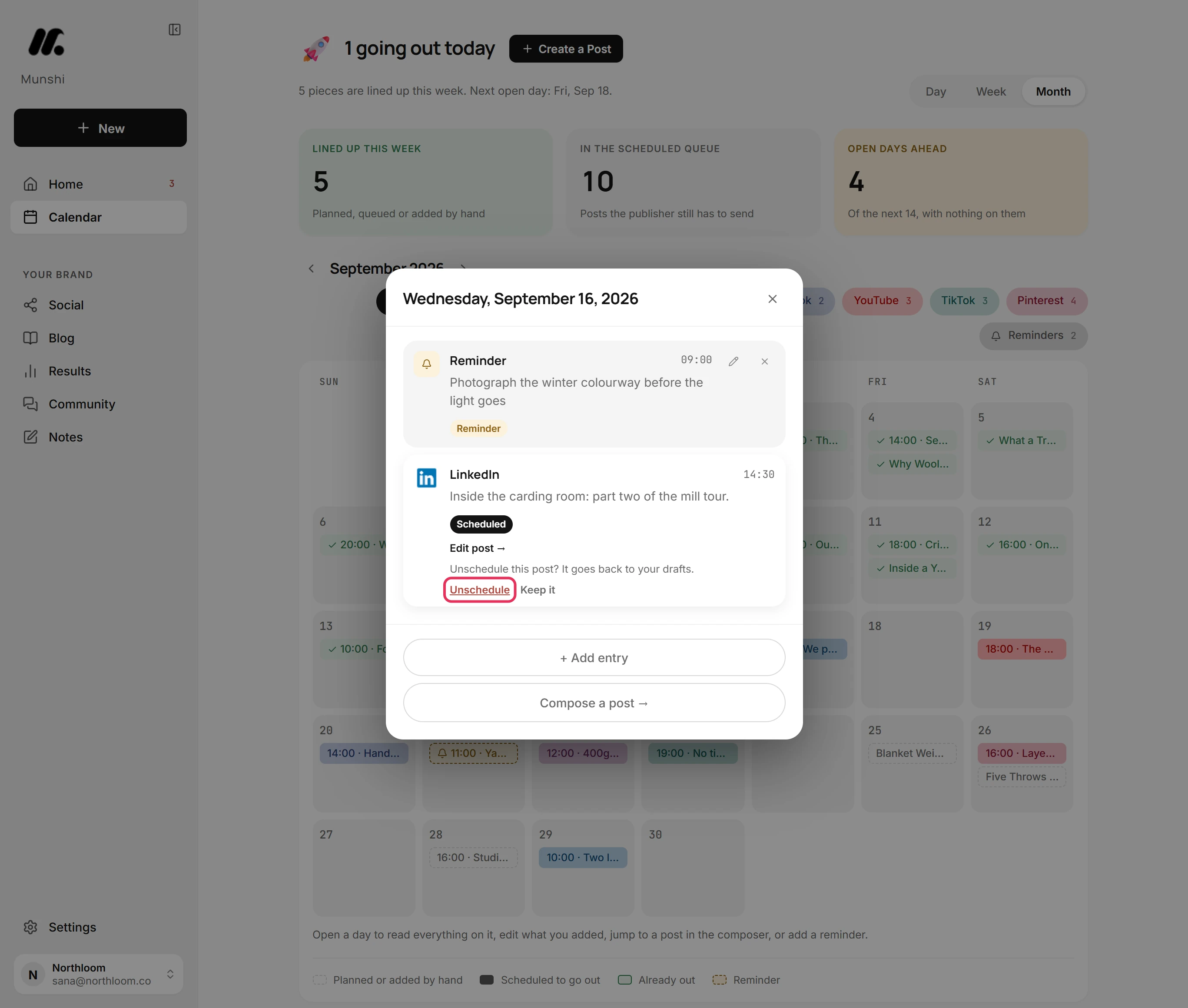
On the Calendar, click the post's day. A scheduled post there offers Edit post and Unschedule.
-
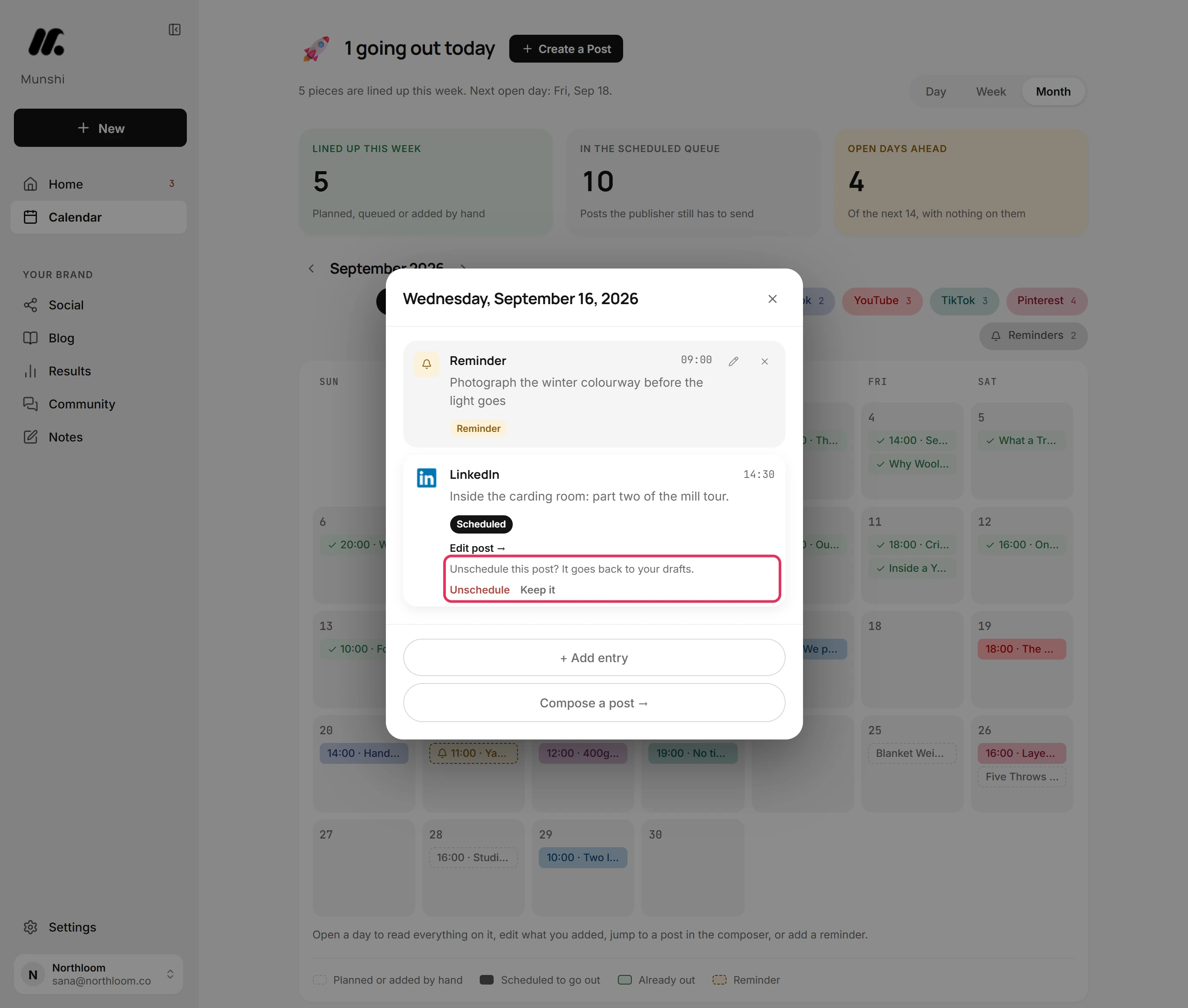
Click Unschedule. Munshi asks before it acts. It tells you the post will go back to your drafts.
-
Click Unschedule again to confirm, or Keep it to leave the post booked. Once you confirm, the post leaves the calendar and waits in Drafts.
Where you are now
The post is either booked for its new time or waiting in Drafts. Its text, picture and settings are exactly as you left them.
If something goes wrong
“We couldn't confirm the post was removed at LinkedIn; it's still scheduled. Try again in a moment.”
Try Unschedule again in a moment. The network did not confirm it had let go of the post. Munshi kept it booked, so it cannot go out while it looks like a draft.
“That time has passed. Pick a new one.”
Pick a later time and click Confirm again. A post has to be booked at least two minutes ahead.
I can't drag a post to a new day on the Calendar
Move the post from the post itself. The Calendar has no dragging. Unschedule it and schedule it again from Drafts, or open it with Edit post and set a new time.
A post has no Unschedule button
The post has already gone out, and a live post stays live. It is listed under Posted, and the Calendar marks it as already out.
Try it on your own brand this week.
Munshi Social, the AI content marketing engine for small teams, plans, writes, publishes, and tracks your blog and socials. The guide above shows the real app, not a mock-up.
Start your workspace