How to export everything in a workspace
Download one JSON file of everything in a workspace: brief, drafts, notes, calendar, analytics and usage. It never includes passwords or connection keys.
Before you start
- You are the owner of the workspace. Only the owner can export it.
-
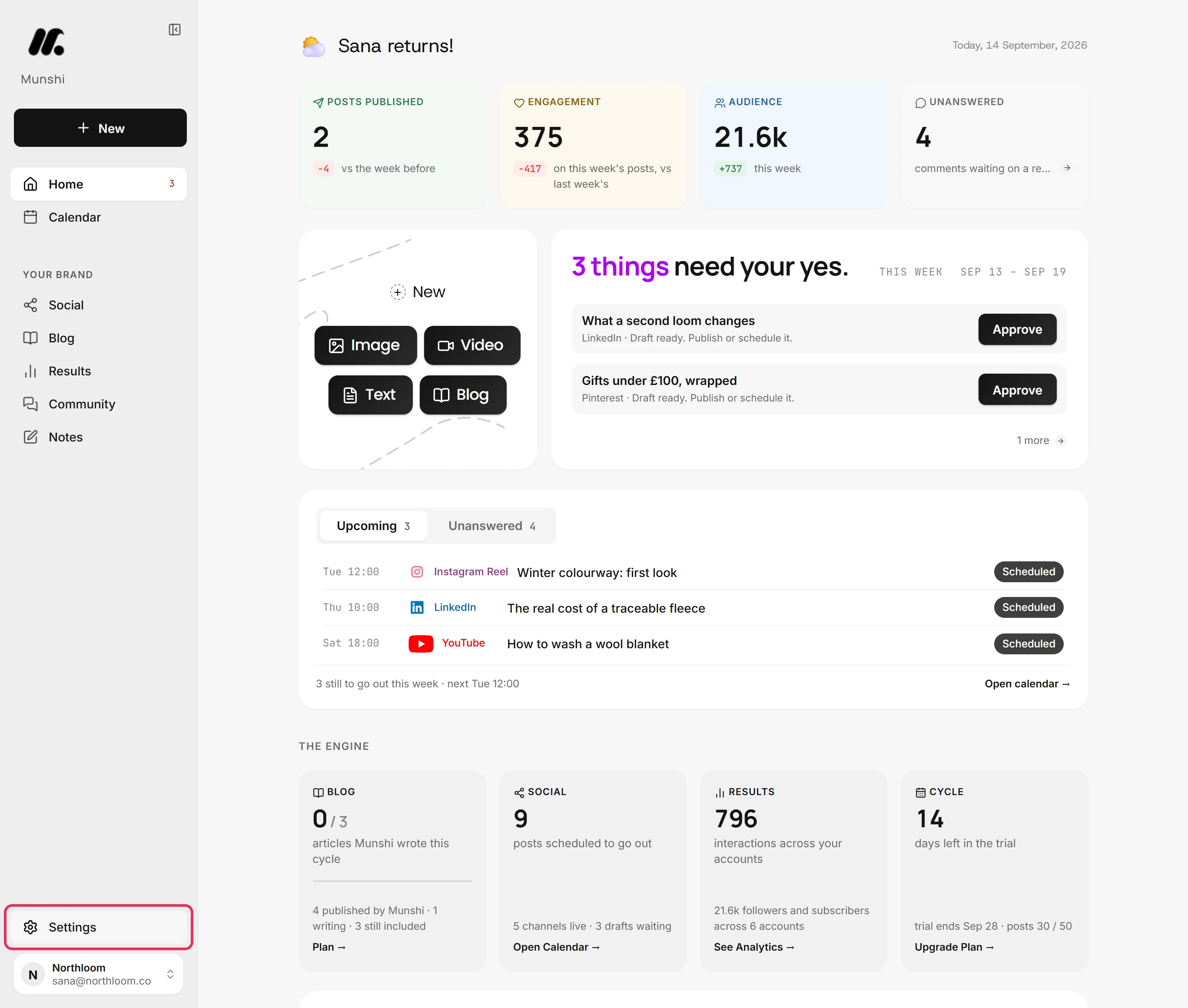
Click Settings at the bottom of the sidebar.
-
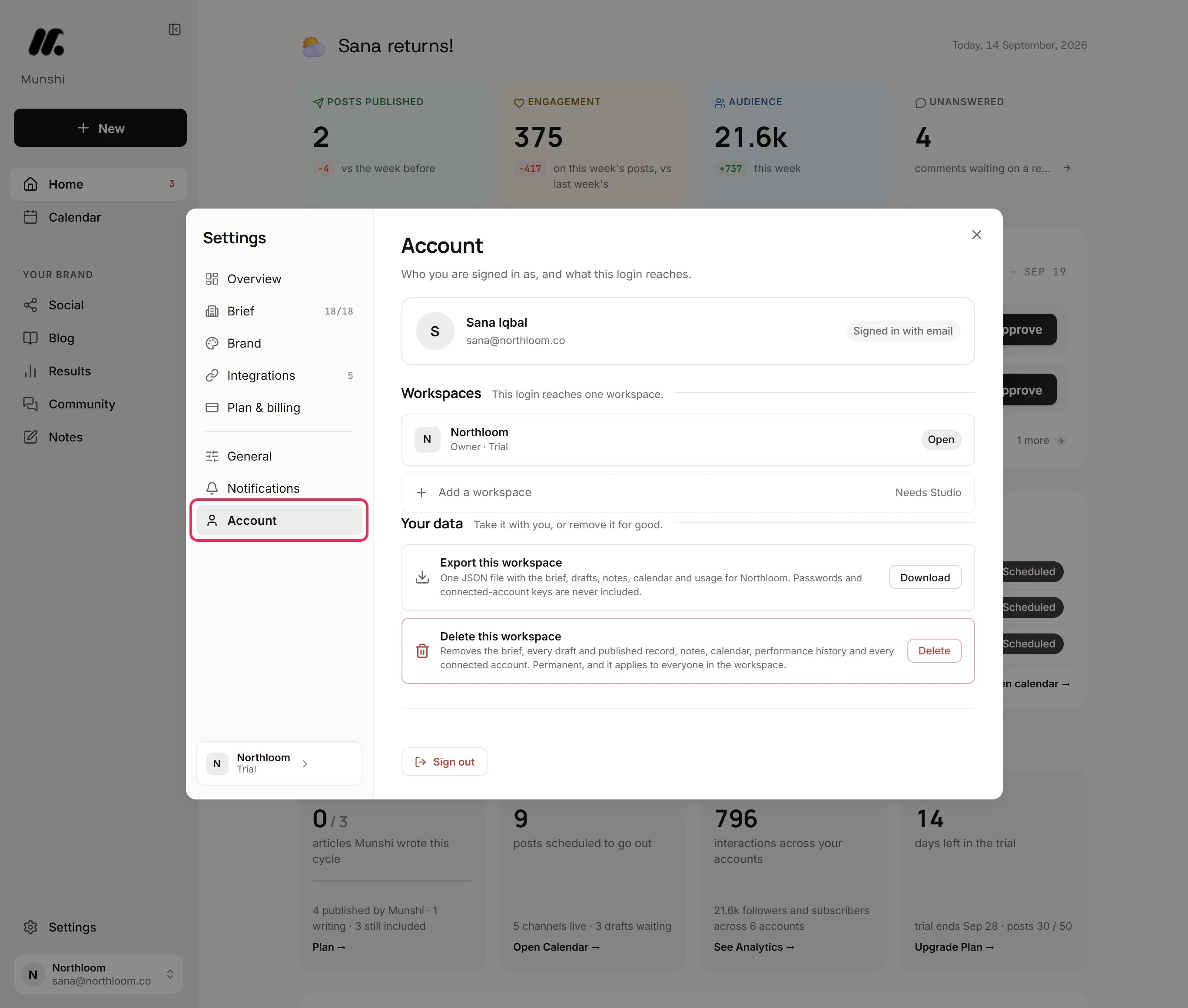
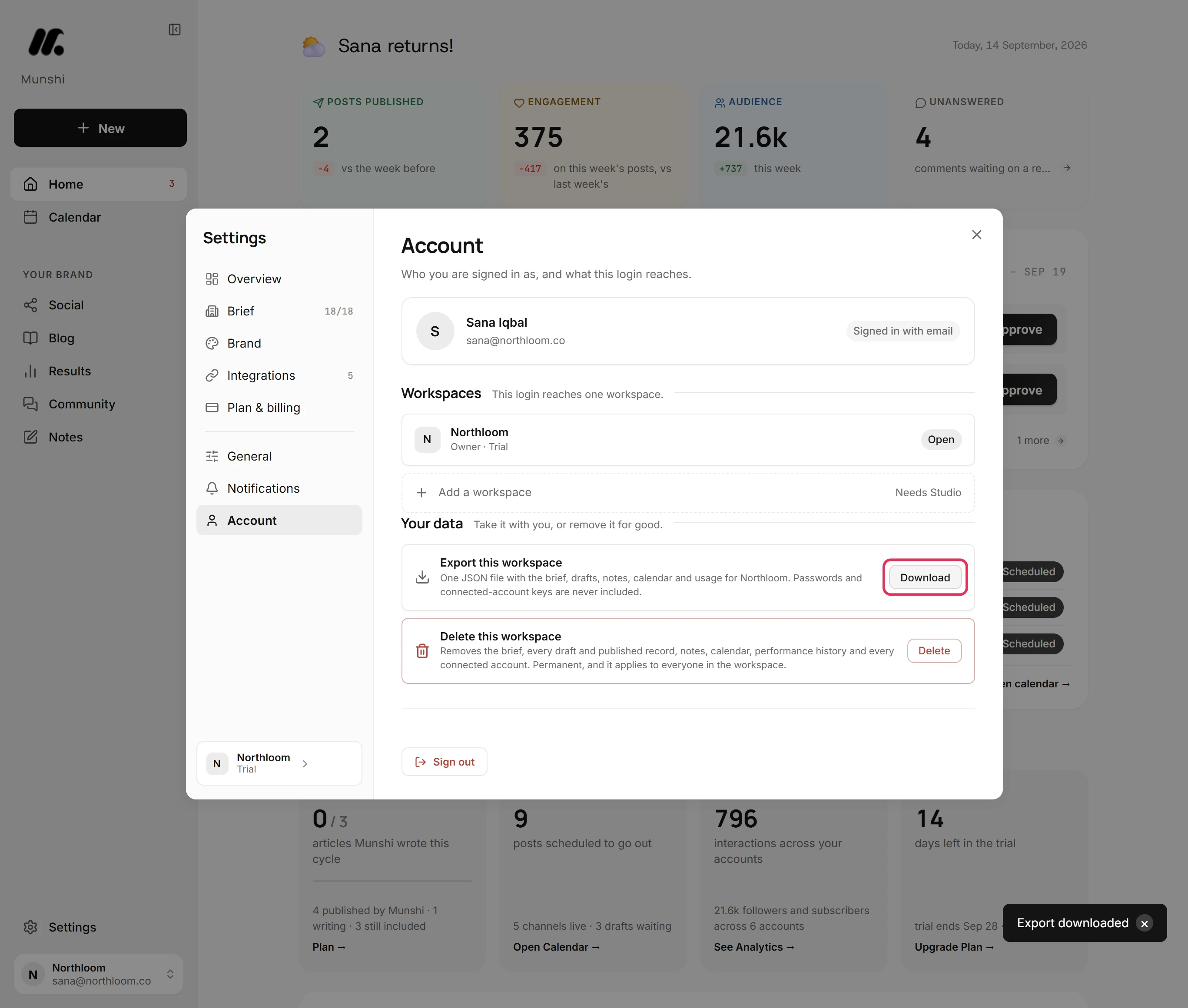
Pick Account, the last item in the list. It shows who you are signed in as and the workspaces this login can open. It also holds Your data.
-
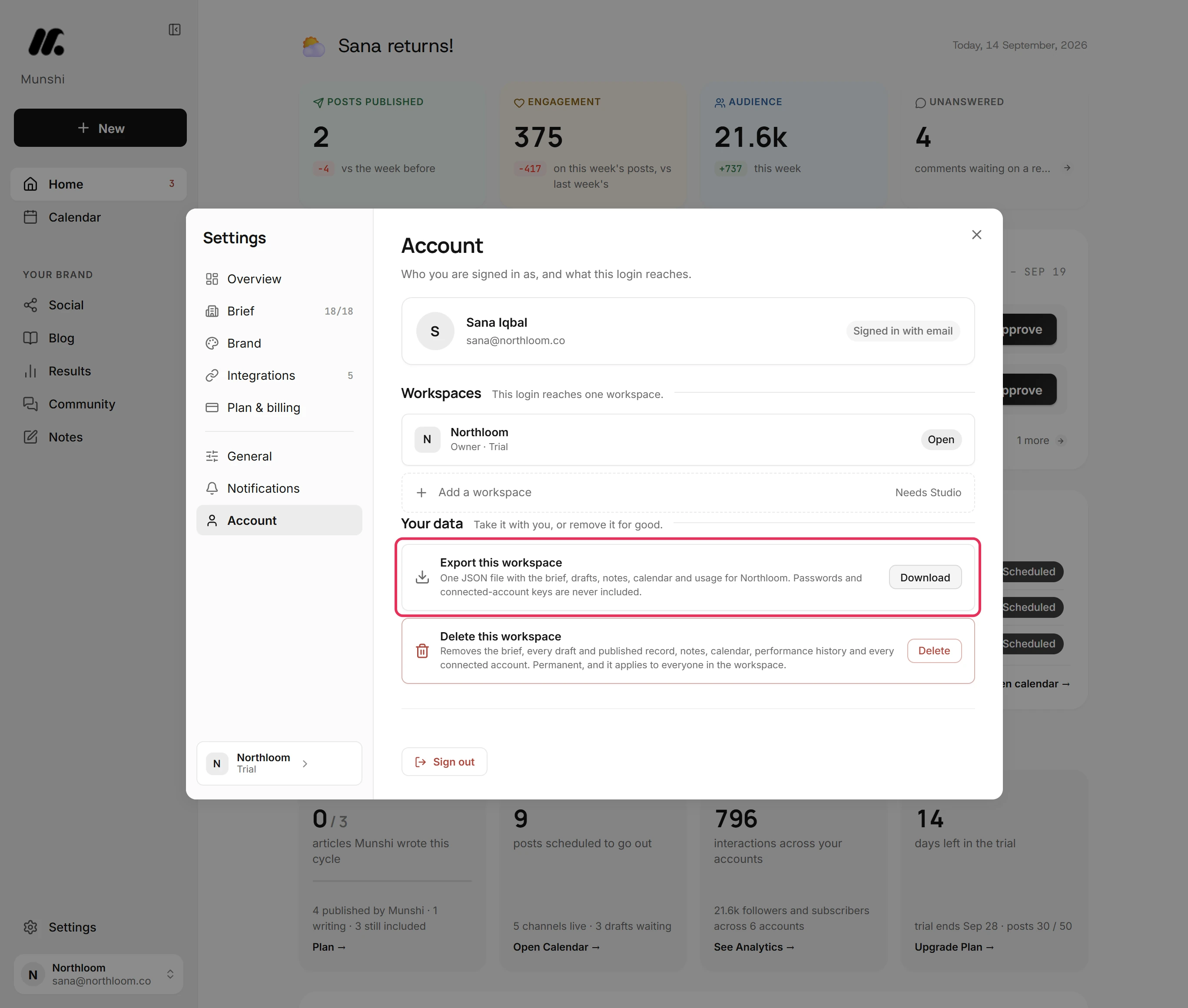
Under Your data, Export this workspace makes one JSON file for the workspace that is open.
-
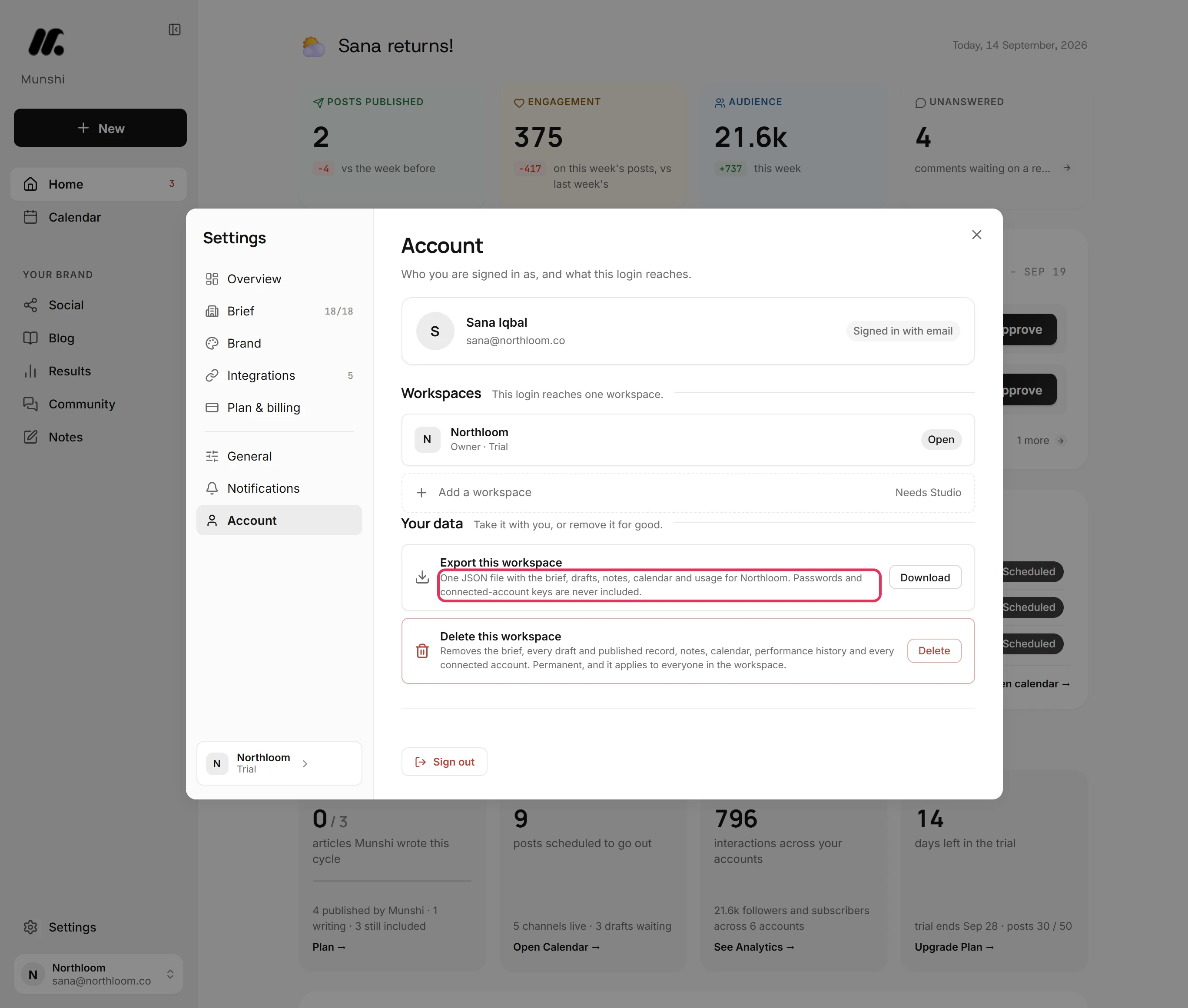
It holds the brief, drafts, notes, calendar and usage. It also holds the rest of what the workspace keeps, such as analytics history. Passwords and connected-account keys are never included.
-
Click Download. Munshi prepares the file, and your browser saves it with a name like munshi-northloom-export.json. Export downloaded confirms it.
Where you are now
You have one JSON file with everything the workspace holds, saved where your browser keeps downloads. Exporting only reads the workspace, so nothing in it changes.
If something goes wrong
“That export did not finish. Try again in a moment.”
Ask the workspace owner to export. Only the owner can export, so a teammate sees this message. If you are the owner, check your connection and click Download again.
What is in the file, exactly?
The file holds everything in the workspace. That means its brief and brand kit, articles and posts with their schedules, notes, the calendar and analytics history. It also has plan and usage, and the jobs Munshi ran. Connected accounts are listed, with their keys replaced by [redacted].
Are my uploaded pictures and videos in it?
No. The file lists each upload with its name, type, size and link, but not the picture or video itself. Keep your own copies of the originals.
Does exporting change or delete anything?
No. Export only reads the workspace. Deleting a workspace is a separate row below it. It asks you to type the workspace name before anything happens.
Try it on your own brand this week.
Munshi Social, the AI content marketing engine for small teams, plans, writes, publishes, and tracks your blog and socials. The guide above shows the real app, not a mock-up.
Start your workspace