How to post a carousel to Instagram
Add two to ten pictures to one Instagram image post in Munshi. Drag them into order, then schedule it. It takes about three minutes.
Before you start
- Instagram connected to the workspace, as a Business or Creator account. The Instagram page says how to connect it.
- The pictures, as JPG, PNG, WebP or GIF files.
-
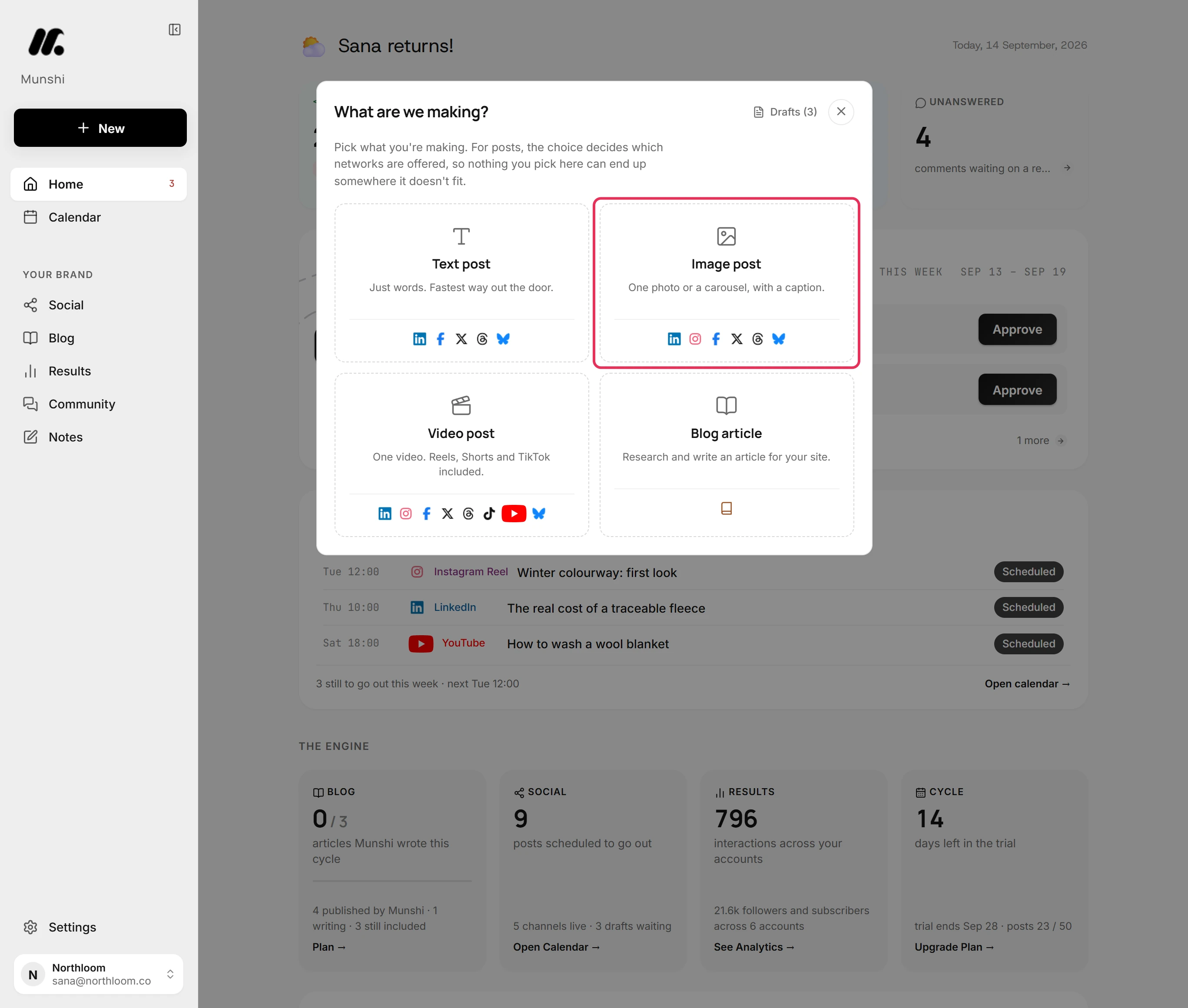
Click New at the top of the sidebar, then pick Image post. On Instagram, an image post with more than one picture is a carousel.
-
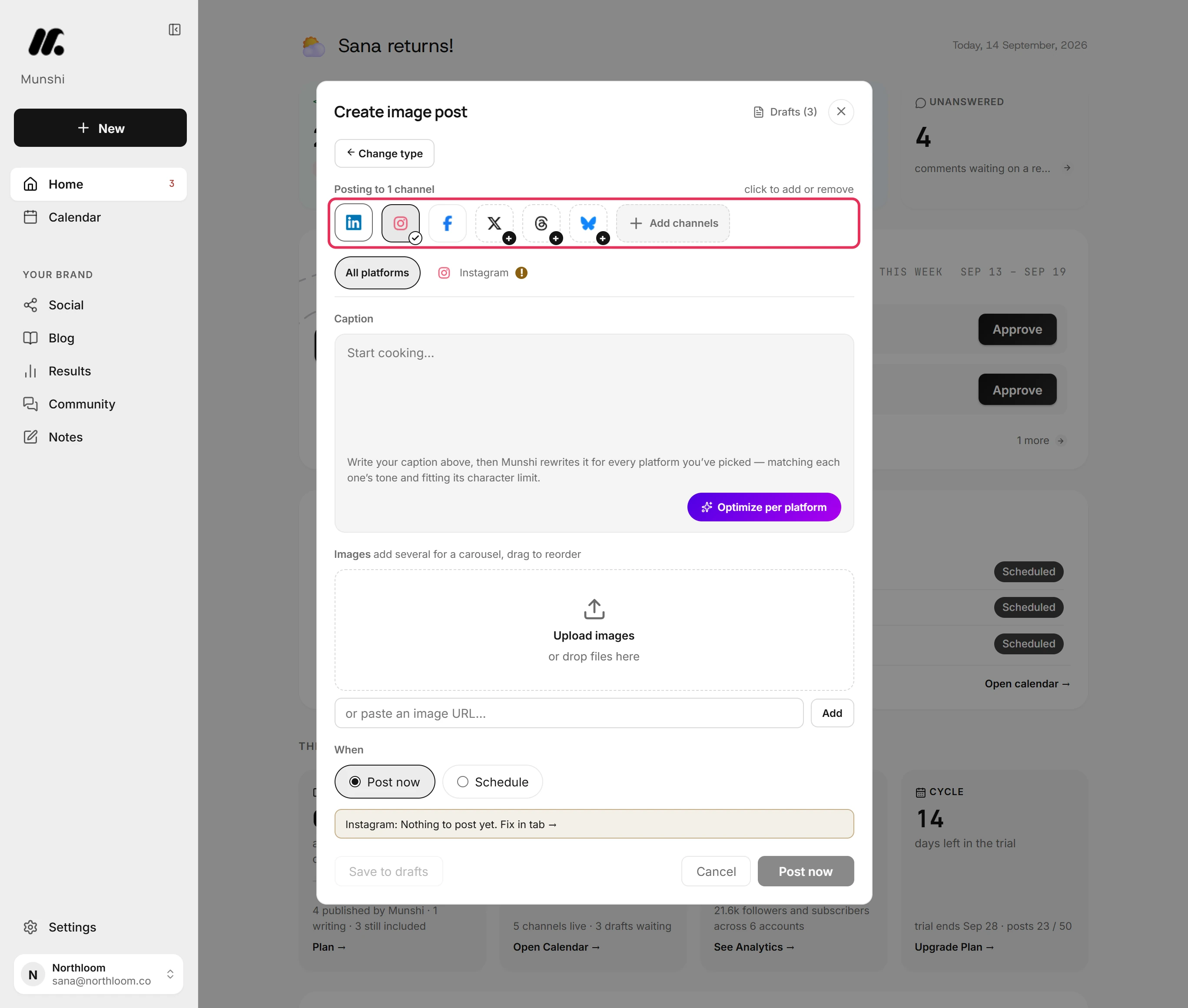
Click Instagram to add it. A new post starts with one network already picked. If the carousel is only for Instagram, click that one to take it off.
-
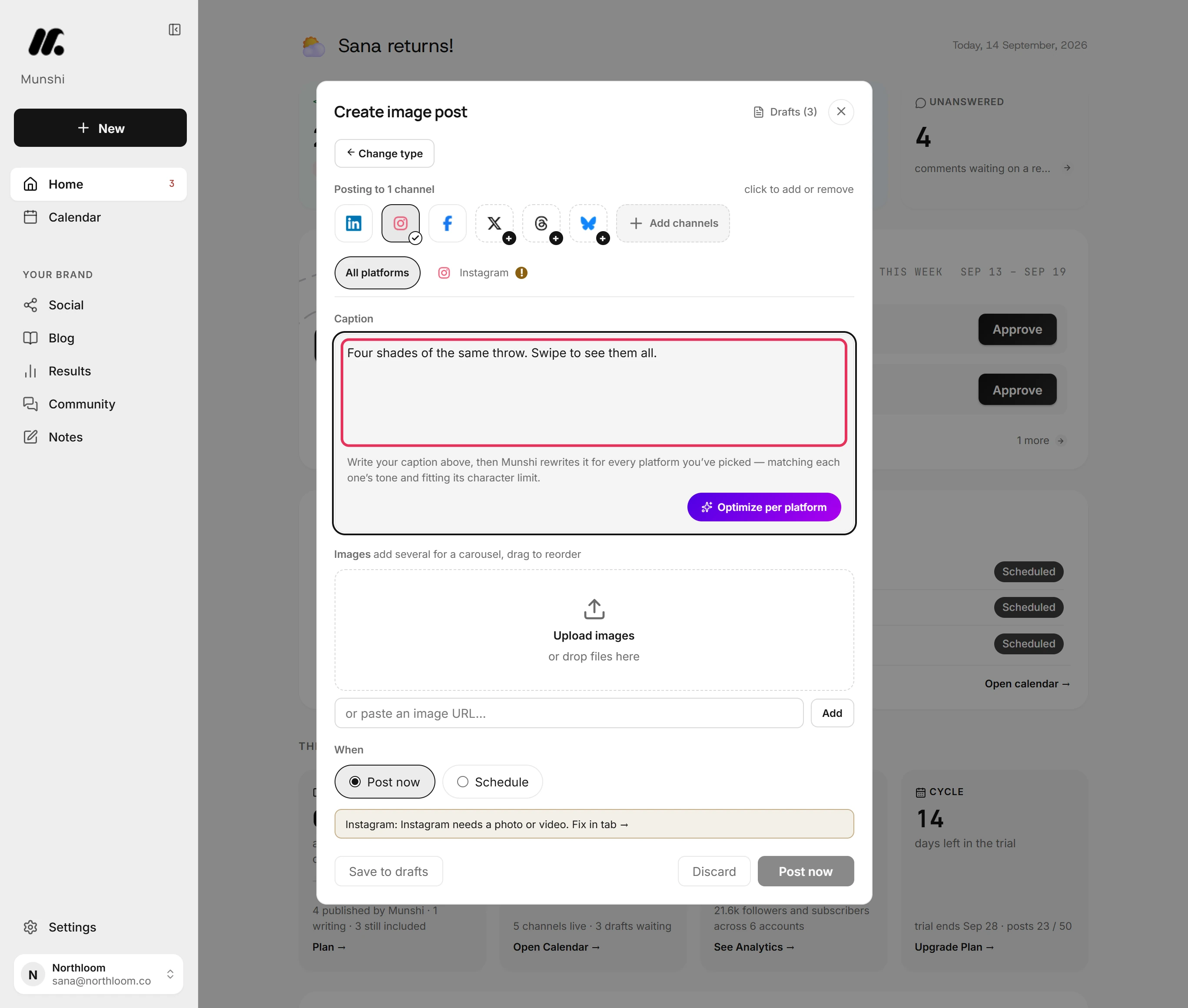
Type the caption in the Caption box. A carousel has one caption for all its pictures. Instagram takes up to 2,200 characters.
-
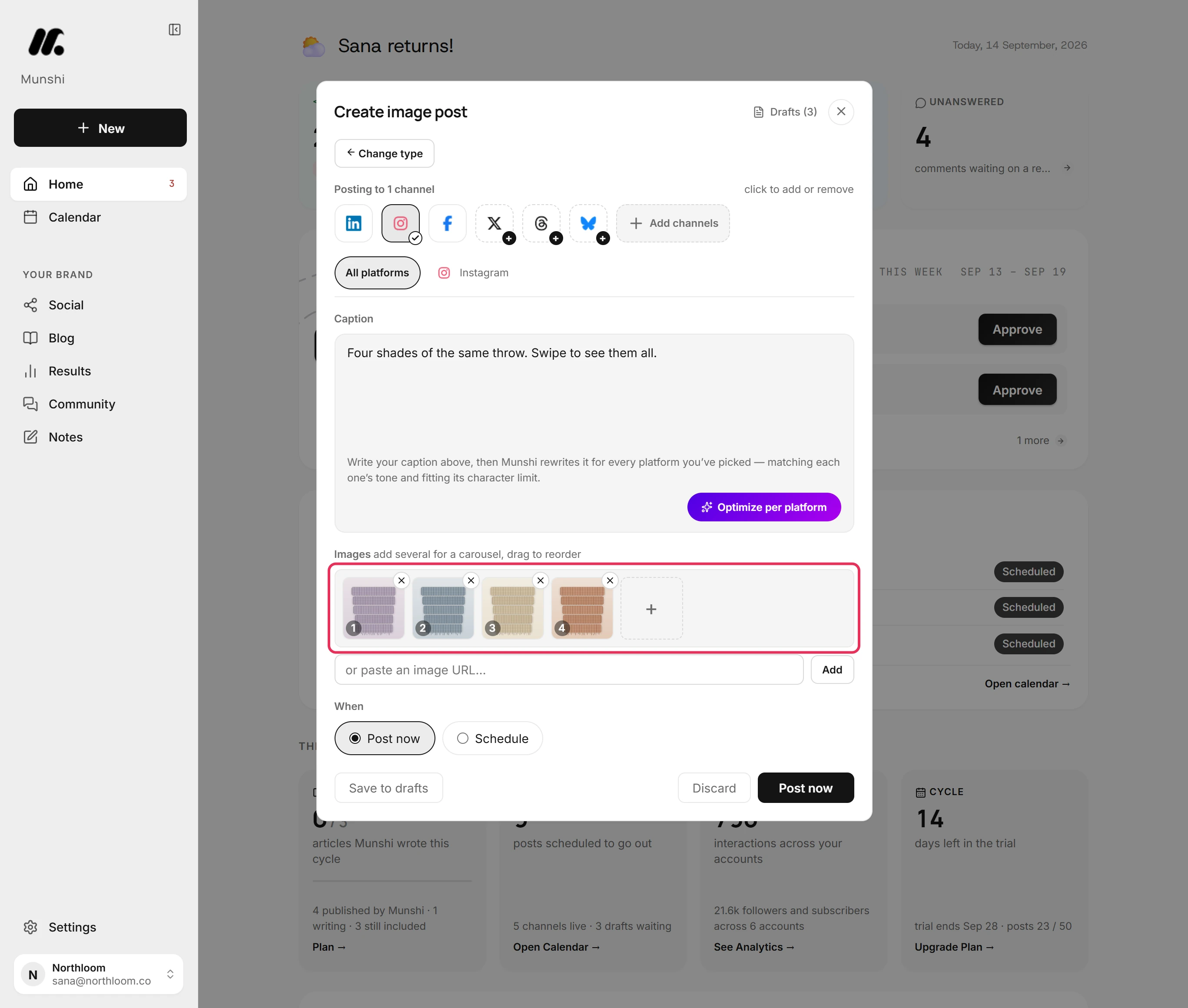
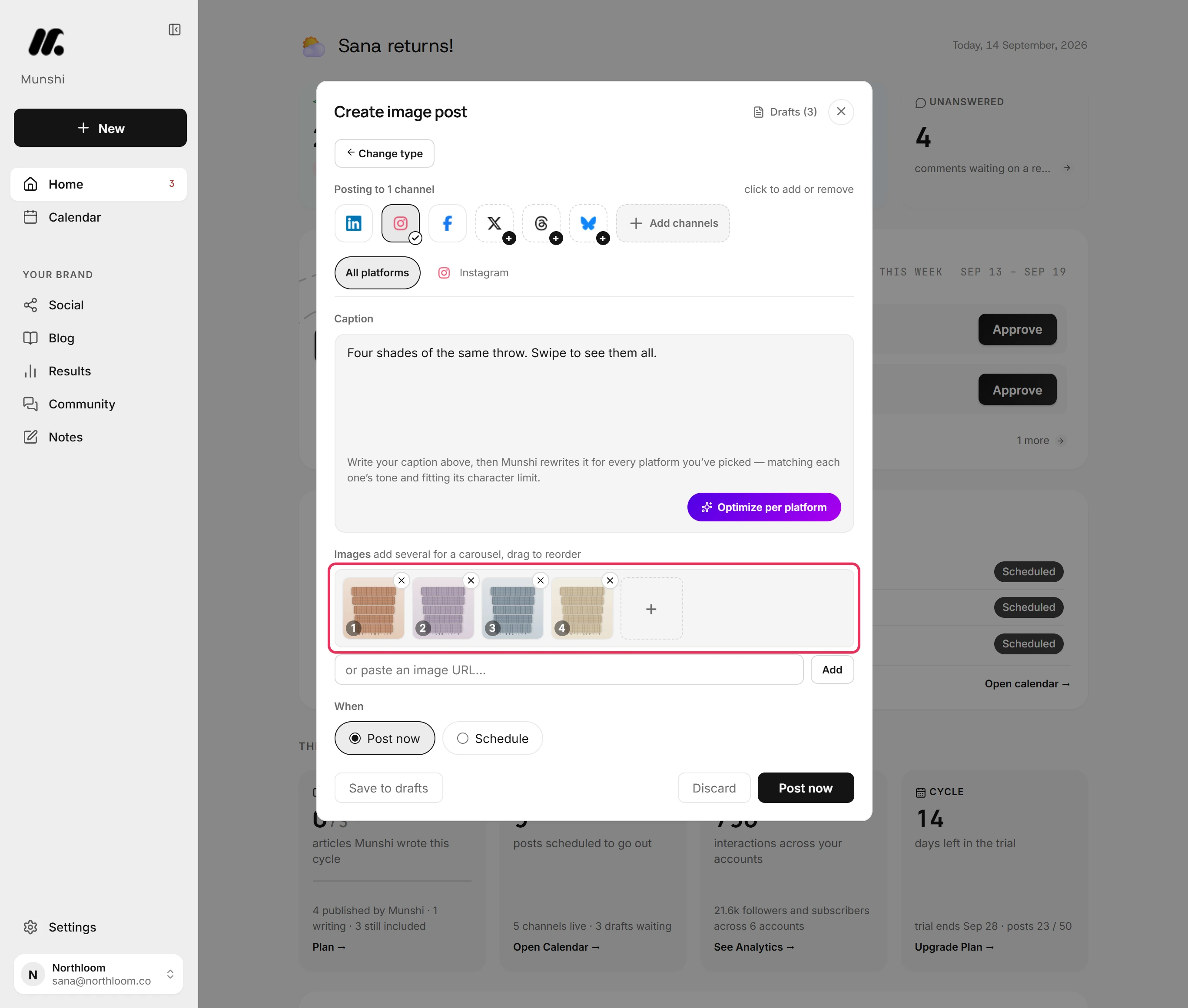
Click Upload images and pick all the pictures at once, or drop them on the box. They land in a row, each numbered with its place in the carousel.
-
Drag a picture onto the place you want it. The numbers follow, and the carousel opens on picture 1.
-
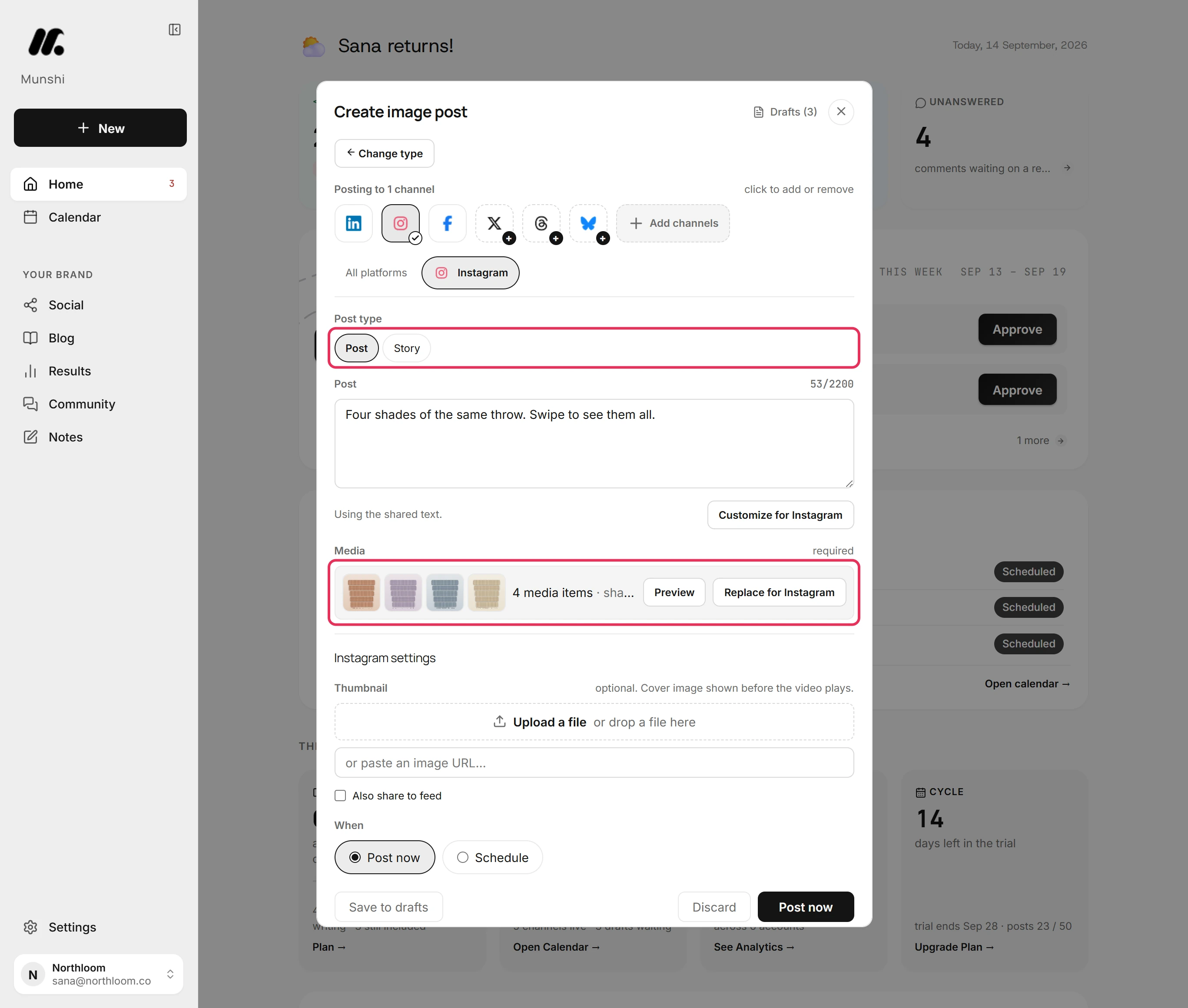
Open the Instagram tab. It shows the pictures in order, the caption count and Post type. Keep Post, because that type sends several pictures as one carousel.
-
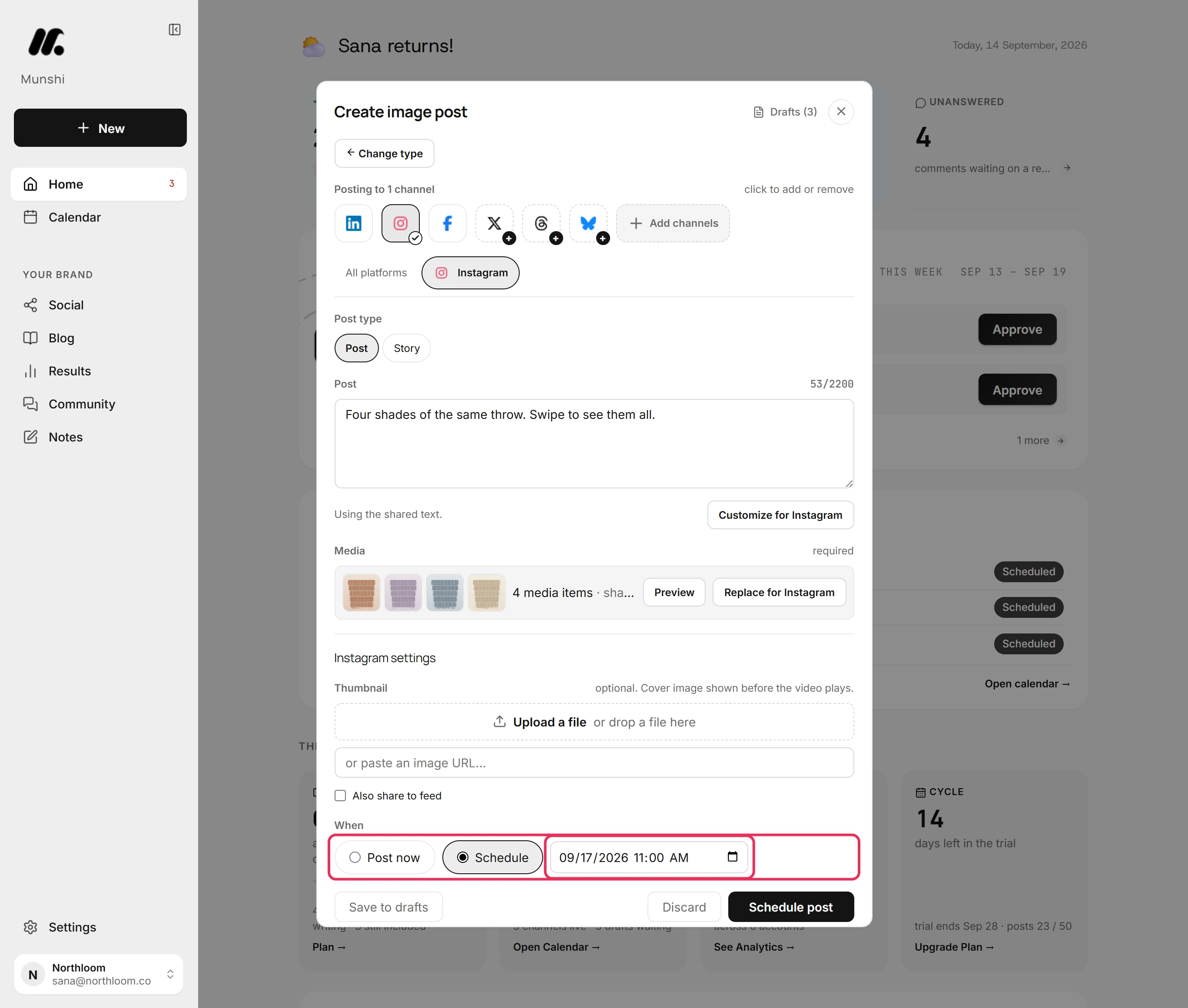
Under When, pick Schedule and set the date and time. Munshi reads the time in your workspace's time zone.
-
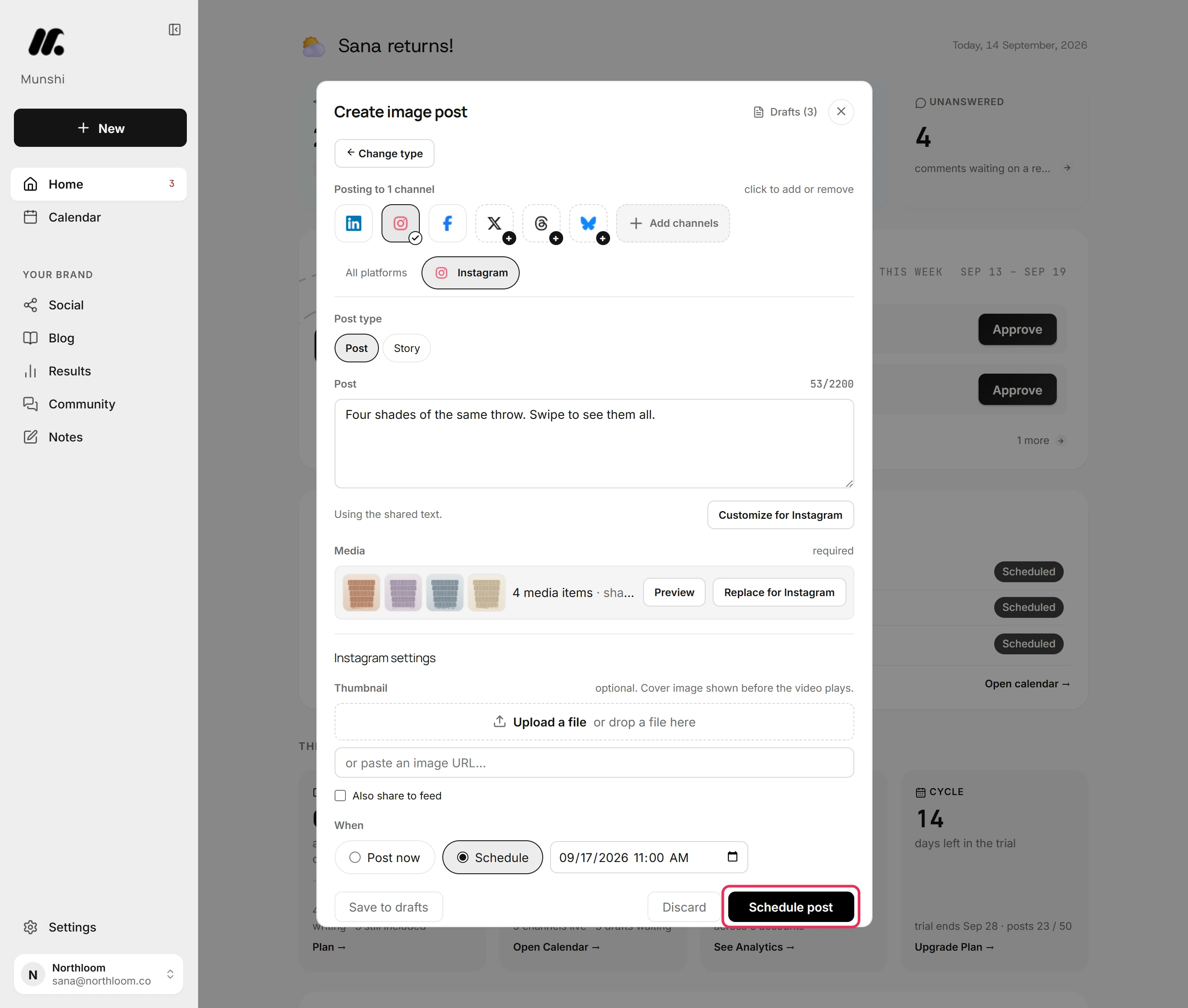
Click Schedule post. If the Instagram version breaks a rule, such as more than 10 pictures, Munshi says which rule. Nothing is scheduled until you fix it.
-
Munshi takes you to Social. Open the Scheduled tab to see the carousel with its time. Edit opens it again, and Unschedule takes it back to drafts.
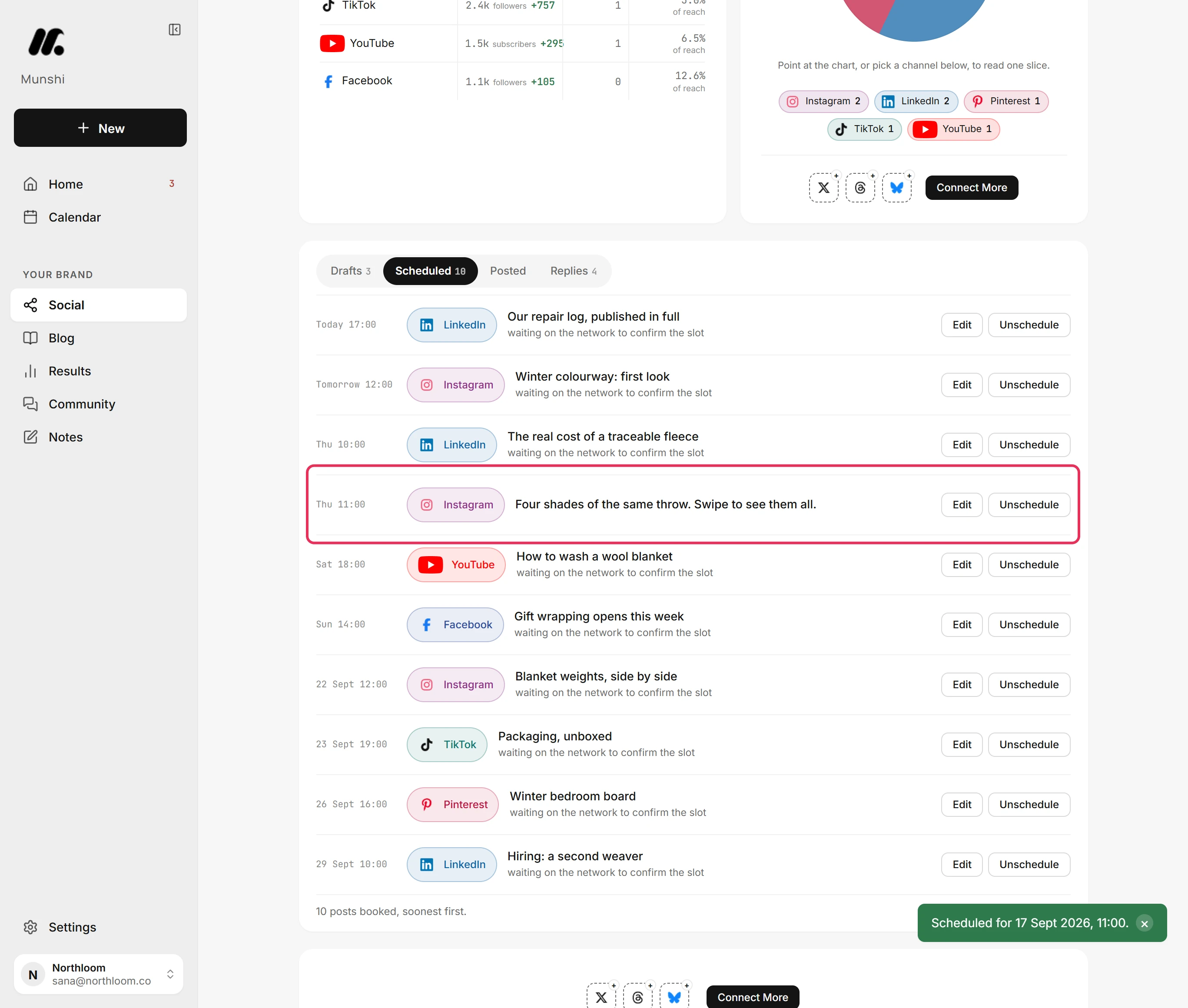
Where you are now
The carousel is booked for Instagram, with its pictures in the order you set. It waits in the Scheduled queue and on the Calendar until its time, then goes out on its own.
If something goes wrong
“Instagram takes up to 10 media items. Remove 2.”
Remove the extra pictures with the cross on their thumbnails in the All platforms tab. The post holds more than ten, and the mark on the Instagram tab clears once it fits.
“Instagram needs a photo or video.”
Add the pictures in the All platforms tab. Wait for the numbered row to appear before you schedule. No picture made it into the post.
A picture is refused with “an image post takes JPG, PNG, WebP or GIF images.”
Export the picture as JPG or PNG and upload it again. An image post cannot carry its current format.
The carousel was scheduled in the wrong order
Open Scheduled on the Social page and click Edit. Drag the pictures into order in the All platforms tab. Then click Save (keep schedule), and Munshi books it again at the same time.
Try it on your own brand this week.
Munshi Social, the AI content marketing engine for small teams, plans, writes, publishes, and tracks your blog and socials. The guide above shows the real app, not a mock-up.
Start your workspace