How to set up your brand kit for article covers
Add your four colours, logo and font in Settings > Brand, and pick the cover designs Munshi uses in turn. Every article cover then matches your brand.
-
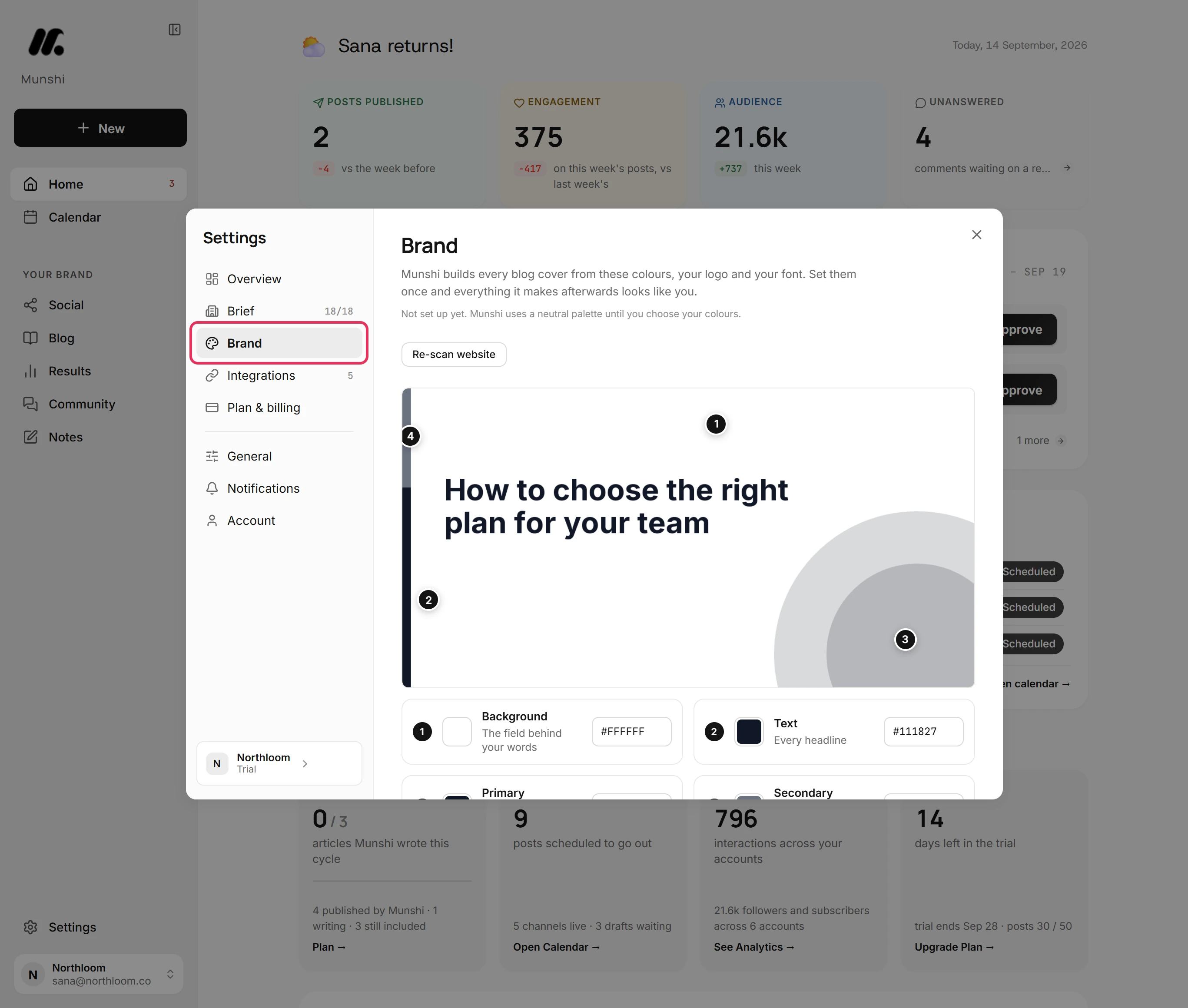
Click Settings at the bottom of the sidebar, then Brand. Everything a blog cover is drawn from lives here. Nothing on this screen saves until you click Save brand.
-
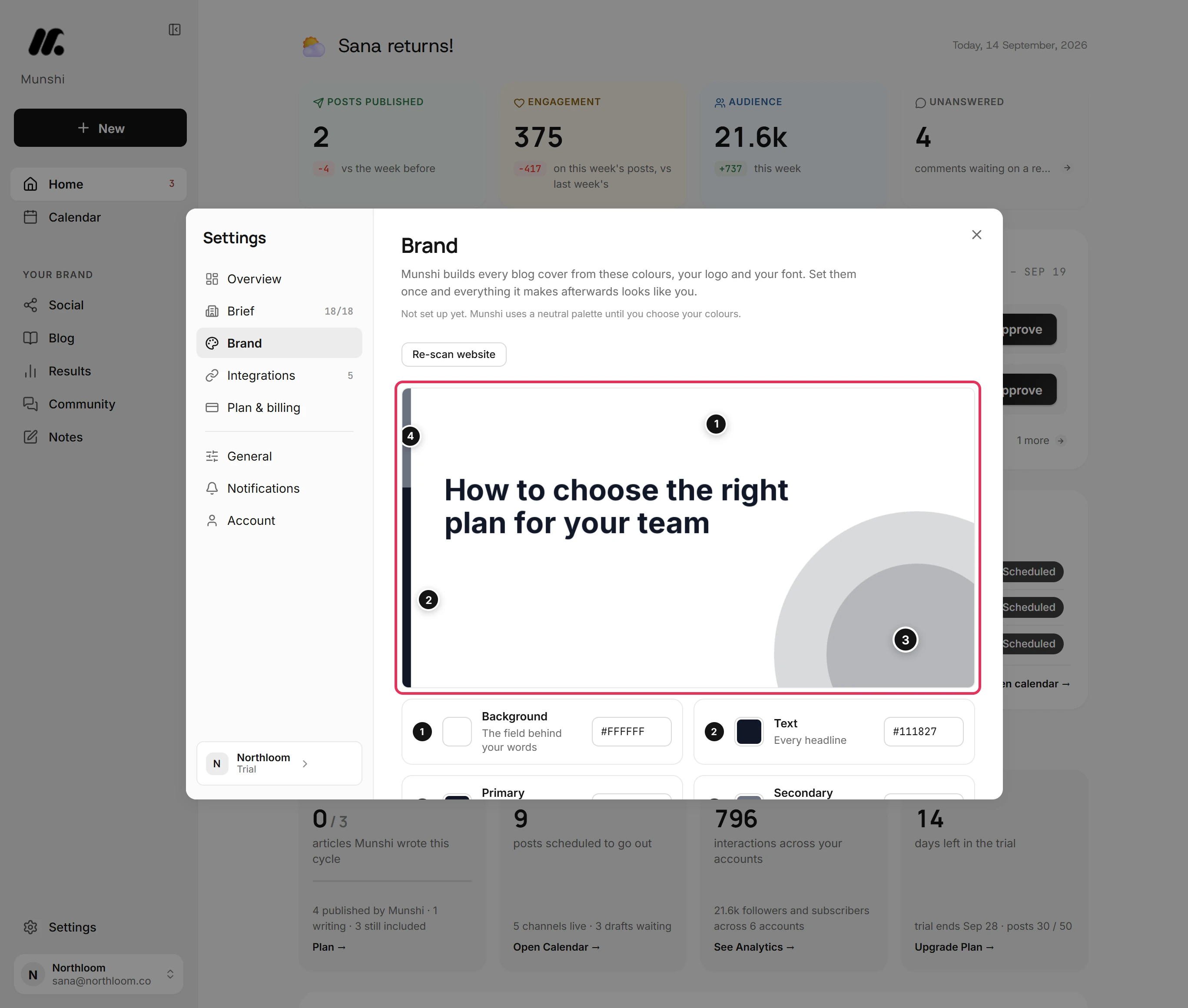
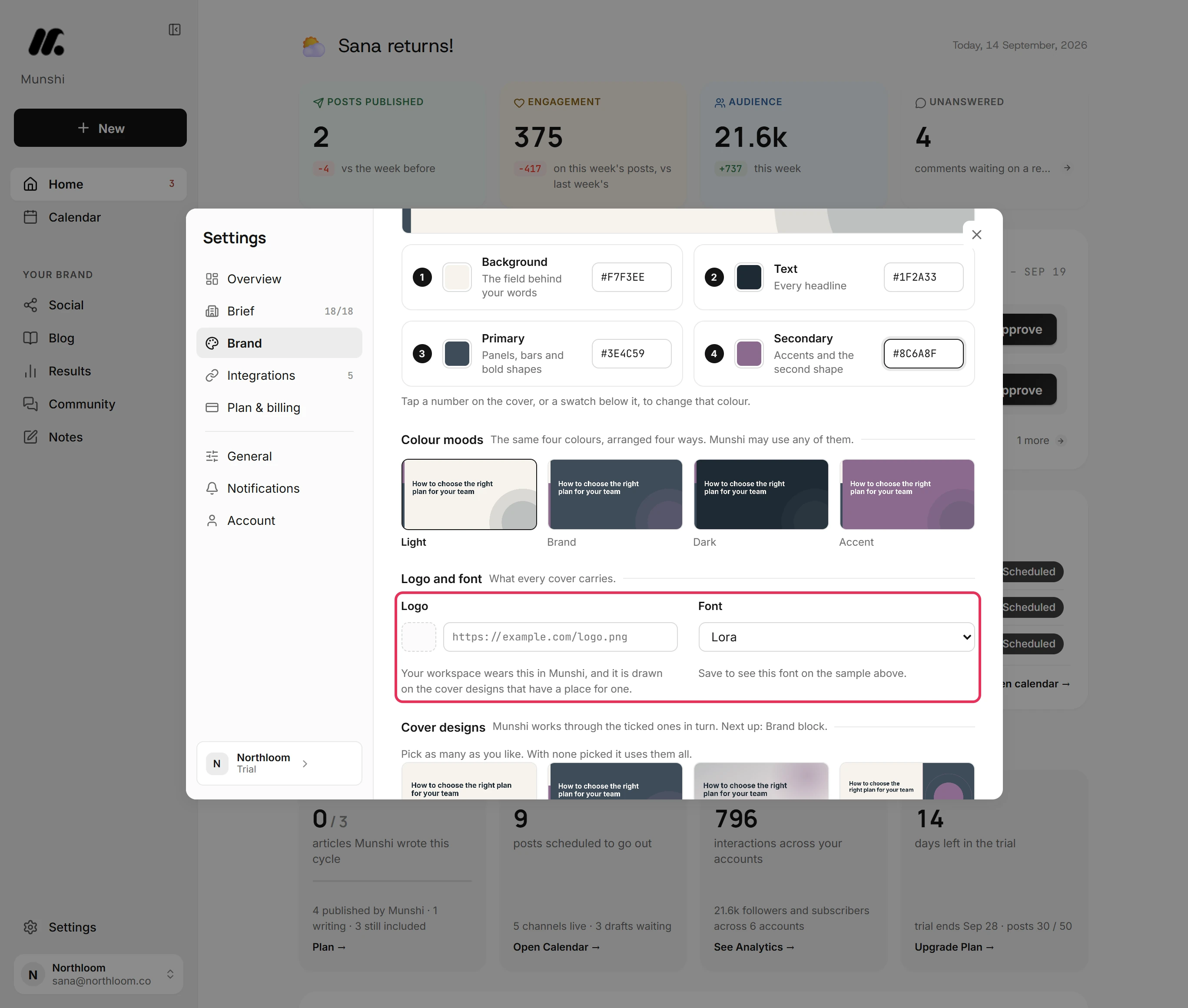
The sample at the top is a real cover drawn in your colours. The numbers on it show where each colour goes: 1 the background, 2 the text, 3 the primary colour and 4 the secondary one.
-
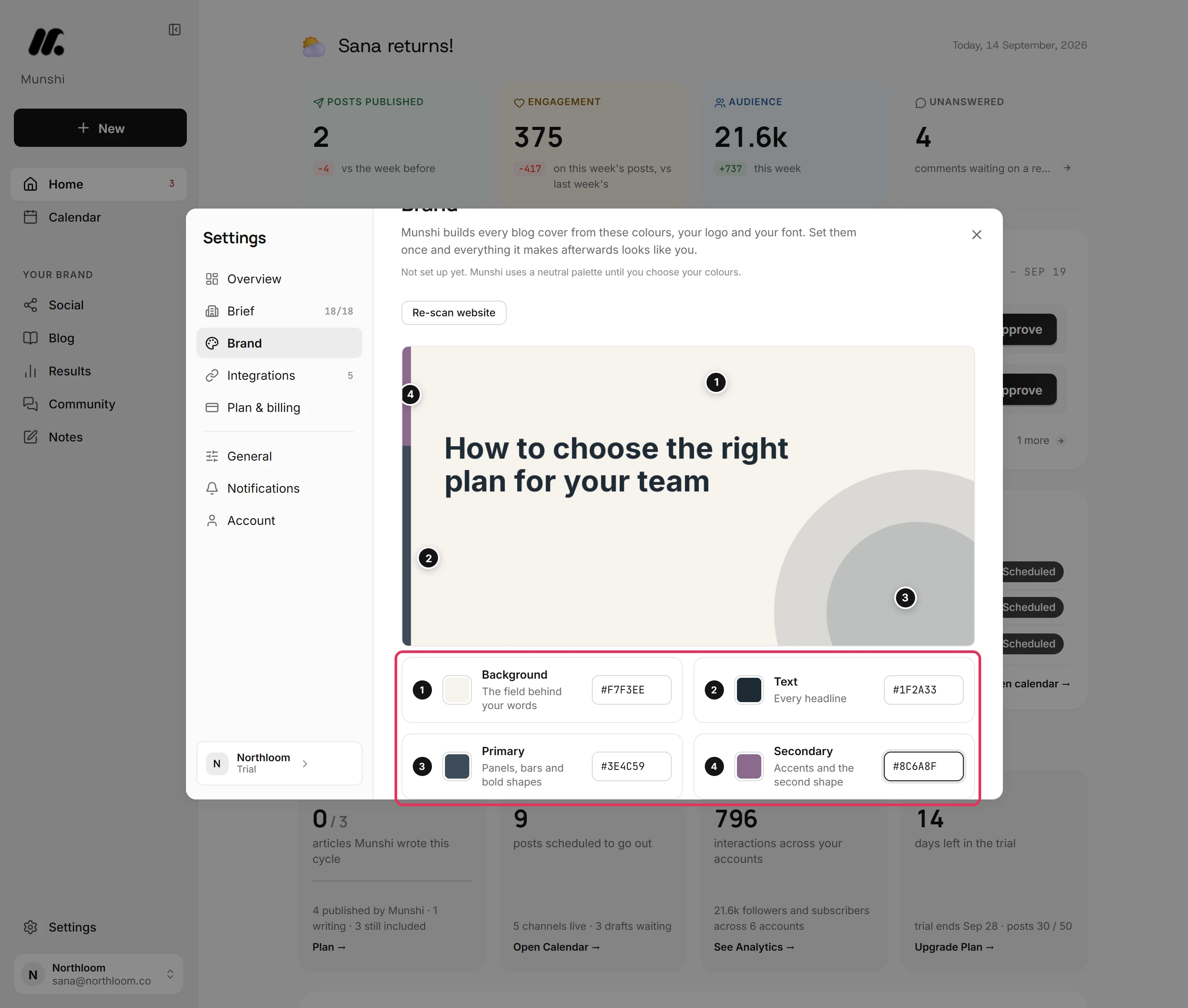
Type a six-digit code into each colour card, such as #3E4C59, or click its swatch to pick one. The sample redraws as you type, but nothing is saved yet.
-
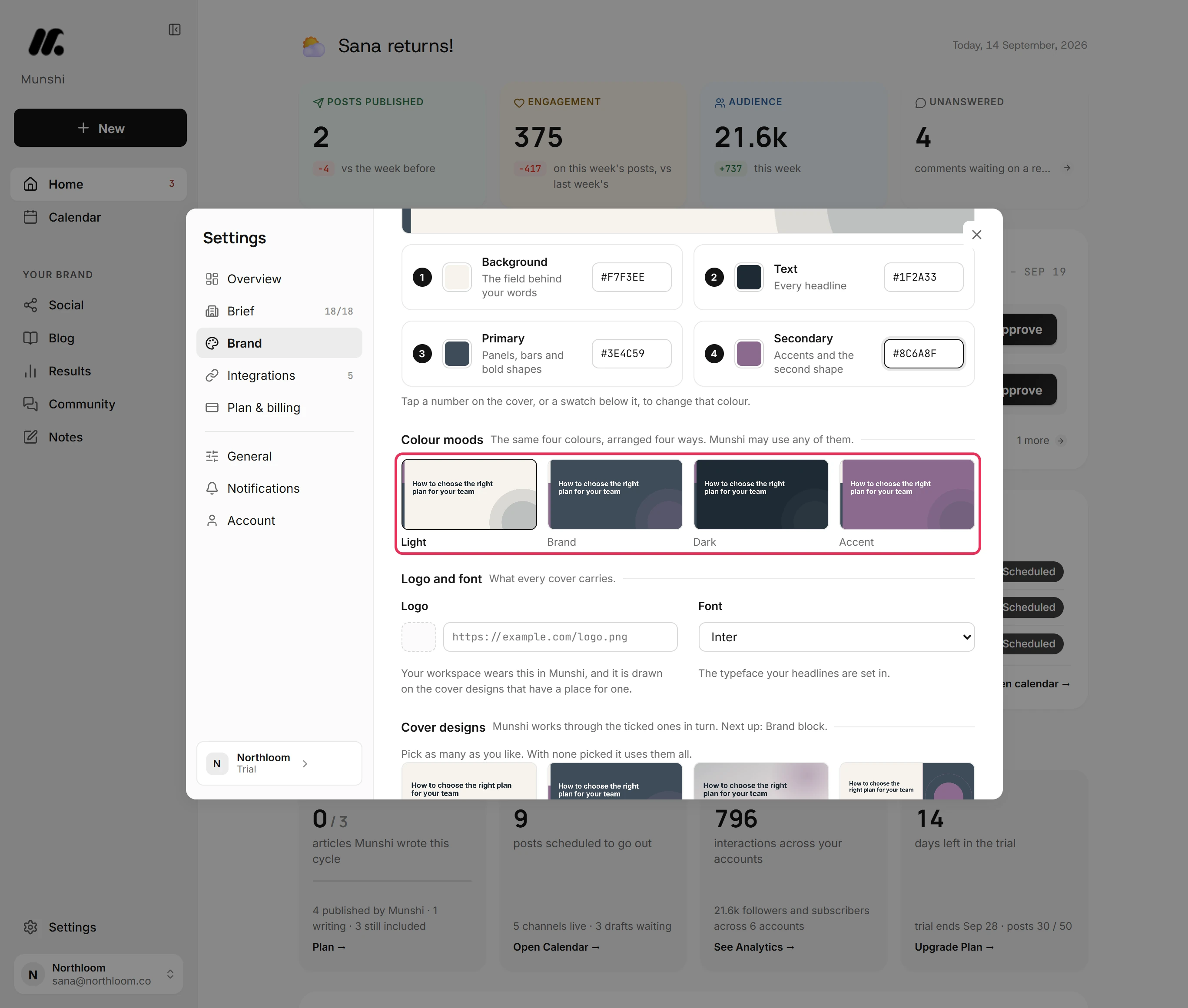
Colour moods shows your four colours arranged four ways: Light, Brand, Dark and Accent. Munshi may use any of them, so check that each one reads well. Click a mood to see it large in the sample.
-
Under Logo, paste a link to your logo image that starts with http:// or https://. Then choose a typeface under Font. Covers use the saved logo and font, so both apply once you click Save brand.
-
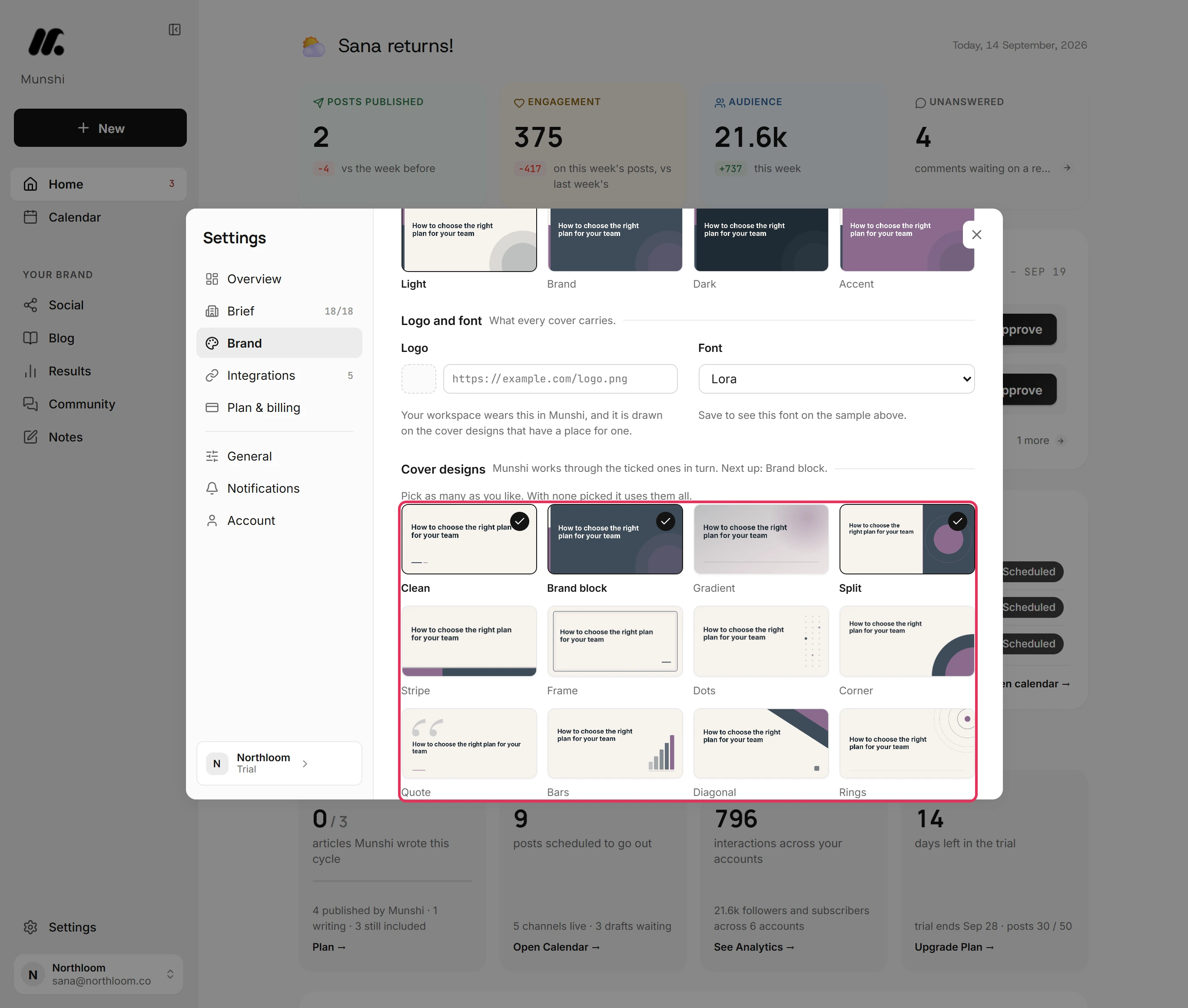
Under Cover designs, tick the designs you like. Munshi uses the ticked ones in turn, and the line beside the heading names the next one up. If none are ticked, it uses them all.
-
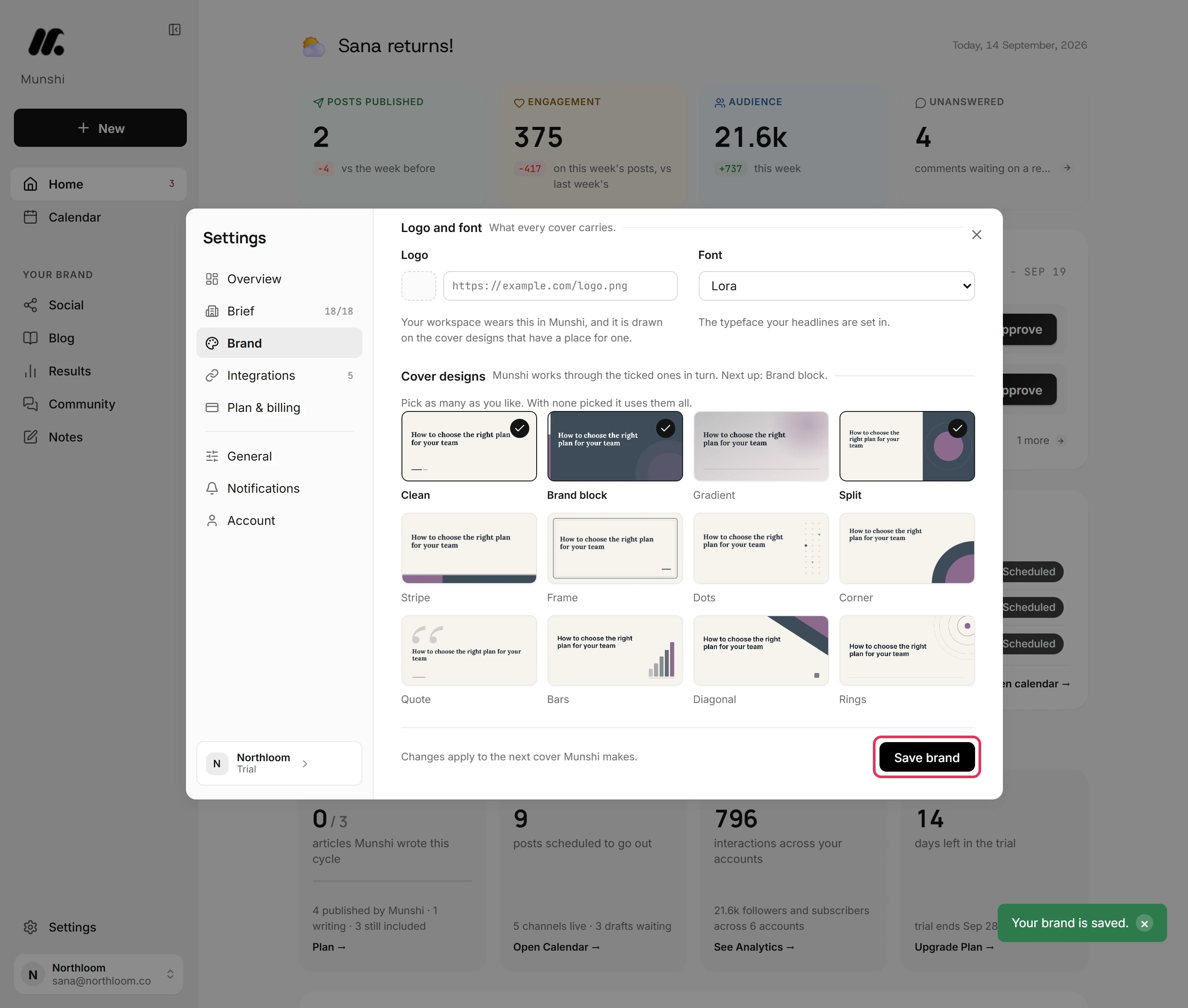
Click Save brand. Munshi confirms with Your brand is saved. The next cover it makes uses the new kit.
Where you are now
Your colours, logo, font and chosen designs are saved as the workspace's brand kit. Every cover Munshi makes from now on uses it. That includes covers for scheduled articles made while you are away.
If something goes wrong
“Use a six digit colour code such as #1F5EFF.”
Type # followed by six characters from 0 to 9 and A to F, or click the swatch to pick a colour. One of the four codes is not complete. Save brand stays unavailable until all four are.
“That link did not load an image. Check it and paste it again.”
Paste a link that opens the image file itself and starts with http:// or https://. A link to a web page that shows the logo will not work.
“You have used all five website scans for this hour. Try again a little later.”
Try again later, or set the colours by hand. Re-scan website reads your site at most five times an hour. Your saved brand is untouched.
The sample still shows the old font or logo
Click Save brand. The sample shows unsaved colours as you type, but not a changed font or logo. Every cover Munshi makes after you save uses them.
Try it on your own brand this week.
Munshi Social, the AI content marketing engine for small teams, plans, writes, publishes, and tracks your blog and socials. The guide above shows the real app, not a mock-up.
Start your workspace