Results overview: what landed on your site and where it came from
The Results overview shows what your posts and articles reached, who came to your site, and which post worked best, for the window you pick.
Before you start
- At least one connected social network. Some figures also need your blog, Search Console and Google Analytics connected: the Blogs card, the visitors to your site and the AI assistant visits. Until they are, those figures say so.
-
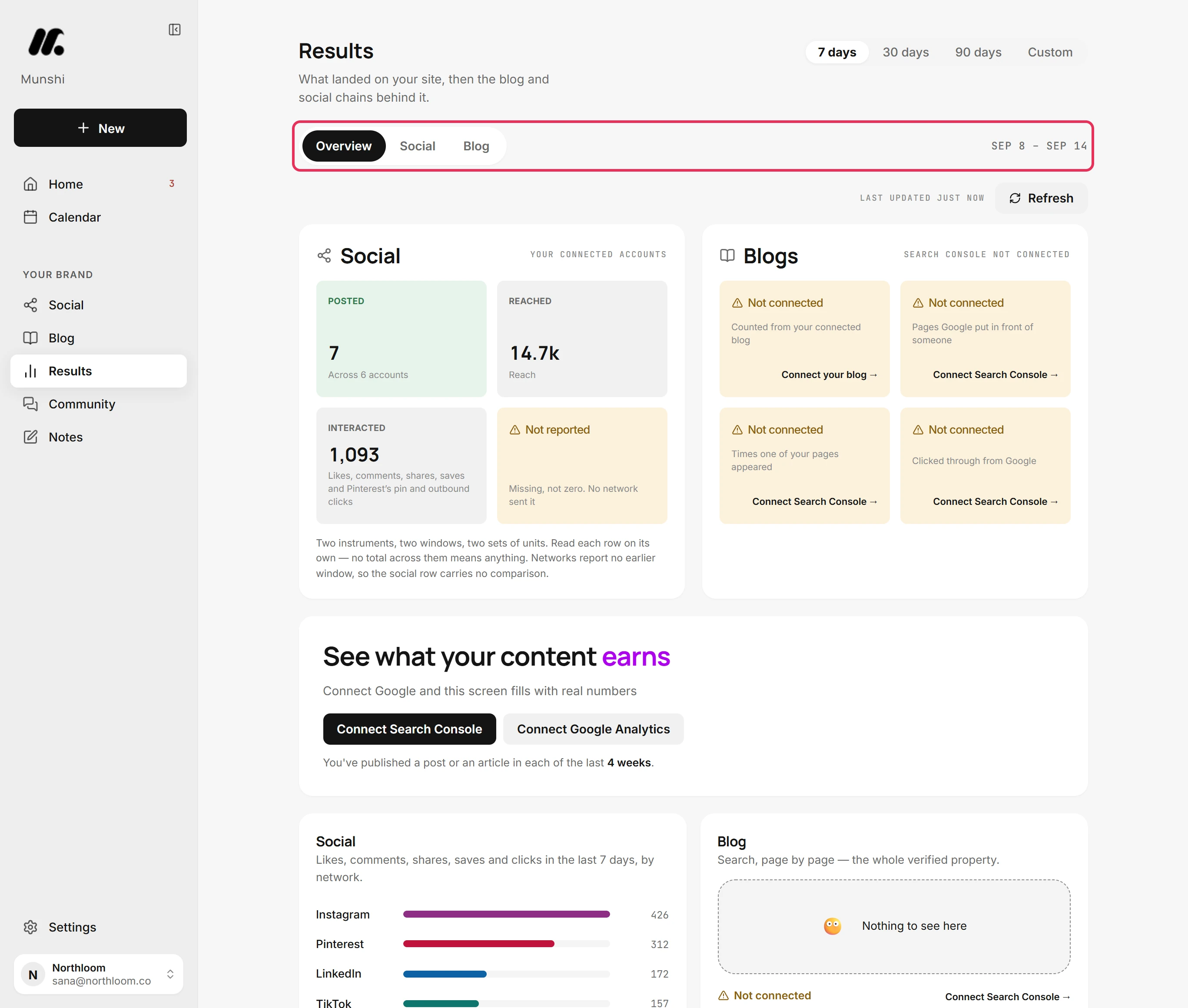
Click Results in the sidebar. It opens on Overview, which shows what landed on your site and the blog and social behind it. Social and Blog go deeper into each.
-
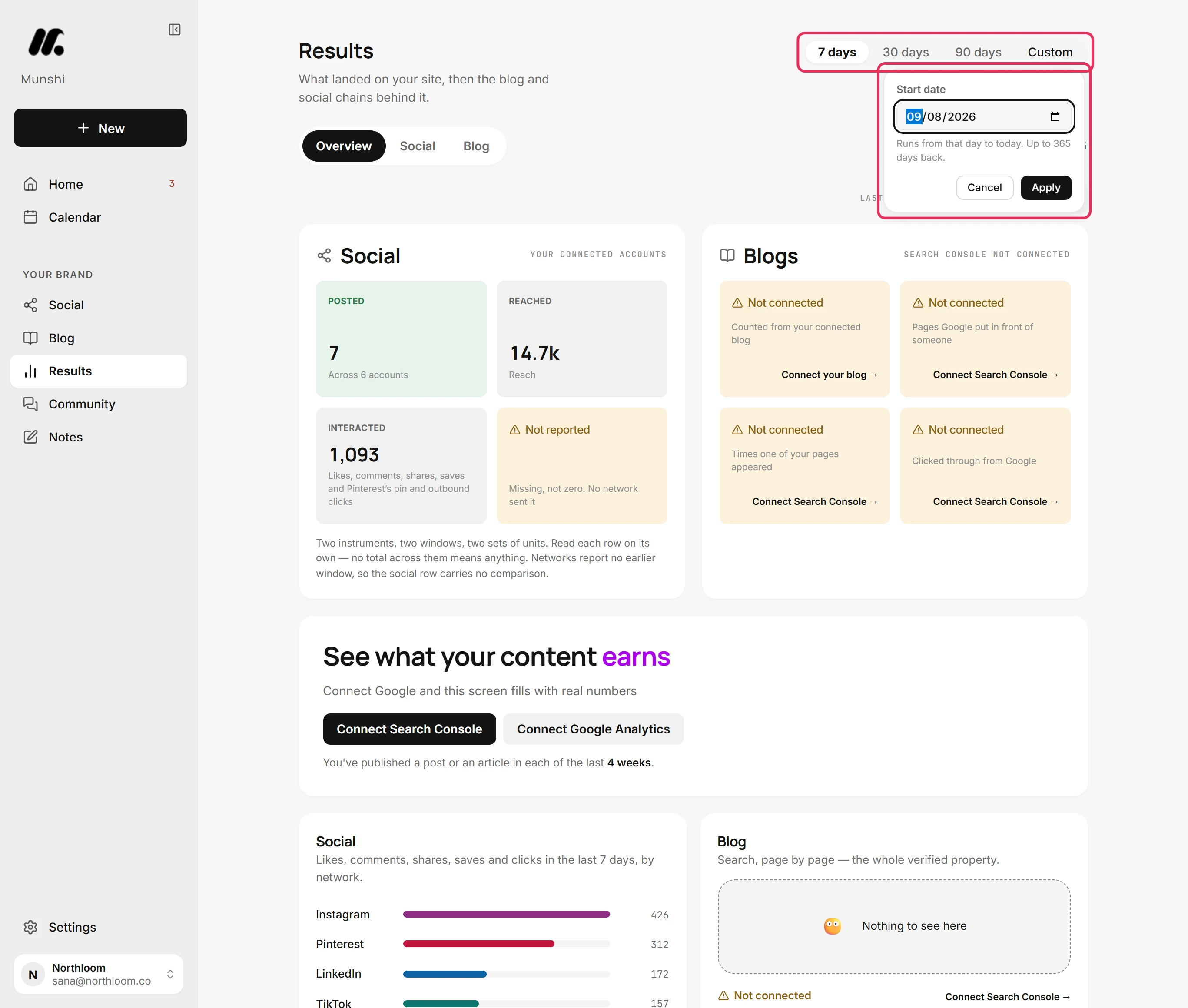
Choose 7 days, 30 days or 90 days. The dates the page reads show beside the tabs. Custom takes a start date up to 365 days back and reads from that day to today.
-
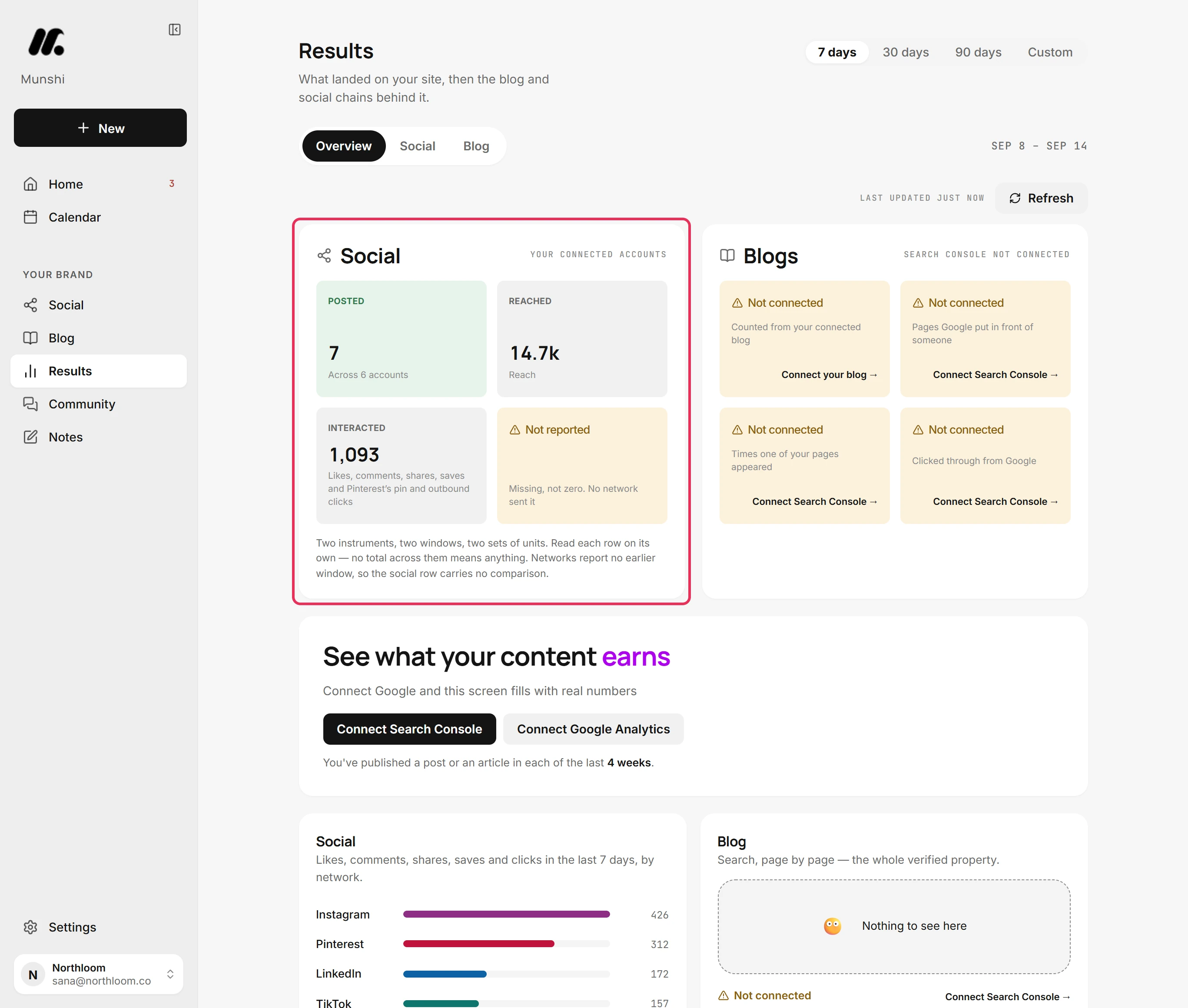
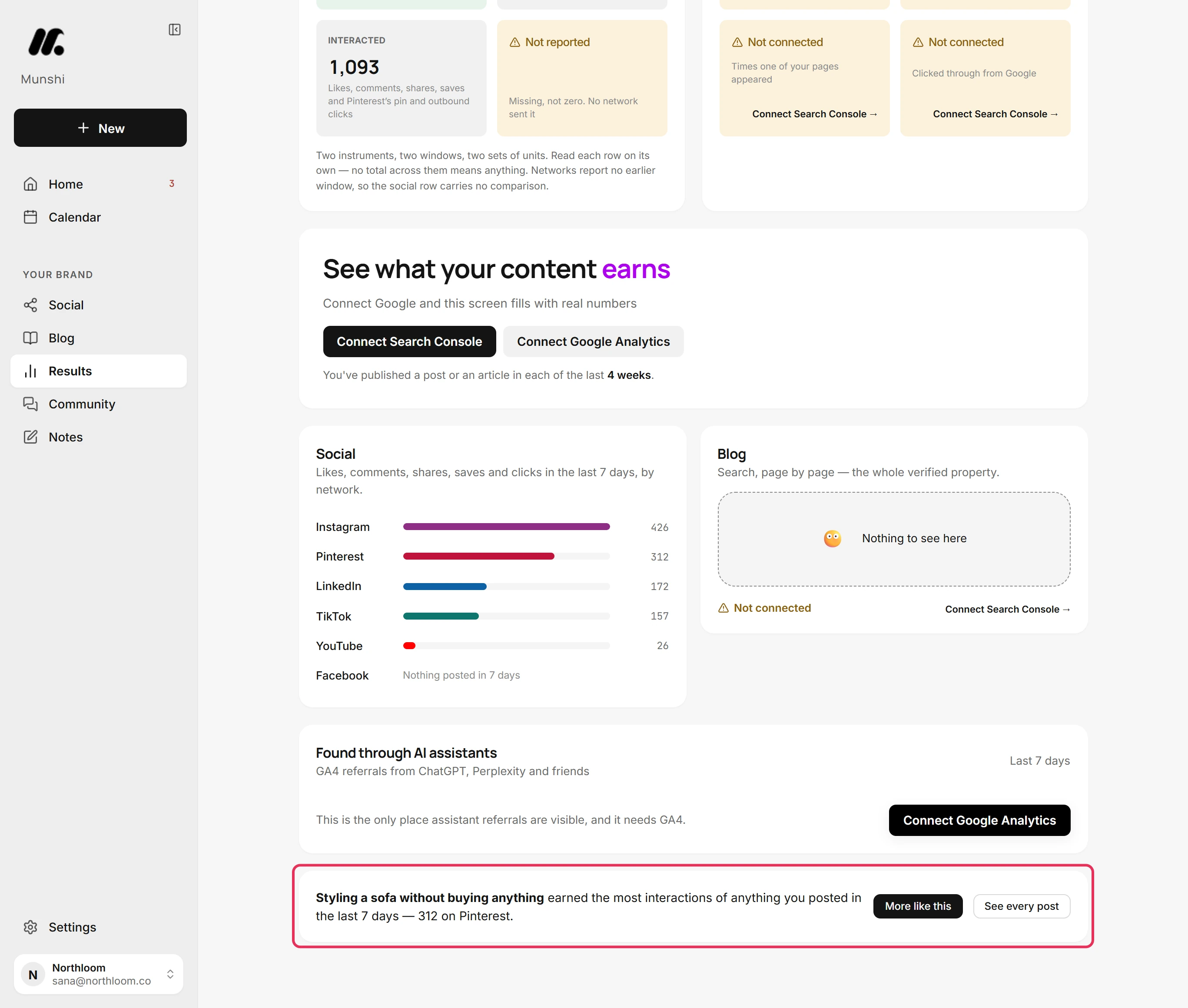
The Social card counts what went out across your connected accounts in the window. It shows Posted, Reached and Interacted. A figure no network sent reads Not reported, which means missing, not zero.
-
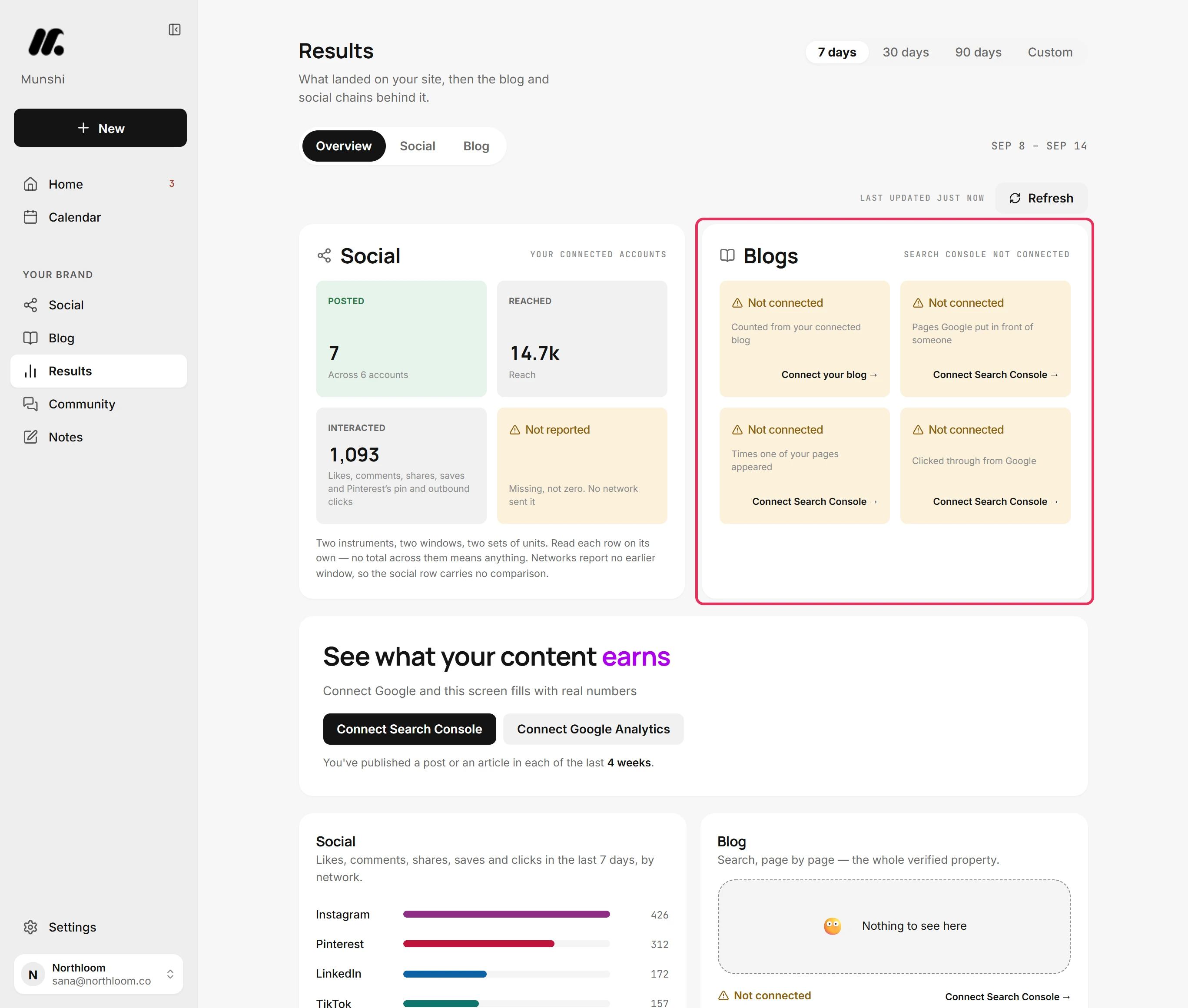
The Blogs card counts the articles live on your blog. It then shows what Google did with your pages: how many it showed, how often they appeared and how many people clicked through. Until the blog or Search Console is connected, each figure says Not connected with a link to connect it.
-
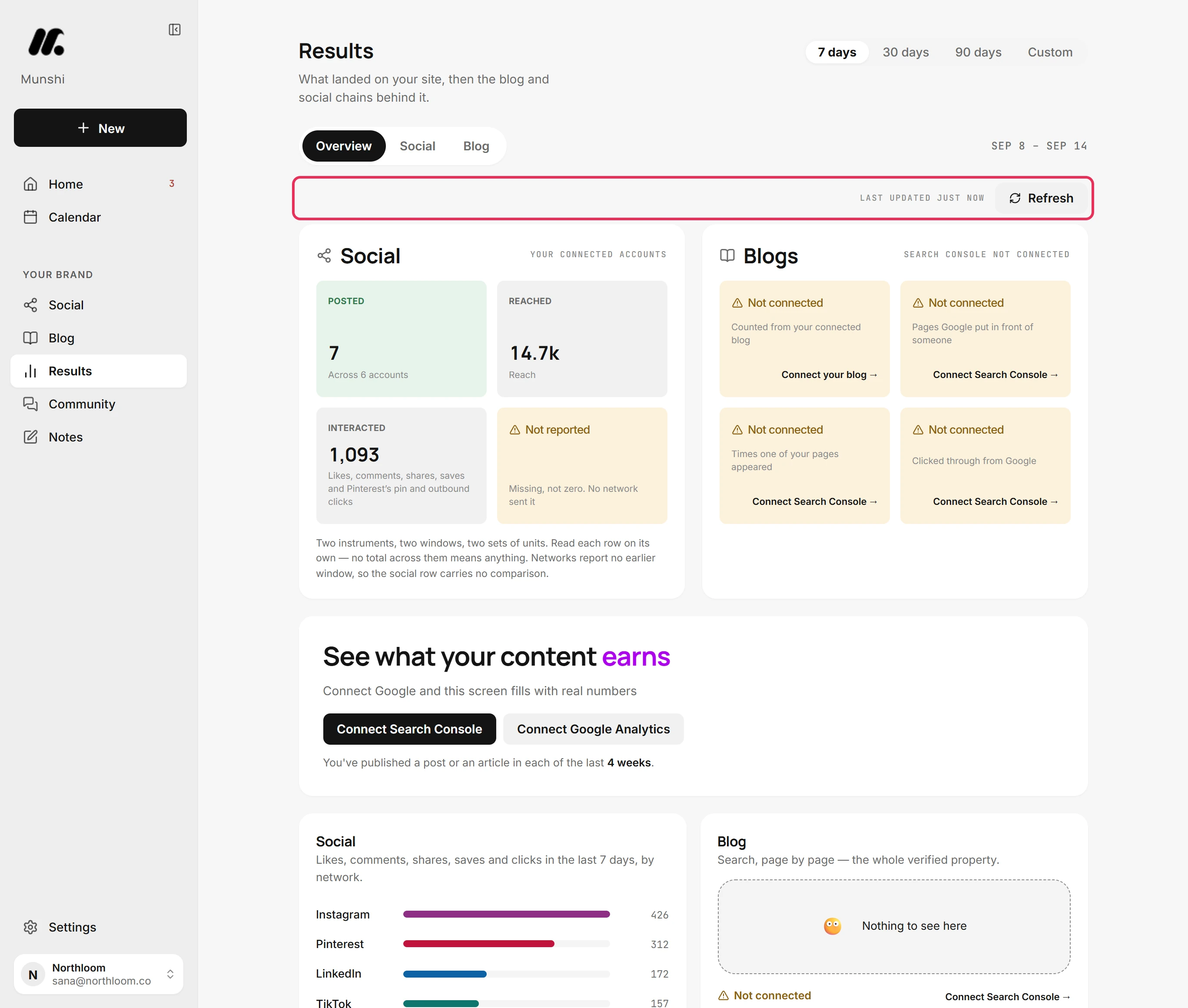
The stamp above the cards says when the figures were last read. Refresh asks your networks and Google again. With Google connected, pressing it again within two minutes shows Refreshed less than 2 minutes ago.
-
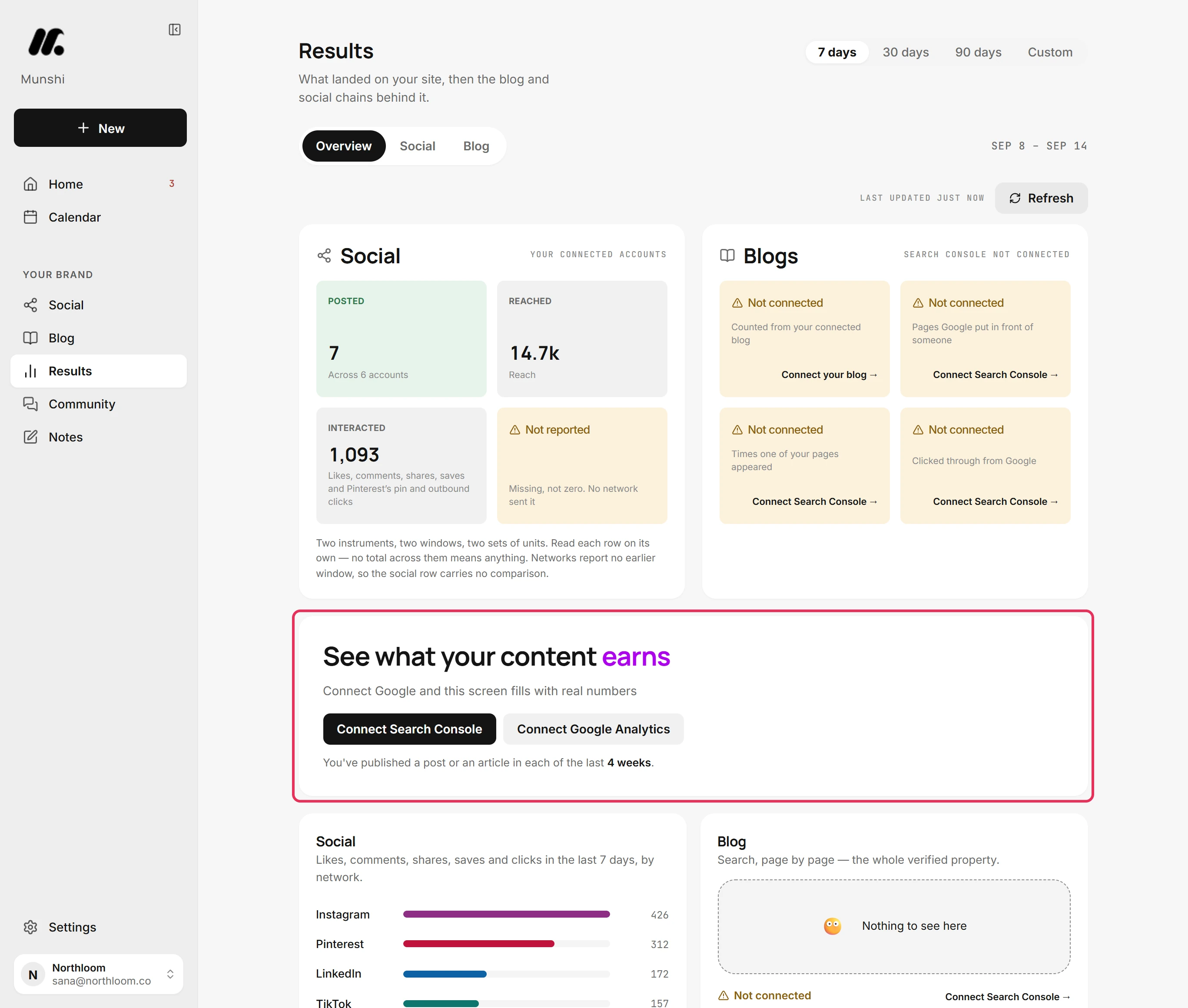
With Google Analytics connected, the wide card counts the people who landed on your site in the window. Without it, the card offers Connect Search Console and Connect Google Analytics. The line under them counts how many weeks in a row you have published something.
-
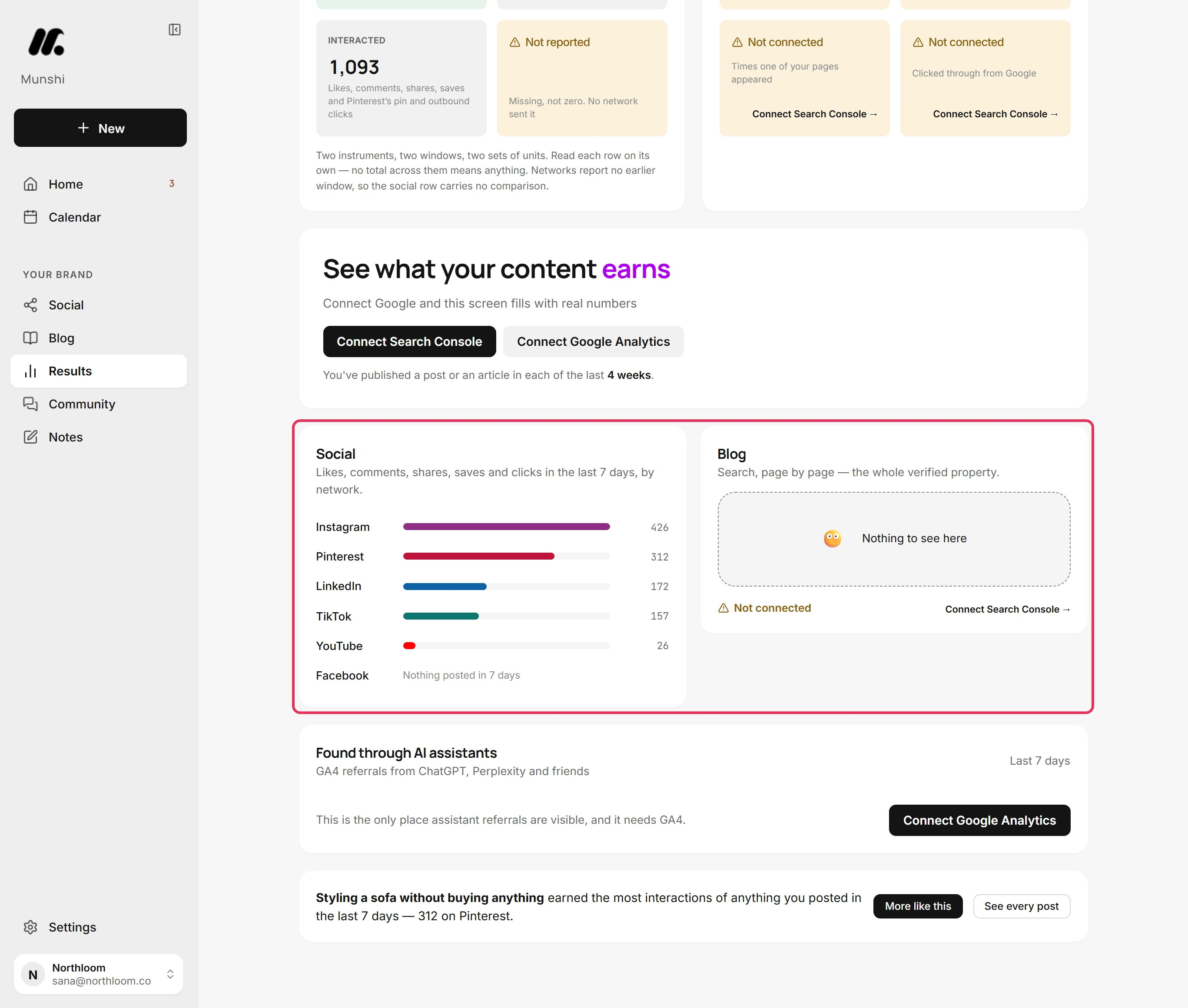
The Social card below shows likes, comments, shares, saves and clicks for each network over the window. Beside it, Blog lists the pages Google showed most, once Search Console is connected.
-
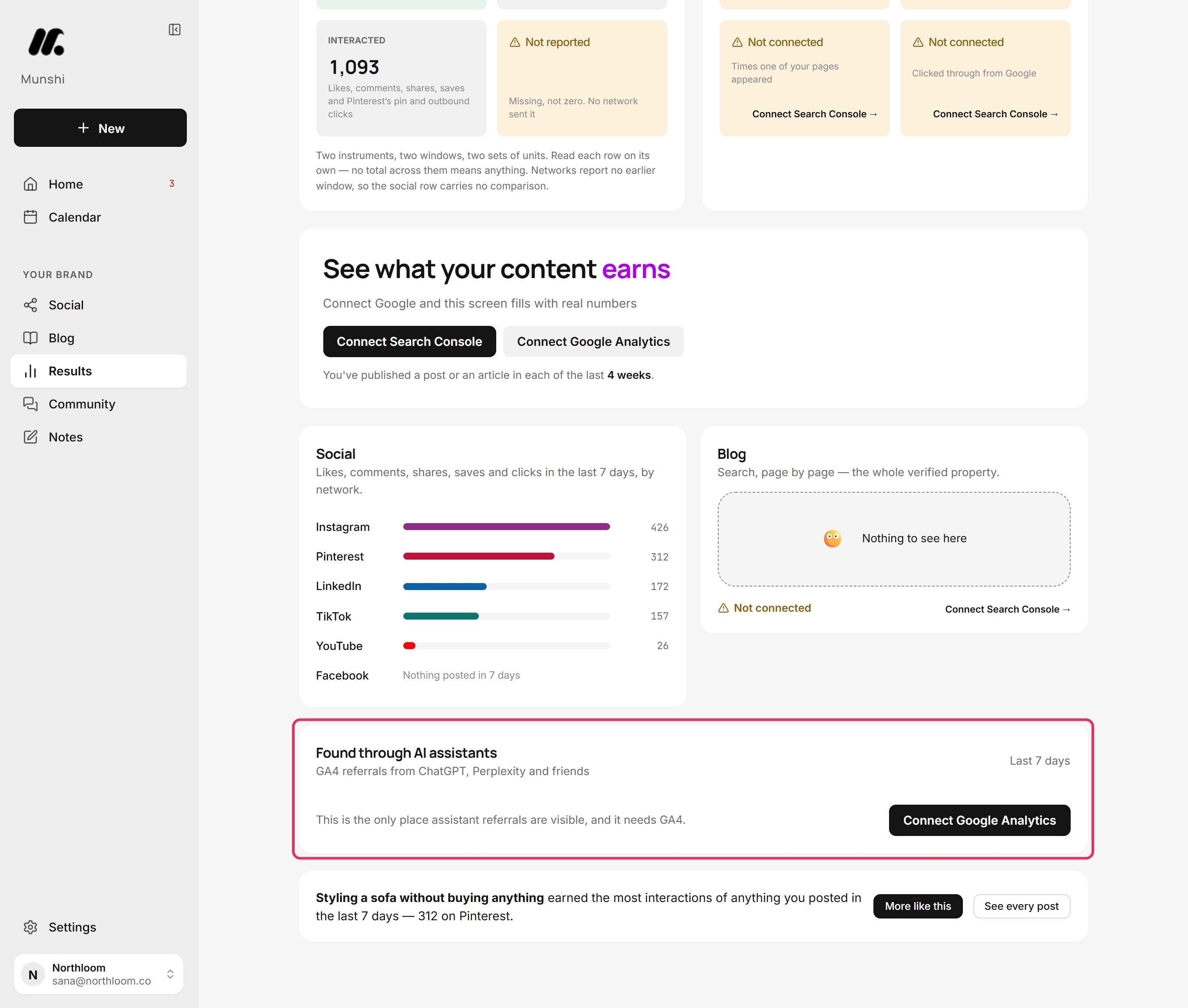
Found through AI assistants lists visits sent by assistants such as ChatGPT and Perplexity. It shows the page each visit landed on. It reads Google Analytics, so it asks you to connect that first.
-
The last line names the post that earned the most interactions in the window. More like this opens the composer for the next one. See every post opens the Social tab.
Where you are now
You know what went out and what it reached over the window you chose. You also know what Google and AI assistants sent back. For the detail of each network, open the Social tab.
If something goes wrong
“Your networks didn't answer.”
Click Retry now in the bar. Munshi could not reach your accounts just now. The figures show the last reading that worked.
“Google didn't answer.”
Click Retry now. Search Console or Google Analytics did not respond. The figures below are from the last reading that worked, and nothing is lost.
A figure says Not reported
Nothing to fix. No connected network sent that number for the posts in the window. It is missing, not zero, and it fills in if the network reports it later.
“Refreshed less than 2 minutes ago”
Refresh again after a couple of minutes. The numbers were just read.
Try it on your own brand this week.
Munshi Social, the AI content marketing engine for small teams, plans, writes, publishes, and tracks your blog and socials. The guide above shows the real app, not a mock-up.
Start your workspace