On this page14 sections
The marketing job nobody is doing
For most solo founders, marketing is the job nobody is doing. You wrote four articles in the spring, and the newest is months old. Your social accounts still show a launch you stopped talking about. There is no marketer to hand it to.
Munshi is built for that seat. It is not another blank composer waiting for an idea at 11pm. It plans from what your business already is, writes the articles and posts, and publishes the ones you approve.
It starts by telling you where you stand. Setup reads your site and blog, then says what it found. That might be a blog that has gone quiet, or articles with no meta description, the short summary an AI assistant can quote. You start from a diagnosis, not a template.
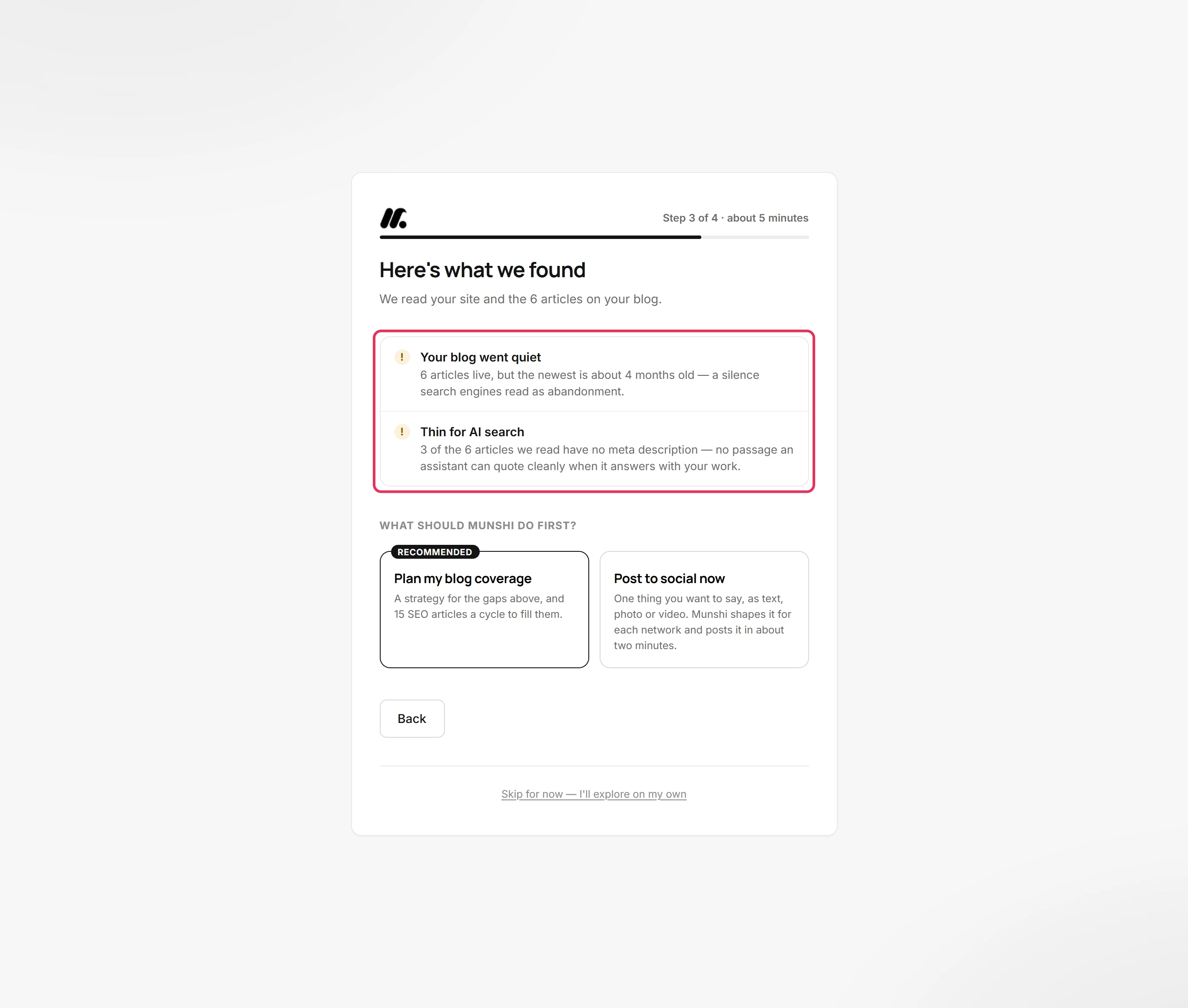
How setup works from your website
Setup asks for one thing: your website. Type the domain into Your website and click Scan my site. Munshi reads your homepage for your name, what you sell and your brand colours, and starts on your blog at the same time.
You check what it read on Does this look right? and fix anything that is off. With no site yet, I don't have a site lets you fill in the same fields yourself.
Setup ends with Your next 3 months, planned: your company branching into focus areas, each with its number of articles. On the trial, a line under the plan says how many get written before you pick a plan. Save this strategy accepts it, and Edit this strategy changes it first.
That is the whole setup. Your blog now has a plan behind it, not a list of ideas in a notes app.
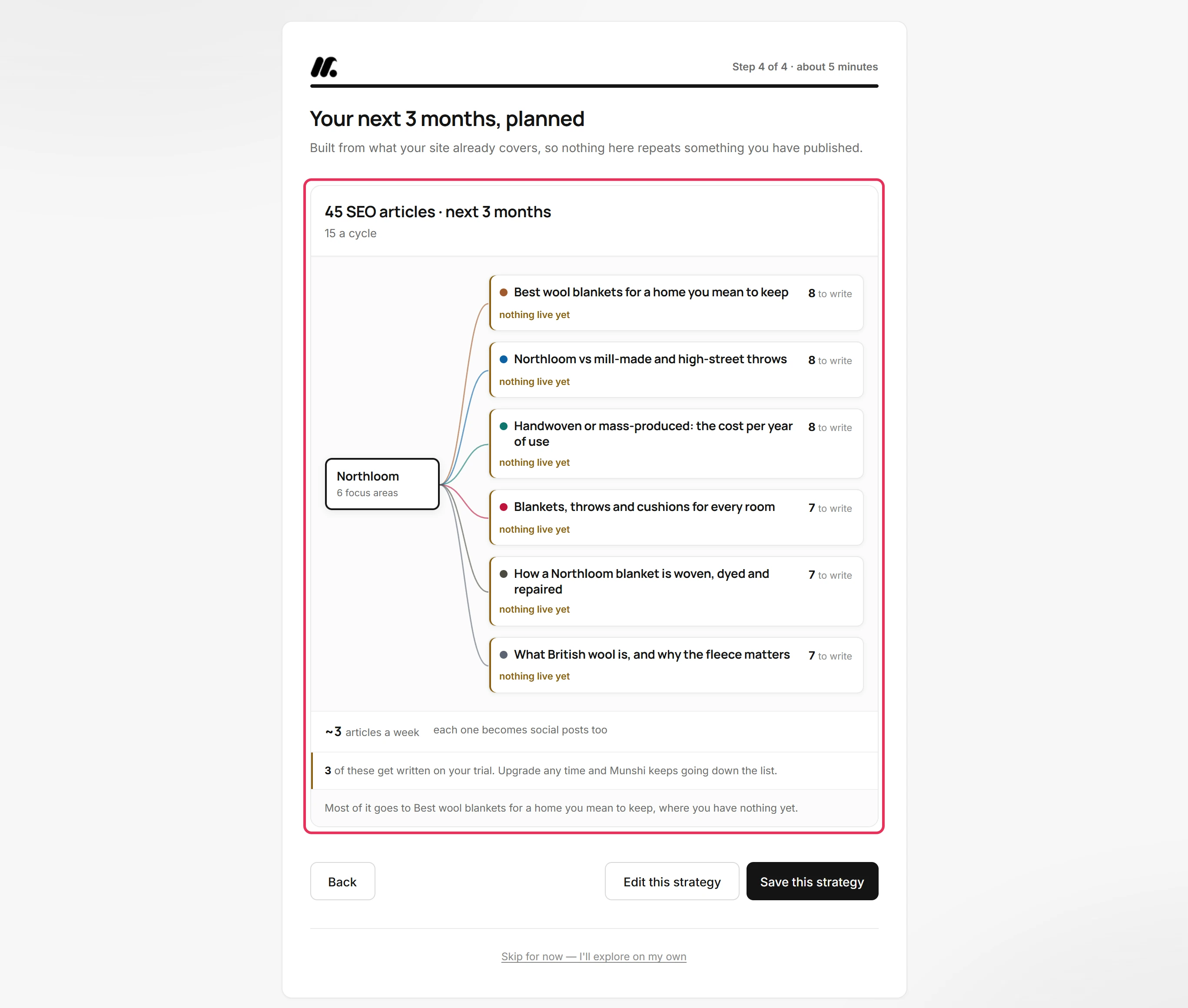
Step by step: How to set up your workspace from your website
Fill in your Brief once
The Brief holds what a scan cannot read. That means why you started, who you are really for, and the three words you would never use. It lives in Brief, under Settings, and Munshi writes everything from it.
The Brief holds 18 answers across three sections. The basics covers your company, what you sell, your competitors, your markets and the author who signs your articles. Then come Your audience and Voice & guardrails. The meter at the top counts what is filled in, and rough notes are fine.
A founder alone rarely gets to the audience section. So Generate all (AI) researches it from the rest of your Brief, one field at a time, and fills only the empty ones. Under Words to ban you list words your writing must not contain. Every piece after that is told to leave them out.
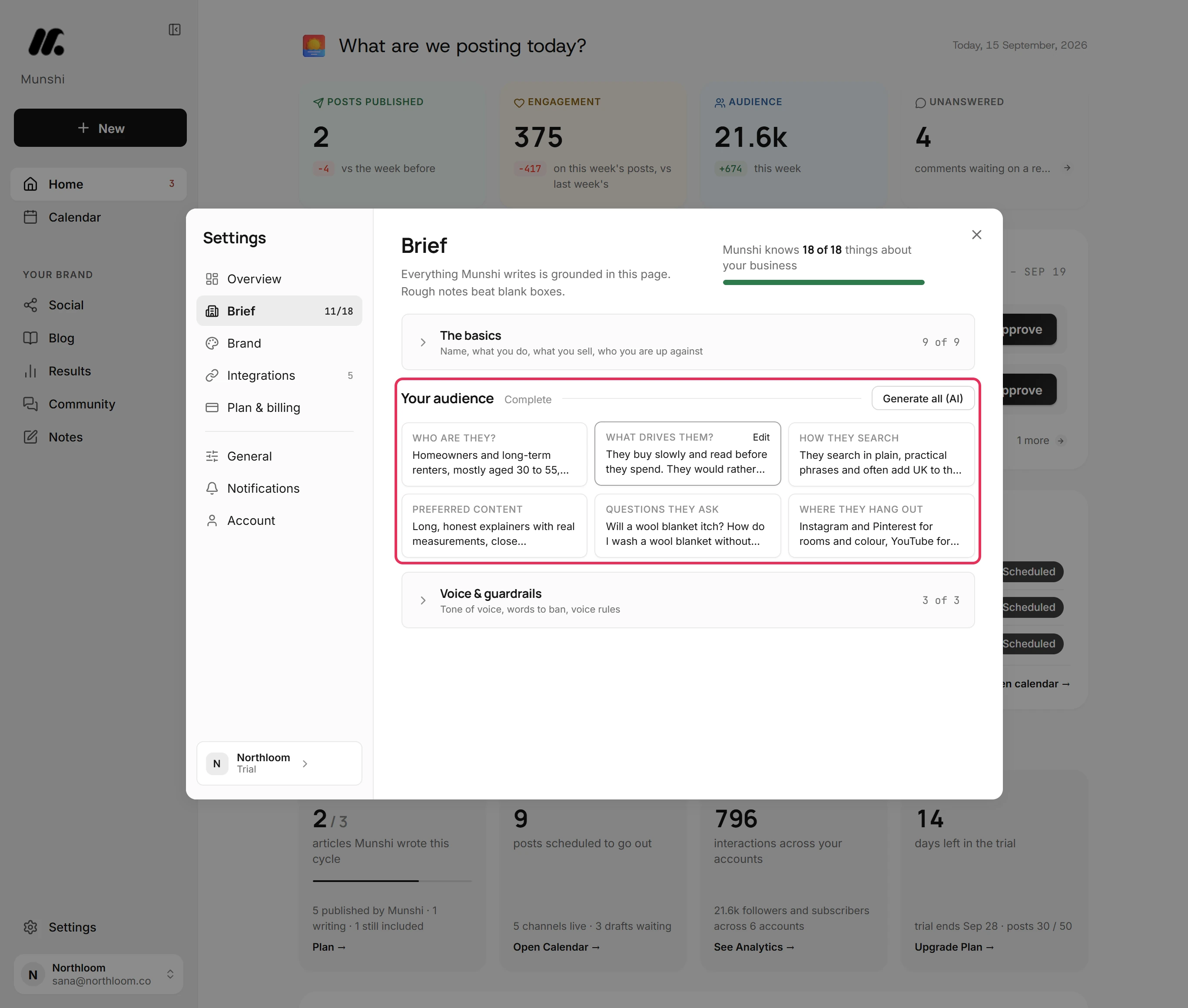
Step by step: How to fill in your Brief
Your week: one sitting, six stops
After setup, your content job is a weekly routine with six stops. The guide that walks it is called twenty minutes a week, for a reason.
You open Home, clear the card that counts what needs your yes, then read Upcoming for what still goes out this week. On Blog, four tiles count this cycle's Published, Writing now, Backlog and Focus areas. Continue picks up the article in progress.
On Social, the Scheduled tab shows the booked week, and New fills a gap. Community holds what people asked. Results ends the sitting.
None of it needs a marketing background. Each stop is a screen with a count on it and one button that clears the count.
Step by step: Twenty minutes a week: the routine
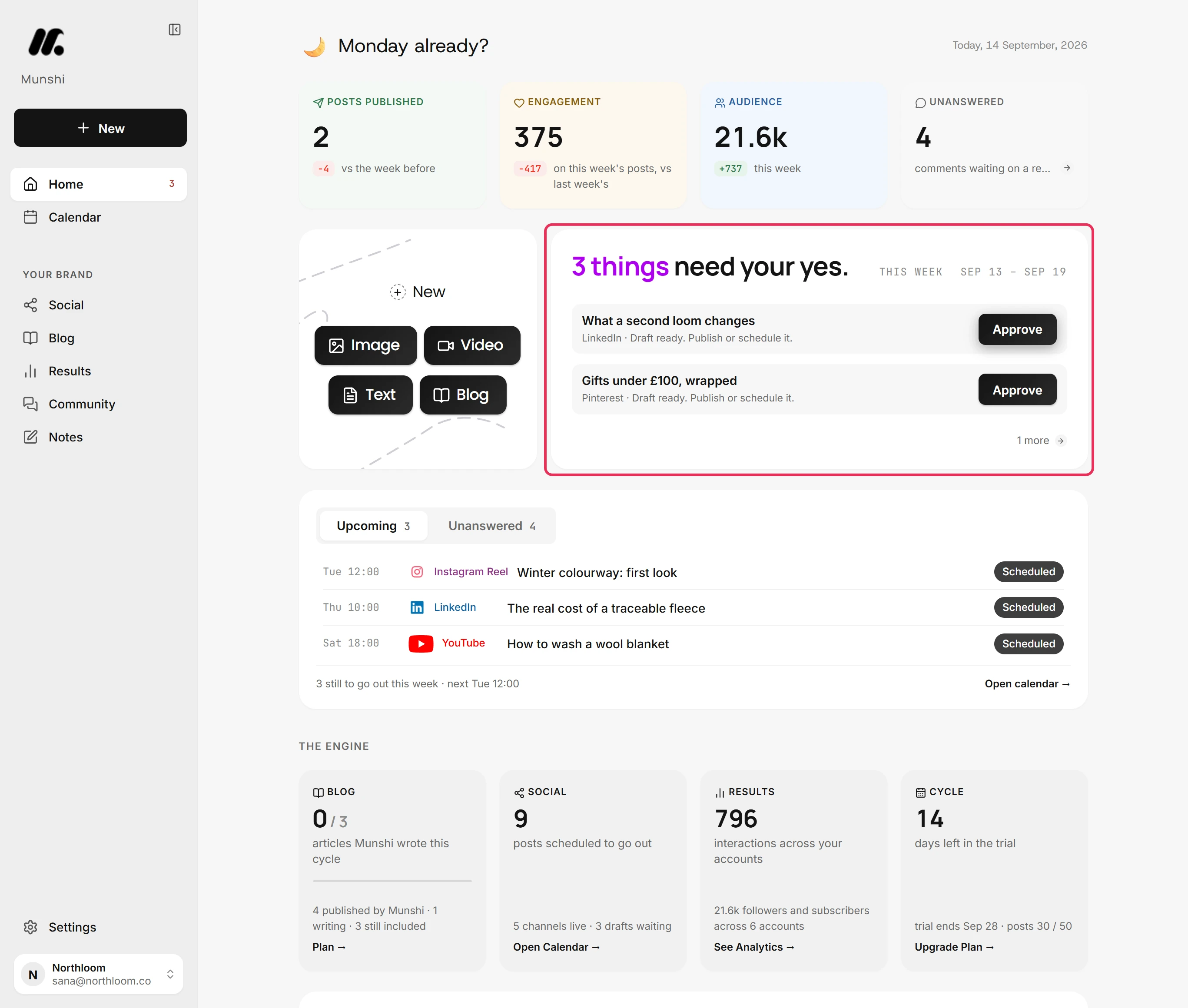
Home lists everything waiting on you
The card at the top of Home counts what is waiting and shows the first two items, each with the button that deals with it. Also waiting on you, lower down, lists the rest, with broken things first.
Each row names its network and carries one verb. Approve a draft, Review an article, or Retry a post that failed. Reconnect a network whose connection expired, Fix an article that did not publish, or Set up a missing step.
Approve opens the draft on the Drafts tab rather than sending it, so nothing goes out by accident. You still pick Post now or Schedule.
When the list is empty, the card reads Nothing needs you. For one person, that tells you whether marketing happened this week.
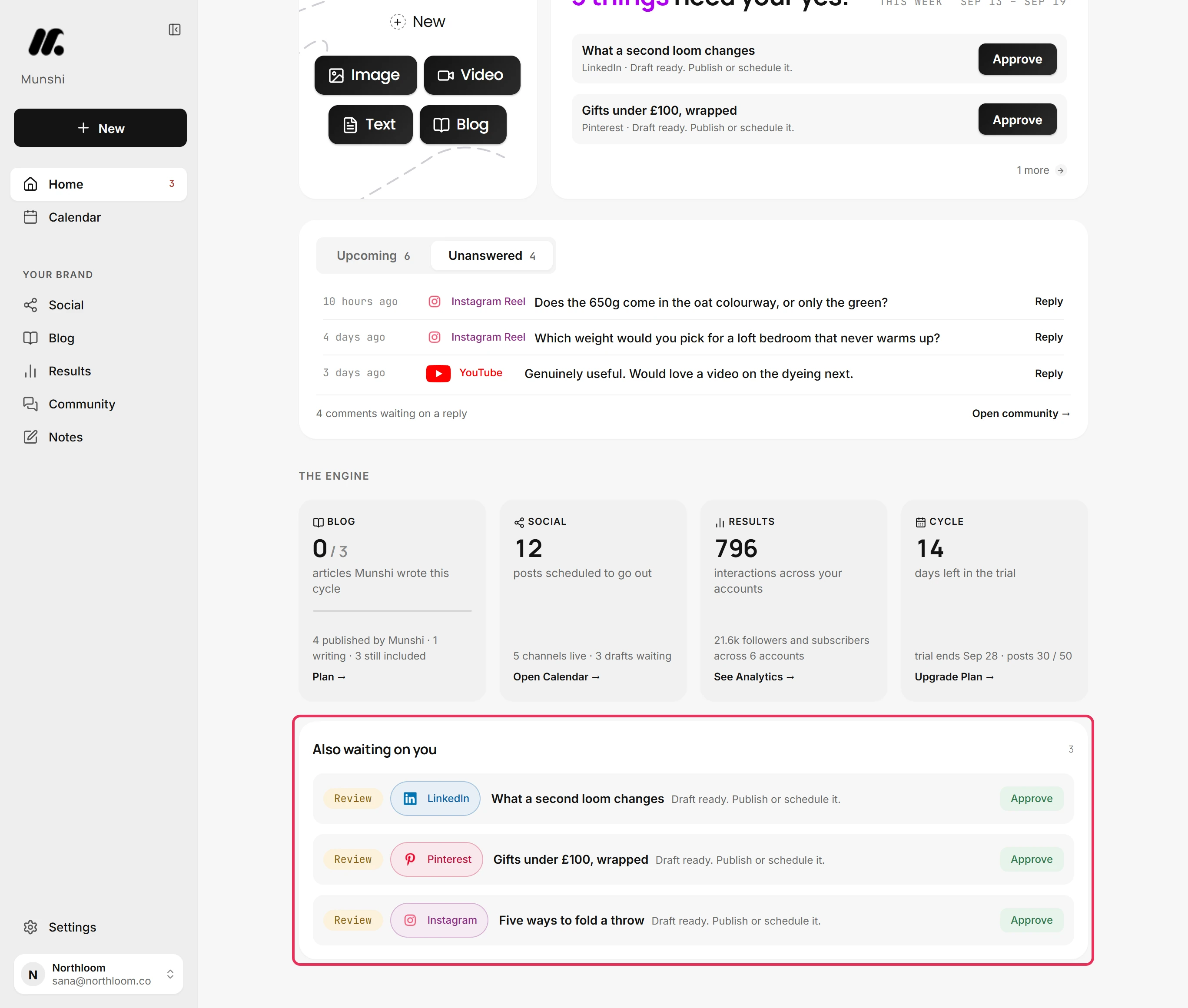
Step by step: Home: what needs your yes
Approve posts from your phone
The same queue and the same account work on your phone, with no app to install. Munshi swaps the sidebar for a bar at the top and a bar at the bottom, both fixed as you scroll.
The bottom bar holds Home, Calendar, Social, Community and Results. A red number on Home counts what is waiting on you. The Calendar opens on the week rather than the month.
The menu button at the top left opens the whole sidebar, including Blog and Notes. A dot on it means something on Home wants a decision.
The plus button at the top right starts a post from any page. Pick Text post, Image post, Video post or Blog article, tap the networks and write in the Post box. The wide button at the bottom says what it will do, such as Post to 2 networks.
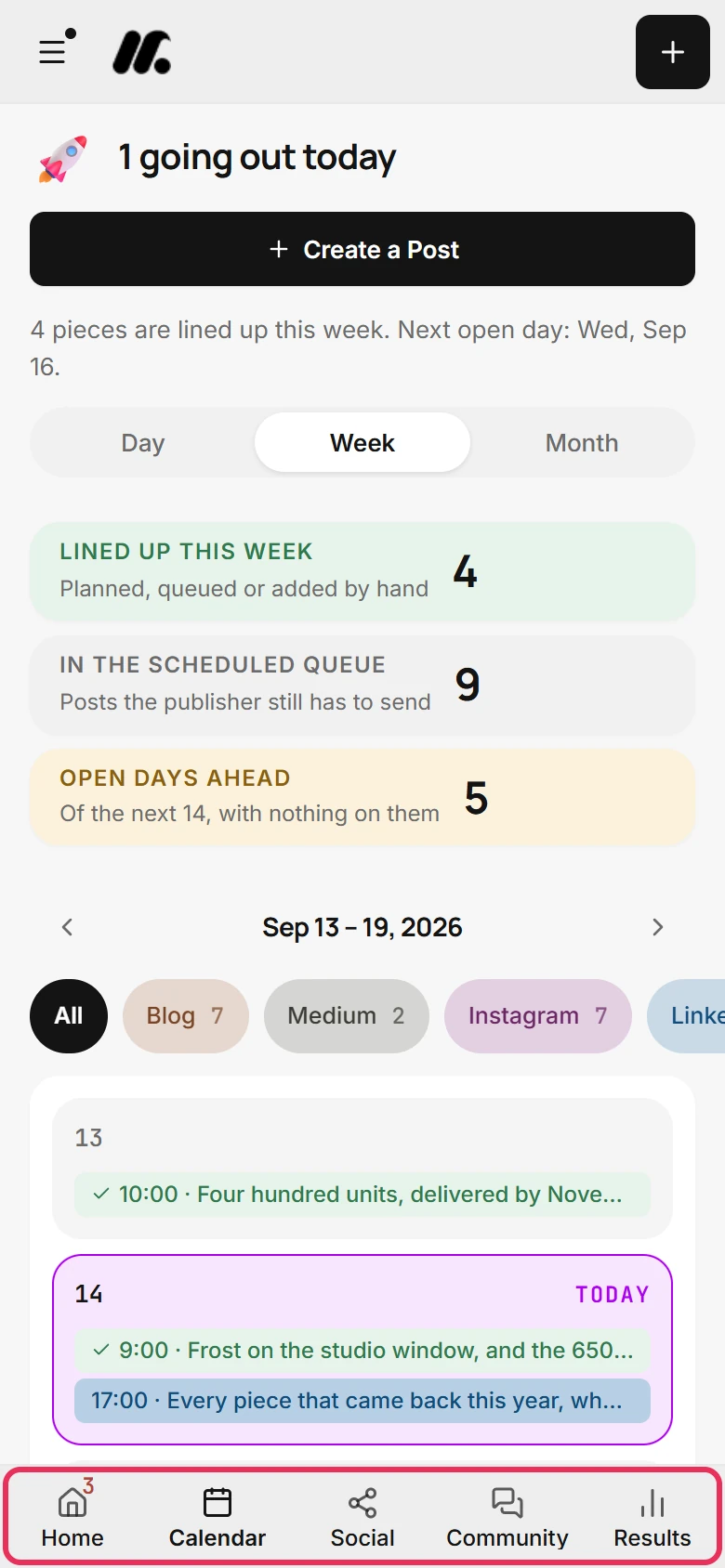
Step by step: How to use Munshi on your phone
Turn one article into the week's posts
Munshi turns one article into posts for your channels, so the article and the posts are one job, not two. On Social, the Drafts tab has Reuse something you have written. It lists every article you have started or published, each marked Published or Draft in progress.
Under Goes out on, every connected channel that has not had a post from that article is already picked. Take off the ones you do not want and click Create 2 posts, or whatever the channels add up to.
Munshi writes a draft for each channel from the article's answer capsule, the short answer your blog strategy holds for it. It sends nothing, and it ticks those channels so it never offers them twice. The drafts wait in Drafts until you schedule them.
Posts made this way carry no picture or video. Start Instagram, TikTok and YouTube posts from New instead, with the media they need.
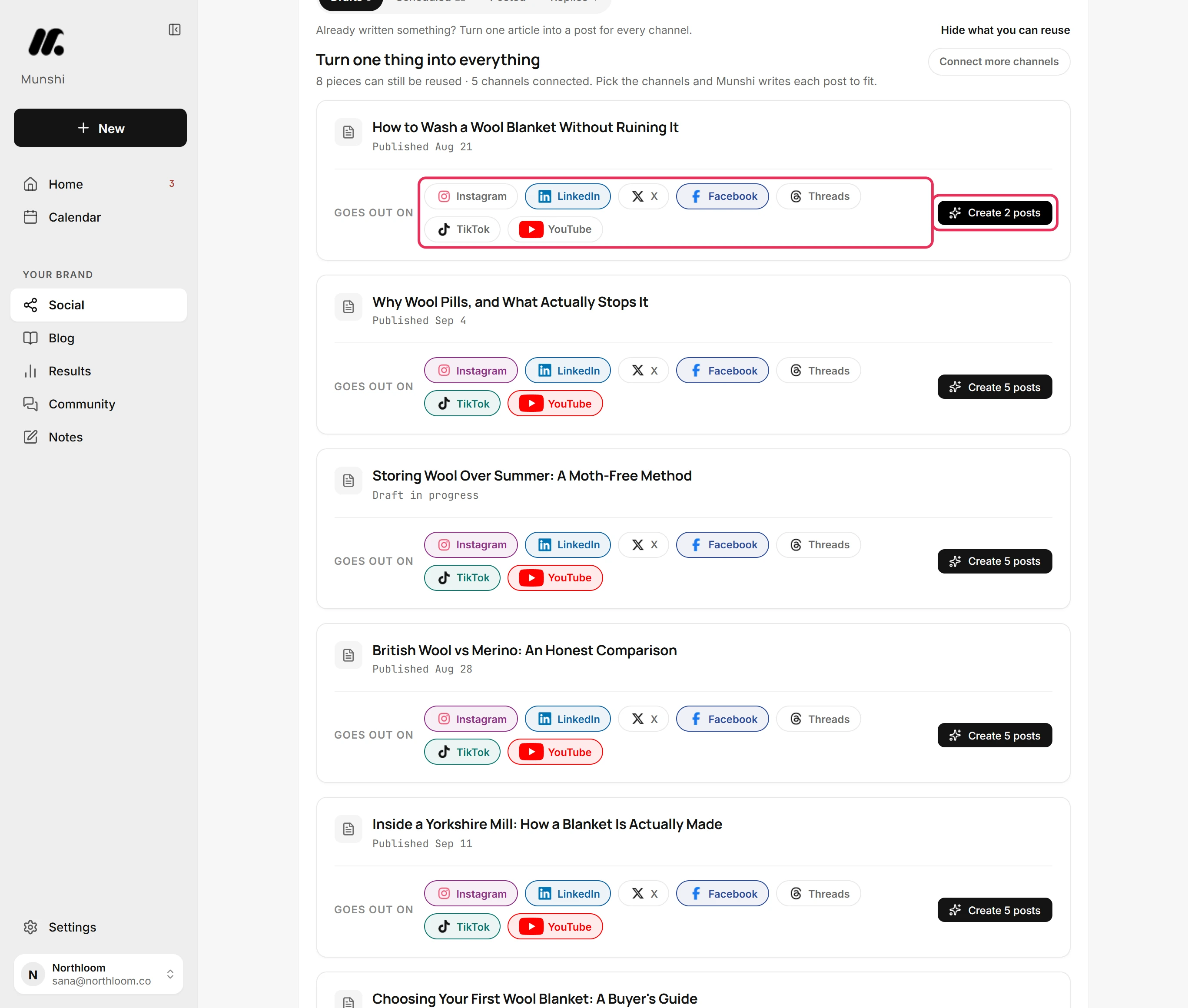
Step by step: How to turn an article into posts for every channel
What your first results look like
Results shows whether any of it is working, and it is honest about how long that takes. Posted counts a post the moment it goes out, across every connected account, because it needs nothing back from the networks.
Reached and Interacted read Collecting until a network reports. Clicked your link reads Not reported where a network sends nothing, which means missing, not zero.
Each account is read about twice a day, so your total audience shows from the first reading. A trend needs two readings a whole window apart. On the 7 days window, your first comparison arrives a week after your first reading, and the screen names the day.
Connect Google Search Console and Google Analytics, and the Blogs card fills with what landed on your site.
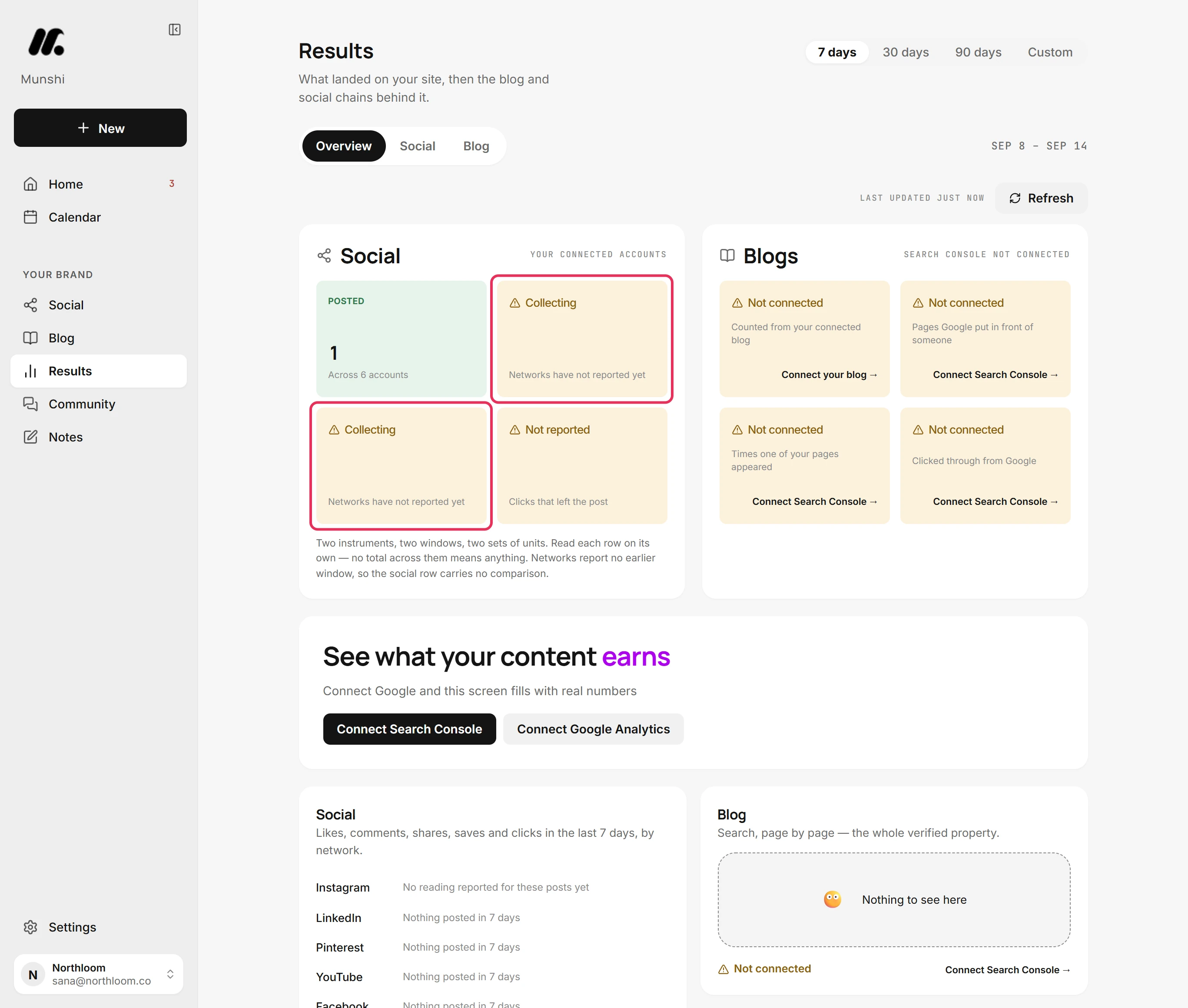
Step by step: How to read your first results
What the trial and Founding include
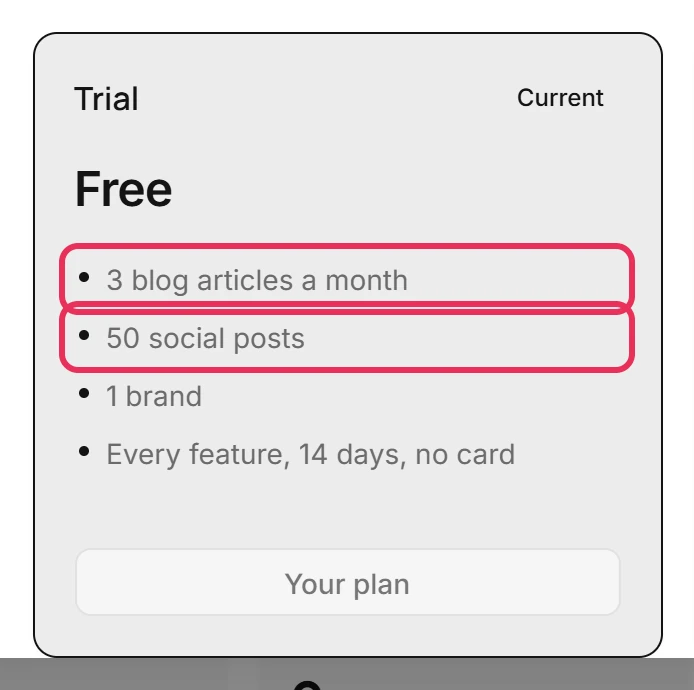
The trial runs 14 days with every feature on and no card. It includes 3 blog articles, 50 social posts and one brand. The Cycle tile on Home counts the days left and the posts used, and nothing is held back for paying customers.
After that, Founding is $15 a month for one brand: 15 blog articles and 1,000 social posts. An article counts once, the first time Munshi writes it. Rewriting it, regenerating a step or editing it never costs another.
A post counts once for every network it goes to, so one post sent to LinkedIn, Instagram and Facebook uses three. A post you unschedule, or one that fails, stops counting.
This period, in Plan & billing, shows both meters and when the counts go back to zero. On the trial, that is the start of each calendar month. On a plan, it is the date your subscription started.
Unused articles and posts do not carry over. A daily fair-use cap of about $5 of model use per workspace stops one long session spending the month.
Step by step: Your monthly allowance: articles and posts
The weekly sitting, stop by stop
Visit six screens in this order. The guide runs through them in about twenty minutes.
| Stop | Screen | What you do |
|---|---|---|
| 1 | Home | Clear the card that counts what needs your yes, one button a row |
| 2 | Home | Read Upcoming for what still goes out this week |
| 3 | Blog | Check Published, Writing now, Backlog and Focus areas, and Continue the article in progress |
| 4 | Social | Open Scheduled and fill any gap in the week with New |
| 5 | Community | Answer what is waiting, with Unanswered first at the top |
| 6 | Results | Read what the last 7, 30 or 90 days earned |
Step by step, with a screenshot at each stop: Twenty minutes a week: the routine.
What each plan includes and costs
| Plan | Brands | Articles a month | Posts a month | Price |
|---|---|---|---|---|
| Free trial | 1 | 3 | 50 | Free for 14 days, no card |
| Founding | 1 | 15 | 1,000 | $15 a month |
| Studio | 3 | 45, split however you like | 3,000 | $29 a month |
A post counts once per network it goes to. An article counts once, the first time it is written. See full pricing.
What it will not do for you
- It does not publish without you. Approve opens the draft rather than sending it. You still pick Post now or Schedule, on every post and every article.
- It does not know your business until you tell it. The scan reads your site, and the Brief holds the 18 answers behind everything it writes. Skip the Brief and you get writing that could belong to anyone.
- It does not reply everywhere. Comments reach Community from Instagram, Facebook, Threads, YouTube, Bluesky and a LinkedIn Page. You reply from Munshi on Facebook, Instagram, LinkedIn and Threads. YouTube and Bluesky comments come in to read, and you answer them on the network itself. TikTok and Pinterest bring none in.
- It does not promise traffic or rankings. Articles are graded for search and for AI assistants before you see them. Whether they rank depends on your domain, your competition and time.
- One account per network, per workspace. Connecting a second account on the same network replaces the first. A second brand needs its own workspace, which is what Studio is for.
Questions people ask
What is content marketing for solo founders?
It is marketing you own rather than rent: articles on your own site and posts on your own accounts. You publish often enough that search engines and readers treat you as active. For one person, the hard part is not the writing but doing it every week alongside the product. Munshi does the planning, drafting and publishing, and asks you to approve.
How much time does it take each week?
One sitting. The routine runs six stops across Home, Blog, Social, Community and Results, and its guide is called twenty minutes a week. Setup takes about five minutes for the scan and the plan, plus the time you spend on your Brief, and you do it once.
What is a marketing tool for a one-person business meant to do?
It should decide what to publish, write it in your voice and get your approval. Then it should publish to your site and accounts and tell you what it earned. Munshi does those five things in one place. A scheduler only publishes, and a chat window only drafts.
What does the free trial include?
Fourteen days with every feature and no card: 3 blog articles, 50 social posts and one brand. The Cycle tile on Home counts the days left and the posts used. When the trial ends, writing and publishing stop, and your drafts, schedules and numbers stay in the workspace until you pick a plan.
Is 15 articles and 1,000 posts a month realistic for one person?
It is a ceiling, not a target. Fifteen articles is about three a week, the rate the three-month plan from setup lays out. Posts count once per network, so one post to five networks uses five of the thousand. The meters in Plan and billing show how much of each you have used.
Can I approve and post from my phone?
Yes. Munshi runs in your phone's browser with the same account and workspaces. The bottom bar holds Home, Calendar, Social, Community and Results, and a red number on Home counts what is waiting. The plus button opens the composer for a text, image or video post, or a blog article.
Does anything go out without my approval?
No. Drafts wait on Home and on the Drafts tab until you approve them, and approving opens the post rather than sending it. Scheduled posts go out at the time you set, because you set it.
Why not just use ChatGPT for this?
ChatGPT writes what you ask for, and the rest stays with you. You still choose the topic, keep the plan, shape each piece for each network, publish it and check what happened. Munshi holds the plan between weeks and remembers your brief and your banned words. It writes finished articles into your CMS, sends posts to your networks, and puts one approval queue on your home screen.
The guides behind a founder's week
Each one walks a single task through the real app, with a screenshot at every step.
- How to set up your workspace from your website 4 min · 9 steps
- How to fill in your Brief 4 min · 9 steps
- Twenty minutes a week: the routine 20 min · 6 steps
- Home: what needs your yes 2 min · 8 steps
- How to use Munshi on your phone 2 min · 8 steps
- How to turn an article into posts for every channel 2 min · 8 steps
- How to read your first results 3 min · 8 steps
- Your trial: what it includes and what happens at the end 2 min · 6 steps
- Your monthly allowance: articles and posts 2 min · 6 steps