On this page15 sections
How do I post to several networks at once?
Munshi Social, the AI content marketing engine for small teams, lets you write a post once and send it to every network you pick. It replaces six tabs, six pastes and six chances to send the wrong thing.
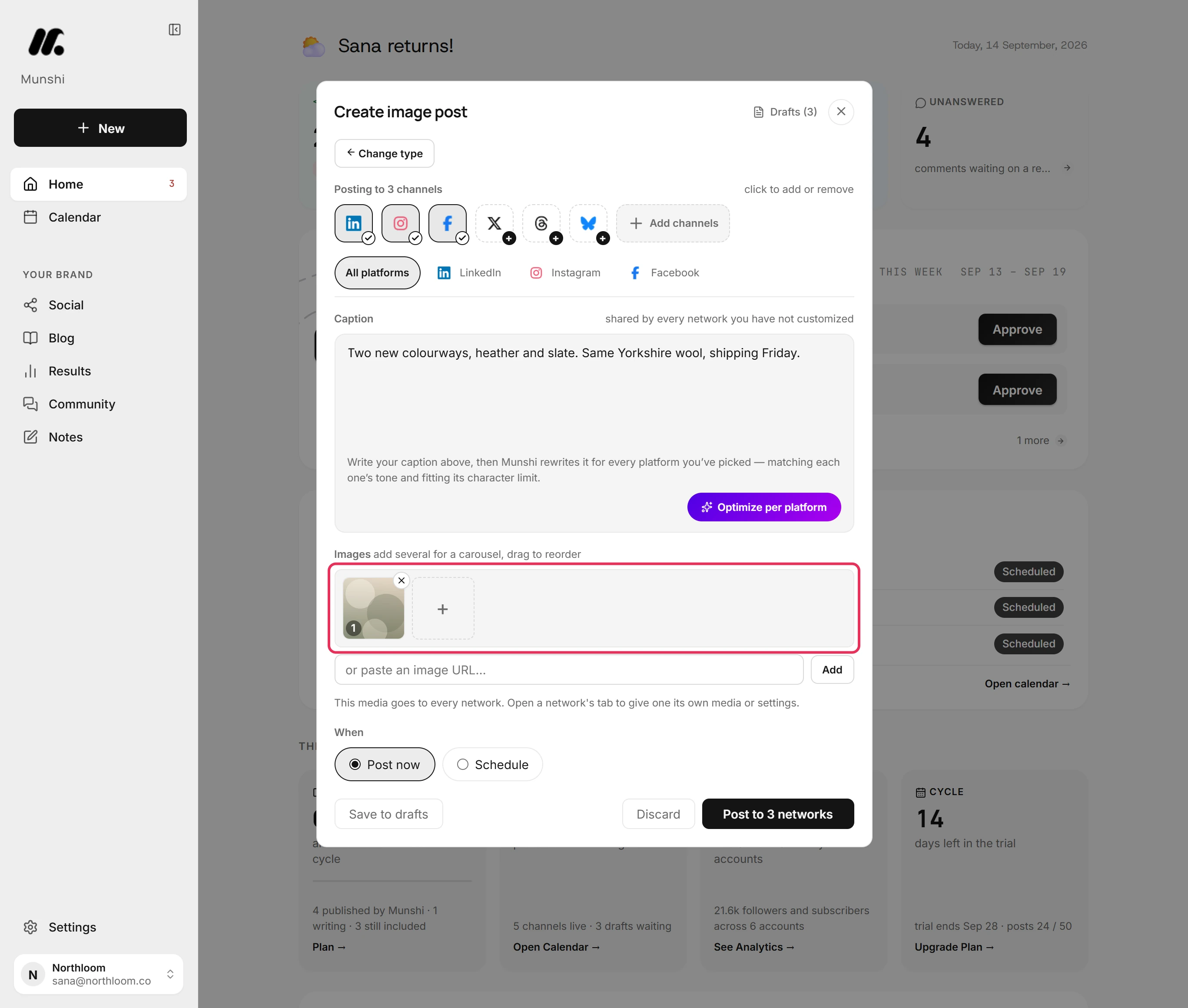
Click New at the top of the sidebar and say what you are making: Text post, Image post, Video post or Blog article. Your choice decides which networks are offered. A video post is only offered to networks that take video. So nothing lands where it does not fit.
Then click a network to add it or take it off. The header counts them, for example Posting to 3 channels. A network with a plus is not connected yet. Pick it anyway, and its tab offers to connect it with your post kept where it is.
Write the caption in the All platforms tab. Every network starts from this version. Drop a picture onto the images area or click Upload images.
Then set When. Post now sends it the moment you confirm. Schedule takes a date and time on your workspace's clock, set under Settings, General. So a post booked from a laptop abroad still goes out at home time.
Step by step: How to create and schedule a post
Give each network its own caption or picture
Each network you picked gets its own tab next to All platforms. Leave a tab alone and that network posts the shared caption.
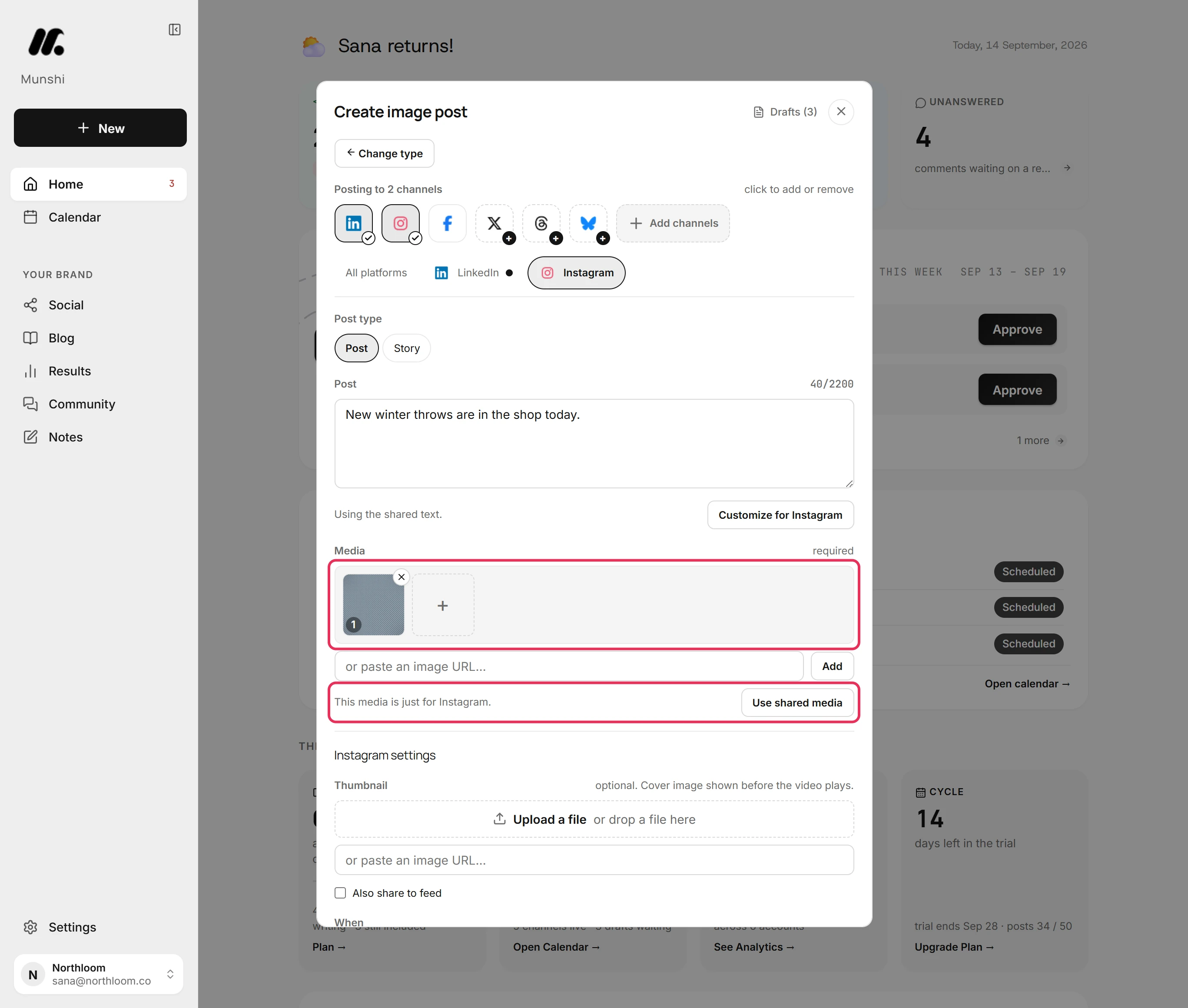
To change one network, open its tab and click Customize for LinkedIn. The shared text is copied in for you to edit. From then on only LinkedIn posts your changes, and the line under the box reads Text customized for LinkedIn.
Media works the same way. Replace for Instagram gives Instagram its own picture, and the others keep the shared one. The tab then says This media is just for Instagram.
Going back takes one click. Use shared text or Use shared media drops that network's own version.
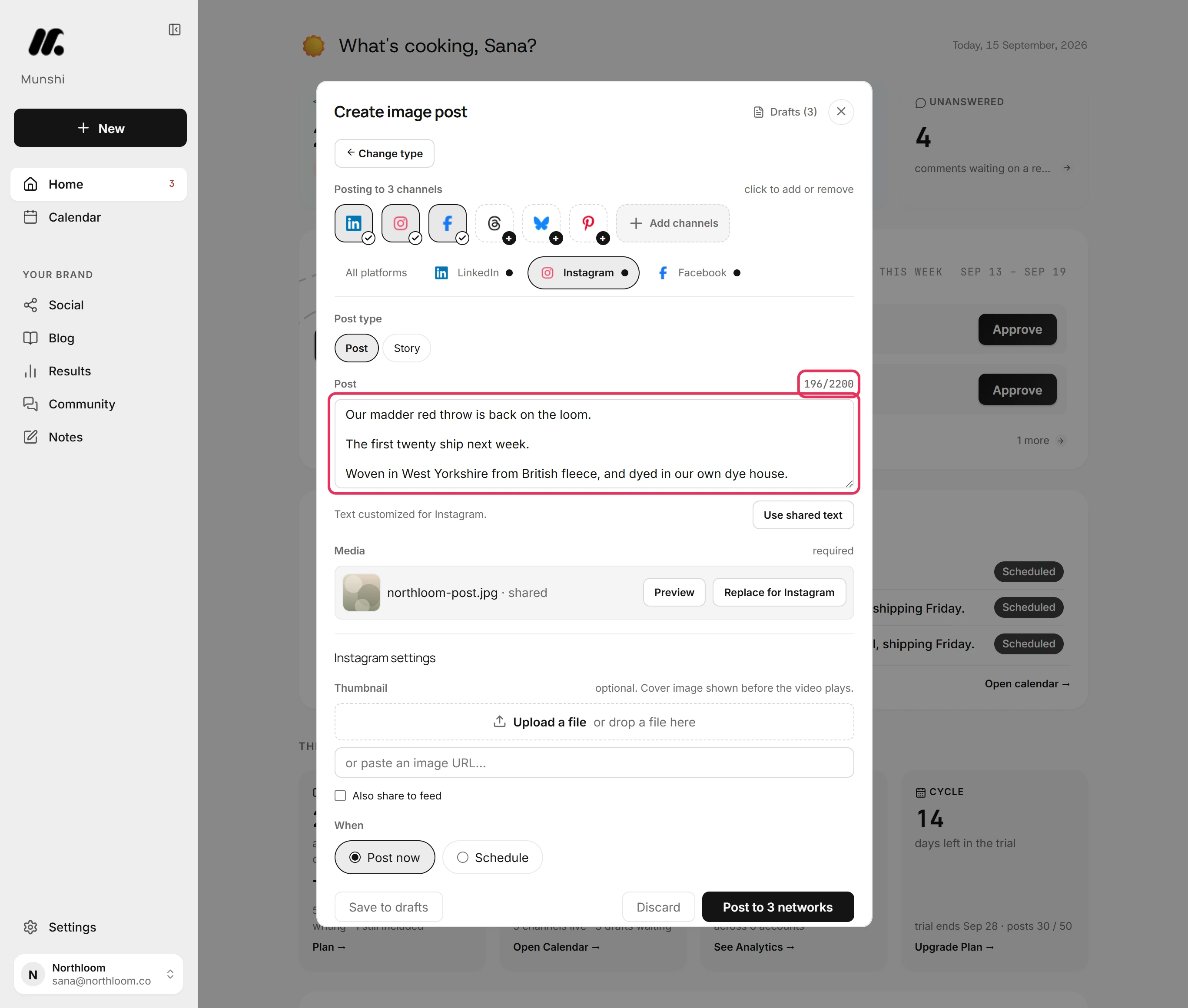
A dot beside a network's name on its tab shows that its text has been changed. The count above each box shows how much of that network's limit the version uses.
Step by step: How to give one network its own caption or media
Let Munshi write a caption for each network
Munshi can write a separate caption for each network from your text. One set of words rarely fits them all. Bluesky stops at 300 characters, Threads and Pinterest at 500, and LinkedIn runs to 3,000.
Click Optimize per platform under the caption box. Munshi writes a caption for every network you picked, from your text and your brief, inside each network's limit.
While it works, the button reads Adapting… and your shared text is locked. Cancel stops it and leaves the post as it was.
It changes only the caption in each network's tab. Your text in All platforms, the pictures, each network's settings and the time stay as they were. Nothing is saved or sent. When it is done, you can open any tab and edit the caption by hand.
Change your shared text and click it again, and every network is written again. Click it again without changing your text, and only a network with no caption of its own is written, such as one you just added.
Step by step: How to let Munshi rewrite the caption for each platform
Turn a published article into posts
Munshi turns a blog article into social posts, one draft for each channel. The article you published on Monday becomes next week's social material.
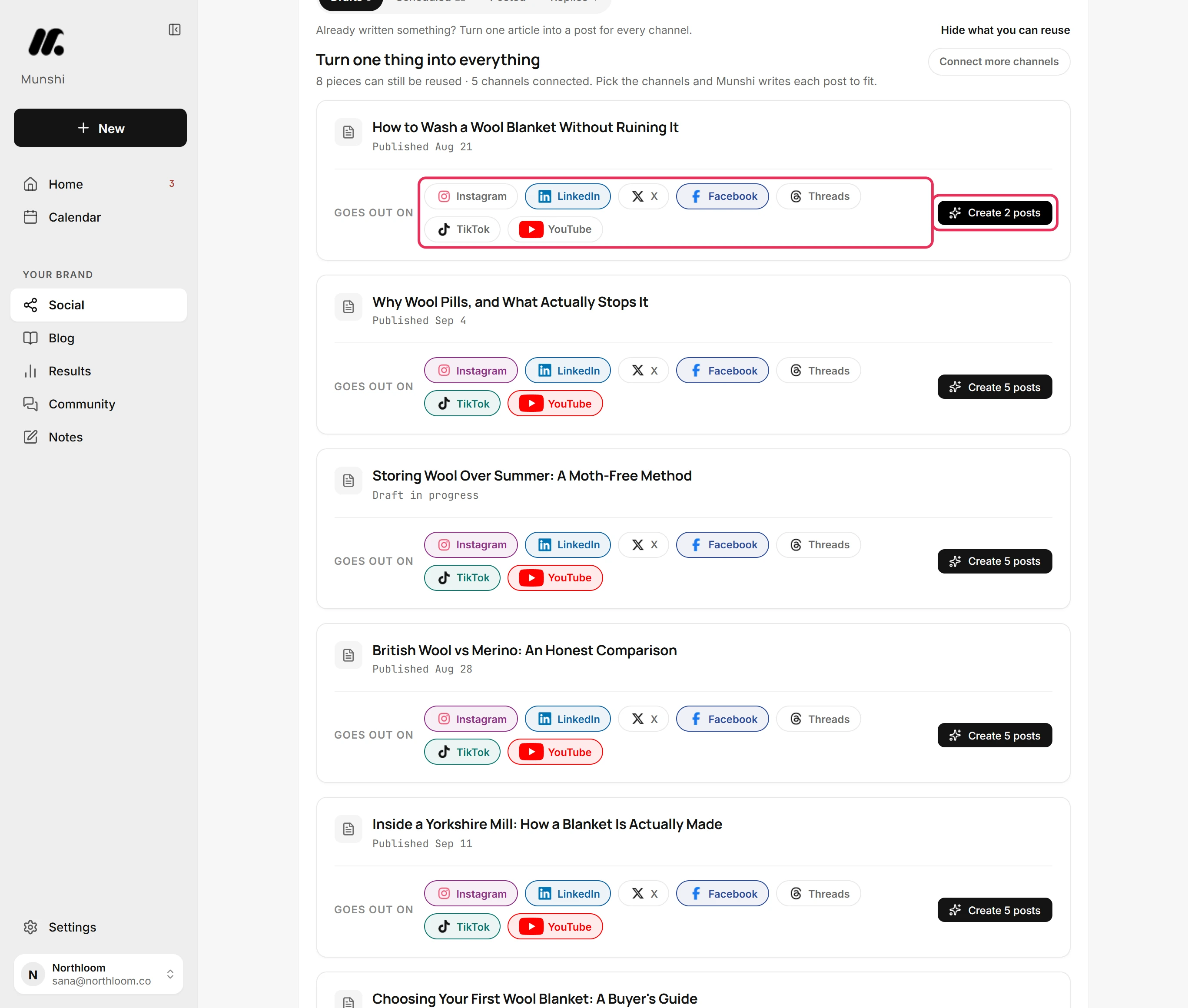
On Social, open the Drafts tab and click Reuse something you have written. Every blog article you have started or published has a card, marked Published or Draft in progress.
Under Goes out on, every connected channel the article has not gone to yet is already picked. Click one to take it off, then click Create 2 posts. The number follows the channels you kept.
Munshi makes a draft for each channel. It starts from the article's answer capsule, the short answer your blog strategy holds for it, or from the title if there is none. Nothing is posted or scheduled.
The drafts wait on the board as one row under the article's title, with a pill for each channel. Edit all opens them in the composer. There you can add a closing line that sends readers to the article, or run Optimize per platform over them all.
Step by step: How to turn an article into posts for every channel
One video, as a Reel, a Short and a TikTok
Upload a clip once and it goes to every network you picked, in the format each one wants. Pick Video post from New and click Upload a video. Then set each network's format in its own tab.
On Instagram a video is a Reel unless you pick Story, and Facebook offers the same two. On YouTube it goes up as a Short unless you pick Video.
YouTube also needs a Title of up to 100 characters, and Munshi holds the post until it has one. Privacy starts on Public and Made for kids starts on No. You can change both.
A Reel takes a cover picture under Thumbnail. A Story goes out with no cover and no caption, because Instagram shows a Story without them.
MP4 and MOV work everywhere, up to 1 GB a file. Munshi also takes WebM, but Instagram, Facebook and Threads do not.
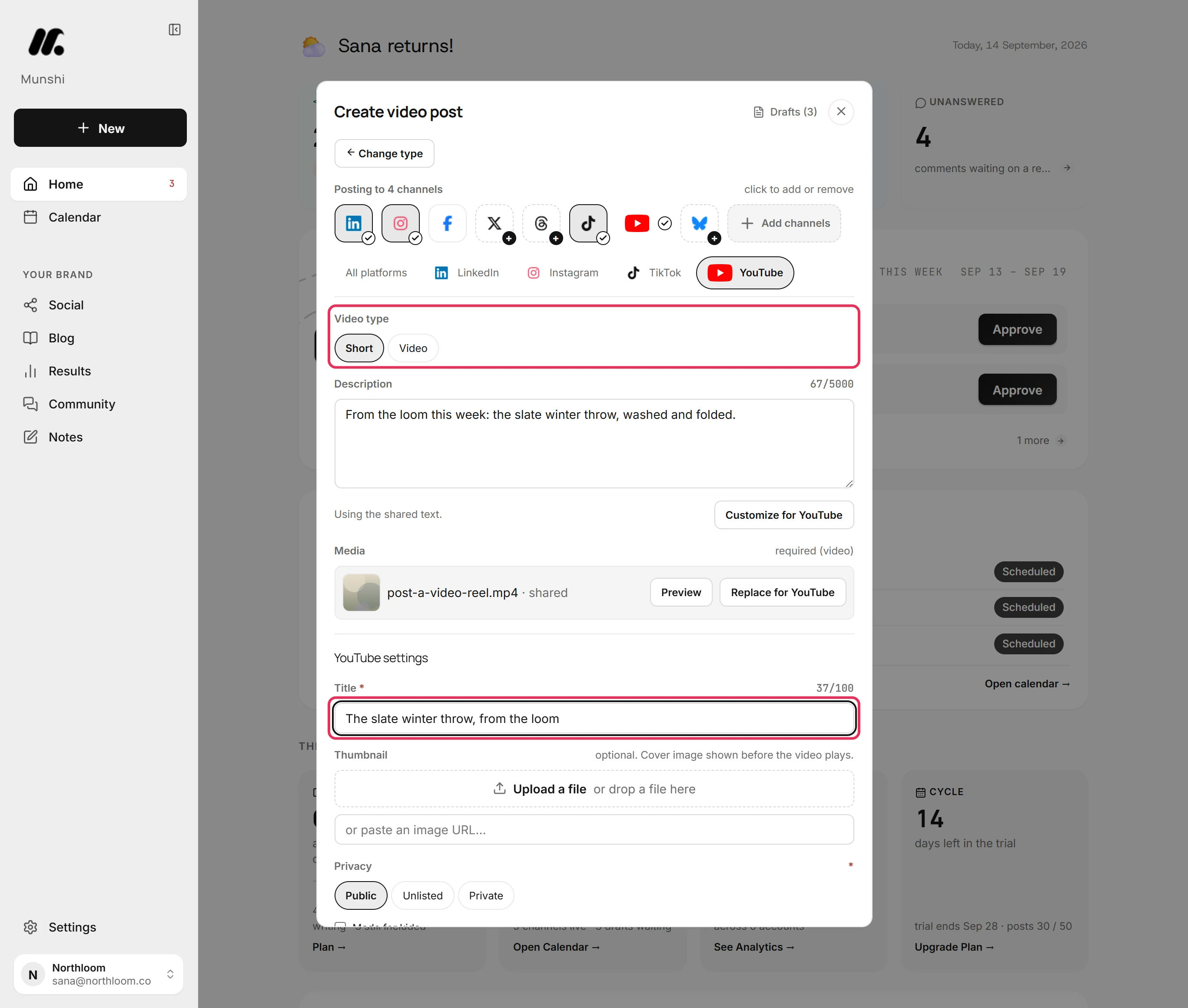
Step by step: How to post a video: Reels, Shorts, TikTok and the rest
Carousels, file types and media limits
Add several pictures to an image post and Instagram gets a carousel. They sit in a numbered row. Drag one to the place you want and the numbers follow. The carousel opens on picture 1.
On a phone, each picture has arrow buttons instead of dragging.
The composer takes up to 20 files in one post, each up to 1 GB. Pictures can be JPG, PNG, WebP or GIF, and video can be MP4, MOV or WebM. A PDF becomes a LinkedIn document post. A video has to be the only attachment.
Each network then applies its own count. A network that takes fewer says so on its own tab: “Instagram takes up to 10 media items. Remove 2.”
Nothing is scheduled until every version passes. A tab that breaks a rule shows a mark, with the reason above the buttons and Fix in tab beside it. You find out in the composer, not at the slot.
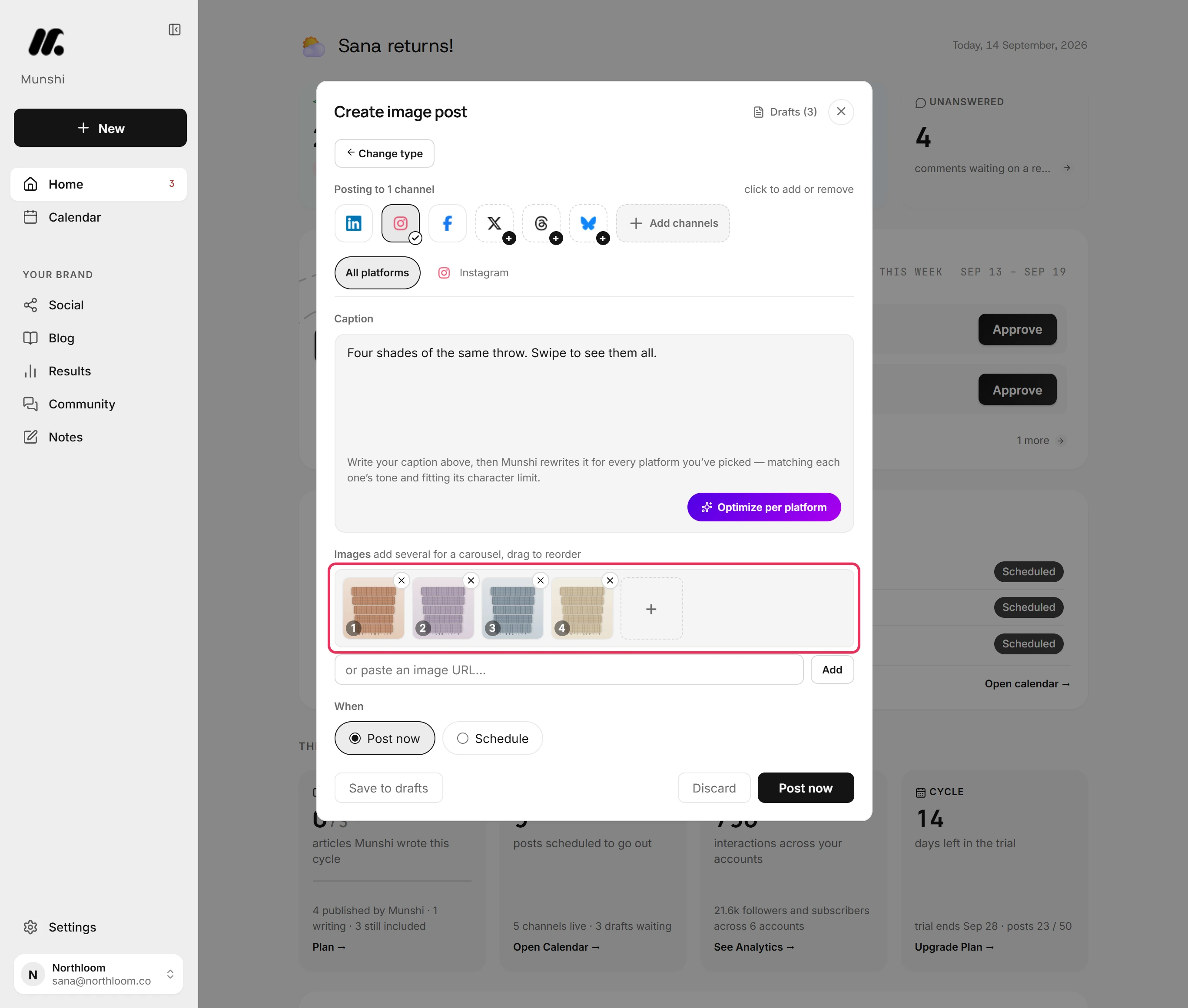
Step by step: How to post a carousel to Instagram
Save it as a draft and finish it later
Save to drafts keeps a half-finished post with its networks, tabs and media as they are. Nothing is posted or scheduled.
Closing the composer with the cross keeps your words too, and Munshi tells you so. Only Discard throws a post away.
On the Drafts tab, a post saved for several networks stays together as one row, marked one post · 2 channels. Beside it are Post all now, Schedule all and Edit all. Edit all reopens the whole post in the composer, exactly as you left it.
To book a finished draft without opening it, click Schedule all on its row. Set the date and time, then click Confirm.
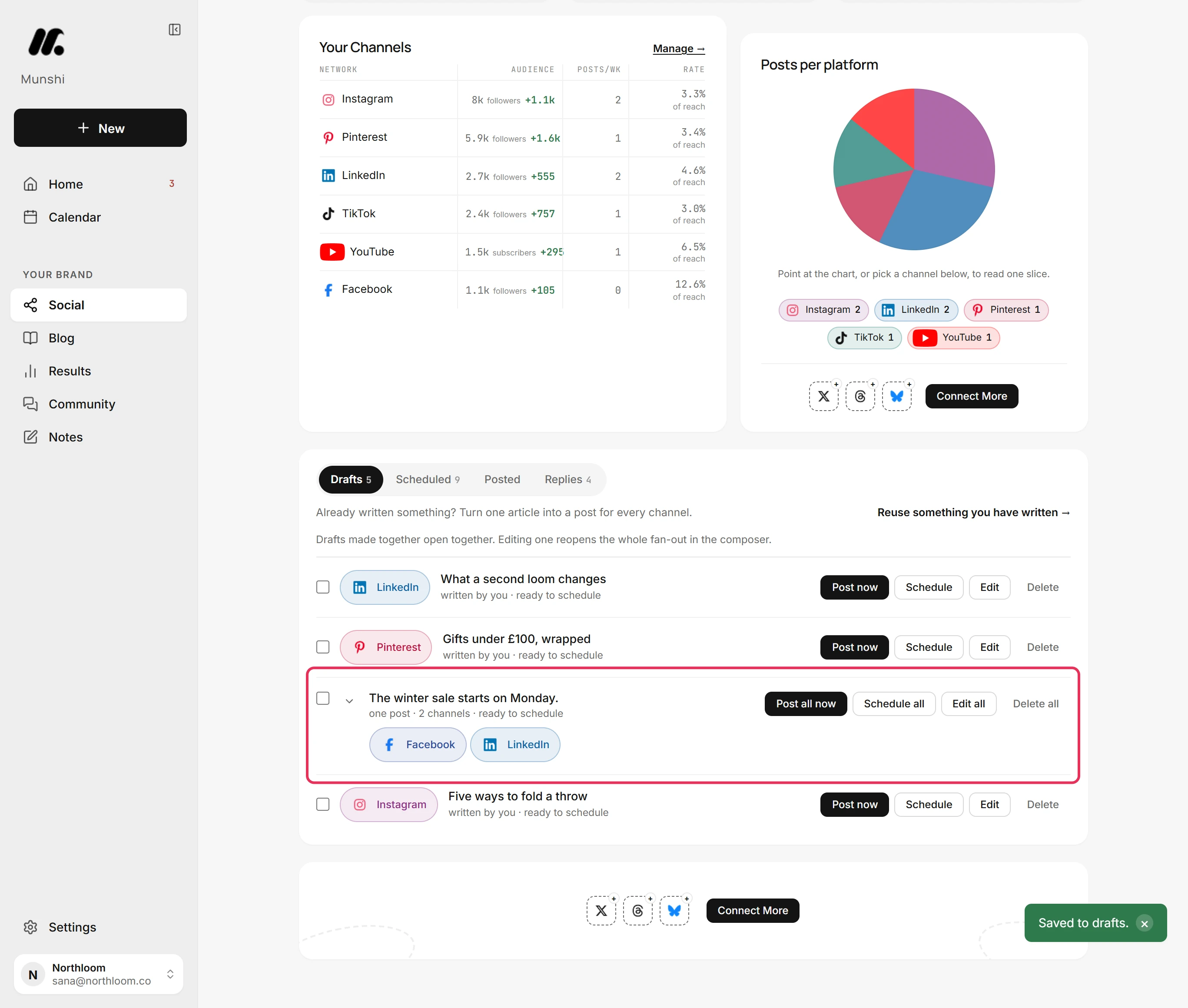
Step by step: How to save a draft and finish it later
One calendar for every network and your blog
Calendar in the sidebar shows every network and your blog in one place. It opens on Month, with up to three entries a day and a count of the rest.
Week gives seven columns with room for eight entries a day. Day lists one day as rows, with each post's network, time and state. On a phone the calendar opens on the week.
The key under the grid explains each look. Planned or added by hand is a dashed outline, and Scheduled to go out is a solid chip. Already out carries a tick, and a Reminder carries a bell.
The pills above the grid name every channel with something on the calendar, with a count. Click one to hide that channel, and click it again to bring it back.
Click a day to see everything on it. Edit post reopens a post in the composer, and Unschedule takes it back to drafts after asking. A post that is already out links to where it went live.
+ Add entry puts a reminder or a held slot on the day. A reminder does not fill a day, so a day that only holds one still counts as open.
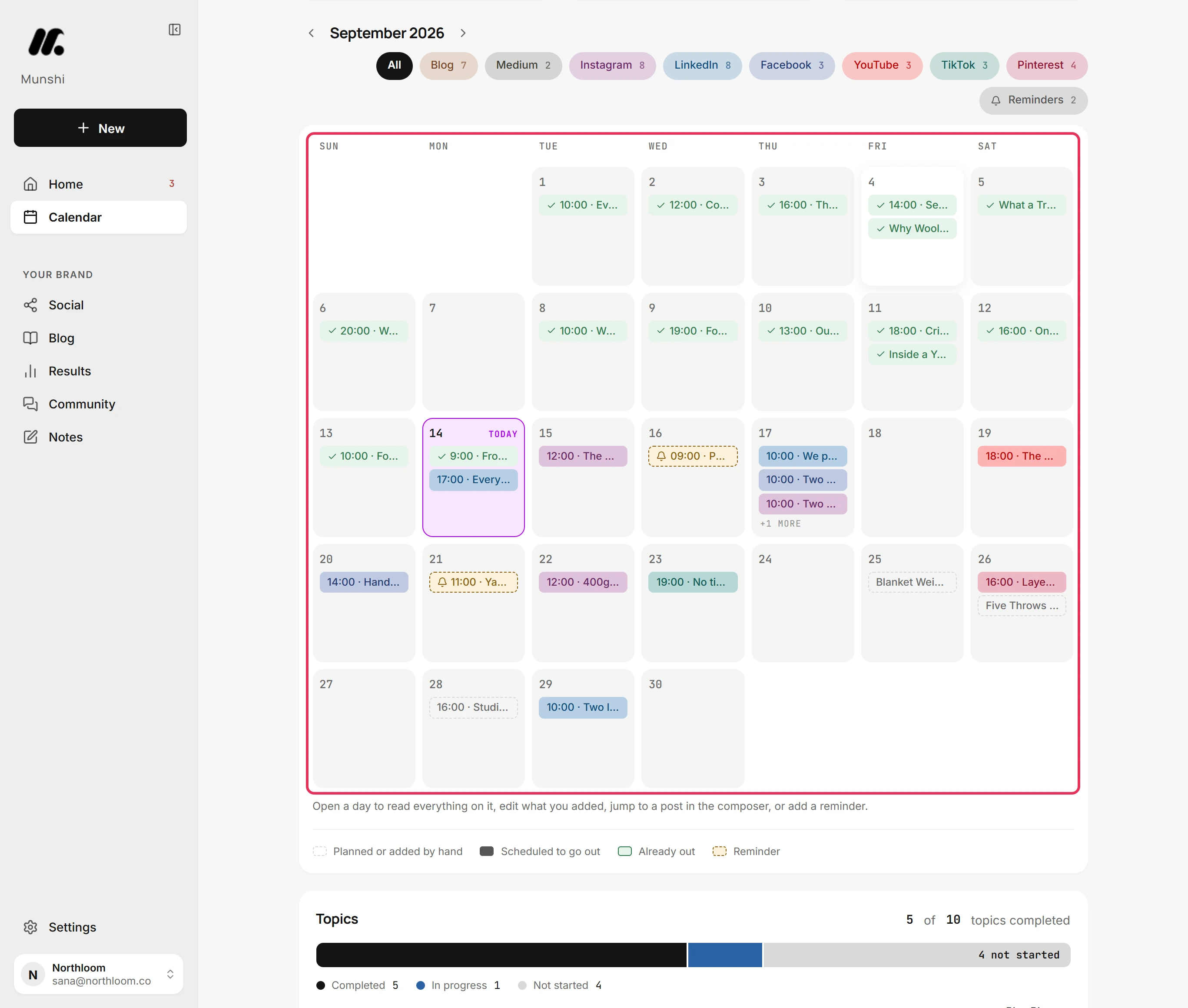
Step by step: How to read the calendar: day, week, month
What happens when a scheduled post goes out?
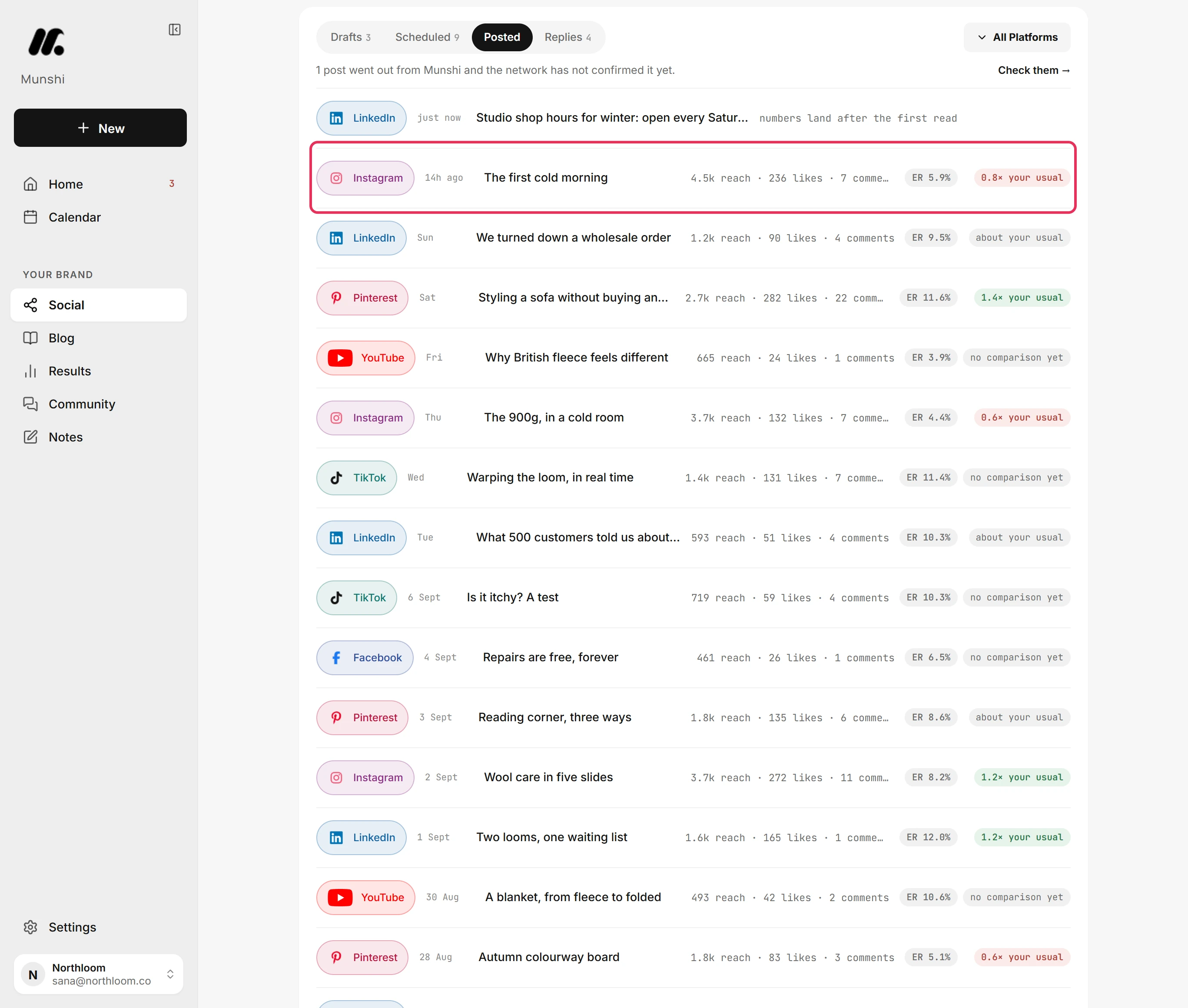
At its time, the post moves from Scheduled to Posted on the Social page, newest first. That page is the record. Munshi sends no email about it.
Until a network confirms, a line above the list counts the posts that are out but not confirmed yet. Check them asks the networks about each one. A confirmed post reads Live on LinkedIn, with View post to open it there.
A new row reads “numbers land after the first read” until the network reports on it. Then the row shows reach, likes, comments and the engagement rate. It also shows how the post did against your usual rate.
Click the caption to open the post on the network. On the calendar, the post keeps its day and gains a tick.
Step by step: What happens when a post goes out
What if a network turns a post down?
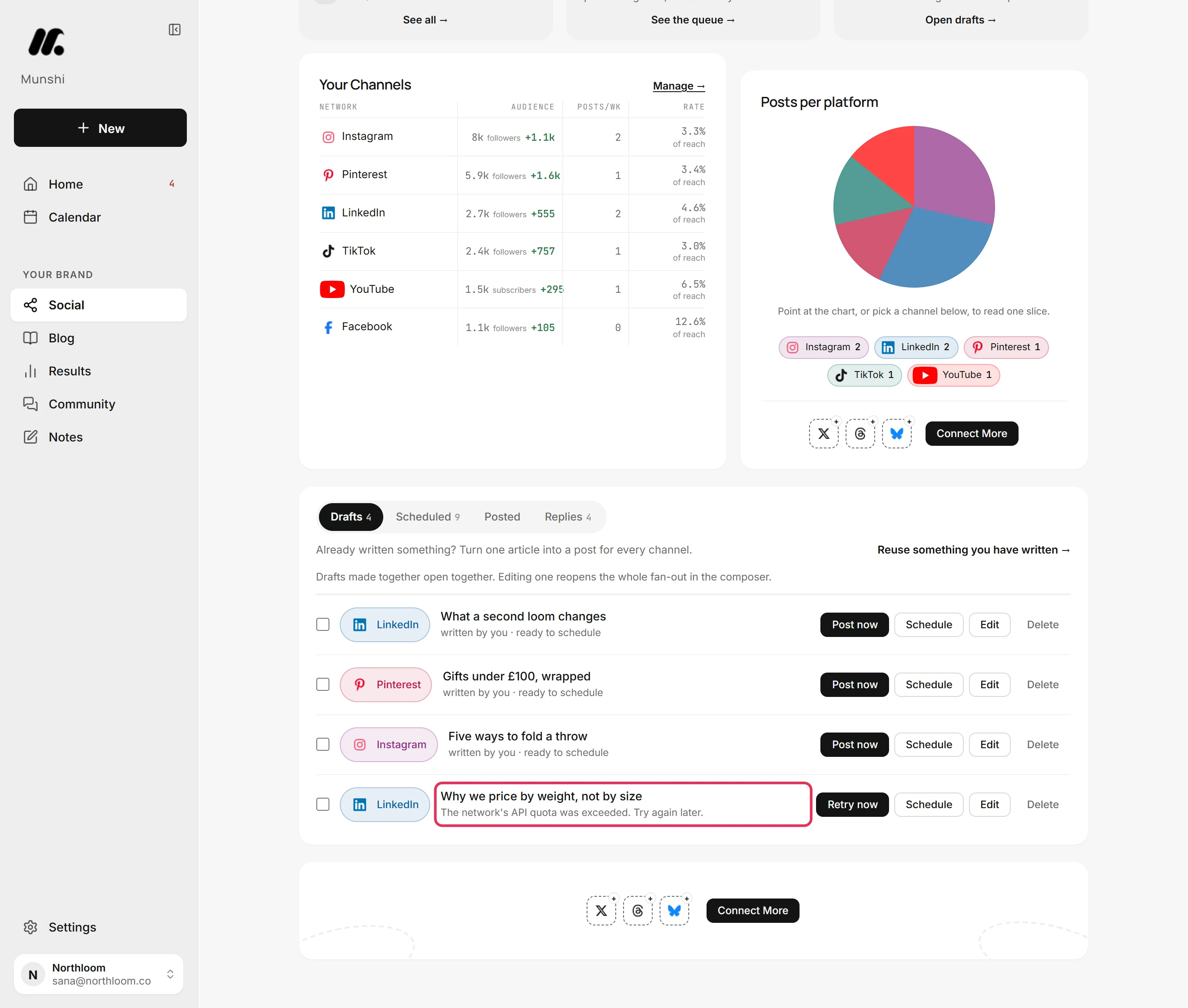
Nothing disappears. A post a network refuses goes back to your drafts with the network's own reason. Home lists it among the things that need your yes, with a Retry button, and the Drafts tile says how many failed to publish.
The row gives the reason in the network's words, such as “The network's API quota was exceeded. Try again later.” Limits like that clear with time. Retry now sends the post straight away, and Schedule on the same row books it for later.
A post sent to several networks says how many copies failed. When every copy failed, the row offers Retry all.
Confirming… is not a failure. The network has taken the post and has not yet said it is live. Click Check again in a moment rather than sending it twice.
Step by step: How to retry a post that failed, and read why
Caption and media limits, network by network
Munshi checks every network's version against these limits before anything is scheduled, and names the tab to fix. X is listed only to complete the list: it is coming soon and cannot be connected today. The limits guide has the full list, with the smaller fields.
| Network | Caption | Media | What it will not go without |
|---|---|---|---|
| 2,200 | Up to 10 images, or one video | A photo or a video. Post, Reel or Story | |
| 5,000 | Up to 10 images, one video, or text alone | Nothing. Post, Reel or Story | |
| 3,000 | Up to 20 images, one video, one PDF as a document post, or text alone | Nothing | |
| Threads | 500 | Up to 20 images, one video, or text alone | Nothing |
| Bluesky | 300 | Up to 4 images, one video, or text alone | Nothing |
| 500 | One image or one video, on a board you choose | A board, and a cover image for a video pin | |
| TikTok | 2,200 | One video | A video |
| YouTube | 5,000 description, 100 title | One video, as a Short or a Video | A video and a title |
| X | Coming soon | Coming soon | Coming soon |
Files can be JPG, PNG, WebP and GIF pictures, MP4, MOV and WebM video, and PDFs for LinkedIn. Each file can be up to 1 GB and is kept for 60 days. One post carries up to 20 of them, and a video has to be the only attachment. See caption and media limits and files Munshi takes.
How many posts you can send
| Plan | Posts a month | Workspaces | Price |
|---|---|---|---|
| Free trial | 50 | 1 | Free for 14 days, no card |
| Founding | 1,000 | 1 | $15 a month |
| Studio | 3,000, one shared pool | 3 | $29 a month |
Each network a post goes to counts once, so one post sent to Instagram, Facebook and LinkedIn uses three. A post counts when you post or schedule it, not when it goes out. Pinterest is the exception: a pin counts when it goes out. A post refused by Munshi's checks or by the network does not count, and unscheduling one returns it. Munshi also sends at most 25 posts an hour to any one account. The daily ceiling is 100 on Instagram and Facebook, 25 on Pinterest and 50 on the rest. See full pricing.
What it does not do
- It does not drag. The calendar has no dragging. Move a post from the post itself, with Edit post or by unscheduling it and booking it again.
- It holds one account per network per workspace. Connecting a second Instagram account replaces the first. An account another workspace already uses is refused on every network except Pinterest. To run two, give each its own workspace.
- It does not add media to a post made from an article. Those drafts reopen as text posts, so Instagram, TikTok and YouTube need a post started from New with the file.
- It does not email you when a post goes out. The Posted tab on the Social page is the record.
- It does not post to X. X is coming soon and cannot be connected today. A post can reach the other eight networks.
Questions people ask
What is a cross-posting tool?
A cross-posting tool publishes one piece of content to several social networks. With Munshi you write once in the All platforms tab and pick the networks. Each one gets its own copy, with its own caption and media if you want. Munshi checks each copy against that network's rules and sends it at the time you set.
Can I post to all social media at once?
Yes, to every network you have connected: Instagram, Facebook, LinkedIn, Threads, Bluesky, Pinterest, TikTok and YouTube. Click each one in the composer, write the post once, and choose Post now or Schedule. X is coming soon and cannot be connected today.
Can I schedule one post to multiple networks at the same time?
Yes. Set the date and time once under When and click Schedule post. The post is booked once for each network at that slot. It appears once per network on the Scheduled tab and on the calendar, each with Edit and Unschedule.
Does each network get its own caption?
Yes, if you want. Leave a network's tab alone and it posts the shared caption. Type in the tab, or click Customize for that network, and only that network changes. Optimize per platform writes a caption for every network you picked, inside each one's character limit, and you can still edit any of them.
How many posts does one cross-post use from my plan?
One per network it goes to, so a post sent to Instagram, Facebook and LinkedIn uses three. Founding includes 1,000 posts a month, Studio 3,000 shared by up to three workspaces, and the 14-day trial 50. Taking a scheduled post back to drafts returns it to the allowance.
What happens if a post fails on one network?
The other networks still go out. The failed copy goes back to your drafts with the network's own reason, and Home lists it with a Retry button. Retry now sends it again, and Schedule books it for later. If several copies failed, the row says how many and offers Retry all.
Can I connect two accounts on the same network?
Not in one workspace. Each workspace holds one account per network, and connecting another on the same network replaces the first. Give the second account its own workspace. Studio runs up to three workspaces on one plan, with one shared monthly allowance.
What happens if my caption is too long for one network?
Munshi stops it before it is scheduled. That network's tab shows a mark, with the reason above the buttons and Fix in tab beside it. The reason reads, for example, 12 characters over Instagram's 2200 limit. Nothing is scheduled until every version passes, so a caption is never cut off without you knowing.
Every part of posting, step by step
Each one walks a single task through the real app, with a screenshot at every step.
- How to create and schedule a post 2 min · 10 steps
- How to give one network its own caption or media 3 min · 9 steps
- How to let Munshi rewrite the caption for each platform 2 min · 9 steps
- How to turn an article into posts for every channel 2 min · 8 steps
- How to post a video: Reels, Shorts, TikTok and the rest 3 min · 10 steps
- How to post a Reel or a Story to Instagram or Facebook 3 min · 8 steps
- How to post a carousel to Instagram 3 min · 9 steps
- How to save a draft and finish it later 3 min · 8 steps
- How to read the calendar: day, week, month 3 min · 8 steps
- How to add a post or a reminder to a day 2 min · 8 steps
- How to move a post to another time, or take it back to drafts 2 min · 9 steps
- How to edit a scheduled post before it goes out 2 min · 7 steps
- What happens when a post goes out 3 min · 8 steps
- How to retry a post that failed, and read why 2 min · 5 steps
- Caption and media limits, network by network 3 min read
- Files Munshi takes, and how big 2 min read
- How many posts you can send 2 min read
- One account per network per workspace 2 min read
- How to post to Instagram from Munshi 2 min · 8 steps
- How to post to LinkedIn from Munshi 2 min · 7 steps
- How to post to TikTok from Munshi 3 min · 10 steps
- How to post to Pinterest from Munshi 3 min · 10 steps