How to let Munshi rewrite the caption for each platform
Write your post once and click Optimize per platform. Munshi writes a caption for each network you picked, inside that network's limit.
Before you start
- At least two networks connected, so the post has more than one caption to write. The integrations pages say how to connect each one.
- Your Brief filled in. Munshi writes with what it says about your business and your audience.
-
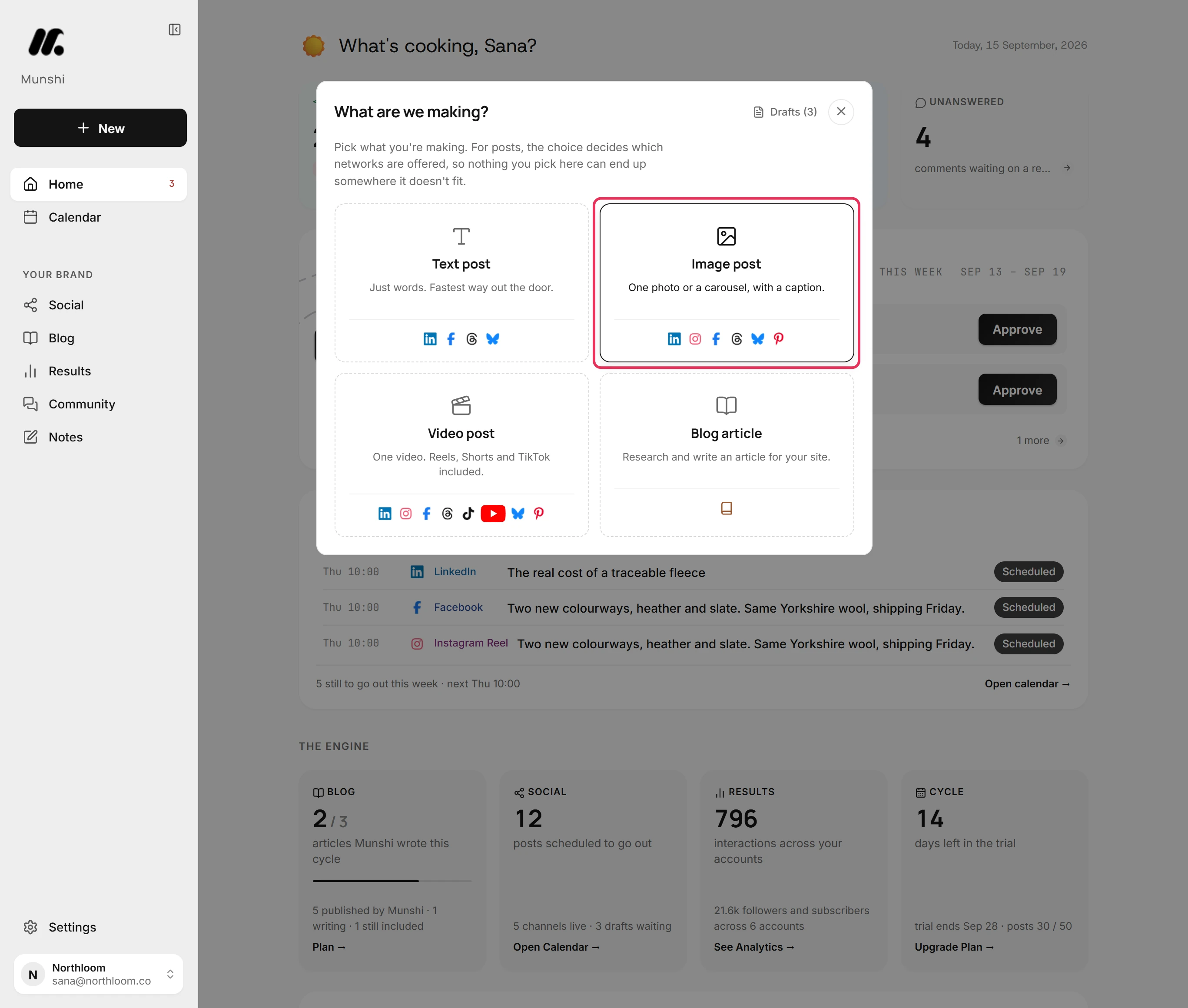
Click New and pick Image post. Optimize per platform sits under the box you write in. Text posts and video posts have it too.
-
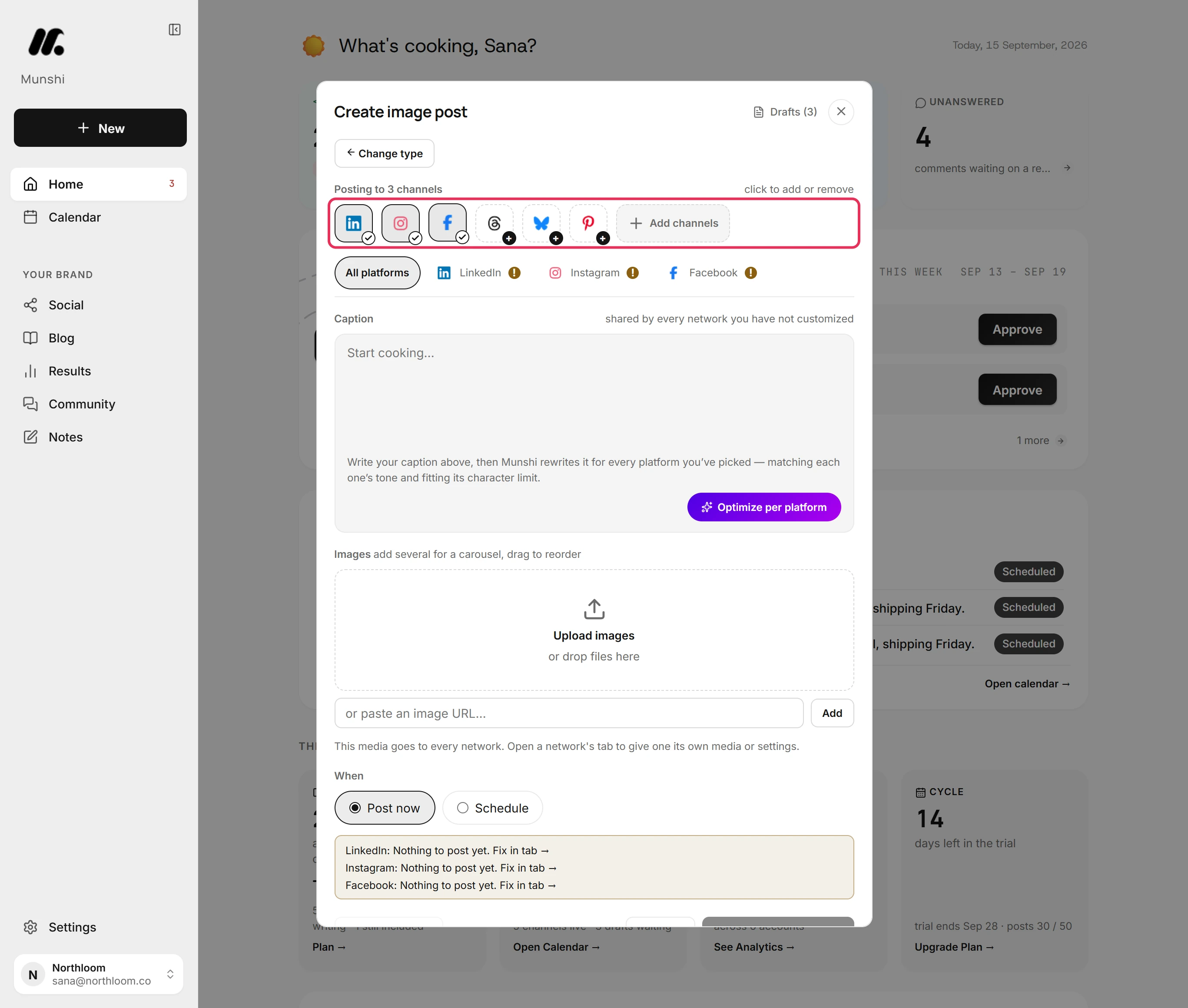
Click each network the post goes to. Here LinkedIn was already on, and Instagram and Facebook are added. Munshi writes one caption for each network you pick.
-
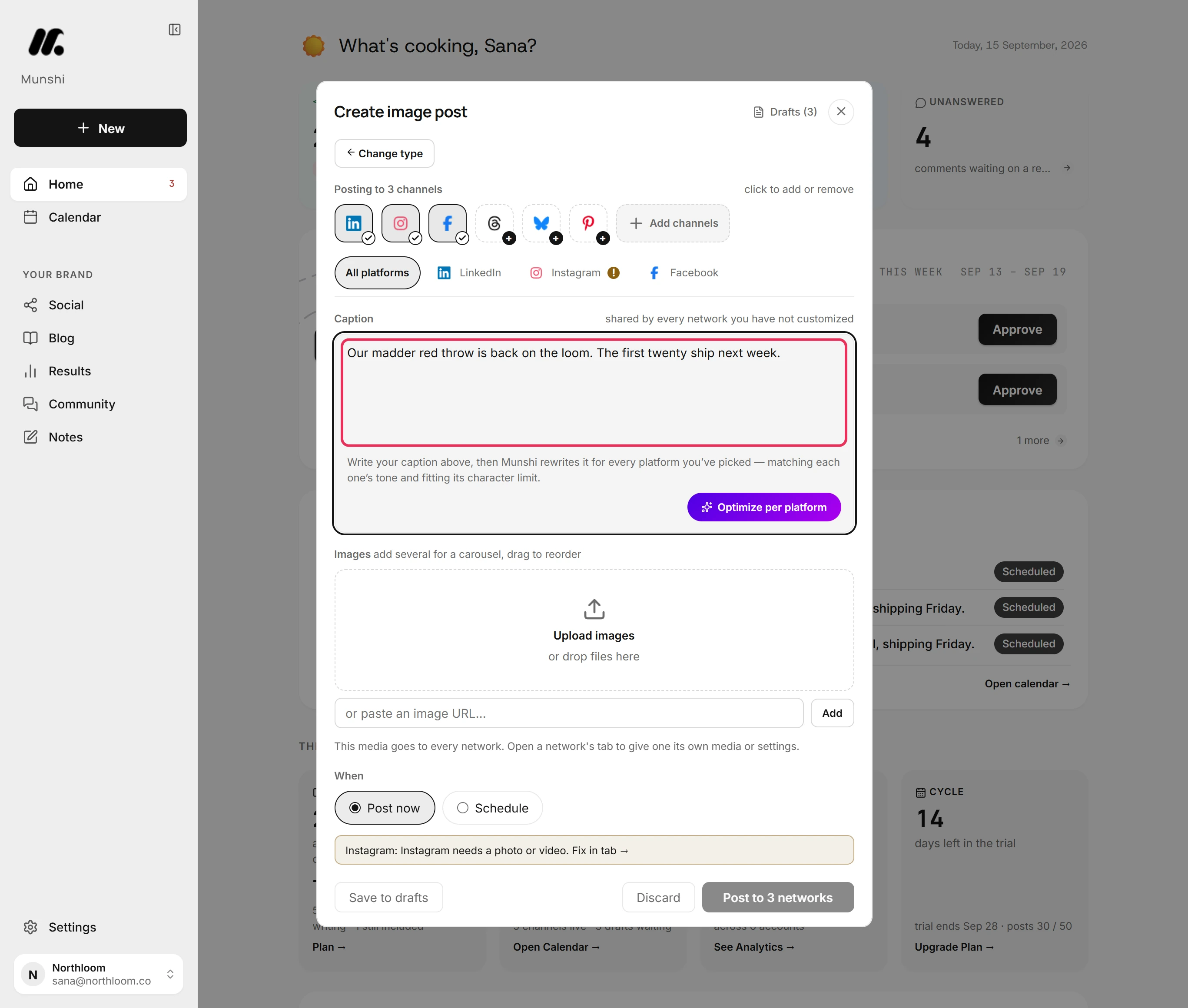
Type it in Caption on the All platforms tab. Munshi writes every caption from this text. So put in everything that matters, such as the news, the numbers and the day.
-
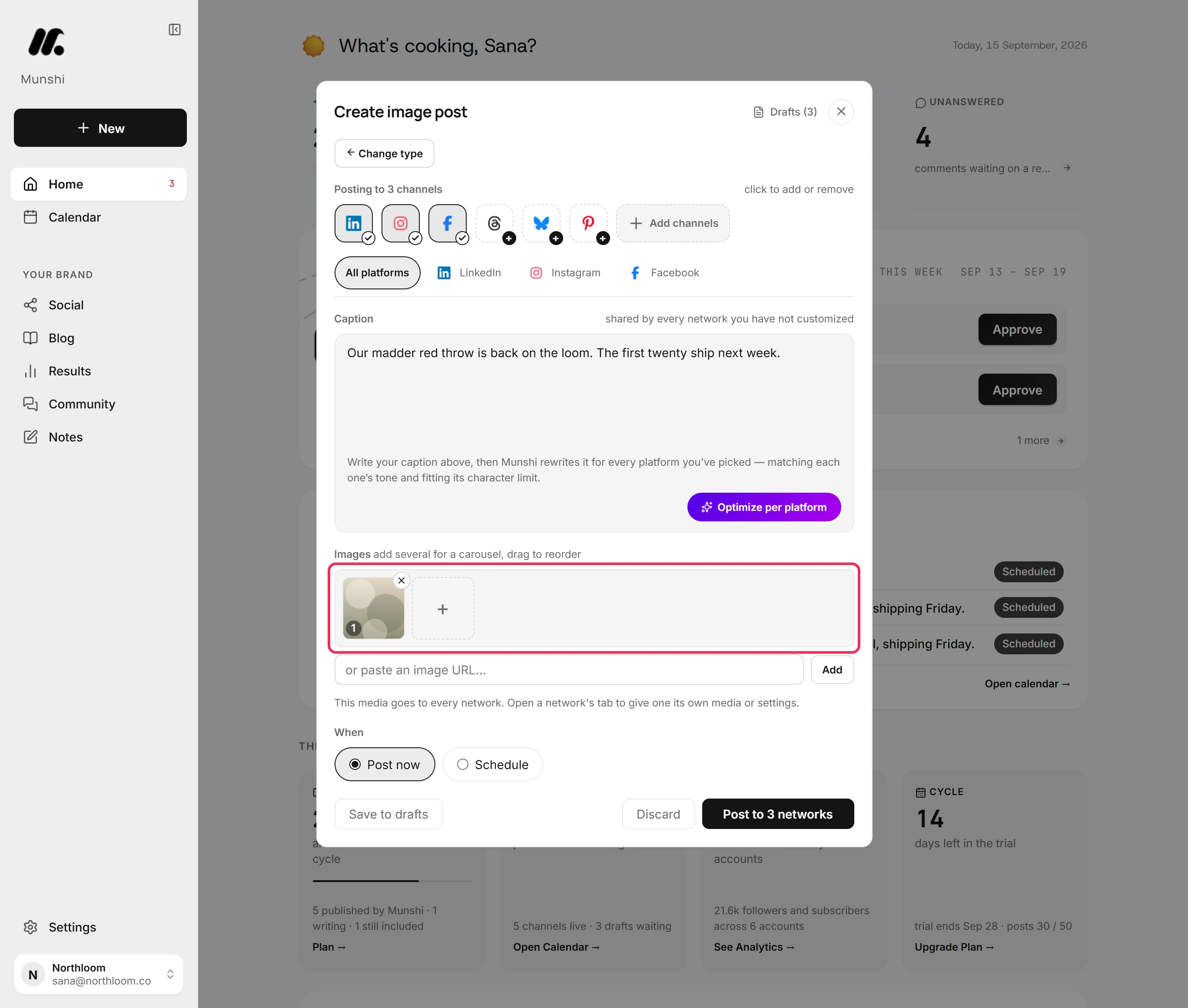
Click Upload images and pick the file. Munshi sees what is attached when it writes. Each caption is written to go with the picture.
-
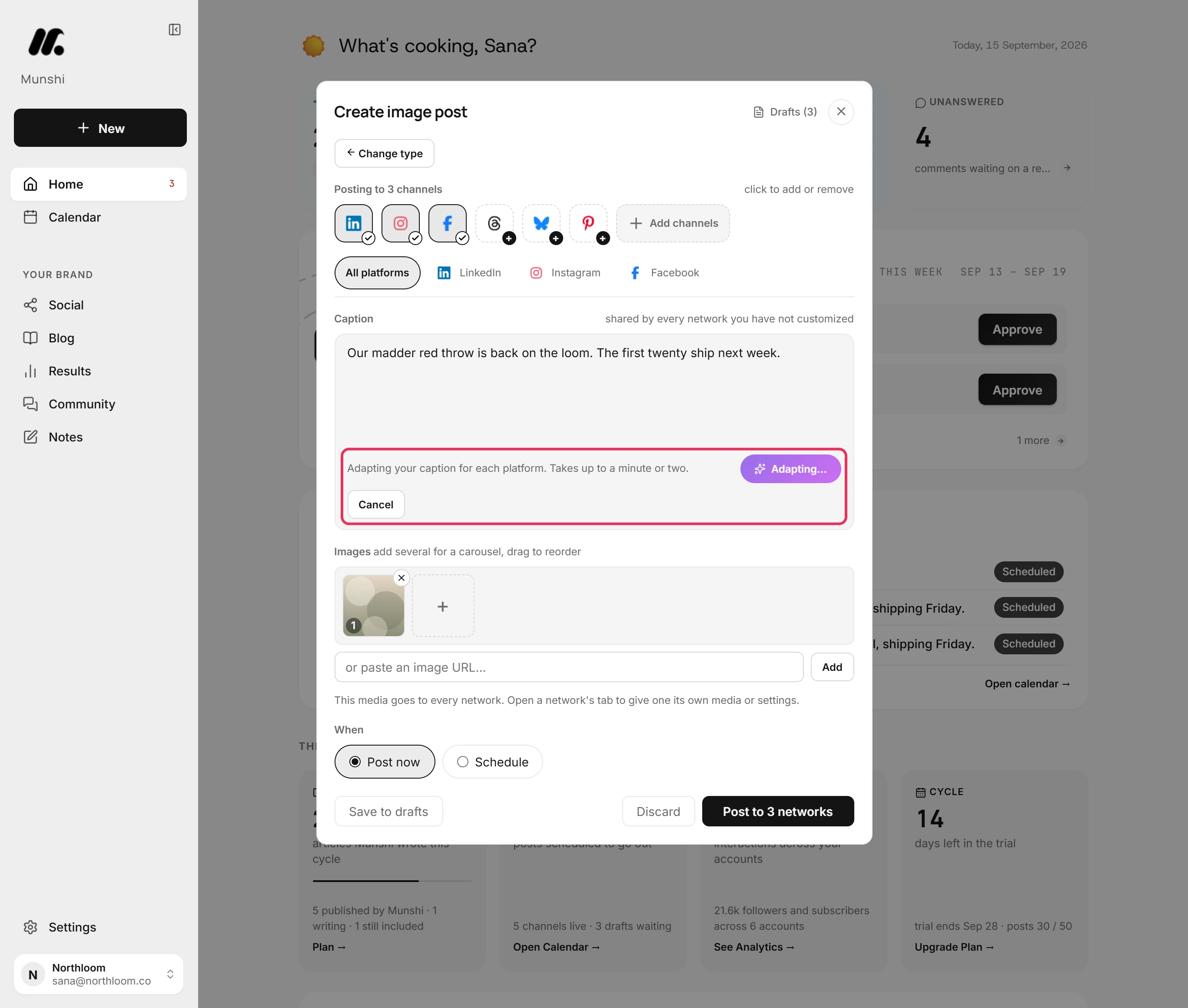
Click Optimize per platform under the box. While Munshi writes, the button reads Adapting… and your text in All platforms is locked. The note beside it says this takes up to a minute or two.
-
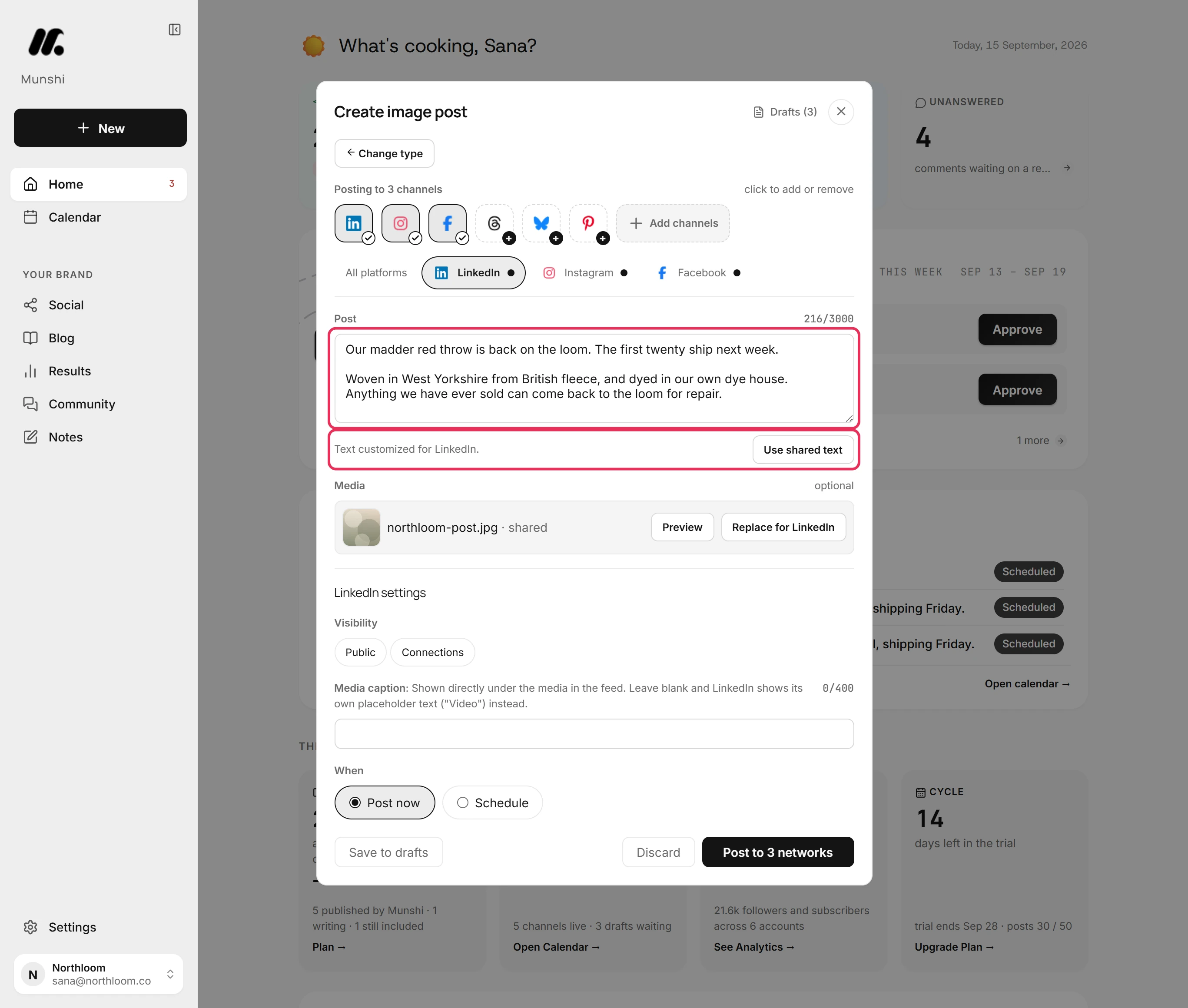
When the button reads Optimize per platform again, open the LinkedIn tab. The caption there is the one Munshi wrote for LinkedIn. The line under it reads Text customized for LinkedIn.
-
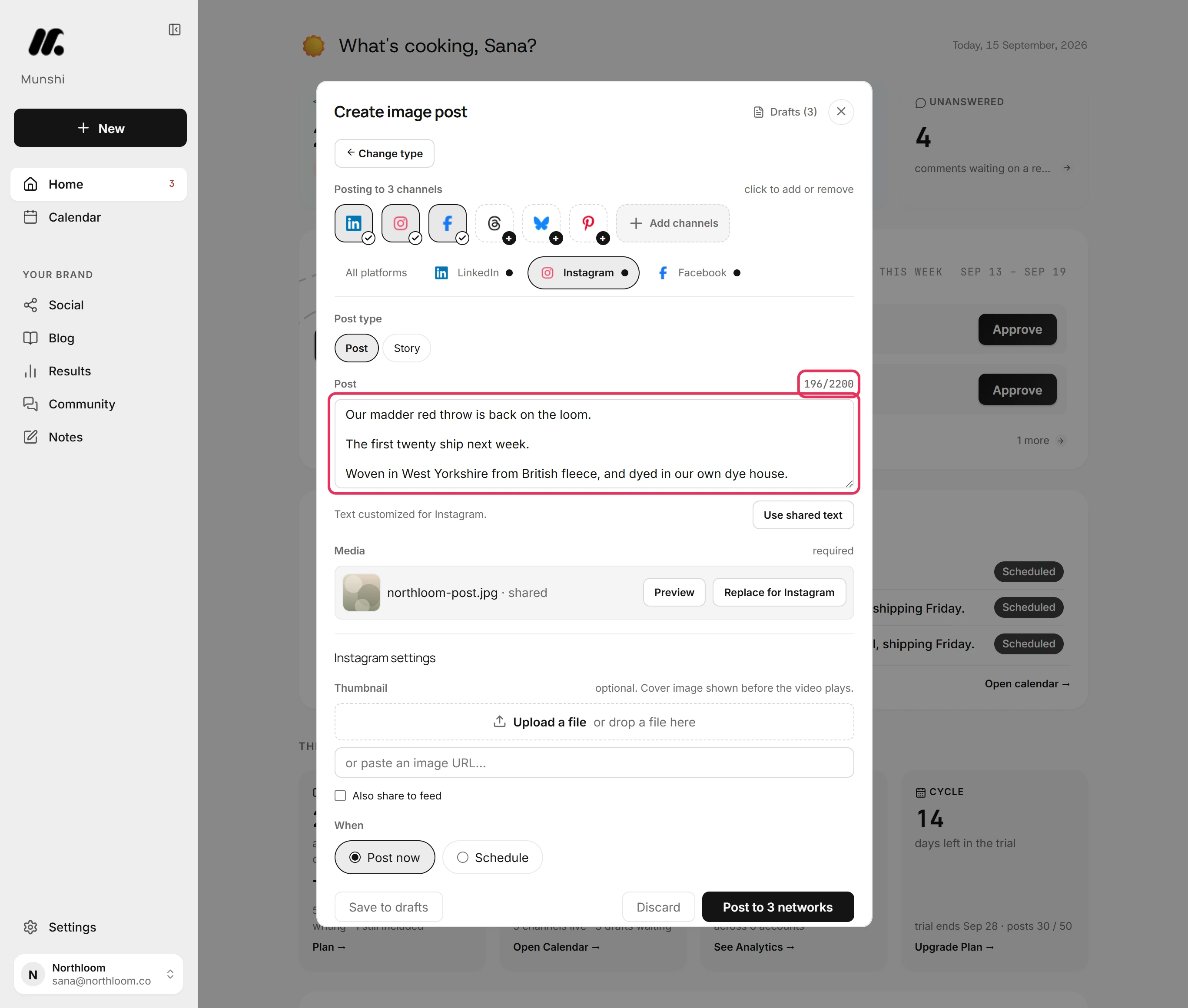
Open the other tabs in turn. Each network has a caption written for it, inside that network's limit. The count above the box shows how much of the limit it uses.
-
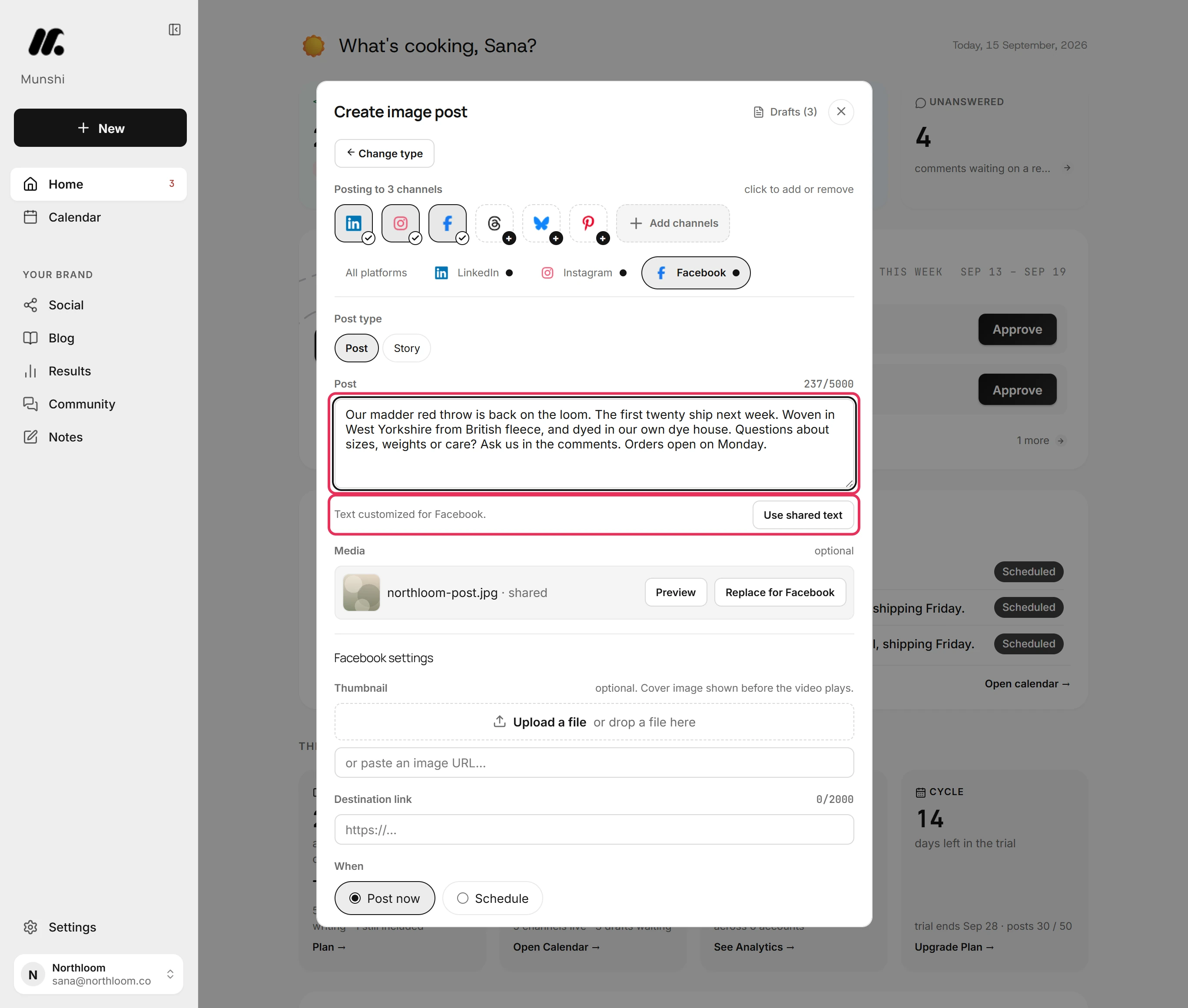
Type in a network's tab to change its caption. Only that network changes. Use shared text drops the network's caption, so it posts your text from All platforms again.
-
Go back to All platforms. Your text is as you typed it. A dot beside a network's name on its tab means that network posts its own caption.
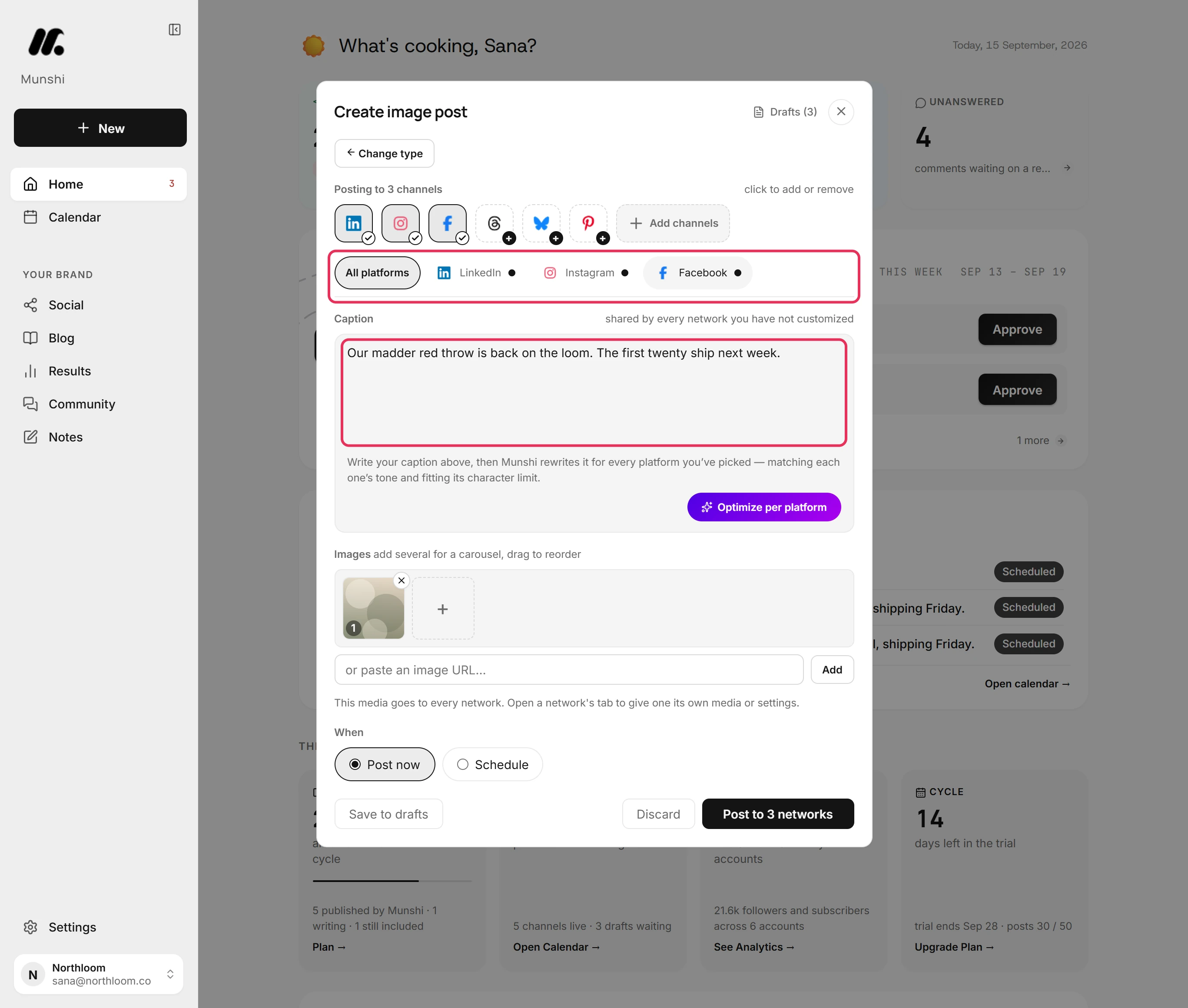
Where you are now
Every network in the post has its own caption, written from your text and inside that network's limit. Your own text is still in All platforms. Schedule the post or save it to drafts as usual, and each network goes out with its own caption.
If something goes wrong
“Every selected platform already has its own caption. Edit the text above to rewrite them.”
Change your text in All platforms to have every caption written again. Or click Use shared text in one tab to have only that network written. Every network already has a caption, and your text has not changed since Munshi wrote them.
“Wrote 2 of 3. Retry to fill in Instagram.”
Click Optimize per platform again without changing your text. Munshi writes only the network that is missing a caption.
A caption I changed by hand was replaced
Make the change again in that network's tab once Munshi has finished. Optimize per platform ran again after your text in All platforms changed. It also rewrites every network on the first click after you reopen a post from Drafts.
“Daily generation limit reached for this workspace. Try again tomorrow.”
Write the captions in each tab yourself, or click Optimize per platform again after midnight UTC. The workspace has reached its daily limit on AI writing. The post and your text are still there.
Try it on your own brand this week.
Munshi Social, the AI content marketing engine for small teams, plans, writes, publishes, and tracks your blog and socials. The guide above shows the real app, not a mock-up.
Start your workspace