How to change your plan, your card, or cancel
Change between Founding and Studio, or Monthly and Yearly, in Plan & billing. Update your card, get invoices or cancel in Paddle's billing portal.
Before you start
- The workspace pays for its own Founding or Studio plan. If another workspace's plan covers it, make changes from the workspace that pays.
-
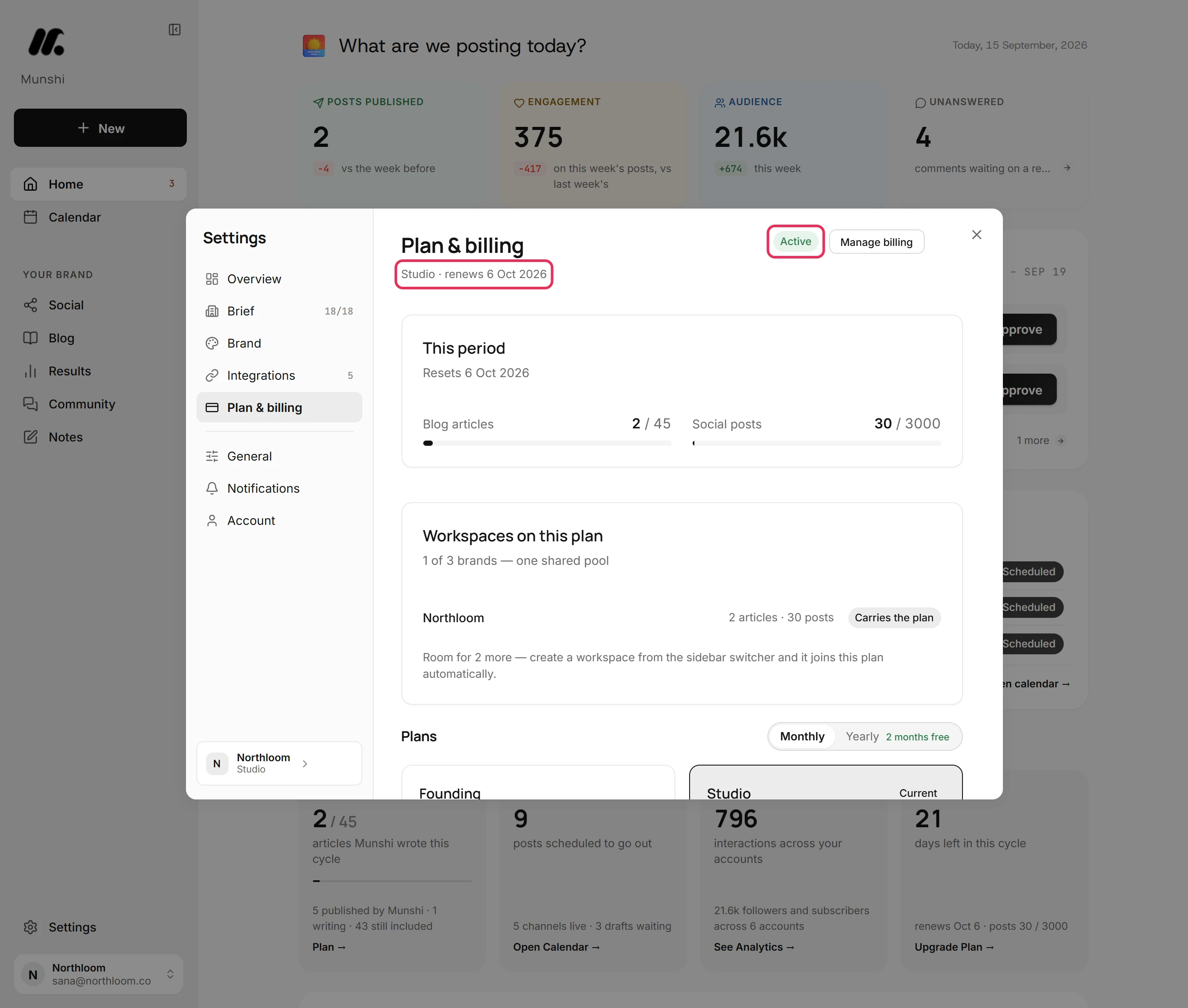
Click Settings at the bottom of the sidebar, then Plan & billing. The line under the title names your plan and the day it renews. The badge shows its status, such as Active.
-
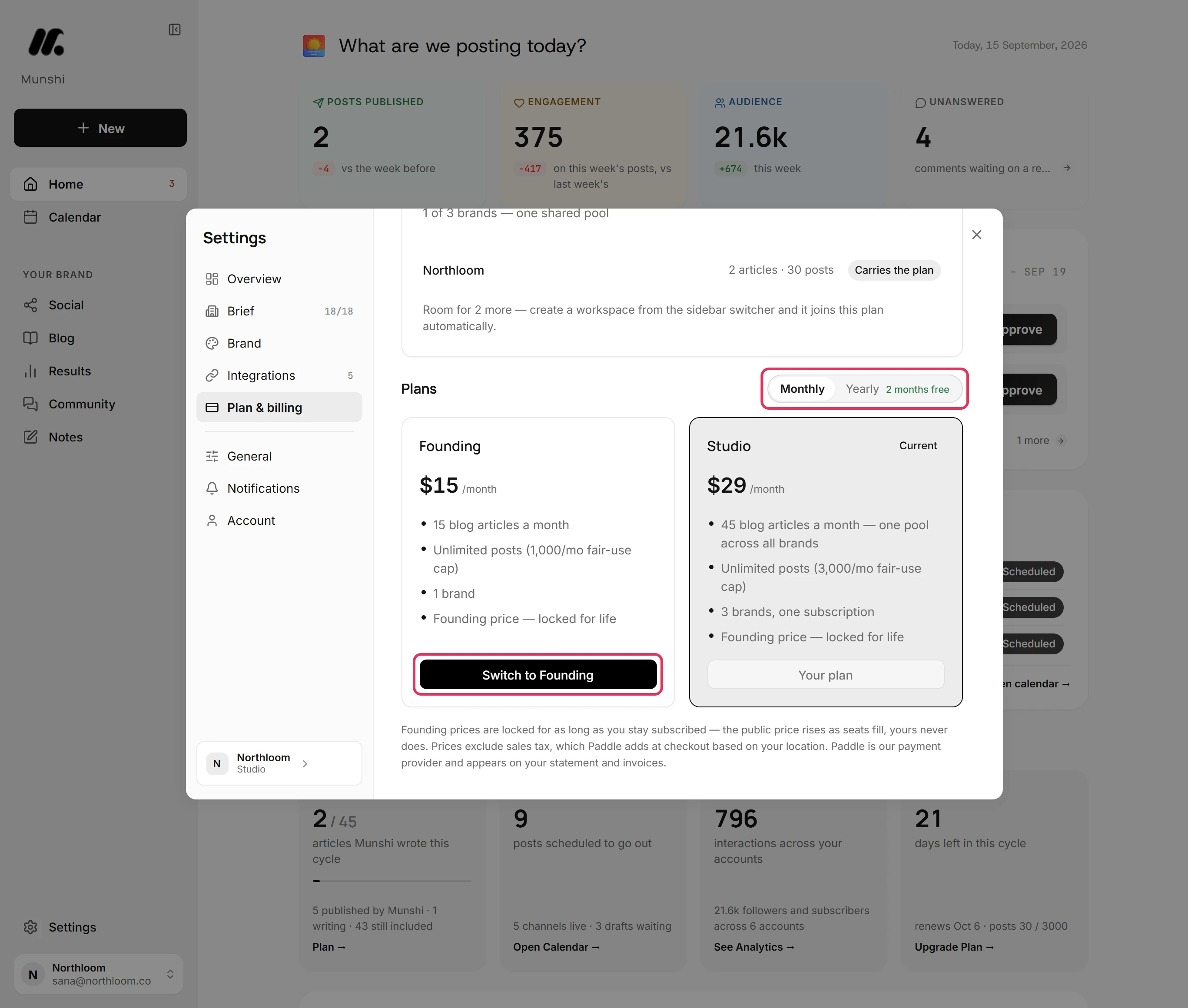
Under Plans, a plan that costs more reads Upgrade to, and one that costs less reads Switch to. From Studio, for example, Founding reads Switch to Founding. To change only how often you pay, choose Monthly or Yearly. Your own plan's card then offers Switch to yearly or Switch to monthly.
-
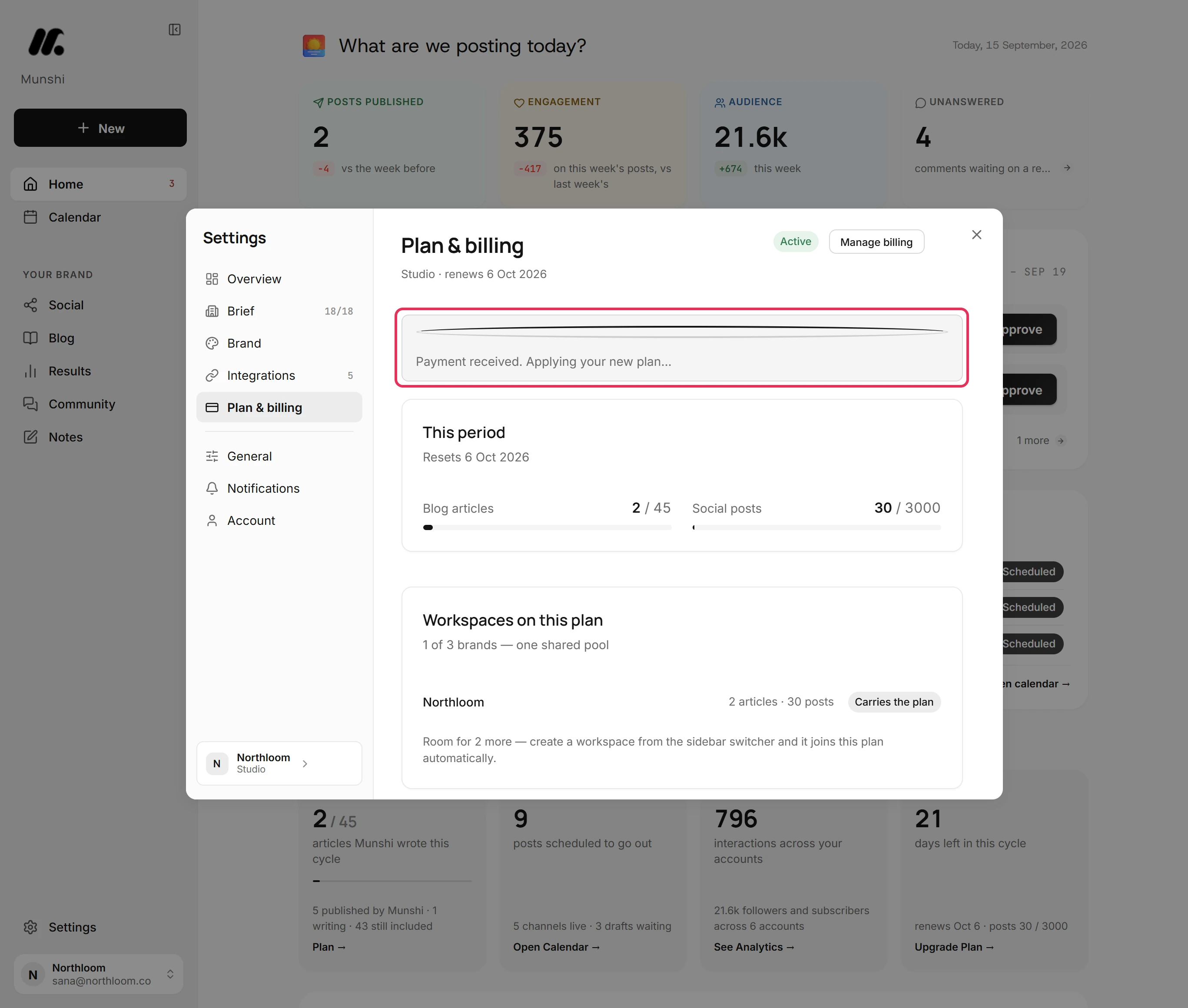
Click the button. There is no new checkout. Paddle changes the subscription on the card it already holds and charges or credits the difference at once. Until Paddle confirms the change, the page says Payment received. Applying your new plan…
-
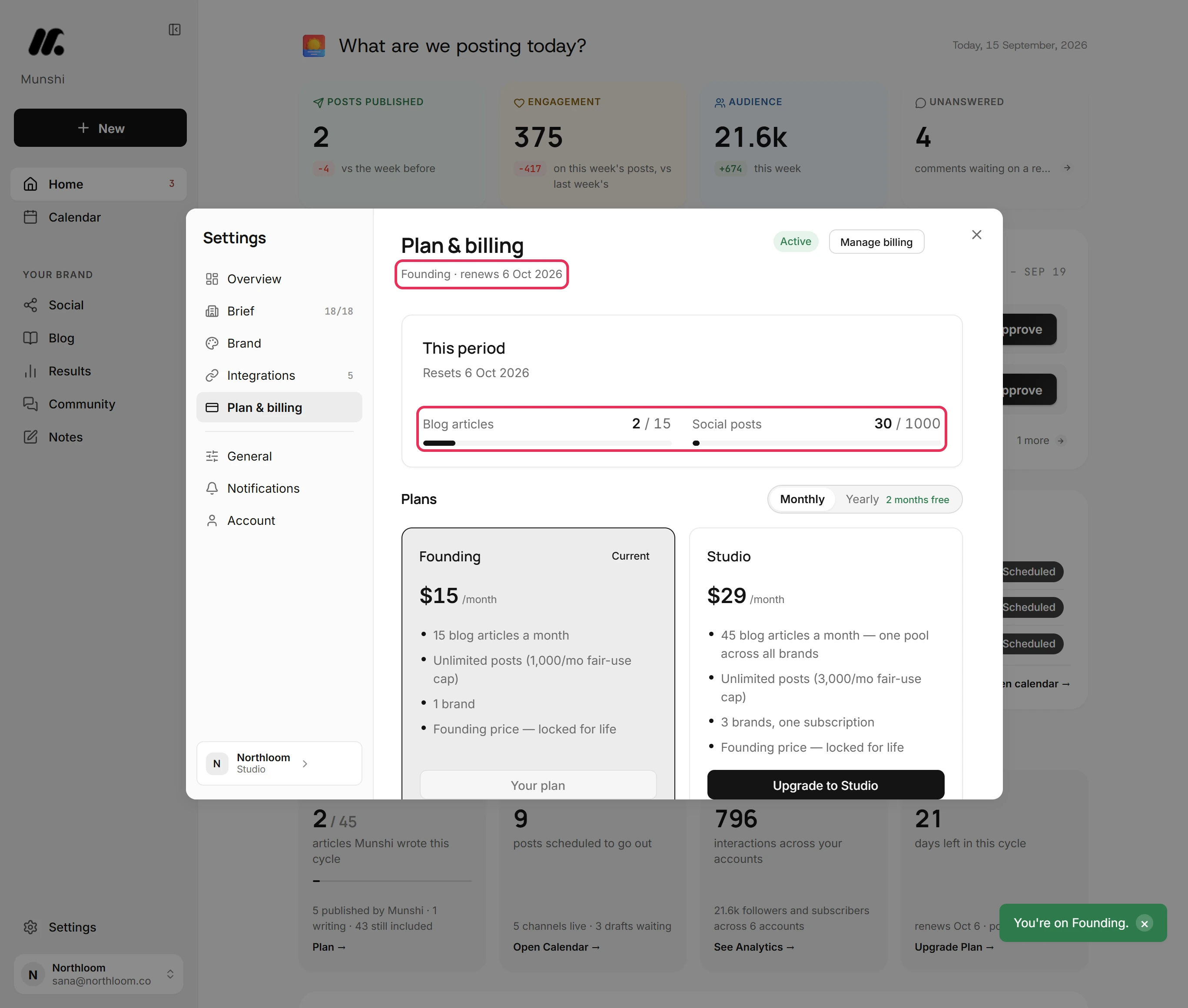
Munshi says You're on Founding. The line under the title names the new plan. This period now counts against the new plan's allowance.
-
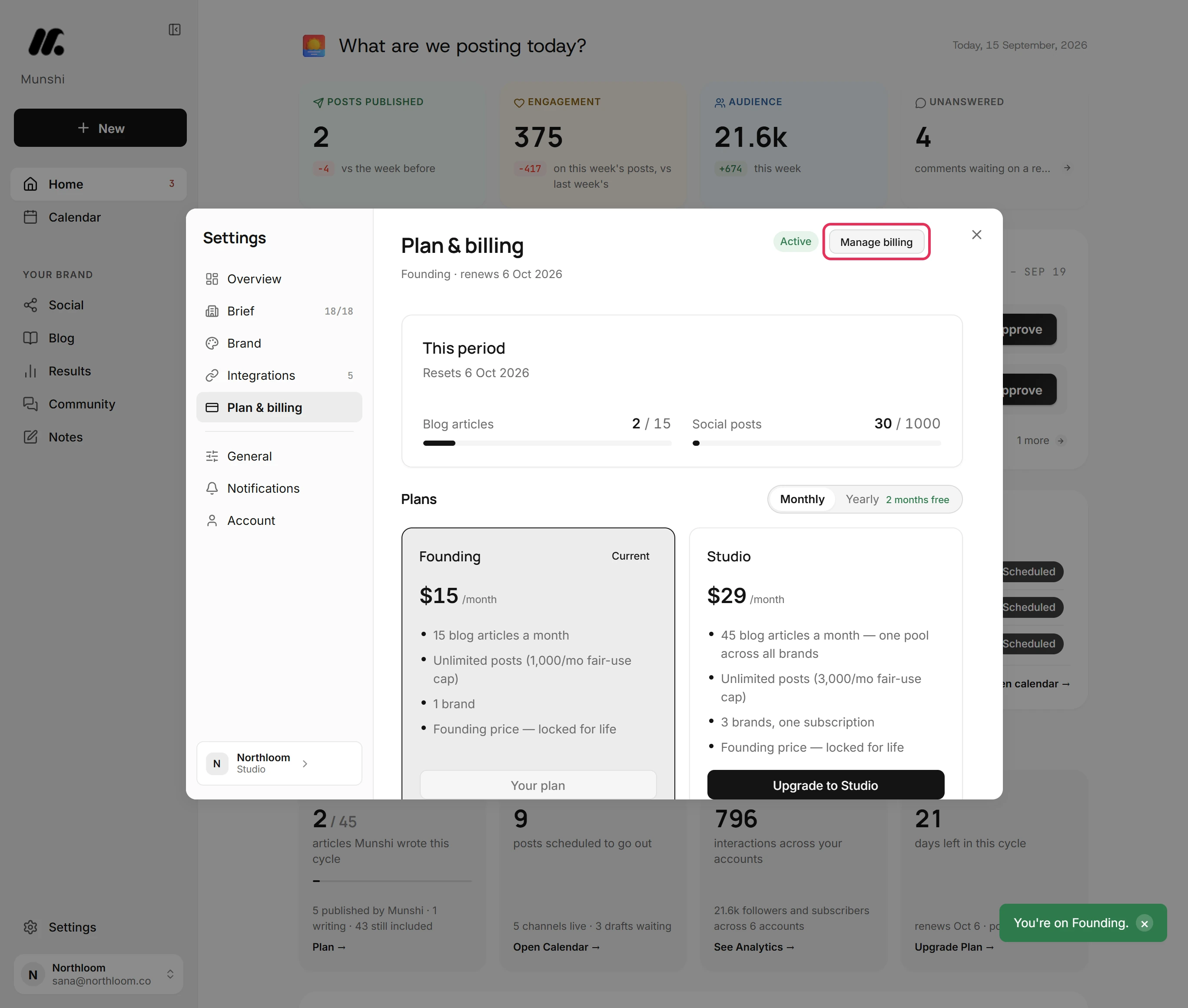
Click Manage billing. Paddle's billing portal opens in a new tab. There you can update your card, download invoices and cancel the subscription.
-
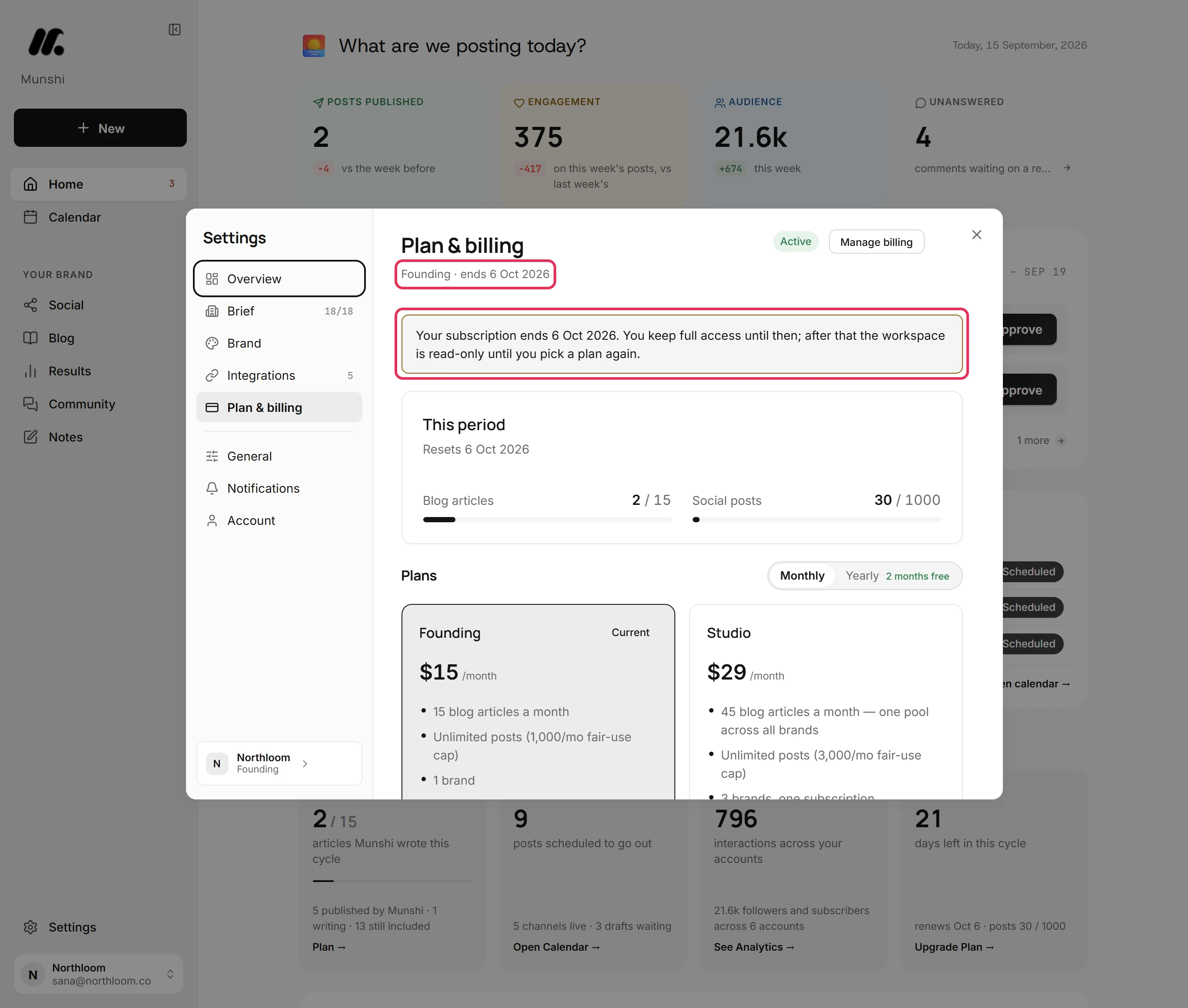
Cancelling in the portal ends the subscription at the end of the period you paid for. Plan & billing then shows ends and the date where it said renews, with the banner Your subscription ends. You keep full access until that date. After it, the workspace is read-only until you pick a plan again.
-
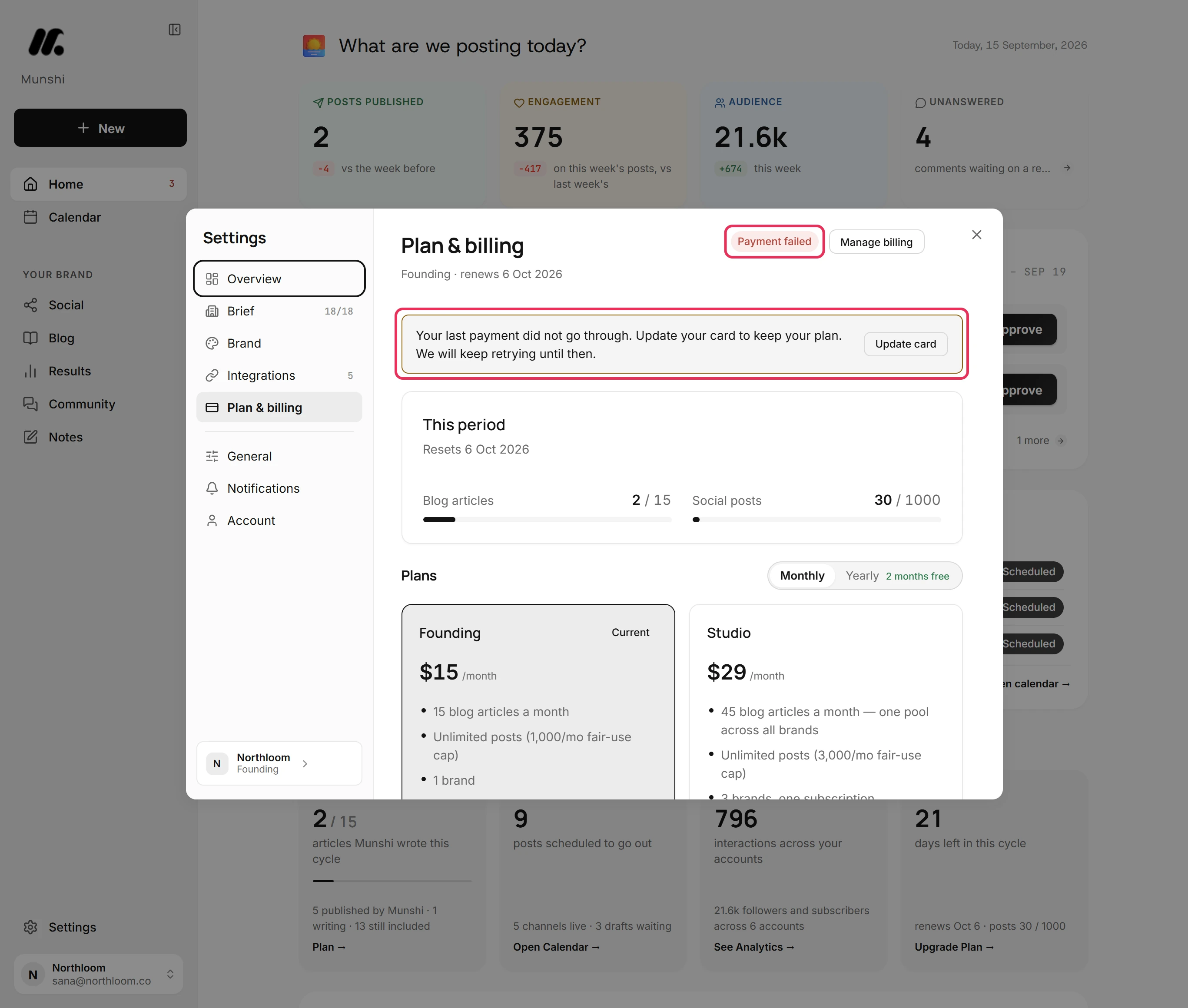
When a renewal payment fails, the badge reads Payment failed and Munshi says Your last payment did not go through. Your plan keeps working while Paddle retries the card. Click Update card to open the same portal and change the card.
Where you are now
You change plans in Plan & billing. You manage your card, invoices and cancelling in Paddle's billing portal. Nothing in the workspace is lost along the way.
If something goes wrong
Does a switch keep my Founding price?
Not always. A switch moves you to the price on sale at that moment for the plan and cycle you pick. That is true even when you switch back to a plan you had before. If you pay an earlier Founding price, keep that in mind before you switch.
“Payment received. Your plan will update in a moment.”
Reload Plan & billing in a moment, and the new plan shows there. Paddle made the change, but its confirmation had not reached Munshi after 40 seconds.
“Could not open the billing portal.”
Click Manage billing again. Munshi could not get a portal link from Paddle, and each click asks for a new one.
There is no Manage billing button
This workspace has no billing of its own. Either it has never been through checkout, or another workspace's plan covers it. If it is covered, manage the card, invoices and cancelling from the workspace that pays.
Try it on your own brand this week.
Munshi Social, the AI content marketing engine for small teams, plans, writes, publishes, and tracks your blog and socials. The guide above shows the real app, not a mock-up.
Start your workspace