How to post to Instagram from Munshi
Pick Instagram, add a caption and a picture, and post it. Munshi checks Instagram's rules before anything goes out. It takes about two minutes.
Before you start
- Instagram connected to the workspace, as a Business or Creator account. The Instagram page says how to connect it.
- A picture or a video. Instagram does not take a post without one.
-
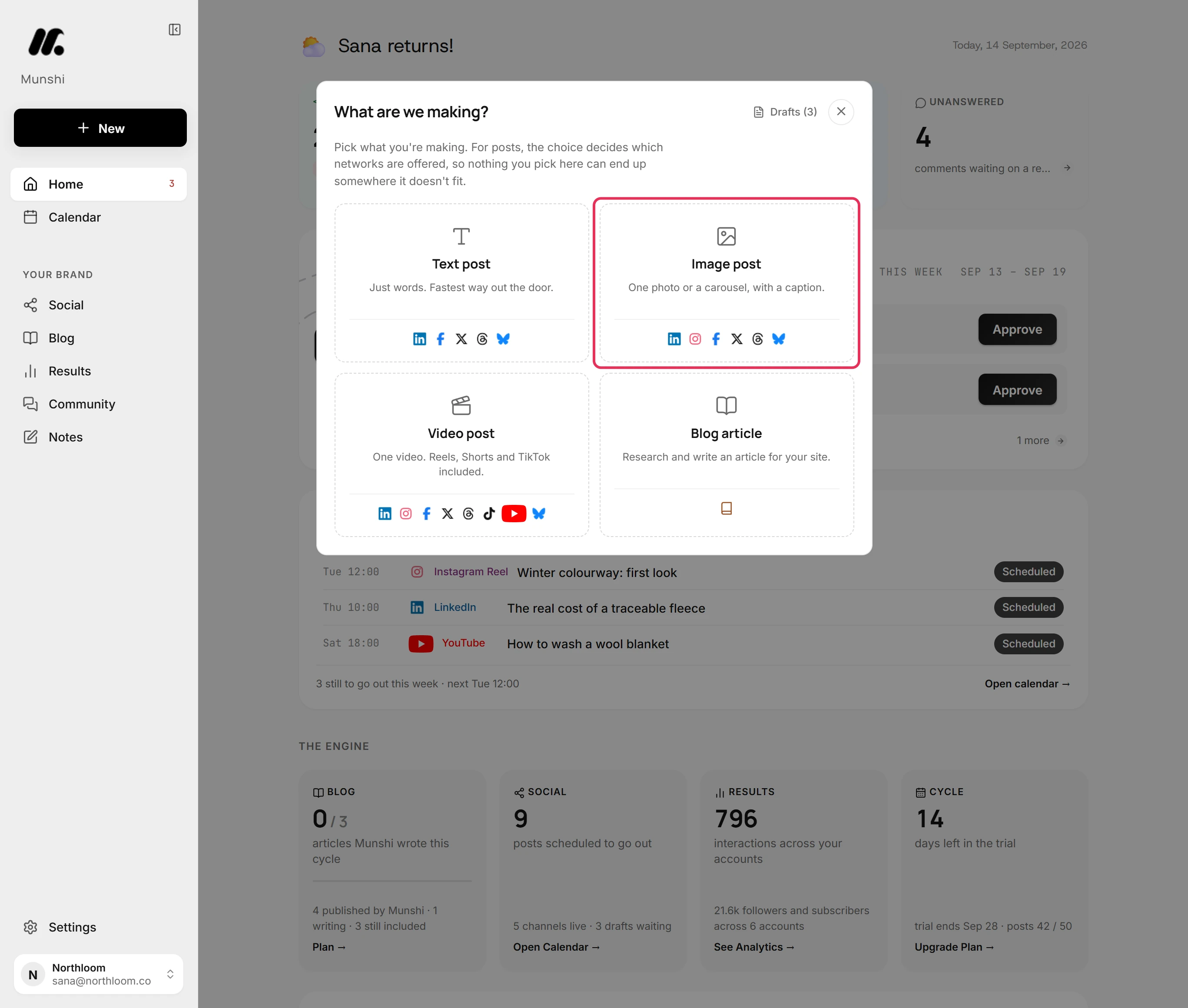
Click New at the top of the sidebar, then pick Image post. Instagram needs a picture or a video. That is why a Text post does not offer it.
-
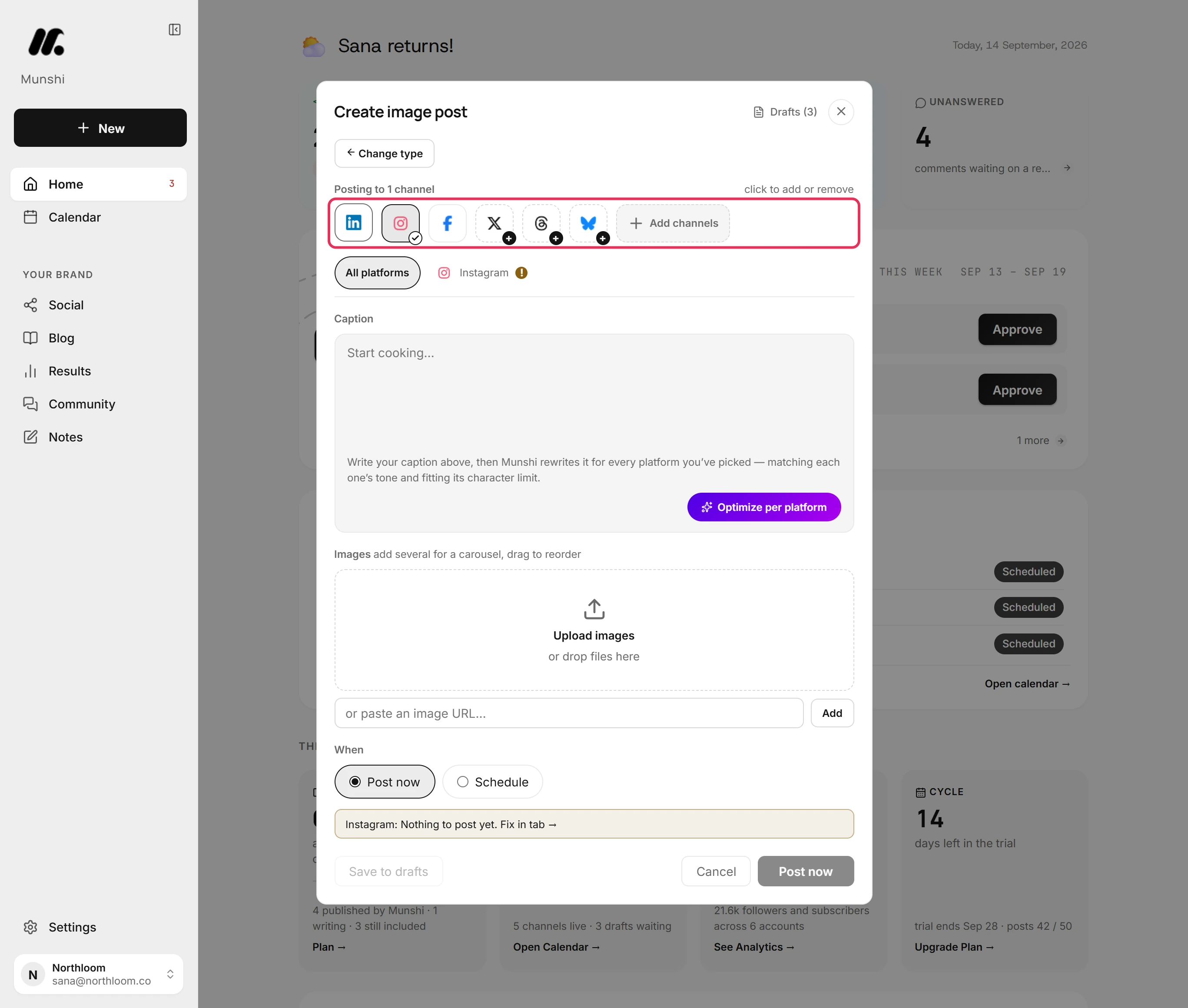
Click Instagram to add it. A new post starts with one network already picked. If the post is only for Instagram, click that one to take it off.
-
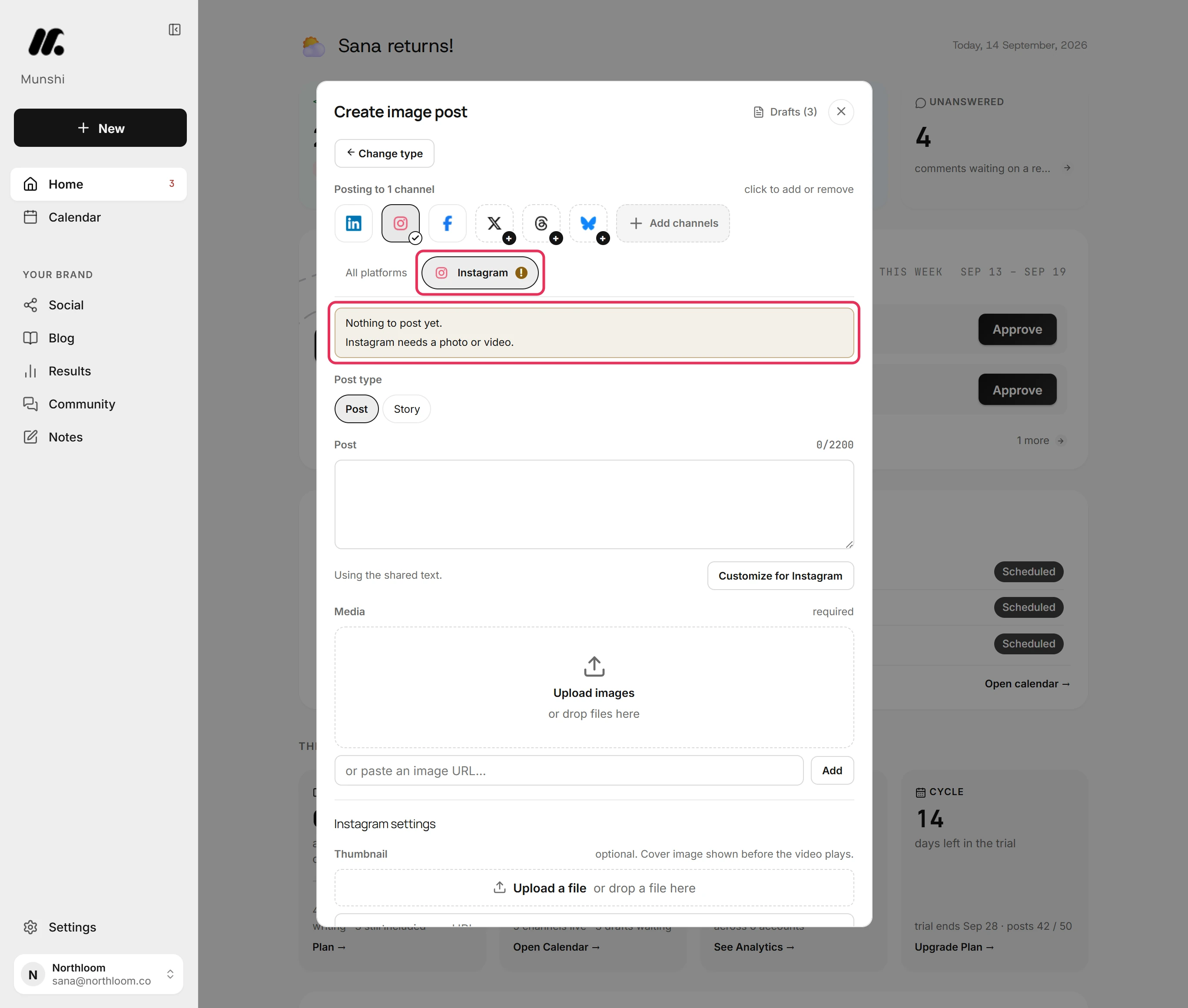
Open the Instagram tab. Until the post is ready, the tab shows a mark and lists what is missing. The post cannot be sent until then.
-
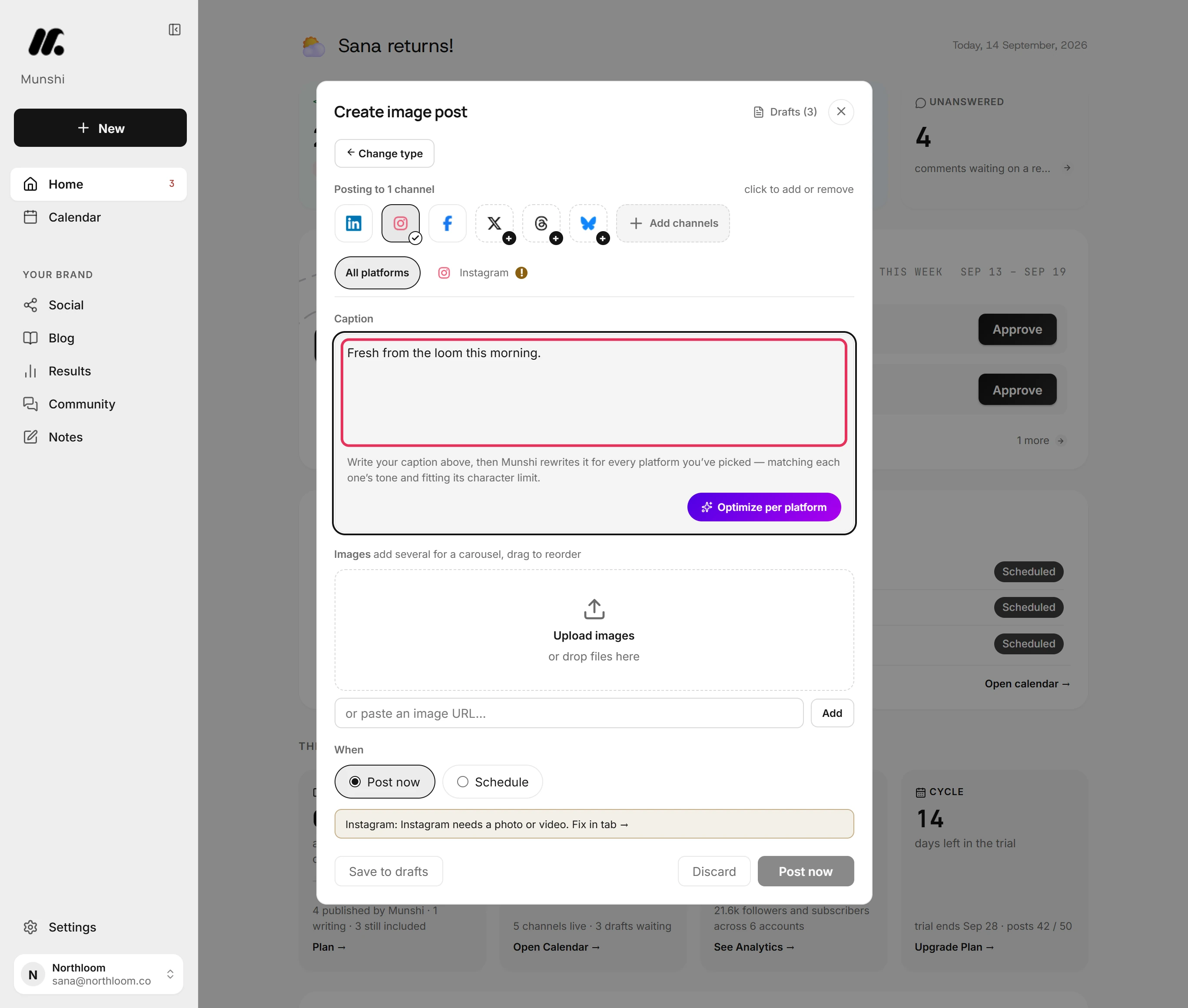
Go back to All platforms and type the caption. Instagram takes up to 2,200 characters, and its tab counts them.
-
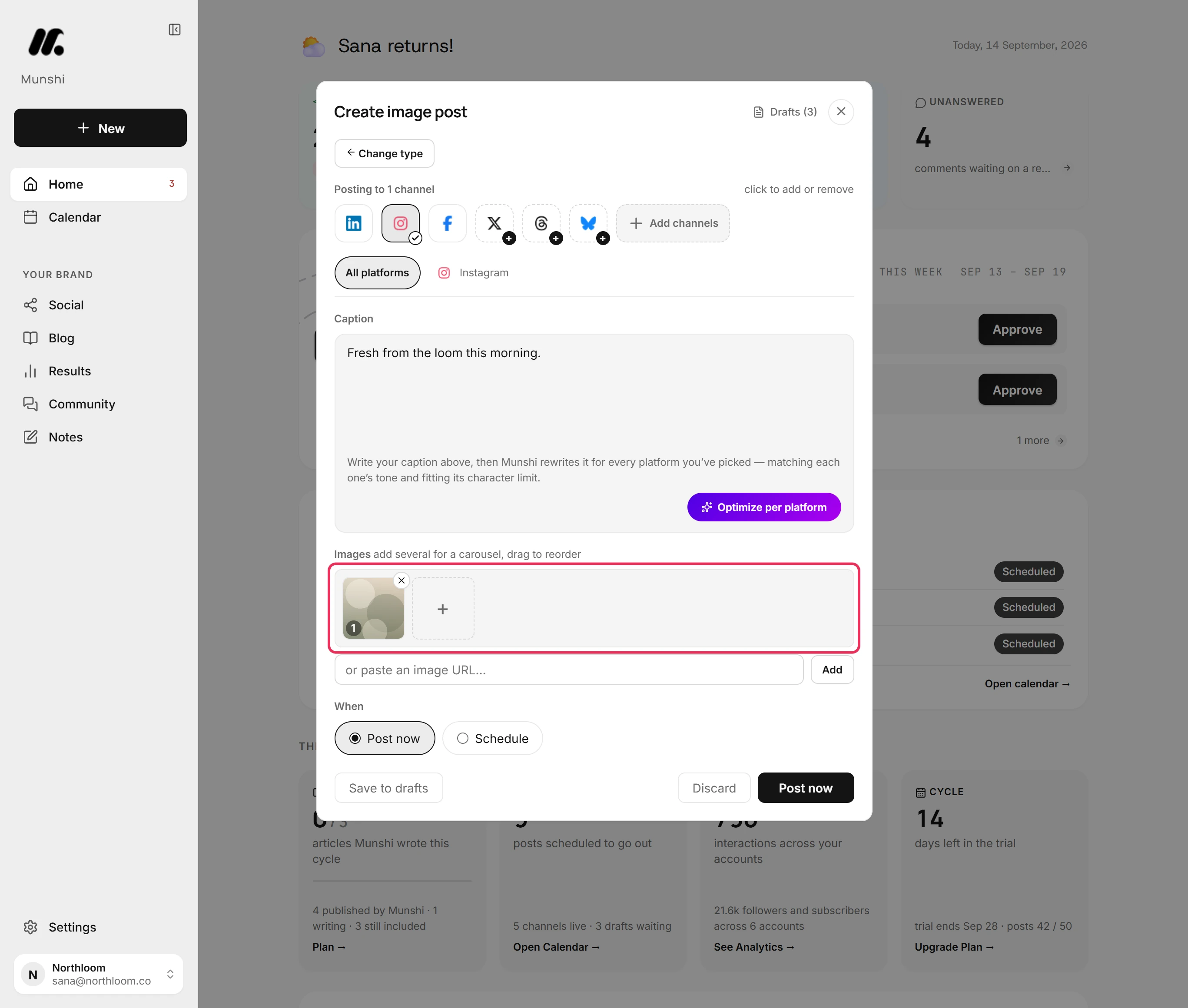
Click Upload images and pick the file, or drop it on the box. If you add several pictures, Instagram gets them as one carousel.
-
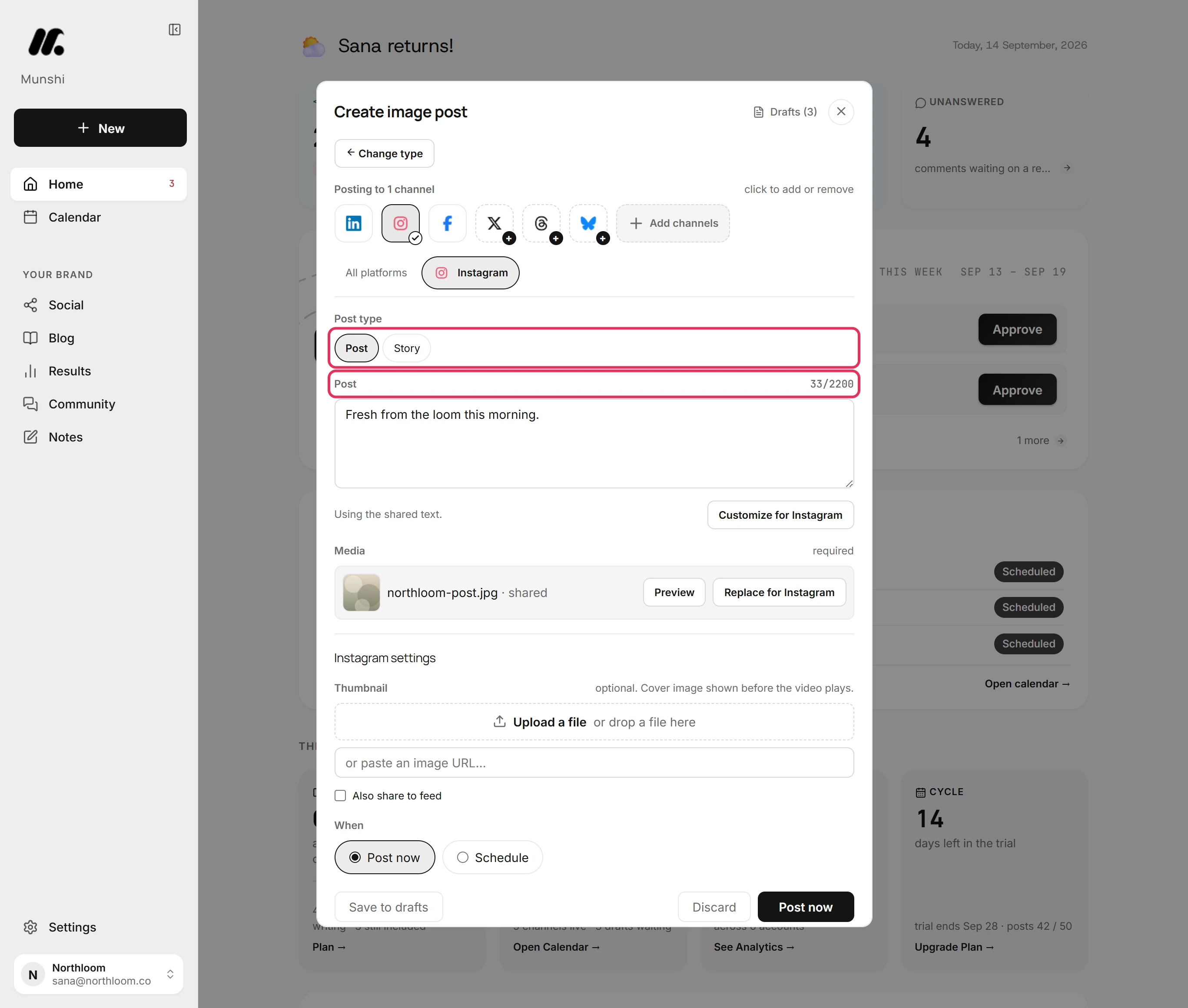
Open the Instagram tab again. For a picture, Post type offers Post and Story. A Reel needs a video post.
-
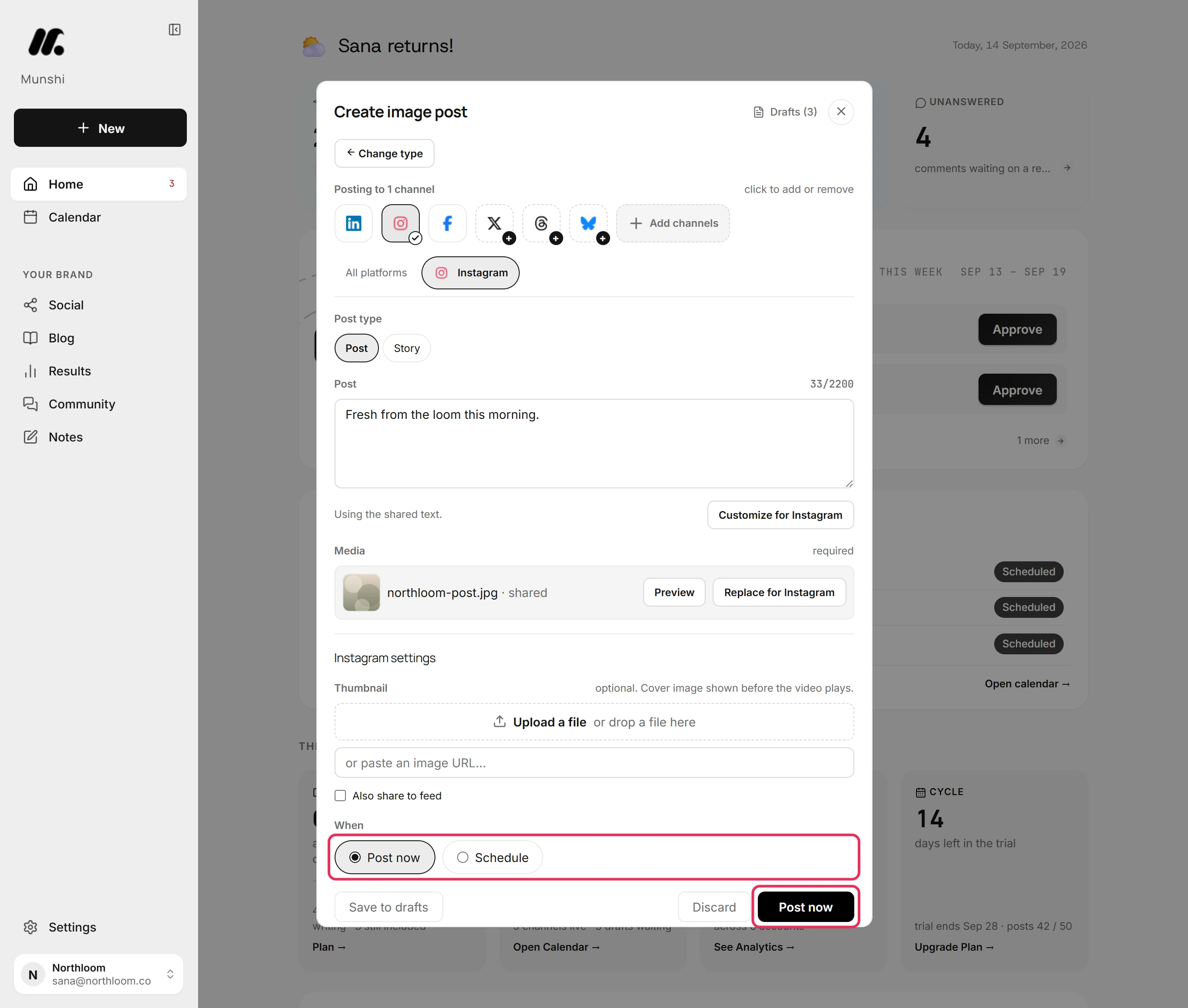
Under When, Post now is already picked. Click Post now and the post goes to Instagram at once. To set a time instead, pick Schedule.
-
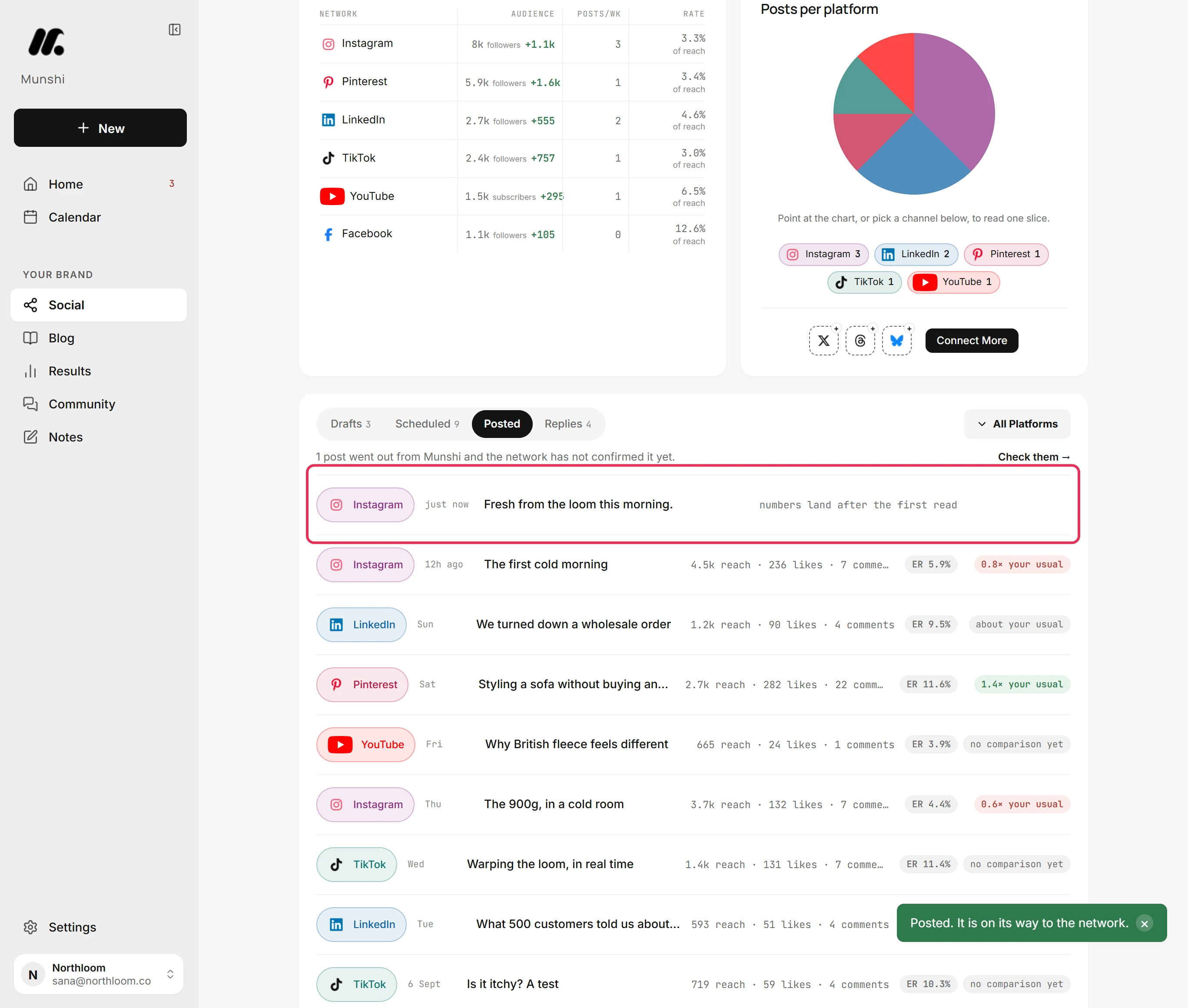
Munshi takes you to Social. Open Posted to see the post at the top. Its reach and likes fill in after Munshi first reads them from Instagram.
Where you are now
The post is on its way to Instagram. It is listed under Posted straight away, and its numbers fill in once Instagram reports them.
If something goes wrong
“Instagram needs a photo or video.”
Add a picture or a video in All platforms, or take Instagram off the post. Instagram does not take a text-only post.
“12 characters over Instagram's 2200 limit.”
Shorten the caption. You can also give Instagram its own shorter caption, so the other networks keep the long one.
Instagram is not offered on a text post
Click Change type and pick Image post or Video post. Instagram needs a picture or a video, so a Text post leaves it out.
Instagram will not connect
Switch the account to a professional one in the Instagram app, then connect it again from Integrations. Instagram only lets Business and Creator accounts publish through apps like Munshi.
Try it on your own brand this week.
Munshi Social, the AI content marketing engine for small teams, plans, writes, publishes, and tracks your blog and socials. The guide above shows the real app, not a mock-up.
Start your workspace