How to install and verify the Google Analytics tag
Copy your Google Analytics tag from Munshi, paste it into your site and click Test. Once Munshi finds it, your site traffic shows on Results.
Before you start
- Google Analytics connected, with a property chosen. How to connect Google Analytics shows how.
- Access to edit your site's pages or theme, where the tag goes.
-
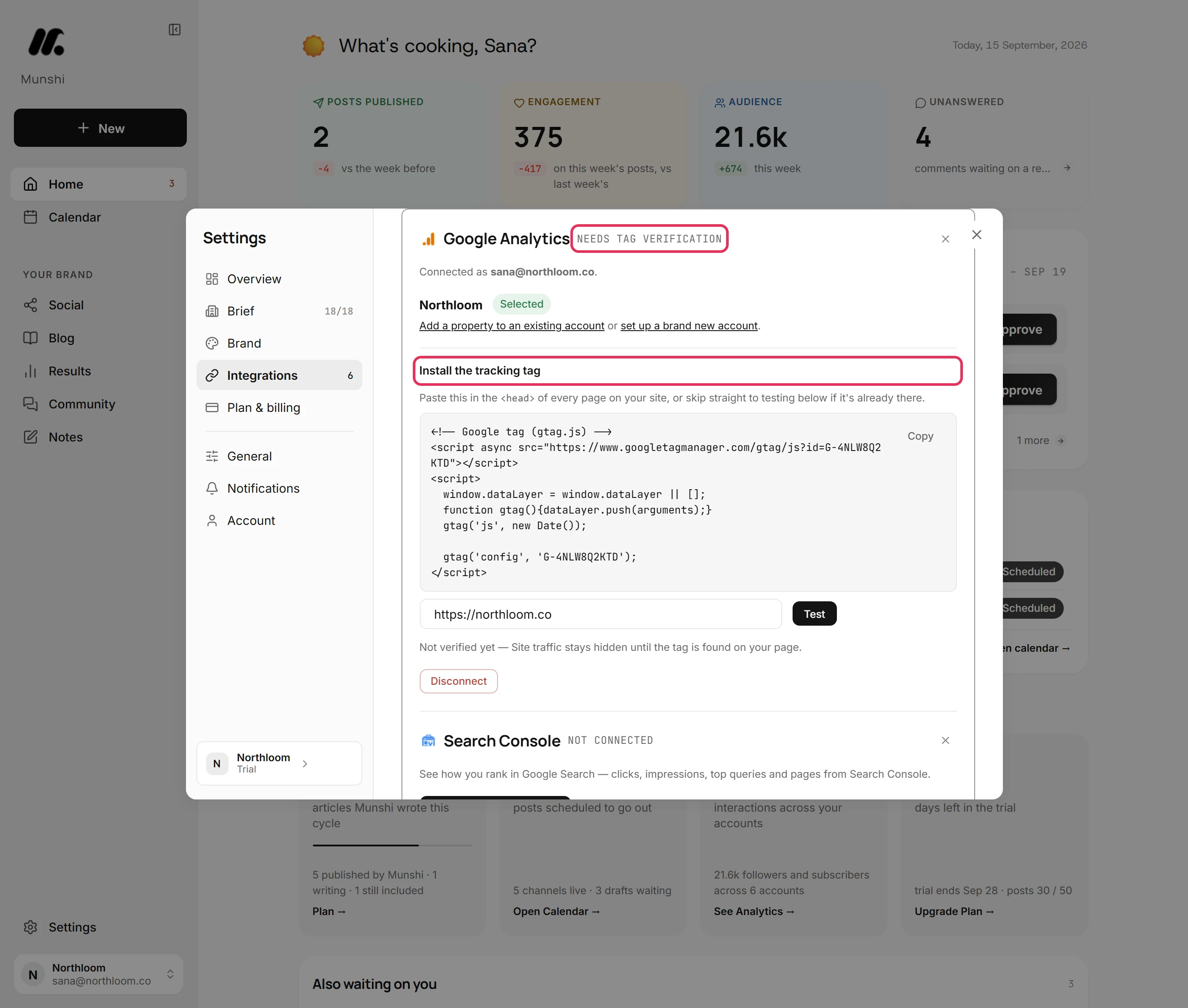
Click Settings, then Integrations, and open Analytics & Search Console. Until Munshi finds your property's tag on your site, the panel reads Needs tag verification. Not verified yet says your site traffic stays hidden until then.
-
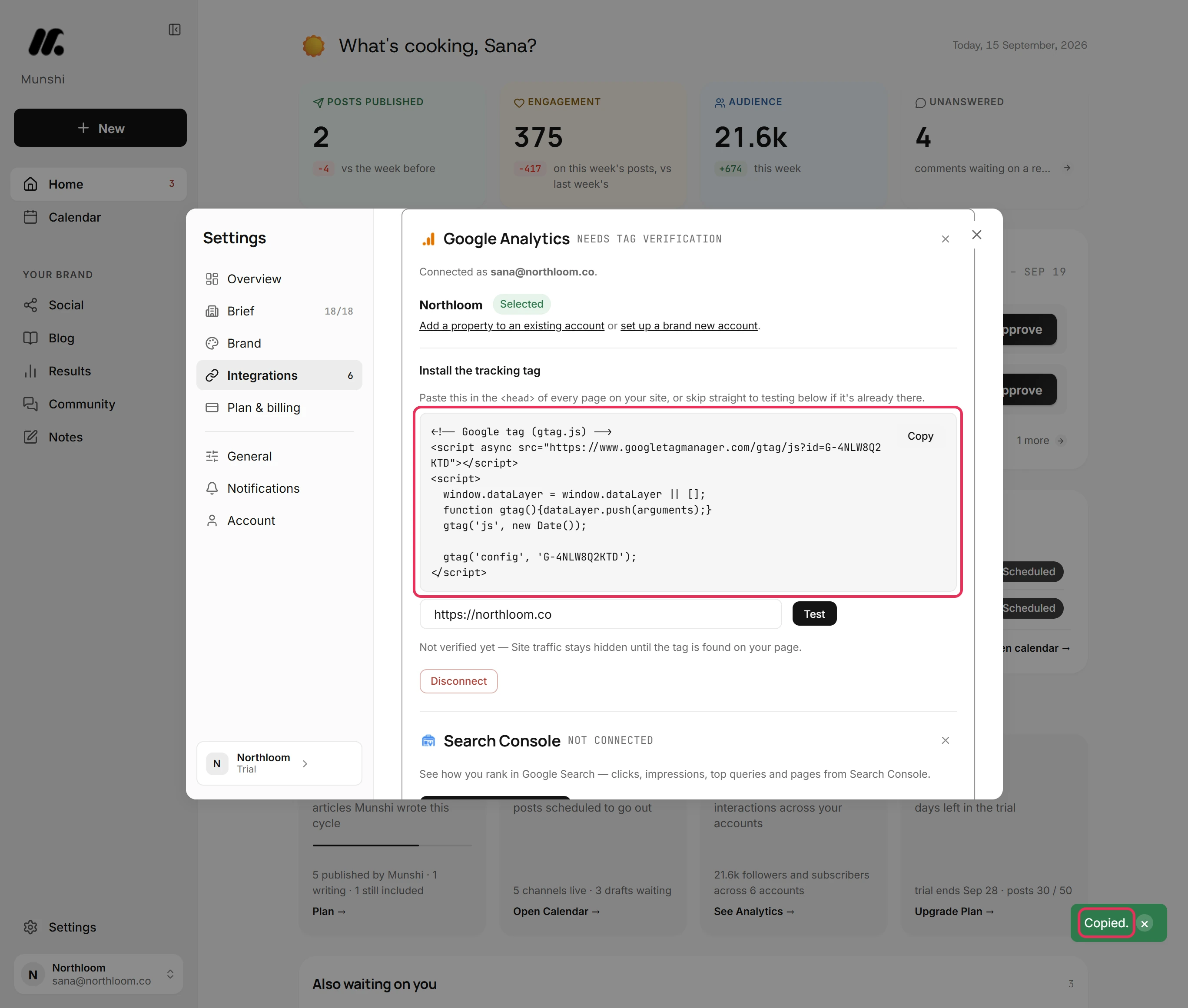
The tag is a short piece of code that counts visits to your site. Under Install the tracking tag, Munshi shows Google's standard tag with your property's Measurement ID already in it. Click Copy, and Munshi says Copied.
-
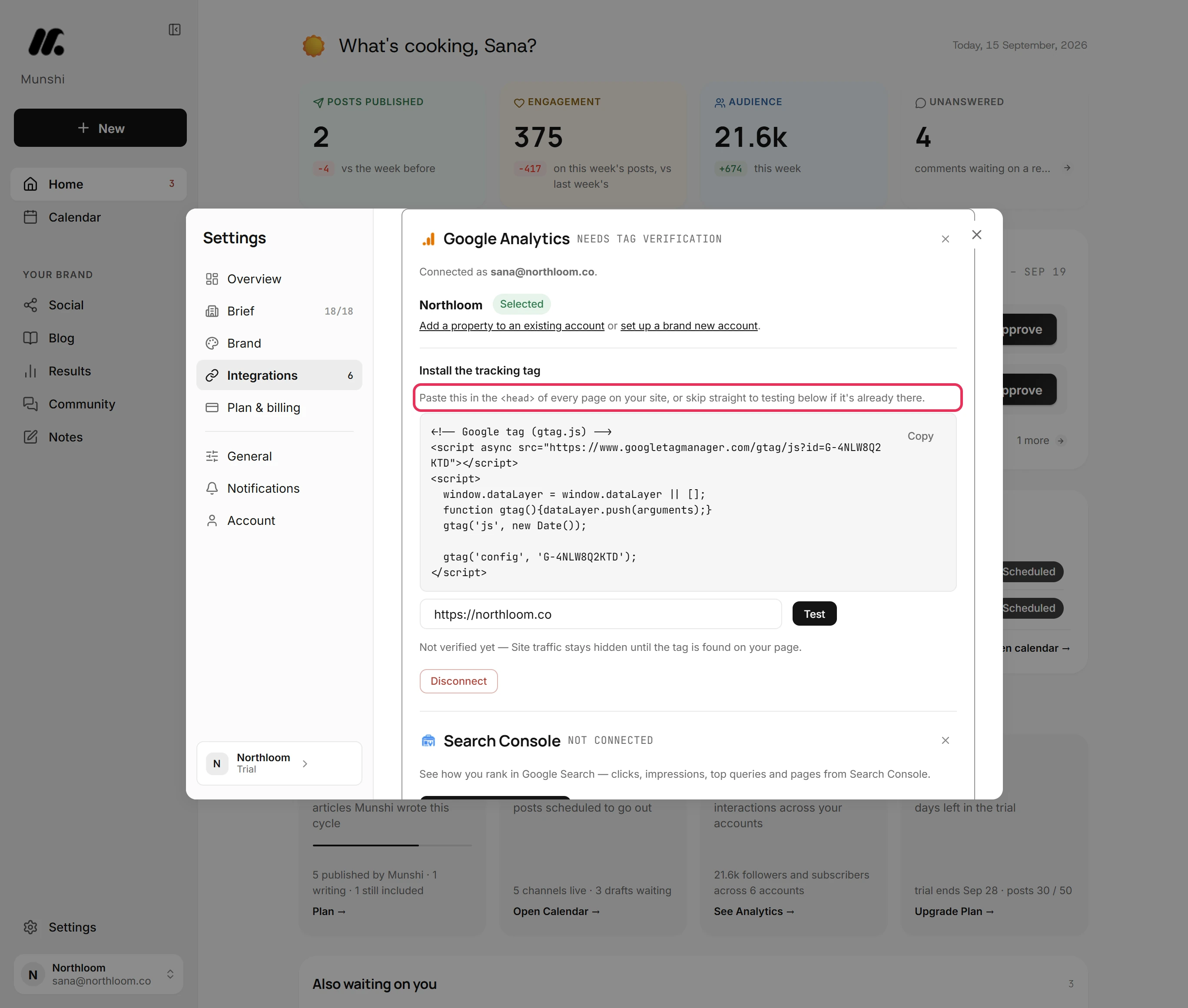
In your site builder or theme, paste the snippet into the <head> of every page, as the panel says. Publish the change. If the tag is already on your site, go straight to the test.
-
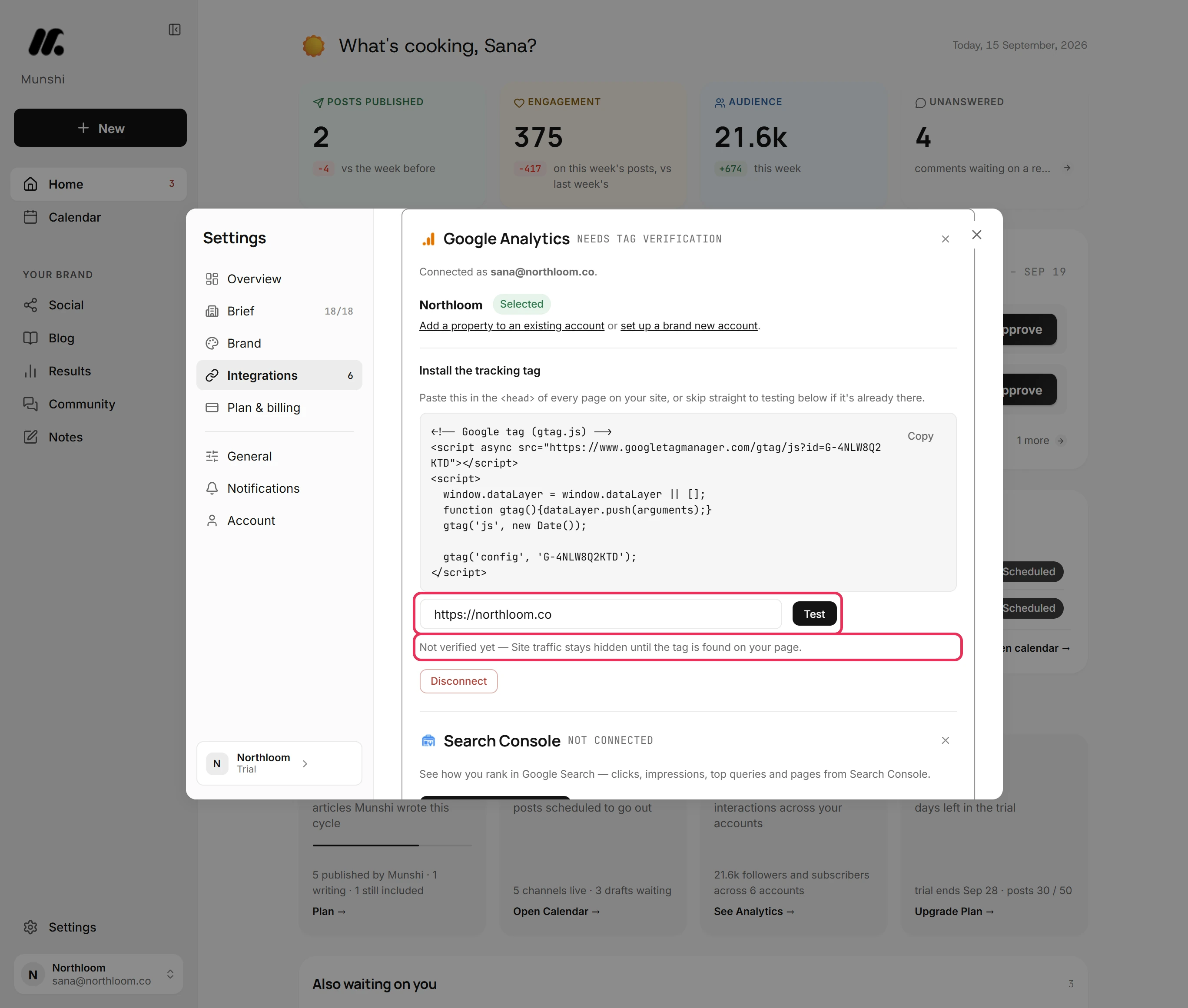
Check that the field holds the address of a page on your site, such as https://northloom.co. Click Test. Munshi opens that page and looks for your Measurement ID in it.
-
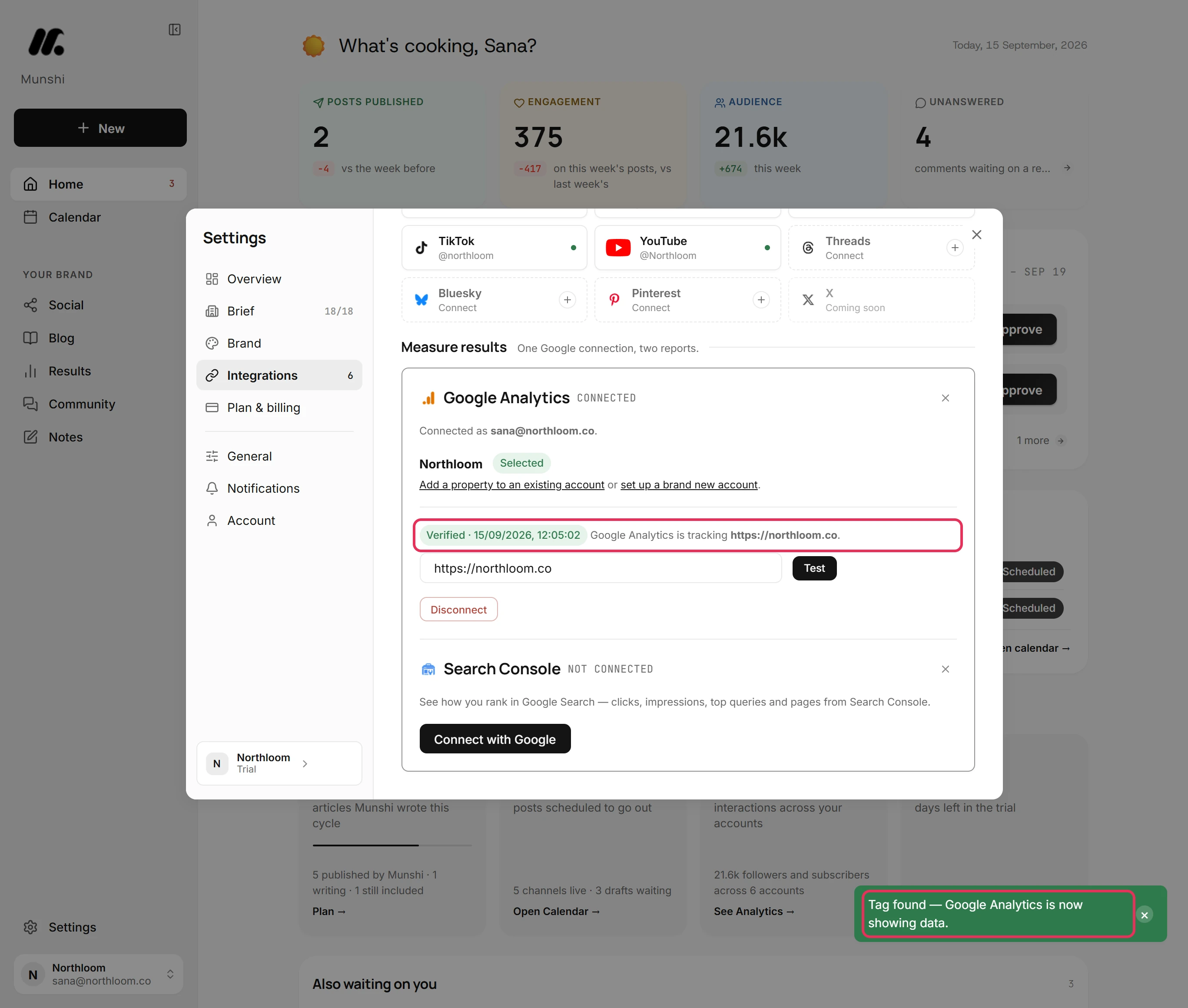
When the tag is found, Munshi says Tag found and the panel reads Connected. It shows a Verified badge, the time of the check and the address Google Analytics is tracking.
-
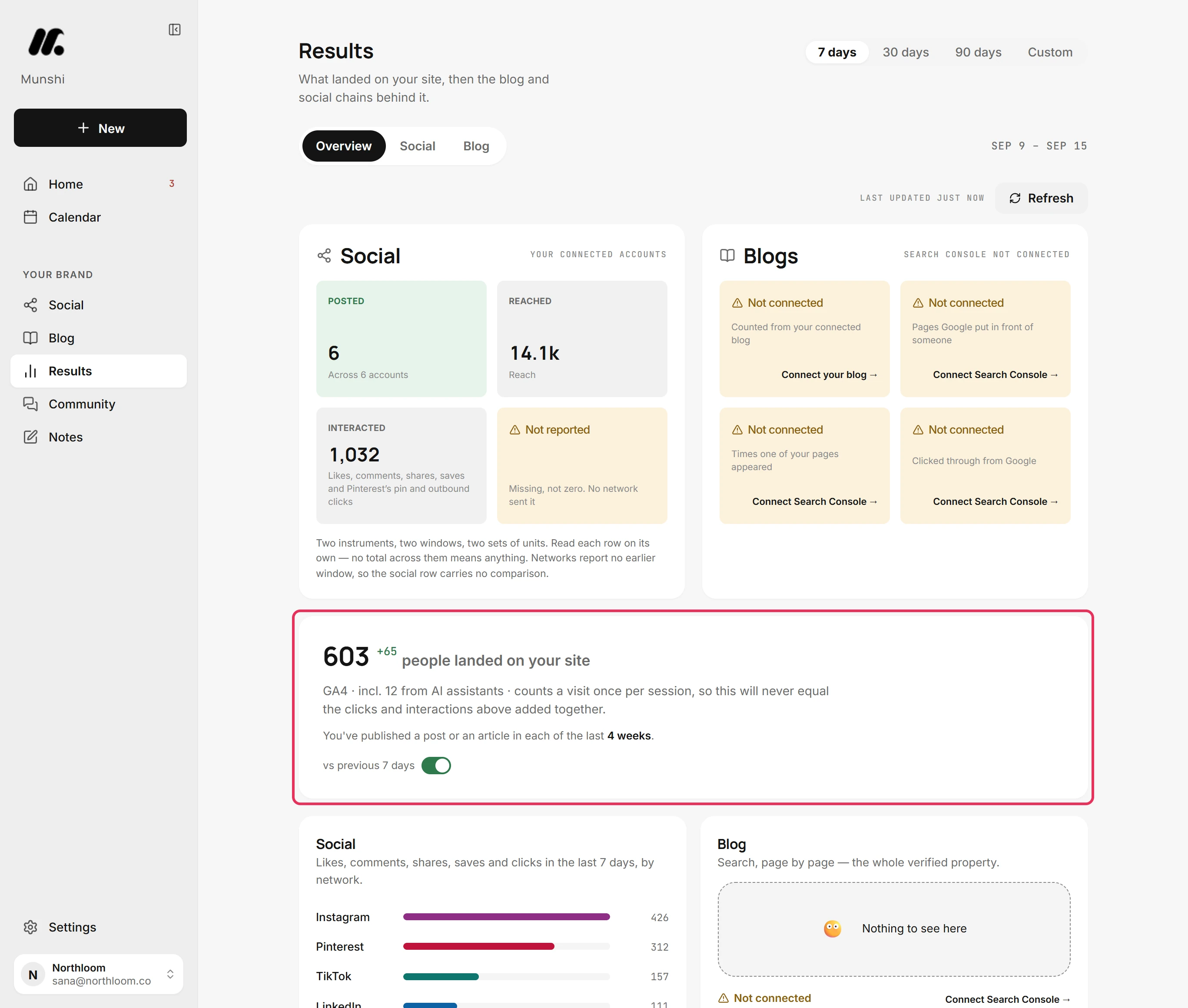
Close Settings and open Results. Where it offered Connect Google Analytics, the card now counts the people who landed on your site. The first time, it can read Reading your Google numbers for a moment.
Where you are now
Munshi has found your tag, so Google Analytics counts on Results. You see the people who landed on your site, and the visits AI assistants sent them.
If something goes wrong
“Couldn't find the tag on that page yet. Make sure it's installed, then test again.”
Check that the snippet is on that page and the change is published, then click Test again. Munshi opened the page and your Measurement ID was not in it.
“Couldn't find a web data stream on this property.”
Add a web stream to the property in Google Analytics, or add a new property from Munshi, then test again. The property has no website stream, so there is no Measurement ID to look for.
Results still offers Connect Google Analytics
Open the Google Analytics panel in Integrations and click Test. Results shows your site traffic once the tag passes. Until then, the tag is not verified.
Try it on your own brand this week.
Munshi Social, the AI content marketing engine for small teams, plans, writes, publishes, and tracks your blog and socials. The guide above shows the real app, not a mock-up.
Start your workspace