How to delete a draft or a scheduled post
Delete a draft in Drafts with Delete all. Unschedule a scheduled post first, then delete it. A post that is already live stays on its network.
-
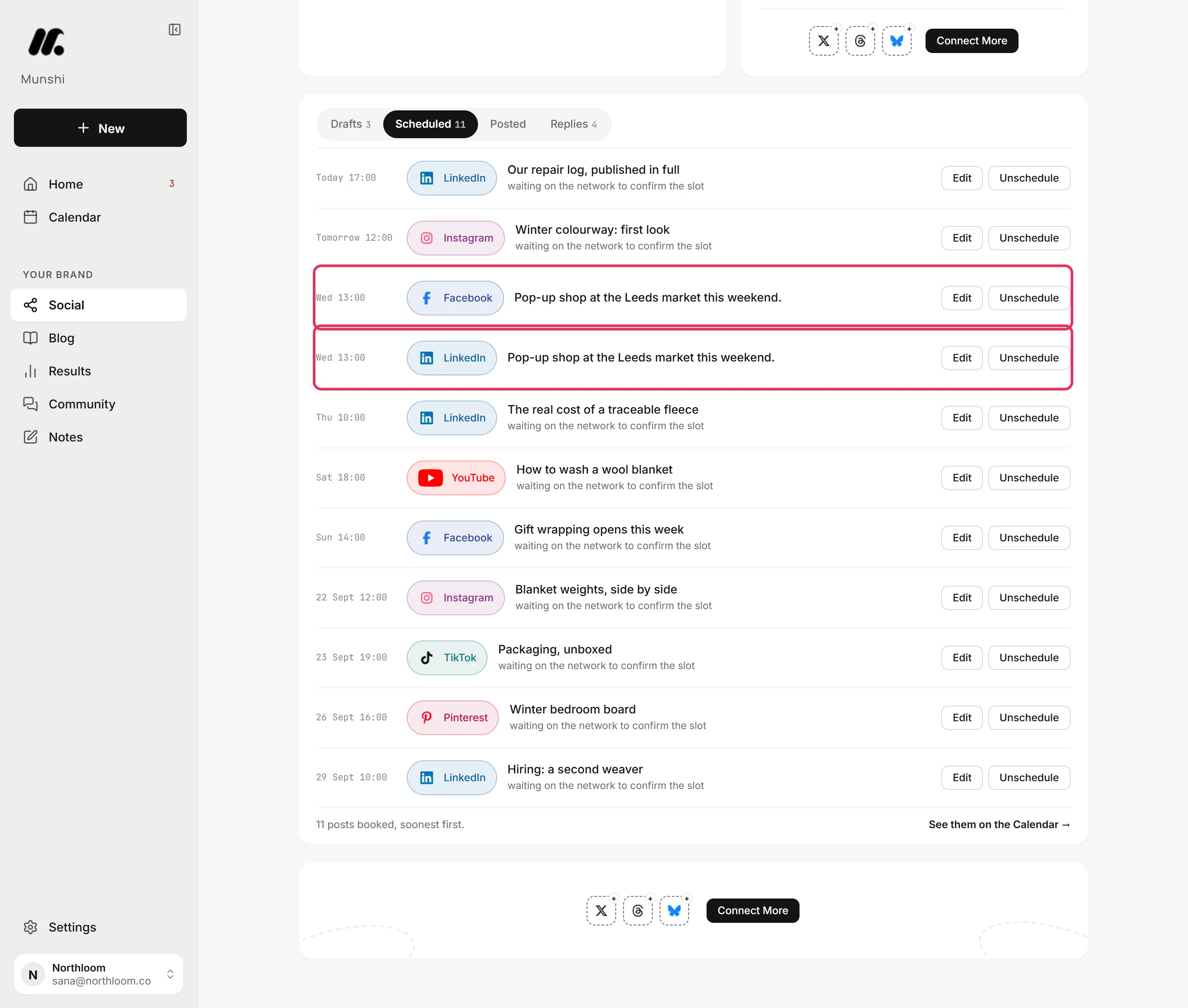
Click Social in the sidebar and open the Scheduled tab. A post booked on several networks has a row for each.
-
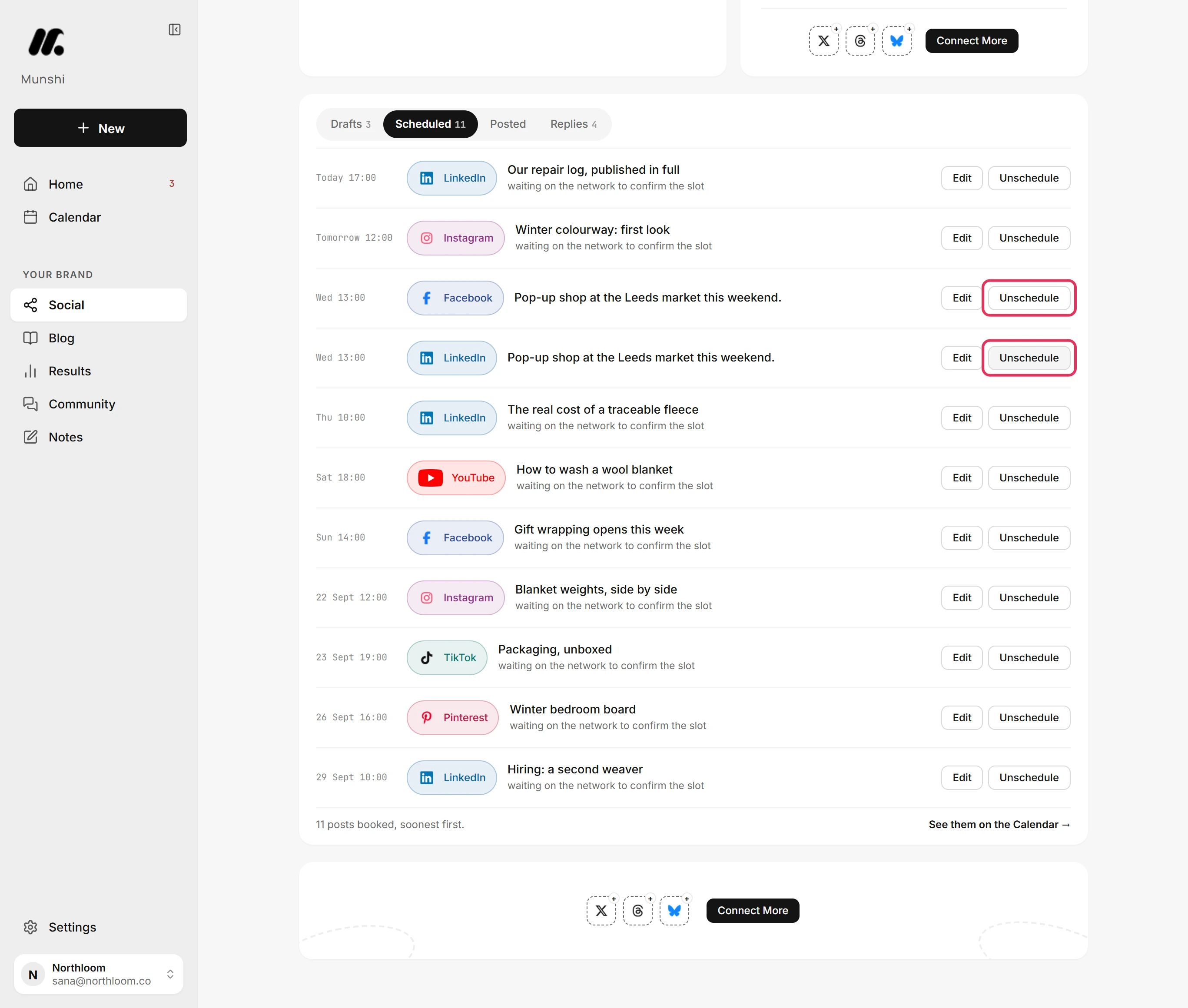
Click Unschedule on each row first. The Scheduled tab has no delete. Munshi takes the post back from the network before it becomes a draft.
-
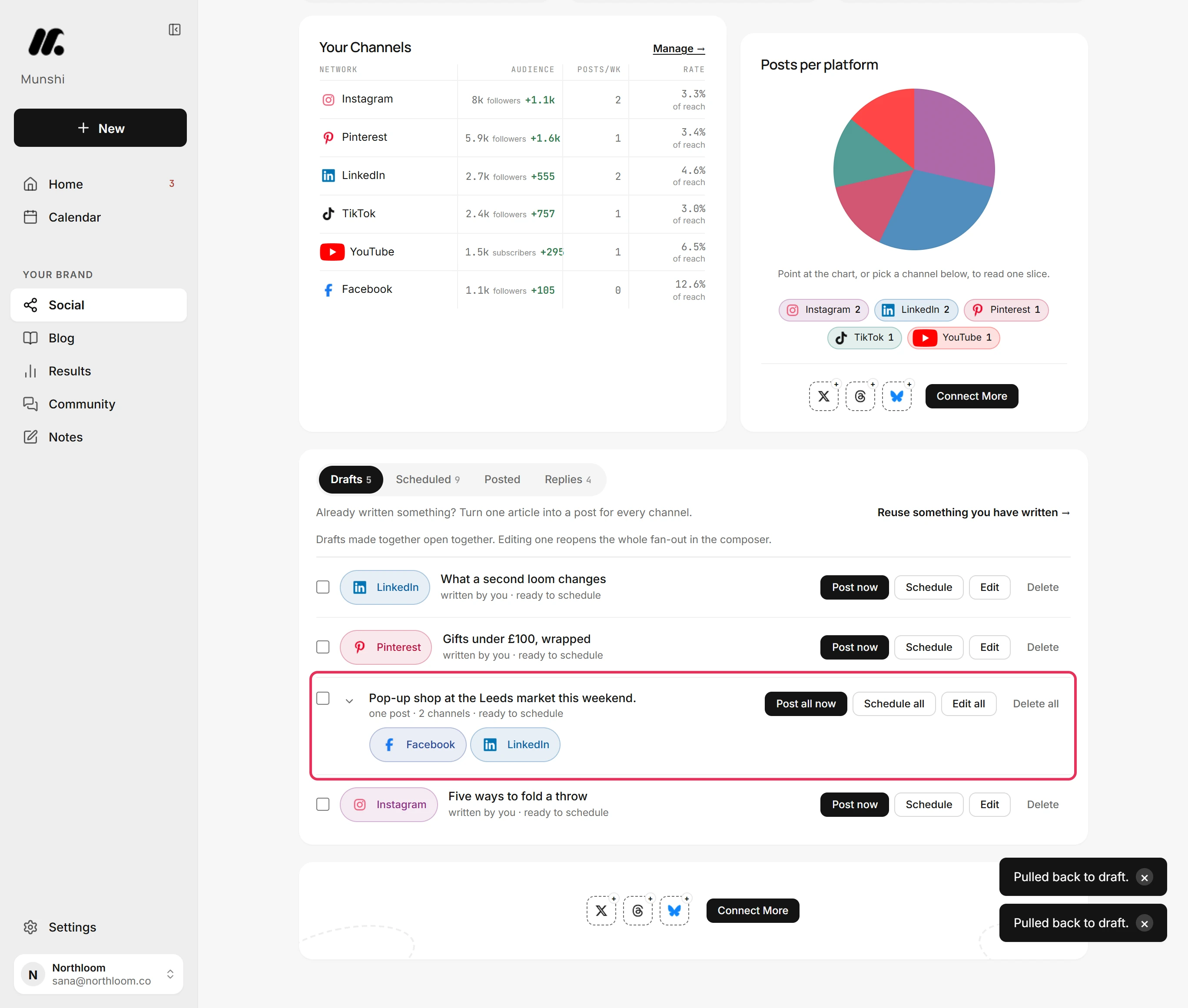
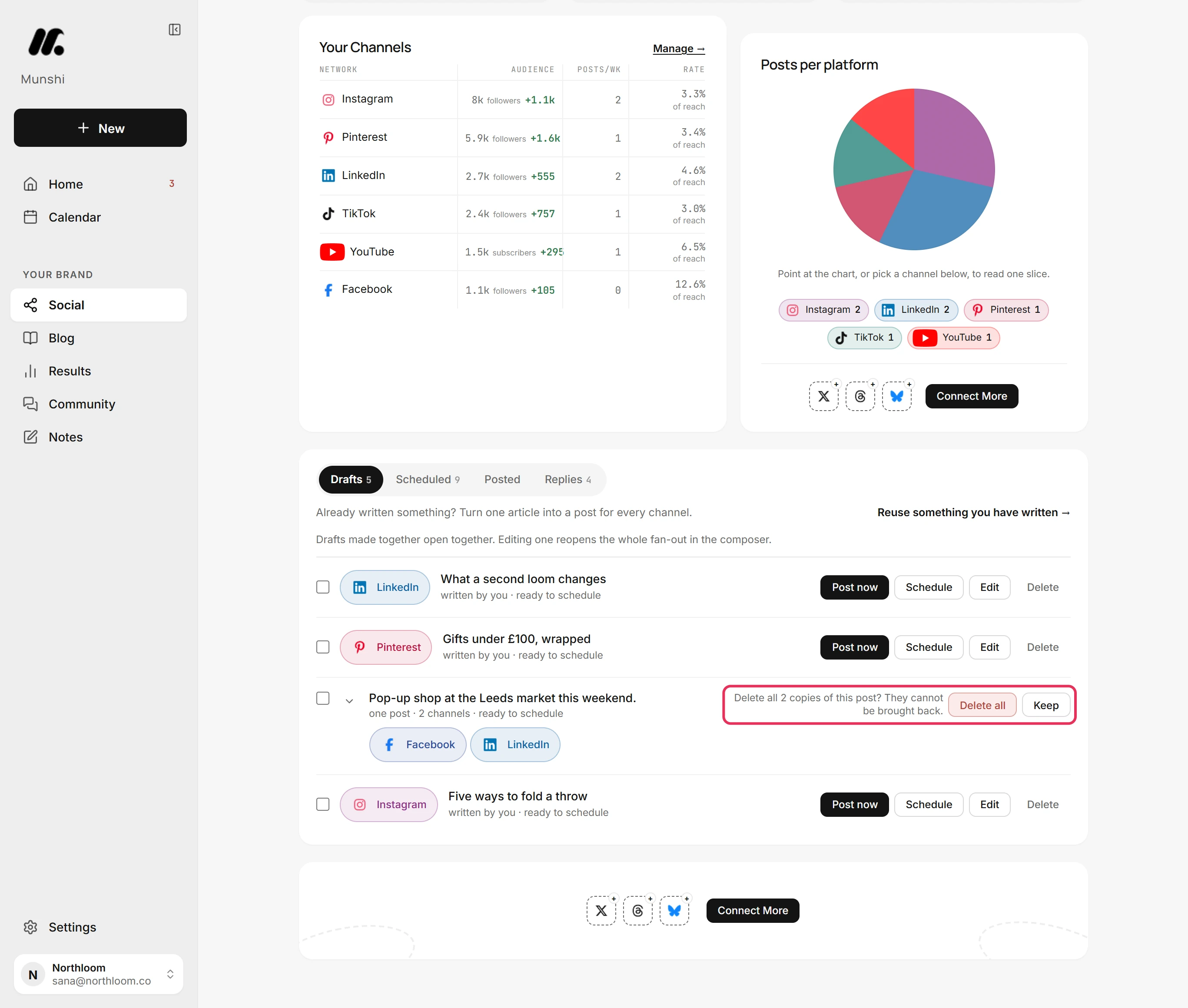
Open the Drafts tab. Copies you wrote together show as one post, with a pill for each network.
-
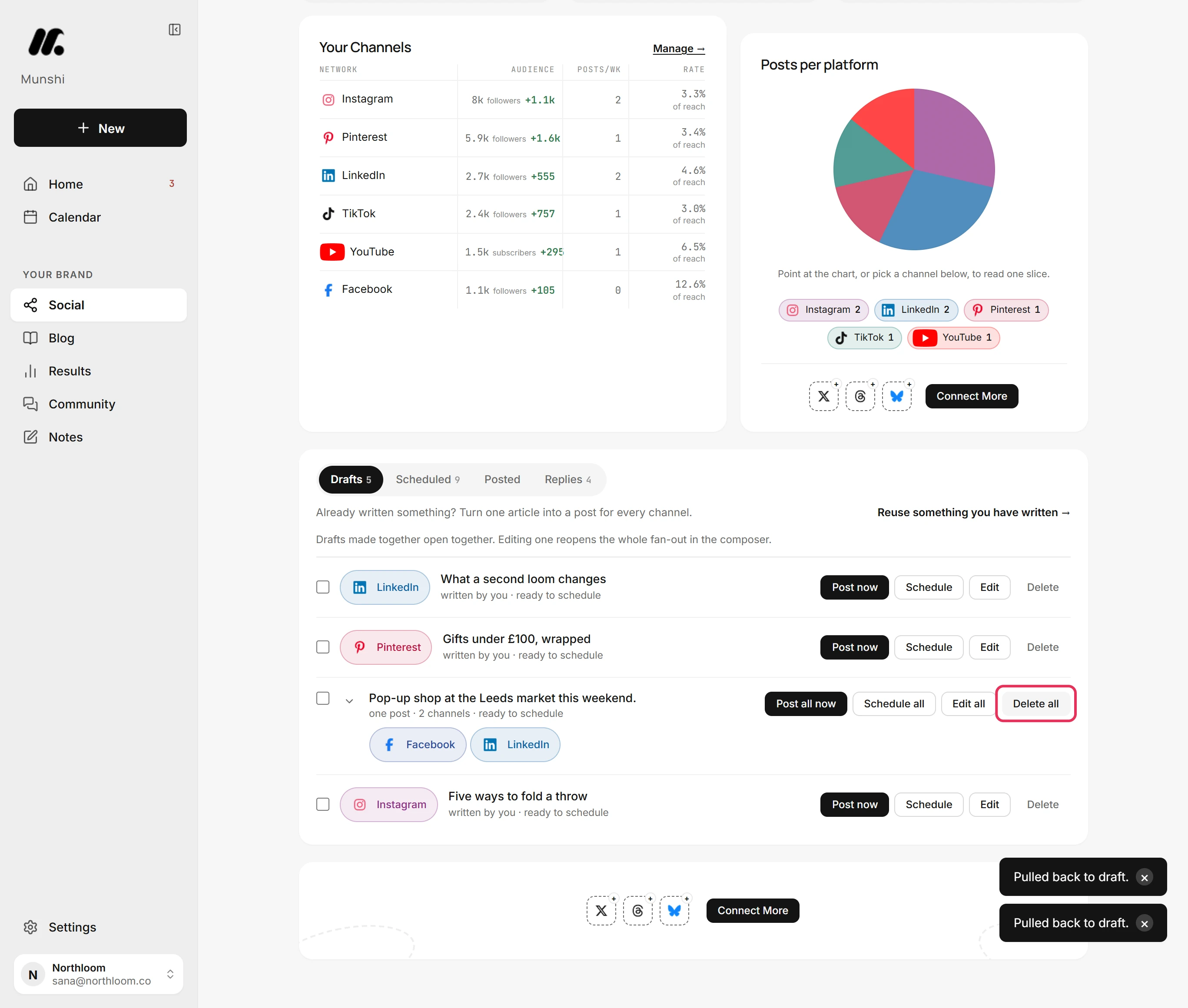
Click Delete all on the post's row. A draft for a single network has Delete instead.
-
Munshi asks once, because you can't bring back a deleted post. Click Delete all again to confirm, or Keep to leave it.
-
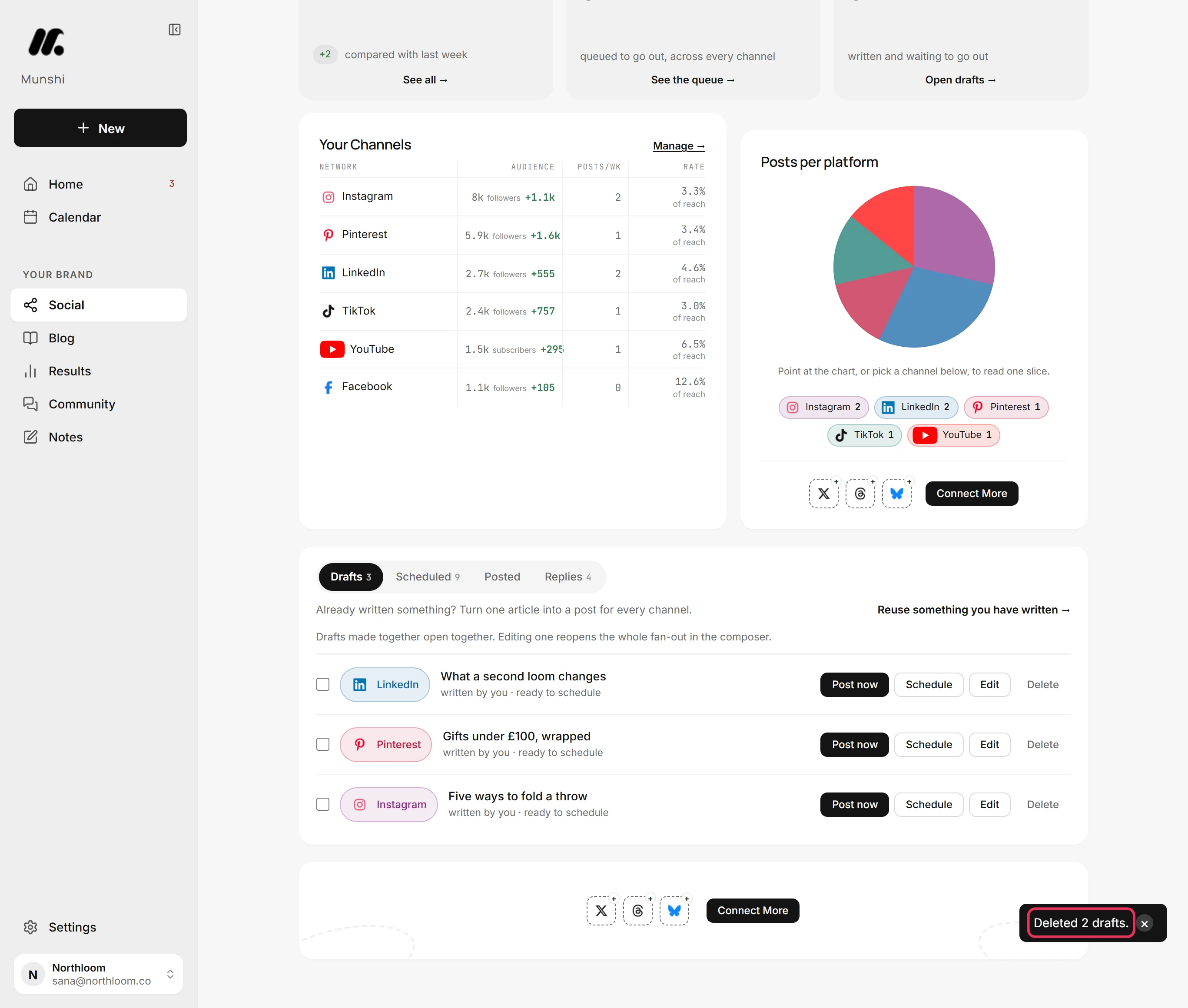
The post leaves Drafts. Munshi says how many drafts it deleted.
-
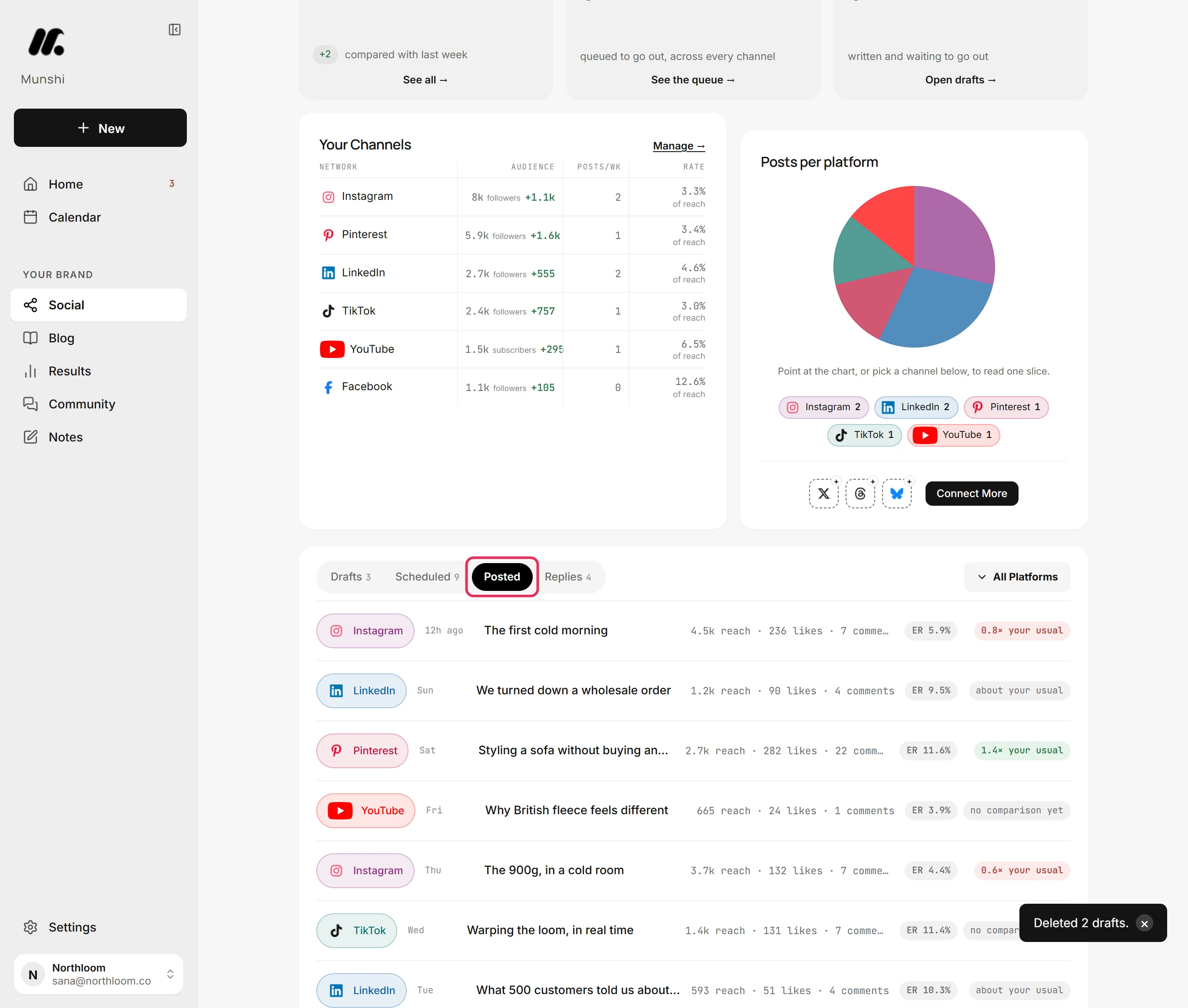
A post that has gone out is listed under Posted, with no delete. Removing it from Munshi would not take it off the network. Delete it on the network itself.
Where you are now
The post is gone from Munshi for good. It is off the queue, out of Drafts and off the Calendar. Anything that already went out stays live on its network.
If something goes wrong
“Nothing could be deleted. Nothing has changed.”
Wait a moment and try again. None of the copies were deleted, so the post is still in Drafts. Munshi keeps a copy until its network confirms it let go of the booking.
A row says “Confirming…” and has no Delete
Click Check again in a moment. Munshi is still waiting for the network to confirm a send. Until it knows, it won't delete the post, so nothing can go out untracked.
There is no Delete on a post in Posted
Delete it on the network itself. That post is already live, and Munshi can't take it down for you. Its record and its numbers stay in Munshi.
Try it on your own brand this week.
Munshi Social, the AI content marketing engine for small teams, plans, writes, publishes, and tracks your blog and socials. The guide above shows the real app, not a mock-up.
Start your workspace