How to connect WordPress
In Settings > Integrations, type your WordPress site address and approve Munshi on your own site. Or connect by hand with an application password.
Before you start
- A WordPress site on version 5.6 or later that you can sign in to. Both ways of connecting use an application password, which WordPress added in 5.6.
-
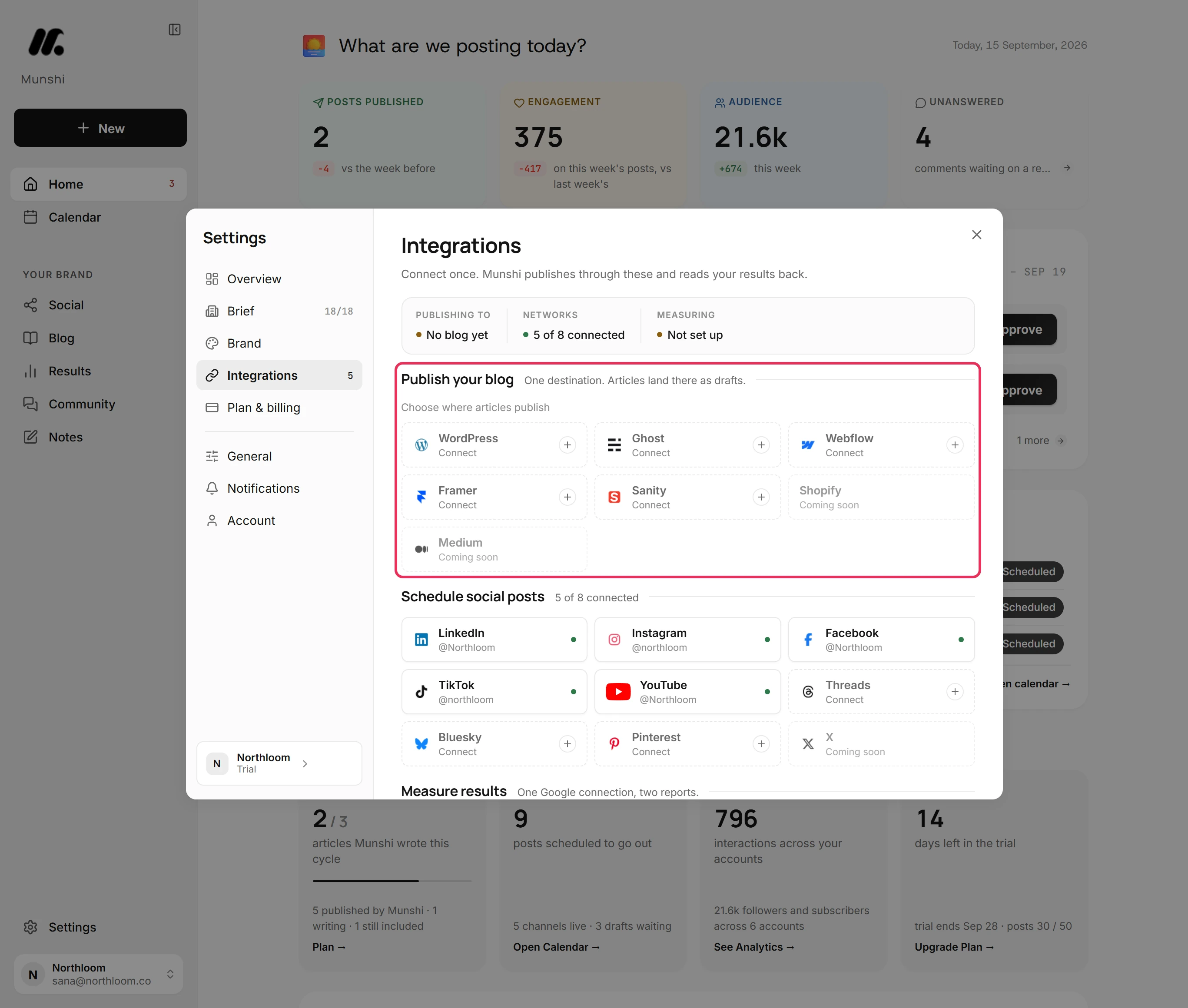
Click Settings at the bottom of the sidebar, then Integrations. Blogs are listed under Publish your blog. WordPress reads Connect until it is set up.
-
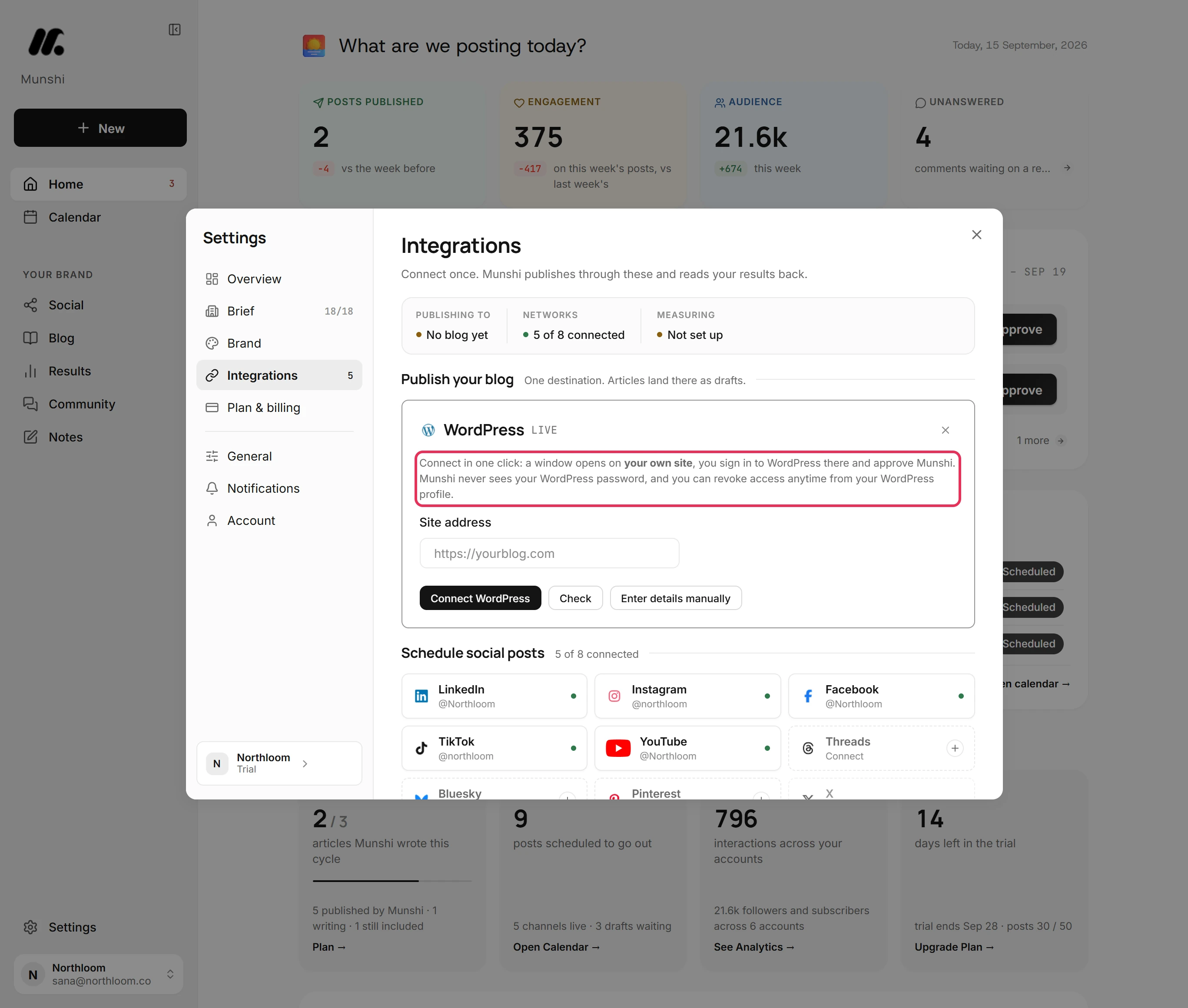
Click the WordPress tile. Its card explains the quickest way in. A window opens on your own site, where you sign in to WordPress and approve Munshi, so Munshi never sees your WordPress password.
-
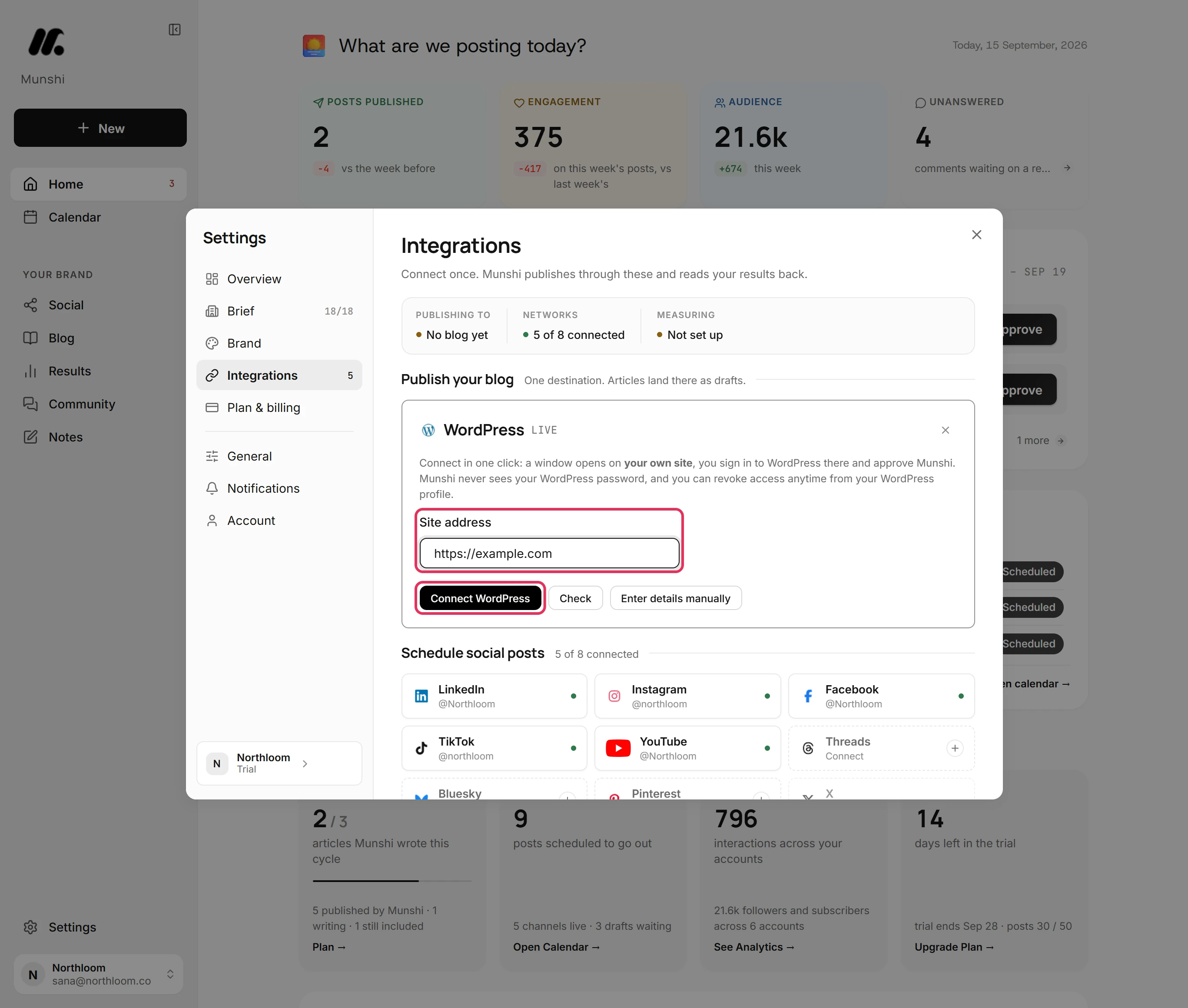
Type your site's address into Site address and click Connect WordPress. A window opens on your WordPress site, where you sign in if asked and approve Munshi Social. WordPress hands Munshi an application password, the window closes, and Munshi says WordPress connected and checks the connection.
-
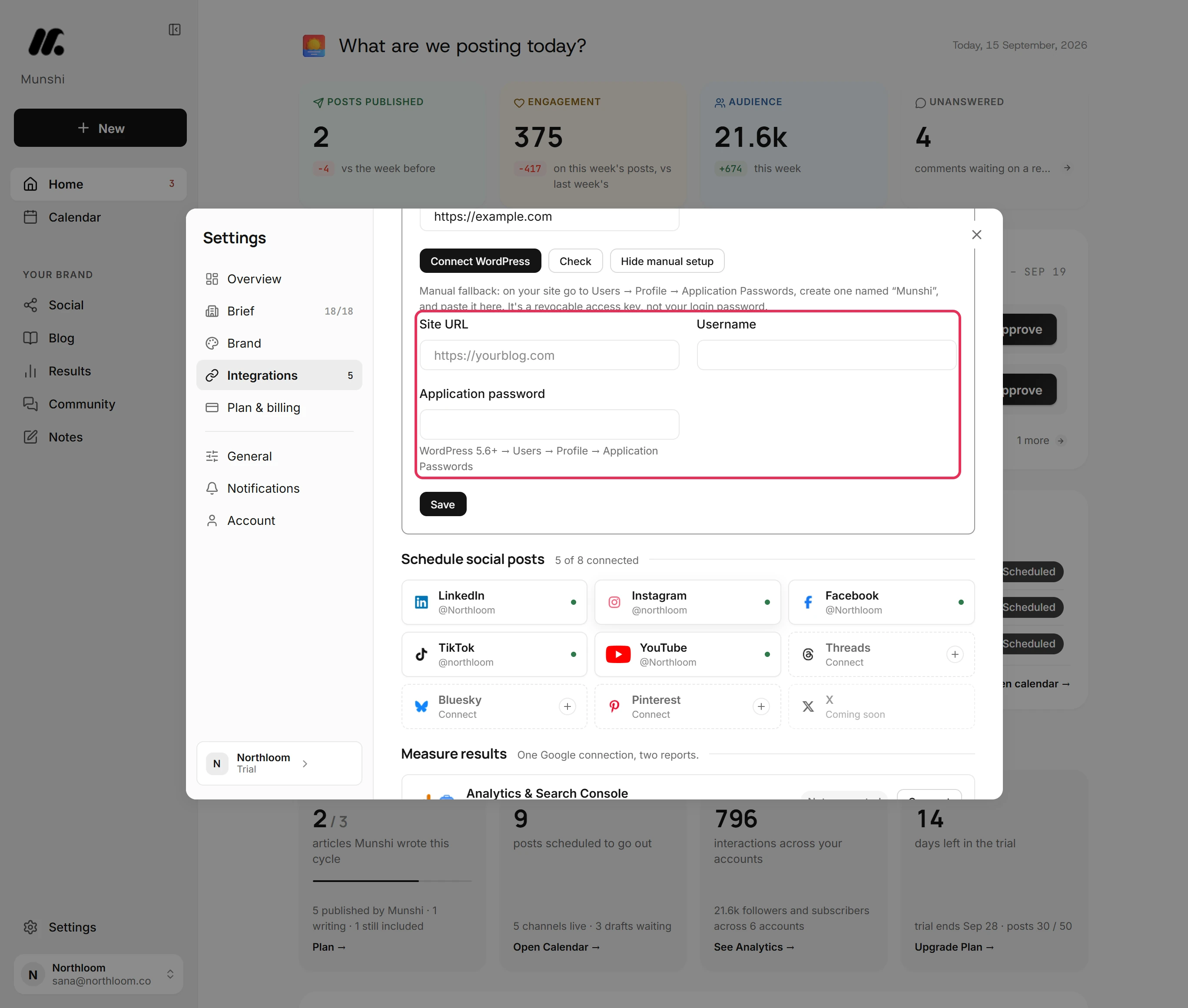
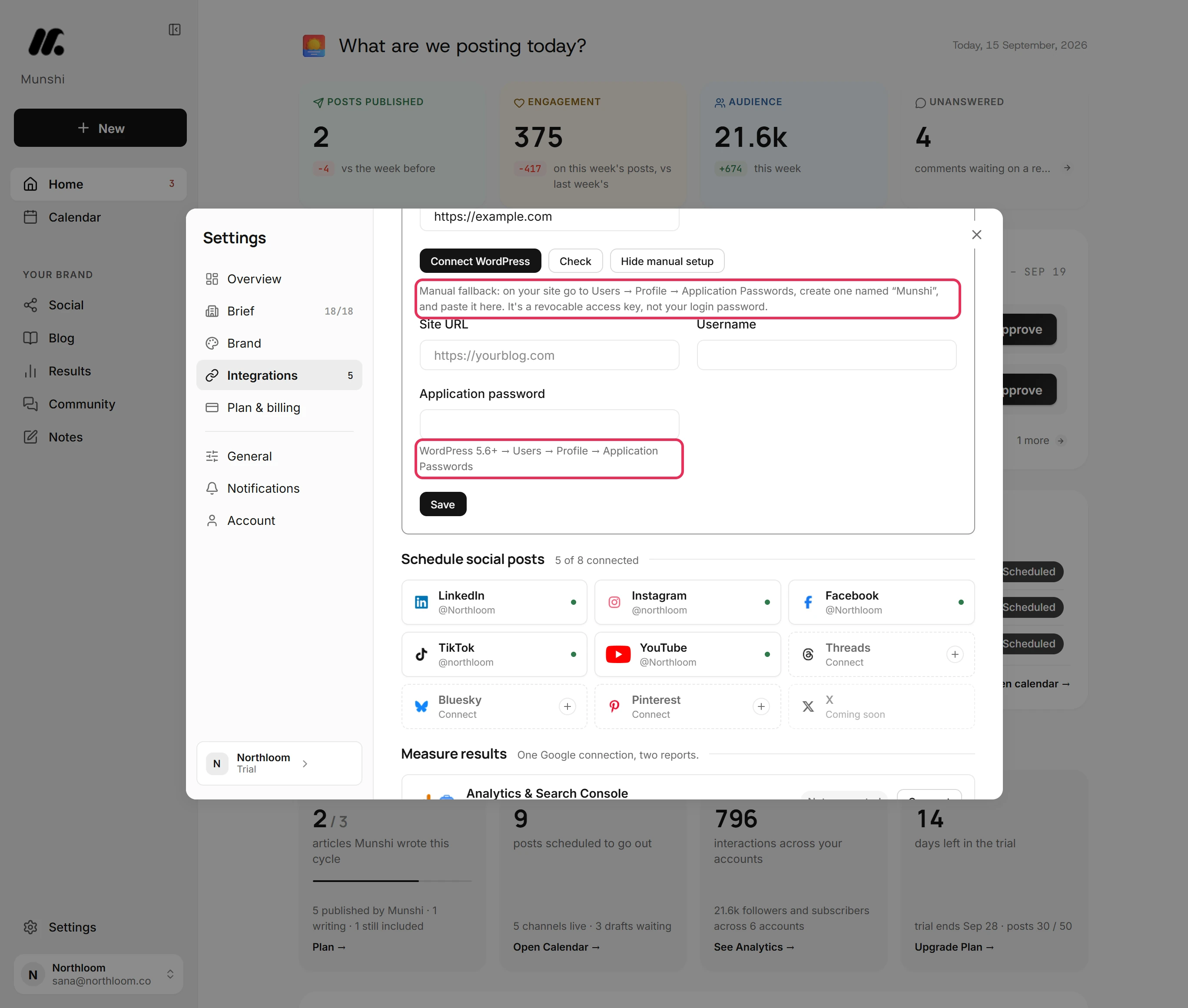
For a site the approve window cannot open, click Enter details manually. The card adds Site URL, Username and Application password.
-
In your WordPress dashboard, go to Users, then Profile, and find Application Passwords. Create one named Munshi and copy it.
-
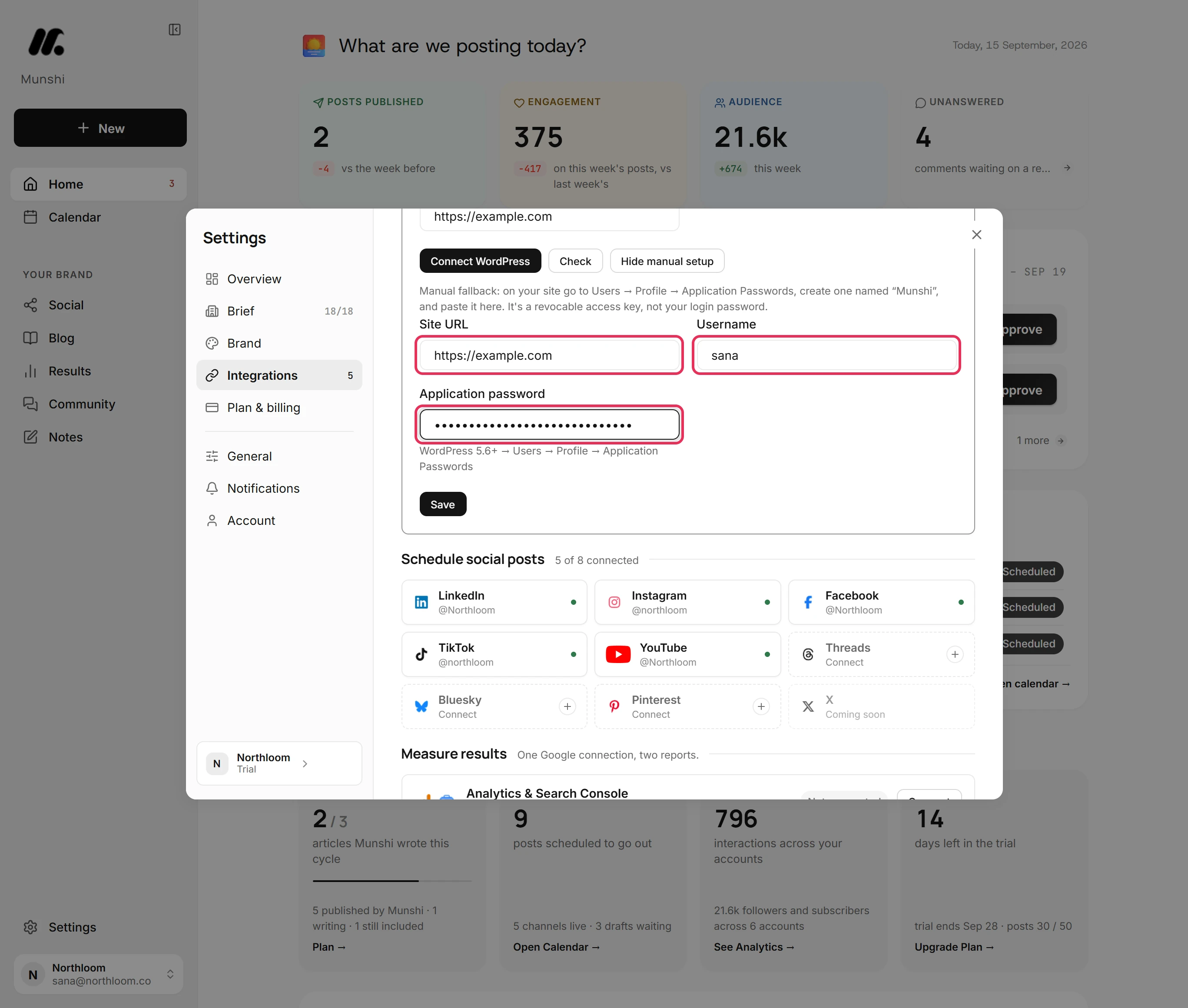
Type your site's address into Site URL and your WordPress username into Username. Paste the application password into Application password.
-
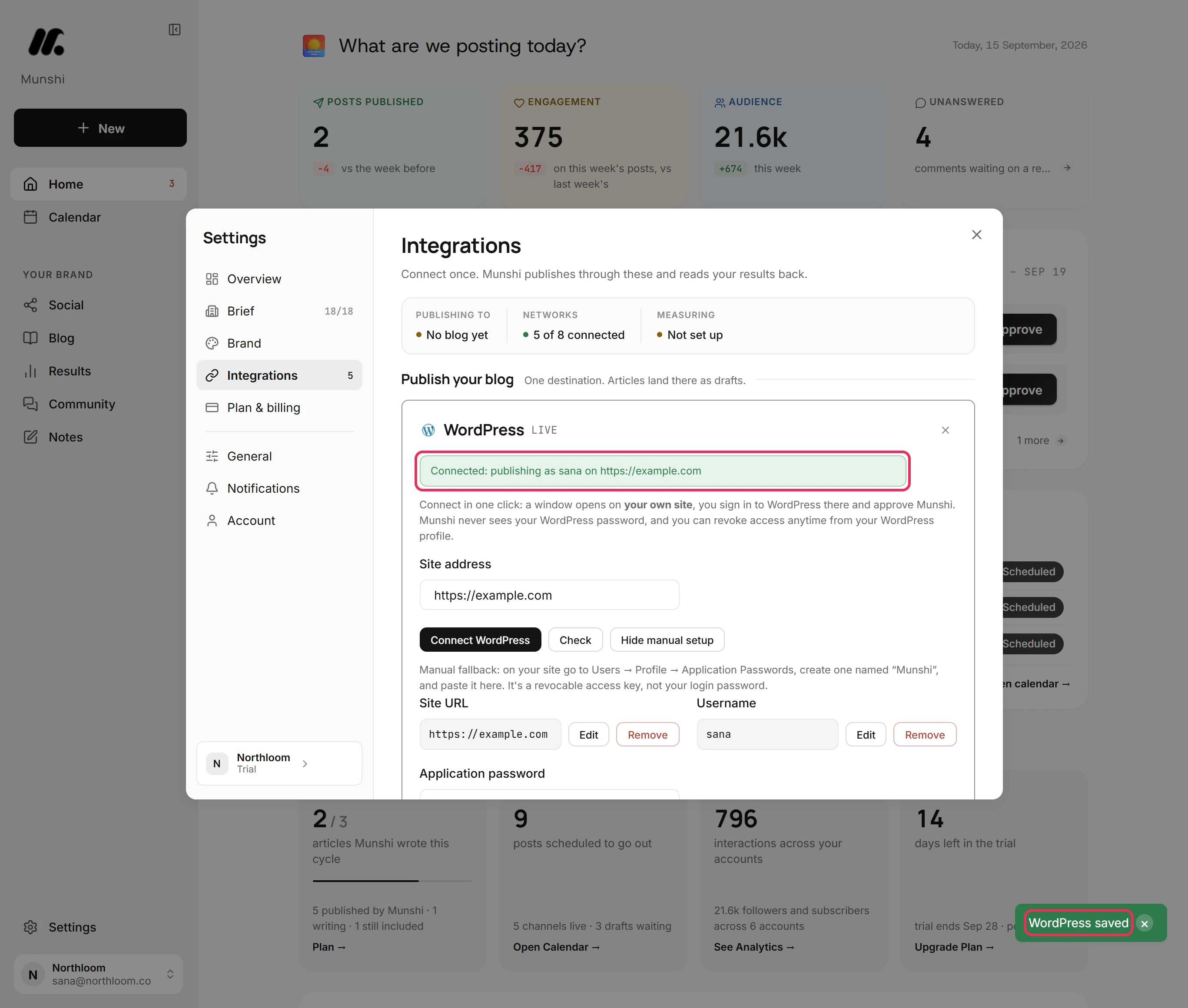
Click Save. Munshi stores the details and checks them with your site. The card then reads Connected: publishing as your WordPress name on your site.
-
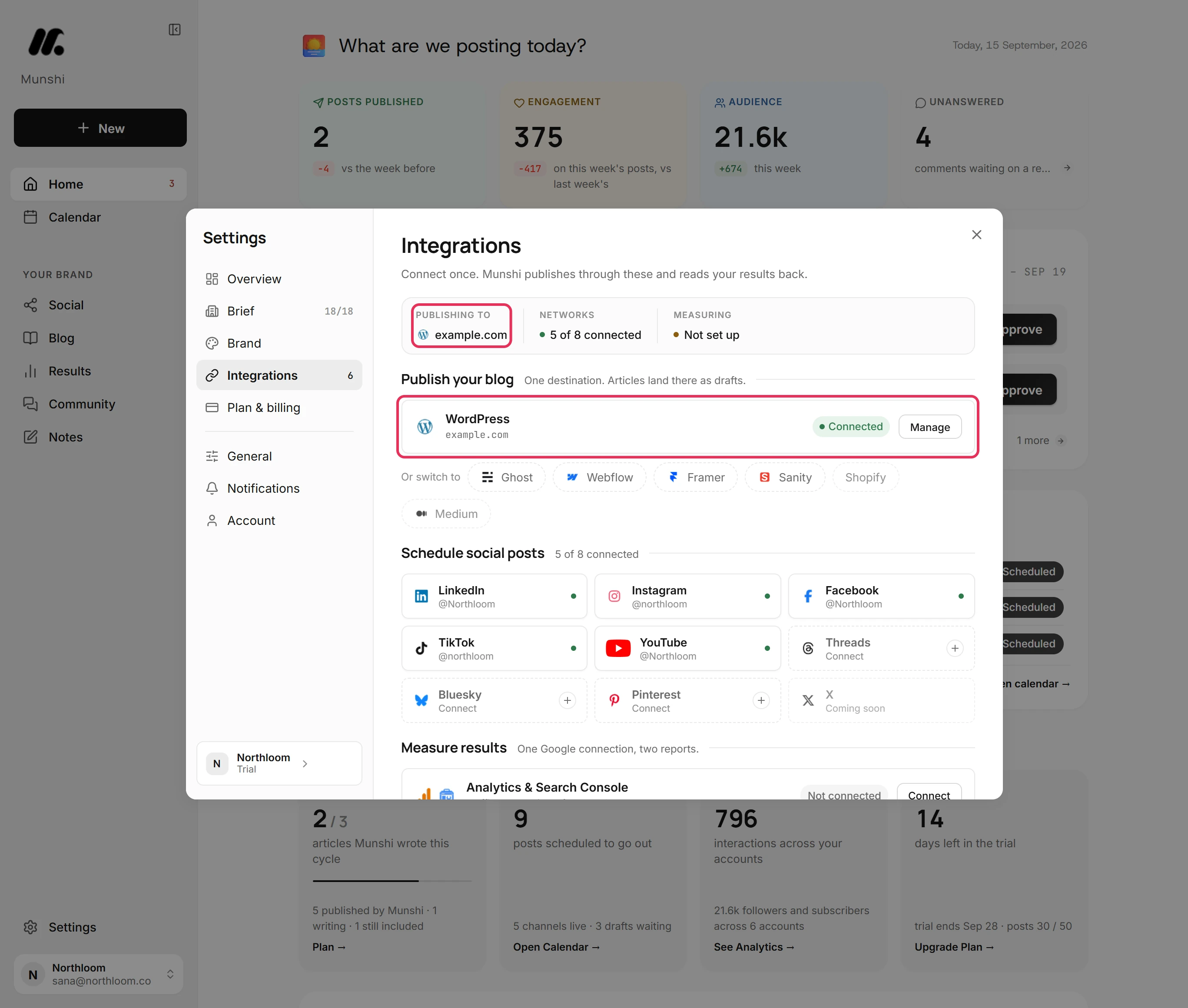
Close Settings and open Integrations again. Publish your blog now shows WordPress with your site and Connected. Publishing to at the top names your site.
Where you are now
WordPress is connected and checked. Articles you publish from Blog go to your WordPress site.
If something goes wrong
“This WordPress site has application passwords turned off”
Turn application passwords back on in your security plugin, or update WordPress, then connect again. Munshi found none on the site, which a security plugin or a WordPress version older than 5.6 causes. Both ways of connecting need them, so Munshi opened the manual setup.
“Your browser blocked the popup. Allow popups for Munshi and try again.”
Allow popups for Munshi in your browser's site settings, then click Connect WordPress again. The approve window is a popup.
“Your site issued a password but then refused it.”
Allow logins through the REST API in your security plugin's settings, then click Check. Your site turned the application password away when Munshi tried it, and some security plugins block these logins.
“The site address must start with https://.”
Type the address with https:// in front, such as https://yourblog.com, and click Save again. Munshi stores secure addresses only.
Try it on your own brand this week.
Munshi Social, the AI content marketing engine for small teams, plans, writes, publishes, and tracks your blog and socials. The guide above shows the real app, not a mock-up.
Start your workspace