How to post to LinkedIn from Munshi
Write a LinkedIn post in Munshi and choose who sees it. Attach a PDF for a document post. Then post it now or schedule it for later.
Before you start
- LinkedIn connected to your workspace. If it is not yet, the LinkedIn page says how to connect it.
-
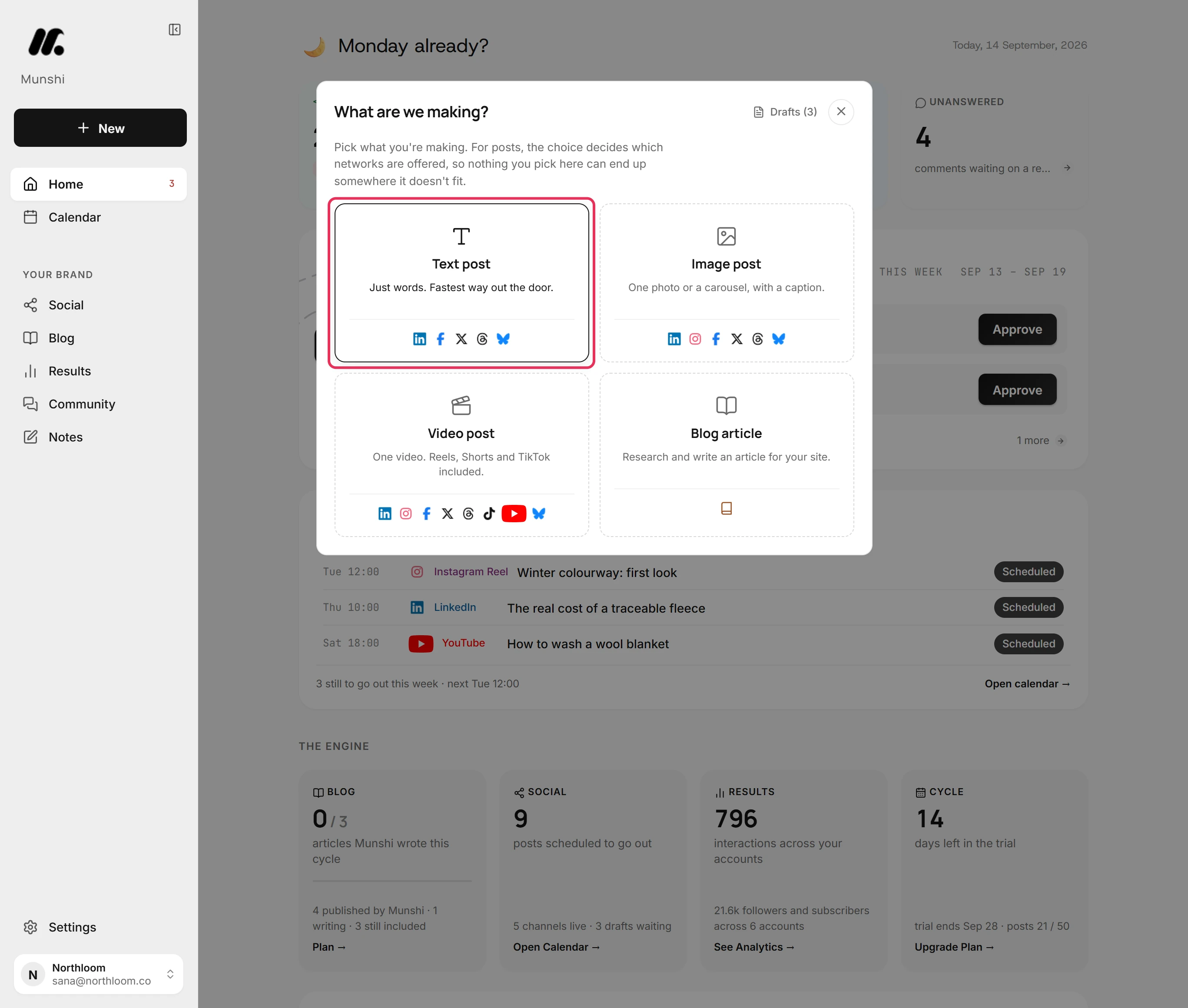
Click New and pick Text post. To post pictures or a video, pick Image post or Video post instead.
-
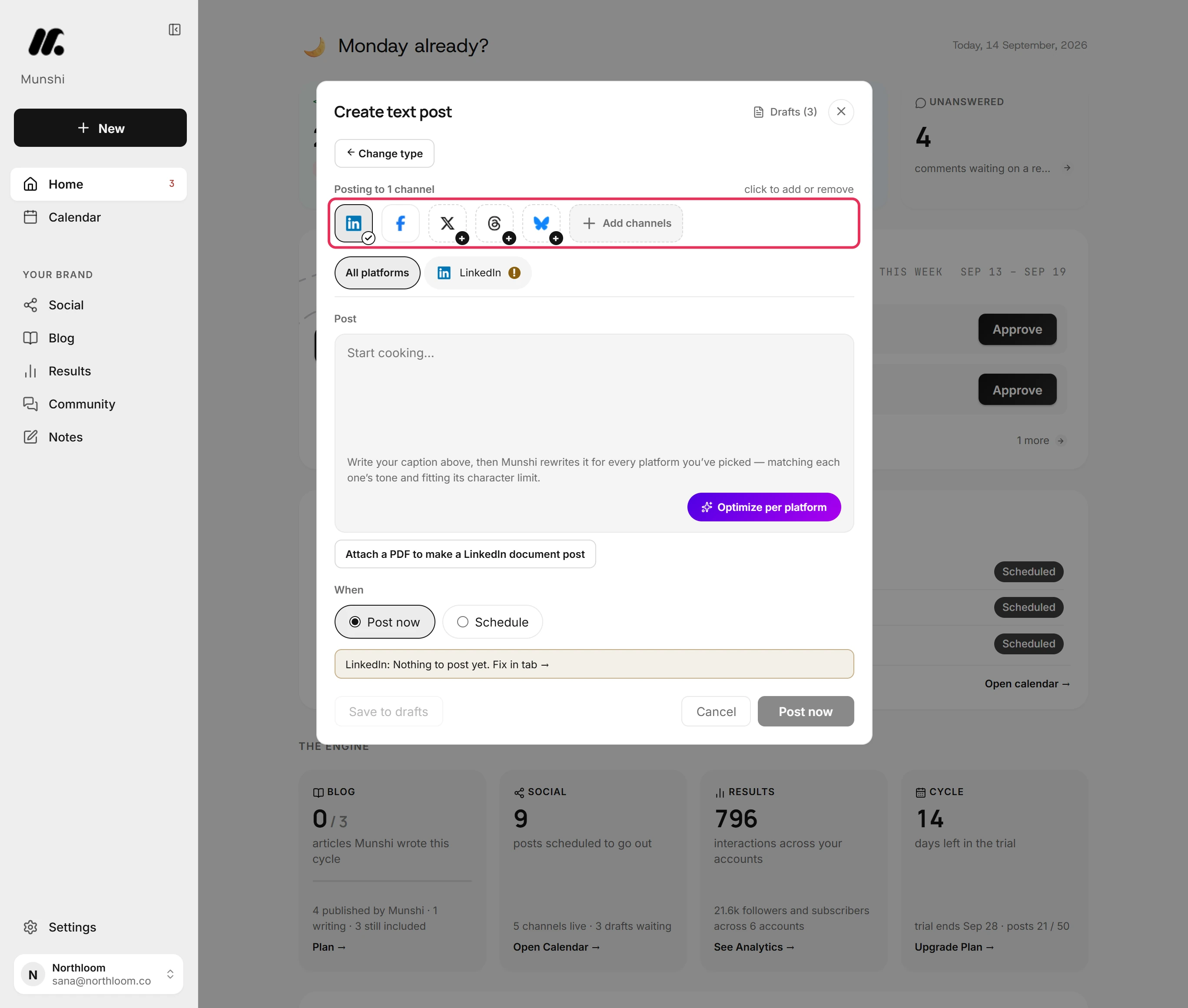
The LinkedIn tile needs its tick. Click a tile to add that network or take it off. The header counts the channels the post goes to.
-
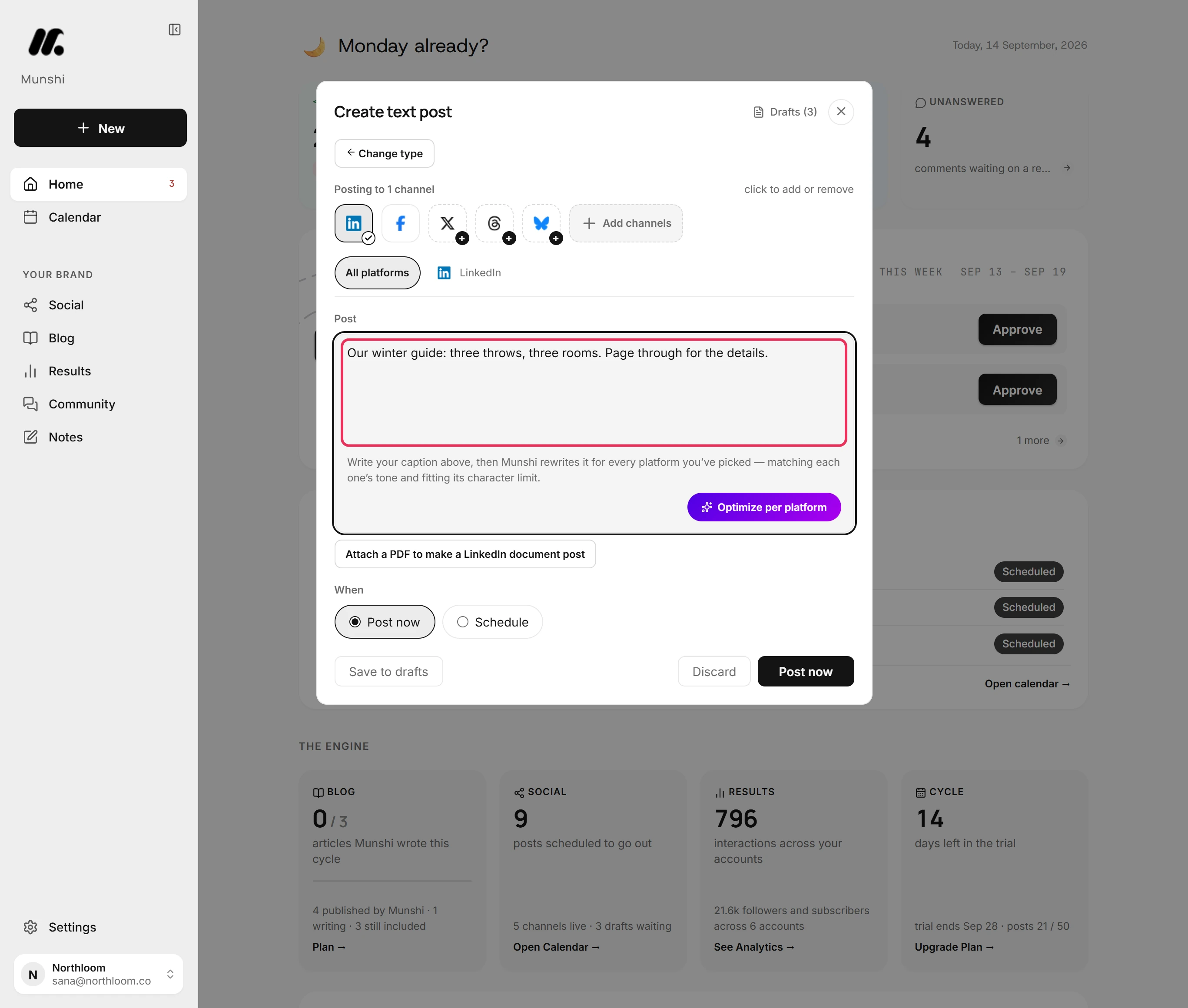
Type the post in Post. LinkedIn takes up to 3,000 characters, and the LinkedIn tab counts them as you go.
-
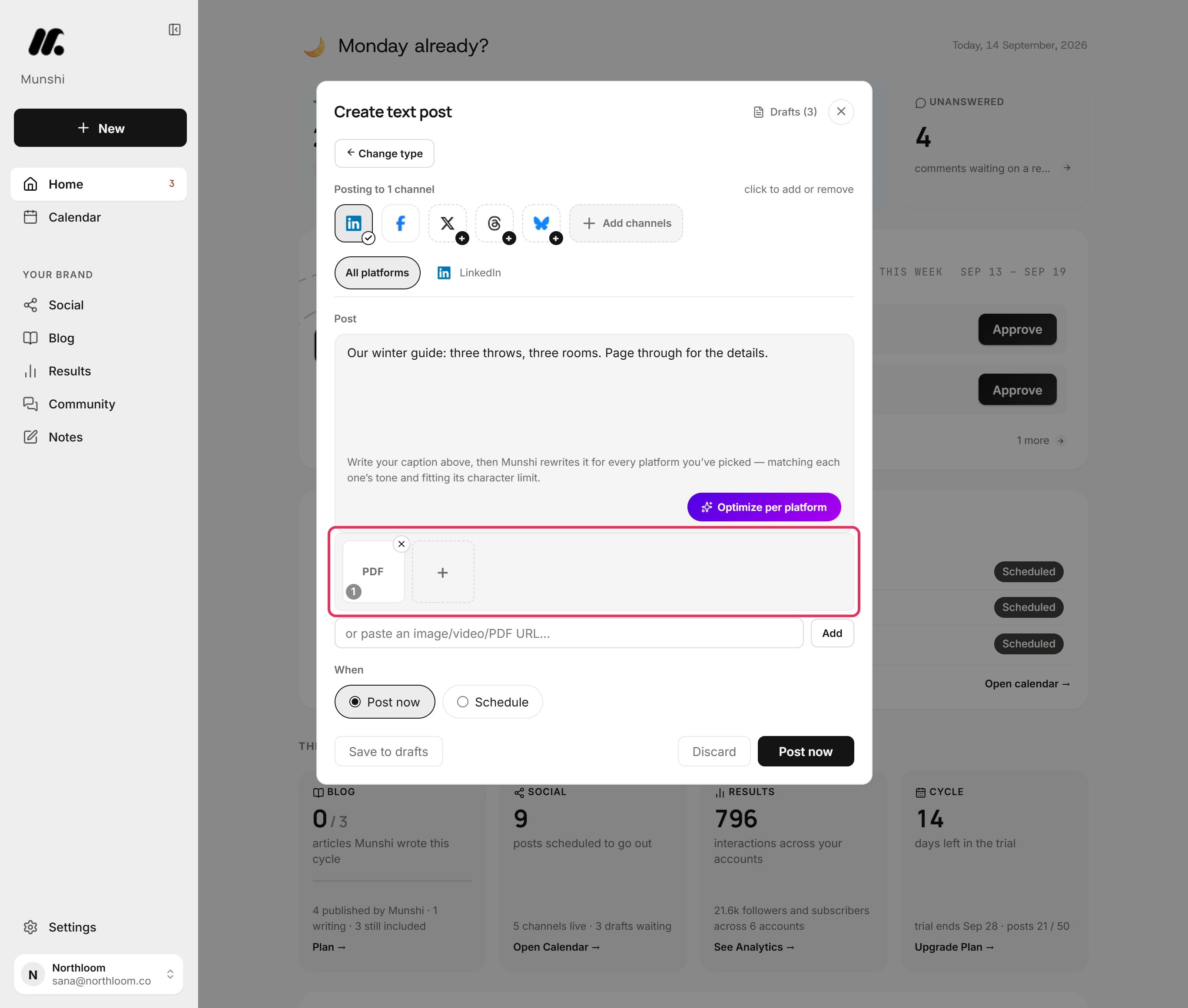
Click Attach a PDF to make a LinkedIn document post and pick the file. LinkedIn shows it as a document that readers page through. The PDF has to be the only attachment.
-
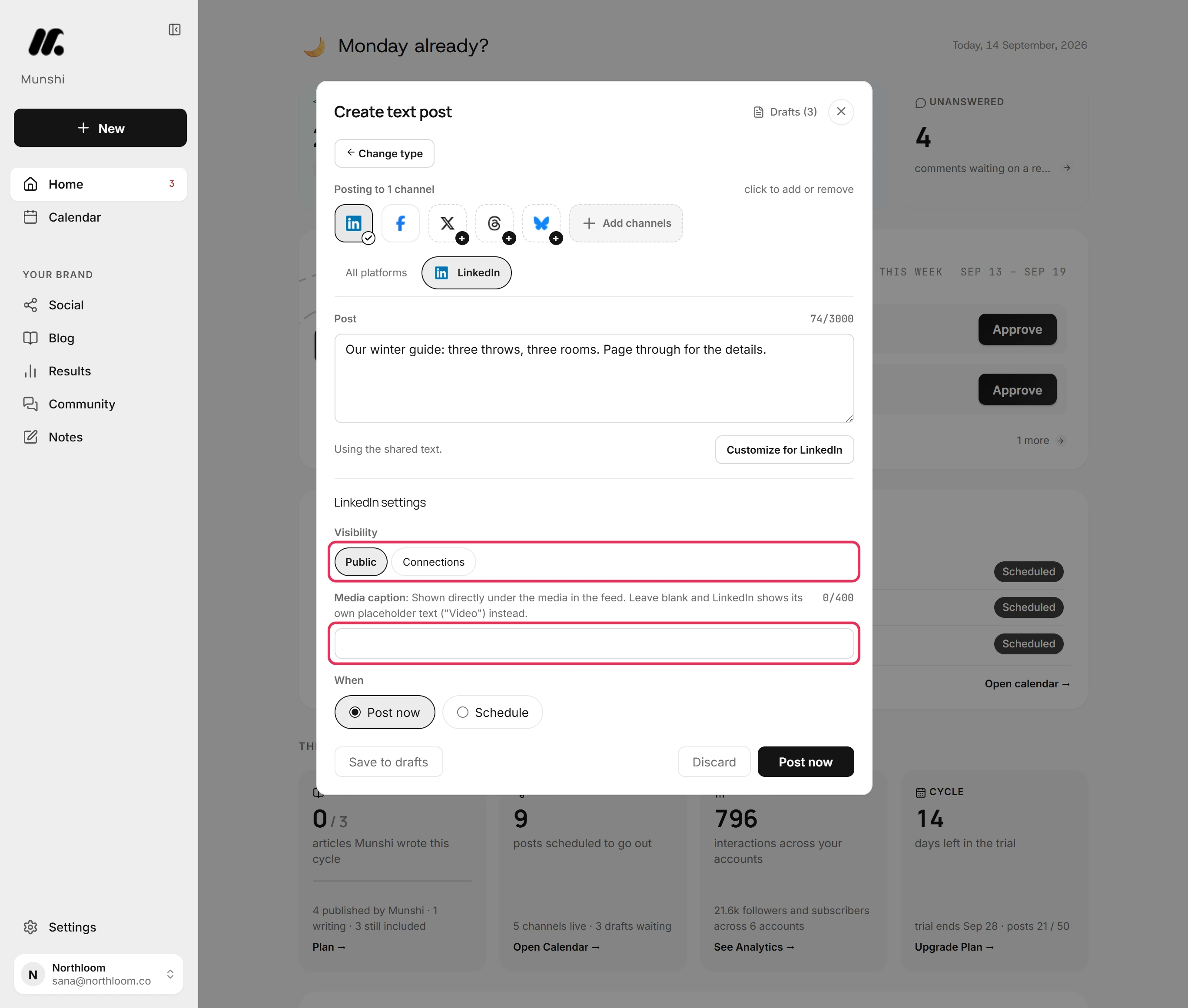
Open the LinkedIn tab. Visibility offers Public or Connections. Media caption is the line LinkedIn shows under a picture or a video.
-
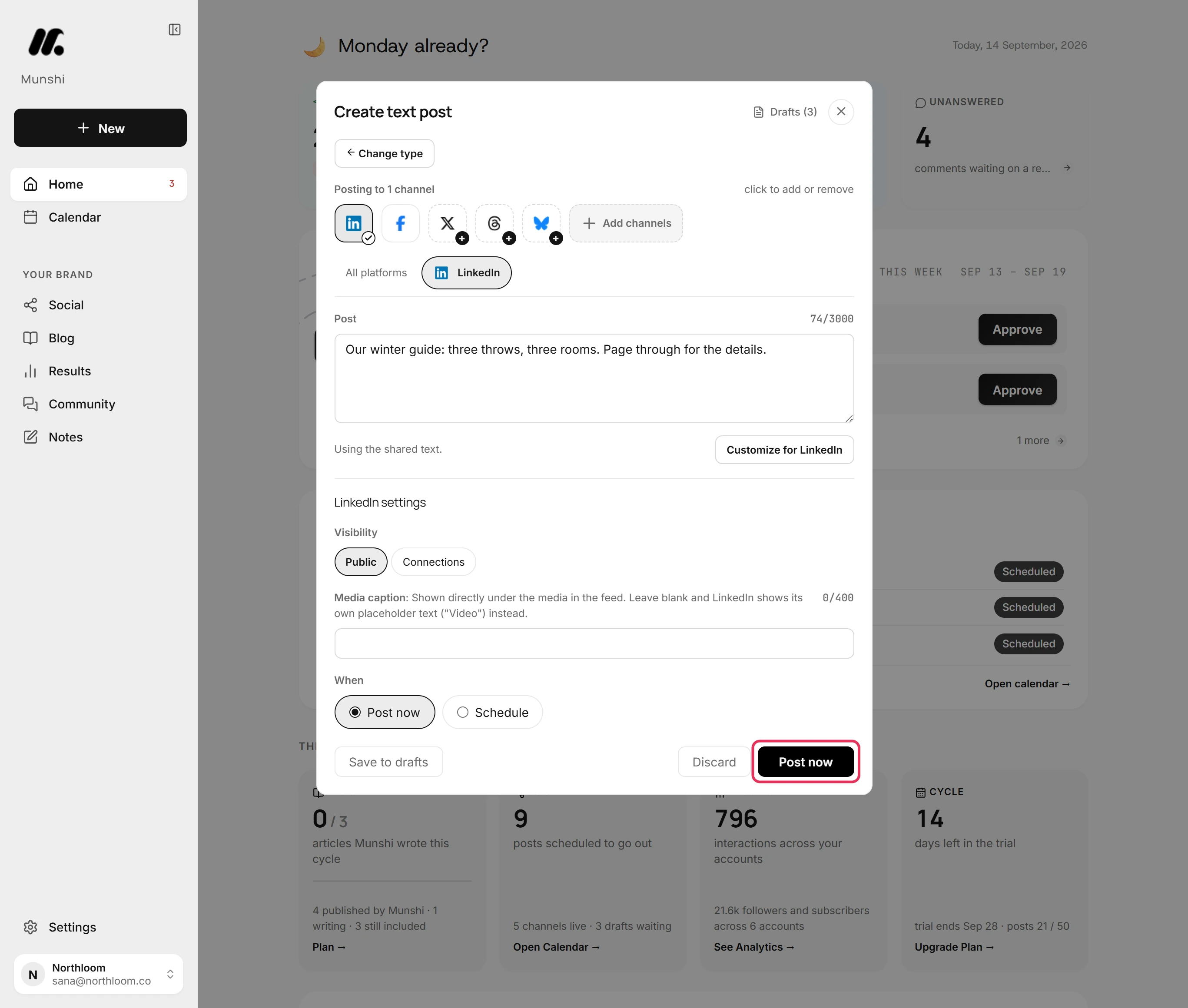
Leave Post now picked and click Post now. To send it later, pick Schedule and set the date and time first.
-
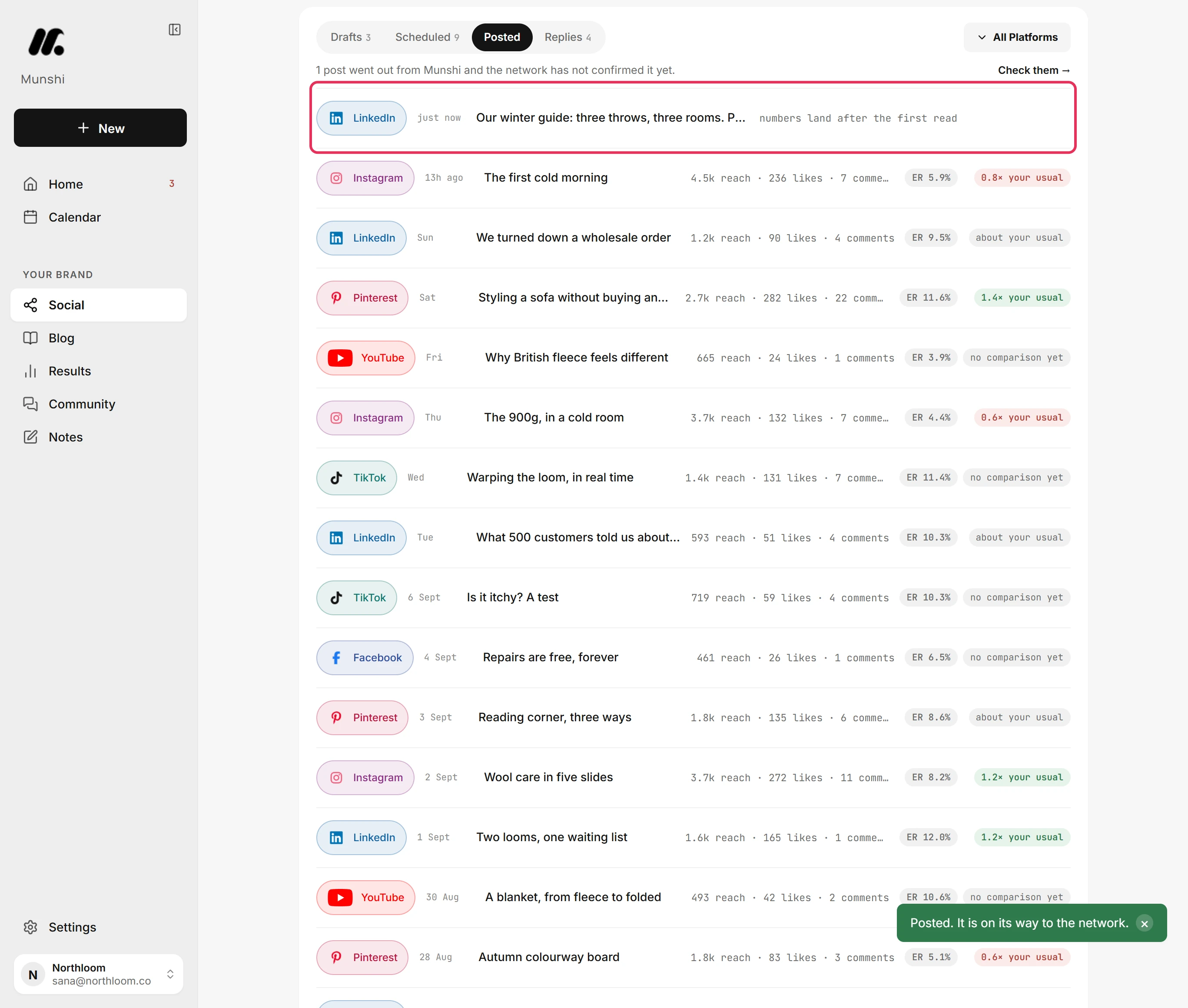
Munshi sends the post to LinkedIn. It shows under Posted on the Social page. Its numbers appear there once LinkedIn reports them.
Where you are now
The post is on its way to LinkedIn and listed under Posted. Its numbers fill in there, and on Results, as LinkedIn reports them.
If something goes wrong
“Facebook: A PDF document only posts to LinkedIn. Remove it here.”
Take the other networks off this post, or remove the PDF and add pictures instead. Only LinkedIn takes a document post.
“A PDF has to be the only attachment on the post.”
Remove the other files, or post them on their own. A document post carries the PDF and nothing else.
The LinkedIn tab shows a mark and the post will not send
Read the reason written above the buttons, then click Fix in tab beside it. The LinkedIn version breaks one of LinkedIn's rules, such as running over 3,000 characters.
Try it on your own brand this week.
Munshi Social, the AI content marketing engine for small teams, plans, writes, publishes, and tracks your blog and socials. The guide above shows the real app, not a mock-up.
Start your workspace