How to connect a YouTube channel
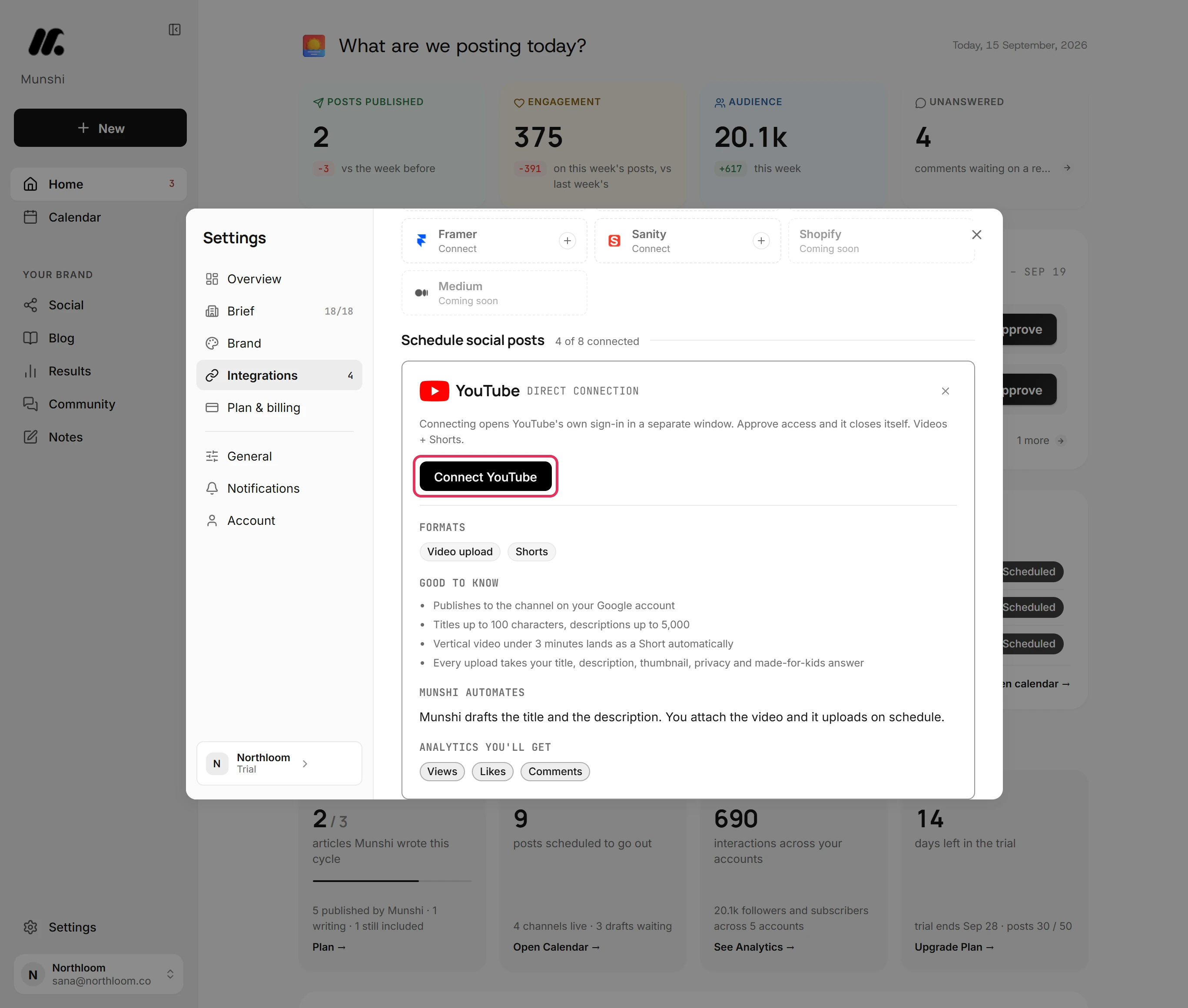
Click Connect YouTube in Settings > Integrations. In Google's window, choose the Google account that owns the channel and allow access.
Before you start
- The Google account that owns your YouTube channel.
-
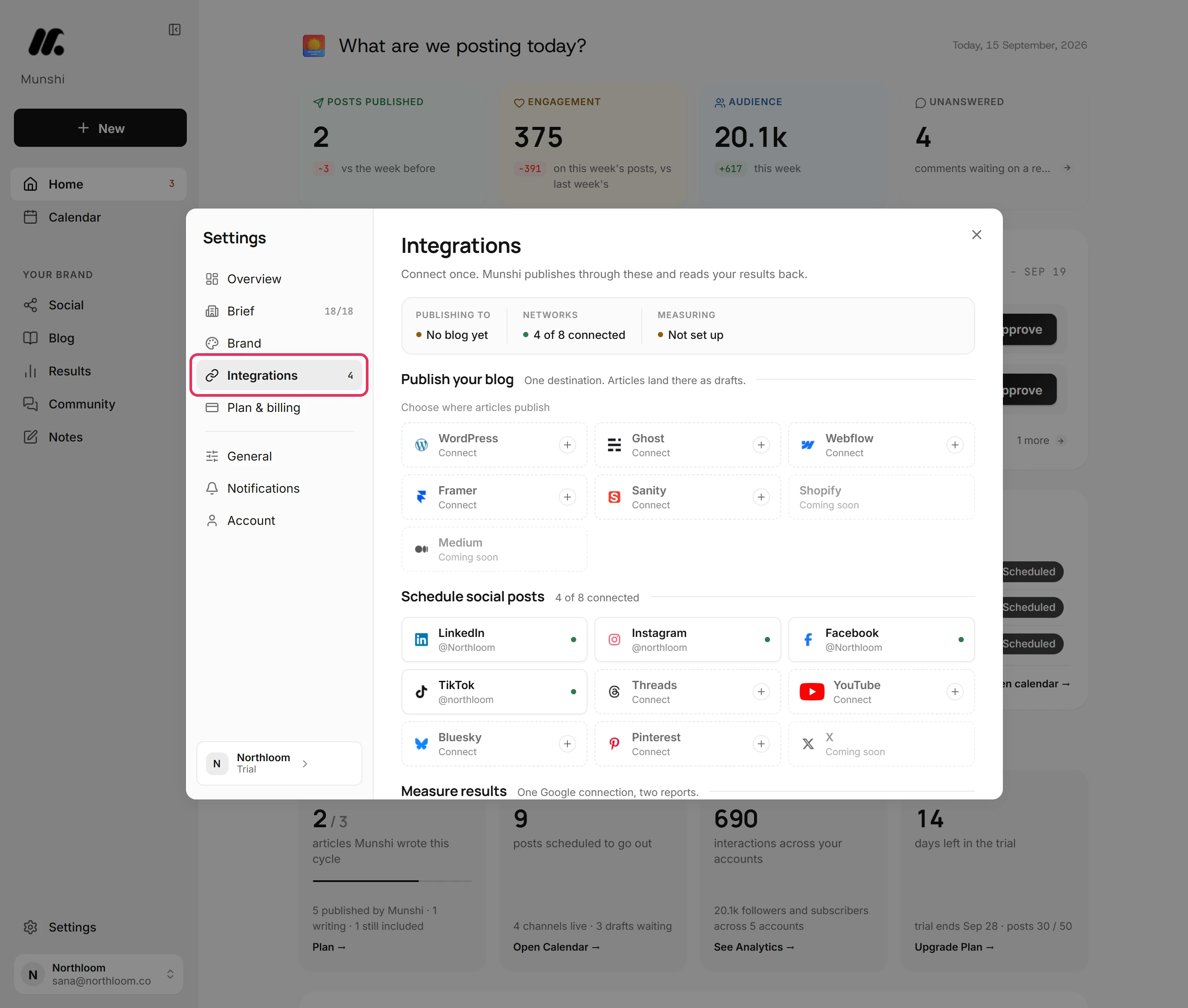
Click Settings at the bottom of the sidebar, then Integrations. The networks you can connect are listed under Schedule social posts.
-
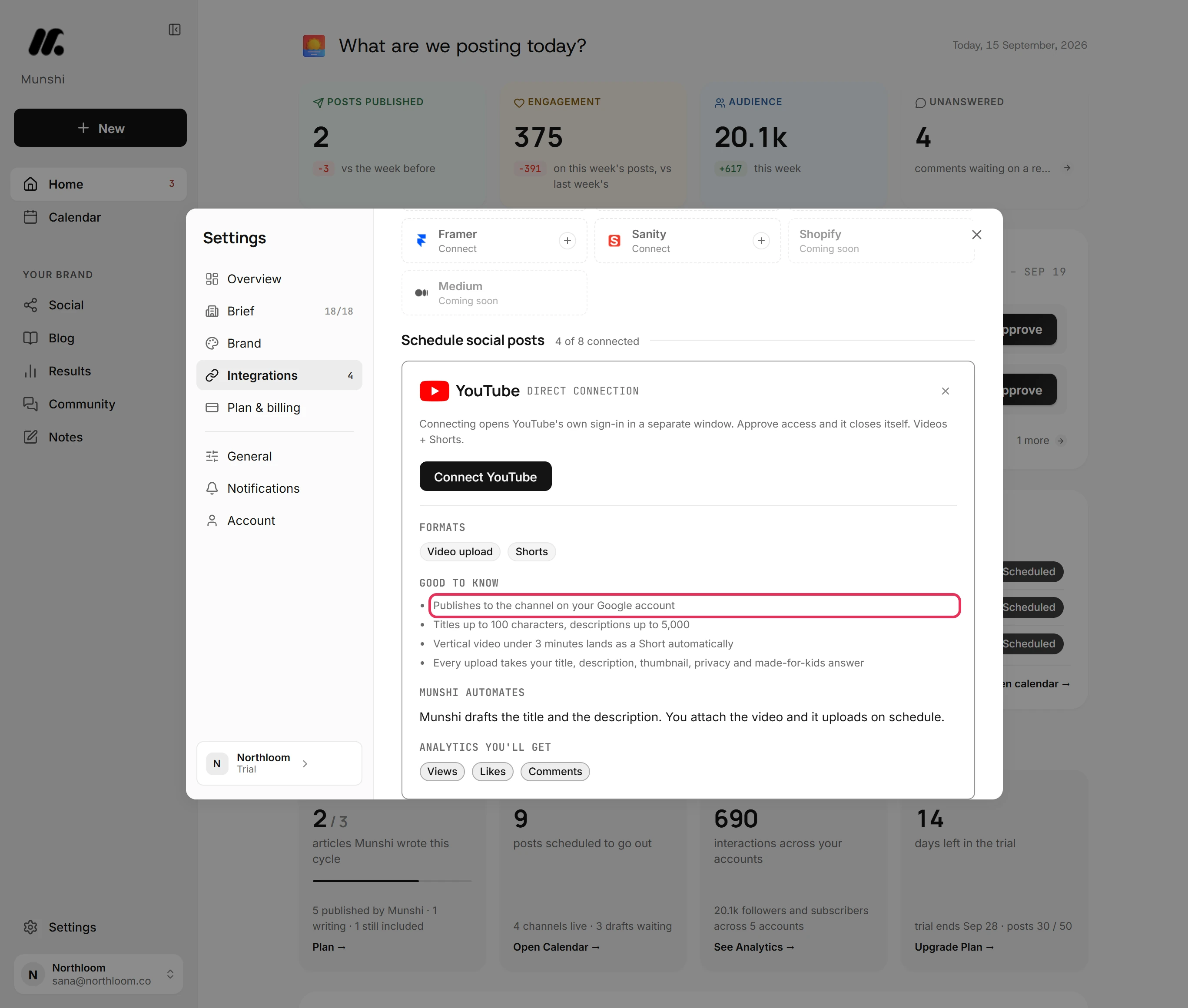
Click the YouTube tile, which reads Connect. Its card says Munshi publishes to the channel on your Google account. So connect with the Google account that owns the channel.
-
A Google window opens. Choose the Google account that owns the channel, then allow the access Munshi asks for. The window closes itself when you are done.
-
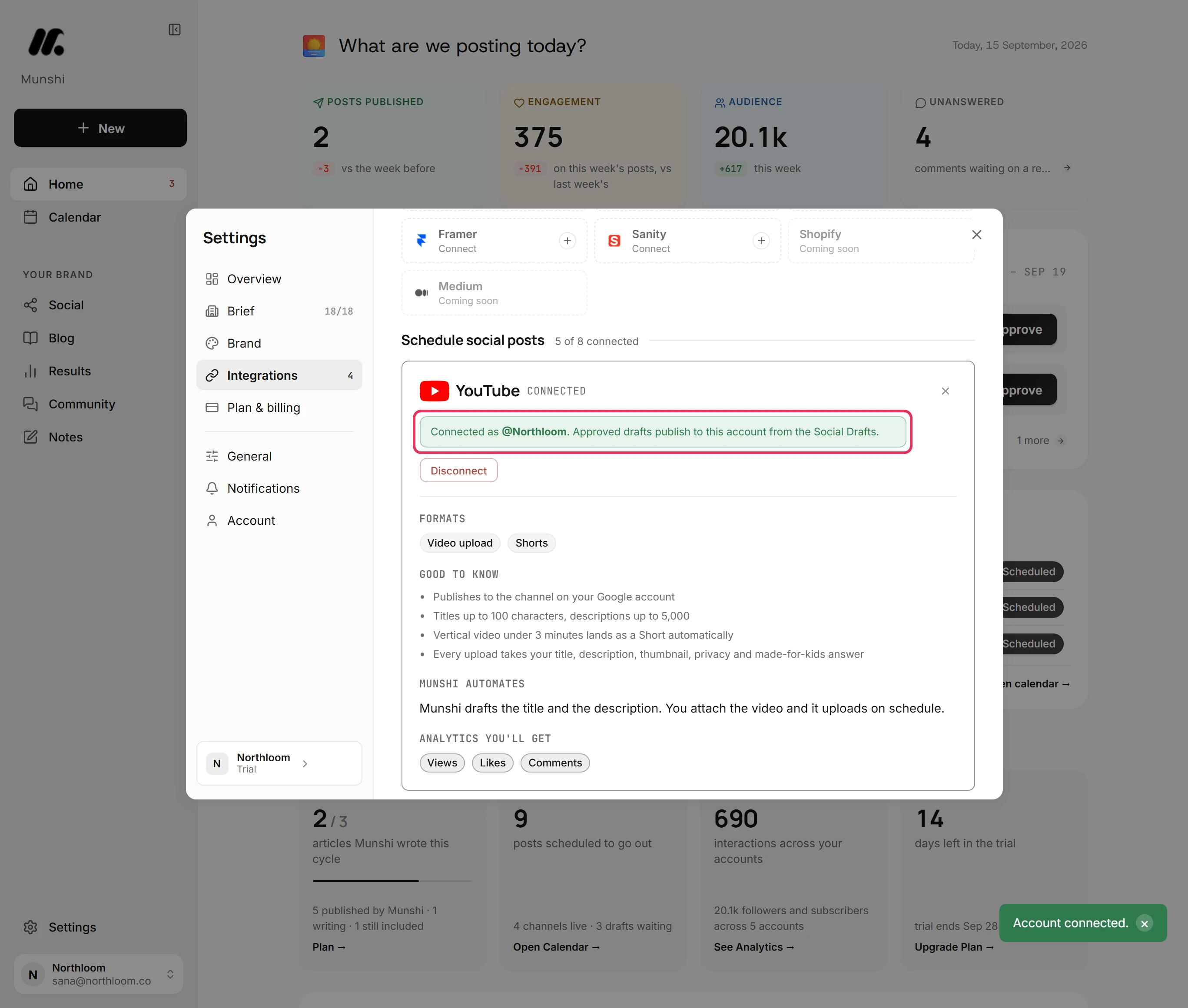
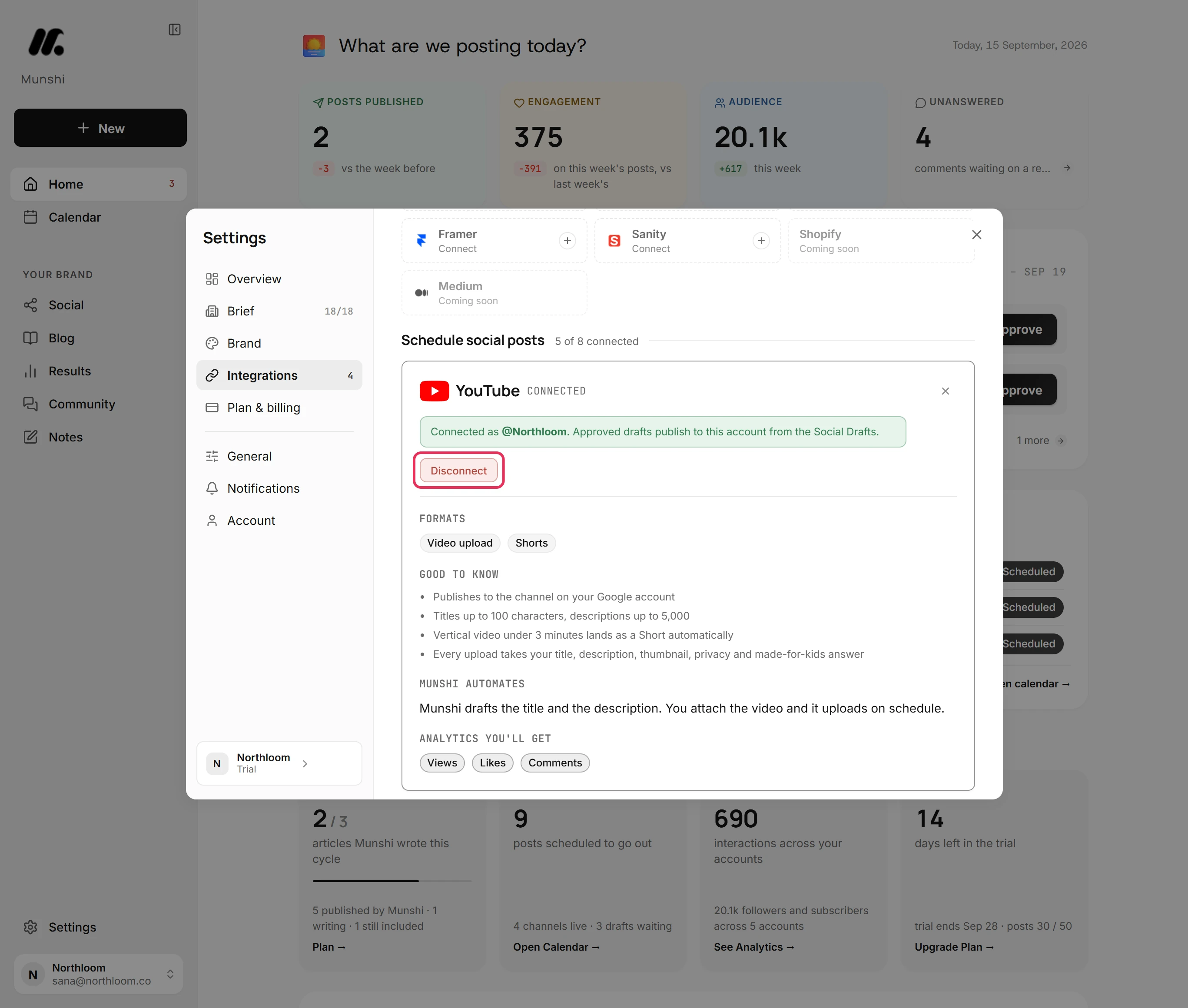
Back in Munshi, you see Account connected. The card now reads Connected as with the channel's name. Drafts you approve publish to that channel.
-
The workspace owner sees Disconnect on the card. Disconnecting deletes everything Munshi read from YouTube: the channel's numbers, each video's numbers and the status of its comments. Your drafts and posts stay.
-
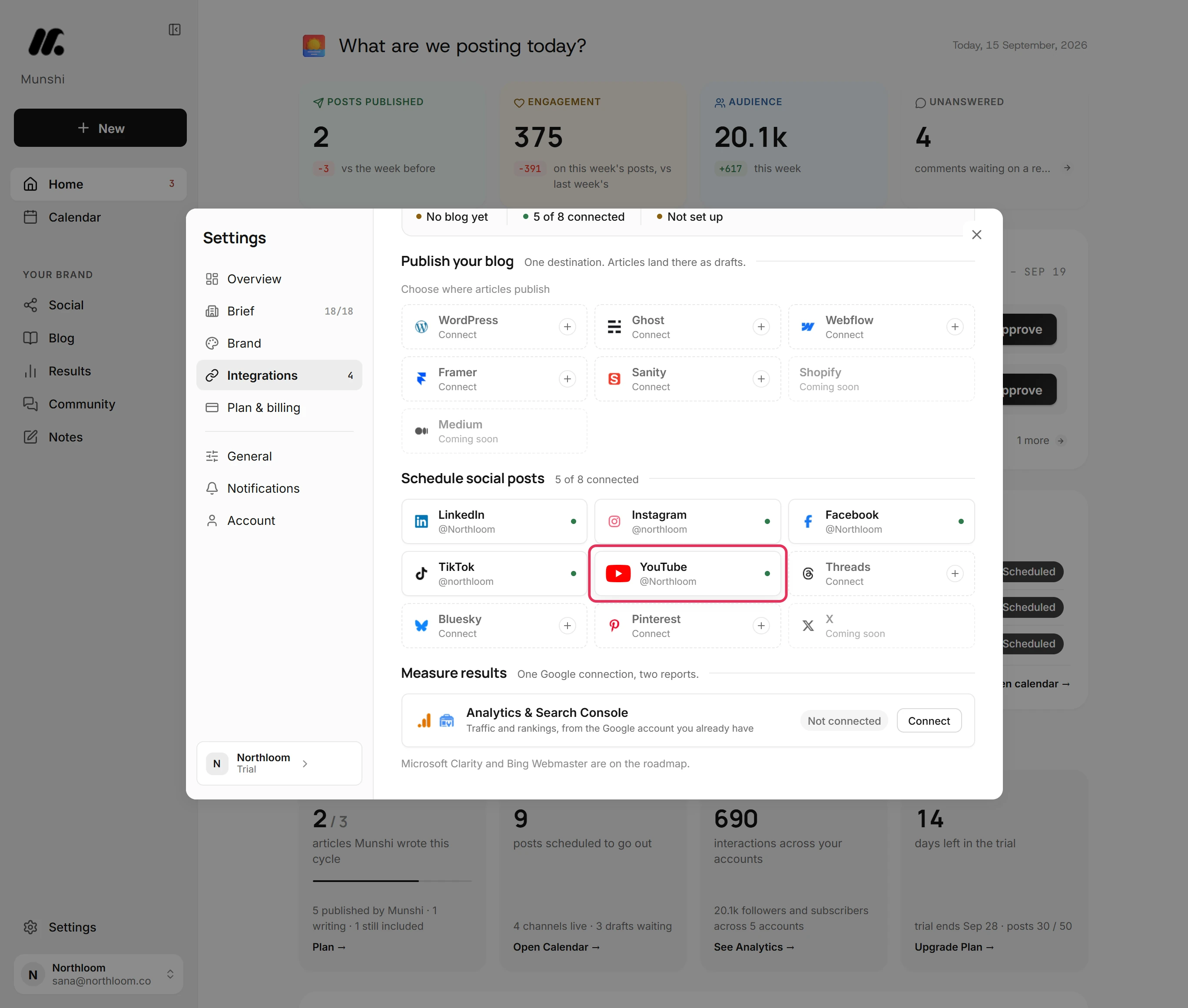
Close the card. The YouTube tile now shows the channel with a green dot. The count beside Schedule social posts goes up by one.
Where you are now
Your YouTube channel is connected. Videos you schedule in Munshi upload to it. Munshi starts bringing in the channel's past videos in the background.
If something goes wrong
“Your browser blocked the popup. Allow popups for Munshi and try again.”
Allow popups for Munshi in your browser, then click Connect YouTube again. Google's window could not open.
“The connection was declined or cancelled. Nothing was saved.”
Click Connect YouTube again and allow the access Munshi asks for. Access was not allowed in Google's window.
“That account is already connected to another workspace.”
Disconnect the channel in the other Munshi workspace, then connect it here. That workspace may be one of your own.
The YouTube card reads Reconnect needed
Reconnect it with the same Google account, and your history stays. The channel's access expired, so nothing uploads to it until you reconnect.
Try it on your own brand this week.
Munshi Social, the AI content marketing engine for small teams, plans, writes, publishes, and tracks your blog and socials. The guide above shows the real app, not a mock-up.
Start your workspace