Munshi and YouTube
Munshi Social, the AI content marketing engine for small teams, writes and publishes posts toYouTube from the same weekly plan as every other channel. Each video is uploaded with a title and a description written for YouTube search.
14-day free trial · No card required · 7-day money-back
A video upload with a title and a description written for how people find videos on YouTube. The search phrase comes first, then a summary a viewer can scan, then the links that belong there.
How the connection works
You sign in to the network in its own window and give Munshi permission to post for you. Munshi never sees your password. You can revoke the connection from the network's own settings at any time.
What comes back
Munshi reads reach, engagement and follower growth for every post it publishes. The numbers are captured daily onto the Results page, next to your other channels. Comments come into Munshi to read, and you reply on the network itself.
YouTube's rules, checked first
- Every upload needs a video file (.mp4, .mov or .webm)
- Descriptions are kept under 5,000 characters
What to know
- One YouTube channel per workspace
- YouTube caps how many videos an app may upload per day, across all its users
- On a busy day an upload can be held to the next day, and Munshi tells you when that happens
Munshi uploads videos to your YouTube channel at the time you set, as a Short or a regular Video. Views, likes and comments come back daily. Comments are also read into Community, so you can see them without opening YouTube Studio.
You connect with the Google account that owns the channel. After that, the file goes up on its own at its scheduled time.
A YouTube upload has more fields than a social post, and Munshi asks for them all in one place. That means the description, title, thumbnail, privacy and the made-for-kids answer. YouTube will not take an upload without a title, so Munshi holds the upload until it has one. It does not fail at the slot.
What you can post to YouTube
| Format | What goes out |
|---|---|
| Video | A regular upload: one MP4, MOV or WebM file of up to 1 GB. It takes a description of up to 5,000 characters and a title of up to 100. |
| Short | The same upload sent as a Short. Video type in the YouTube tab starts on Short. The card notes that vertical video under 3 minutes lands as a Short automatically. |
| Title | Required, up to 100 characters. An upload without one is held with YouTube needs a video title. and nothing is scheduled. |
| Thumbnail | Optional. A JPG, PNG, WebP or GIF, uploaded or pasted as an address, shown as the cover before the video plays. Remove takes it off again. |
| Privacy and audience | Public, Unlisted or Private, starting on Public, plus a Made for kids tick. Every upload tells YouTube one way or the other. |
| Text or a picture on its own | Not possible. YouTube appears only on a Video post, and an upload carries one video and nothing else. |
How to connect YouTube
-
Open the YouTube tile in Integrations
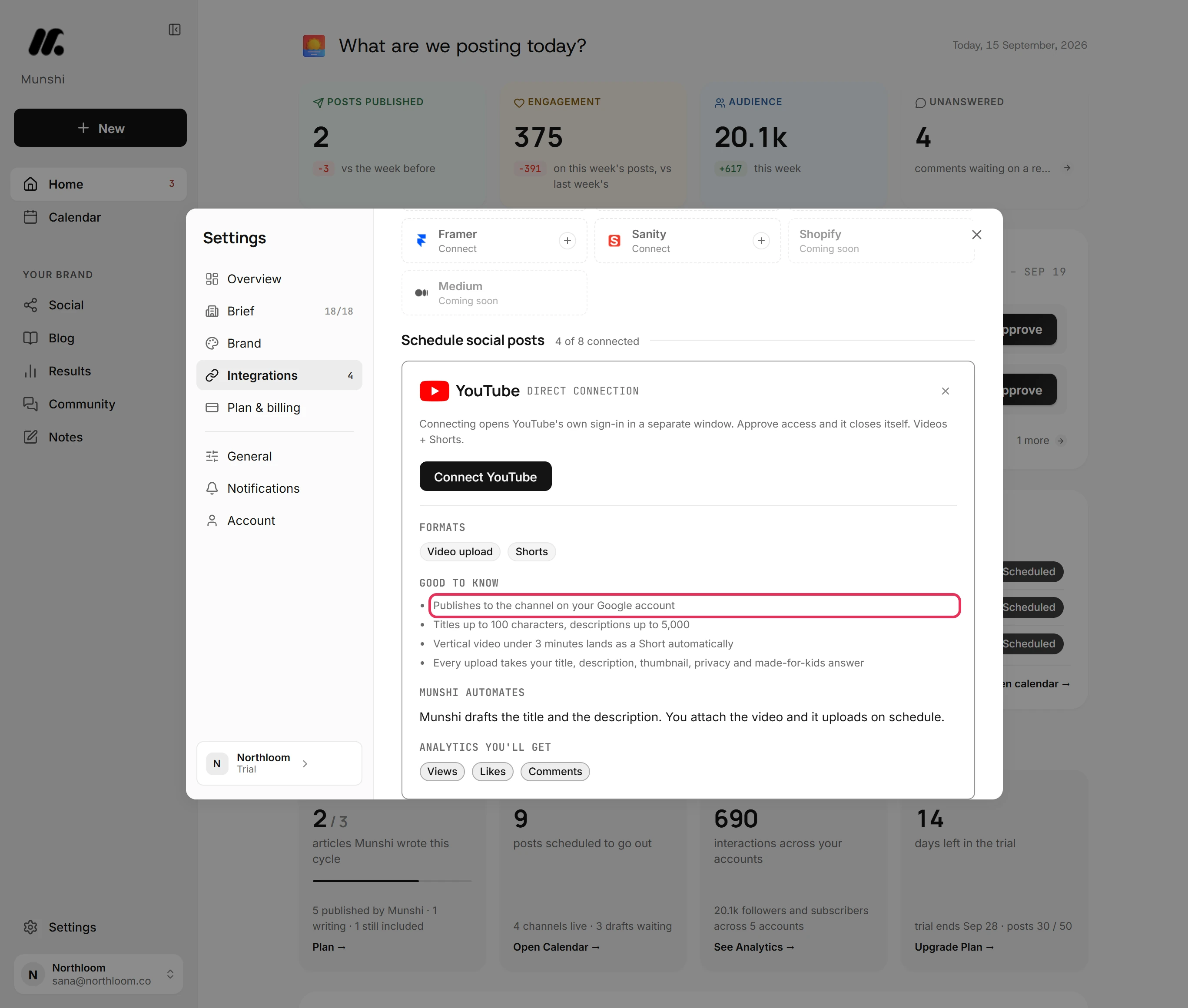
Click Settings at the bottom of the sidebar, then Integrations. Click the YouTube tile under Schedule social posts. The card says Munshi publishes to the channel on your Google account, and lists the formats it sends. It also states the limits up front: titles up to 100 characters, descriptions up to 5,000.
-
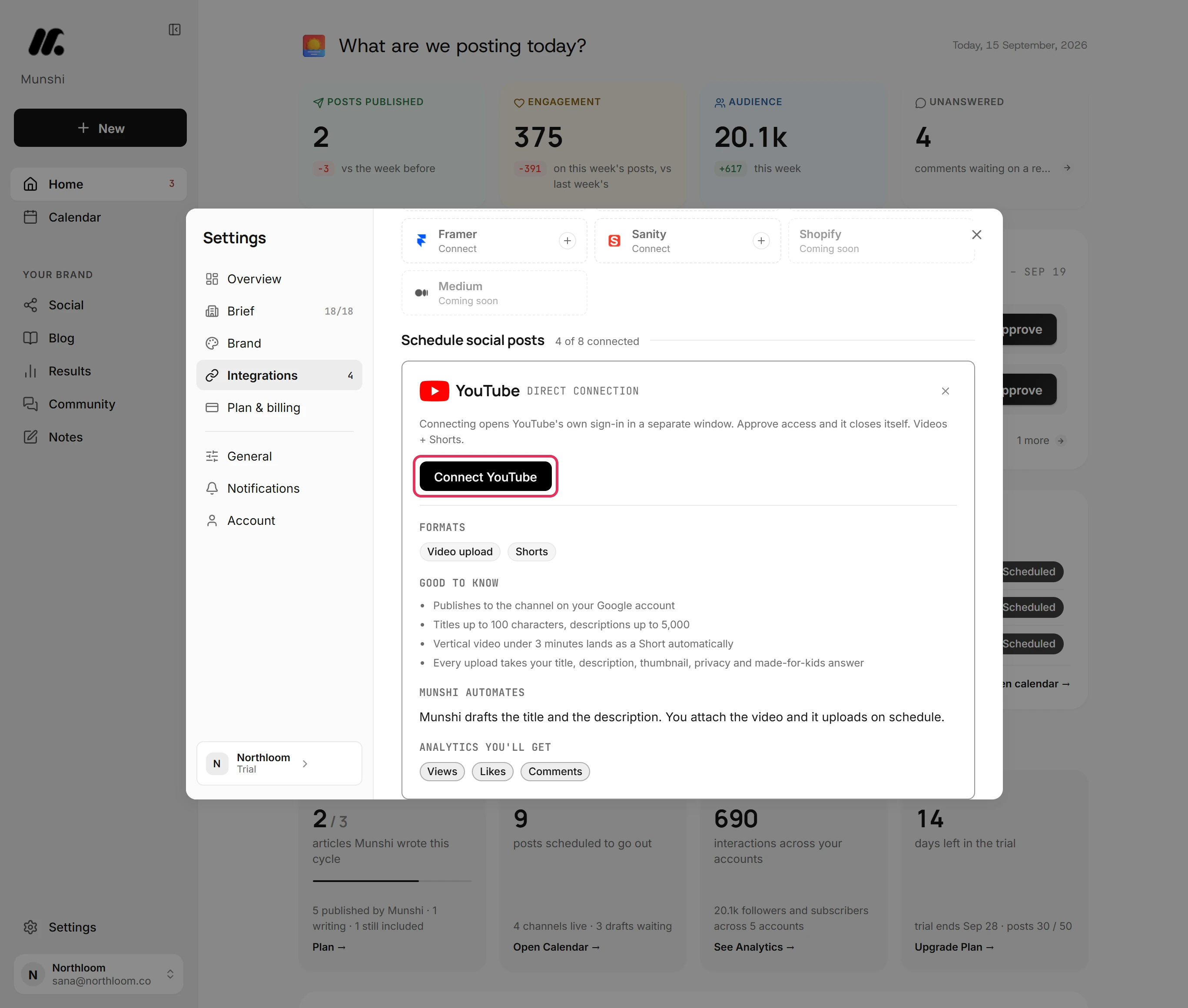
Click Connect YouTube and allow access
A Google window opens. Choose the Google account that owns the channel, then allow the access Munshi asks for. The window closes itself. It names Munshi as the app asking, because YouTube connects through Munshi's own Google app. Allow popups for Munshi first, or the window cannot open.
-
Check the channel it connected
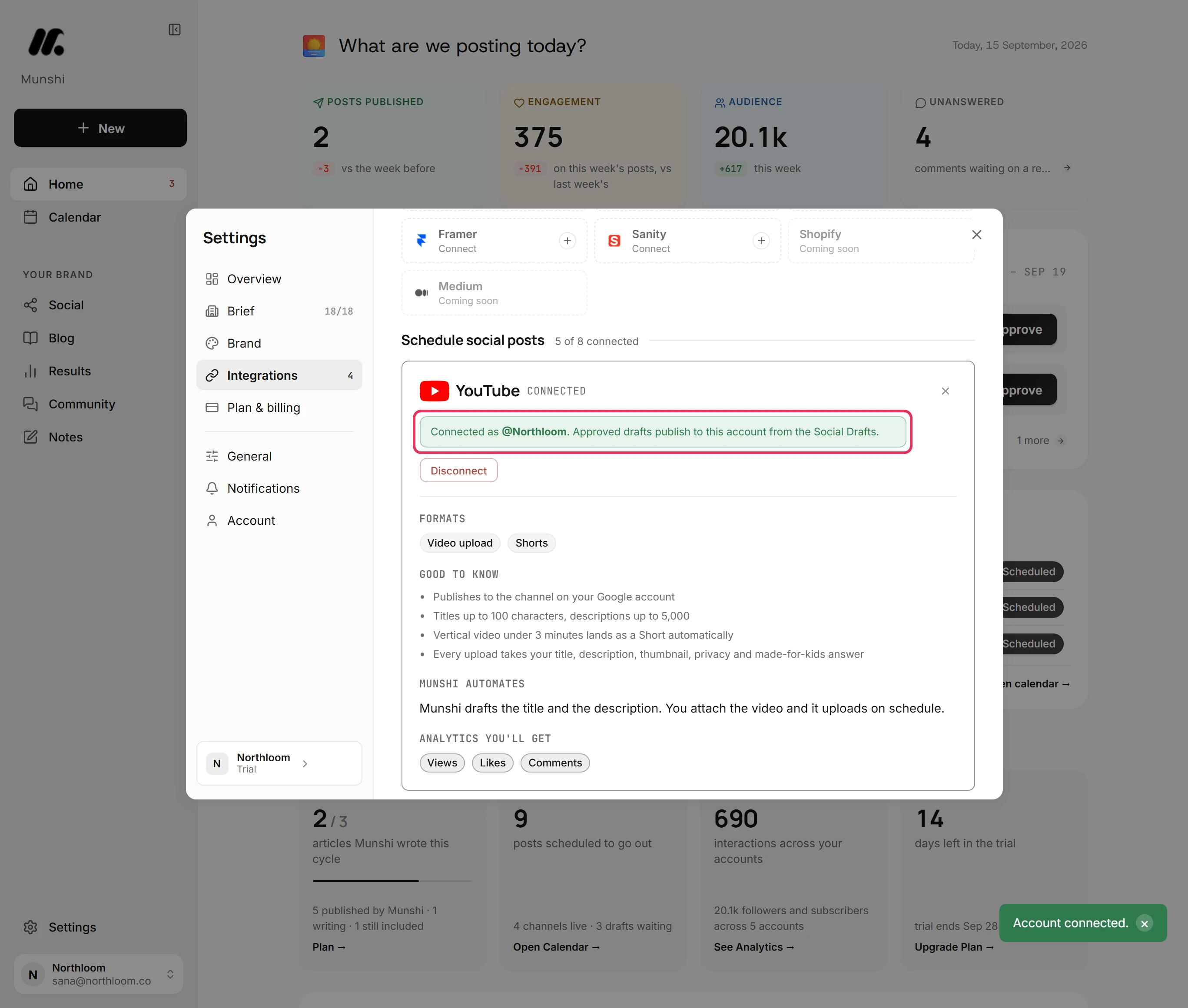
Munshi shows Account connected. The card reads Connected as with the channel's name, and a line says approved drafts publish to this account. A workspace holds one YouTube channel. To use another, disconnect this one and connect again with the Google account that owns the other.
-
Check the tile
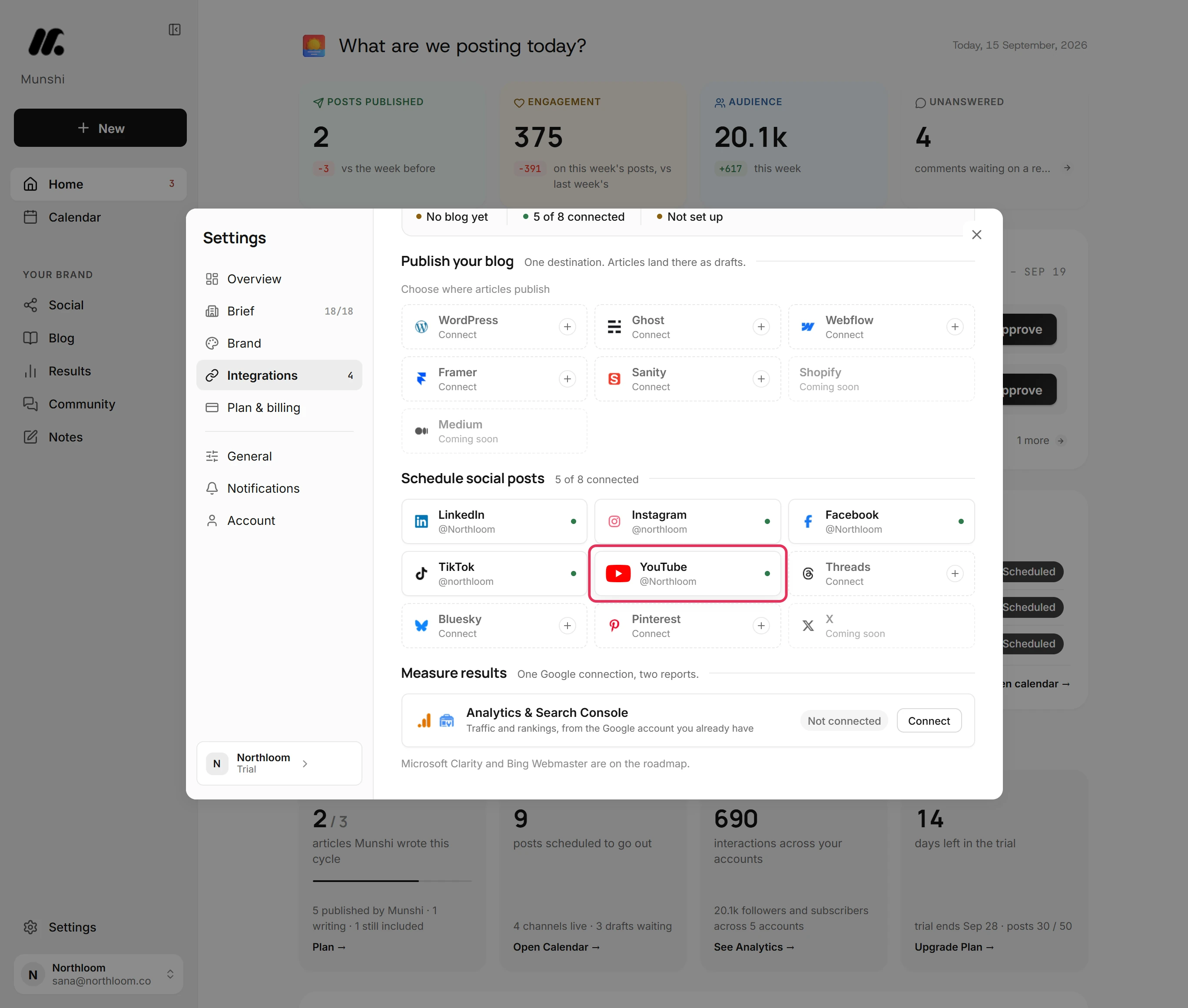
Close the card. The YouTube tile shows the channel with a green dot, and the count beside Schedule social posts goes up by one. Munshi starts bringing in the channel's past videos, so their numbers appear on Results beside your other channels.
Short or Video, and the description
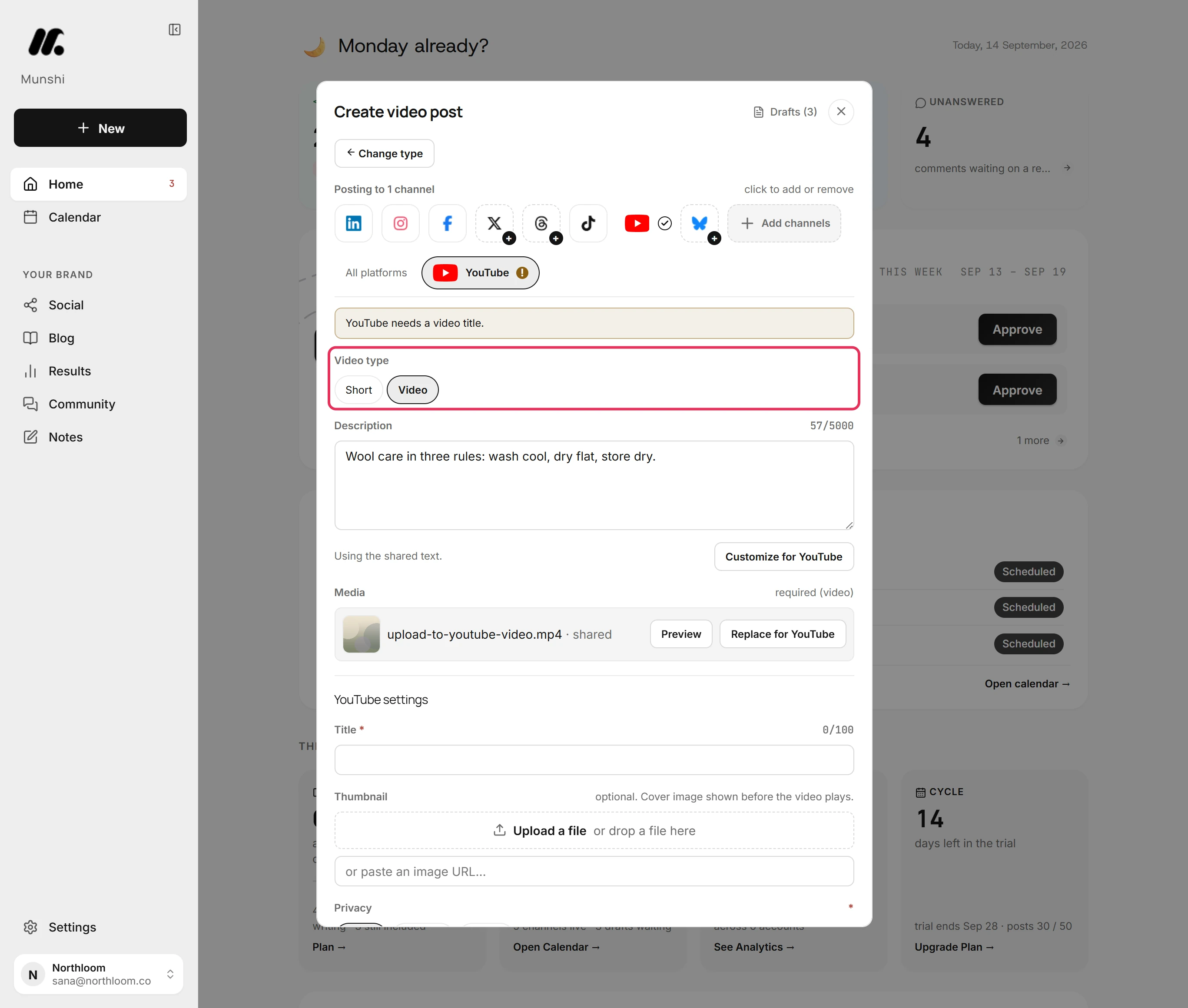
Start a Video post, pick YouTube, and write once in All platforms. On YouTube, that text becomes the video's description, counted against 5,000 characters. In the YouTube tab, Video type starts on Short. Pick Video for a regular upload.
The description is repeated in the YouTube tab. Edit it there and only YouTube's copy changes. That helps when the same video also goes out as a Reel and a TikTok from the same post.
Does a YouTube video need a title?
Yes. Title under YouTube settings takes up to 100 characters and is marked required. Leave it empty and the YouTube tab carries a mark. The message at the top of the tab reads YouTube needs a video title. and nothing is scheduled. Fill it in and the mark clears.
This check stops a scheduled upload from failing at its slot. The title, video and description are all confirmed in the composer, while you are still there to fix them.
Thumbnail, privacy and made for kids
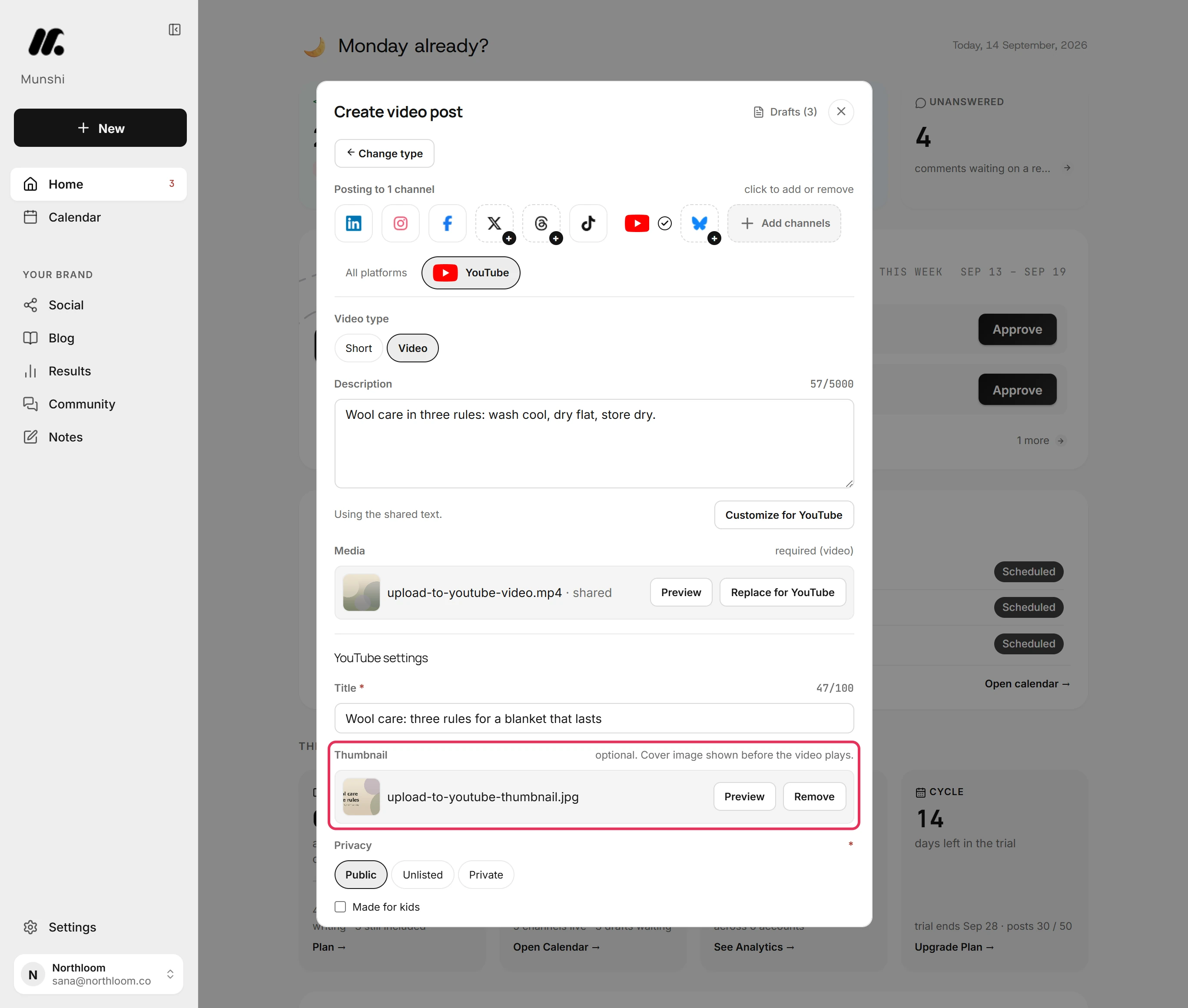
Under Thumbnail, Upload a file takes the cover picture, or you can paste the address of one. It is optional. Preview shows it and Remove takes it off. A thumbnail is a JPG, PNG, WebP or GIF, and a video file picked here is refused.
Privacy starts on Public, with Unlisted and Private beside it. Made for kids starts unticked. Tick it only when the video is made for children. Every upload tells YouTube one way or the other.
Can Munshi schedule YouTube uploads?
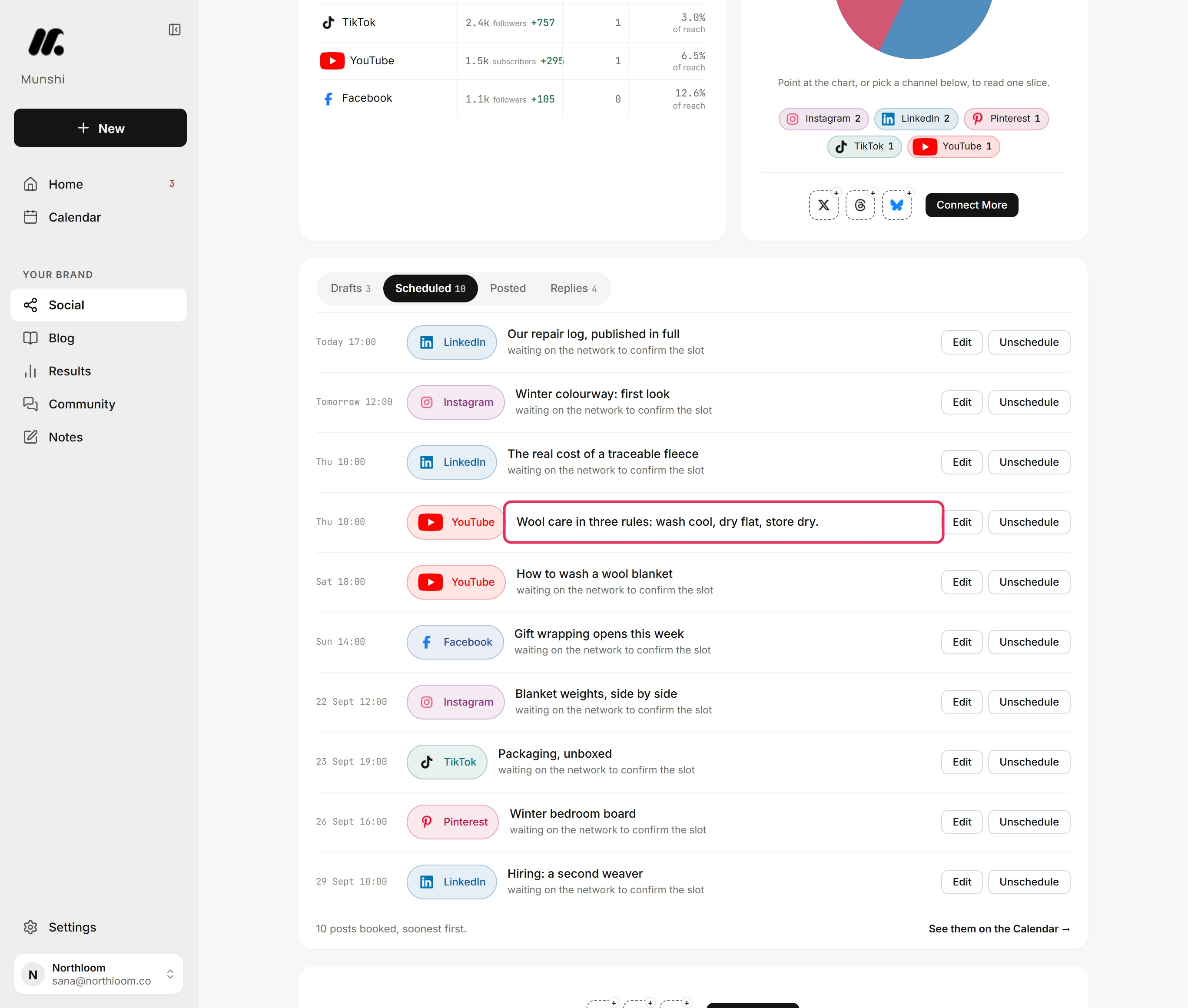
Yes. Pick Schedule under When, set the date and time in your workspace's clock, and click Schedule post. Munshi takes you to Social, where the upload sits on the Scheduled tab with its time. Edit reopens it to change the title, thumbnail or time. Unschedule moves it back to Drafts.
Post now uploads the video straight away instead. Either way the file goes up on its own, with no browser left open.
Munshi's shared daily YouTube upload limit
Google gives Munshi a daily number of YouTube uploads, and every Munshi workspace shares it. When it runs out, the upload waits with this message: “Munshi's daily YouTube upload quota is used up for today — it resets at midnight Pacific time. Try again after it resets.” This can happen on a day you have uploaded nothing else.
Nothing is wrong with your video, your channel or your connection. The upload waits under Drafts on the Social page, marked Failed. Click Retry now after midnight Pacific time, or Schedule on the same card to give it a new time.
Comments to read, results every day
YouTube is one of the networks that brings comments into Community. Comments on your recent videos arrive there for you to read and mark resolved. Replying is not supported on YouTube yet. When you select a YouTube comment, a note replaces the reply box to say so, and you reply on YouTube.
Views, likes and comments land on the Results page daily, beside your other channels. Each video shows its engagement rate in the post list. Munshi reads comments on your 60 most recent tracked posts. It reads them again when you open Community and the last read is more than 15 minutes old.
Munshi and YouTube, answered
Does Munshi work with YouTube?
Yes. A video upload with a title and a description written for how people find videos on YouTube. The search phrase comes first, then a summary a viewer can scan, then the links that belong there.
Can Munshi upload videos to YouTube automatically?
Yes. An approved video uploads to your channel at its scheduled time. Its description, title, thumbnail and privacy are already set. Nothing publishes before you approve it.
Can Munshi schedule YouTube Shorts?
Yes. Video type in the YouTube tab offers Short and Video, and starts on Short. The card also notes that vertical video under 3 minutes lands as a Short automatically.
Does Munshi need my Google password?
No. You sign in to Google in its own window and allow the access Munshi asks for, so Munshi never sees the password. You can revoke the connection from your Google account settings at any time.
Can I set the thumbnail and privacy from Munshi?
Yes. Thumbnail takes a JPG, PNG, WebP or GIF as the cover shown before the video plays. Privacy offers Public, Unlisted and Private. Made for kids sits under them, and every upload sends YouTube an answer to it.
How long can a YouTube description be in Munshi?
Up to 5,000 characters, and the title up to 100. Both are counted as you type in the YouTube tab. Nothing is scheduled until they fit.
Why did my upload fail with a daily limit message?
Munshi has one daily YouTube upload quota, shared by every workspace. It is separate from your channel. The video waits under Drafts marked Failed, so retry it after midnight Pacific time.
Can I reply to YouTube comments from Munshi?
Not yet. Comments on your recent YouTube videos come into Community to read and mark resolved. Selecting one shows a note that replying is not supported on YouTube yet. Reply on YouTube itself.
Can I connect two YouTube channels?
No, not in one workspace. A workspace holds one channel. The Studio plan covers three brands, each with its own connected accounts and calendar, so a second channel belongs to a second brand.
When YouTube says no
These are the messages people see most often, and what each one means.
“YouTube needs a video title.”
The Title field under YouTube settings is empty, and YouTube will not take an upload without one. Fill it in, up to 100 characters, and the mark on the YouTube tab clears.
“Munshi's daily YouTube upload quota is used up for today”
Wait until after midnight Pacific time, then open Social, find the video under Drafts and click Retry now. The quota is shared by every Munshi workspace, not your channel's. Nothing needs reconnecting.
“Nothing to upload yet.”
The description is empty. Write it in the caption box on All platforms, or in the YouTube tab so only YouTube gets those words.
“use a JPG, PNG, WebP or GIF image for a thumbnail.”
The file picked for the thumbnail is not a picture. Export a frame of the video as a JPG or PNG and upload that.
The YouTube card reads Reconnect needed
The channel's access expired, so nothing uploads to it and its numbers stop updating. Reconnect it in Integrations with the same Google account, and your history stays. A post that failed in the meantime waits under Drafts with Retry now on its card.
“That account is already connected to another workspace.”
The channel is connected to another Munshi workspace, possibly one of your own. Disconnect it there, then connect it here.
“The connection was declined or cancelled. Nothing was saved.”
Access was not allowed in Google's window. Click Connect YouTube again and allow the access Munshi asks for.
YouTube, step by step
Each guide walks through one task in the real app, with a screenshot at every step.
- How to connect a YouTube channel 2 min · 6 steps
- How to upload to YouTube from Munshi 3 min · 10 steps
- How to post a video: Reels, Shorts, TikTok and the rest 3 min · 10 steps
- “Munshi's daily YouTube upload quota is used up for today” 1 min read
- Caption and media limits, network by network 3 min read
- Files Munshi takes, and how big 2 min read
- Which networks bring comments in, and which do not 2 min read
- How to reconnect a network that signed you out 2 min · 7 steps
Other networks: Instagram · TikTok · X (coming soon) · LinkedIn · Facebook · Pinterest · Threads · Bluesky · all integrations