Munshi and Threads
Munshi Social, the AI content marketing engine for small teams, writes and publishes posts toThreads from the same weekly plan as every other channel. Posts are written in the conversational tone of Threads and published on schedule.
14-day free trial · No card required · 7-day money-back
A Threads post in the tone Threads rewards. It is shorter than LinkedIn, warmer than X, and written to open a conversation.
How the connection works
You sign in to the network in its own window and give Munshi permission to post for you. Munshi never sees your password. You can revoke the connection from the network's own settings at any time.
What comes back
Munshi reads reach, engagement and follower growth for every post it publishes. The numbers are captured daily onto the Results page, next to your other channels. Comments on your posts come into Munshi, and you can reply from there. On Threads you can also hide a comment from Munshi.
Threads's rules, checked first
- Posts are kept under 500 characters
What to know
- One Threads account per workspace
Munshi schedules Threads posts of up to 500 characters, as words alone, an image, a video or a carousel. You set Who can reply for each post. Replies come into Community, where you can answer them or hide the ones that should go.
One rule matters before you connect. Threads connects whichever account is signed in at threads.com, and its window offers no way to switch. So sign in at threads.com as the account you want first, then connect.
Munshi says this twice: on the Threads card under Good to know, and again as the window opens. That is the way a Threads connect goes wrong.
What you can post to Threads
| Format | What goes out |
|---|---|
| Text on its own | Threads takes words with nothing attached, up to 500 characters. Start a Text post and the Threads tab counts as you type. |
| Image | One picture with the post, or up to twenty at once. JPG, PNG, WebP and GIF are all taken, up to 1 GB a file. |
| Video | One MP4, MOV or WebM file, and it has to be the only attachment. The Threads card puts the practical limit at about five minutes. |
| Carousel | Several pictures in one post. The Threads card lists it as a format beside Text post, Image and Video. The pictures go out in the order you drag them into. |
| Who can reply | Not a format but a setting on every post: Everyone, Accounts you follow or Mentioned only. Leave all three unpicked and Munshi sends no setting, so Threads uses its default. |
How to connect Threads
-
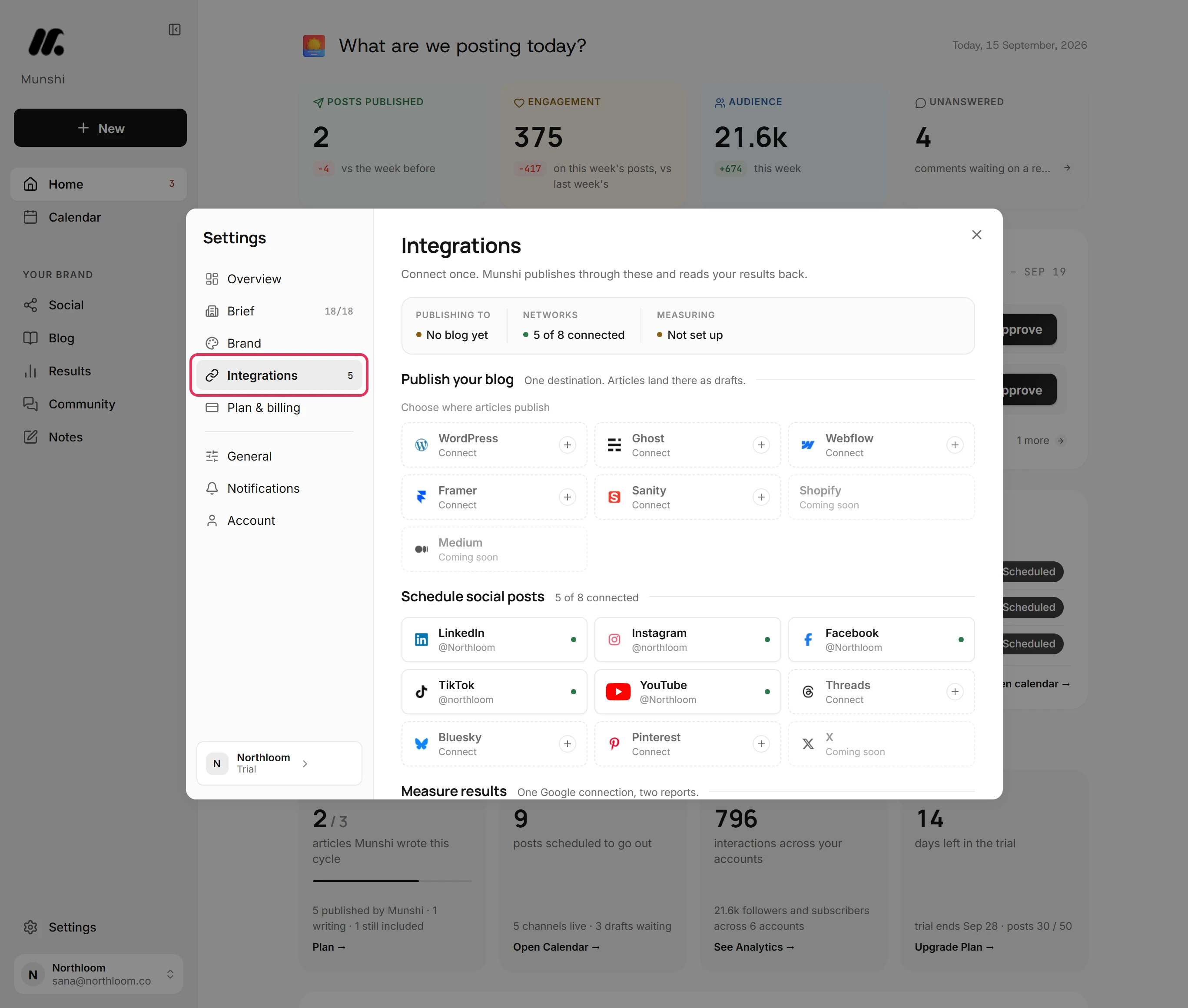
Open Integrations
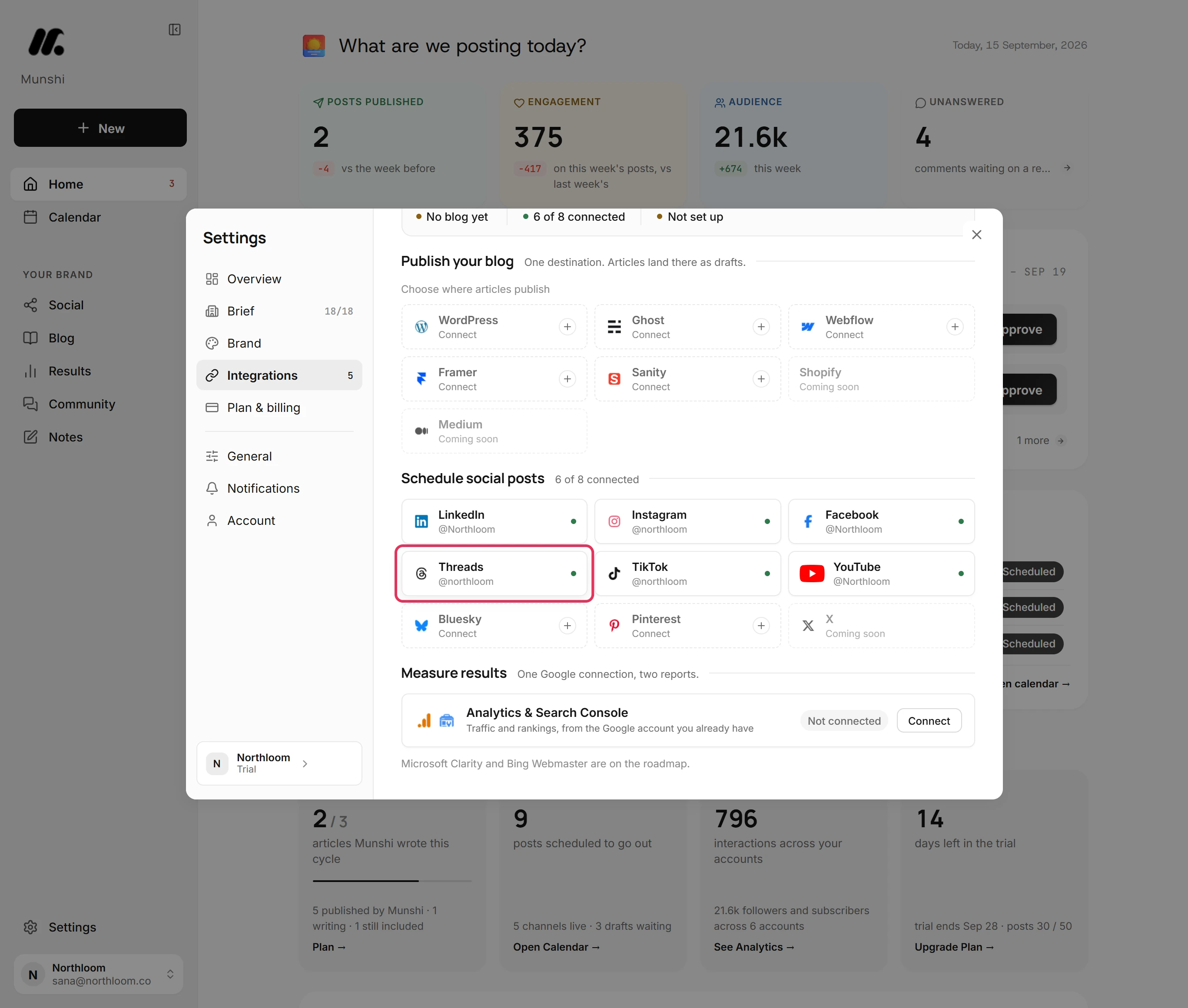
Click Settings at the bottom of the sidebar, then Integrations. Your blog sits under Publish your blog, the networks under Schedule social posts, and Google under Measure results. The Threads tile reads Connect until an account is on it.
-
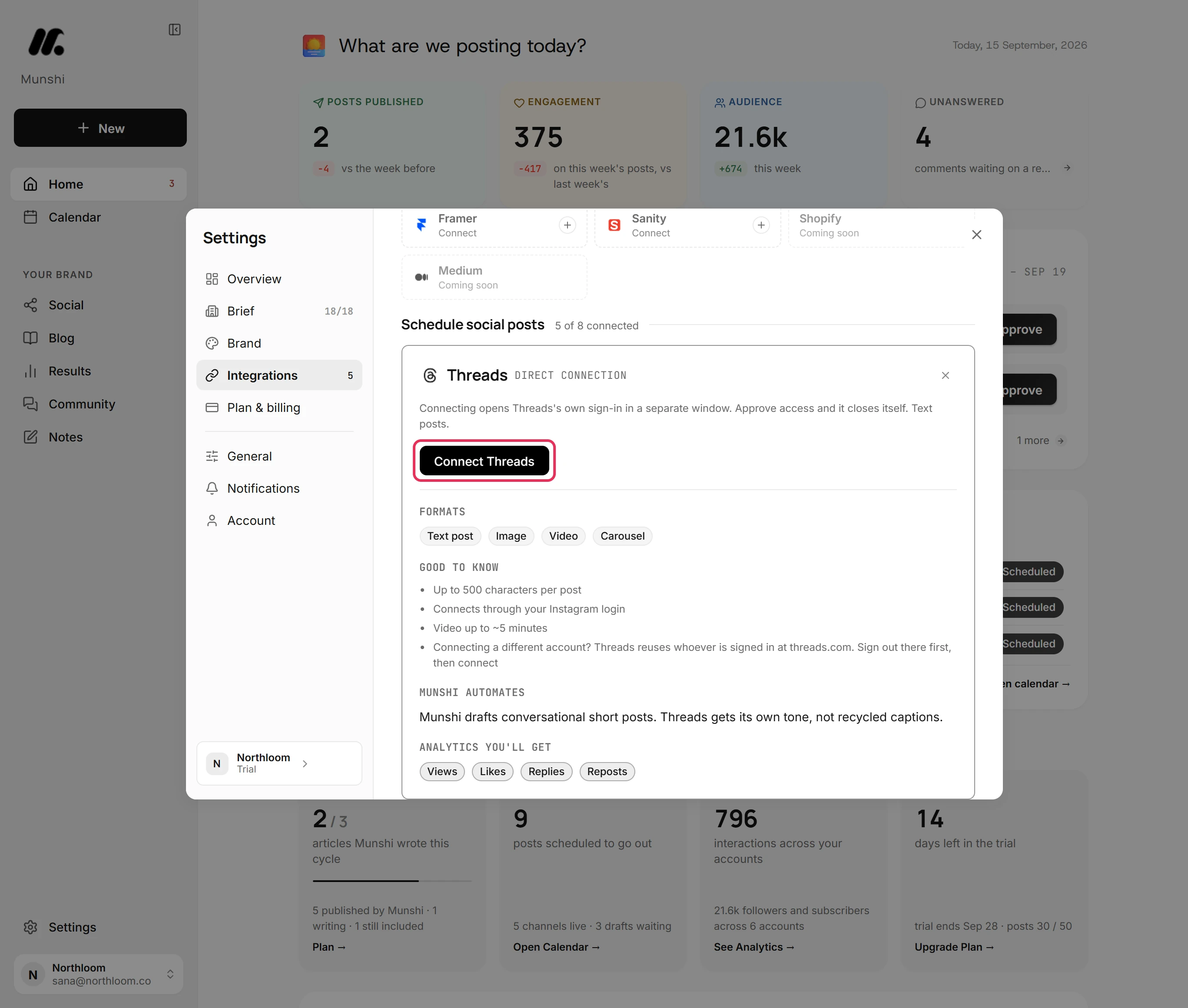
Read the Threads card
Click the Threads tile. The card lists its formats: Text post, Image, Video and Carousel. Under Good to know, it says posts run to 500 characters and video to about five minutes. It also says Threads connects through your Instagram login. Analytics you'll get lists what comes back: views, likes, replies and reposts.
-
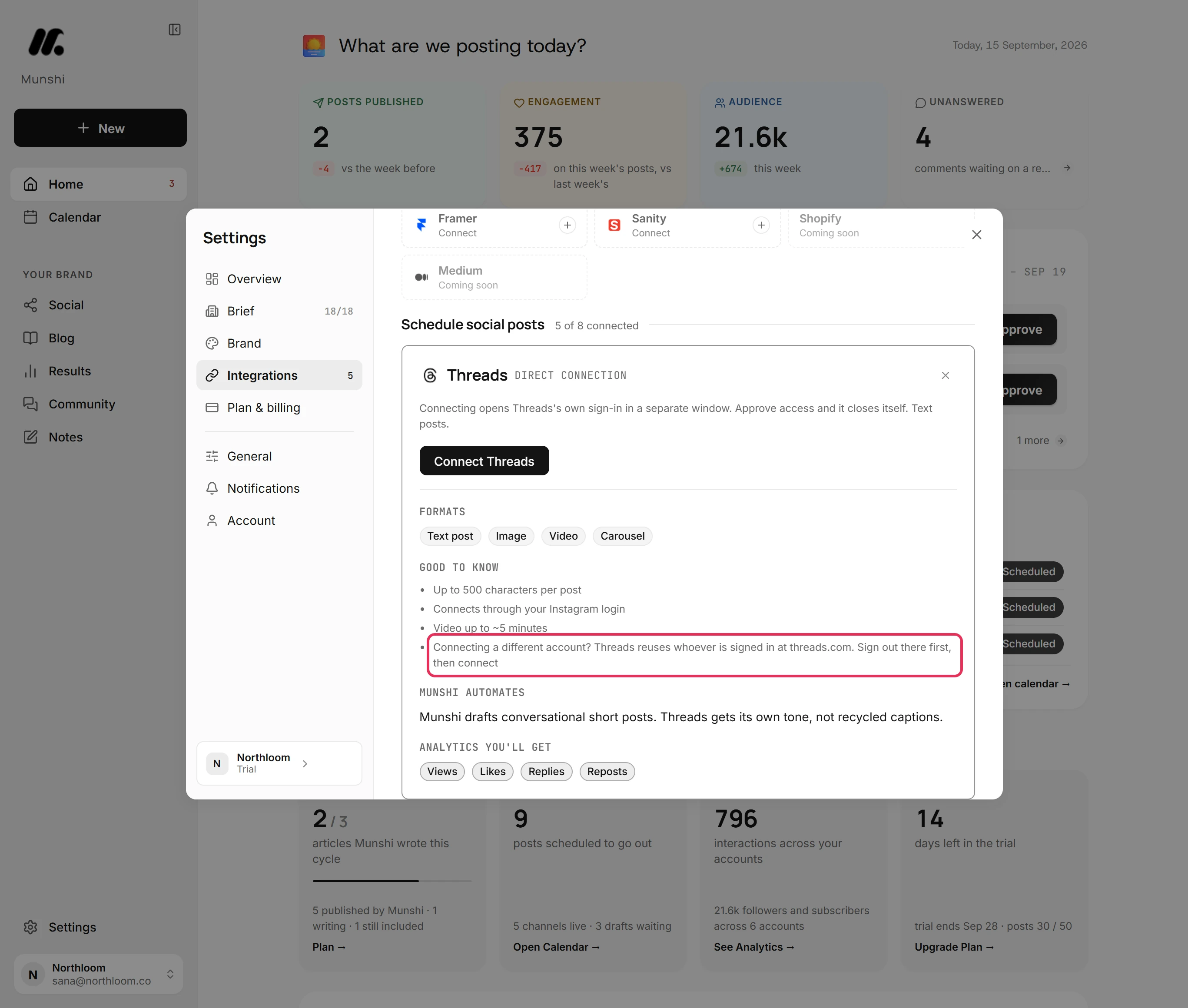
Check which account is signed in at threads.com
The last line of Good to know is the one that matters. Threads reuses whoever is signed in at threads.com, so sign out there first if you want a different account. Doing this now saves a disconnect later, because Threads' window gives you nothing to choose from.
-
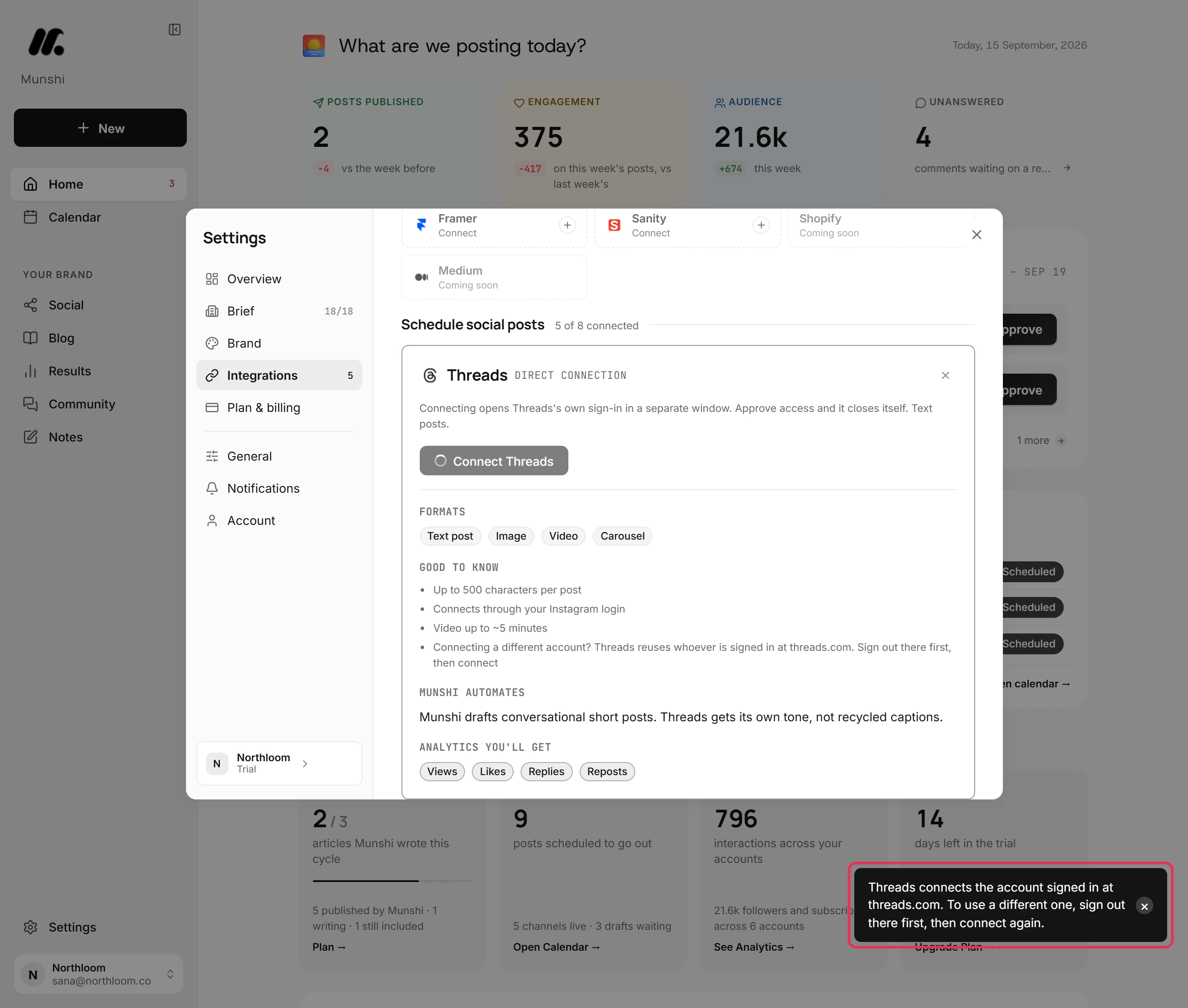
Click Connect Threads
Click Connect Threads. As the window opens, Munshi repeats the reminder in a toast: “Threads connects the account signed in at threads.com. To use a different one, sign out there first, then connect again.” If nothing opens, your browser blocked it, so allow popups for Munshi and click again.
-
Approve access and check the tile
Approve access in Threads' window and it closes itself. Munshi shows Account connected. and the card reads Connected as the handle. The Threads tile shows it with a green dot, and the count beside Schedule social posts goes up by one. Drafts you approve now publish there, and Munshi starts bringing in the account's past posts.
How long can a Threads post be?
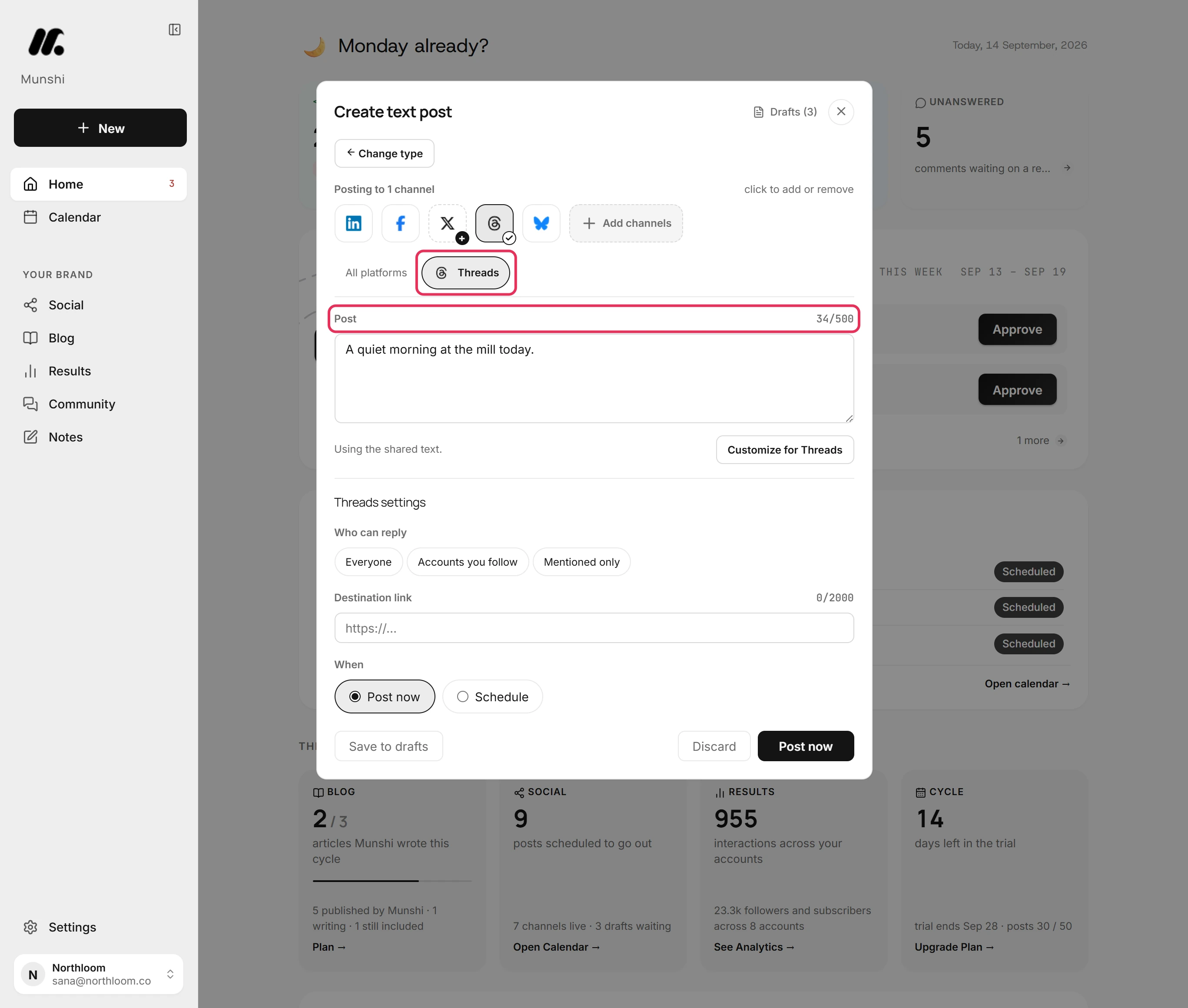
Up to 500 characters. In the Threads tab, the count beside Post shows how much of the 500 the post uses. A longer post marks the tab and cannot be sent until it fits, so a Threads version never arrives cut off.
Threads and Pinterest share the second shortest limit Munshi publishes to. That is above Bluesky's 300 and well under LinkedIn's 3,000. When one idea goes to several networks, let Optimize per platform write each version rather than send one caption everywhere.
Choose who can reply to each post
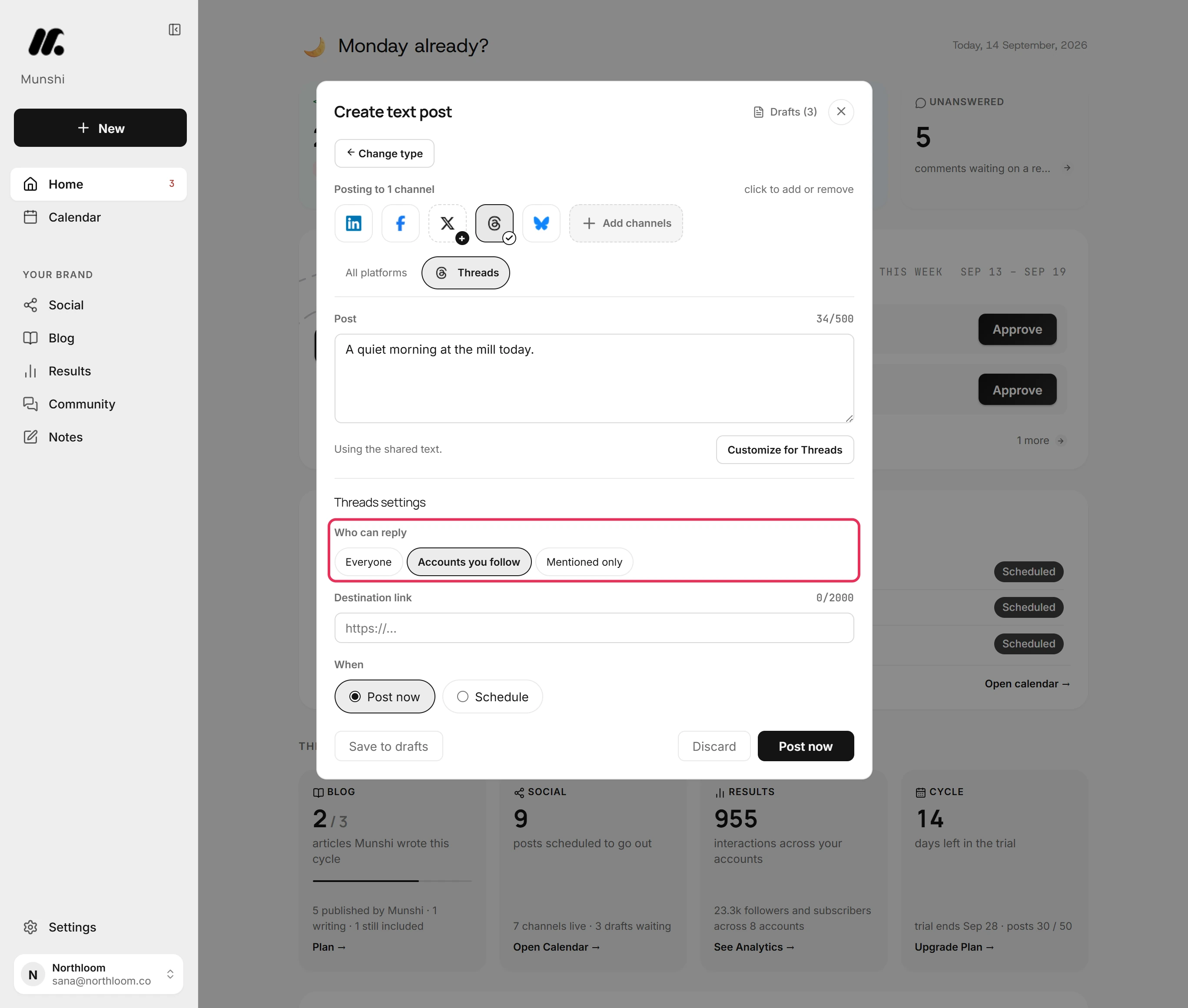
Under Threads settings, Who can reply offers Everyone, Accounts you follow and Mentioned only. Click the picked choice again to clear it. With none picked, Munshi sends no reply setting and Threads applies its own default.
The setting lives in the Threads tab, not in All platforms. It shows only while Threads is picked for the post. Destination link sits below it and takes up to 2,000 characters.
Give Threads its own shorter text
A post written for LinkedIn will not fit Threads. Customize for Threads in the Threads tab lets you write a shorter version, while the other networks keep the long one. Until you do, the tab reads Using the shared text.
Optimize per platform does this for every network at once. It writes each version inside that network's limit, from the text you typed once.
Can I reply to Threads comments from Munshi?
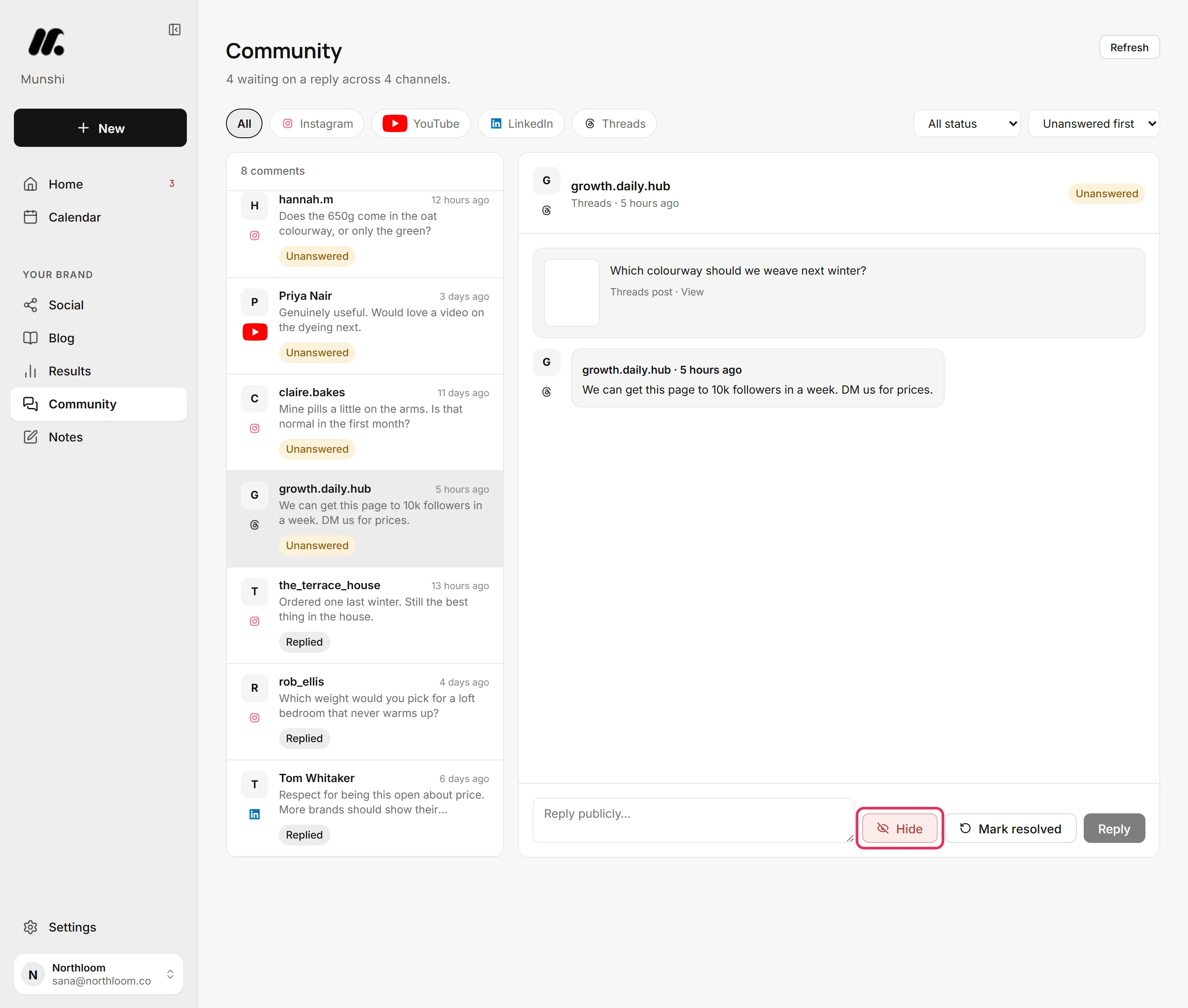
Yes. Threads is one of the networks you can answer from Munshi. Replies to your recent posts arrive in Community, and picking Threads above the list shows only its comments. Type in Reply publicly… and click Reply. The reply goes live on Threads and the comment is filed as Replied.
Threads is also one of the two networks where you can take a comment down from Munshi. The red button beside Mark resolved reads Hide, not Delete, because Threads lets you hide someone else's reply but not remove it. The reply leaves the inbox at once, with no confirmation.
Where do Threads results show up?
Results come back on their own. A post that has gone out appears under Posted on the Social page straight away, marked just now. Until Threads confirms it, a line above the list says a post has not been confirmed yet. Views, likes, replies and reposts fill in from Munshi's first read, with the post's engagement rate.
How many Threads posts can Munshi send a day?
Up to 50 a day on Threads, and 25 an hour to any one account. Networks read a burst of posts as spam, so Munshi limits how fast one account posts. Both limits run on the UTC clock, and a post that fails does not count.
A post that hits the limit is not sent. It waits under Drafts on the Social page, marked as failed, with the reason and Retry now on its card. This limit is separate from your plan's monthly allowance of posts.
Munshi and Threads, answered
Does Munshi work with Threads?
Yes. A Threads post in the tone Threads rewards. It is shorter than LinkedIn, warmer than X, and written to open a conversation.
Can Munshi schedule Threads posts?
Yes. Pick Schedule under When and set the date and time. The approved post goes out then, whether or not you are online. Post now sends it straight away instead.
How long can a Threads post be in Munshi?
Up to 500 characters, which is Threads' own limit. The Threads tab counts as you type, and the post cannot be sent until it fits.
Why did Threads connect the wrong account?
Threads connects whichever account is signed in at threads.com, and its window offers no way to switch. Sign out at threads.com and sign in as the account you want. Then disconnect and connect again in Munshi.
Does Threads connect through Instagram?
Yes. The Threads card says Threads connects through your Instagram login. Threads still has its own tile in Integrations and counts as its own account, separate from an Instagram connection.
Can I reply to Threads comments from Munshi?
Yes. Replies to your recent Threads posts come into Community. There you can reply publicly, mark a comment resolved, or hide someone else's reply. A workspace can send 20 replies an hour.
Why does the button say Hide and not Delete?
Threads lets you hide someone else's reply, not delete it, so Munshi shows what Threads actually does. On Instagram the same button reads Delete and removes the comment.
Can I connect two Threads accounts?
No, not in one workspace. A workspace holds one account per network. The Studio plan covers three brands, each with its own connected accounts and calendar, so a second Threads account belongs to a second brand.
When Threads says no
These are the messages people see most often, and what each one means.
Threads connected the wrong account
Threads connects whichever account is signed in at threads.com. The workspace owner clicks Disconnect on the Threads card in Integrations. Then sign out at threads.com, sign in as the account you want, and connect again.
“Threads isn't connected yet.”
The workspace has no Threads account. Click Connect Threads in the Threads tab of the composer. The post you are writing stays where it is while you connect.
The post is over 500 characters
The post cannot be sent until it fits, and the Threads tab says how far over it is. Shorten it, or use Customize for Threads to give Threads its own shorter text. The other networks keep the long one.
I cannot find Who can reply
It is in the Threads tab under Threads settings, not in All platforms. It shows only while Threads is picked for the post.
“That account is already connected to another workspace.”
A Threads account belongs to one Munshi workspace at a time, including your own other workspaces. Disconnect it in the workspace that holds it, then connect it here.
“Your browser blocked the popup. Allow popups for Munshi and try again.”
Threads' window could not open. Allow popups for Munshi in your browser, then click Connect Threads again. On a phone the window opens as a new tab, so finish there and come back.
Threads, step by step
Each guide walks through one task in the real app, with a screenshot at every step.
- How to connect Threads 2 min · 6 steps
- How to post to Threads from Munshi 2 min · 7 steps
- Caption and media limits, network by network 3 min read
- How to give one network its own caption or media 3 min · 9 steps
- Which networks bring comments in, and which do not 2 min read
- How to reply to comments from Munshi 3 min · 8 steps
- How to reconnect a network that signed you out 2 min · 7 steps
- The connect window did not finish 2 min read
- “You have sent” too many posts to this account 2 min read
Other networks: Instagram · TikTok · X (coming soon) · LinkedIn · Facebook · Pinterest · YouTube · Bluesky · all integrations