How to post to Threads from Munshi
Pick Threads, write a post of up to 500 characters, choose who can reply, and post it. It takes about two minutes.
Before you start
- Threads connected to the workspace. The Threads page says how to connect it.
-
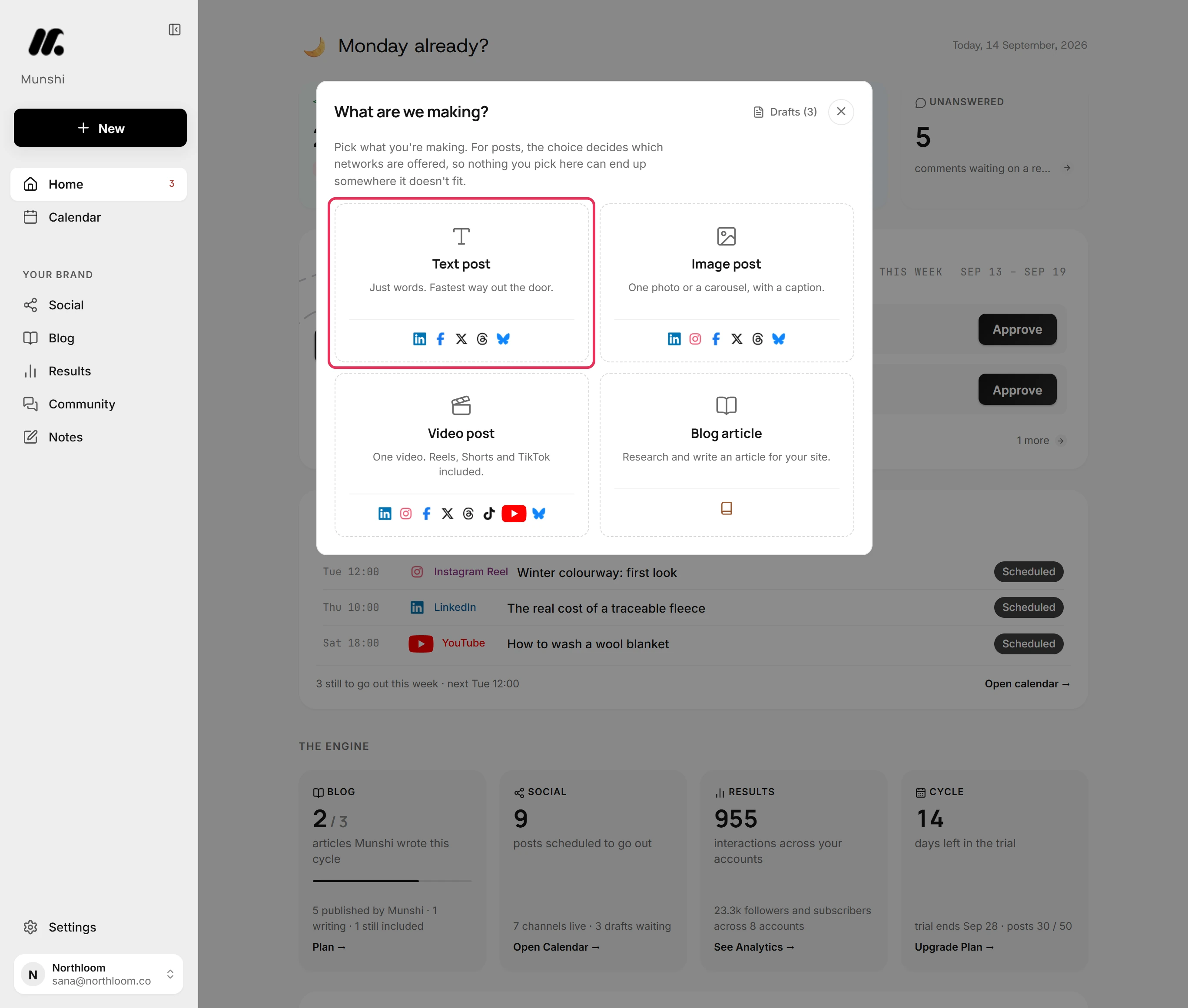
Click New at the top of the sidebar, then pick Text post. Threads takes a post of words alone. To add media, pick Image post or Video post.
-
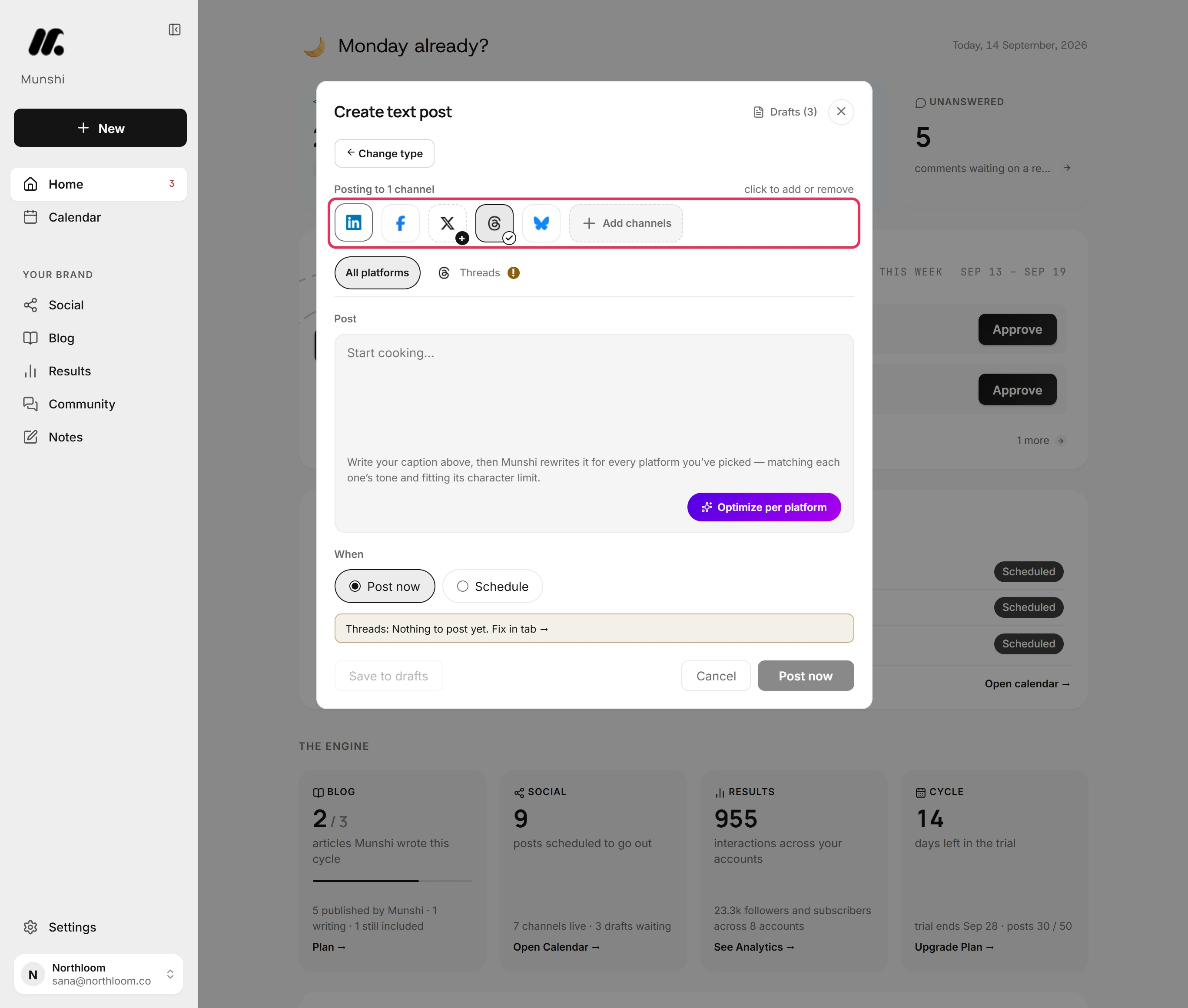
Click Threads to add it. A new post starts with one network already picked. If the post is only for Threads, click that one to take it off.
-
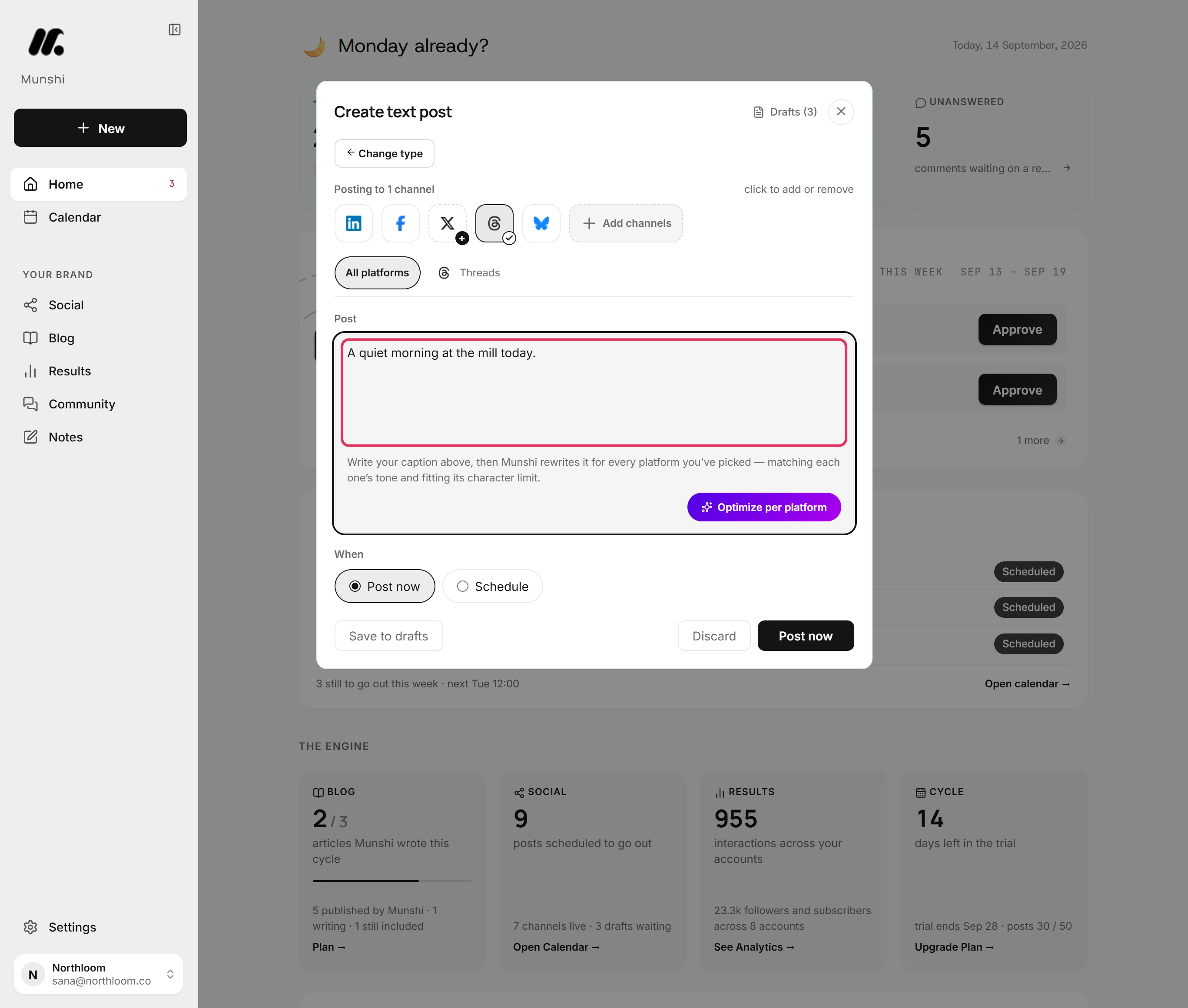
Type the post in the Post box. Threads takes up to 500 characters.
-
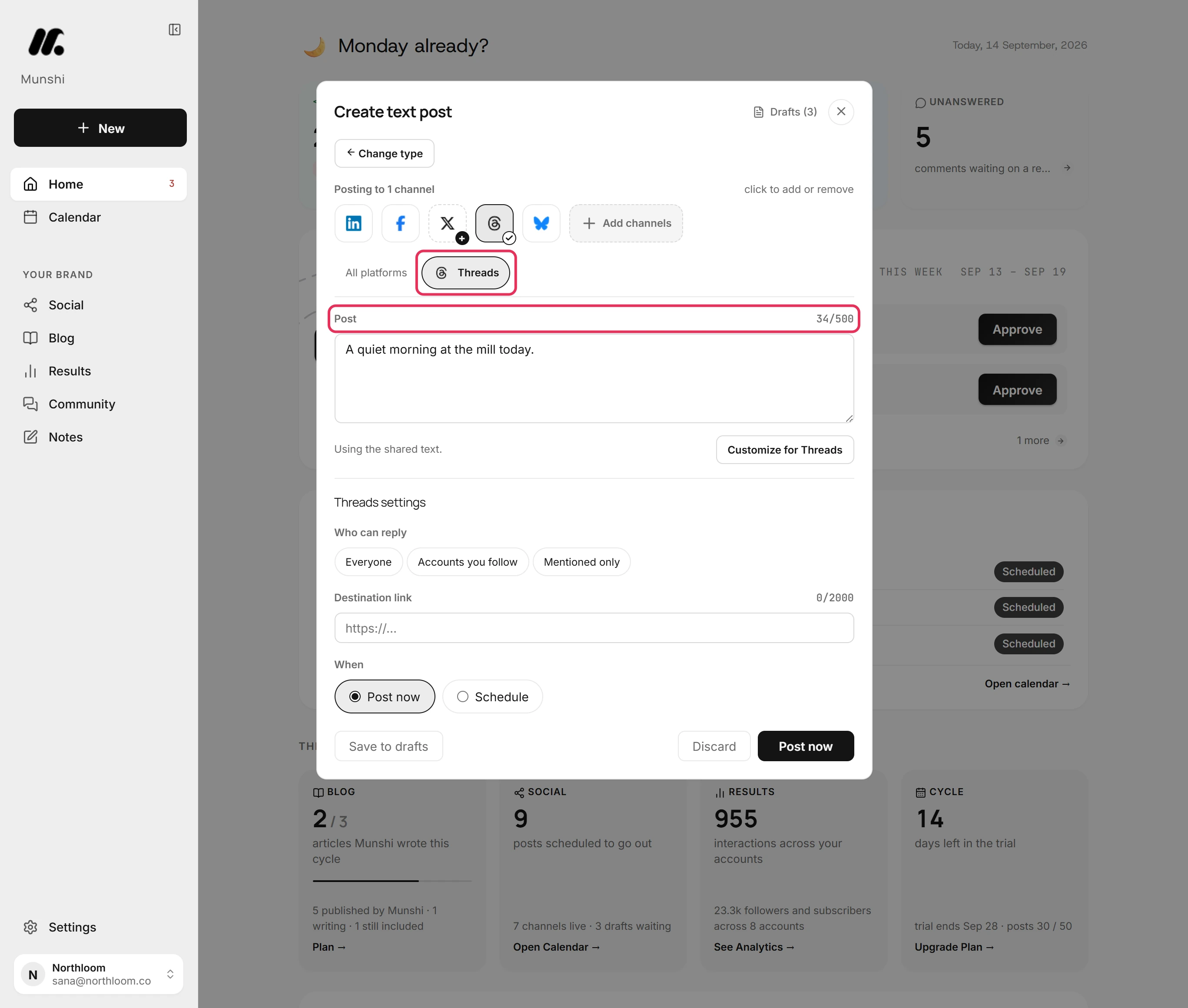
Open the Threads tab. The count beside Post shows how many of the 500 characters you have used. A longer post is marked on the tab and cannot be sent until it fits.
-
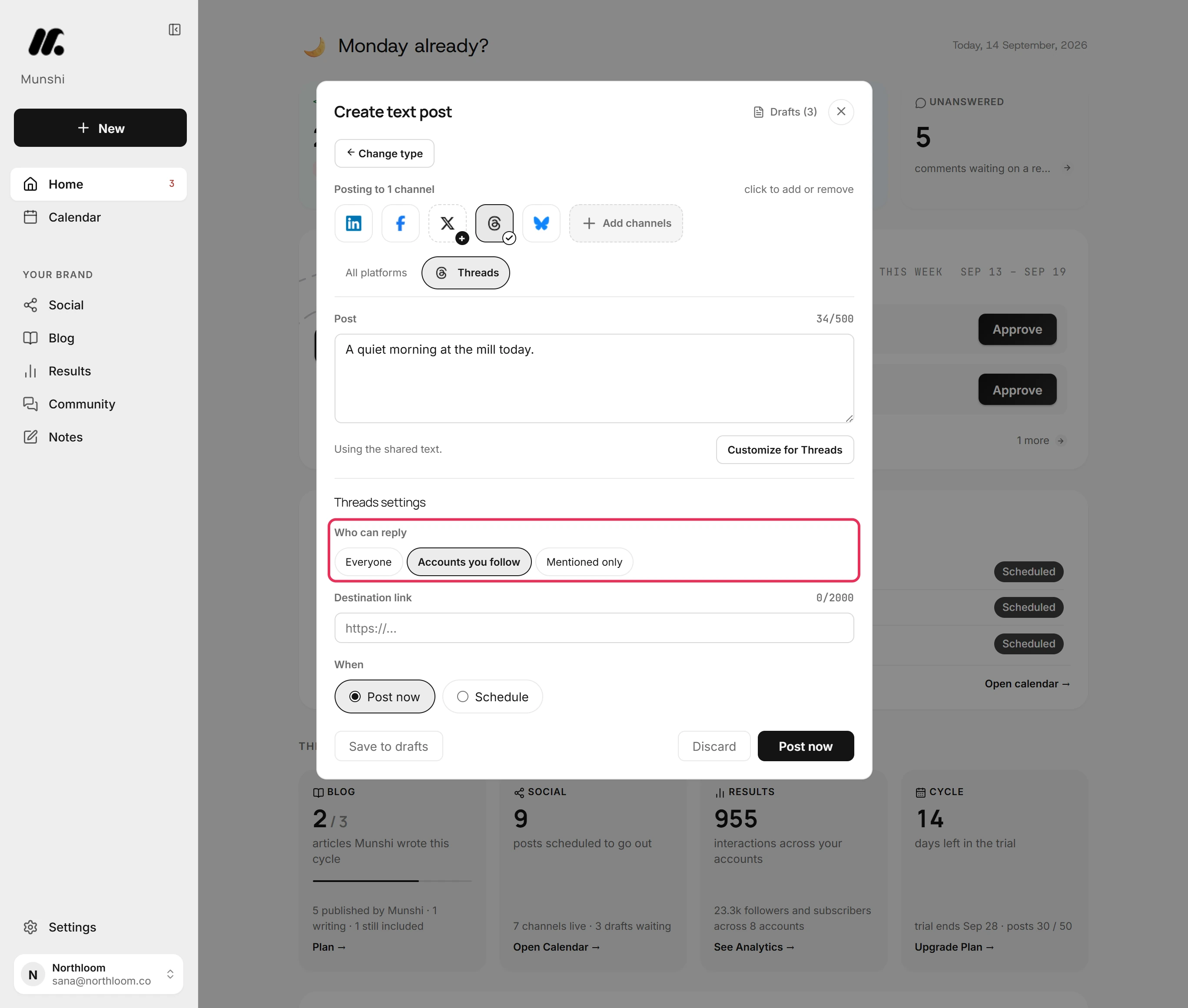
Under Threads settings, Who can reply offers Everyone, Accounts you follow and Mentioned only. If you pick none, Threads uses its own default.
-
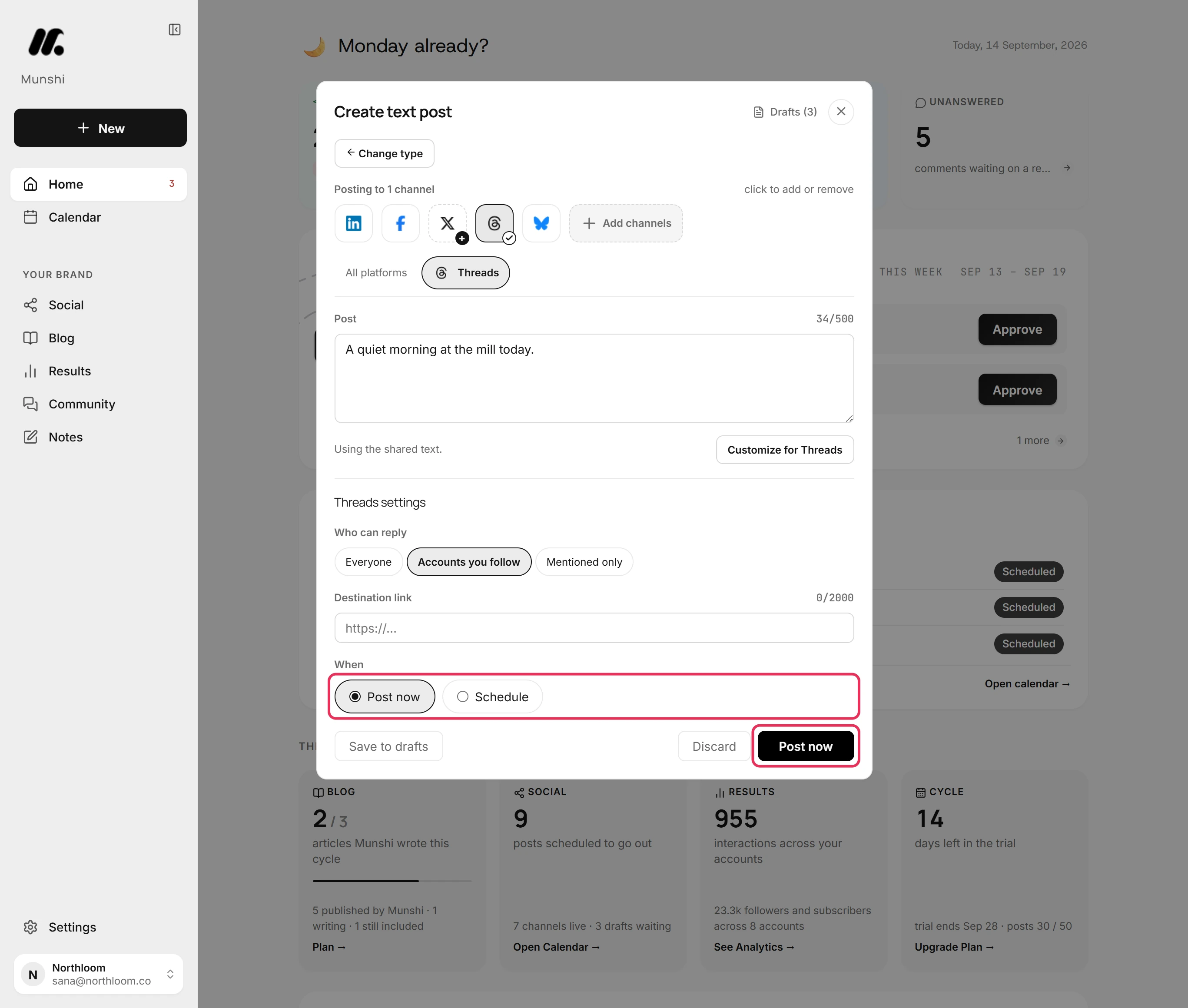
Under When, Post now is already picked. Click Post now and the post goes to Threads at once. To set a time instead, pick Schedule.
-
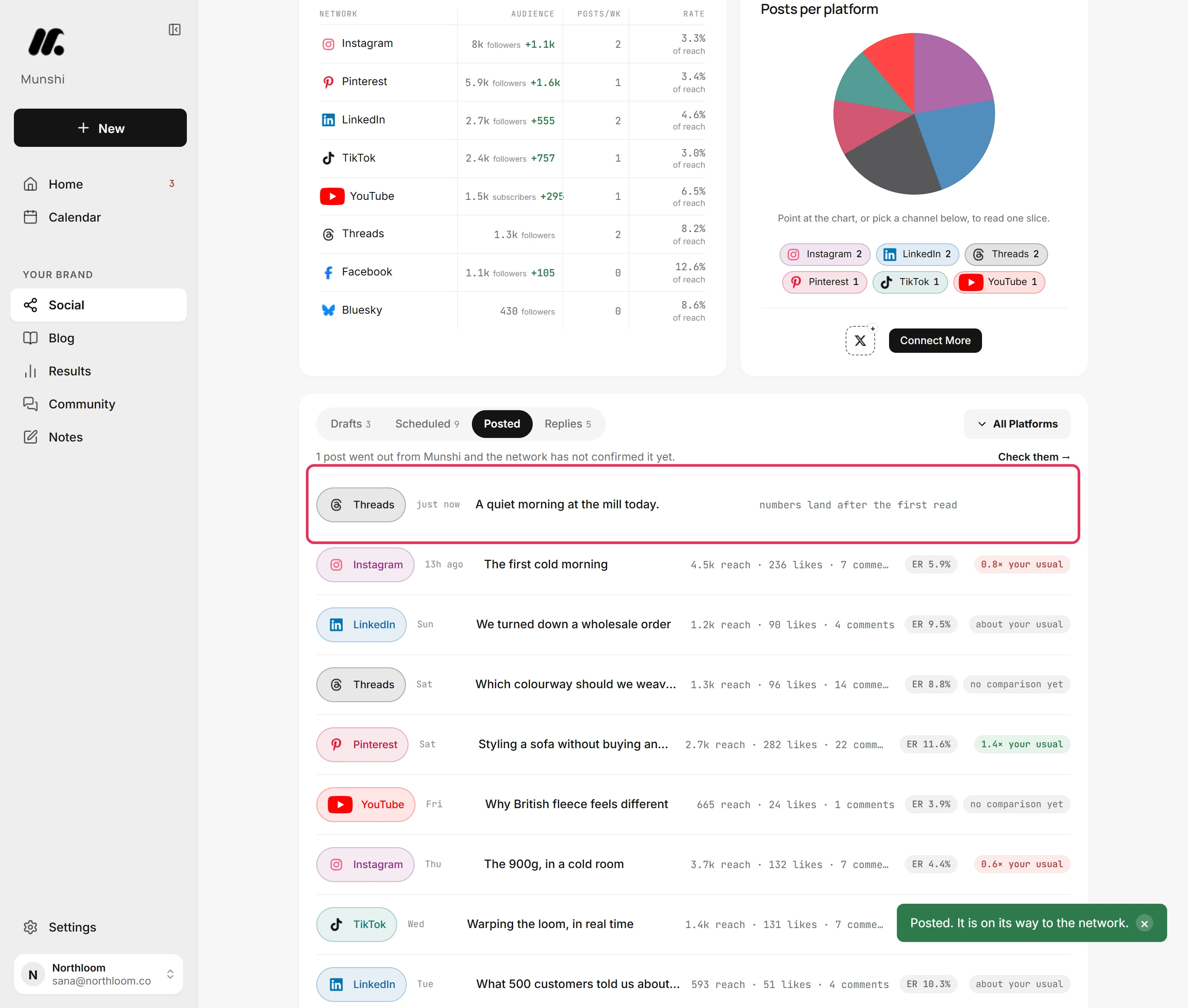
Munshi takes you to Social. Open Posted to see the post at the top. Its reach and likes fill in after Munshi first reads them from Threads.
Where you are now
The post is on its way to Threads with the reply setting you picked. It is listed under Posted straight away, and its numbers fill in once Threads reports them.
If something goes wrong
“Threads isn’t connected yet.”
Click Connect Threads in the Threads tab. The workspace has no Threads account yet. Your post stays in the composer while you connect.
I can't find Who can reply
Look in the Threads tab, not in All platforms. It shows only while Threads is picked for the post.
The post is over 500 characters
Shorten it until it fits. The Threads tab says how many characters over the limit it is. You can also give Threads its own shorter text, so the other networks keep the long one.
“Threads connects the account signed in at threads.com.”
Sign out at threads.com first, then connect Threads again. Threads connects whichever account is signed in there, and its window offers no way to switch.
Try it on your own brand this week.
Munshi Social, the AI content marketing engine for small teams, plans, writes, publishes, and tracks your blog and socials. The guide above shows the real app, not a mock-up.
Start your workspace