How to add a post or a reminder to a day
Click a day on the Munshi calendar and use + Add entry to add a reminder or hold a slot for a post. Compose a post schedules the real post there.
-
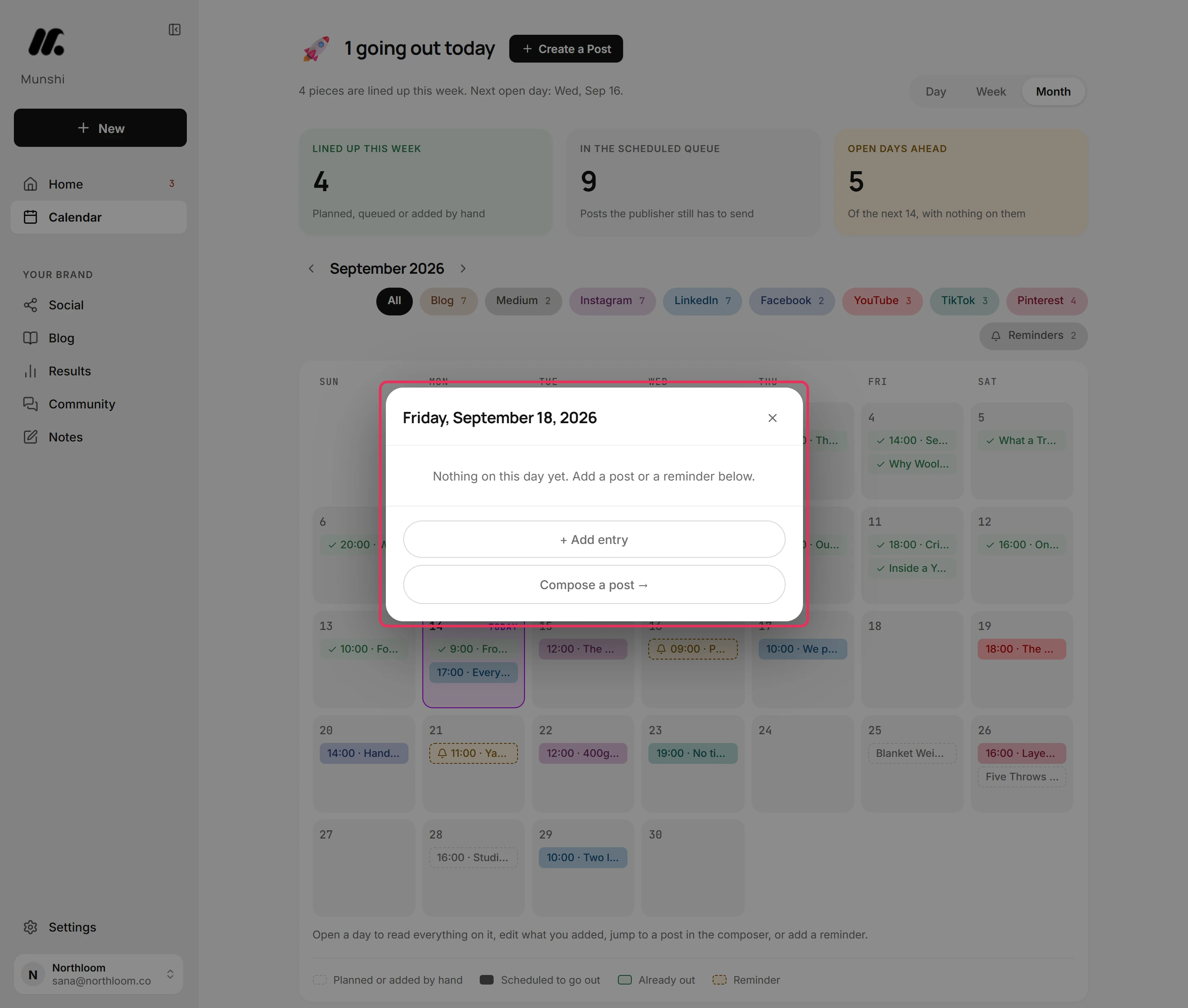
On the Calendar, click the day you want. Its panel lists everything already on that day. An empty day says “Nothing on this day yet.”
-
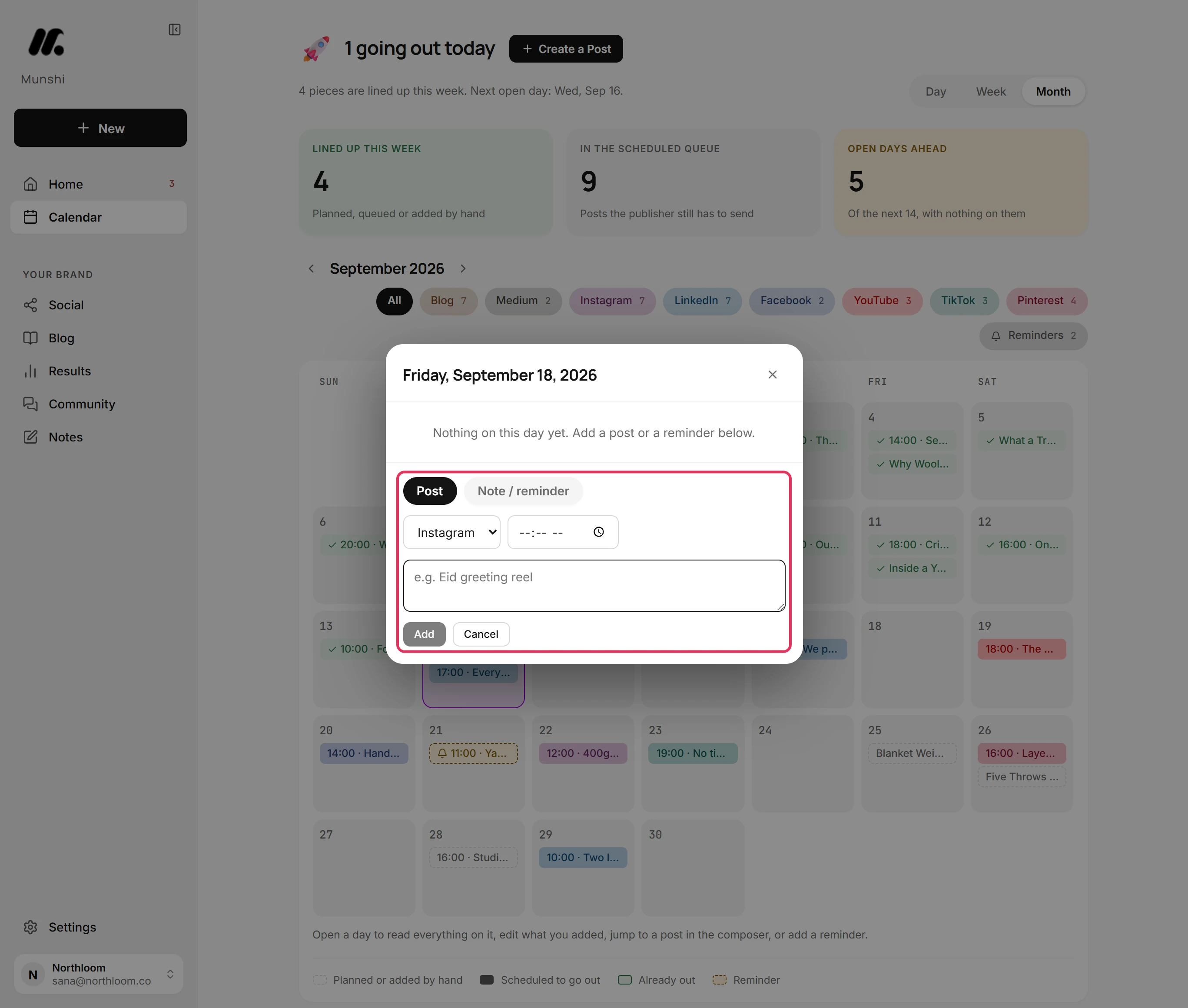
Click + Add entry. A short form opens with two kinds. Post holds a slot for a post you plan to make. Note / reminder is anything else you want to remember on that day.
-
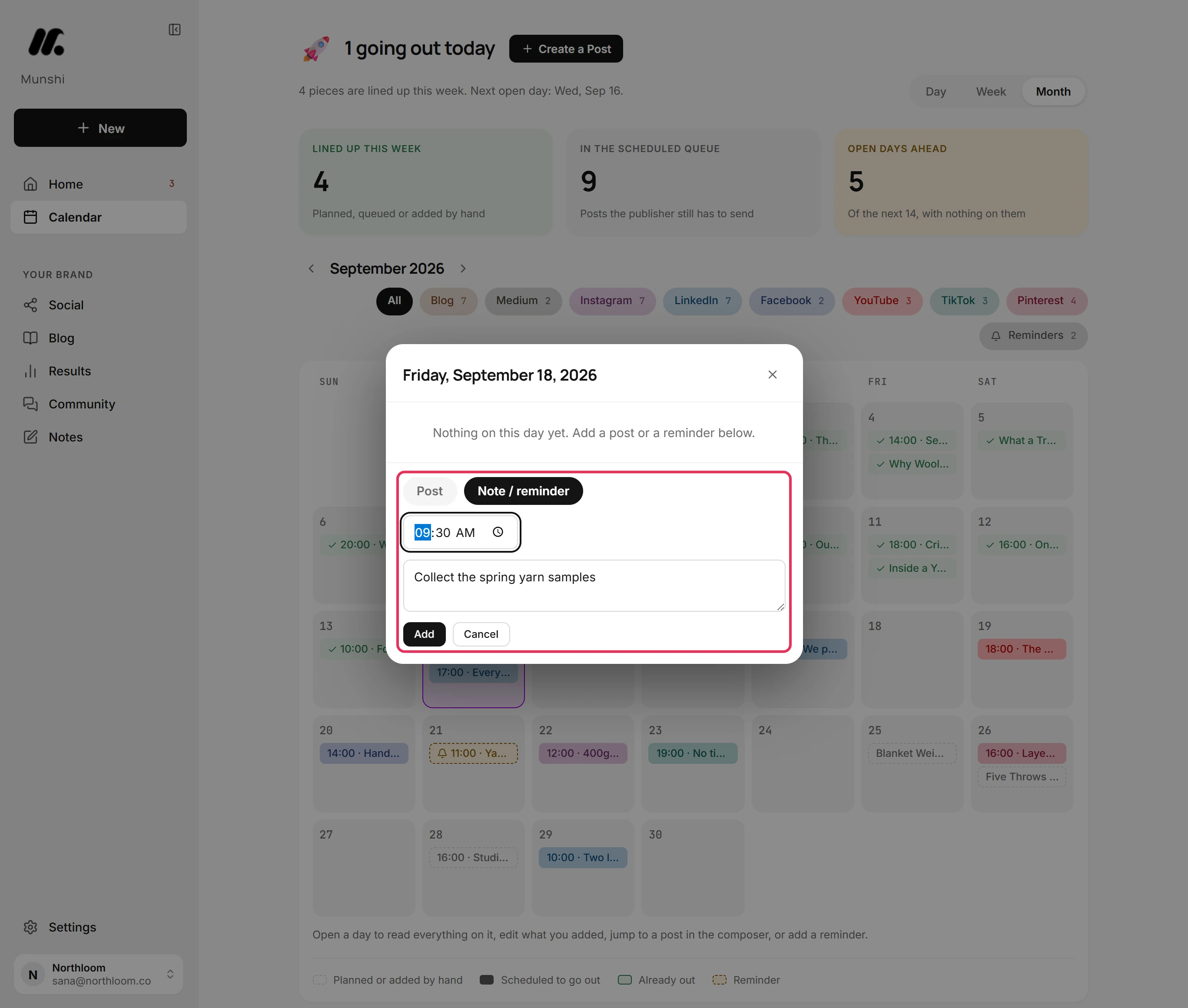
Pick Note / reminder and type what to remember. Set a time if it has one. A reminder without a time sits after the day's timed entries.
-
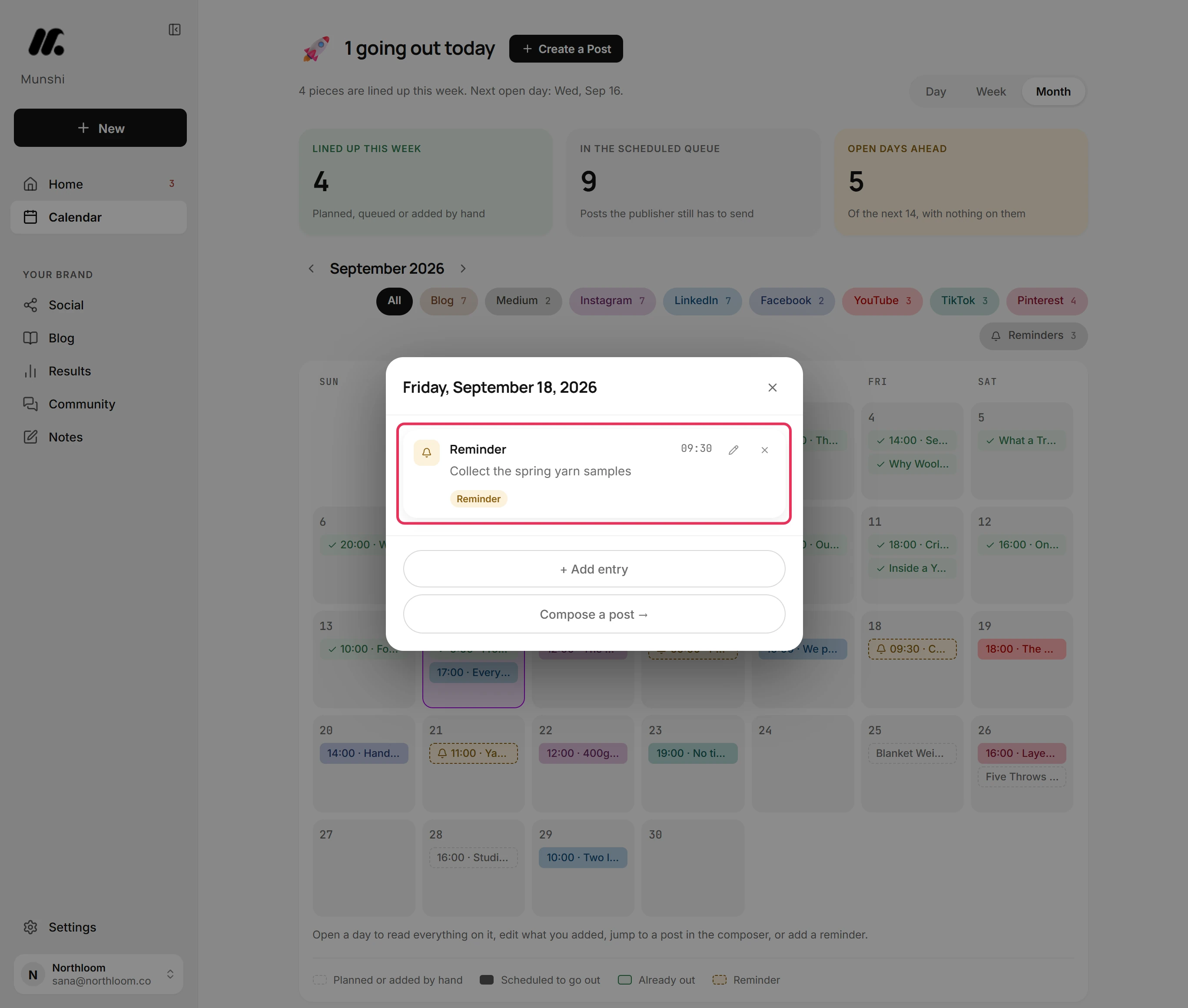
Click Add. The reminder joins the day's list with a Reminder label. The pencil beside it changes it, and the cross removes it.
-
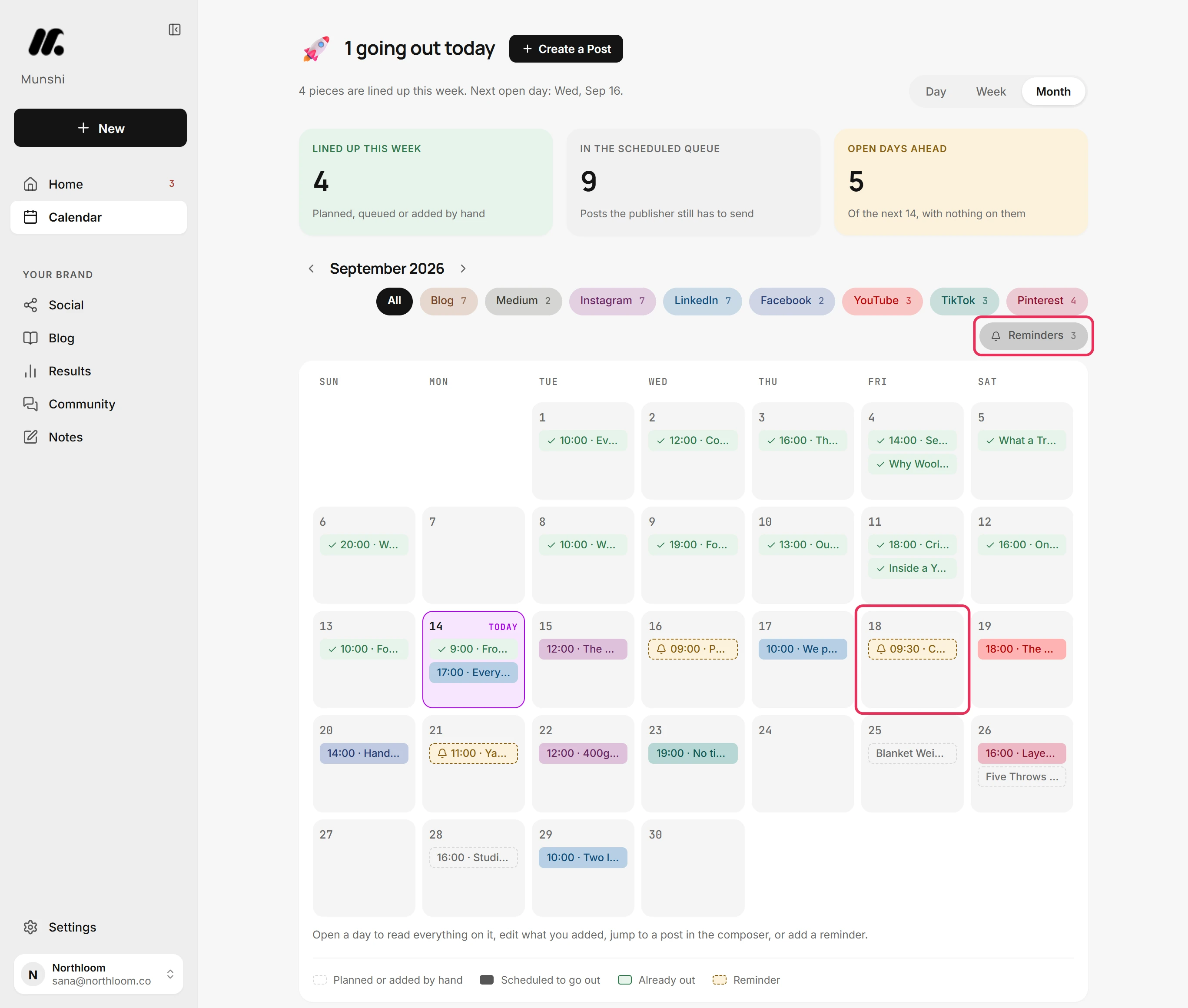
Close the panel. The reminder sits on its day as an amber chip with a bell. The Reminders pill above the grid counts it.
-
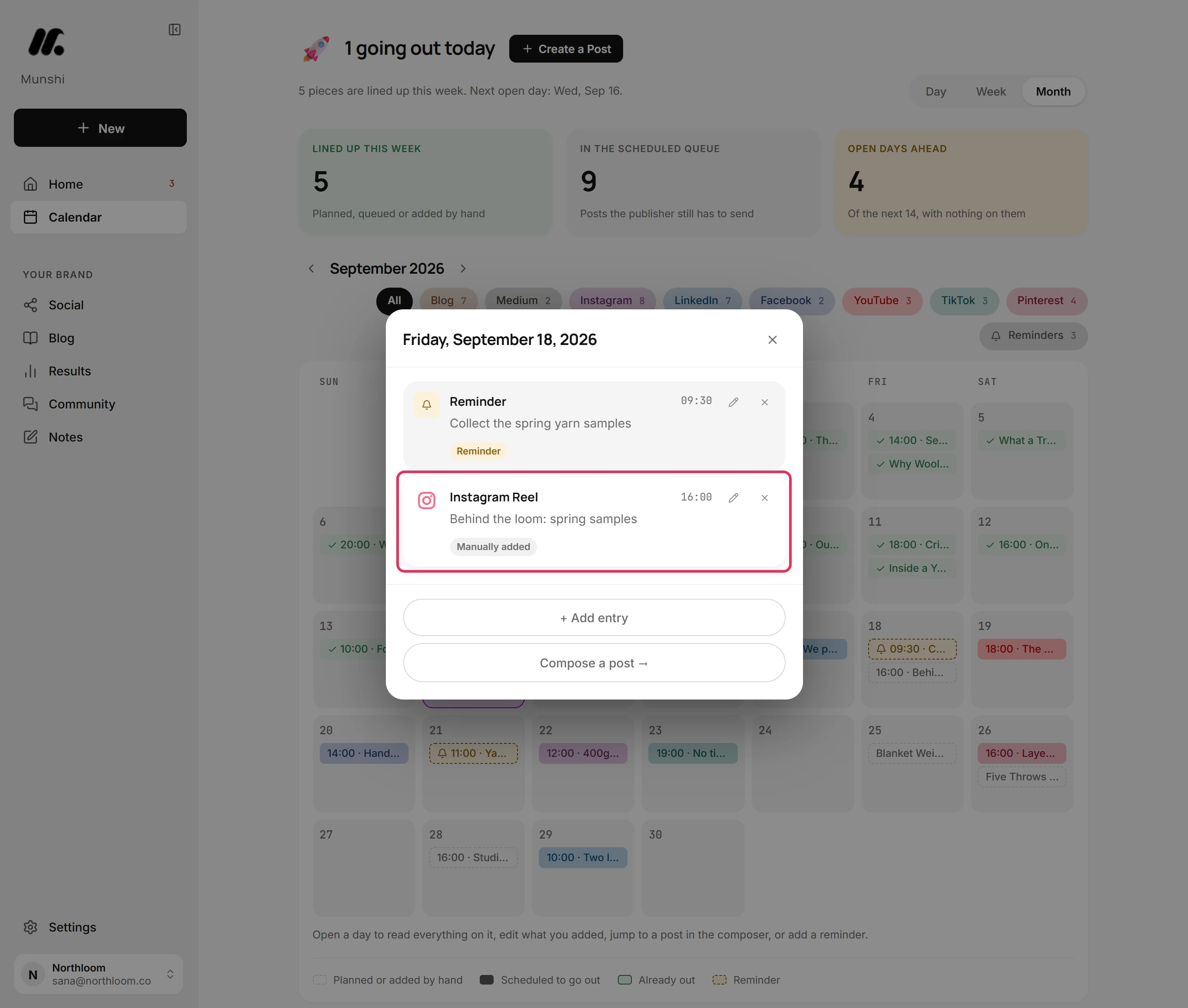
Open the day again, click + Add entry and keep Post. Choose the network, the time and a working title, then click Add. The entry is labelled Manually added and shows as a dashed chip on the grid.
-
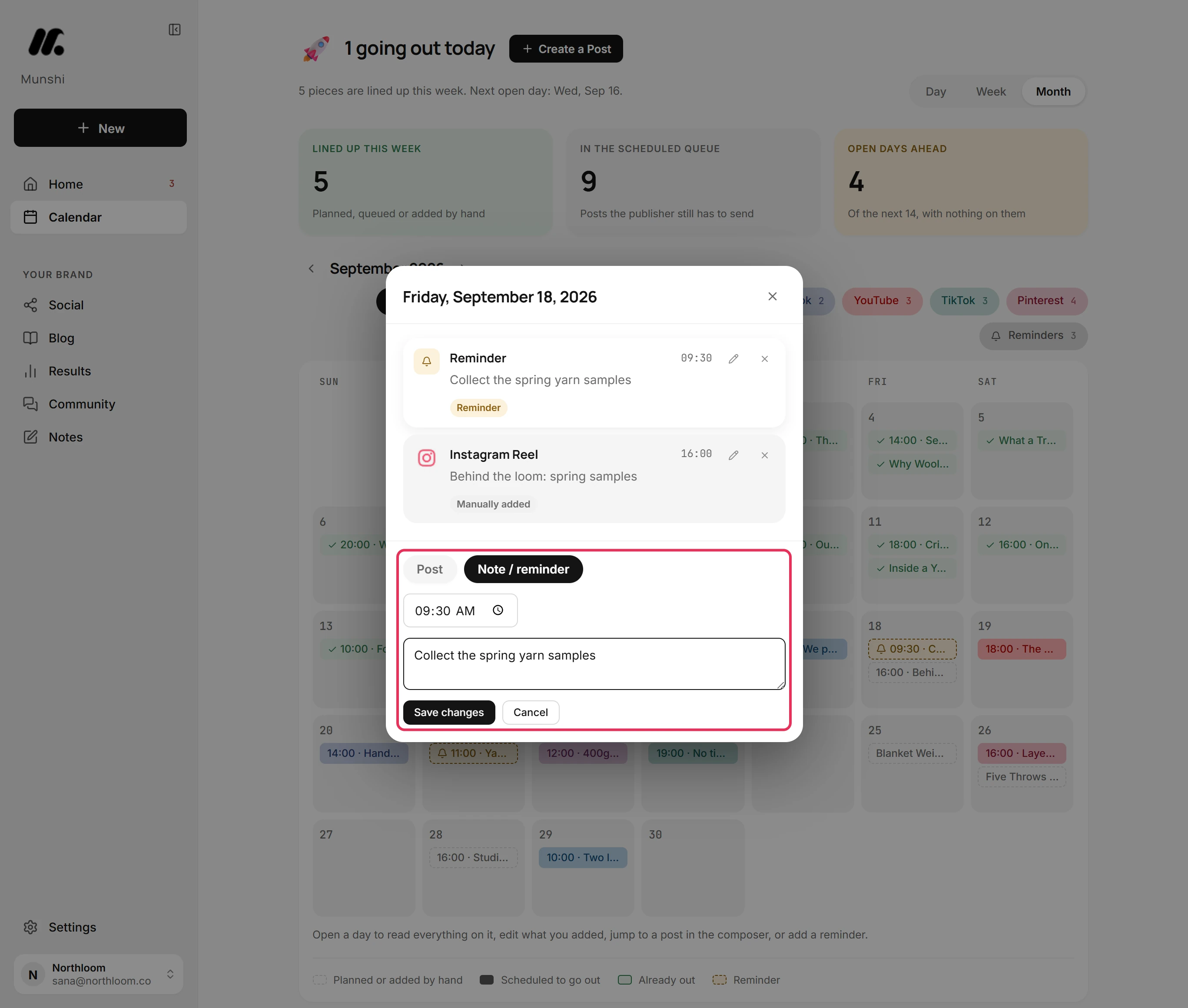
Click the pencil beside an entry you added, change it and click Save changes. The cross removes an entry at once. Scheduled posts have no pencil. Open their day and use Unschedule instead.
-
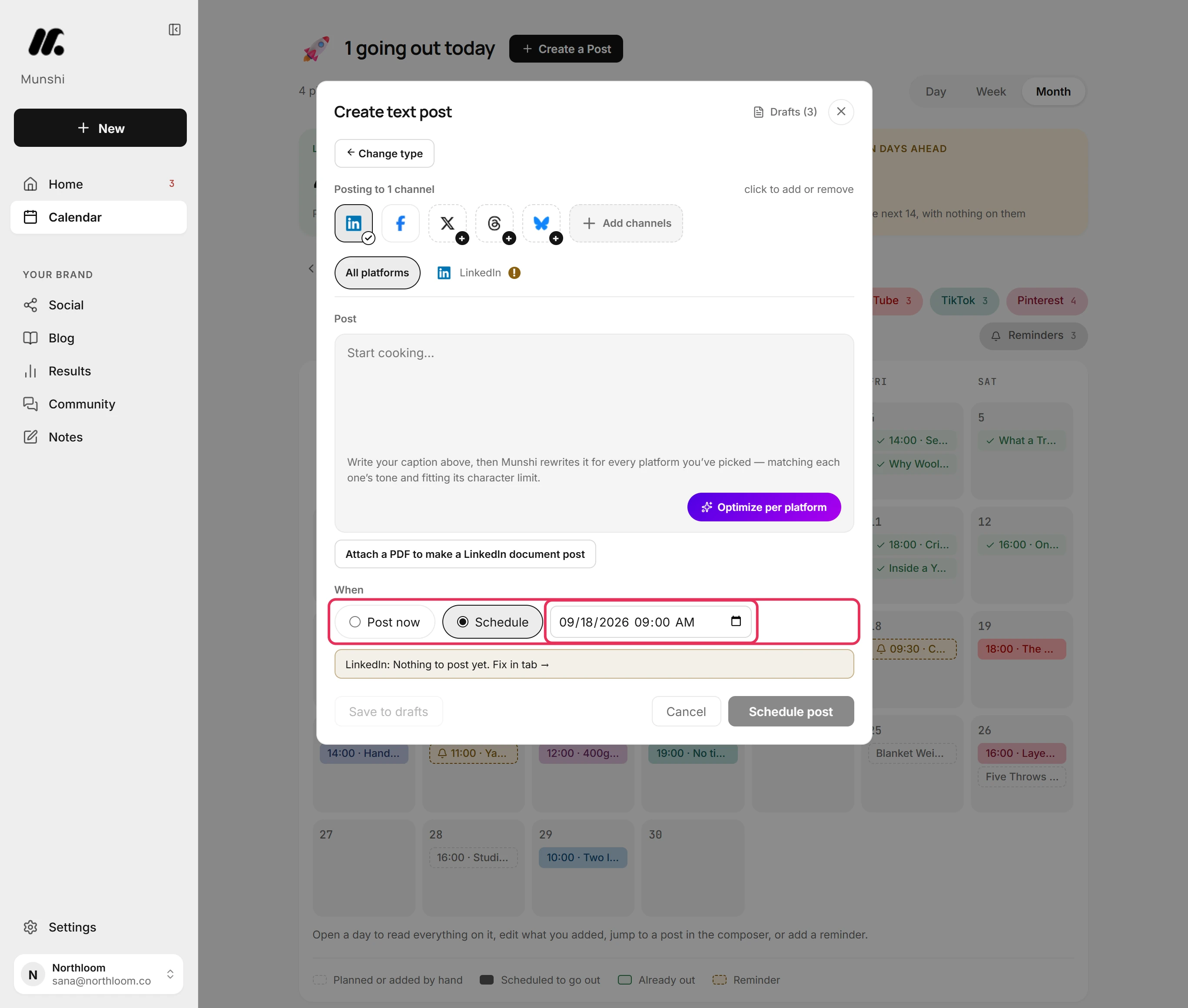
When you are ready to write it, click Compose a post in the day's panel. The composer opens with Schedule already set for that day at 9:00. If the day is today and 9:00 has passed, it is set for ten minutes from now. Pick what you are making, write it, and change the time if you need to.
Where you are now
The day holds your reminder and, if you want one, a slot for the post you plan. When you write that post, Compose a post schedules it for the same day.
If something goes wrong
The Add button stays grey
Type what the reminder or post is about, and Add becomes available. An entry needs some text.
“Posts and reminders you added by hand are missing from the grid”
Click Retry in the bar above the tiles, and they come back. Munshi could not load your own entries just now, and nothing is lost.
Will a post I added by hand go out?
No. An entry labelled Manually added is only a note on the calendar. To publish, use Compose a post from the same day and schedule the real post.
I removed an entry by mistake
Add it again with + Add entry. The cross removes an entry straight away, with no undo.
Try it on your own brand this week.
Munshi Social, the AI content marketing engine for small teams, plans, writes, publishes, and tracks your blog and socials. The guide above shows the real app, not a mock-up.
Start your workspace