How to save a draft and finish it later
Click Save to drafts to keep a half-written post. Open it again from Social when you are ready, then finish and schedule it.
Before you start
- At least one social network connected. The integrations pages say how to connect each one.
-
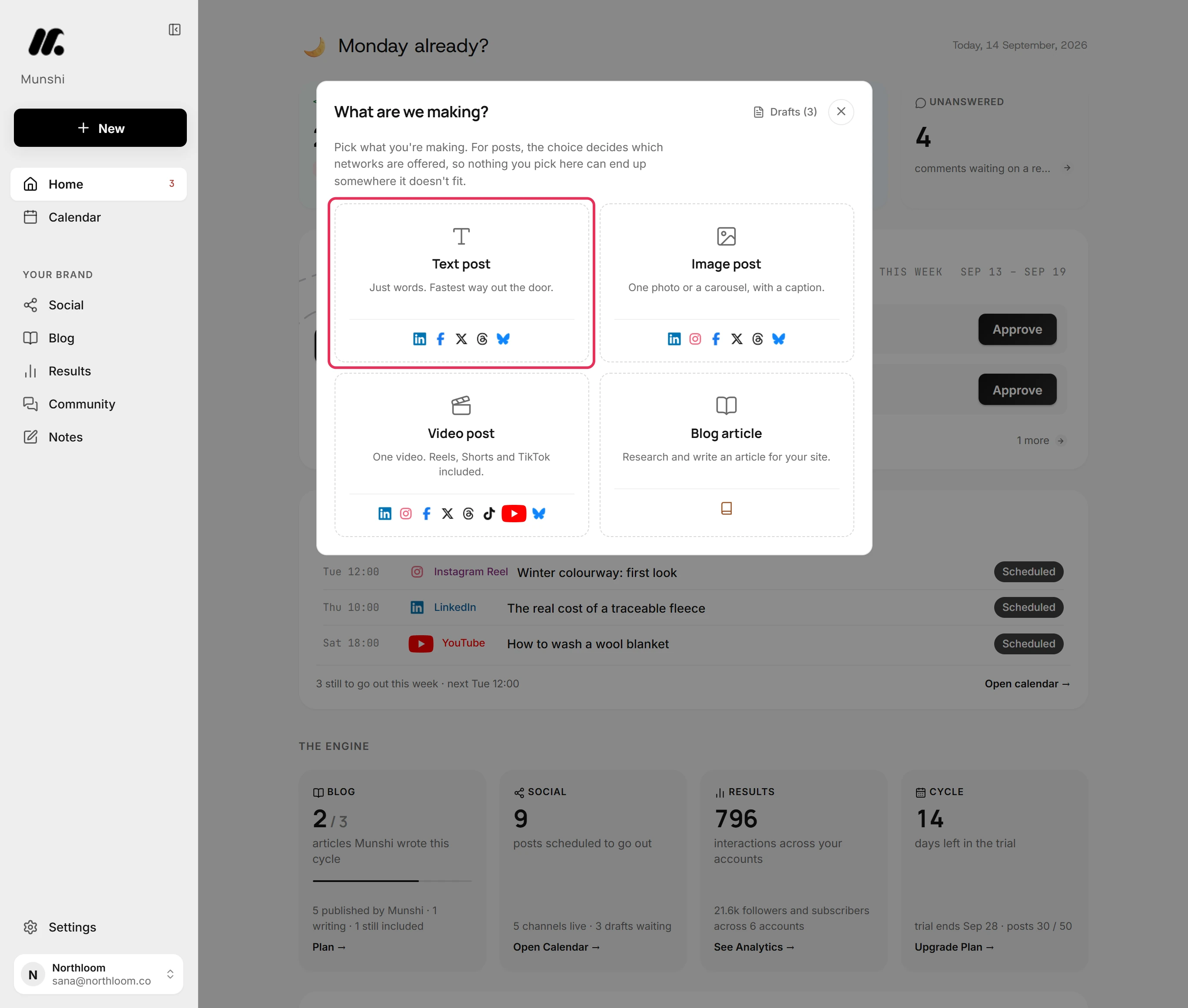
Click New at the top of the sidebar and pick the kind of post. This guide uses Text post. You can save every kind as a draft.
-
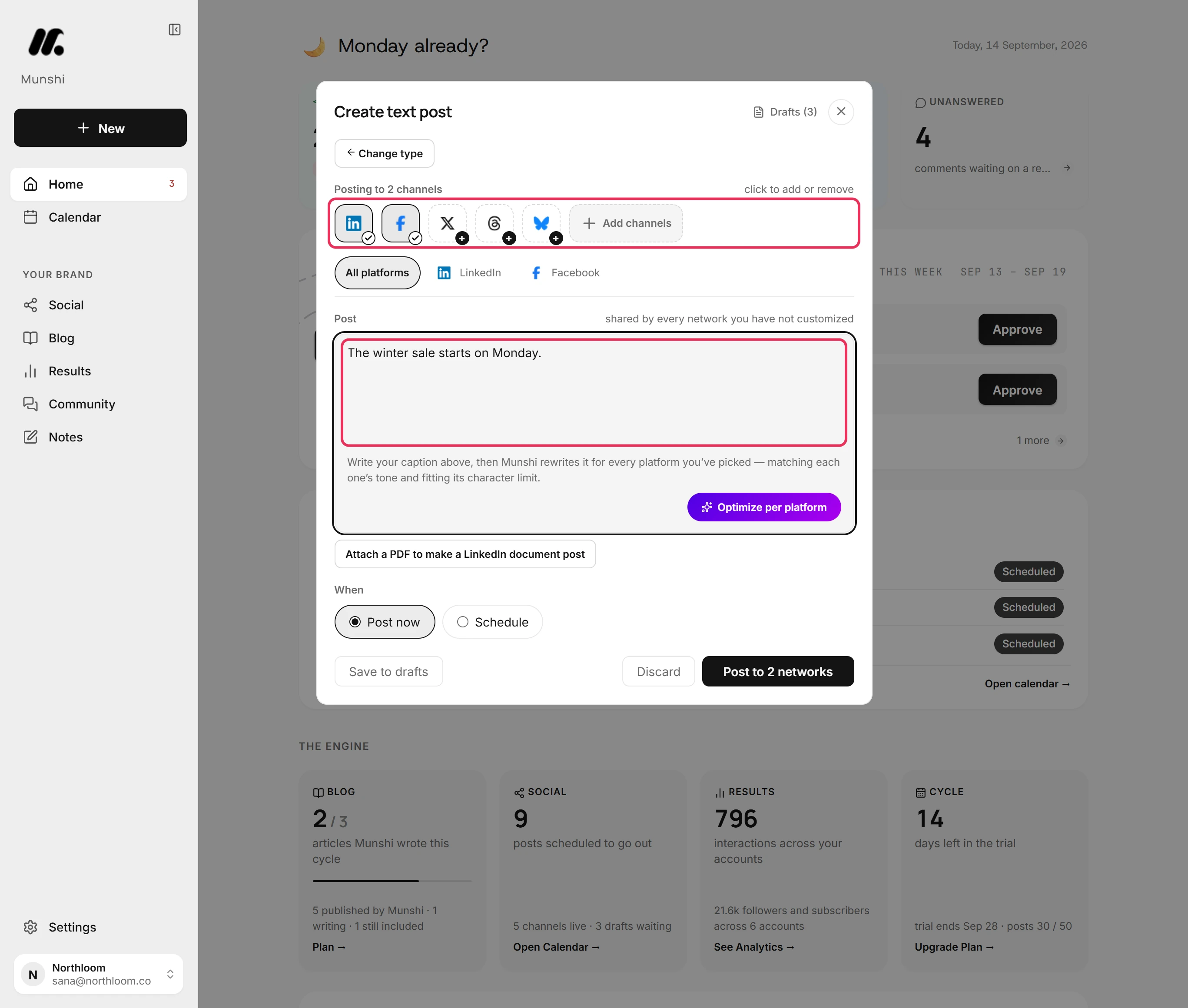
Pick the networks and write as much as you have. A draft only needs some text. The picture, the time and the rest can wait.
-
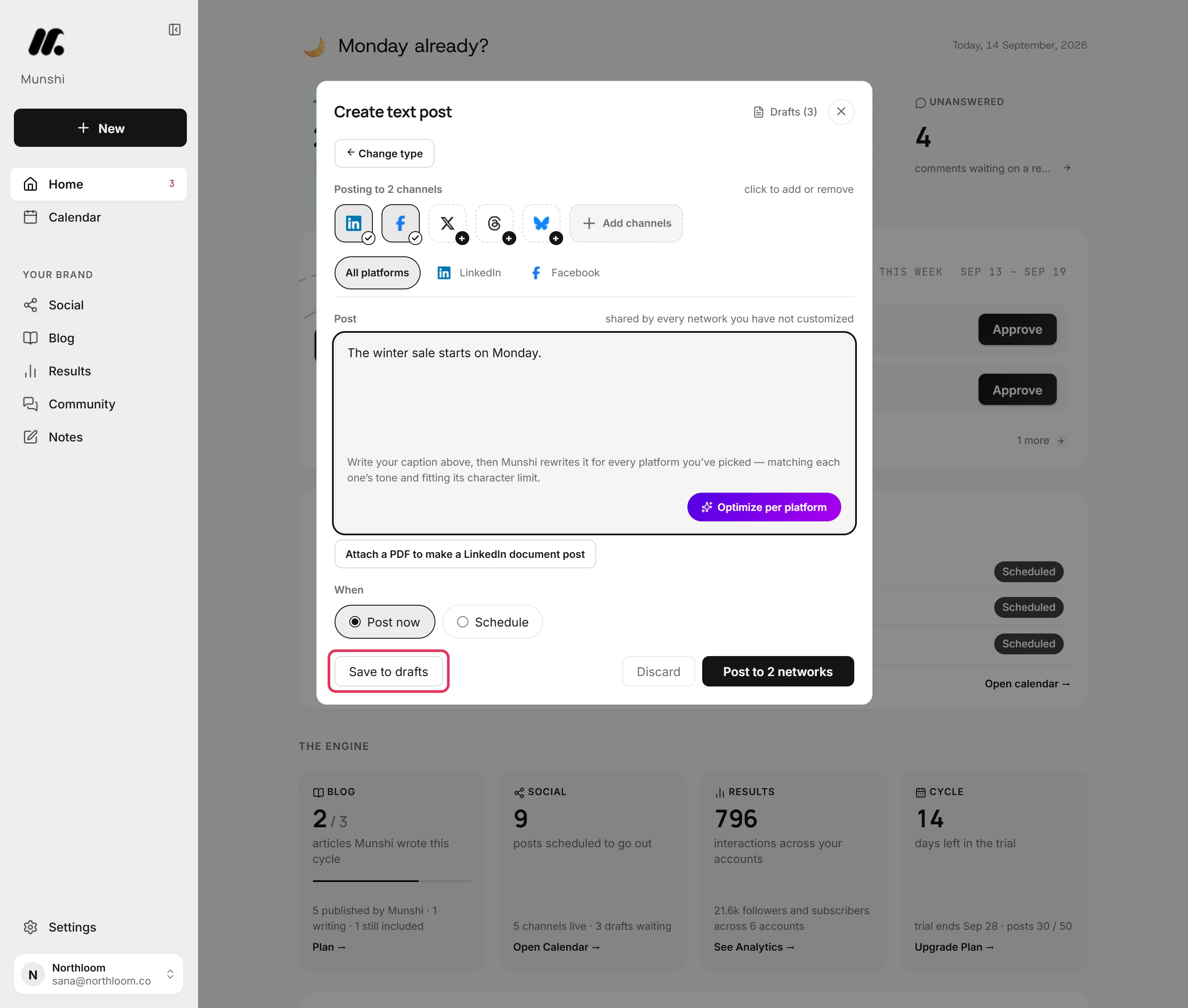
Click Save to drafts. Nothing is posted or scheduled. Munshi takes you to Social.
-
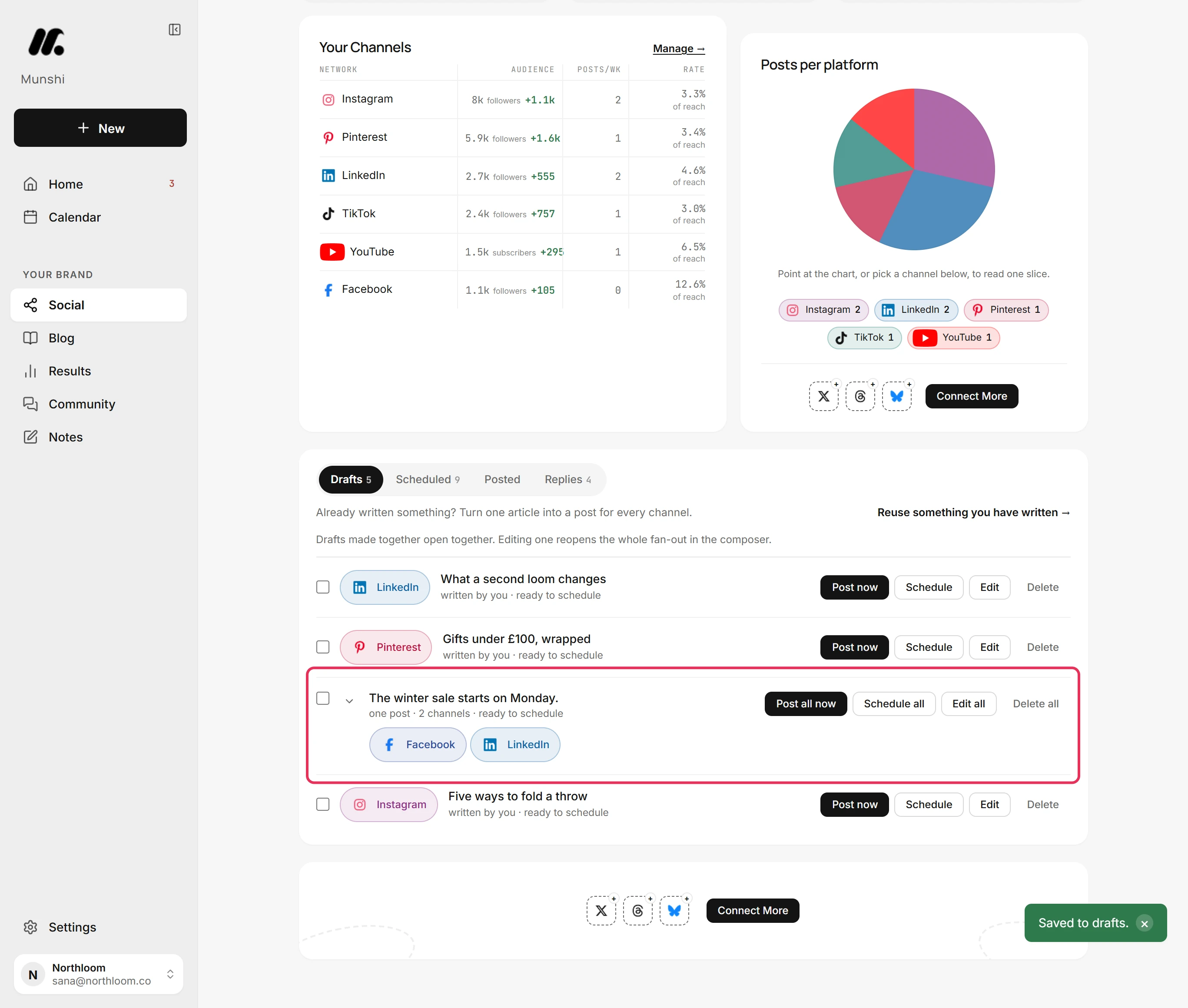
The Drafts tab lists the post once, with a pill for each network it is for. A post saved for several networks stays together as one row.
-
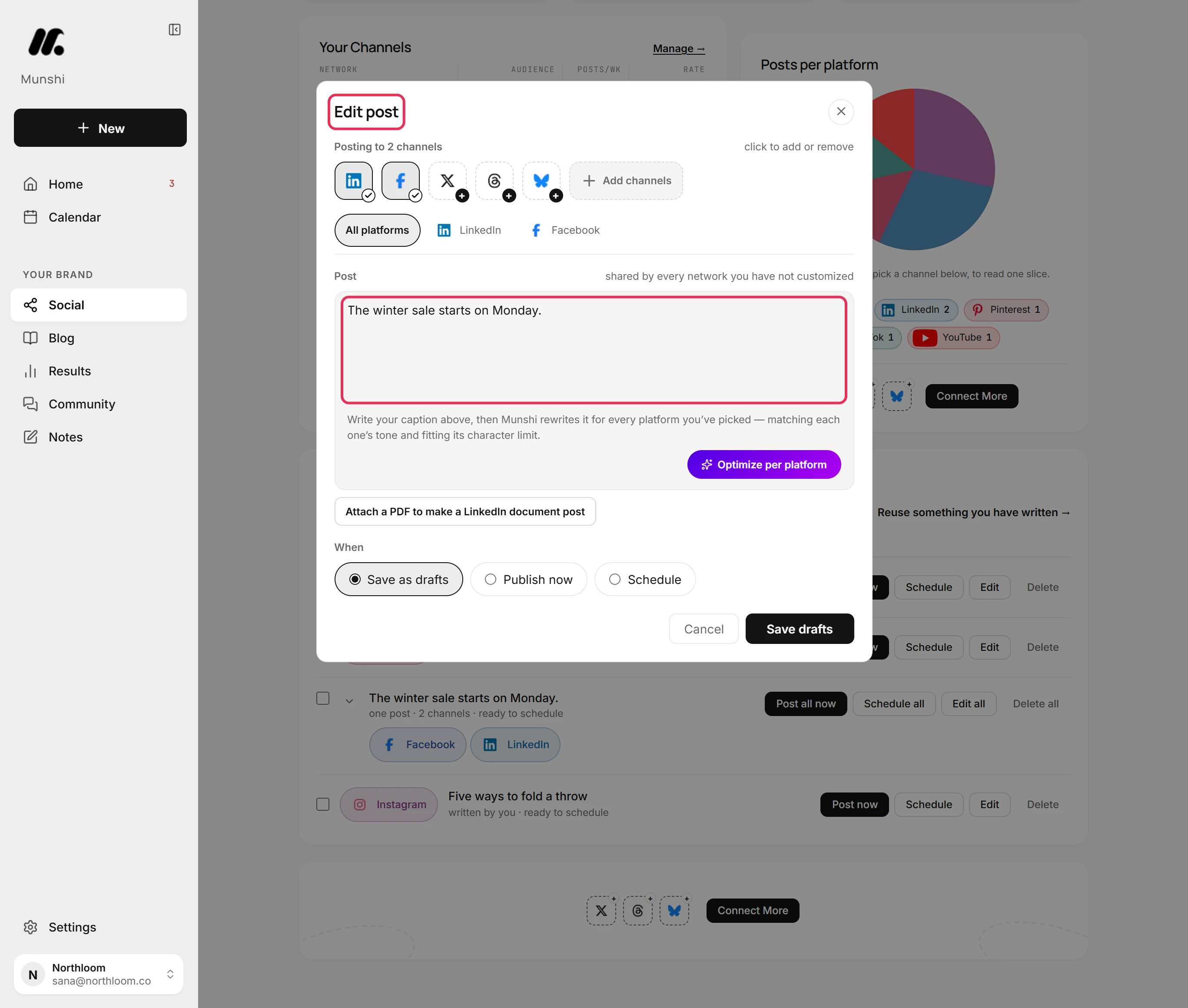
Click Edit all. The composer opens as Edit post. The text, the networks and each network's tab are as you left them.
-
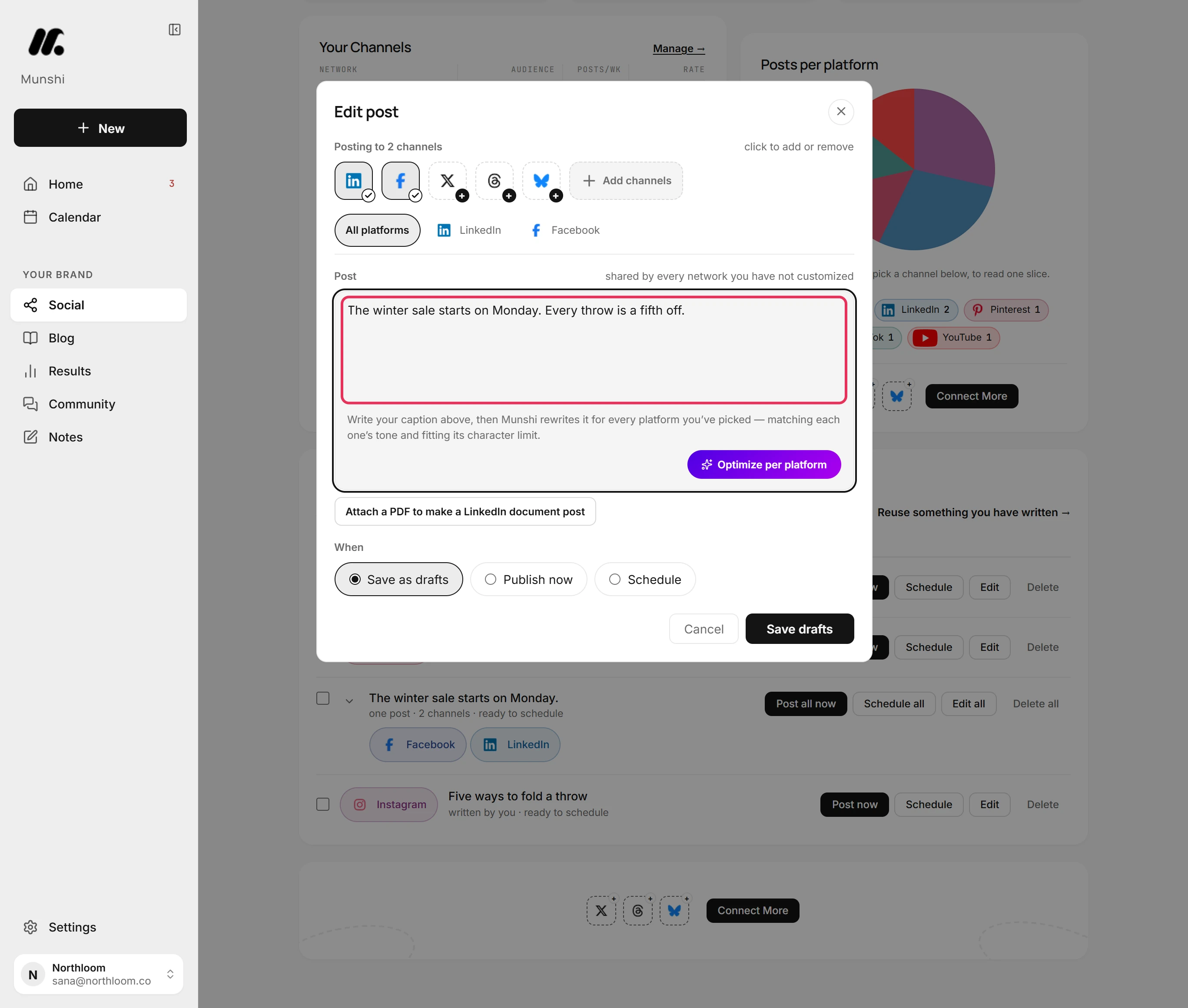
Change what you need. Text in All platforms goes to every network whose tab you have not customized.
-
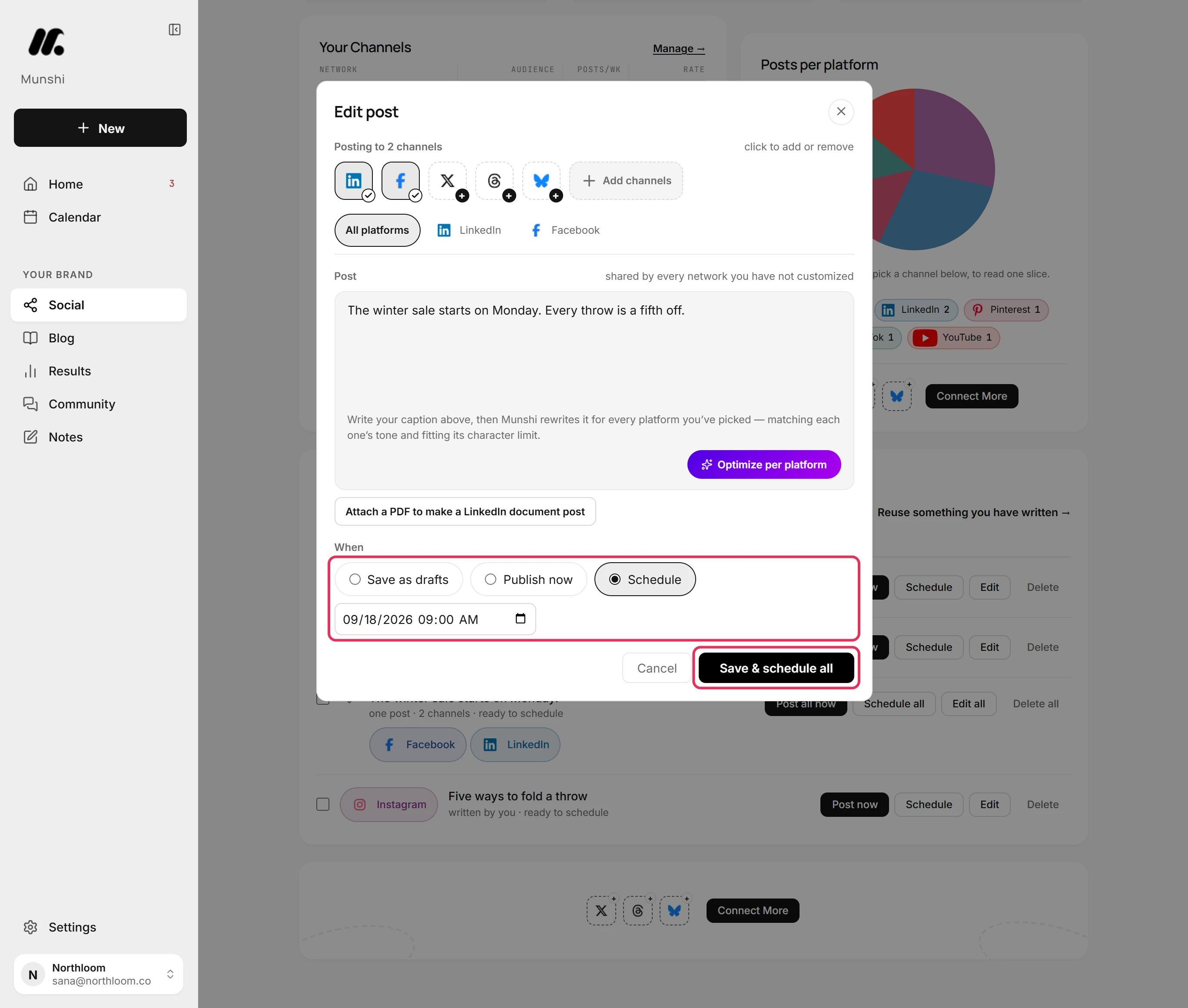
Under When, pick Schedule and set the date and time. Then click Save & schedule all. Publish now sends it at once instead. Save as drafts keeps it parked with your changes.
-
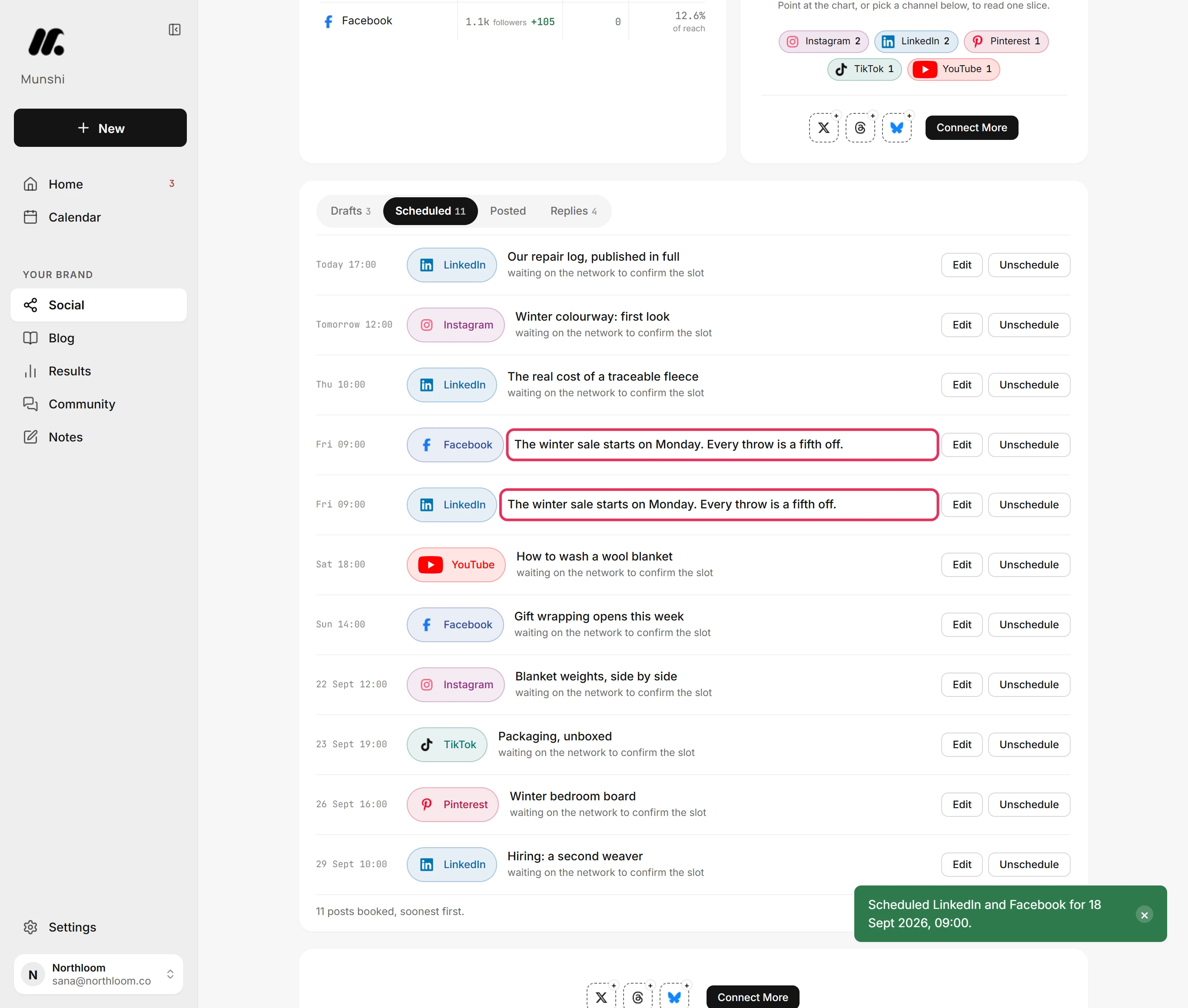
Munshi takes you back to Social. Open Scheduled. The finished post is booked once for each network, at the time you set.
Where you are now
The post you parked is finished and booked for both networks. Until its time, you can still edit it or unschedule it from the Scheduled tab.
If something goes wrong
My session ran out, or the page reloaded, while I was writing
Come back to the same browser tab. Munshi keeps the post aside there and opens the composer again with the text, networks and media as you left them. It offers a kept post for two hours.
“Your post is waiting. Connect what you need, then pick up where you left off.”
Connect the network, then click Back to your post. You left the composer through Add channels to connect it. Discard it forgets the post instead.
“Write something first, then it can be kept as a draft”
Write at least a few words, then save. Save to drafts stays greyed out until the post has some text.
“Saved your post to drafts. Delete it there if you meant to discard.”
If you did not want the post, delete it from Drafts. You closed the composer with the cross, so Munshi kept what you wrote. Next time, click Discard to close without saving.
Try it on your own brand this week.
Munshi Social, the AI content marketing engine for small teams, plans, writes, publishes, and tracks your blog and socials. The guide above shows the real app, not a mock-up.
Start your workspace