How to retry a post that failed, and read why
When a network turns a post down, Munshi keeps it in your drafts with the reason. Click Retry on Home, read why it failed, and send it again.
Before you start
- A post that failed to go out. Munshi keeps it in your drafts, so you do not need to write it again.
-
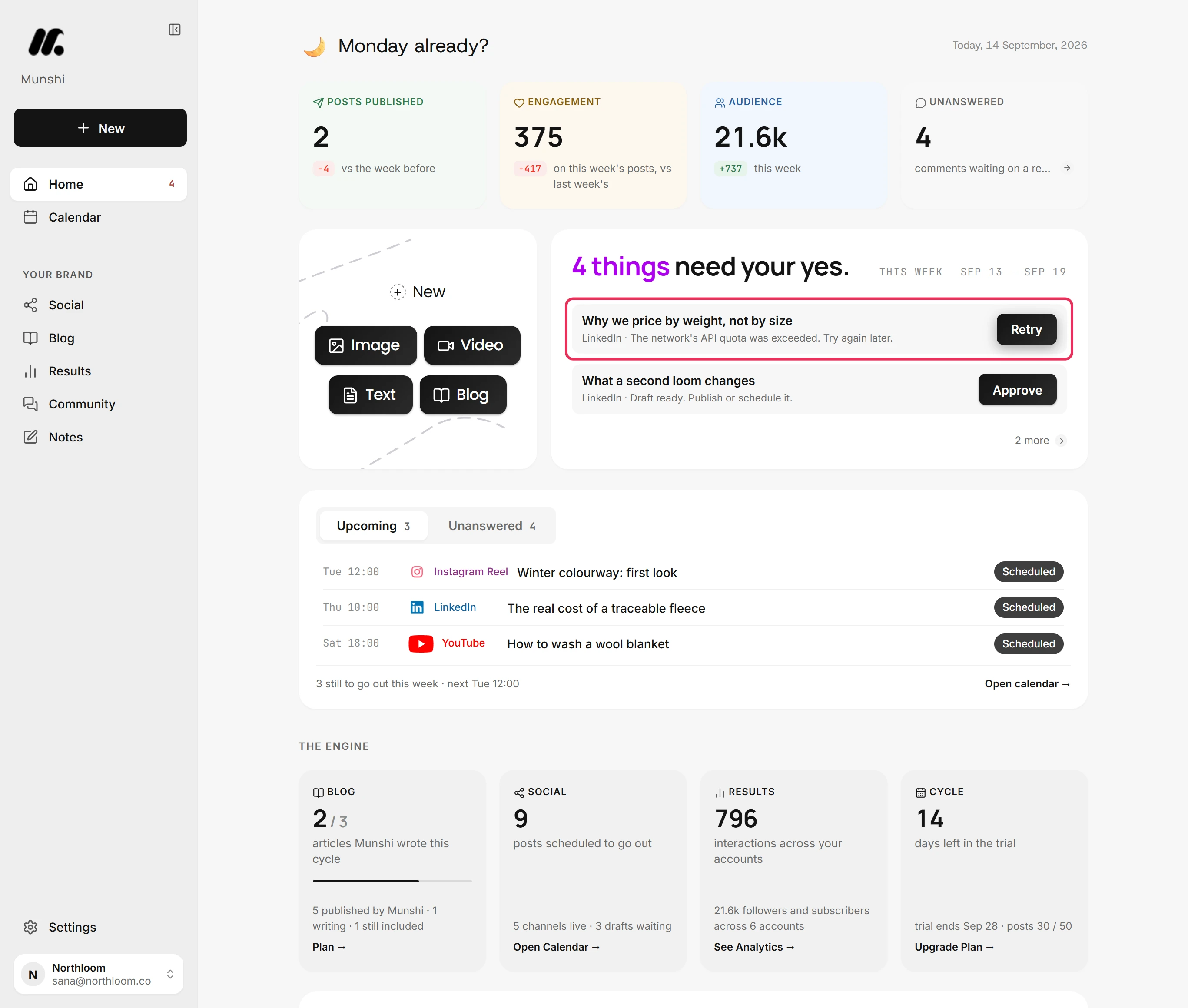
A failed post is listed on Home with the things that need your yes. The row names the network and gives the reason. It has a Retry button.
-
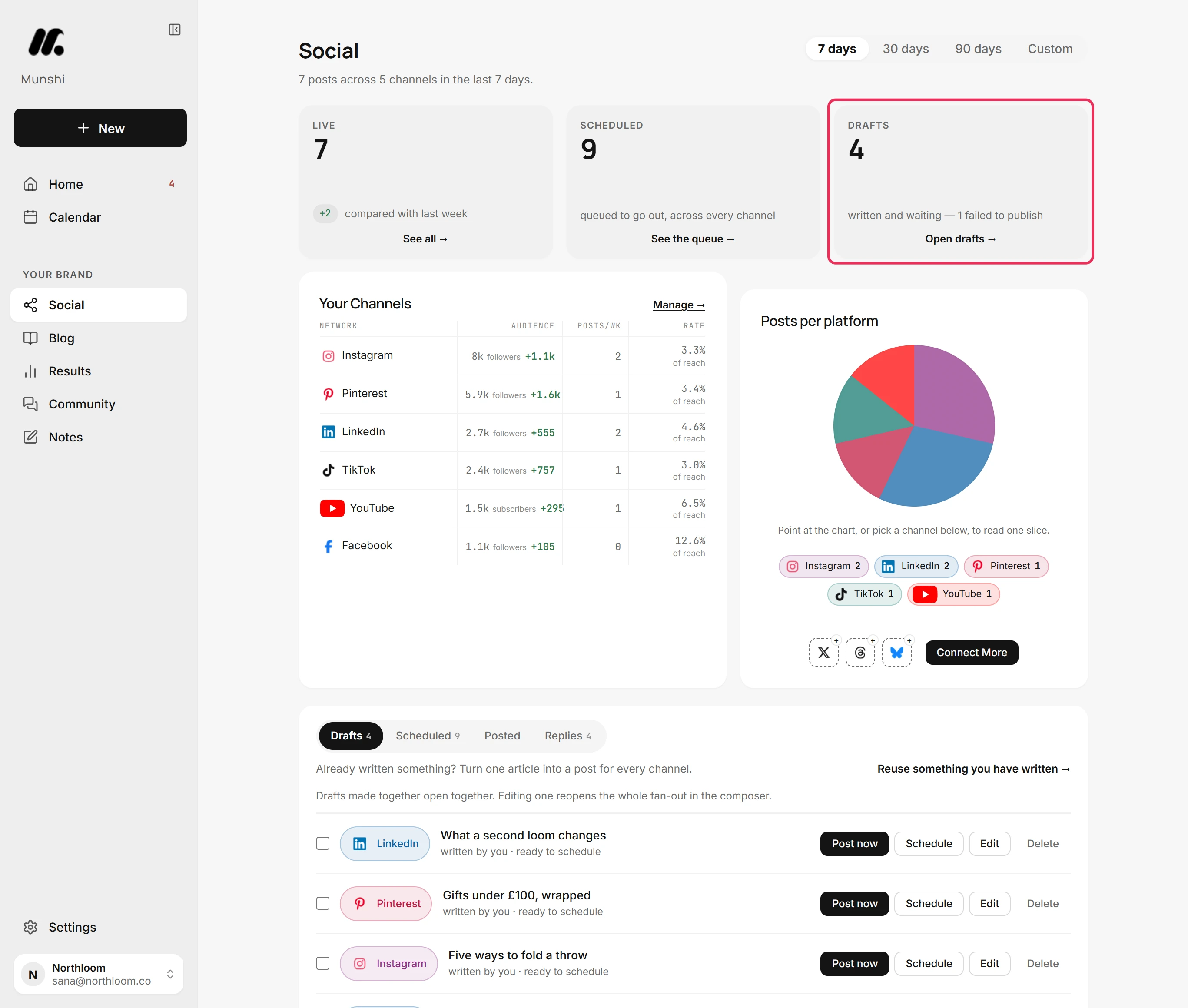
Click Retry. The Social page opens on your drafts. Its Drafts tile says how many of them failed to publish.
-
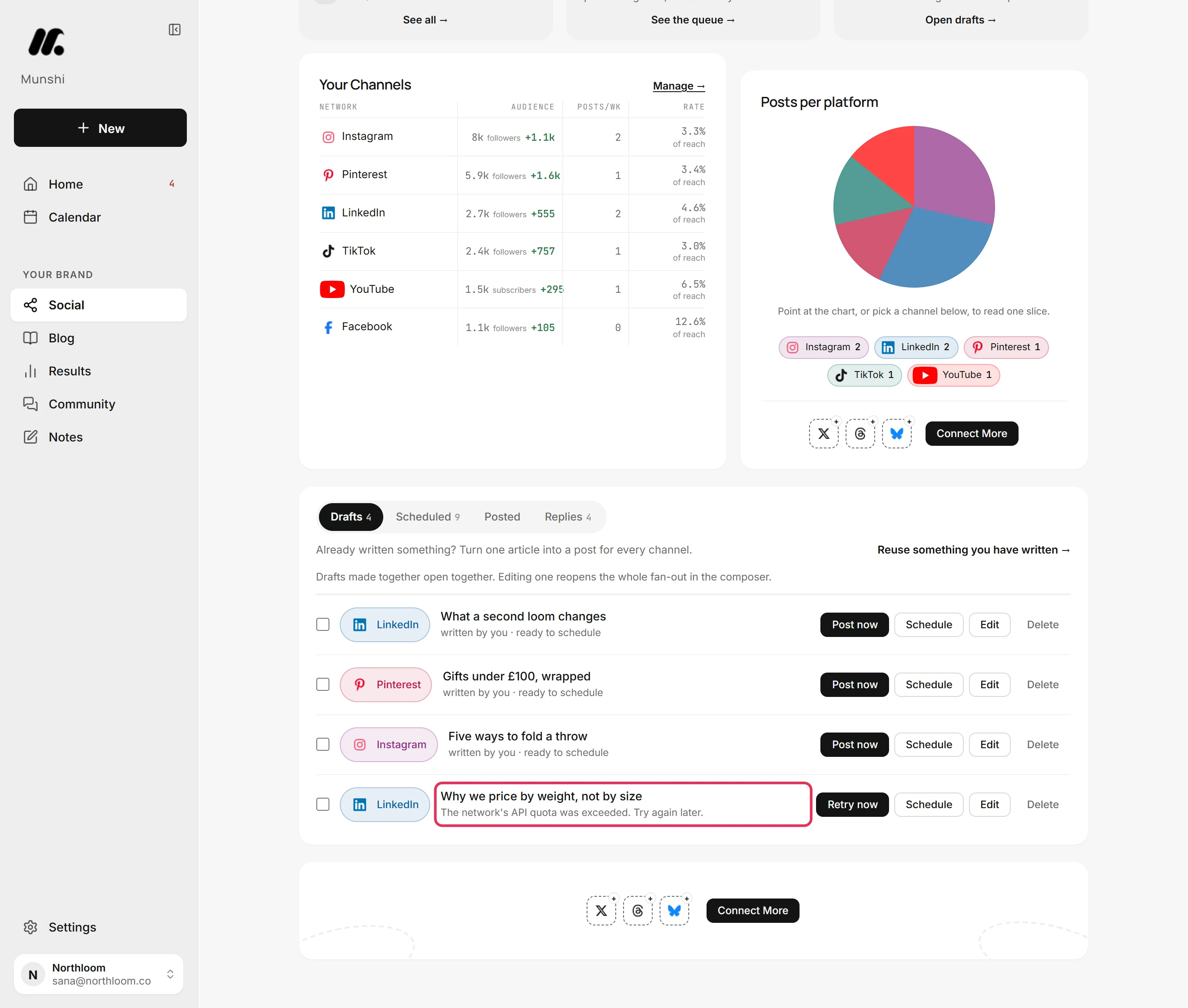
The failed post's row gives the reason in the network's own words. Here it is “The network's API quota was exceeded. Try again later.” A limit like that clears with time.
-
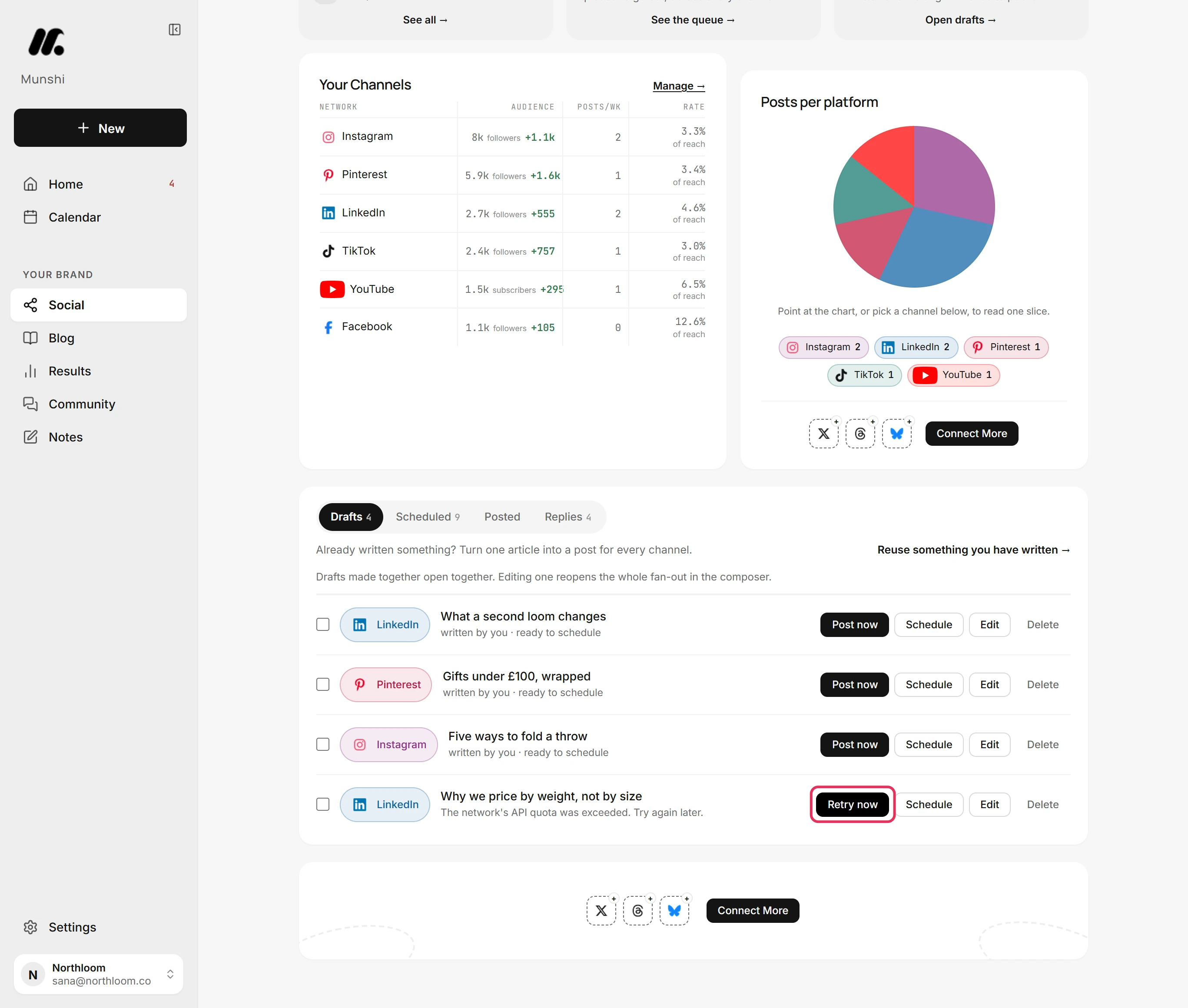
Click Retry now to send the post straight away. If the network turns it down again, the row stays in your drafts with the new reason.
-
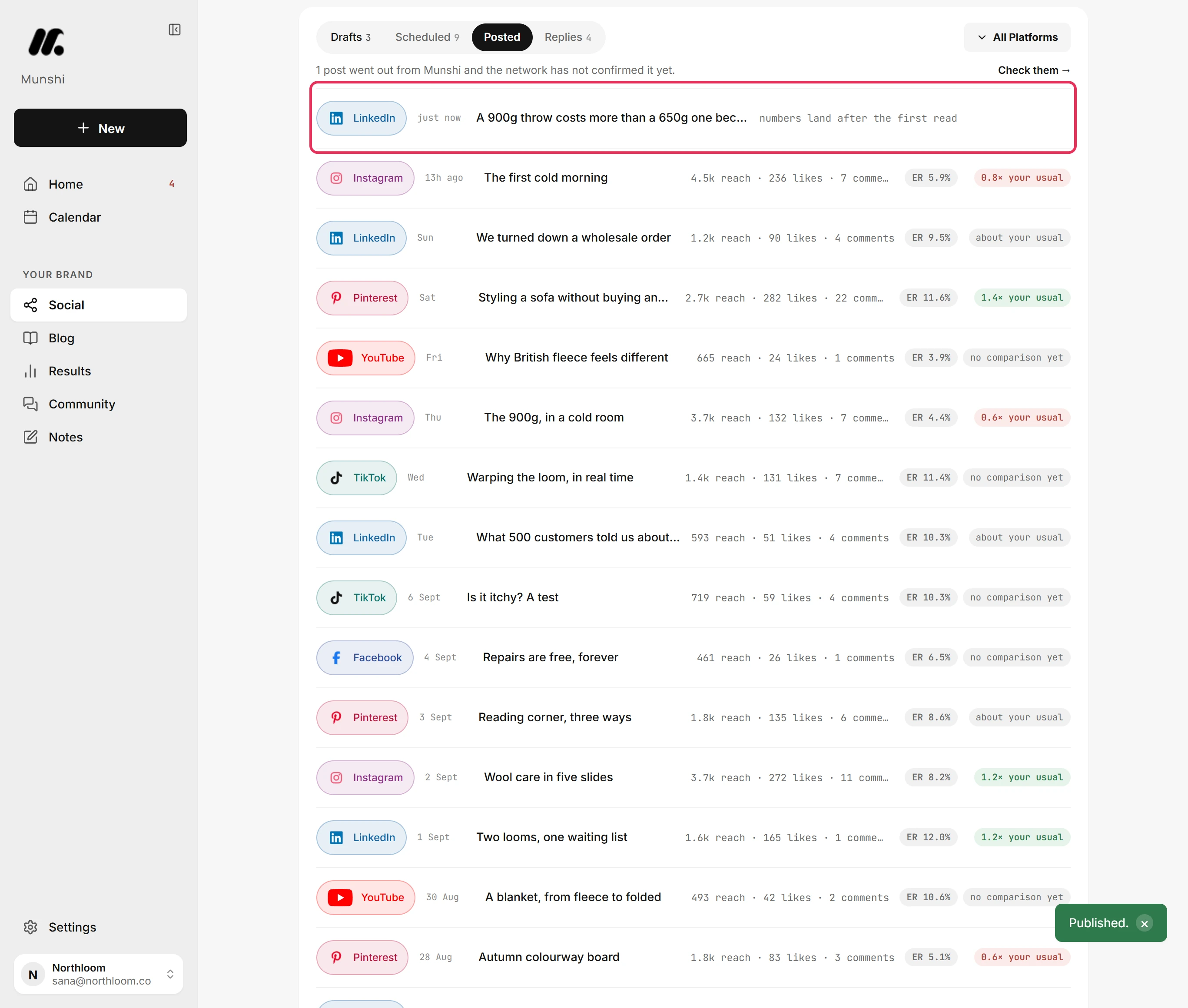
The post leaves your drafts and is listed under Posted. Its numbers appear there once the network reports them.
Where you are now
The post is out and listed under Posted. It no longer waits on Home or in your drafts.
If something goes wrong
The post fails again
Read the new reason on its row. A network's limit clears with time. Wait a while and click Retry now again, or schedule it for later.
Home says Reconnect instead
Click Reconnect, connect the account again, then retry the post. The network has signed Munshi out: “the connection expired; publishing and stats are paused until you reconnect.”
“Confirming…” instead of a reason
Do not send it again. Click Check again in a moment. The network took the post but has not said it is live yet, which is not a failure.
A post for several networks failed on some of them
Open its row in Drafts to see each copy with its own reason. The row says how many copies failed. When every copy failed, the row offers Retry all.
Try it on your own brand this week.
Munshi Social, the AI content marketing engine for small teams, plans, writes, publishes, and tracks your blog and socials. The guide above shows the real app, not a mock-up.
Start your workspace