How to take your strategy to another AI and bring the answer back
Copy your blog strategy into ChatGPT, Claude or Gemini, or save it as a file. Paste the AI's answer back, and Munshi applies only the changes you approve.
Before you start
- A strategy with at least one focus area. If you have none yet, the same dialog opens from Import a strategy on the empty map.
-
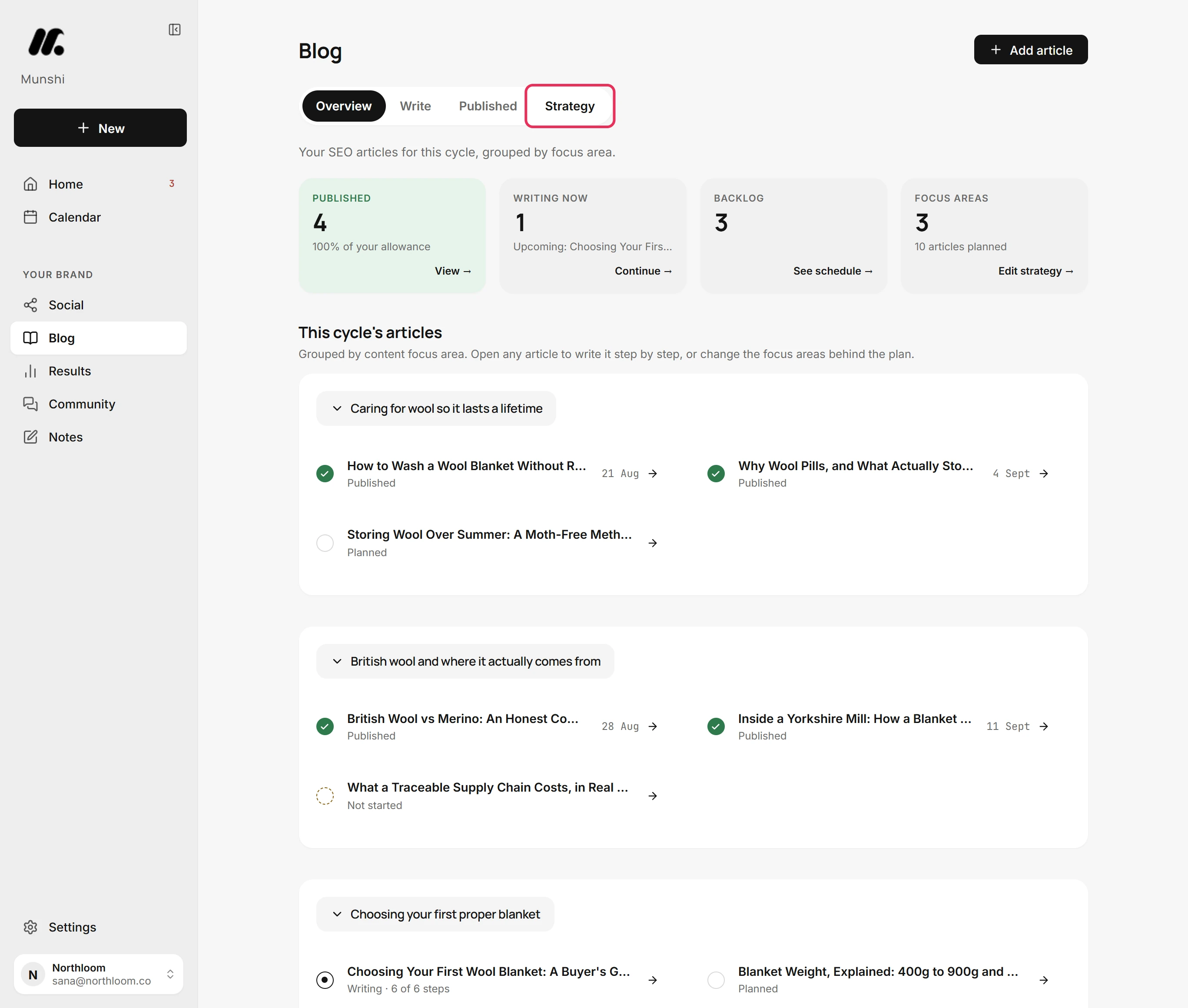
In Blog, click Strategy. The map shows your brief, your focus areas and every article planned under them.
-
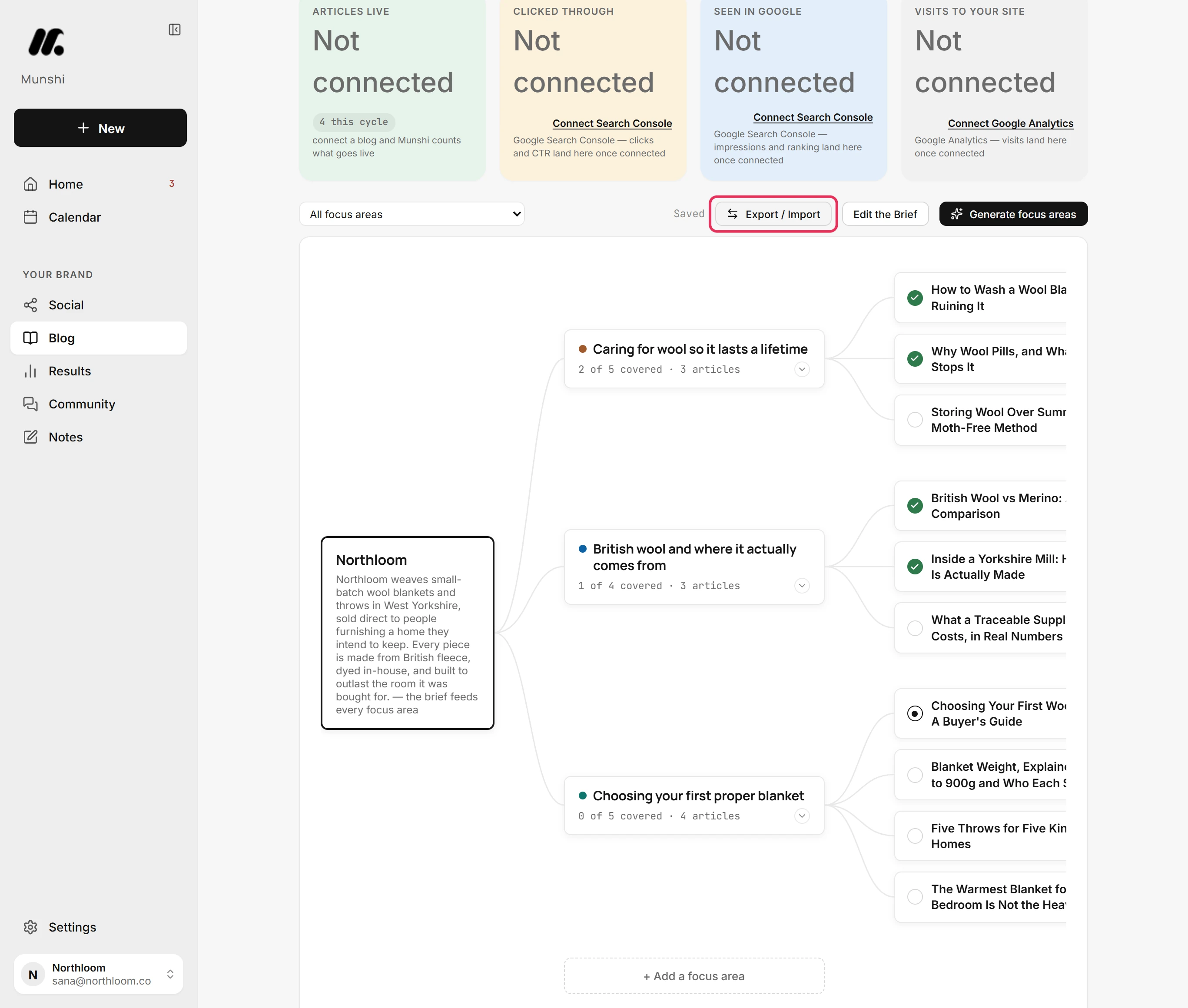
Click Export / Import at the top of the map. One dialog, Take your strategy to another AI, handles both sending the strategy out and bringing the answer back.
-
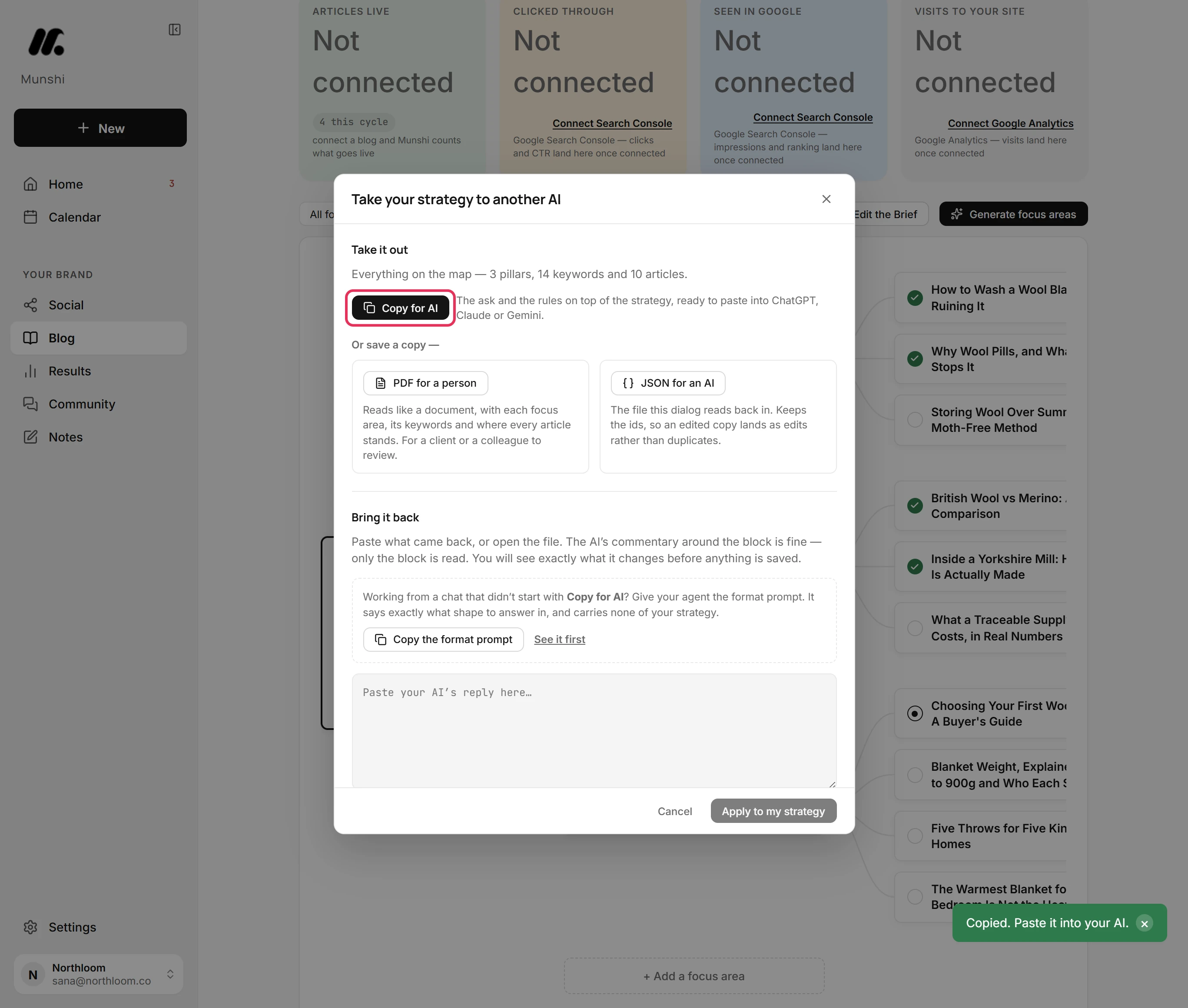
Under Take it out, click Copy for AI. Then paste into ChatGPT, Claude or Gemini. It copies the whole strategy with a request for a review. It also copies rules that tell the AI to answer in a shape Munshi can read back.
-
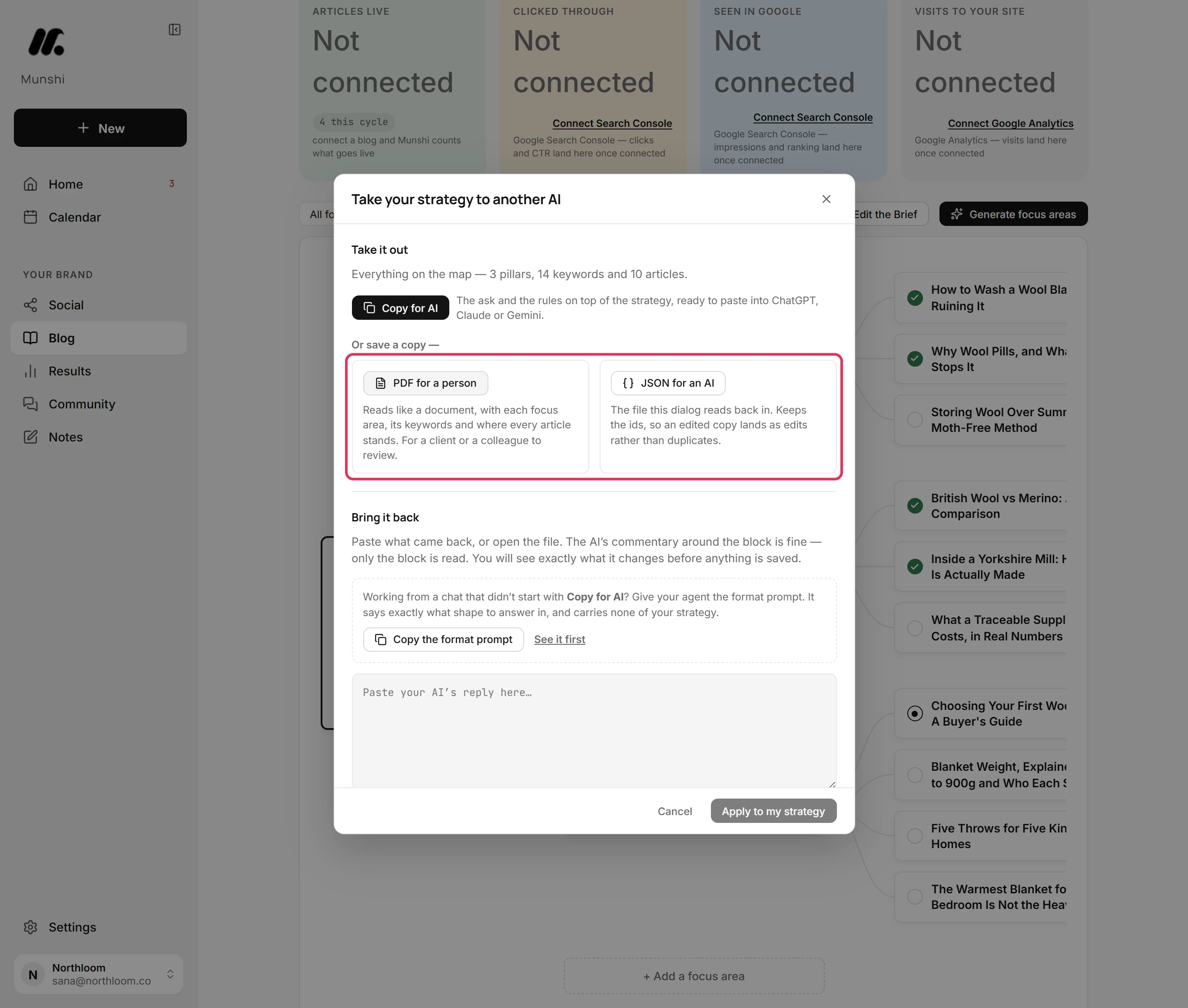
PDF for a person opens a readable copy in a new window. Save it as a PDF for a client or a colleague. JSON for an AI downloads a data file that this dialog can read back in. The file carries ids that keep edits from turning into duplicates.
-
Under Bring it back, paste the AI's whole reply into the box. For an edited JSON file, click Open a file instead. Extra comments around the block are fine, because Munshi reads only the block.
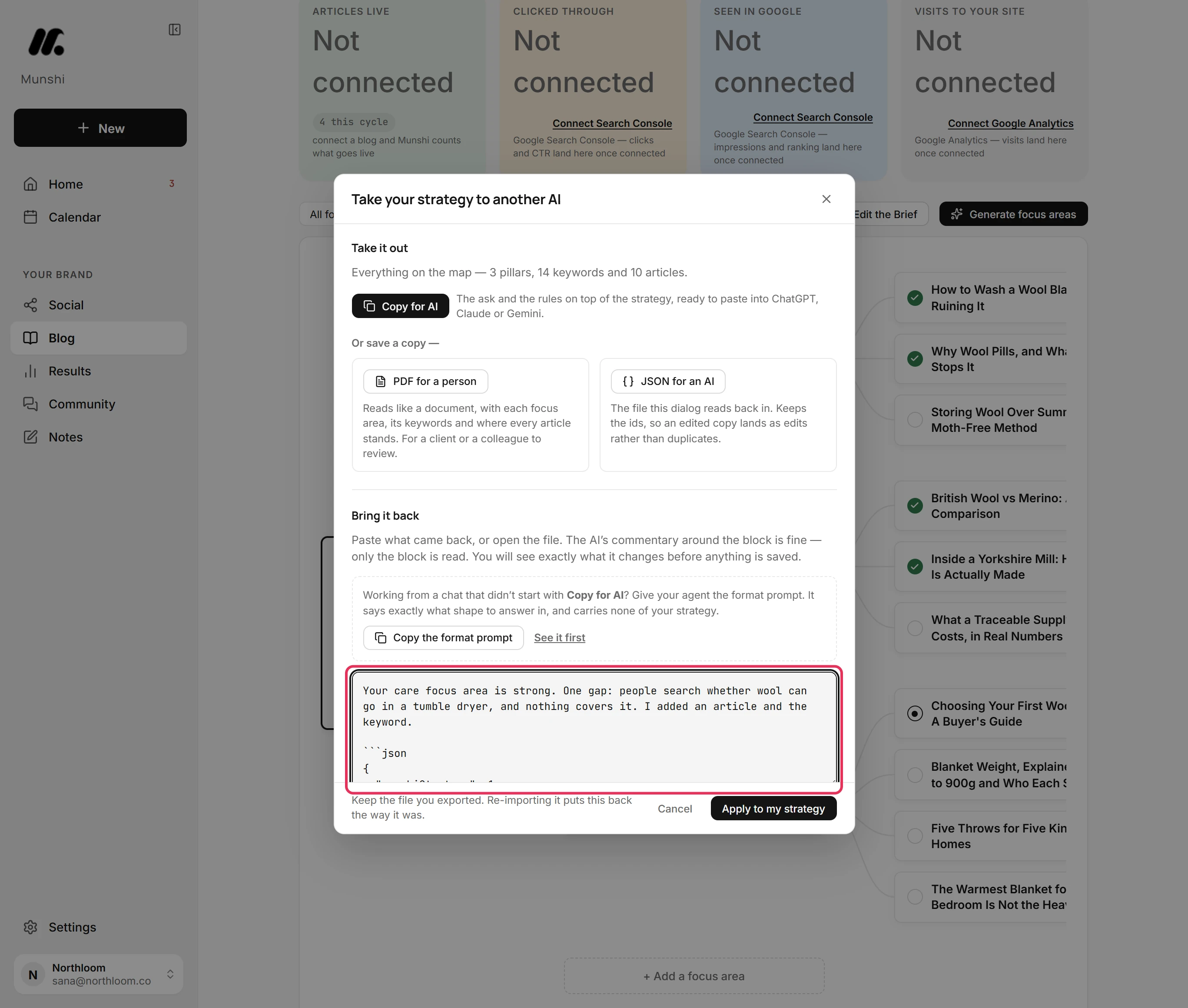
-
Under This file would:, Munshi lists what the reply would do. Additions come first, then edits, then deletions. Nothing has been saved yet.
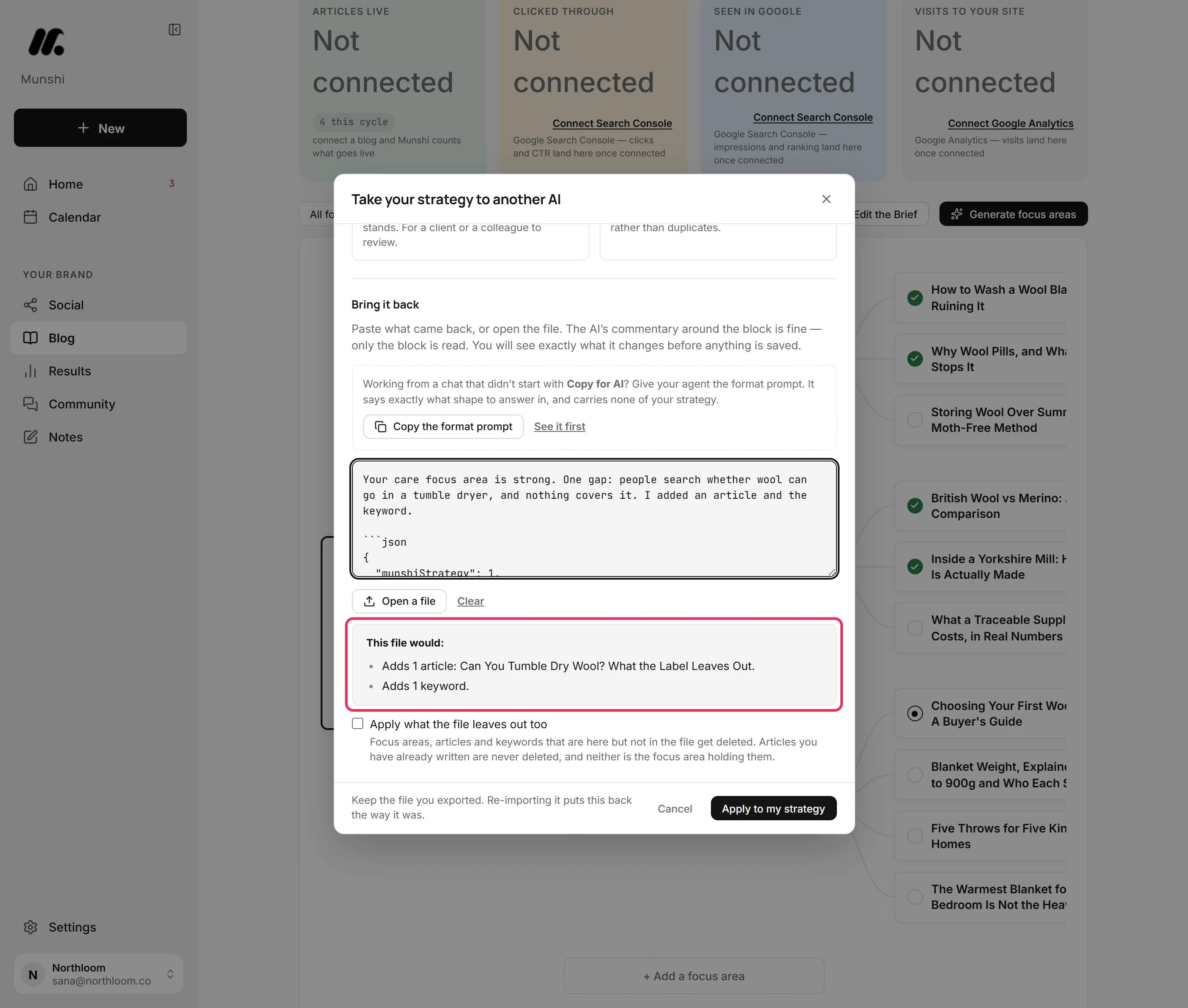
-
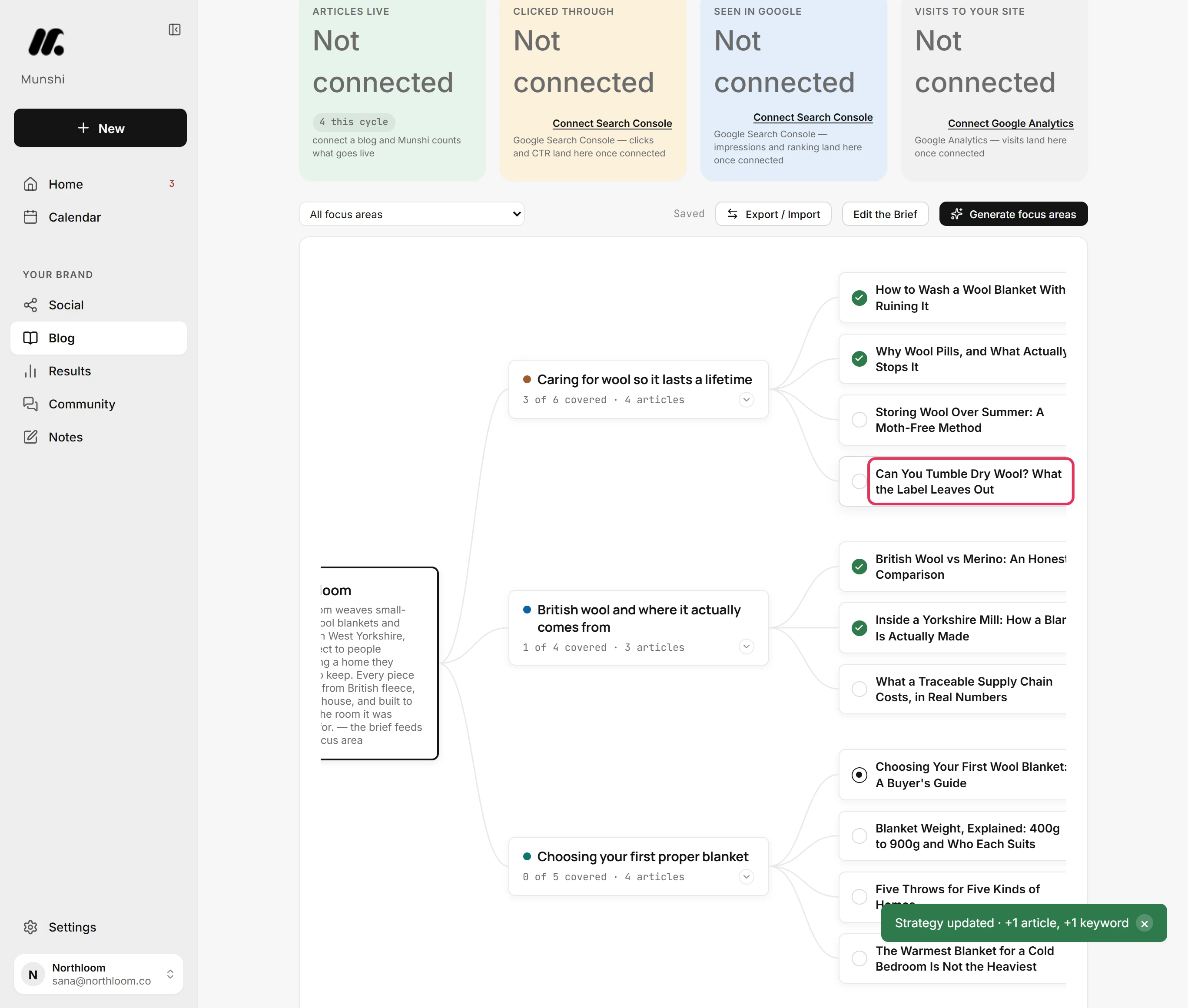
Click Apply to my strategy. Munshi confirms what changed, for example Strategy updated · +1 article, +1 keyword. Then it closes the dialog.
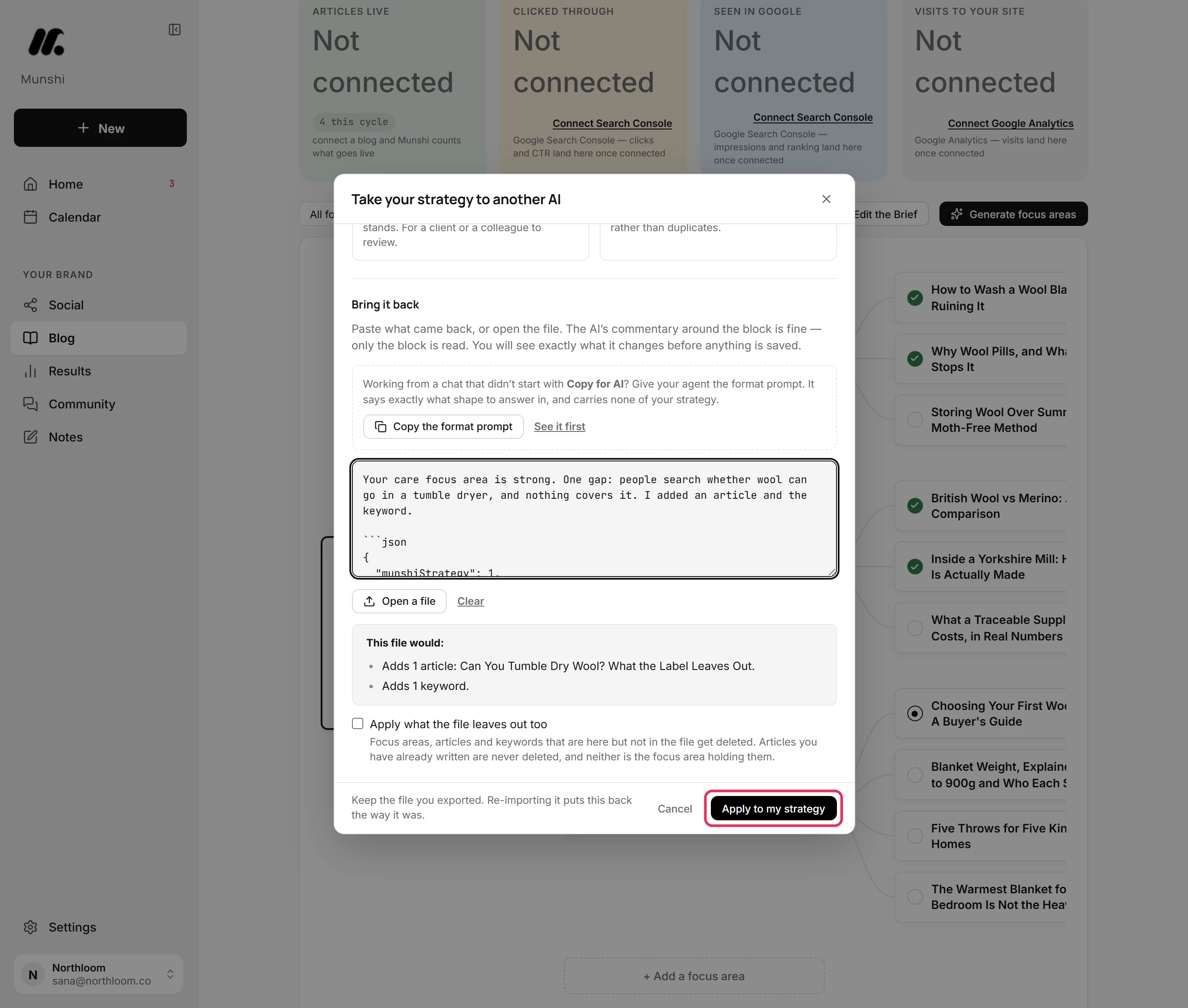
-
The new article sits on the map under its focus area. It is on the Blog overview too, ready to be written.
Where you are now
Your strategy has the changes you approved and nothing else. Keep the file you exported. To undo, import it again with Apply what the file leaves out too ticked, and the strategy goes back the way it was.
If something goes wrong
“That does not read as JSON. Copy the whole block your AI gave back, including the opening { and the closing }, and paste it here.”
Copy the AI's reply again, from its first { to its last }, and paste it over what is in the box. Part of the block was lost on the way.
“This file matches your strategy exactly. There is nothing to change.”
Ask the AI for concrete additions or edits, then paste the new reply. It gave the strategy back as it was.
The file leaves an article out, but Munshi keeps it
Delete it on the map if you mean to. Munshi never deletes an article that already has written work, or the focus area holding it. This holds even with Apply what the file leaves out too ticked.
Try it on your own brand this week.
Munshi Social, the AI content marketing engine for small teams, plans, writes, publishes, and tracks your blog and socials. The guide above shows the real app, not a mock-up.
Start your workspace