How to check whether Google has indexed an article
In Blog > Published, click Check indexing next to an article. Munshi asks Google if the page is in its index and shows the answer beside it.
Before you start
- Search Console connected, with your site chosen. How to connect Search Console shows how.
- At least one article live on your blog.
-
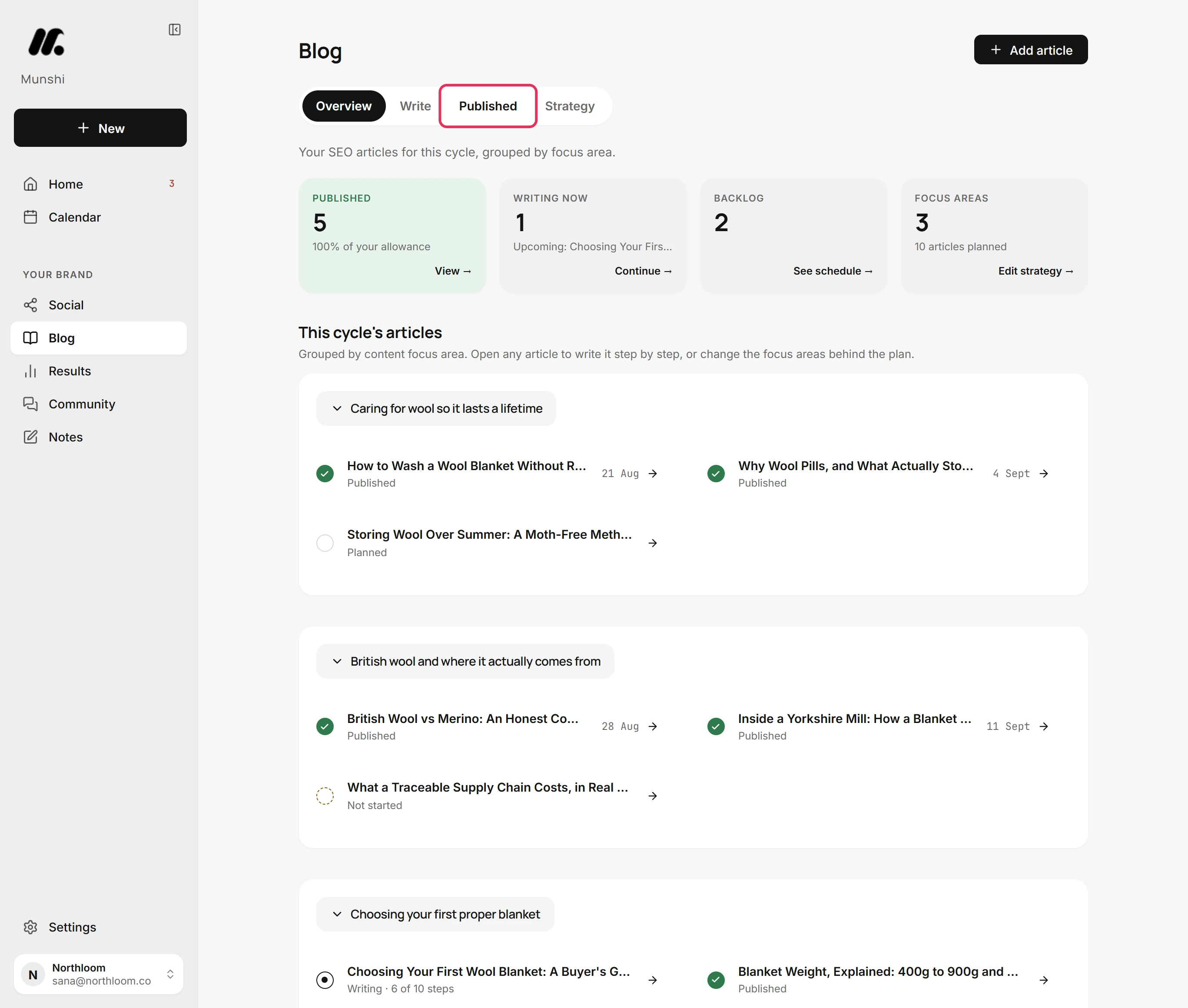
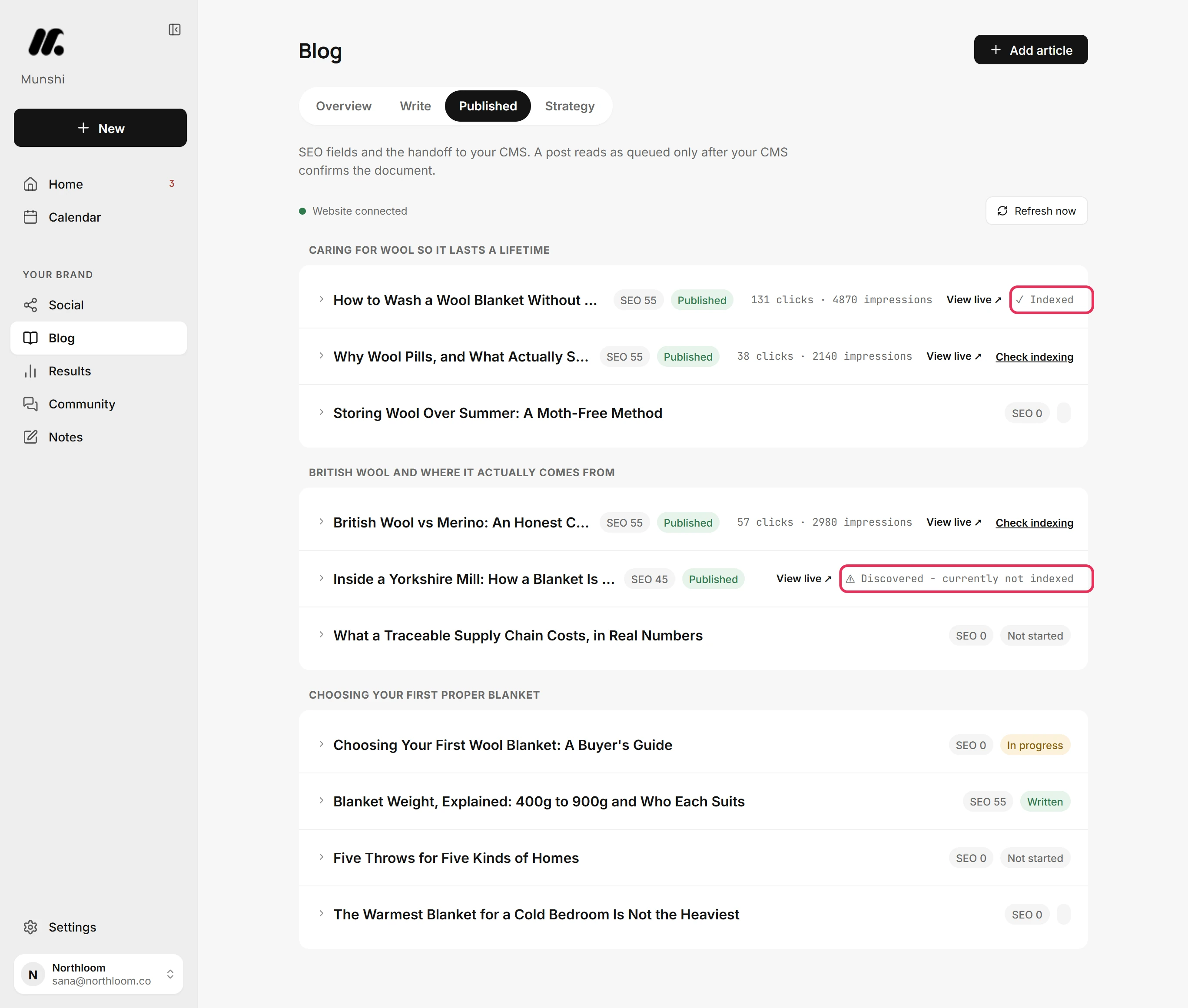
In Blog, click the Published tab. It lists your articles by focus area. Each one shows its SEO score and where it stands.
-
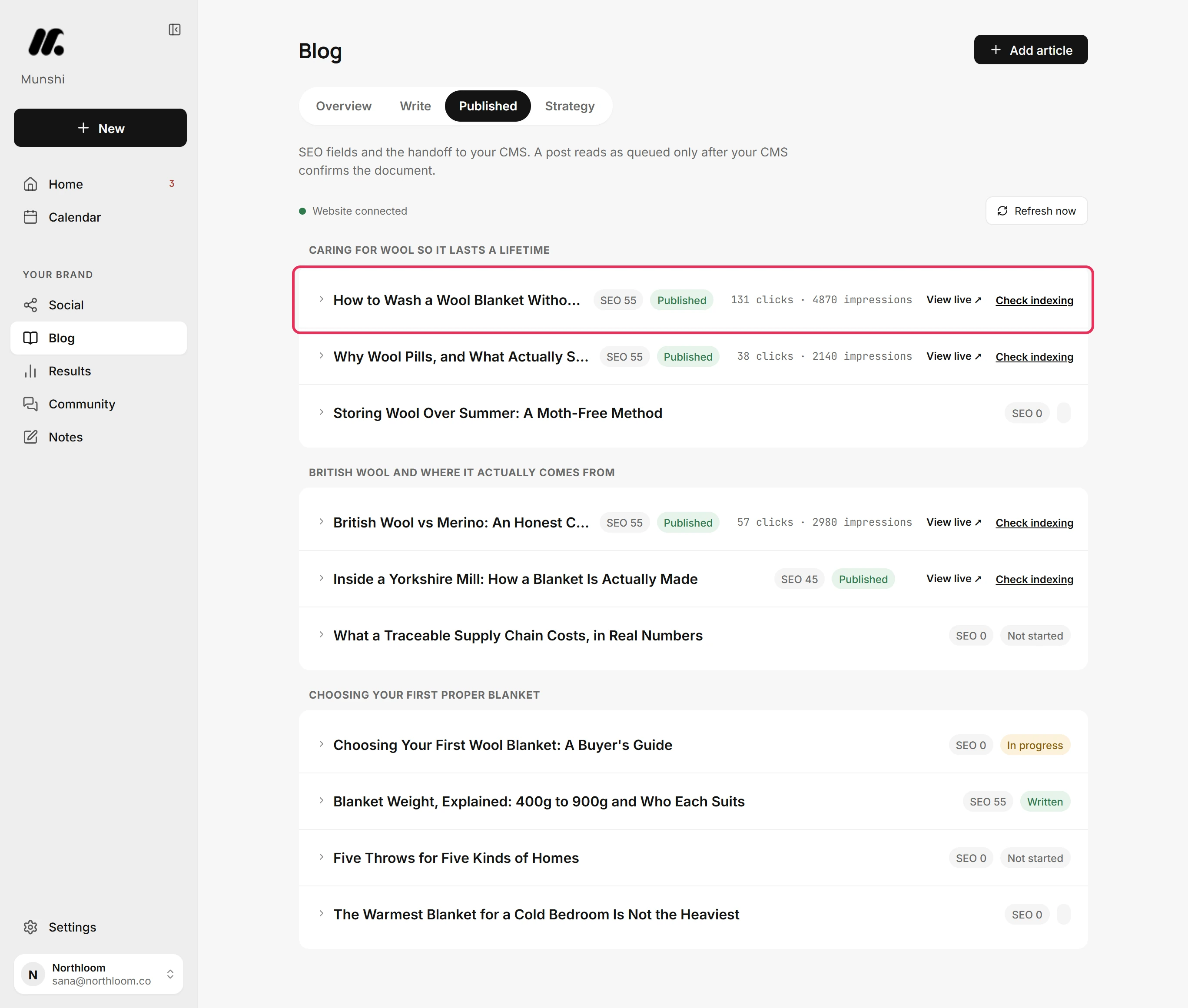
An article with a live address shows View live and Check indexing. That is an article Munshi published, or one Search Console reports. If Search Console has numbers for it, its clicks and impressions from Google Search in the last 28 days show beside them.
-
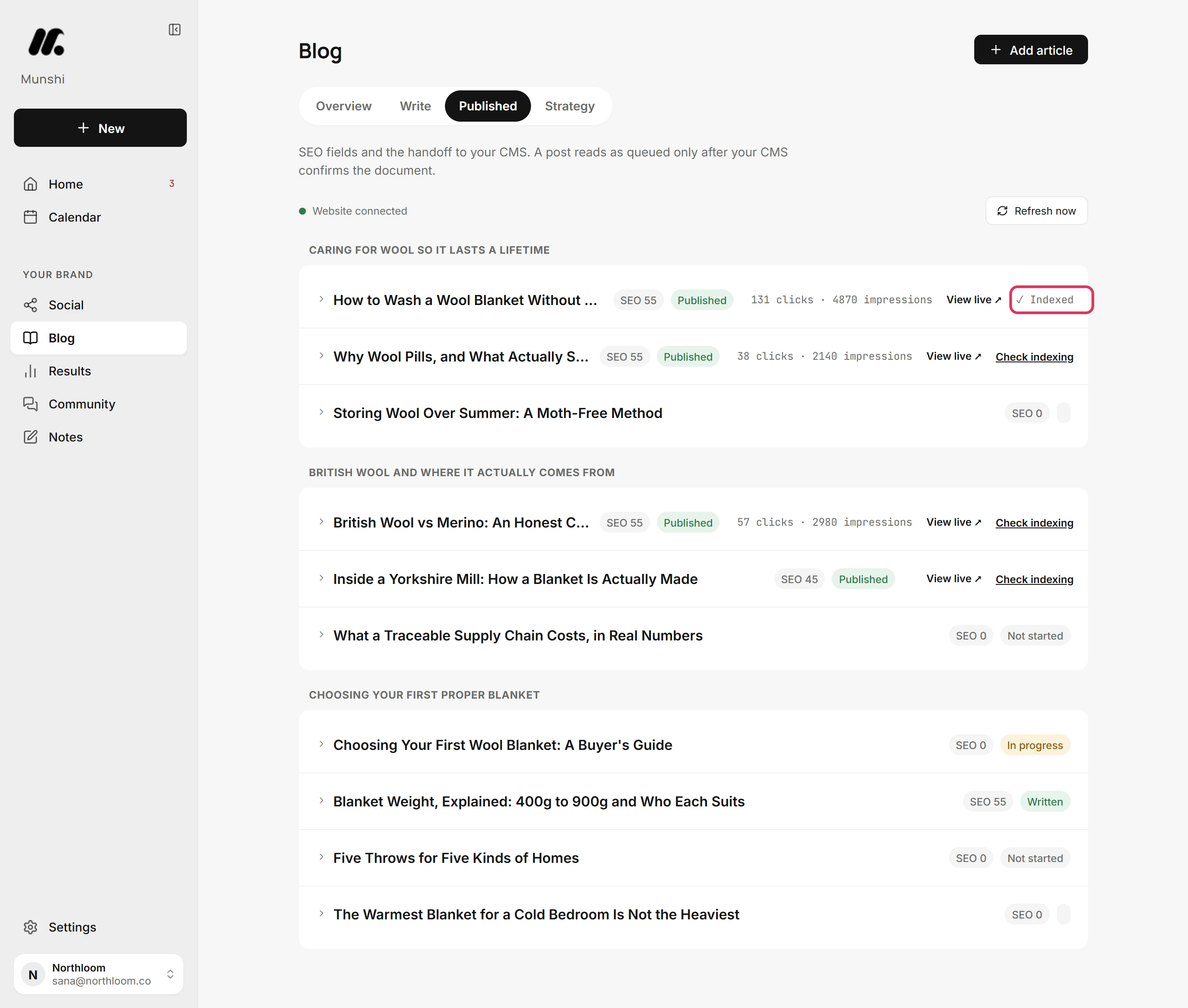
Click Check indexing. Munshi asks Google about that one address, and the button reads Checking… until Google answers. ✓ Indexed means the page is in Google's index.
-
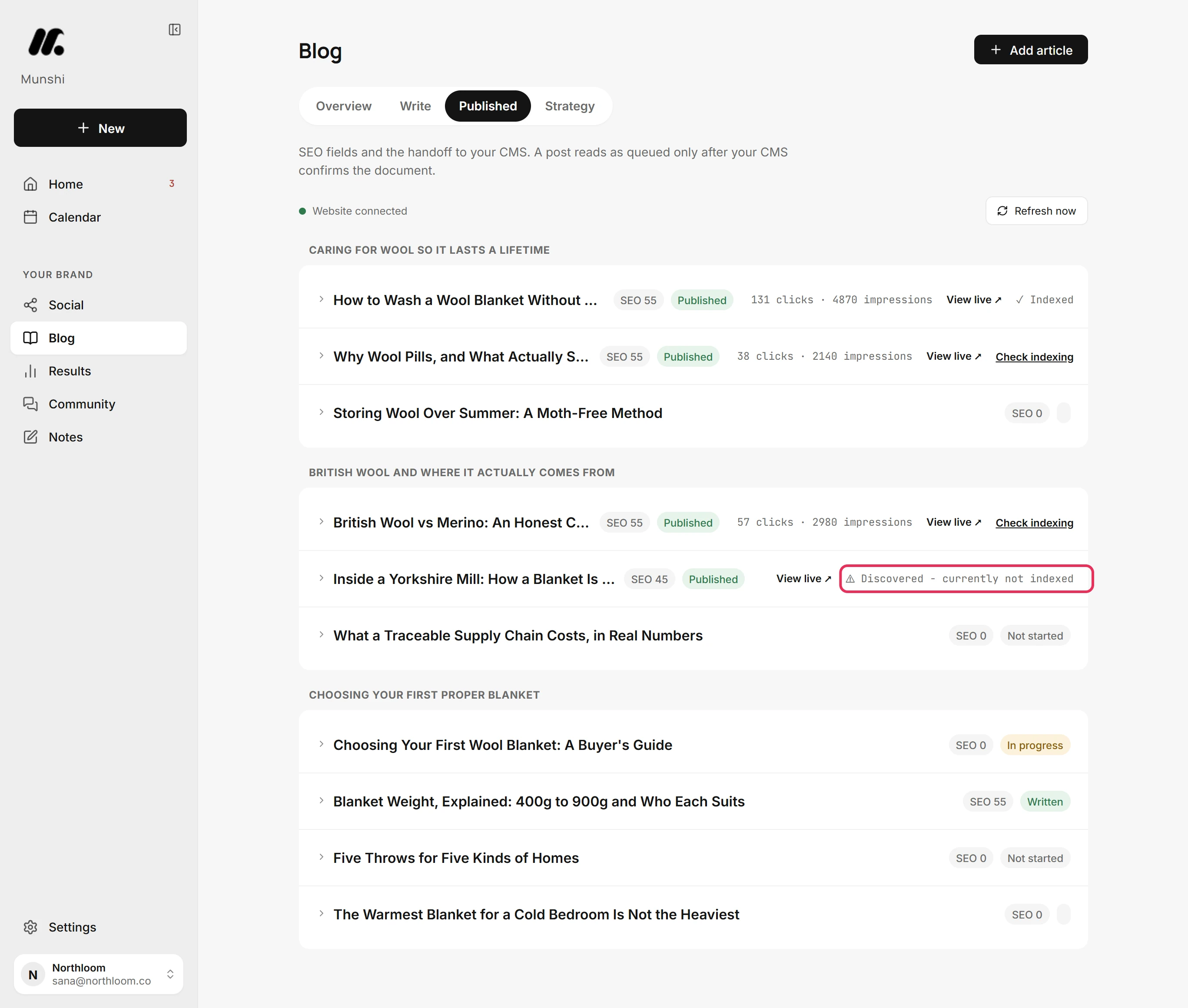
If Google has not indexed a page, you see ⚠ and Google's own reason. Here the newest article reads Discovered - currently not indexed.
-
Discovered - currently not indexed means Google knows the address but has not crawled (visited and read) the page yet. This is common for a new article. Each answer stays beside its article until you leave the page, so check again another day.
Where you are now
You now know which of your articles Google has in its index. An article that is not indexed yet needs time. If your sitemap is submitted, publishing straight away from Munshi already asked Google to crawl it again.
If something goes wrong
“Could not check that URL. Try again.”
Try again, and check which site is chosen under Settings, Integrations. This message means Google did not answer, or the article's address is not on the site chosen for Search Console.
There is no Check indexing button
The button appears once an article has a live address. That happens when Munshi published it, or when Search Console reports it. Until Search Console is connected, only articles Munshi published have the button, and their check cannot be answered.
The answer reads Status unknown
Check again later. Google sent no status for that address.
Try it on your own brand this week.
Munshi Social, the AI content marketing engine for small teams, plans, writes, publishes, and tracks your blog and socials. The guide above shows the real app, not a mock-up.
Start your workspace