How to review, edit and approve an article
Open a finished article from Home and read it through. Fix any step that needs it, then click Mark completed to approve it, or Un-approve to send it back.
Before you start
- An article with all ten steps done. Write an article with the ten-step writer shows how.
-
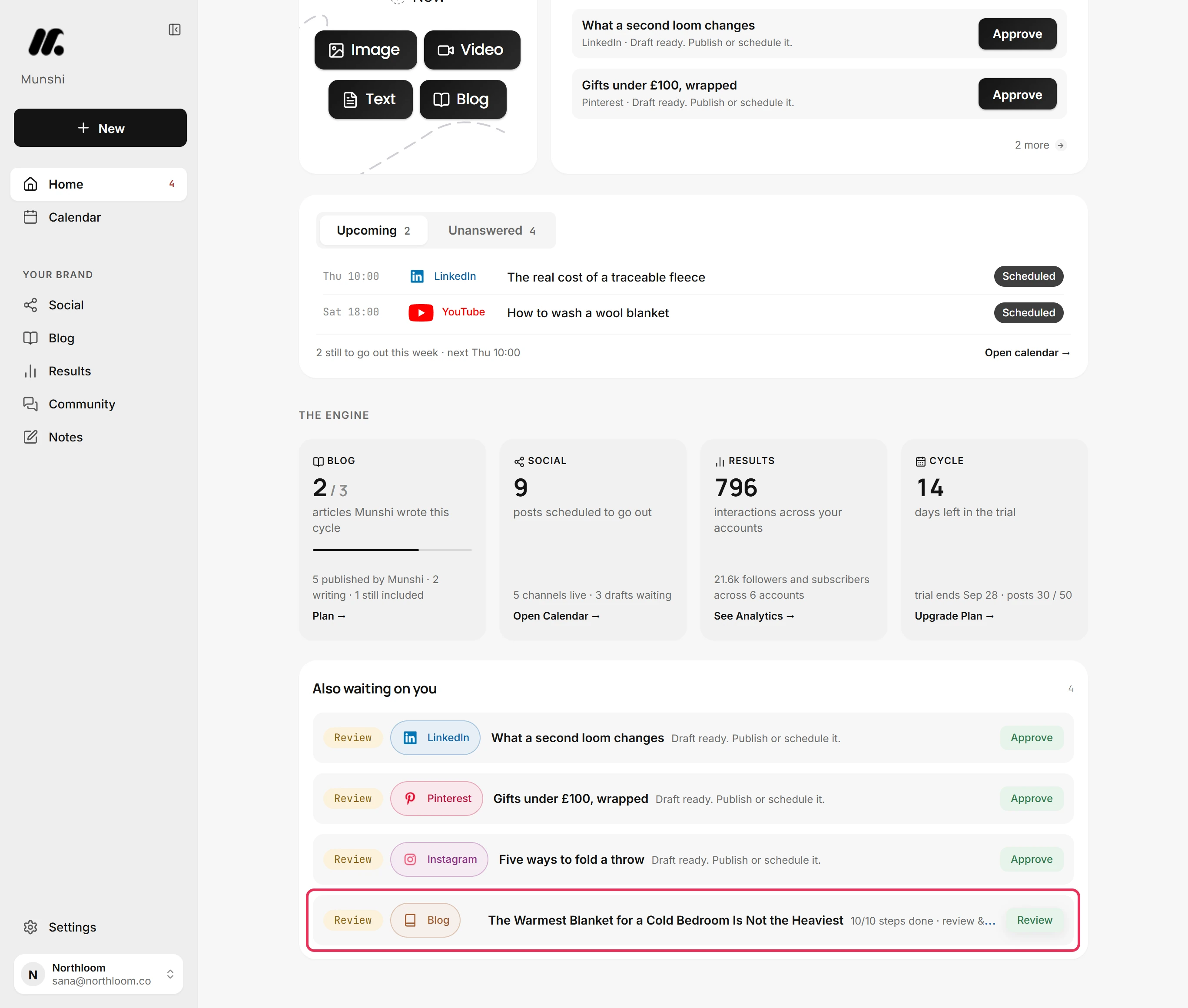
On Home, an article with every step done is listed under Also waiting on you. It is tagged Review and reads 10/10 steps done · review & approve. Click Review beside it.
-
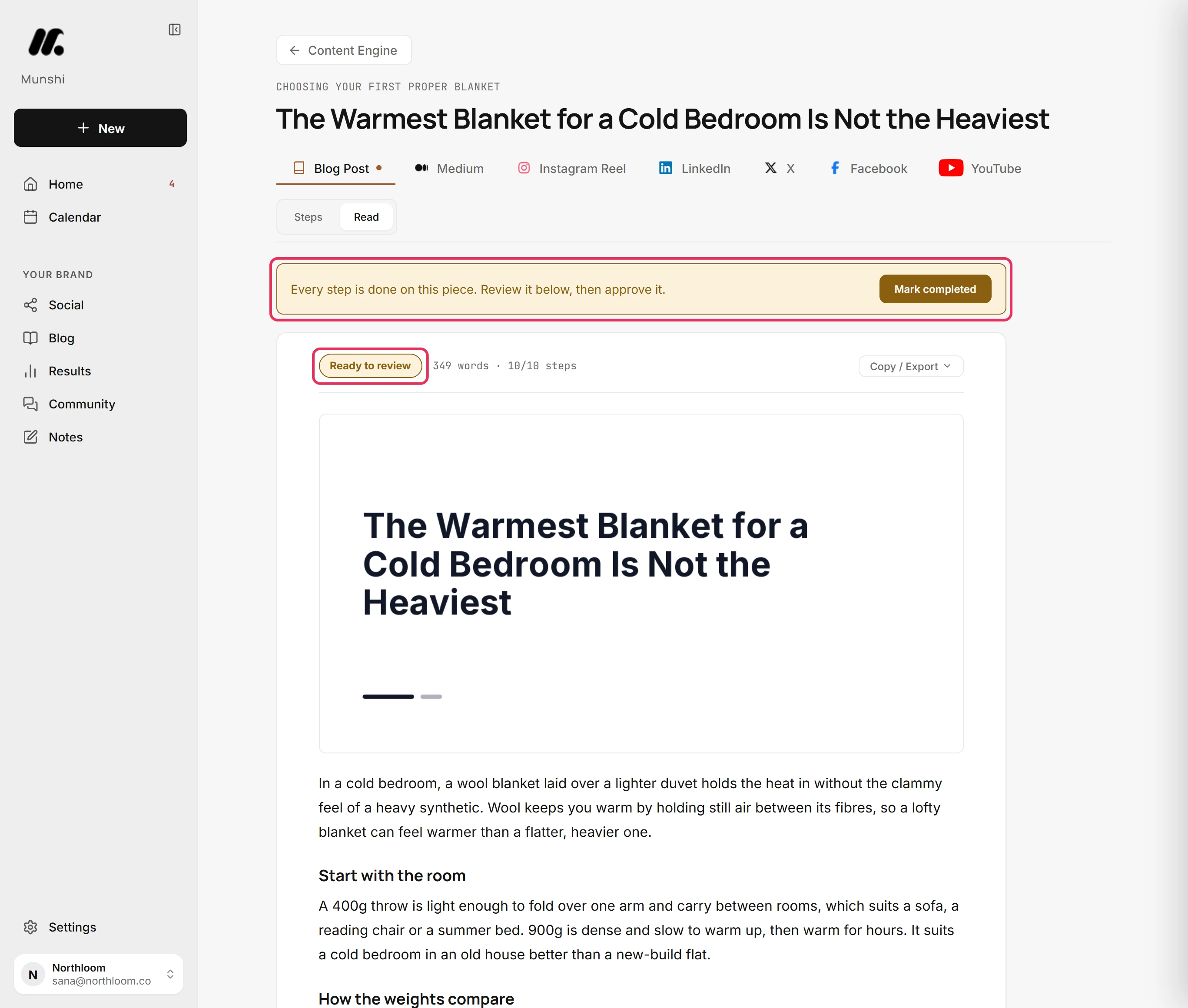
The article opens ready to read, with its cover at the top. The status reads Ready to review. The banner above it says Every step is done on this piece. Review it below, then approve it.
-
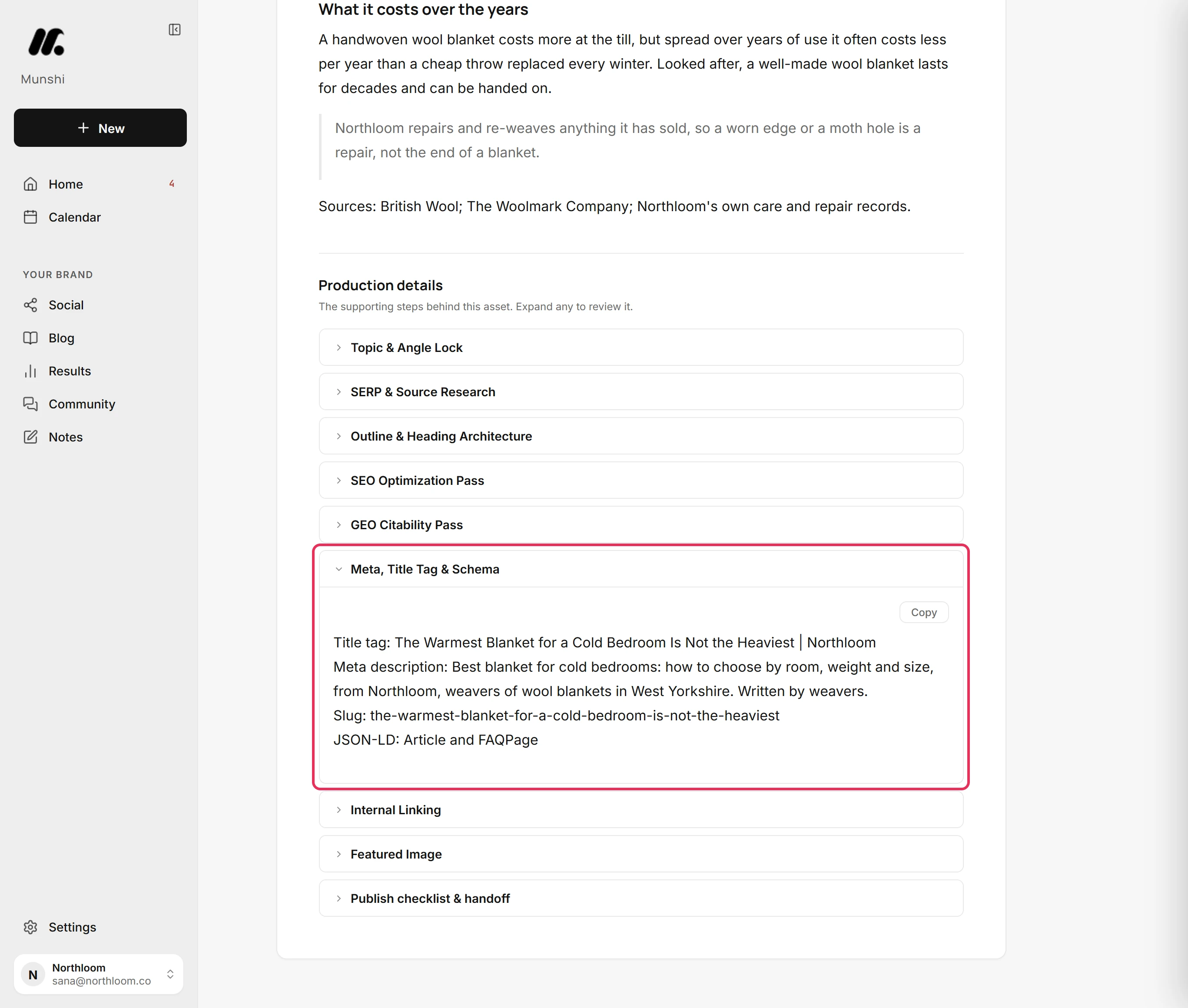
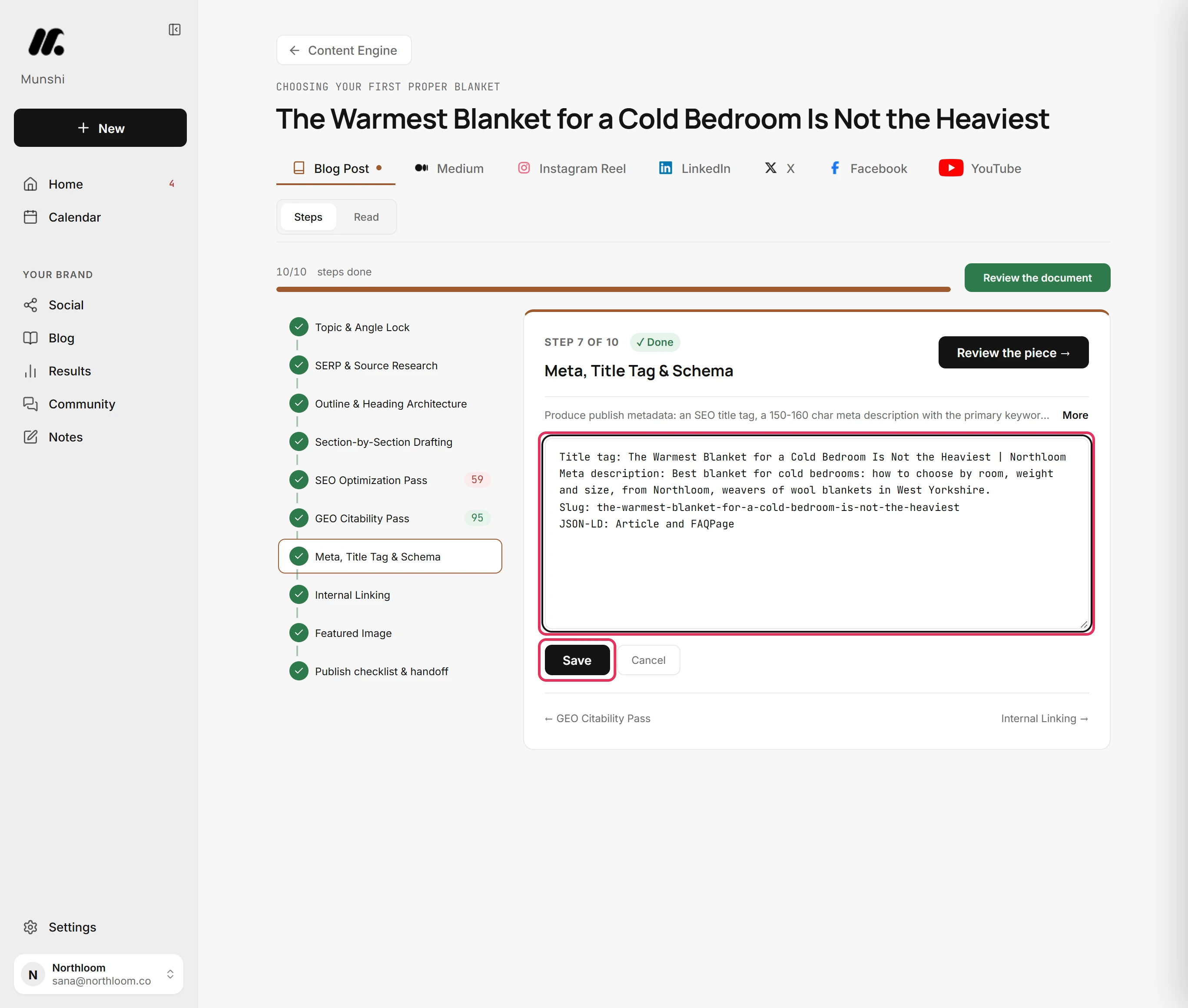
Below the article, Production details lists every other step. Click one to open it. For example, Meta, Title Tag & Schema holds the title tag, meta description and slug.
-
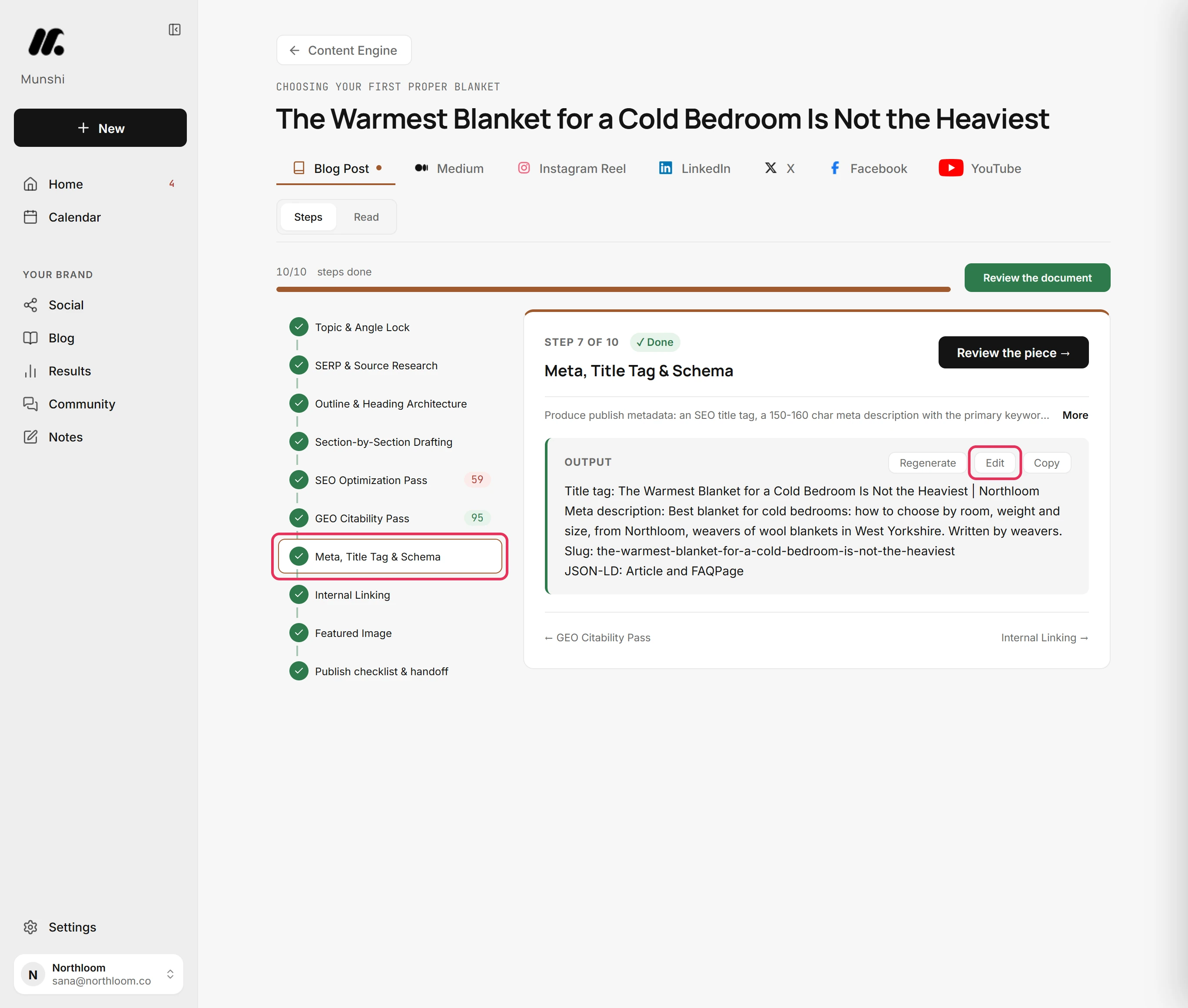
Click Steps at the top of the page, then Browse the steps. Click the step in the list.
-
Click Edit, make the change and click Save. Here, a repeated line comes out of the meta description. Munshi says Output saved. Quality scores cleared (re-run to re-check).
-
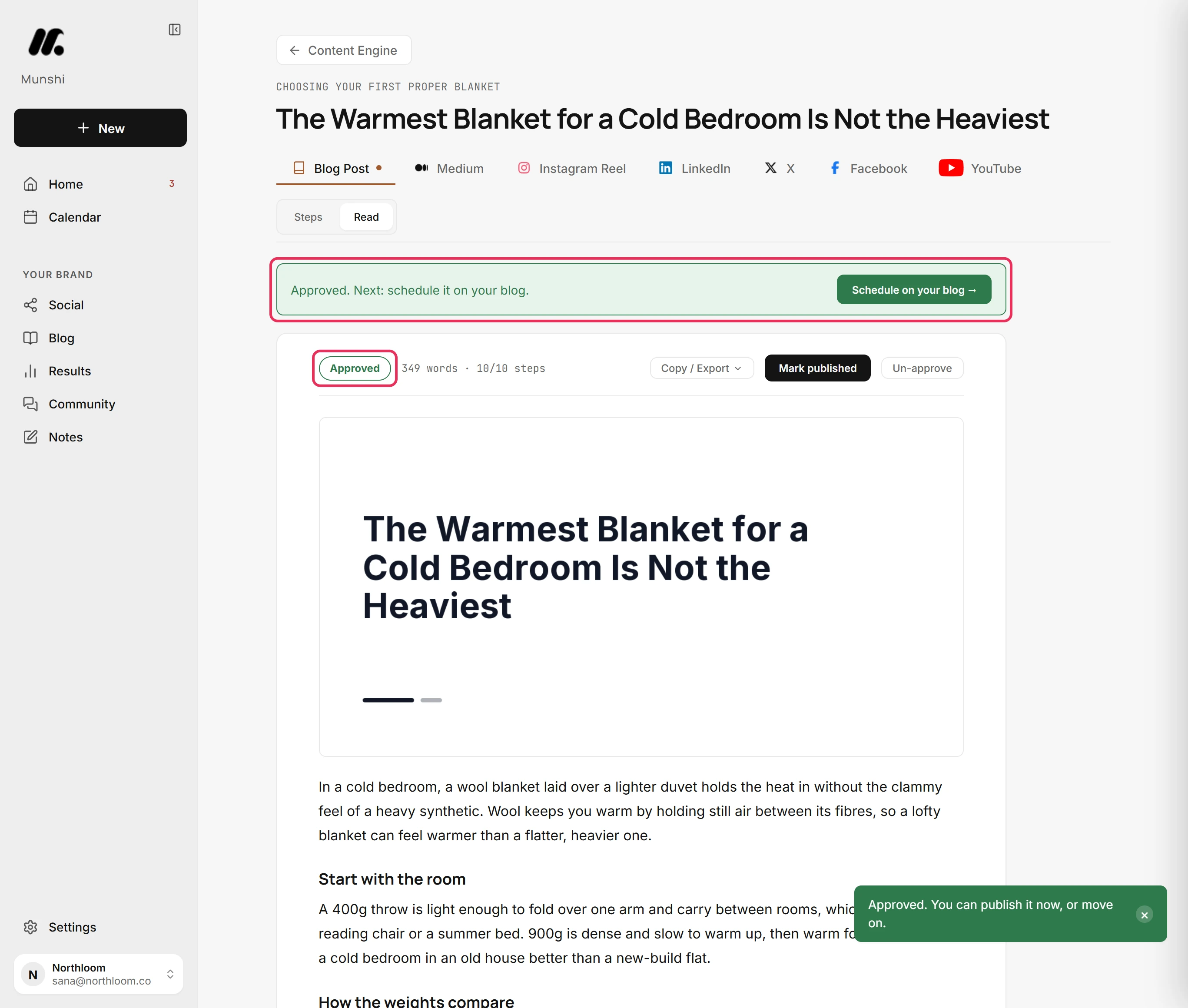
Click Read, then Mark completed on the banner. Munshi says Approved. You can publish it now, or move on. The status reads Approved. The banner says what comes next, ending in Schedule on your blog.
-
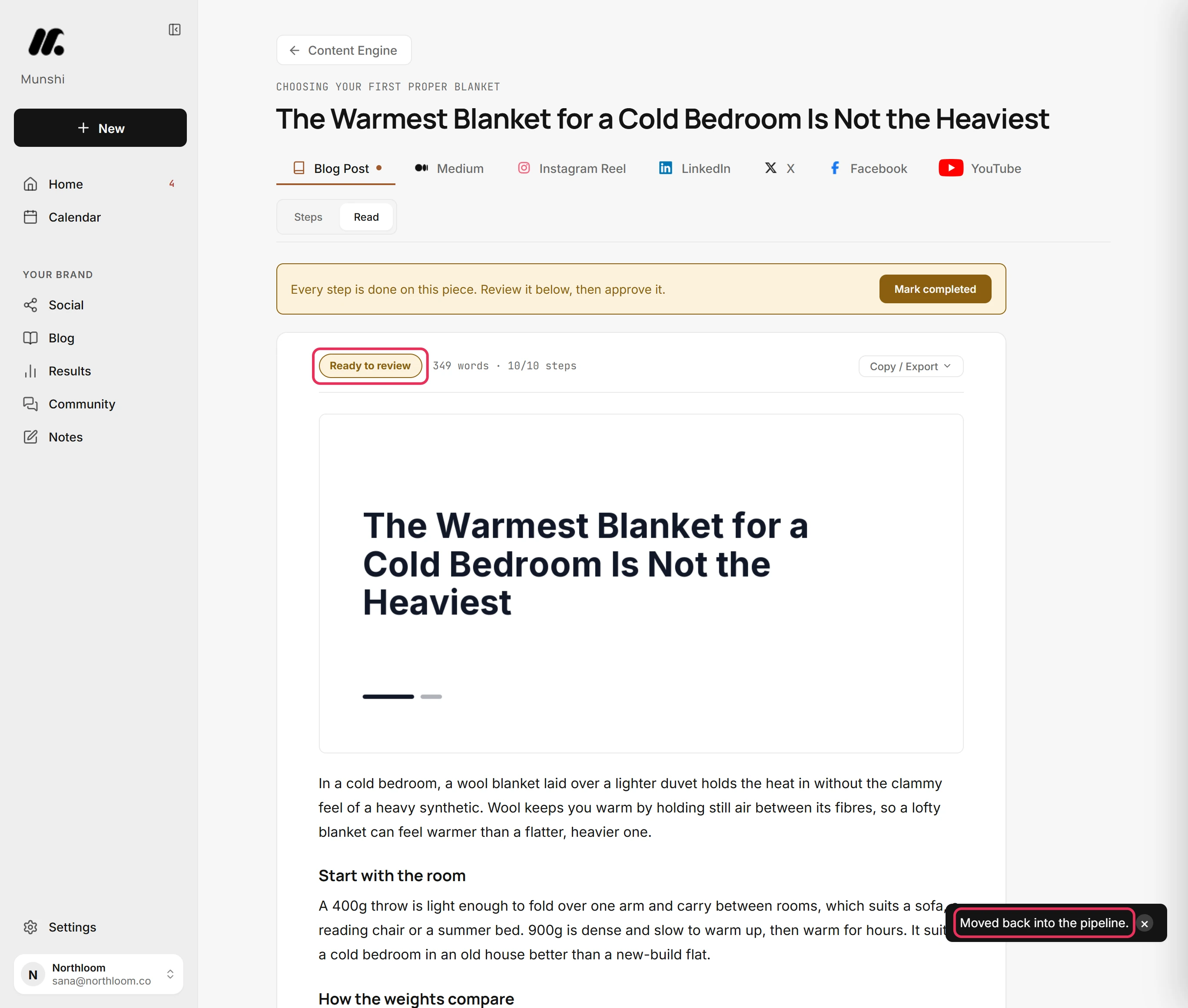
Click Un-approve beside the status. Munshi says Moved back into the pipeline. The article reads Ready to review again.
Where you are now
The article is approved. You can publish it from Published, or copy it out for a platform Munshi does not connect to. Approving never publishes anything by itself. The next article waiting is listed on Home.
If something goes wrong
“Finish writing first”
Approve the article first. Published shows this for an article that is not approved yet. Open it and click Mark completed on the banner above the article. Then set its SEO fields and publish it.
There is no Mark completed banner on the article
Finish any open step in Steps. The banner shows only while every step is done and the article is not approved. If the status already reads Approved, there is nothing left to approve.
“Un-published. Back in the pipeline.”
Once the article is live again, mark it published with its address. It had been marked published, so its live address and publish date were cleared.
Try it on your own brand this week.
Munshi Social, the AI content marketing engine for small teams, plans, writes, publishes, and tracks your blog and socials. The guide above shows the real app, not a mock-up.
Start your workspace