How to check demand for your keywords
Click Check demand on a focus area's keywords. Munshi asks Google's autocomplete about each one and ticks the keywords people really search for.
Before you start
- Google Search Console connected in Settings, under Integrations, and reporting searches for your site. The keyword editor opens from those searches.
- A focus area with keywords in your strategy.
-
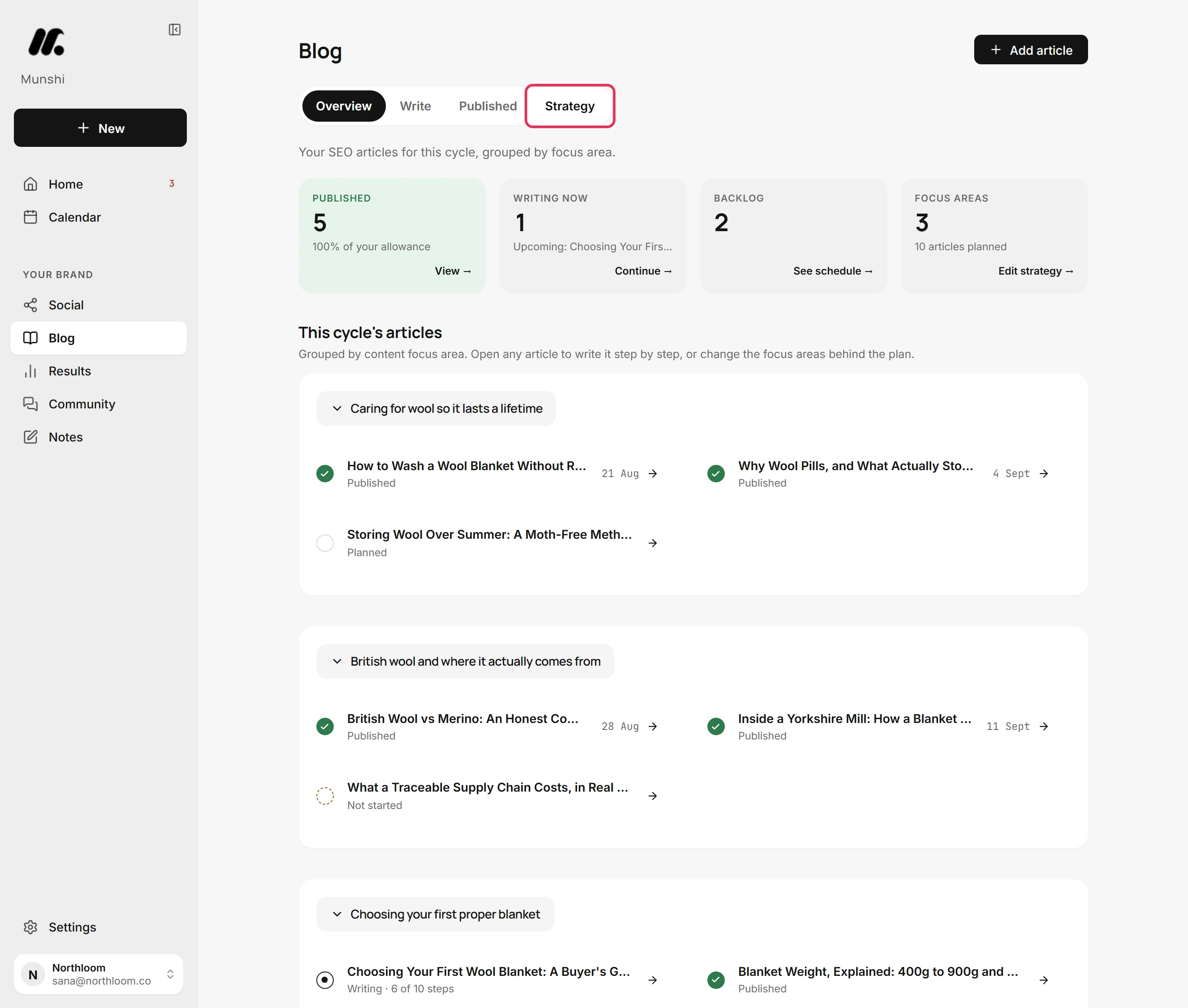
In Blog, click the Strategy tab.
-
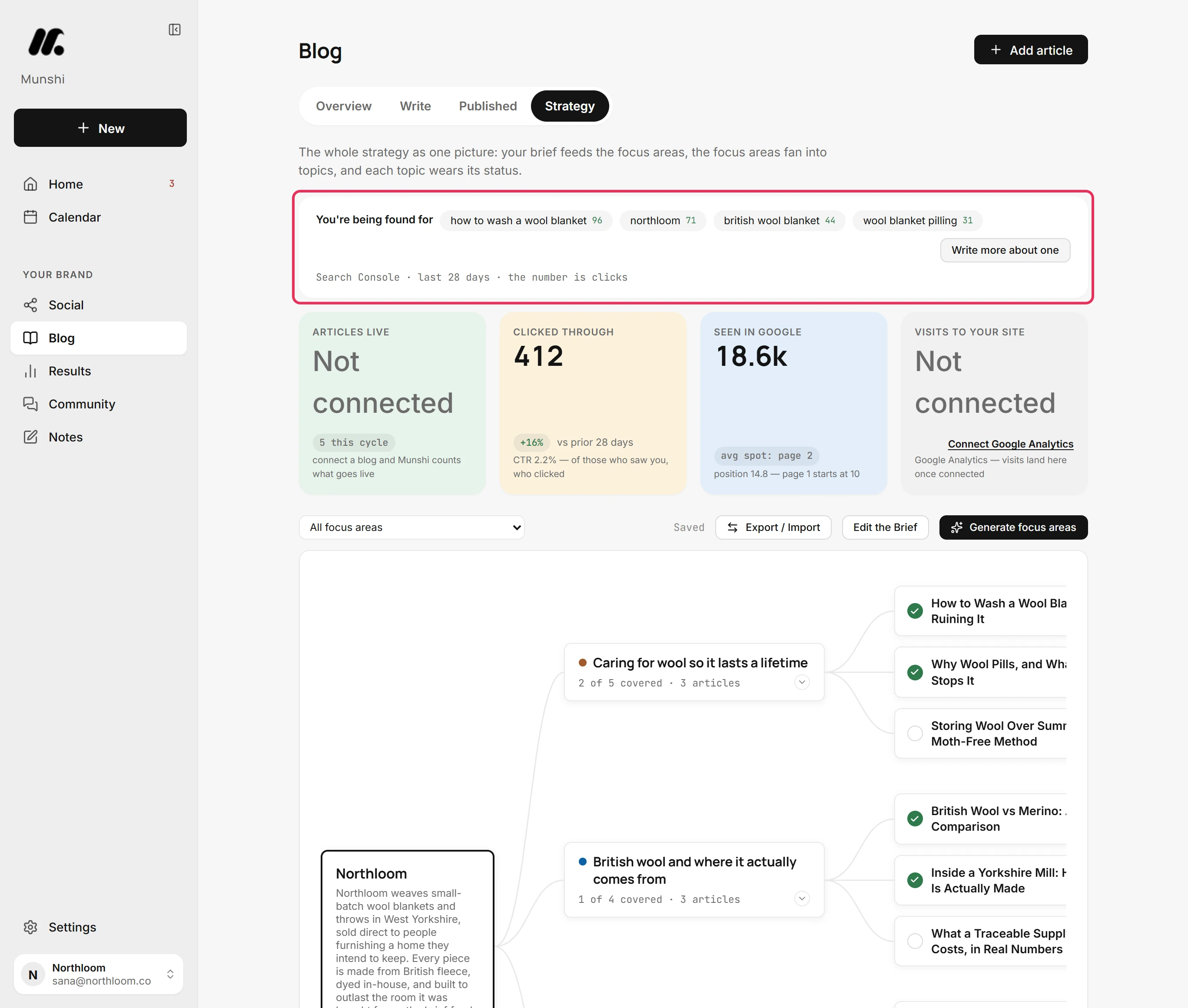
You're being found for lists the Google searches that brought people to your site in the last 28 days. Each shows the clicks it earned. Click Write more about one to open the keyword editor.
-
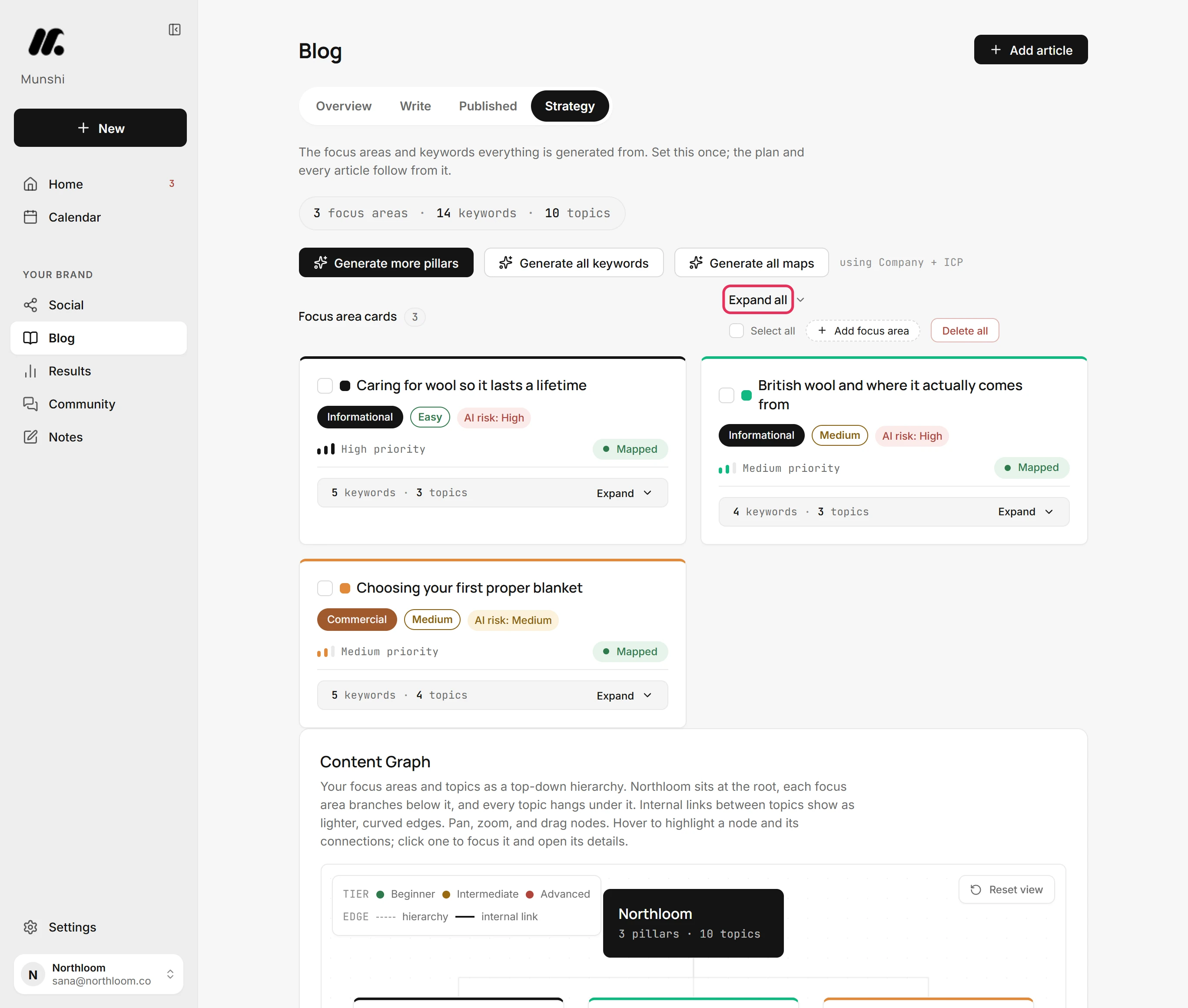
The editor lists your focus areas as cards. Click Expand all above them to open every card.
-
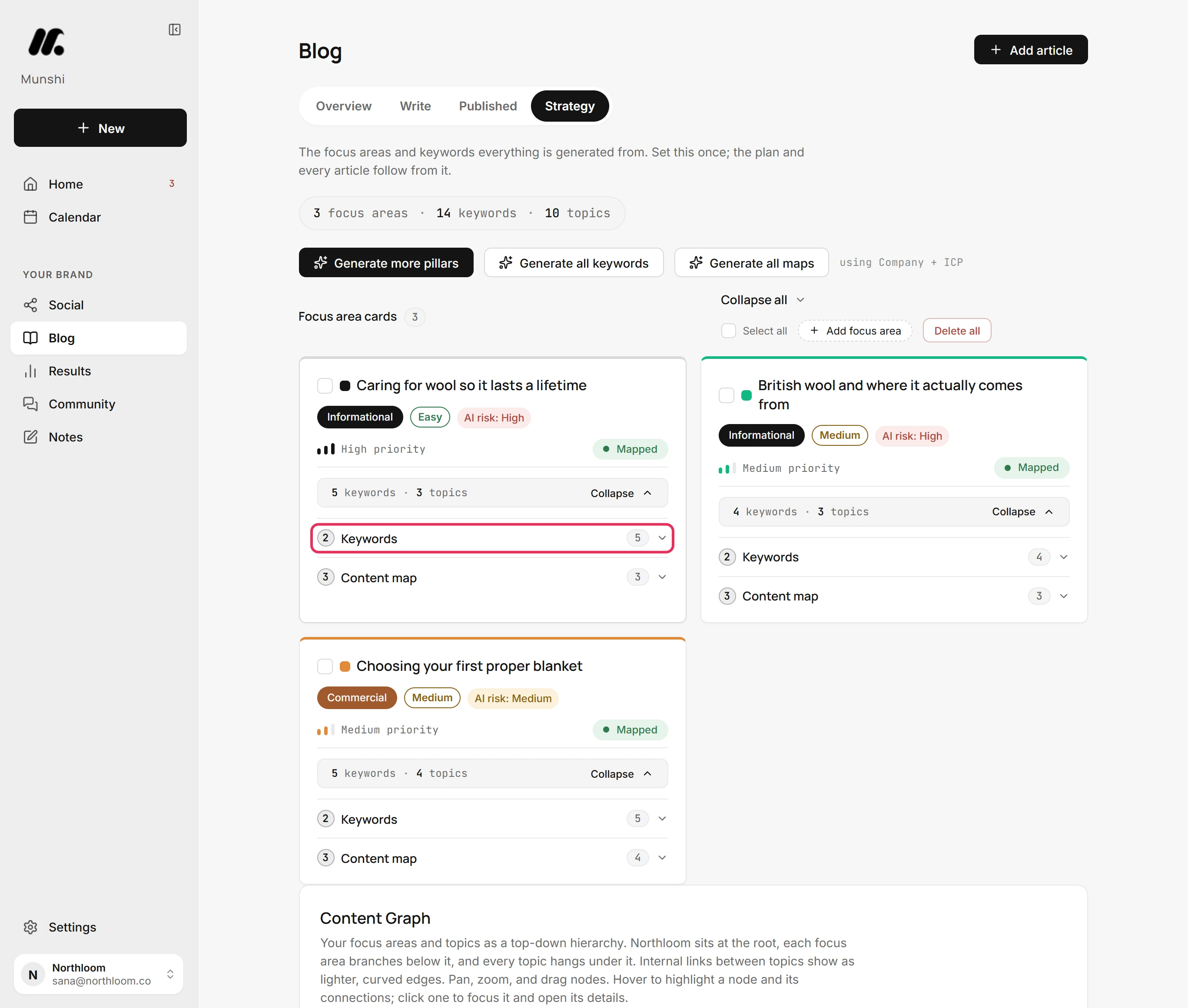
On the focus area you want to check, click 2 Keywords. The number at the end of the row is how many keywords it holds.
-
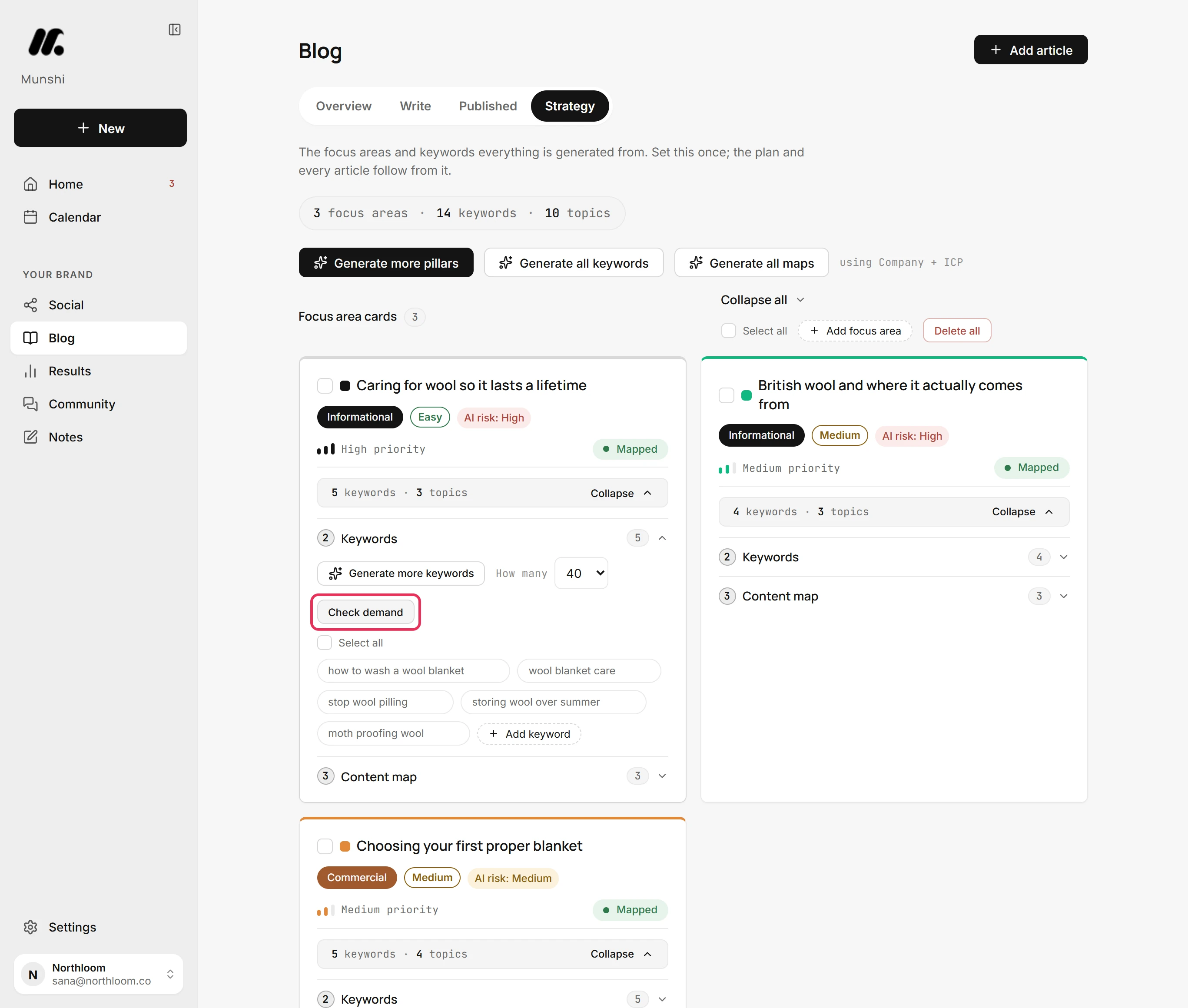
Click Check demand above the keywords. Munshi asks Google's autocomplete, the suggestions Google shows as you type, about each one. It costs nothing from your plan and uses no AI model.
-
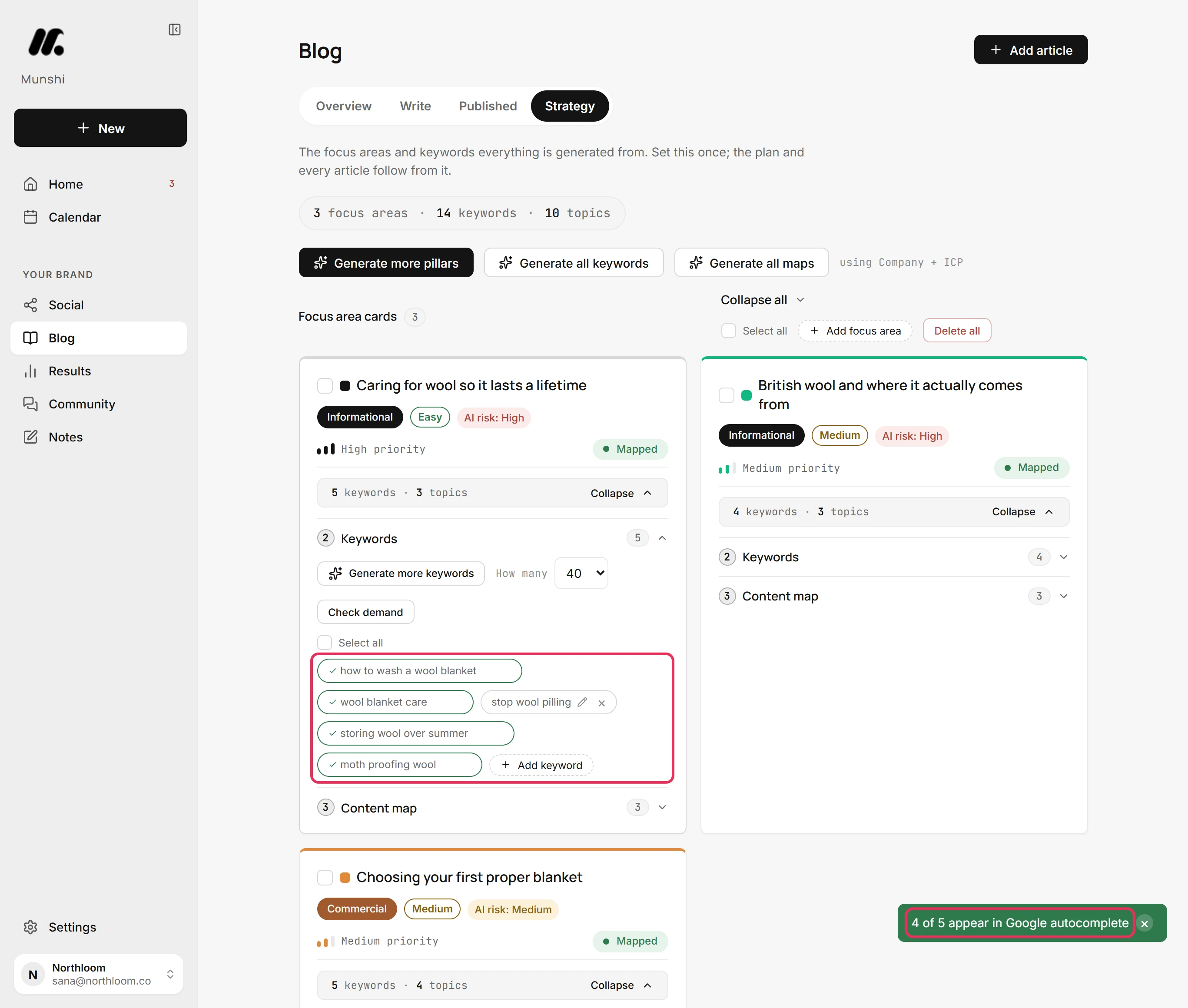
Each keyword Google completes gets a tick. Munshi says how many of the list appear, here 4 of 5. A keyword without a tick is one people rarely type, so swap it for one they do.
Where you are now
You know which of the focus area's keywords people really type into Google. The ticks stay while the editor is open, so check again after you change the list.
If something goes wrong
There is no Write more about one button
Connect Search Console and wait for Google to report searches for your site. Until then the strip offers Connect Search Console, or says Google has no clicks to report for the last 28 days.
“Too many demand checks this hour. Try again in a bit.”
Wait a little and check again. A workspace can run 30 checks an hour. Your keywords are not affected.
“Couldn't reach Google autocomplete to check demand. Try again in a moment.”
Try again in a moment. Google did not answer for any of the keywords. This is a connection problem, not a verdict on your keywords.
Only the first 30 keywords were checked
Delete the keywords you have ruled out, then check again to reach the rest. One check reads the first 30 keywords of a focus area and says so.
Try it on your own brand this week.
Munshi Social, the AI content marketing engine for small teams, plans, writes, publishes, and tracks your blog and socials. The guide above shows the real app, not a mock-up.
Start your workspace