How to post a video: Reels, Shorts, TikTok and the rest
Upload one video in Munshi and send it to Instagram, TikTok, YouTube and LinkedIn. Each gets the format it wants, all from one composer.
Before you start
- At least one network connected. A video post can go to any network Munshi connects to. The integrations pages say how to connect each one.
- The video as an MP4 or MOV file, up to 1 GB. Munshi also takes WebM, but Instagram, Facebook and Threads do not.
-
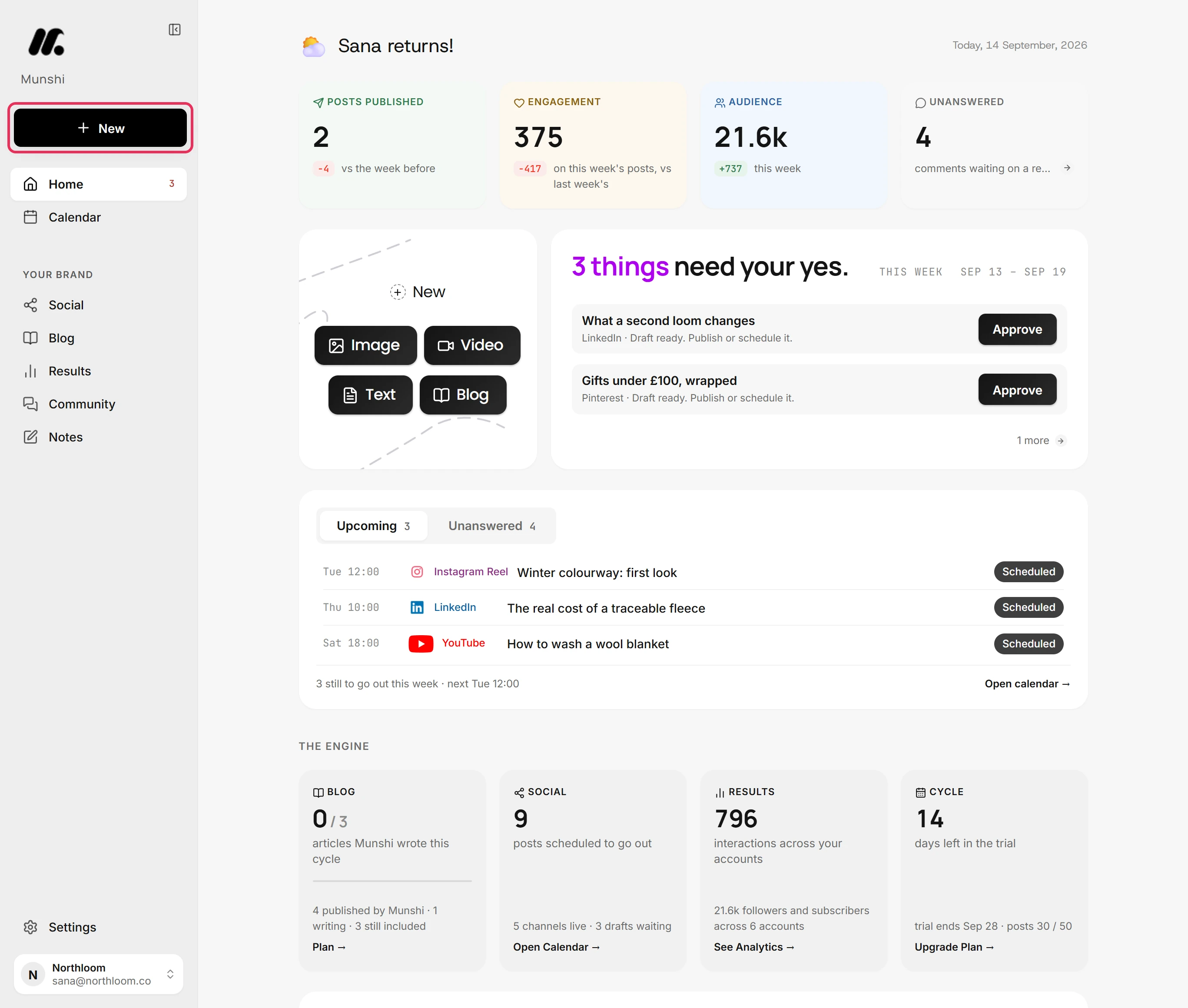
Click New at the top of the sidebar. It is there on every screen. The Video shortcut on Home opens the same chooser.
-
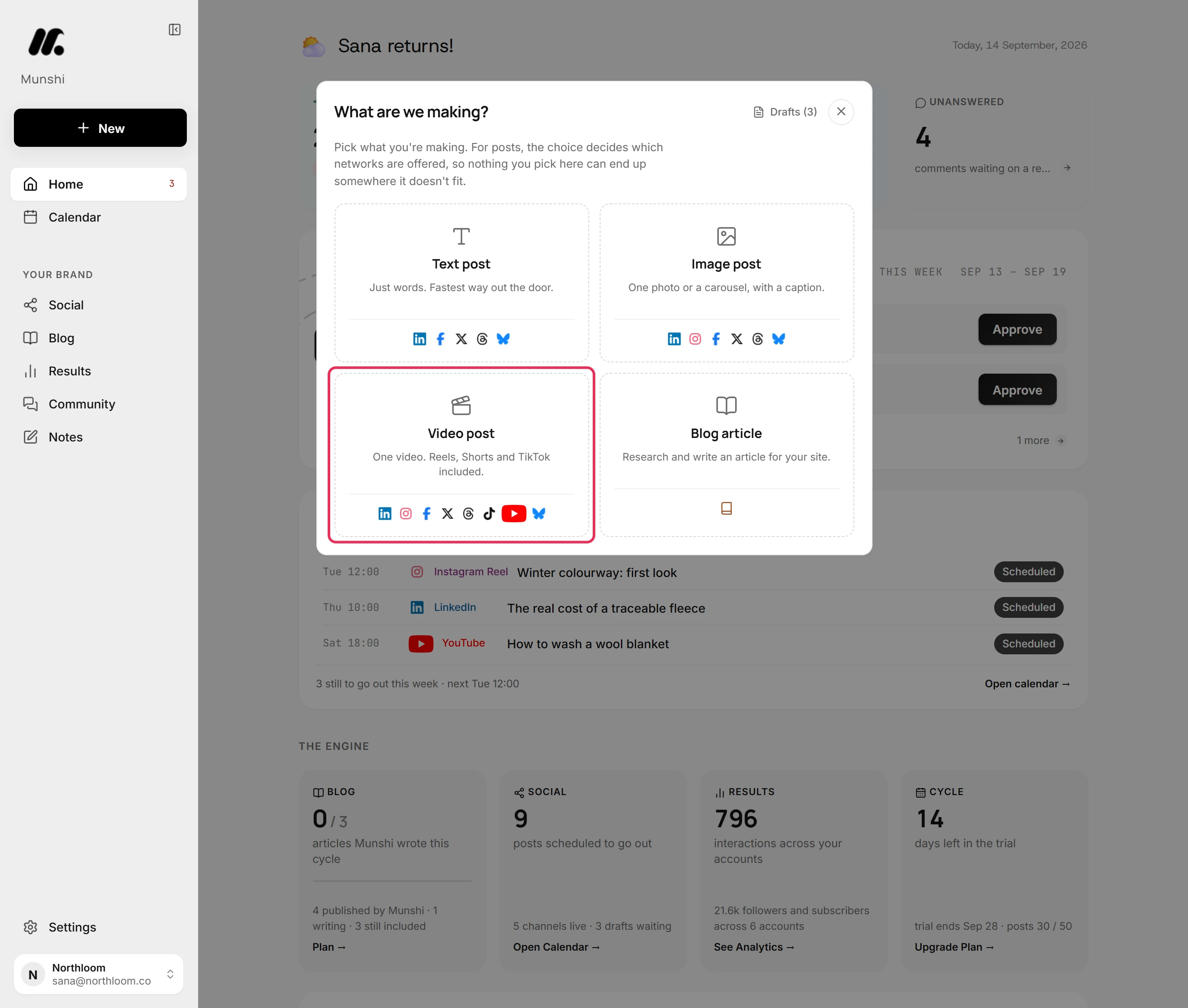
Munshi asks what you are making. Pick Video post. It carries one video and every network offers it, so the same file can go out as a Reel, a Short and a TikTok.
-
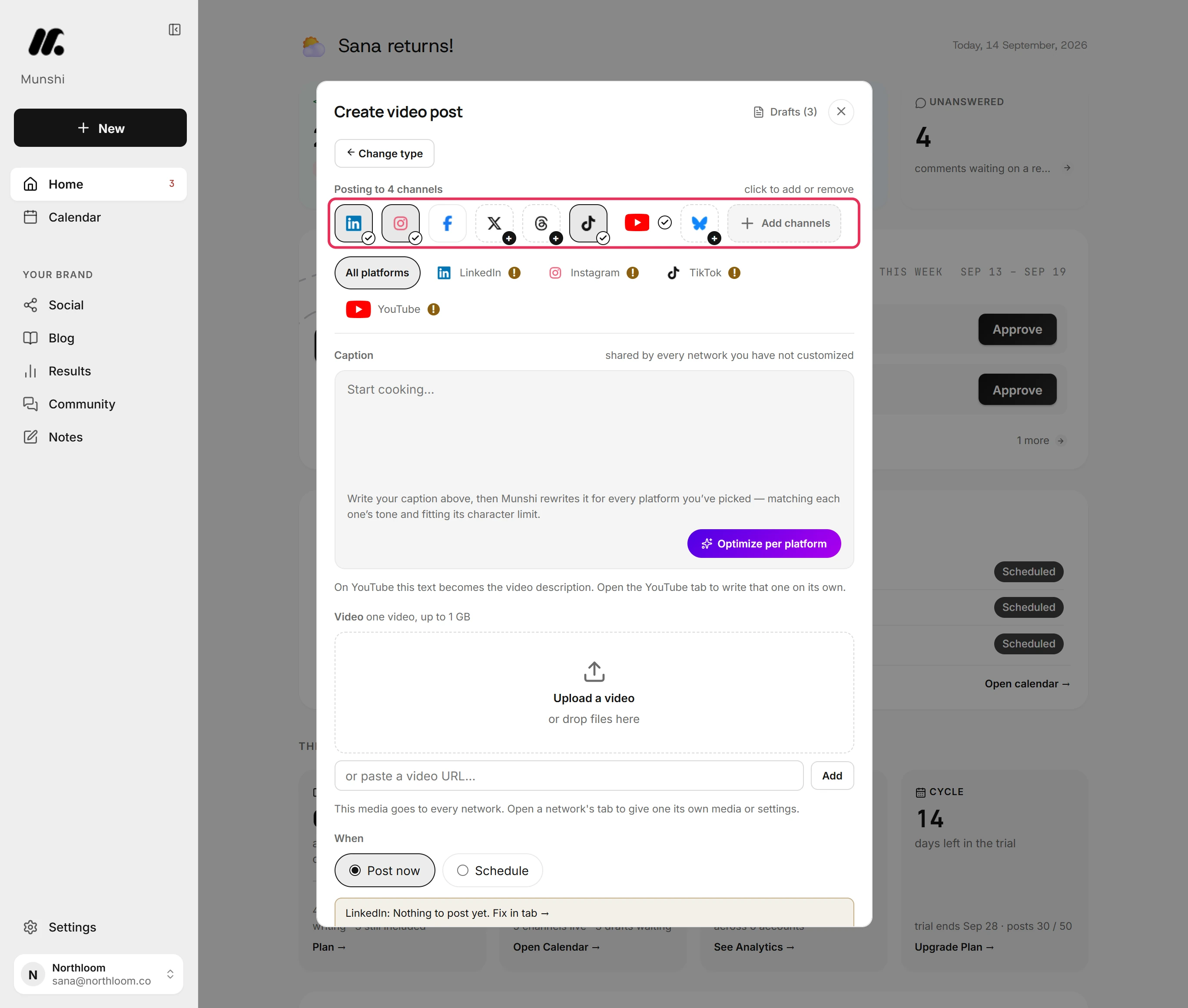
Click a network to add it or take it off. Here LinkedIn was already on, and Instagram, TikTok and YouTube took one click each. The header counts the channels.
-
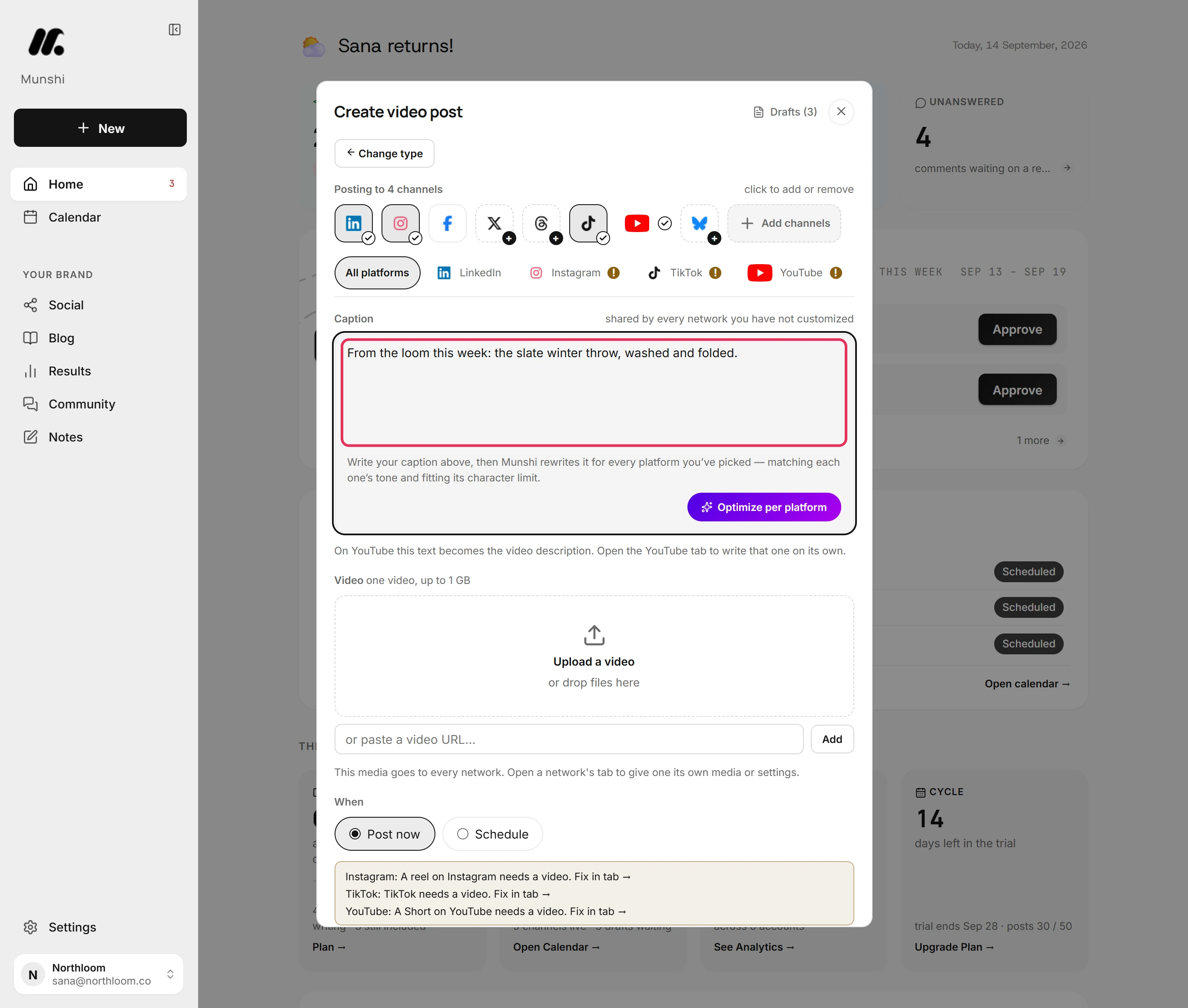
Write in the All platforms tab. Every network starts from this text. On YouTube it becomes the video's description.
-
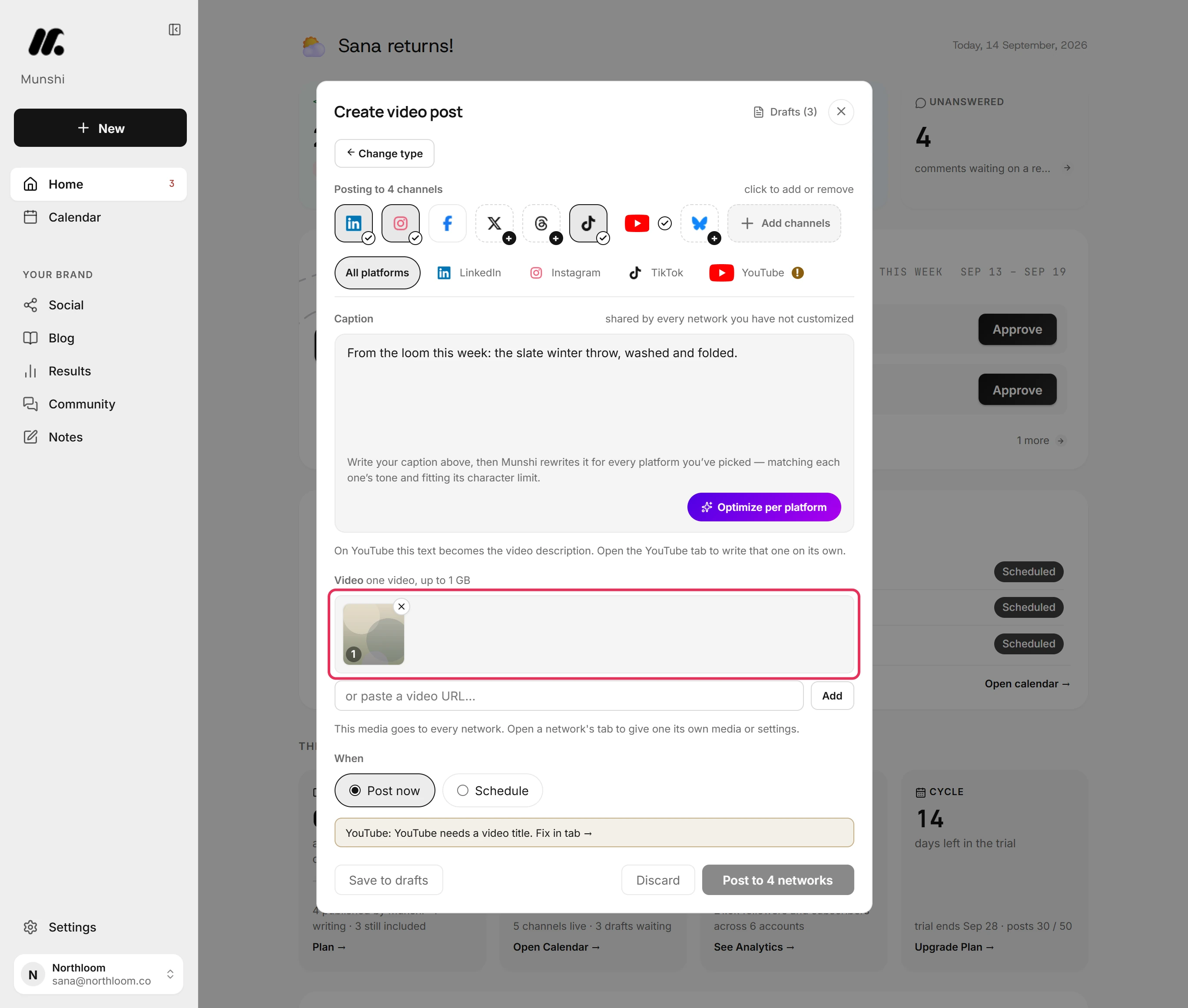
Click Upload a video, or drop the file onto it. When the upload finishes, the clip shows as a thumbnail. The same file goes to every network you picked.
-
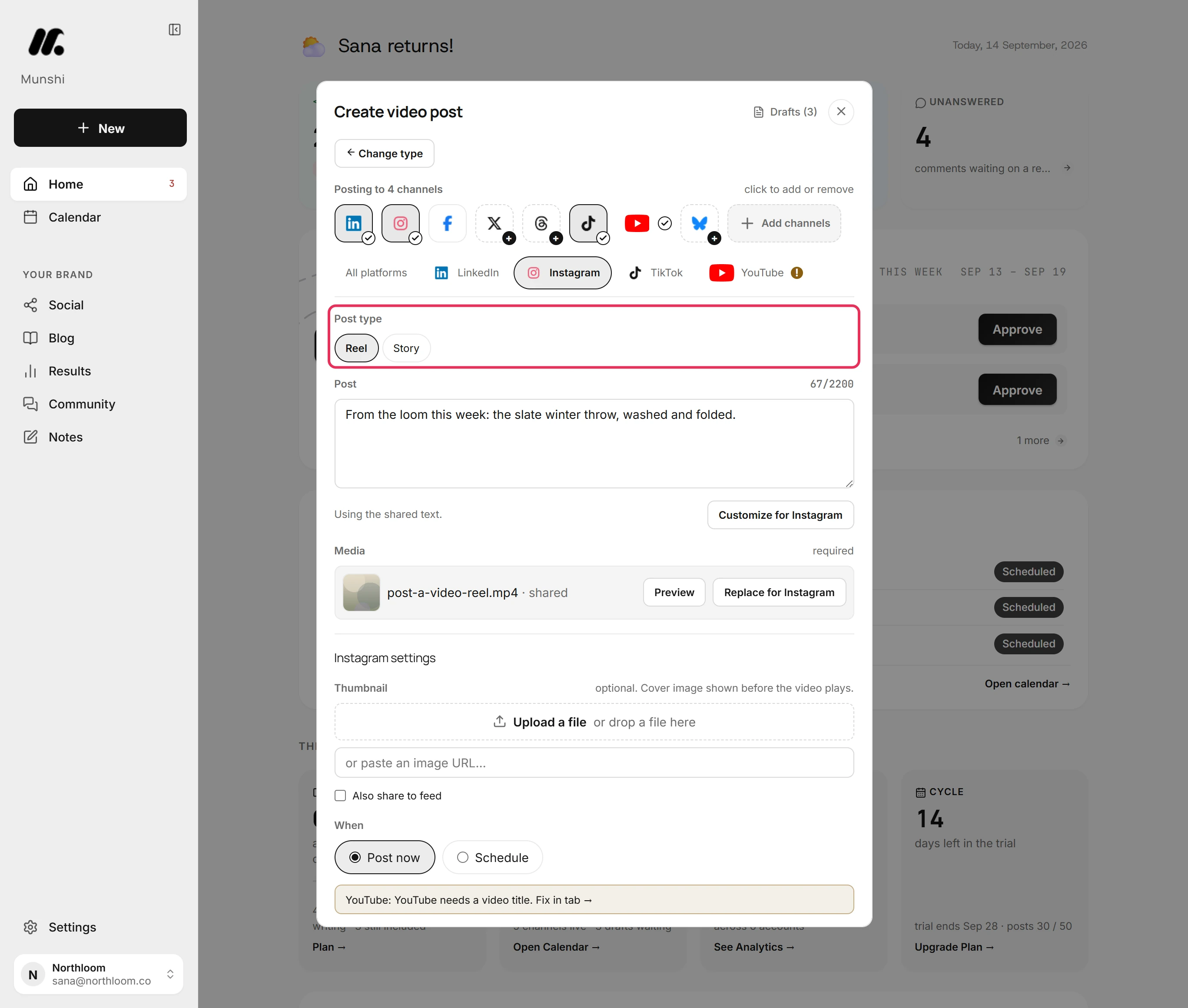
Open a network's tab to choose how the video goes out. On Instagram it is a Reel unless you pick Story. Facebook offers the same two. How to post a Reel or a Story covers both.
-
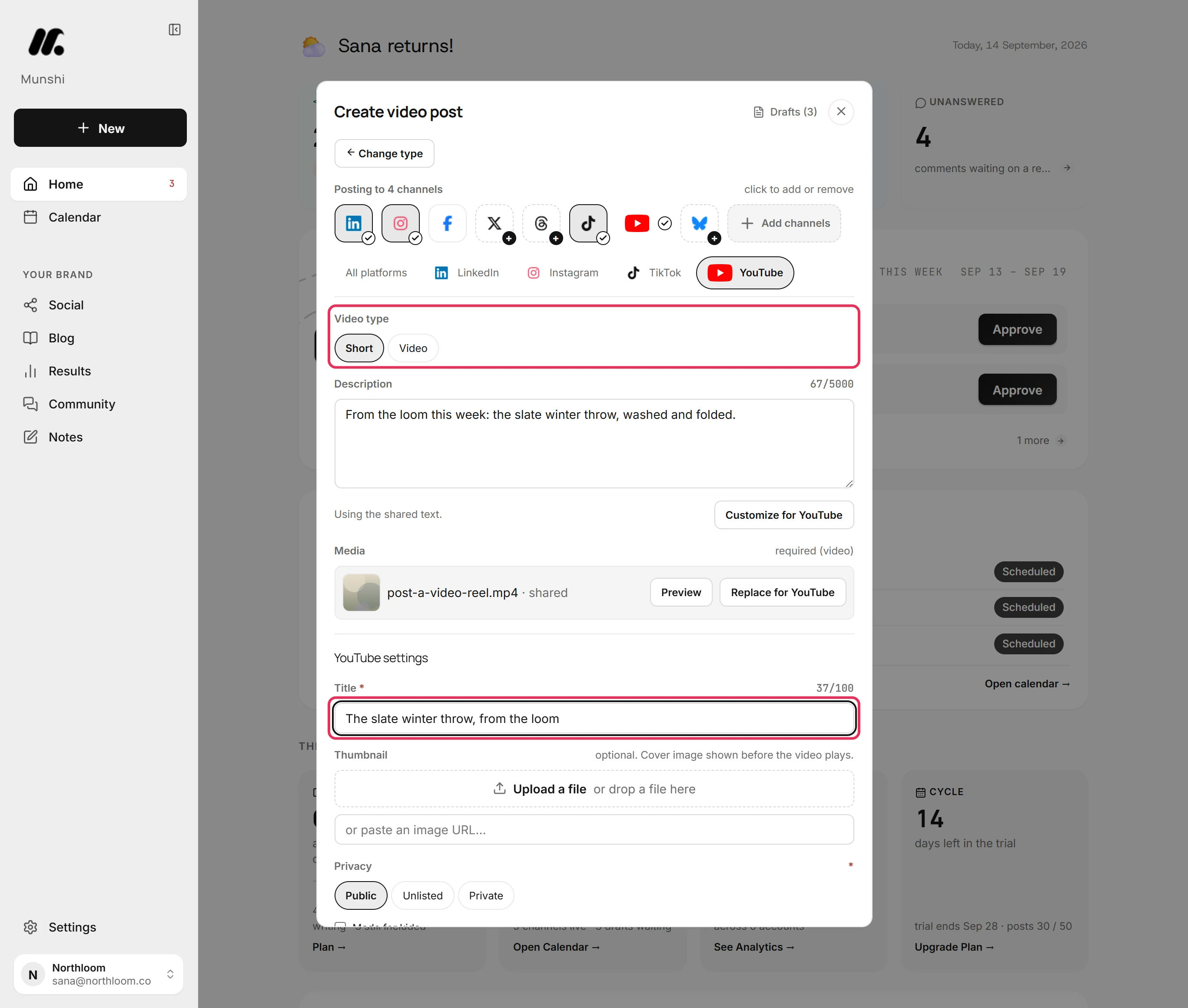
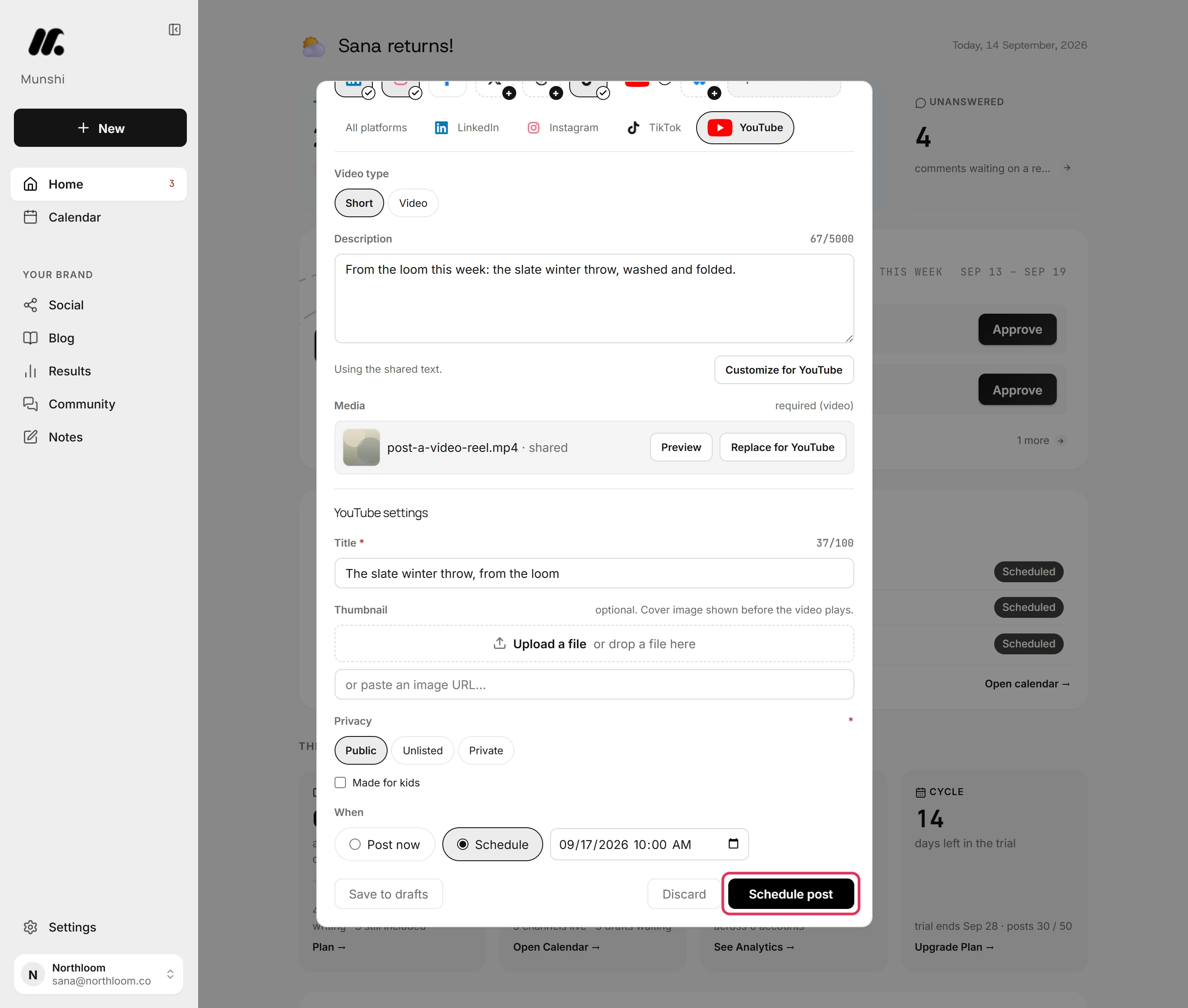
In the YouTube tab, the video goes up as a Short unless you pick Video. Fill in Title, up to 100 characters. YouTube needs a title, so Munshi holds the post until it has one.
-
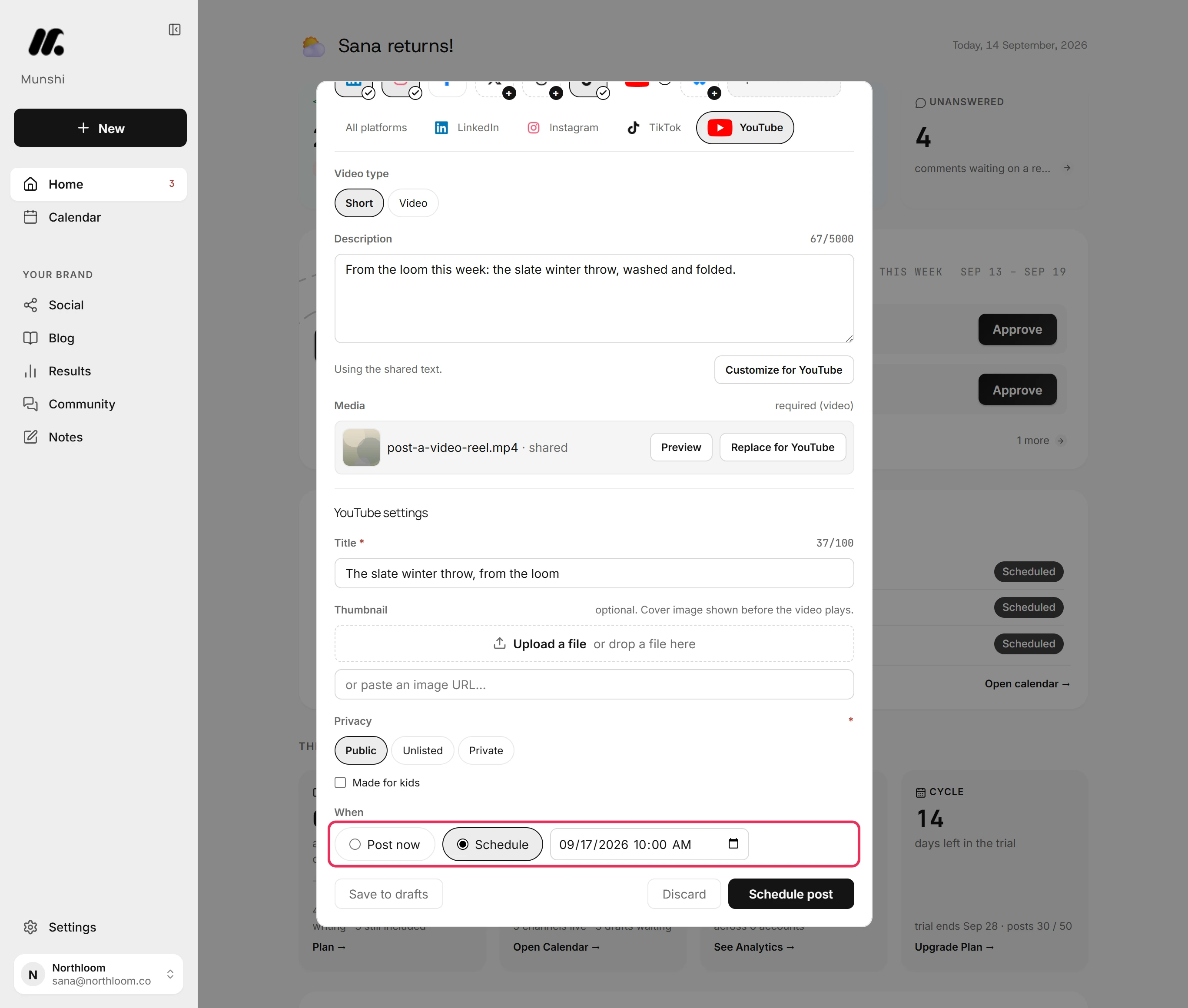
Pick Schedule and set the date and time. Munshi reads the time in your workspace's time zone. To send the video the moment you confirm, pick Post now instead.
-
Click Schedule post. Munshi checks every network's version first. If one is missing something, Munshi names it with Fix in tab. Nothing is scheduled until you fix it.
-
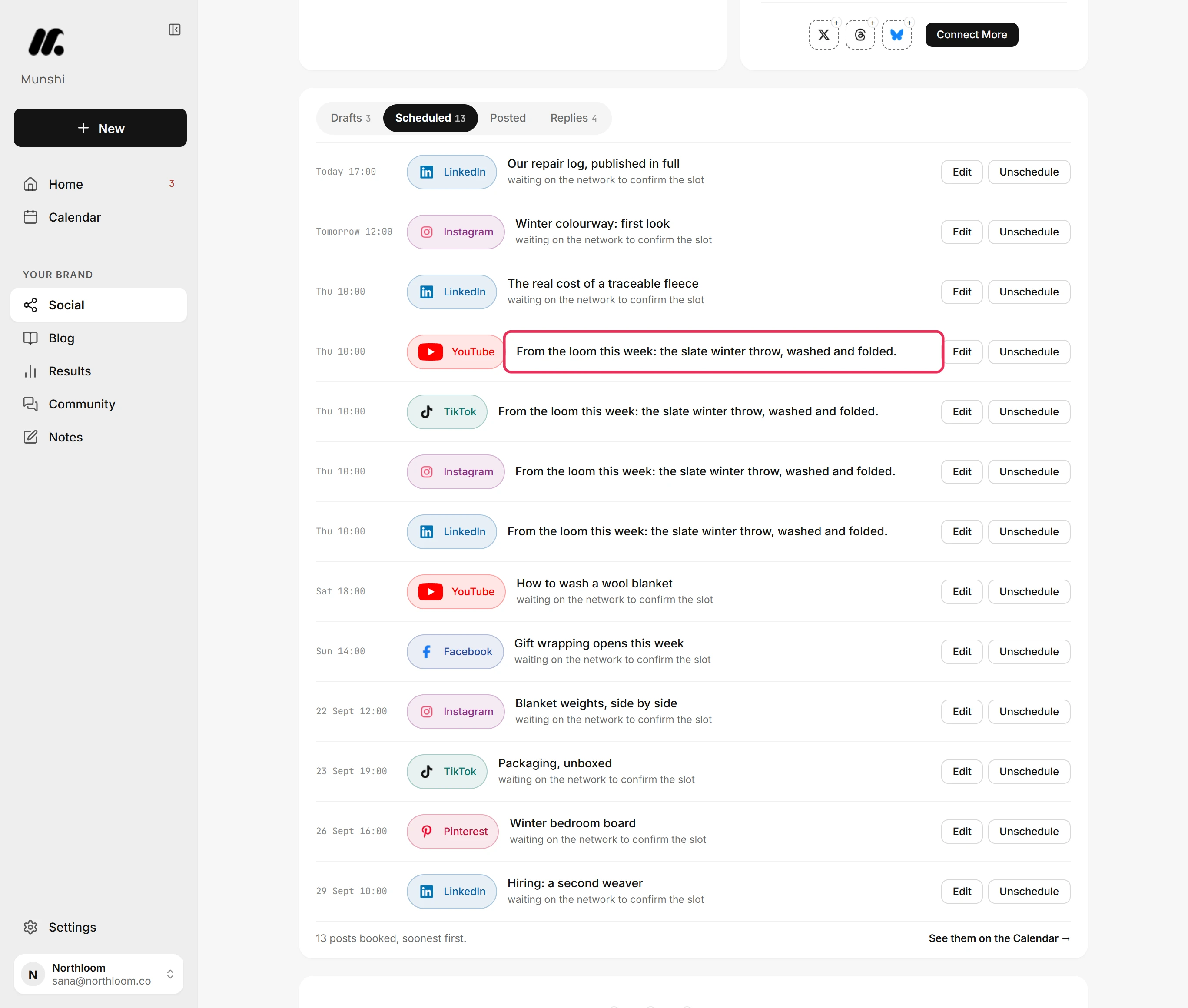
Munshi takes you to Social. Open the Scheduled tab. The video is listed once per network, each with its time, Edit and Unschedule.
Where you are now
You made one upload for four networks at one time. Instagram gets a Reel, YouTube a Short, and TikTok and LinkedIn get the video as a post. Each waits in the Scheduled queue until its time.
If something goes wrong
“YouTube needs a video title.”
Open the YouTube tab and fill in Title. Every YouTube upload needs a title. The mark on the tab then clears and you can schedule the video.
“a video post takes an MP4, MOV or WebM video.”
Export the video as MP4 and upload it again. The file you picked is another type, such as a picture or an AVI. Files Munshi takes, and how big lists every type.
“Facebook needs an MP4 or MOV video”
Export the video as MP4 and upload that. Or open the network's tab and use Replace for it with an MP4 copy. Facebook, Instagram and Threads do not take WebM. A file Munshi will not take covers the other refusals.
“files can be up to 1 GB.”
Export a shorter cut or a lower bitrate, and upload that file. The video is larger than 1 GB.
Try it on your own brand this week.
Munshi Social, the AI content marketing engine for small teams, plans, writes, publishes, and tracks your blog and socials. The guide above shows the real app, not a mock-up.
Start your workspace