How to add, switch and rename workspaces
Switch workspaces from the menu at the bottom of the sidebar. Rename the one you own, add another brand on Studio, or discard a new workspace before setup.
Before you start
- You need the Studio plan to add a second workspace. Studio covers three brands.
-
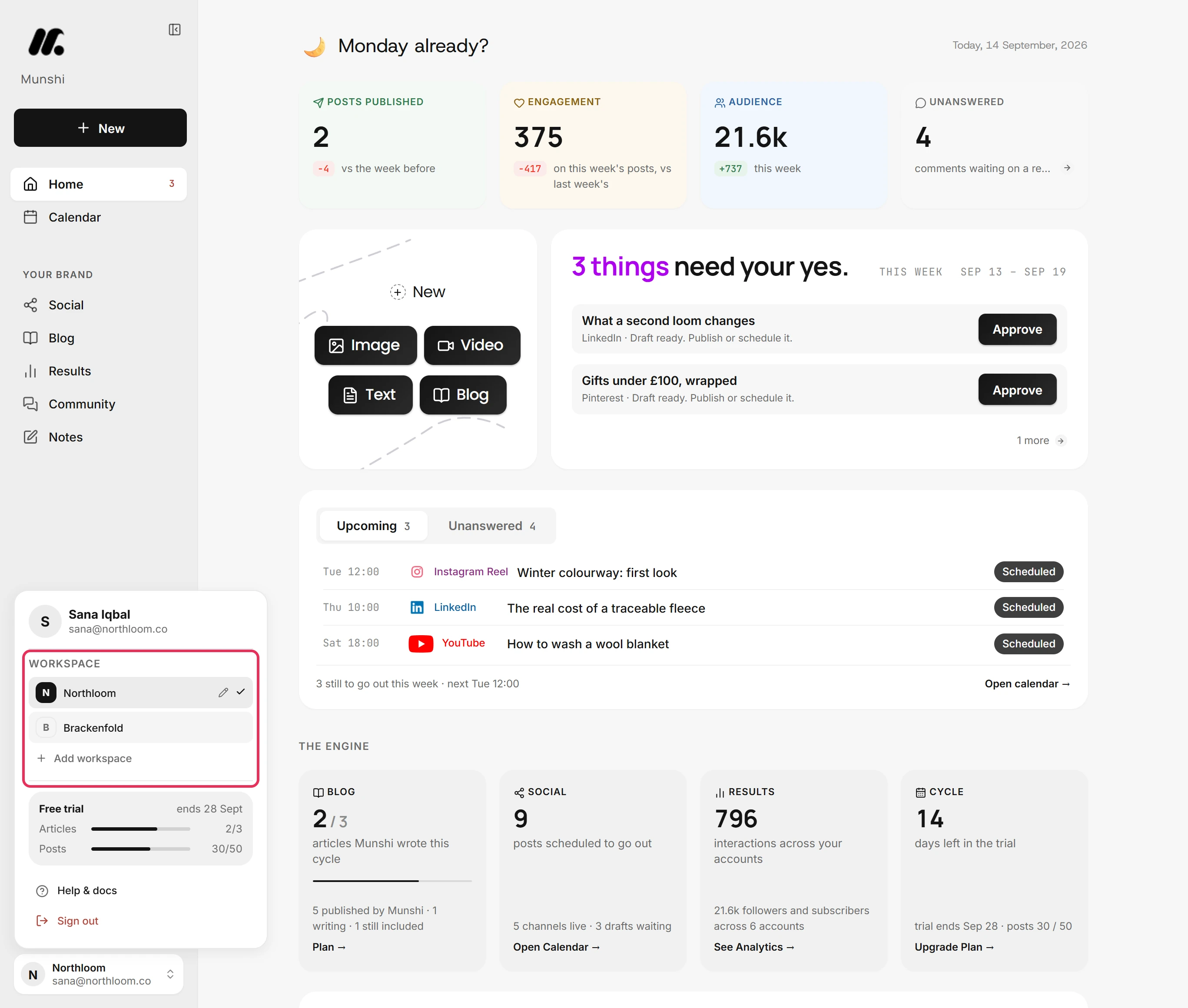
Click the workspace name at the bottom of the sidebar. Under Workspace, the menu lists every workspace your login can open. A tick marks the one you are in.
-
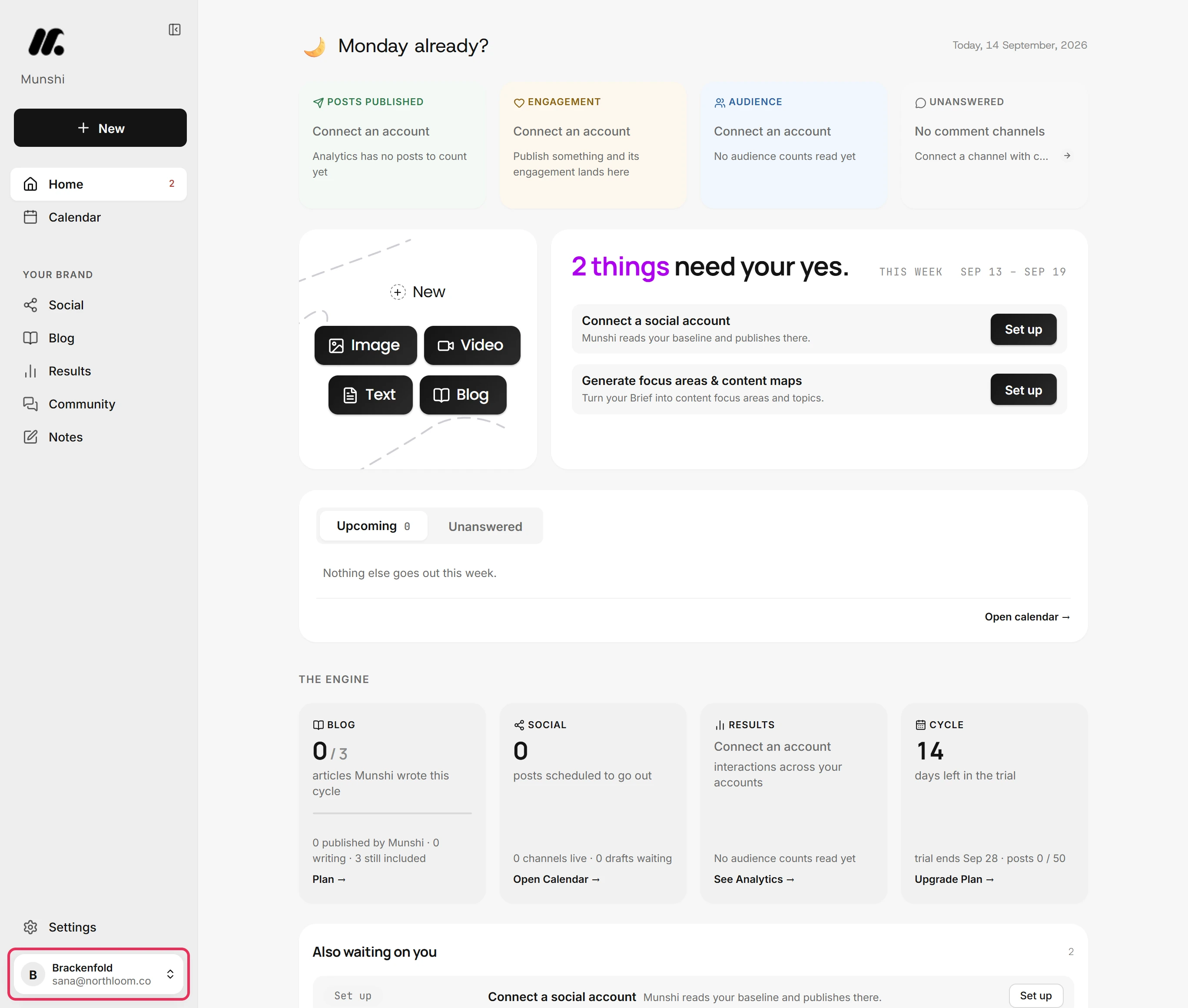
Click another workspace in the list. Munshi reloads in that workspace. The chip at the bottom of the sidebar now shows its name.
-
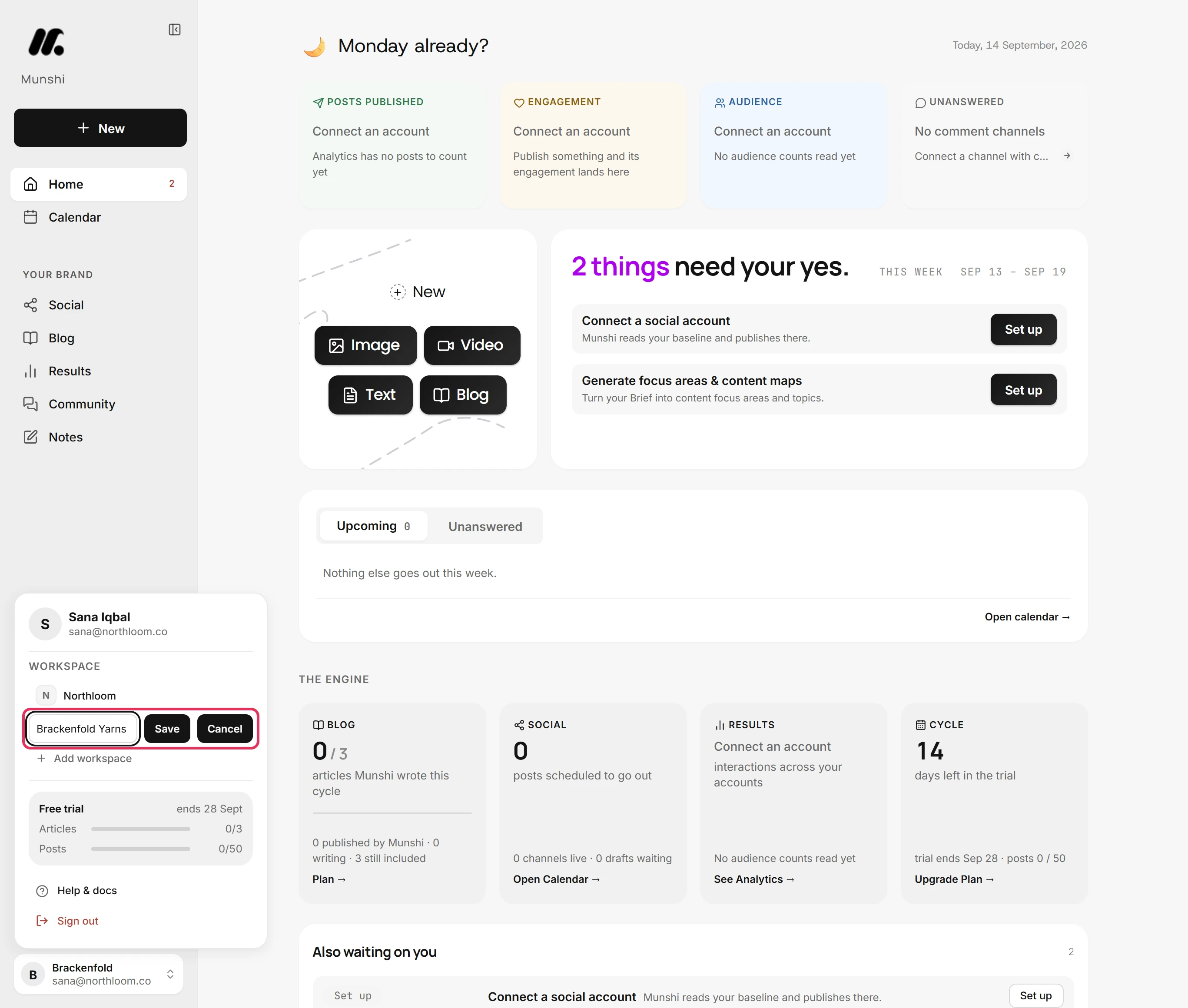
Open the menu and click the pencil beside the ticked workspace. Type the new name and click Save. Only the workspace owner sees the pencil.
-
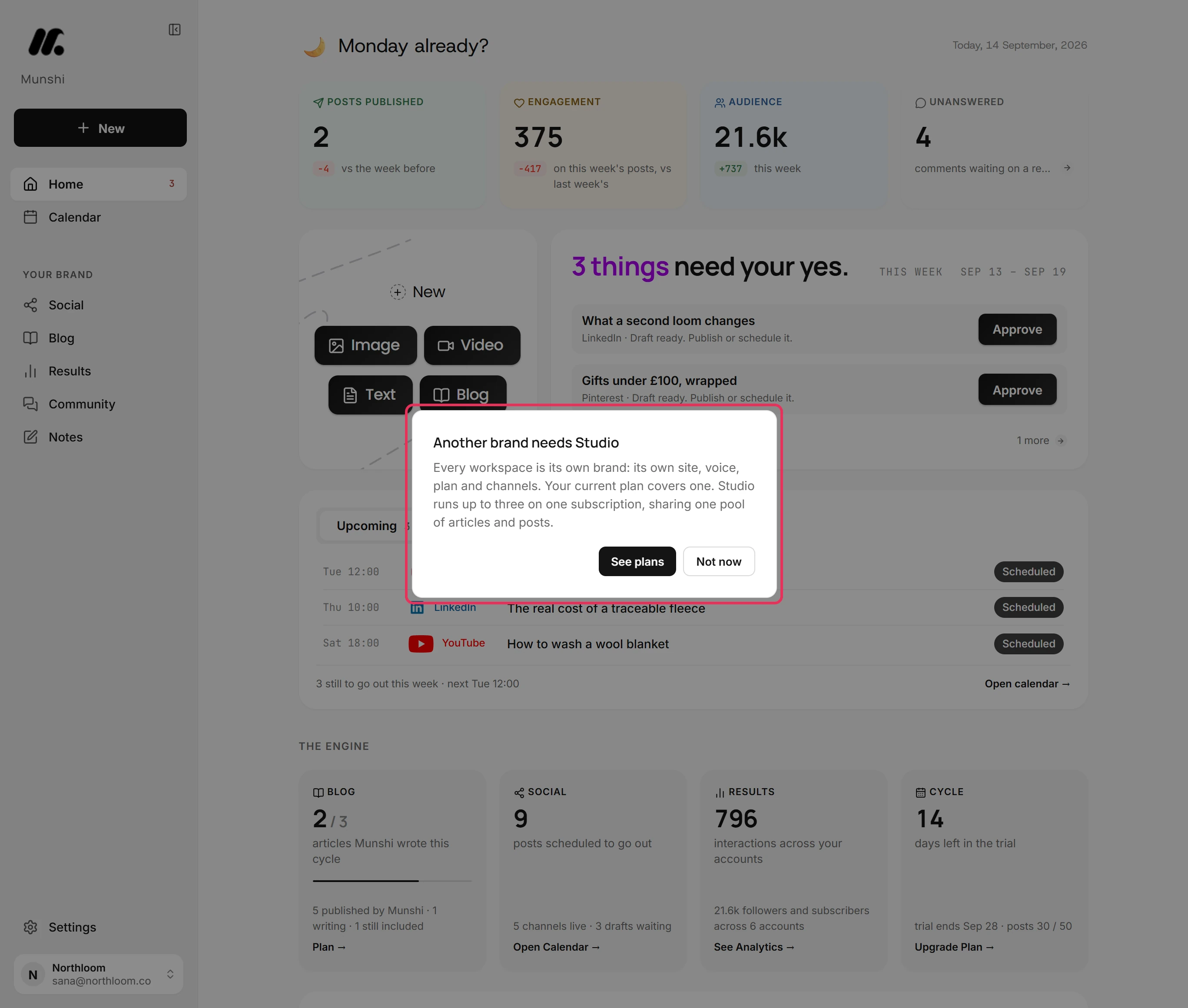
Click Add workspace. The trial and Founding cover one brand, so Munshi shows Another brand needs Studio. Click See plans to open Plan & billing.
-
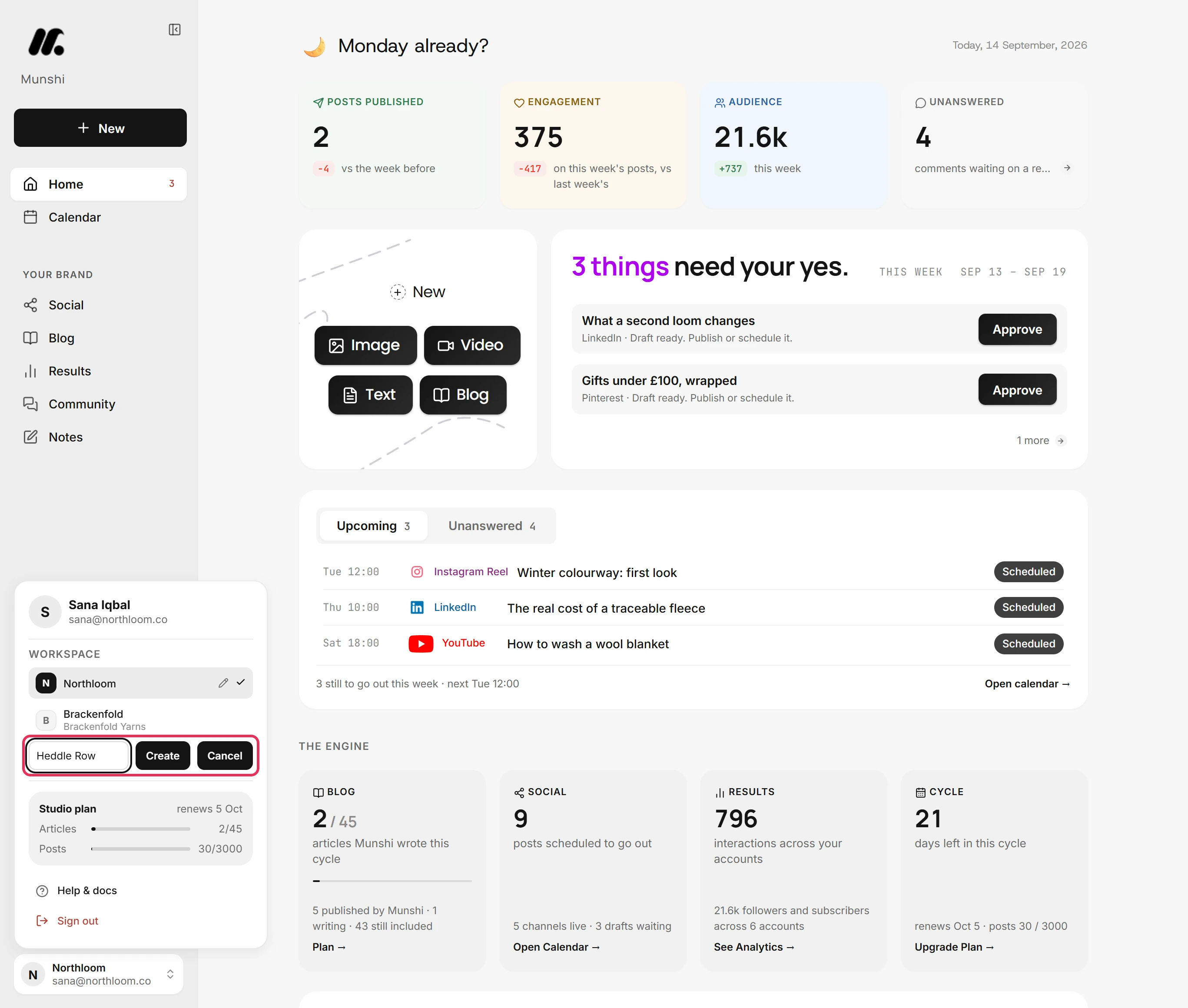
On Studio, Add workspace asks for a name. Type it and click Create.
-
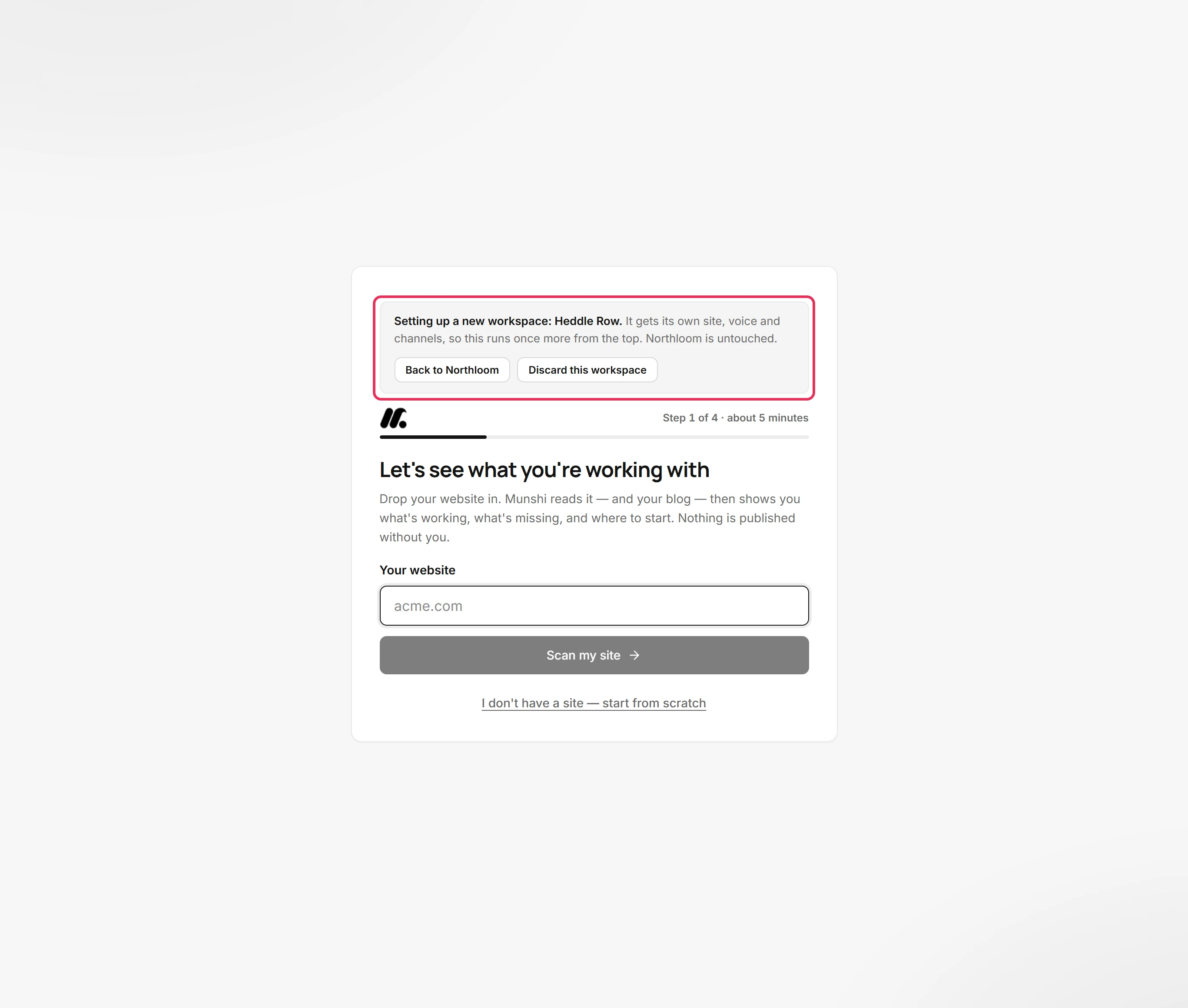
Munshi switches into the new workspace and opens its setup from the start. It gets its own site, voice and channels. A note above setup names it and says your other workspace is untouched.
-
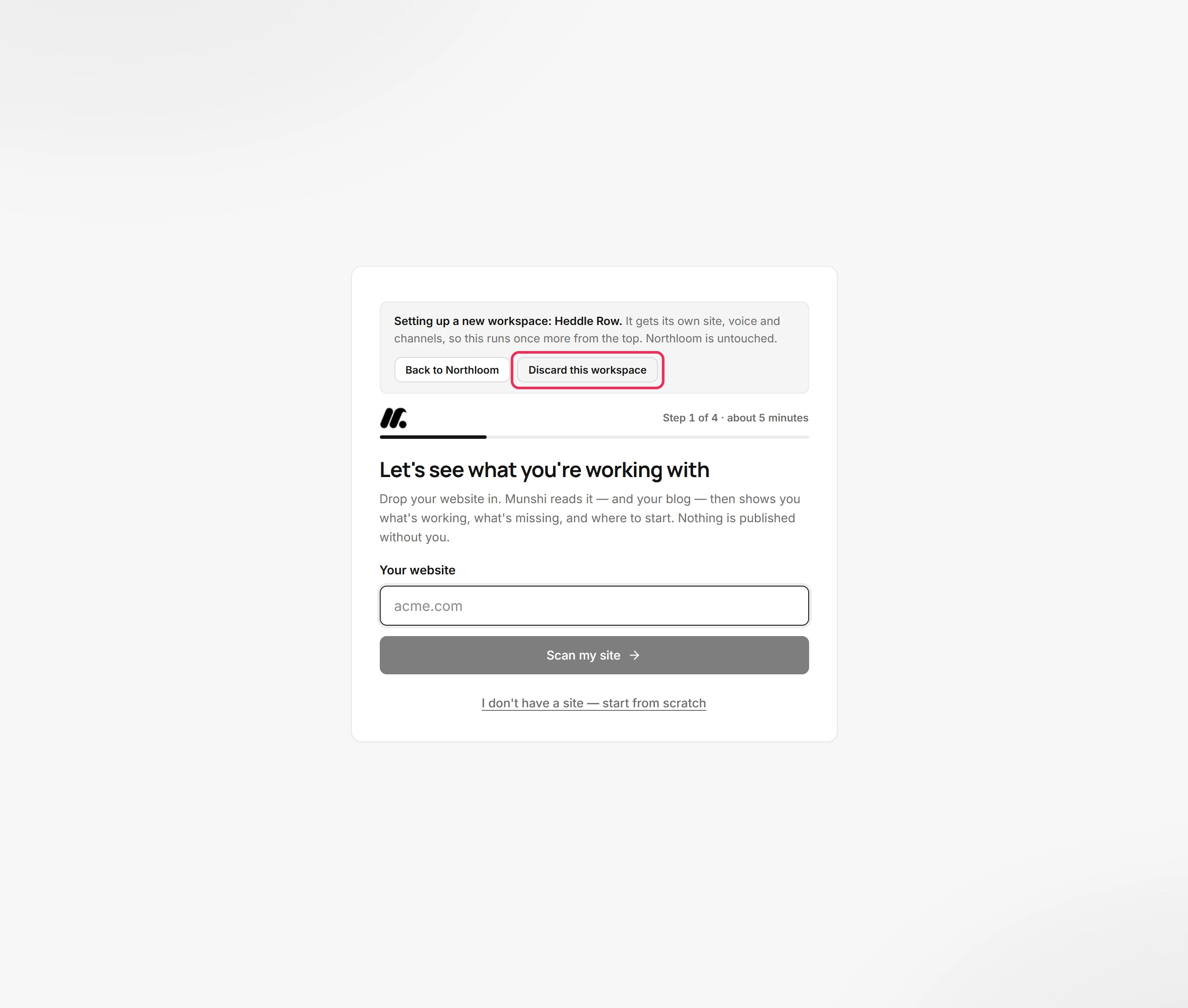
Click Discard this workspace to remove it and go back to a workspace that is set up. Back to Northloom takes you back without removing anything.
Where you are now
You can move between workspaces from the sidebar and keep their names tidy. You can add or discard a brand without touching the others.
If something goes wrong
“Only the workspace owner can change this.”
Ask the workspace owner to rename it. Only the owner can rename a workspace, so members see no pencil in the menu.
“This workspace is set up already, so it cannot be discarded here.”
Delete it from Settings, Account instead. Discard only works on a workspace that has not been set up. Once setup has saved its company, the workspace holds work.
“You can have up to 5 workspaces right now.”
Discard or delete a workspace you no longer use, then add the new one. One login can reach up to five workspaces.
Add workspace keeps opening Another brand needs Studio
Move to the Studio plan. Your plan covers one brand, and Studio covers three on one subscription. See plans opens Plan & billing, where you change plan.
Try it on your own brand this week.
Munshi Social, the AI content marketing engine for small teams, plans, writes, publishes, and tracks your blog and socials. The guide above shows the real app, not a mock-up.
Start your workspace