How to build your blog strategy: focus areas, keywords and topics
Open the Strategy tab in Blog and add a focus area. Munshi finds what people search for and turns it into a map of articles. The map saves as you go.
Before you start
- A Brief with your business in it. Munshi uses it to suggest keywords and articles. Fill in your Brief shows how.
-
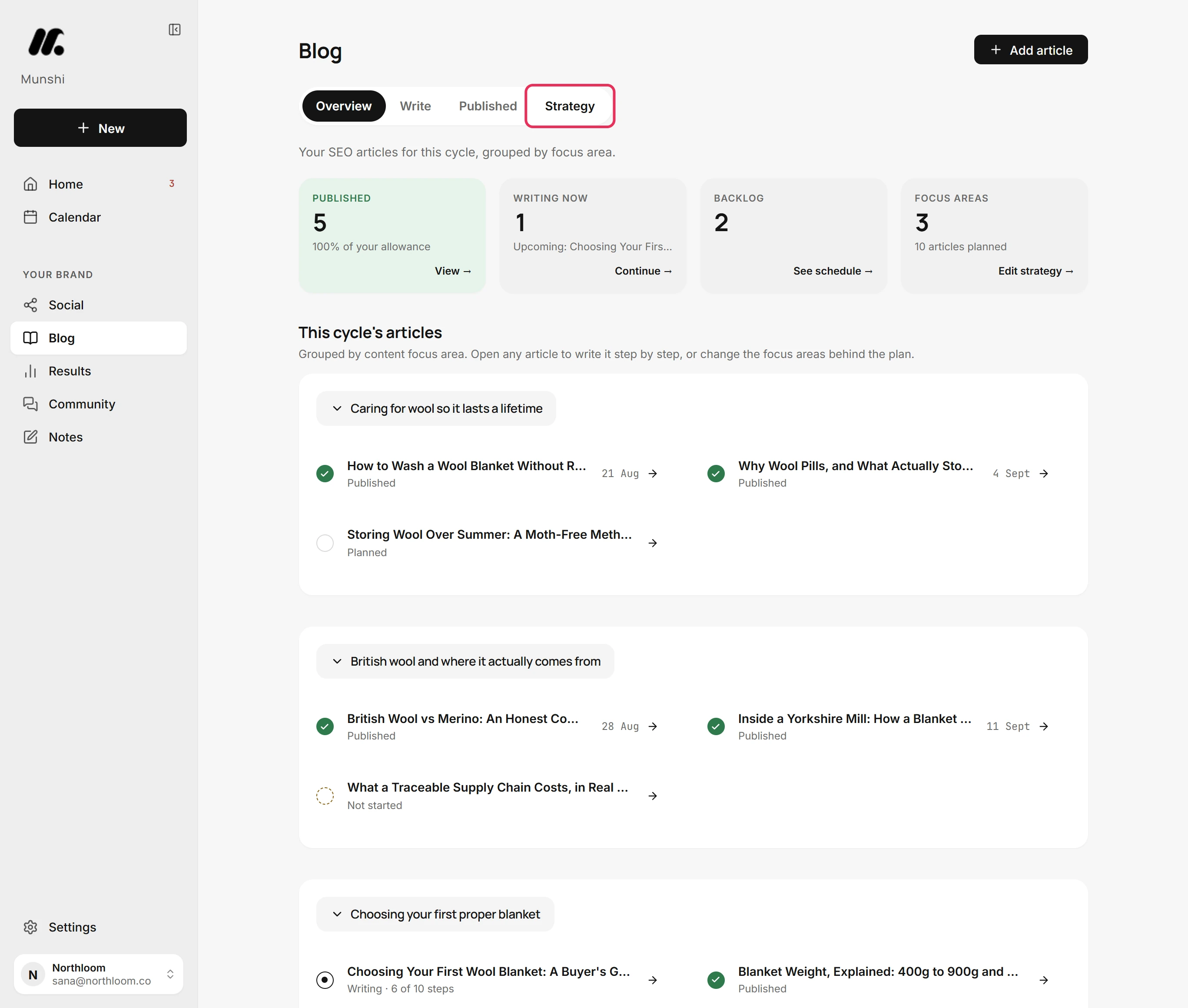
In Blog, click Strategy. Your whole strategy is one map on this tab.
-
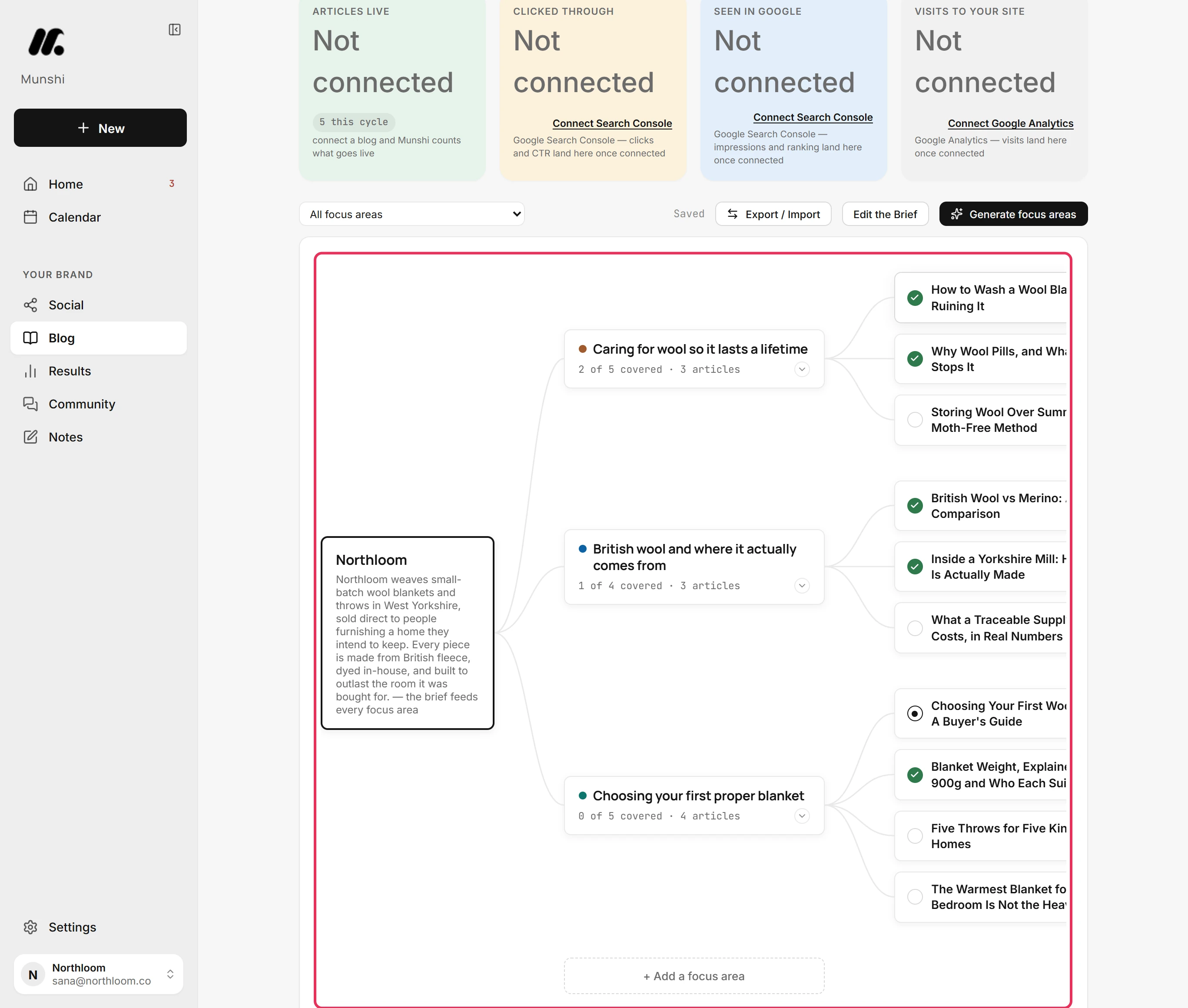
The map runs left to right: your brief, your focus areas, then the articles planned under each. Each focus area card counts its articles. A mark beside each article shows if it is published, being written, scheduled or planned. The map is wider than the page, so scroll sideways.
-
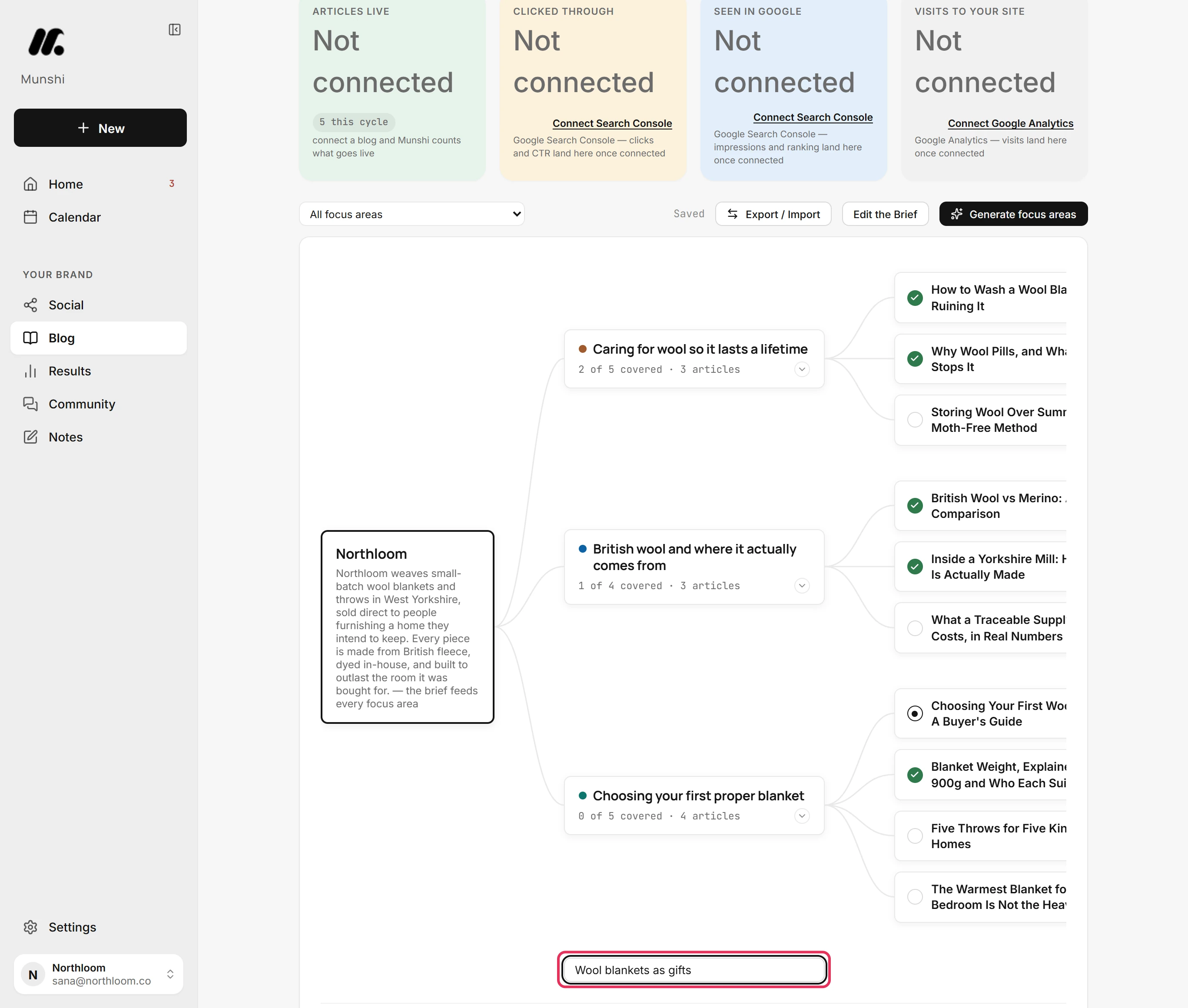
A focus area is a theme you want your blog to be found for. Click + Add a focus area under the cards. Type the theme and press Enter.
-
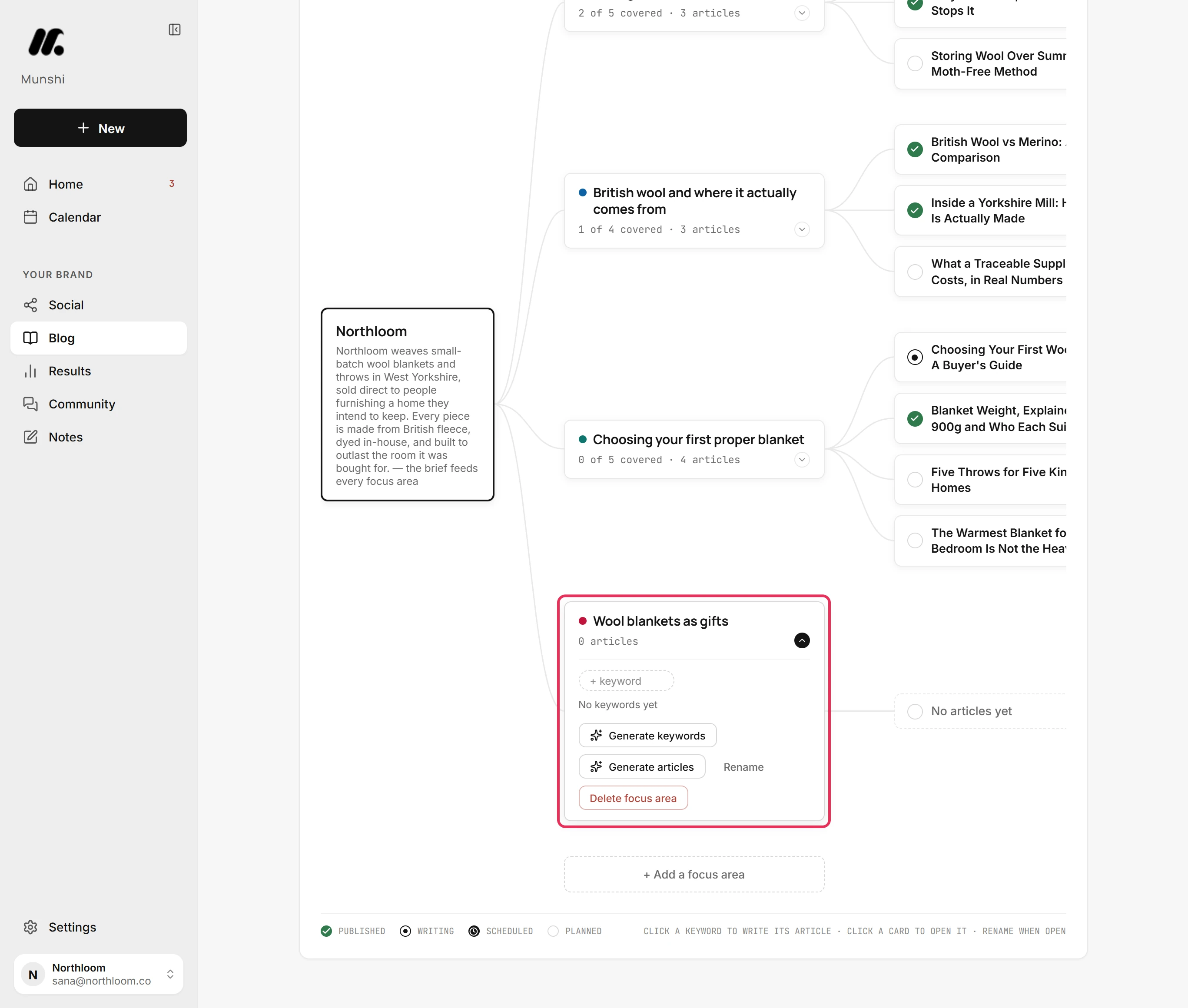
Click the new card. It opens on No keywords yet. Two buttons fill it: Generate keywords and Generate articles.
-
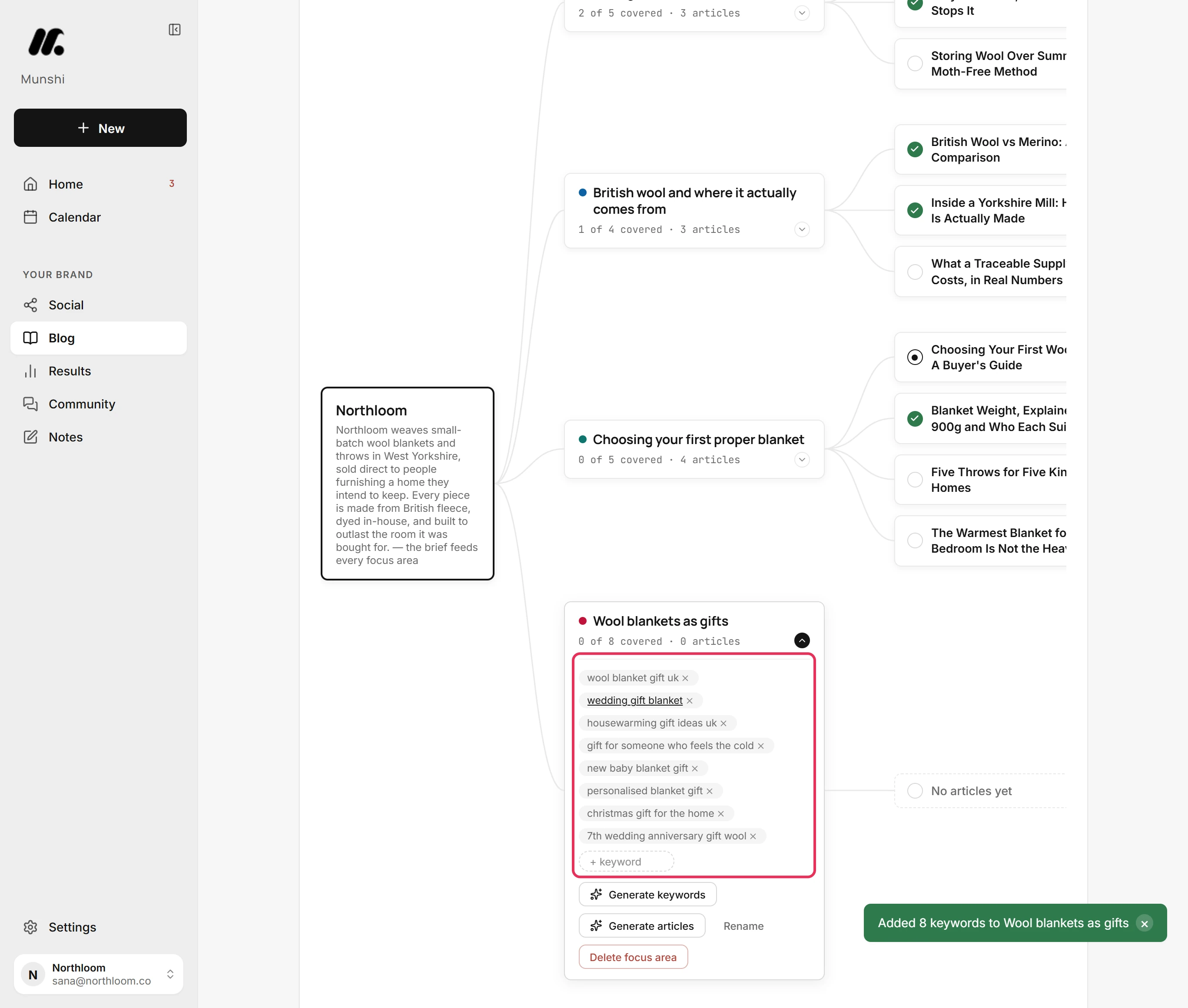
Click Generate keywords. Munshi finds searches people type about the focus area and adds them as keywords. It confirms with Added 8 keywords to Wool blankets as gifts.
-
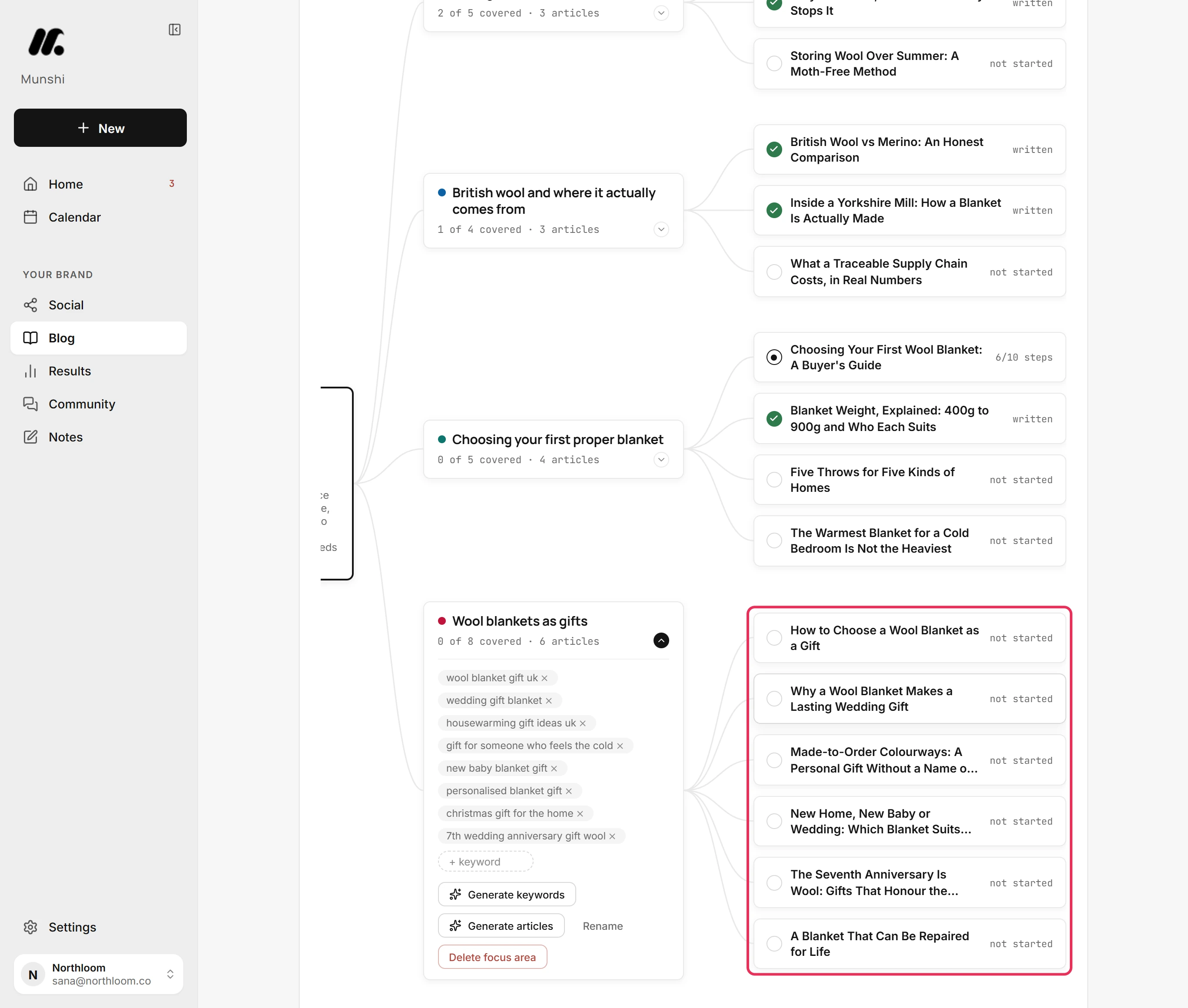
Click Generate articles. Munshi plans the articles for the focus area, from first questions to deeper pieces. Each one appears on the map as planned, and Munshi confirms with Generated the article map for Wool blankets as gifts.
-
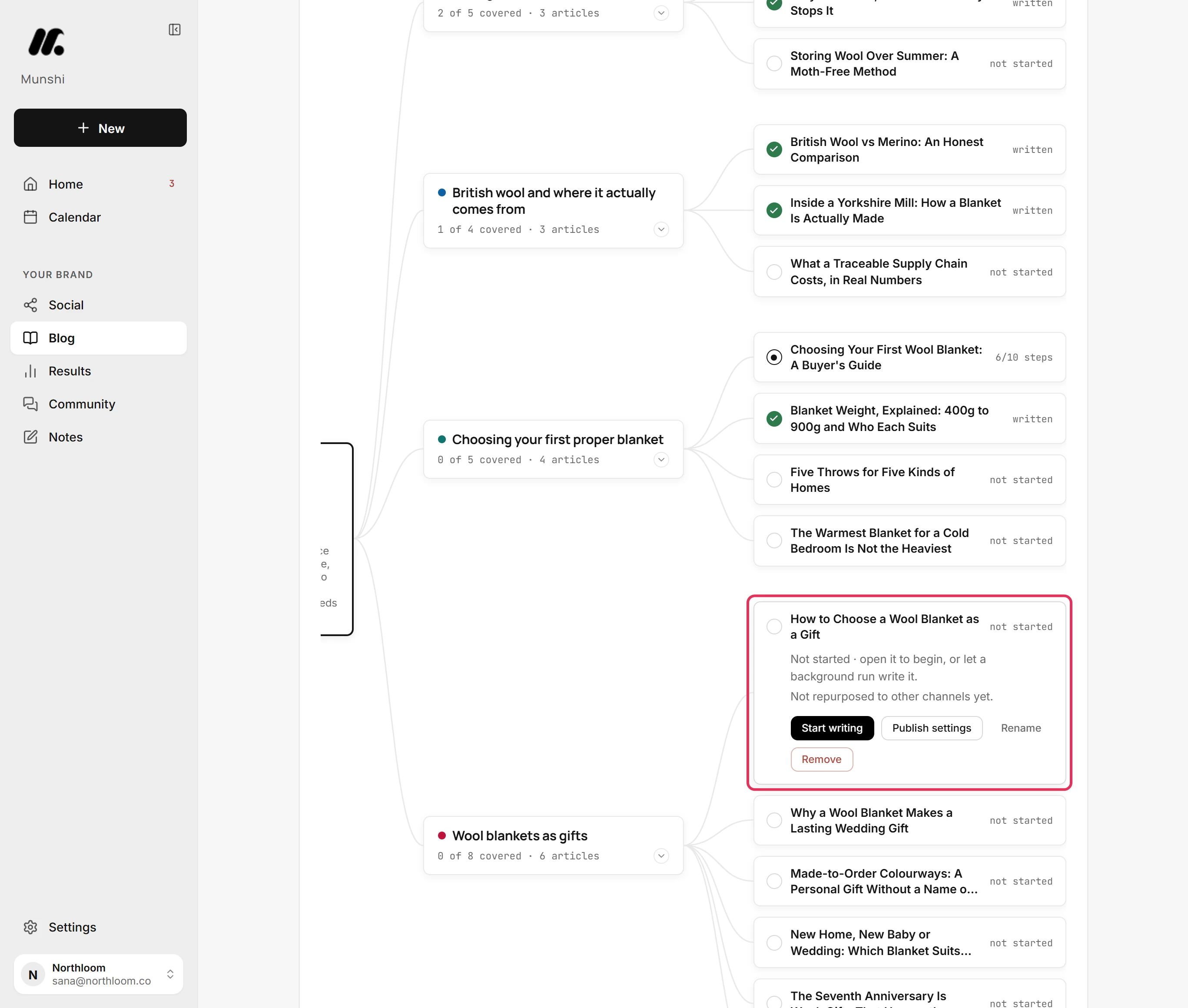
Click an article to see where it stands. A new one reads Not started. Click Start writing to open it in the article writer.
-
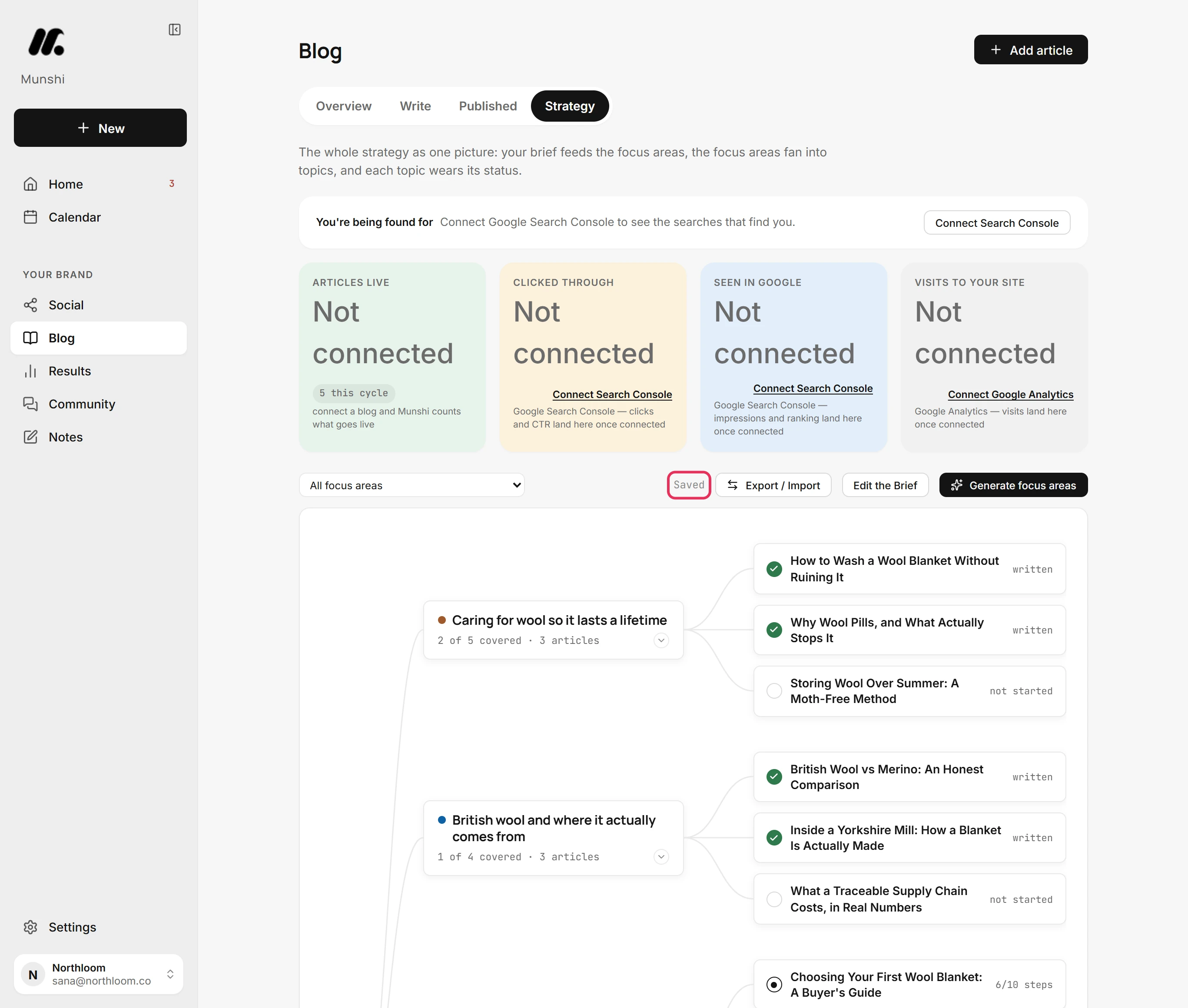
There is no save button. The map saves each change as you make it. The note at the top reads Saved once it has.
Where you are now
Your new focus area, its keywords and its planned articles are saved in your strategy. Start writing any article from its card or from the Blog overview.
If something goes wrong
“No new keywords generated”
Type your own keywords into the + keyword box, or give the focus area a broader name and try again. This message means Munshi found nothing new to add.
The button reads “Replace the generated articles?”
Click again to replace the articles Munshi generated with a new map. Articles you added yourself stay. The button asks first because the focus area already has articles.
“Save failed”
Click Retry beside the note. The map could not save your last change, but the change stays on screen until it is saved.
Try it on your own brand this week.
Munshi Social, the AI content marketing engine for small teams, plans, writes, publishes, and tracks your blog and socials. The guide above shows the real app, not a mock-up.
Start your workspace