How to delete a workspace for good
Delete a workspace and everything in it from Settings, Account. Posts already published stay live on the networks. You type the name to confirm.
Before you start
- You are the owner of the workspace. Only the owner can delete it.
- Nothing can be brought back afterwards. To keep a copy of your work, export the workspace first.
-
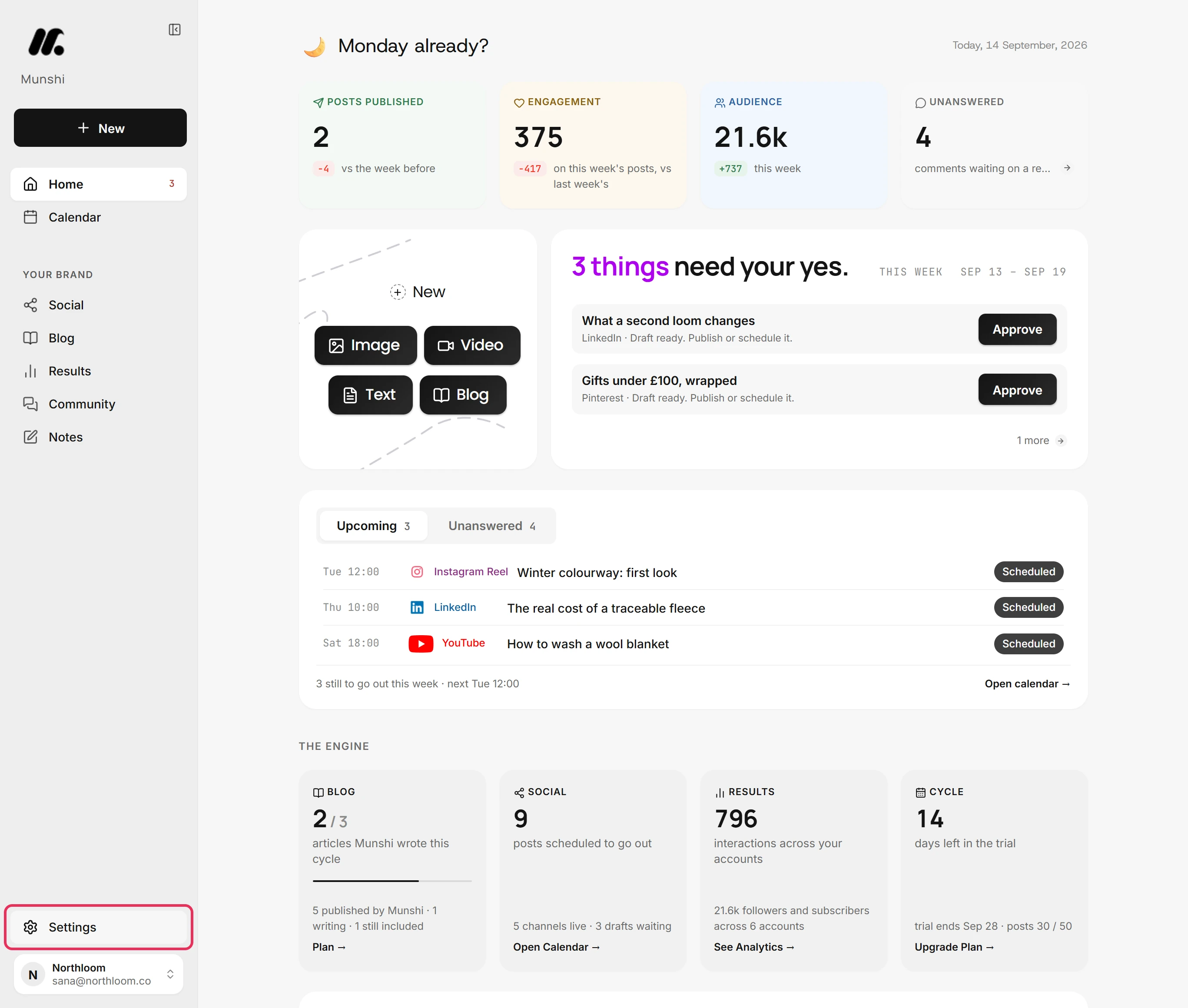
Click Settings at the bottom of the sidebar, in the workspace you want to delete.
-
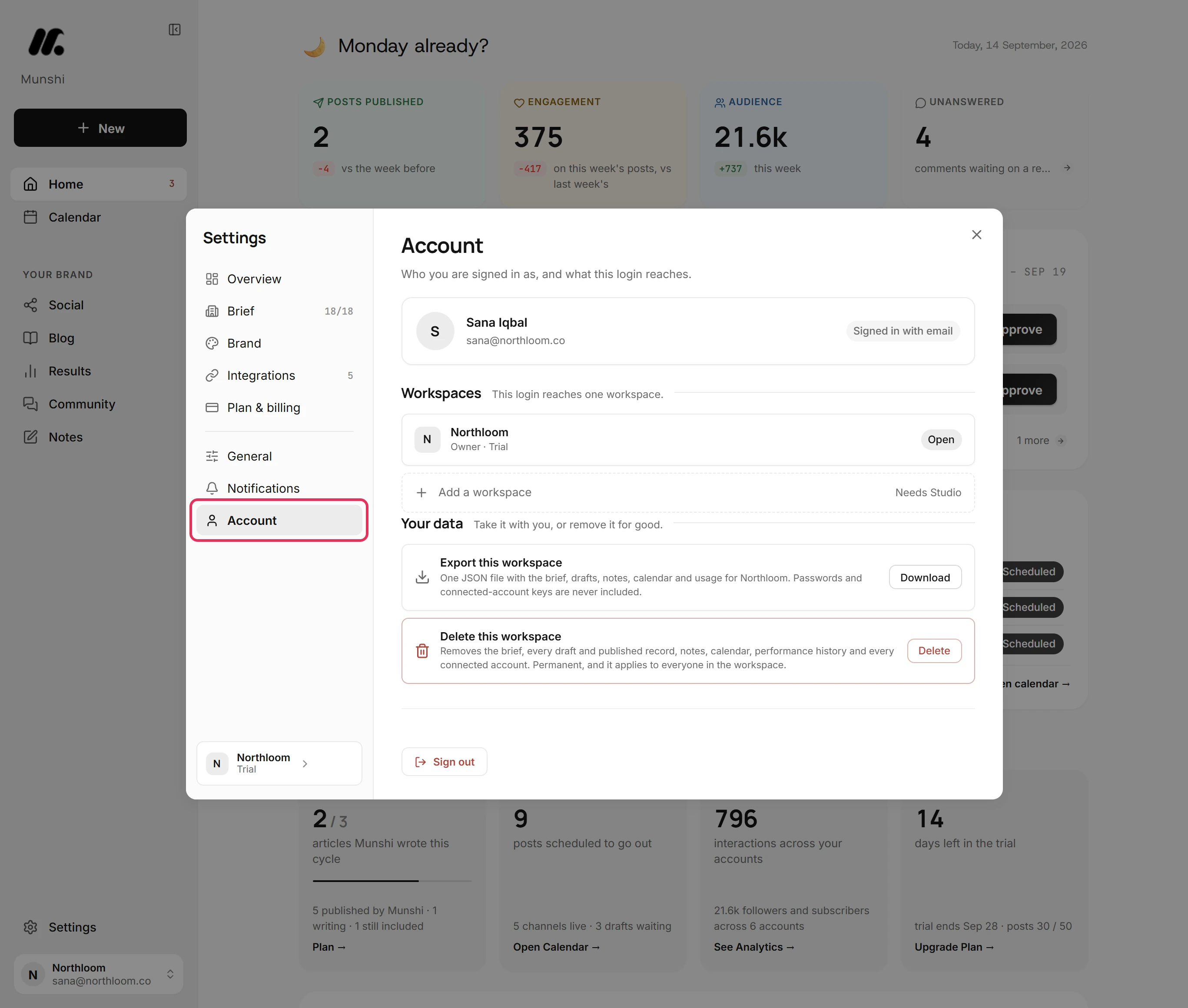
Pick Account, the last item in the list. Your data is near the bottom.
-
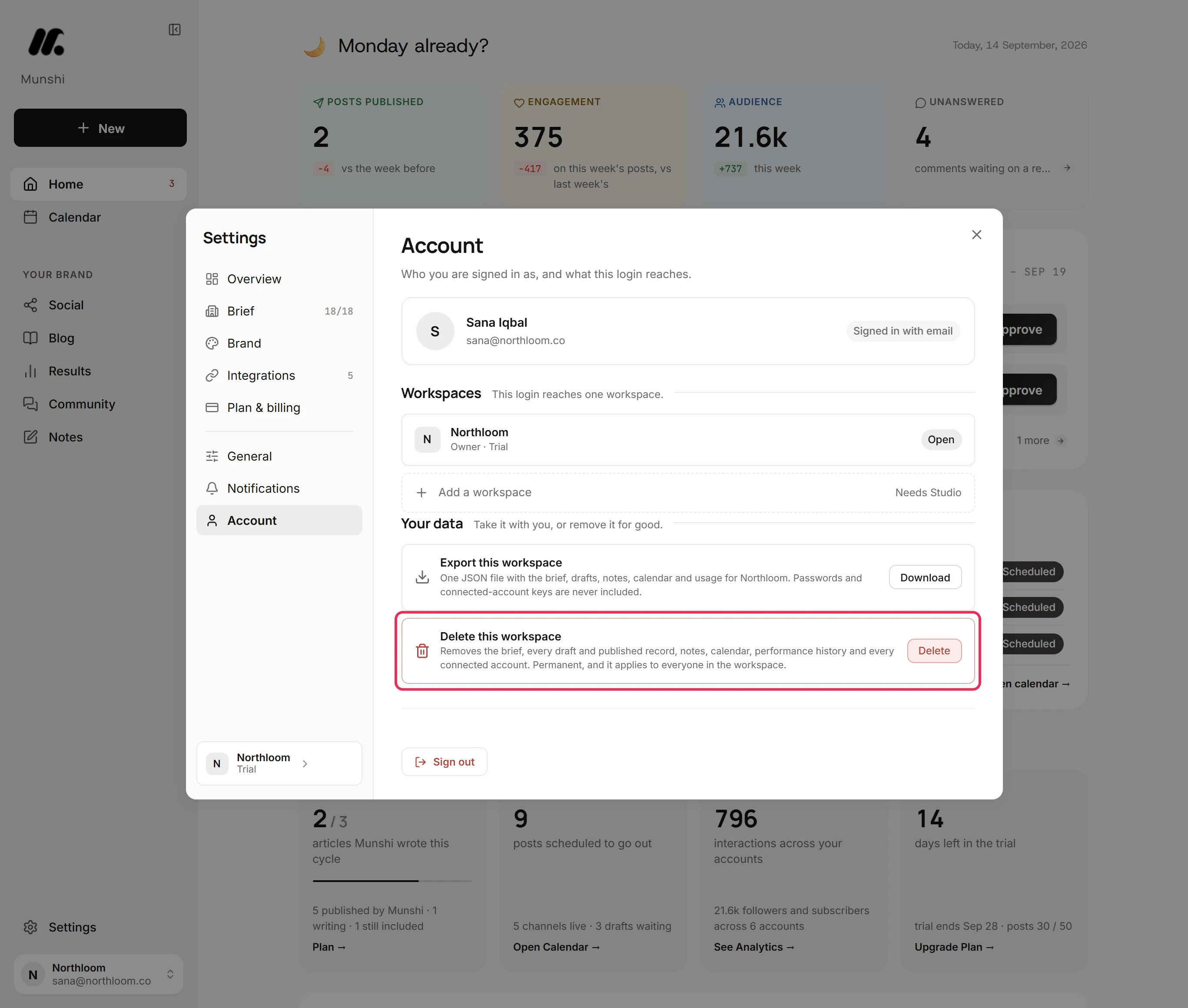
Under Your data, Delete this workspace lists what goes. That is the brief, every draft and published record, notes, the calendar, performance history and every connected account. It applies to everyone in the workspace.
-
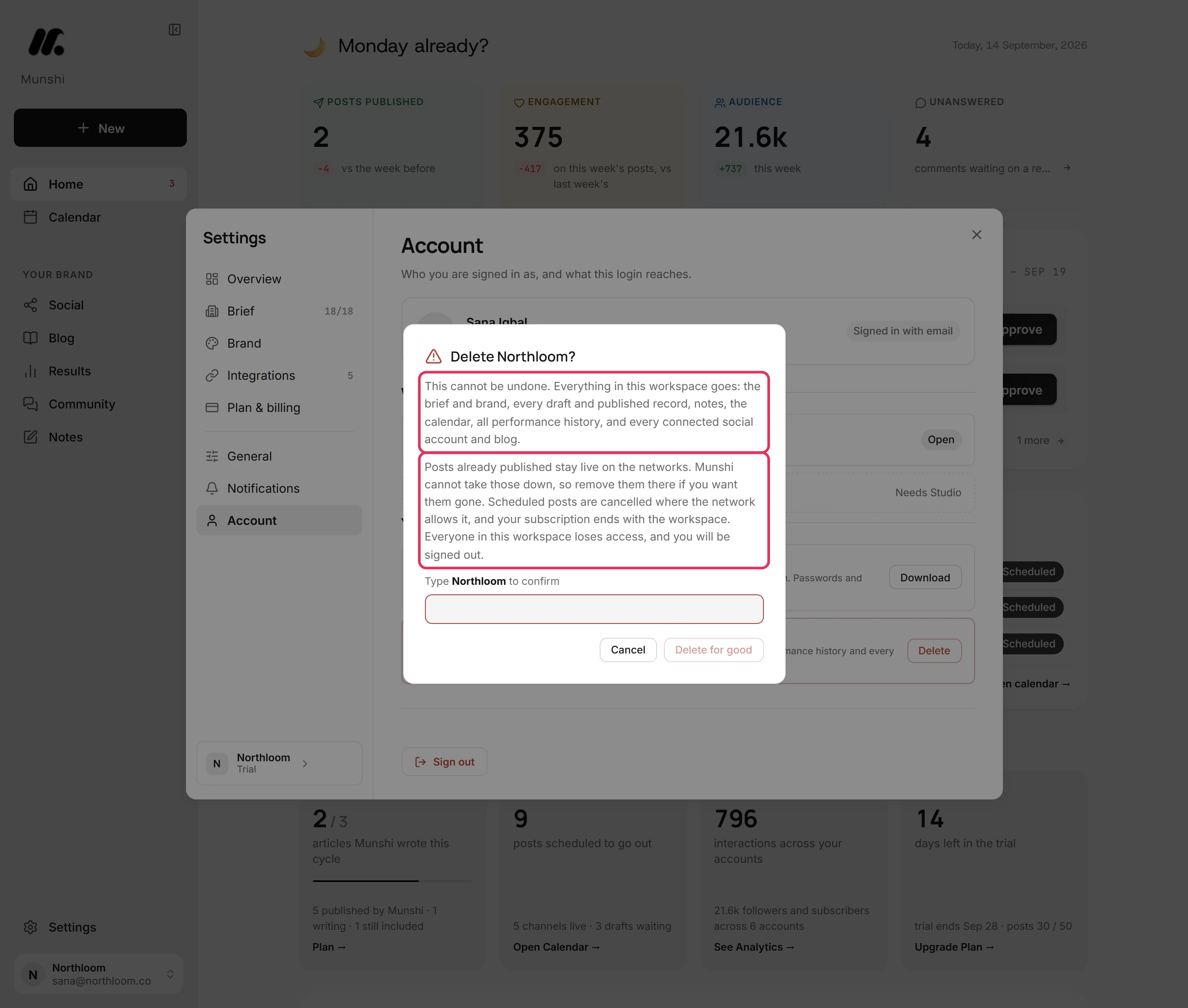
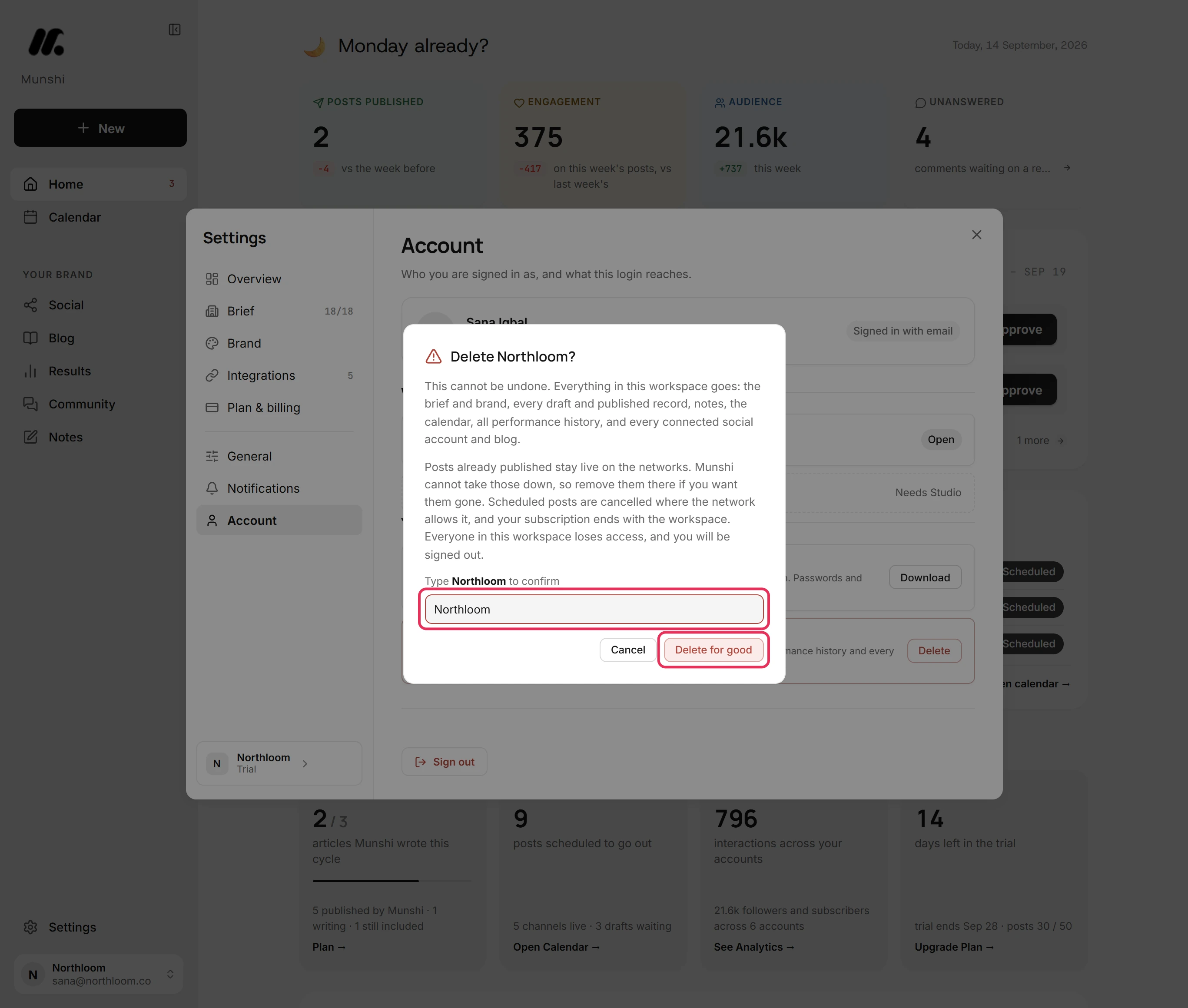
Click Delete. The confirmation explains the rest. Published posts stay live on the networks, and scheduled posts are cancelled where the network allows it. Your subscription ends with the workspace, and everyone in it loses access.
-
Type the name exactly as the confirmation shows it. Delete for good stays unavailable until the name matches. That way a slip of the mouse cannot delete anything.
-
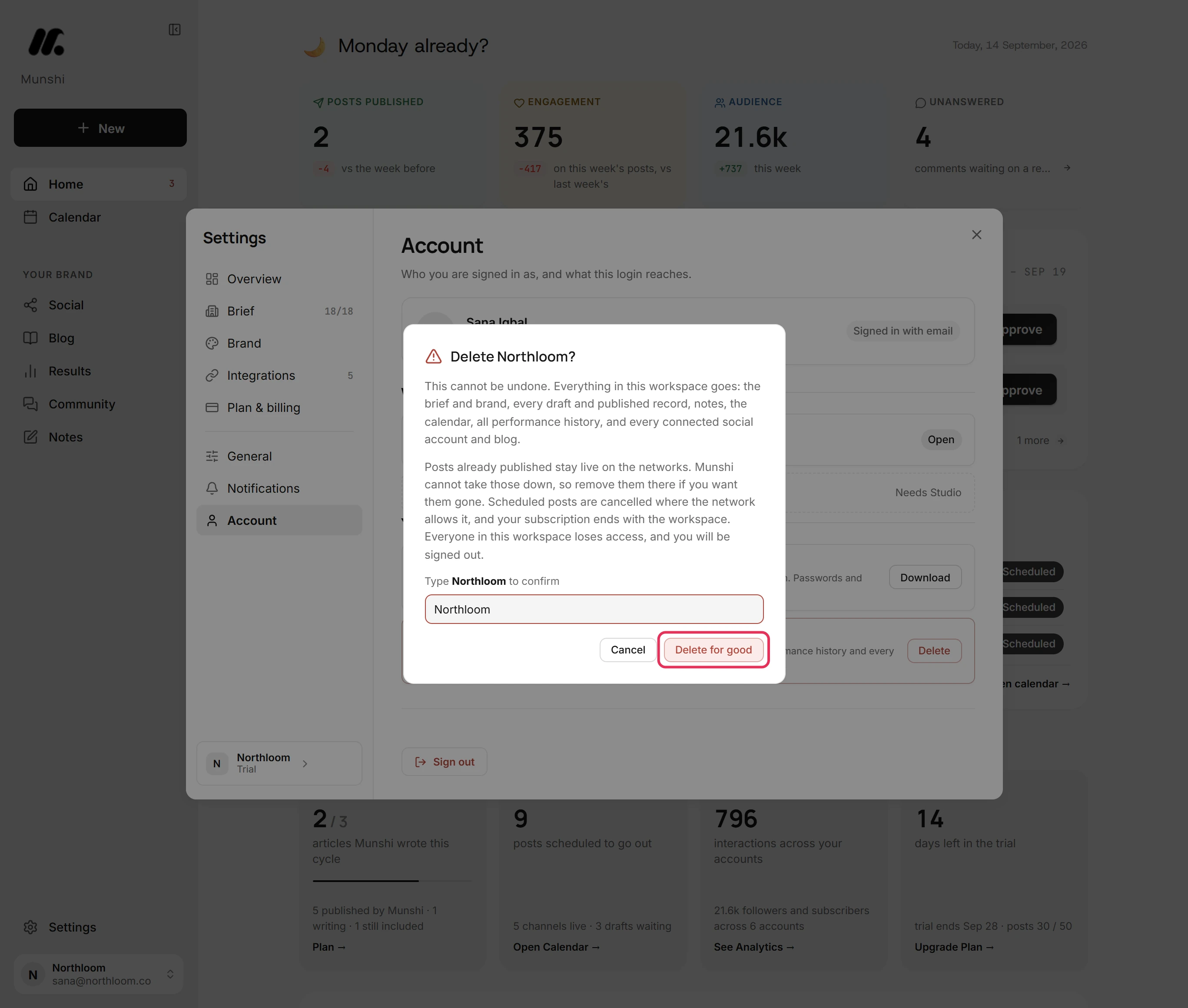
Click Delete for good. Munshi cancels what it still can at the networks and at billing. Then it erases the workspace and signs you out, and this cannot be undone.
Where you are now
The workspace and everything in it are gone, and you are signed out. Posts that already went out stay on the networks. You can remove them there yourself.
If something goes wrong
“That workspace was not deleted. Nothing has changed.”
Fix the cause, then try again: Munshi stopped before erasing anything. If other workspaces bill through this one, detach them in Plan & billing first. If a scheduled post could not be cancelled at its network, unschedule it. If billing could not be reached, wait a few minutes.
“Only the workspace owner can do this. Ask them, or email info@munshi.social.”
Ask the owner to delete it from their own Settings, Account. You are a member of this workspace, not its owner, so you have no Delete button.
Will my posts disappear from Instagram or LinkedIn?
No. Munshi cannot take down posts that already went out, so they stay live. Remove them on each network if you want them gone.
Delete for good stays unavailable
Type the name exactly as the confirmation shows it, with the same capitals and spaces. The button stays unavailable until the name in the box matches.
Try it on your own brand this week.
Munshi Social, the AI content marketing engine for small teams, plans, writes, publishes, and tracks your blog and socials. The guide above shows the real app, not a mock-up.
Start your workspace