How to connect LinkedIn as yourself or as a Company Page
Connect LinkedIn in Settings > Integrations and pick who your posts go out as: your own profile or a Company Page you run. It takes about two minutes.
Before you start
- A LinkedIn account you can sign in to. To post as a Company Page, that account has to be an admin of the Page on LinkedIn.
-
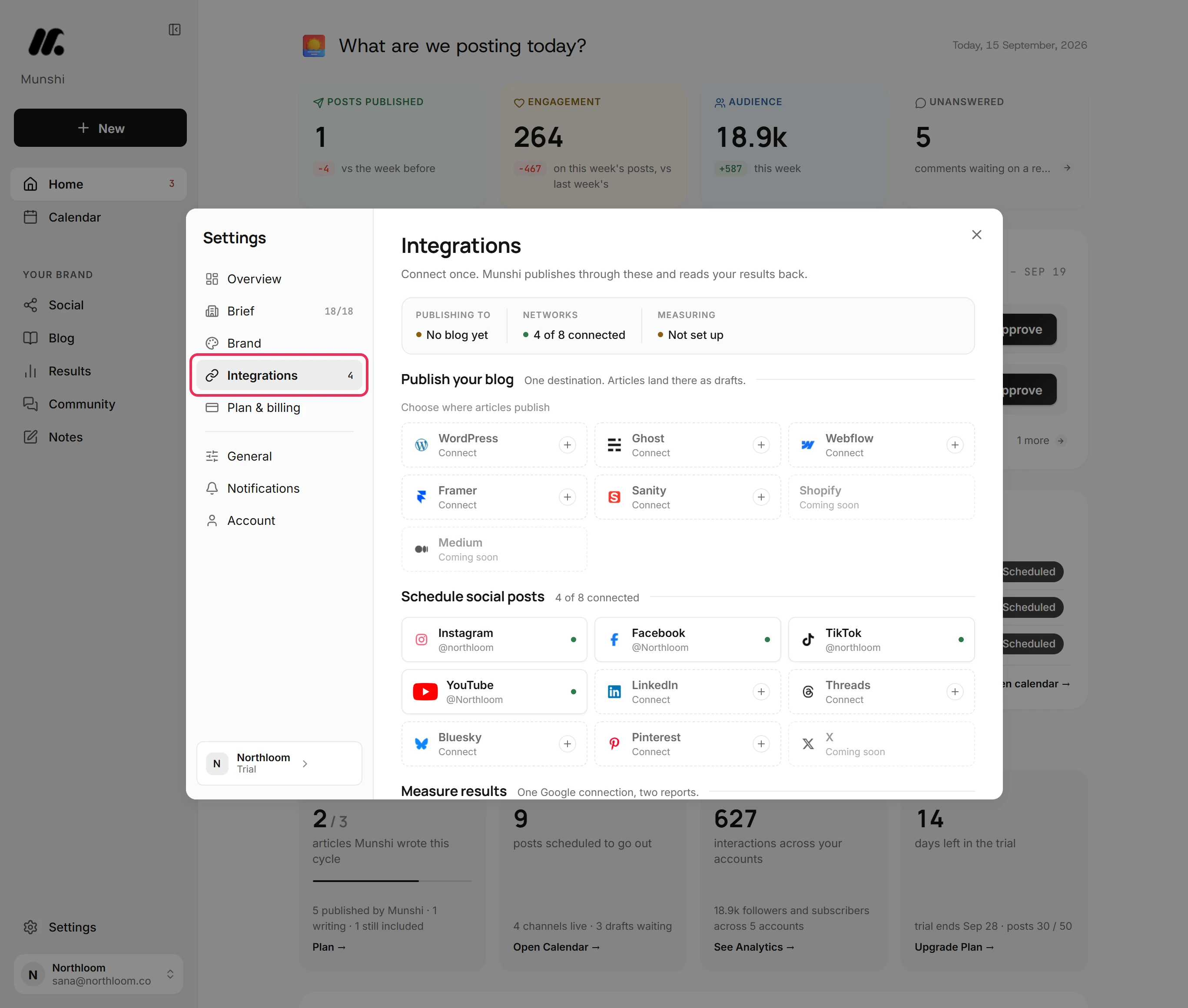
Click Settings at the bottom of the sidebar, then Integrations. The networks you can connect are listed under Schedule social posts.
-
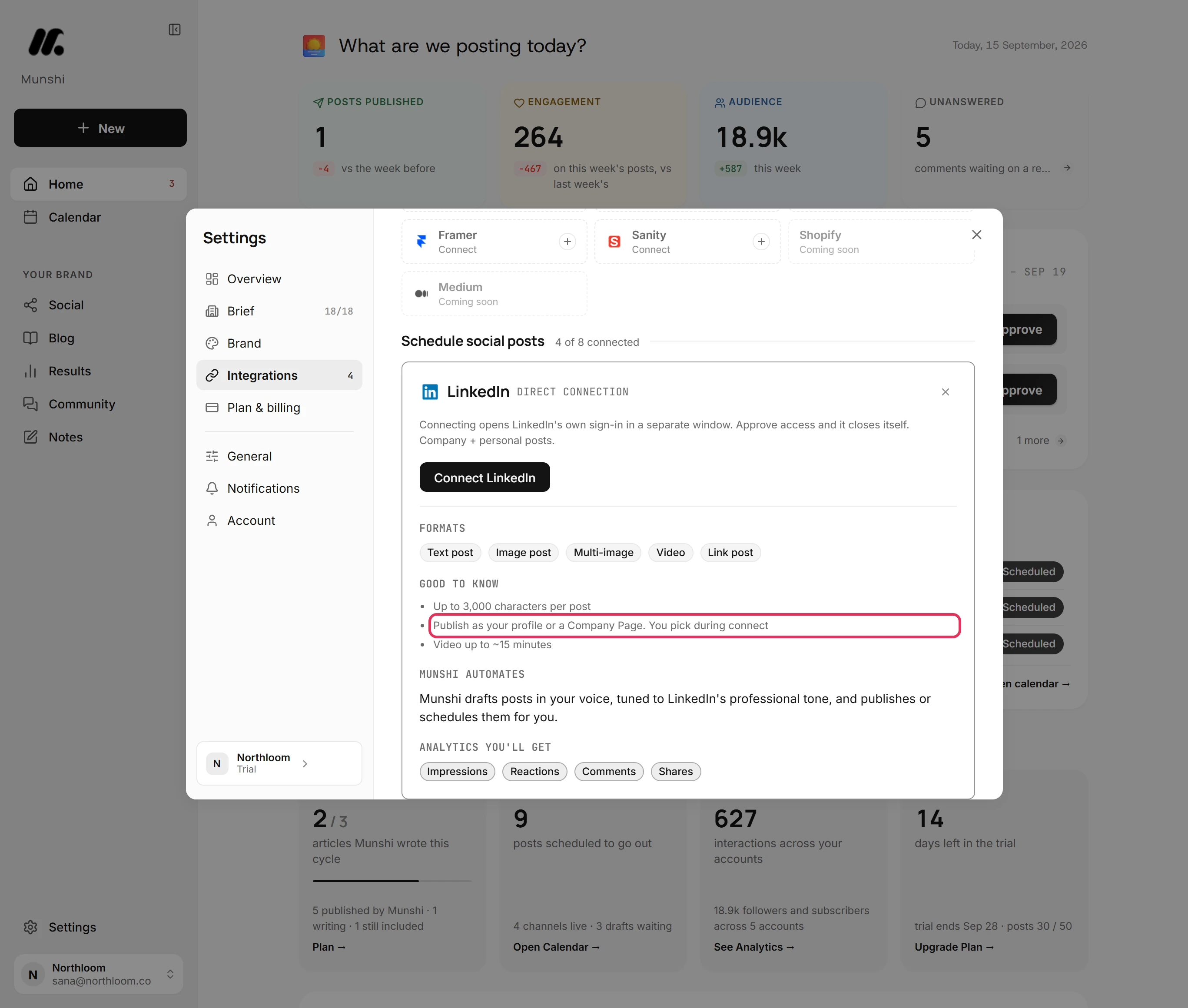
Click the LinkedIn tile, which reads Connect. Its card says you publish as your profile or a Company Page. You pick which one while you connect.
-
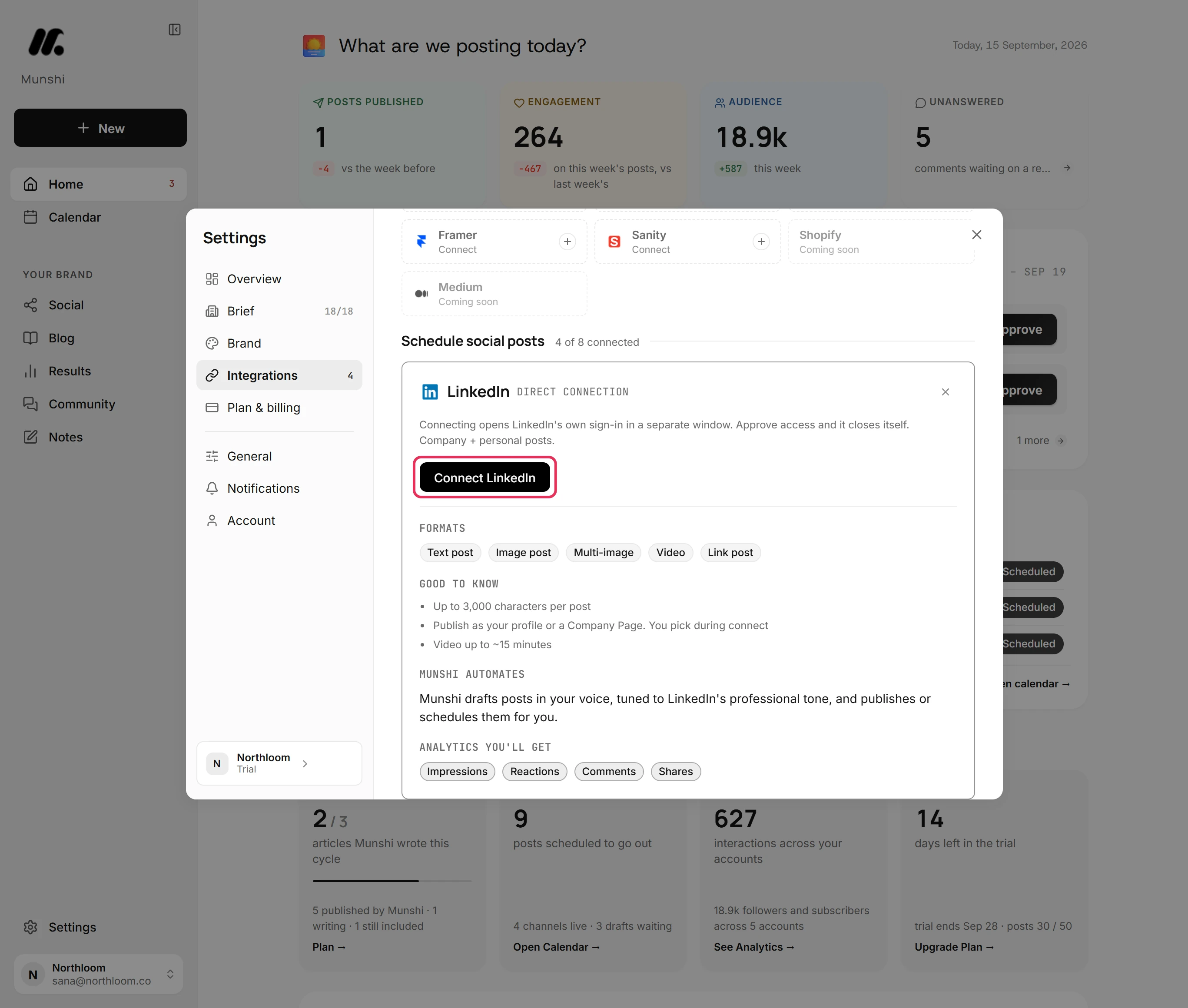
LinkedIn's own sign-in opens in a separate window. Sign in to LinkedIn and approve the access Munshi asks for. The window closes itself.
-
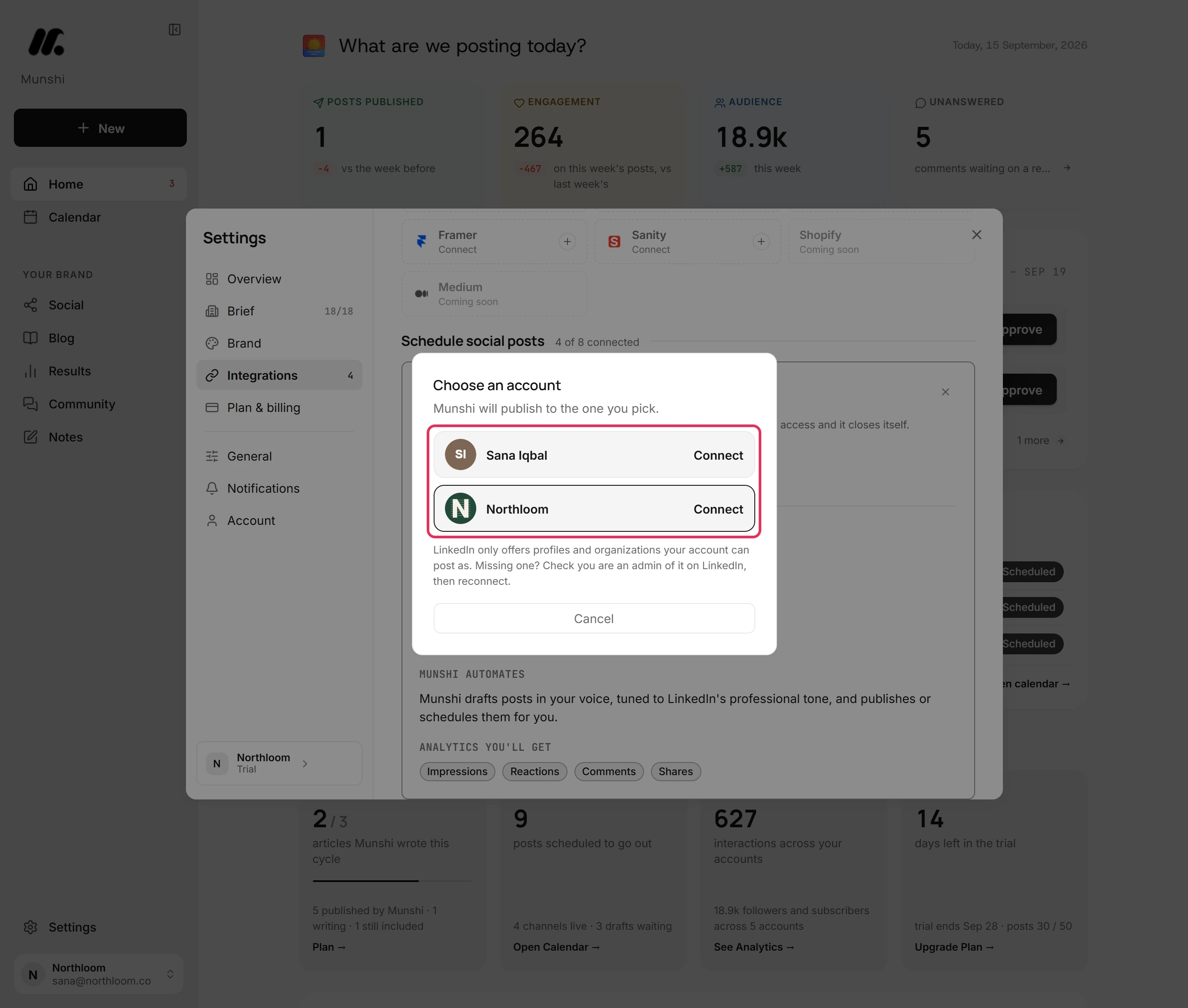
Back in Munshi, Choose an account lists your own profile and the Company Pages you can post as. Here that is Sana Iqbal's profile and the Northloom Page. Munshi publishes to the one you pick.
-
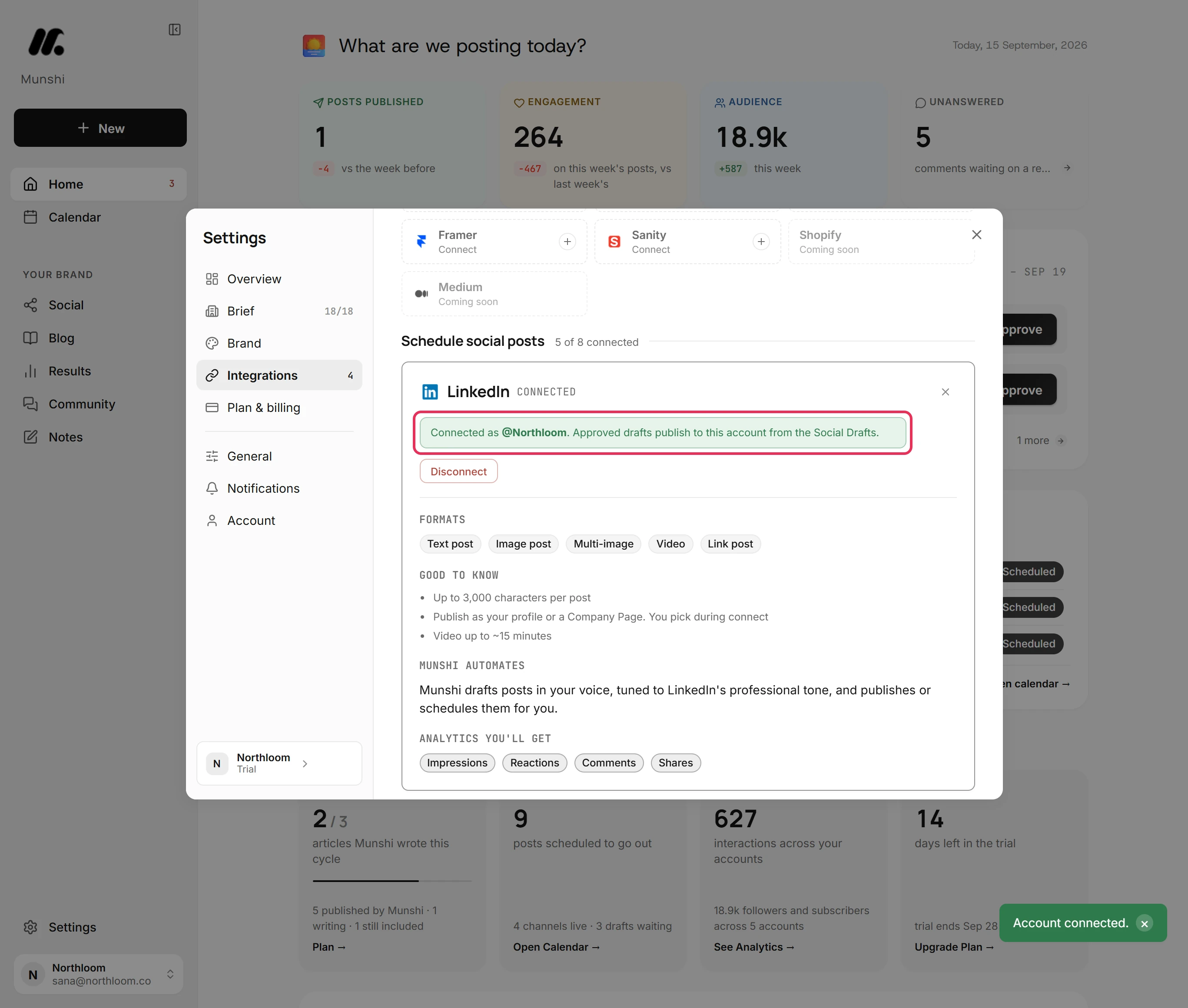
Click Connect beside the profile or Page, here Northloom. Munshi says Account connected. and the card reads Connected as the account you picked.
-
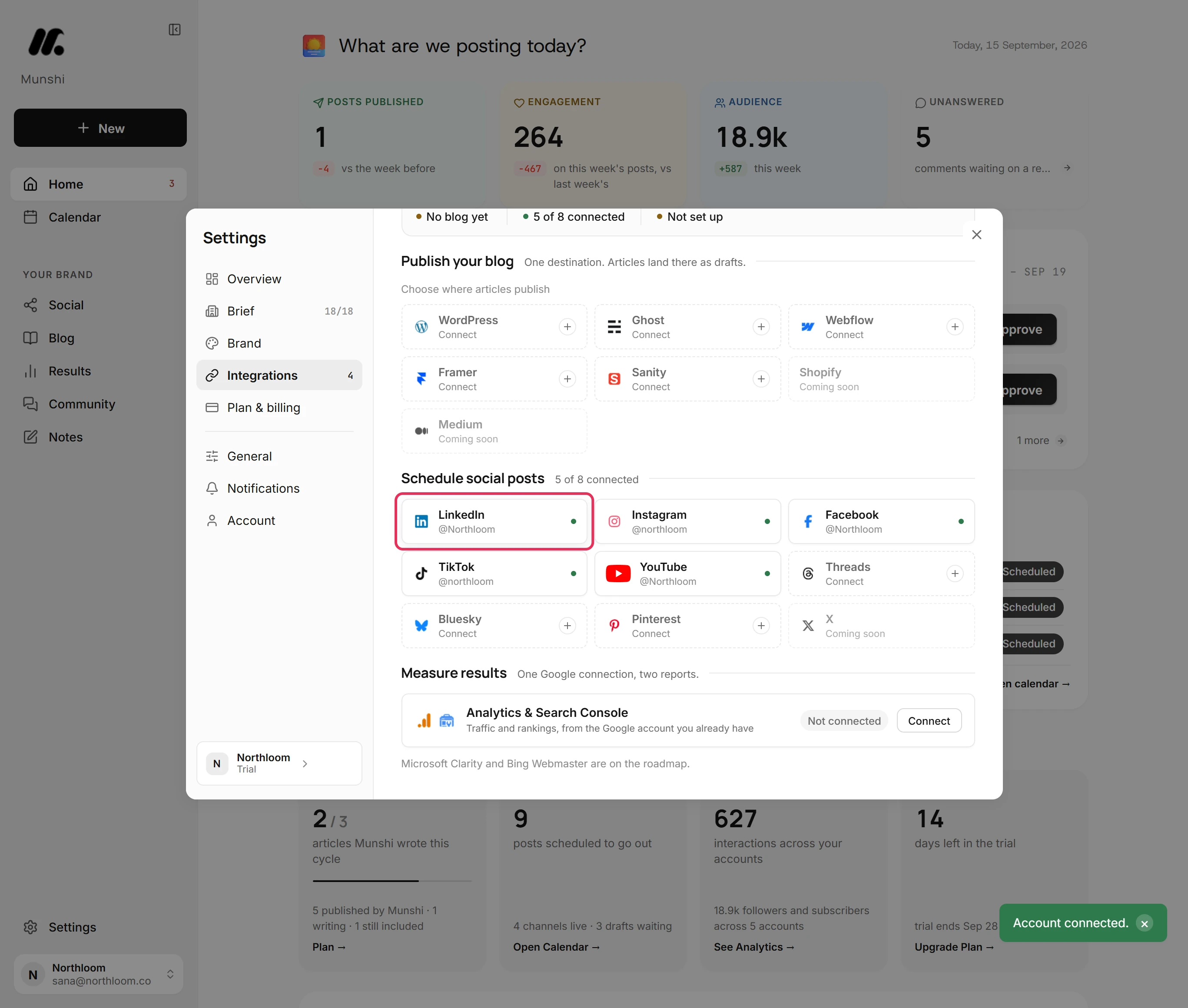
Close the card. The LinkedIn tile now shows the account with a green dot. The count beside Schedule social posts goes up by one.
Where you are now
LinkedIn is connected as the profile or Page you picked. Drafts you approve publish to it. Munshi starts bringing in its past posts in the background.
If something goes wrong
“Your browser blocked the popup. Allow popups for Munshi and try again.”
Allow popups for Munshi in your browser, then click Connect LinkedIn again. LinkedIn's sign-in window could not open.
A Company Page is missing from Choose an account
Check on LinkedIn that you are an admin of the Page. Then click Cancel and connect again. LinkedIn only offers the profiles and Pages your account can post as.
“That connection step expired. Please reconnect.”
Click Connect LinkedIn again. The accounts to choose from were no longer waiting, for example because another connect started. The connect window did not finish explains every message the connect can give.
“Couldn't finish connecting. Please try again.”
Try again. If that profile or Page is already connected to another workspace, including one of your own, disconnect it there first. This message means Munshi could not add the account you picked.
Try it on your own brand this week.
Munshi Social, the AI content marketing engine for small teams, plans, writes, publishes, and tracks your blog and socials. The guide above shows the real app, not a mock-up.
Start your workspace