On this page14 sections
See social and blog results on one page
Munshi puts your social and blog numbers on one page, called Results. It has three tabs: Overview, Social and Blog.
Without it, social numbers live in eight apps and blog numbers live in Google. Most weeks nobody opens either, because opening all of them is a job.
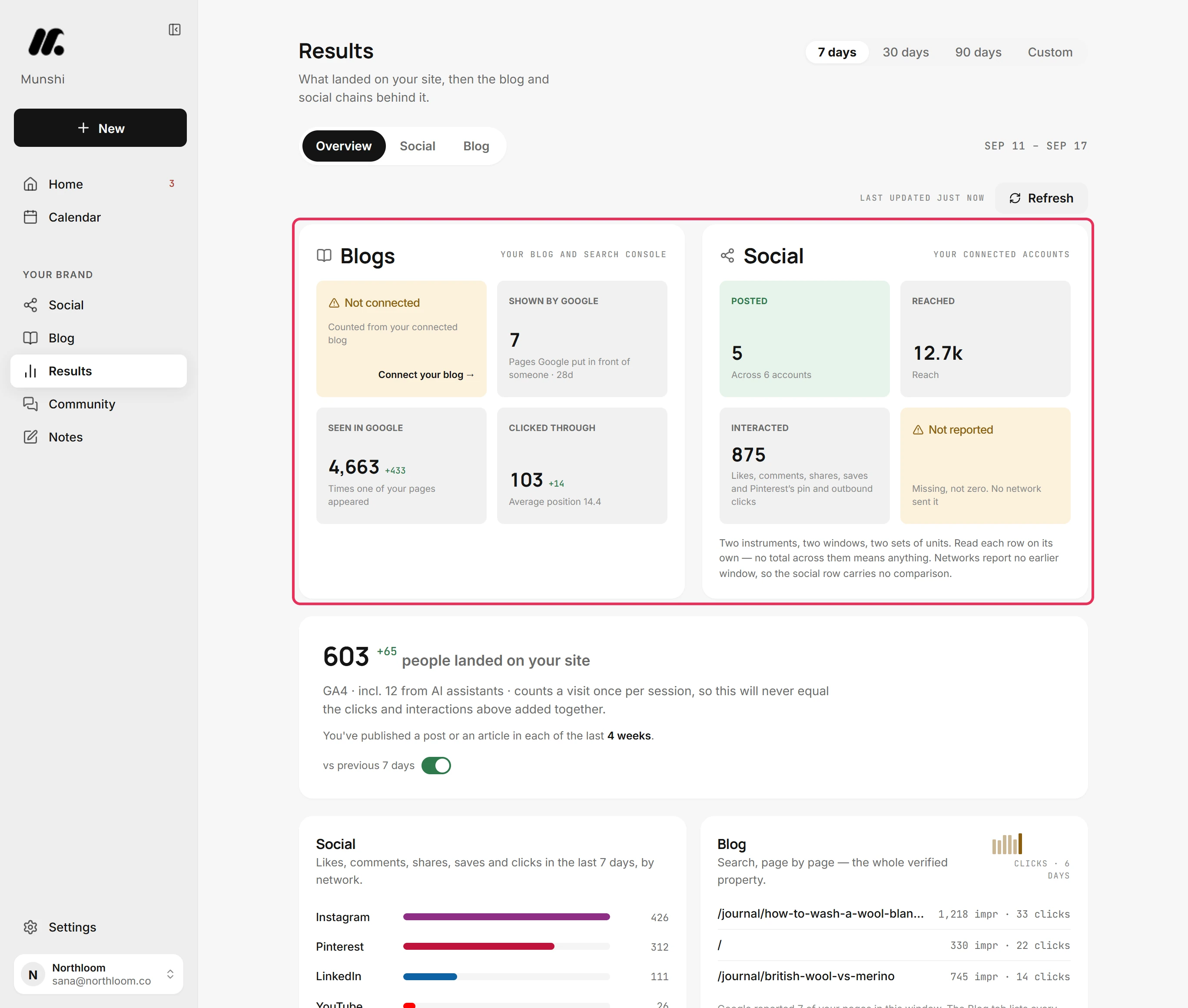
Overview answers the first question in two cards. The Social card counts what went out across your connected accounts: Posted, Reached, Interacted and Clicked your link.
The Blogs card counts the articles live on your blog. Then it shows what Google did with your pages. You see how many it showed, how often they appeared, and how many people clicked through.
Pick one window for all three tabs. Choose 7 days, 30 days, 90 days or Custom. Custom reads from a start date up to 365 days back, to today.
Further down, the closing line names your post with the most interactions. More like this opens the composer for the next one.
Step by step: How to read the Results overview
Each network measured by its own metric
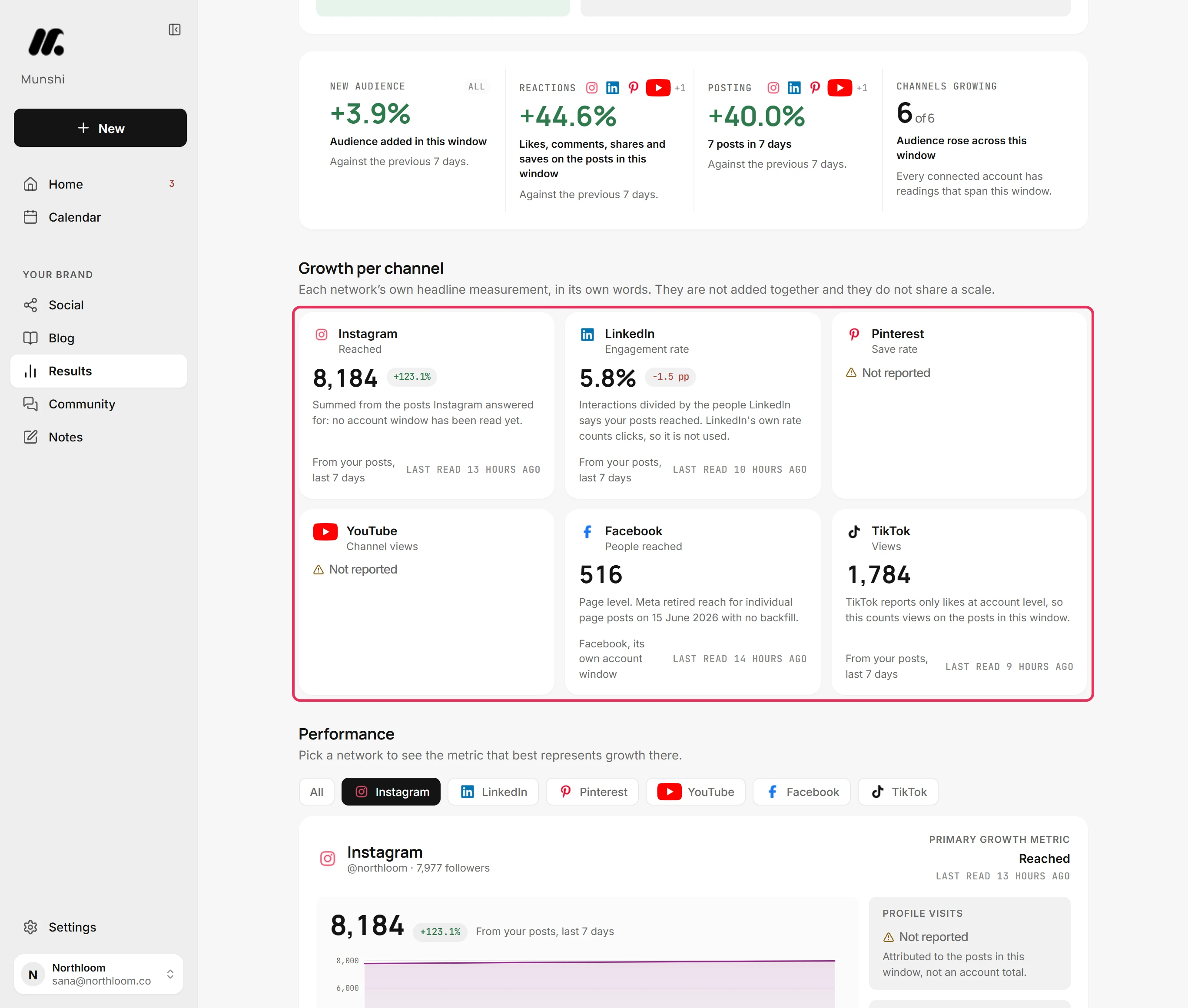
The Social tab gives each network its own headline measure and keeps them apart. Adding Instagram reach to LinkedIn engagement rate would give a number that means nothing.
So you see Reached on Instagram, Engagement rate on LinkedIn and Views on TikTok. Pinterest shows Save rate, Facebook shows People reached, and YouTube shows Channel views.
Every card says where its number came from and when it was last read. For example: From your posts, last 7 days, Facebook, its own account window or YouTube, lifetime.
Where Munshi worked the figure out itself, it says so and says why. LinkedIn is one case, because its own engagement rate counts clicks.
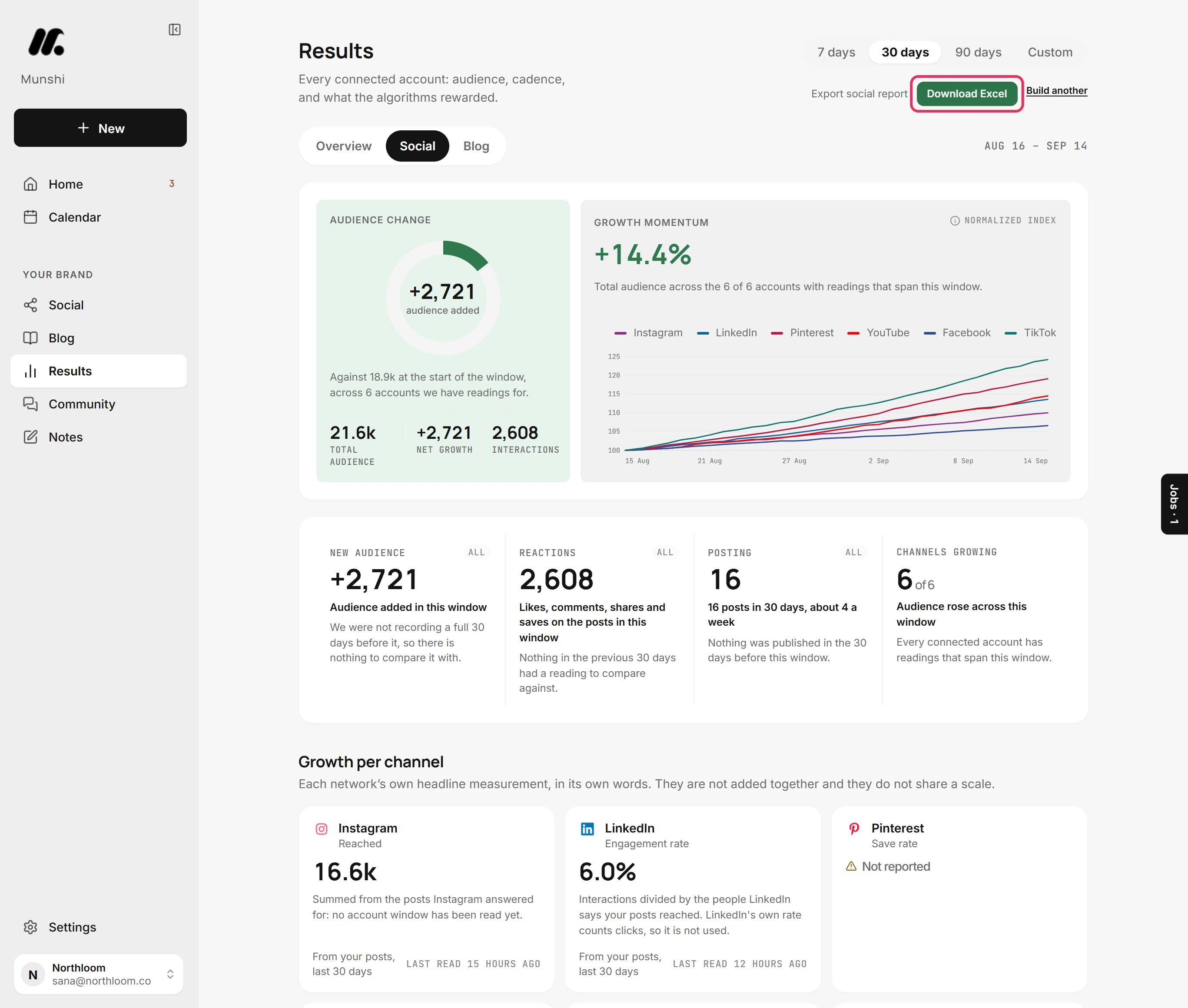
Above the cards, Audience change shows the audience your accounts added over the window, against where they started. Growth momentum starts every network at 100 on one chart, so you compare direction rather than size.
Four figures sit under them: New audience, Reactions, Posting and Channels growing. Each says what it is compared with, or why it cannot be compared yet.
Step by step: How to read your social results
Which posts did best on each network?
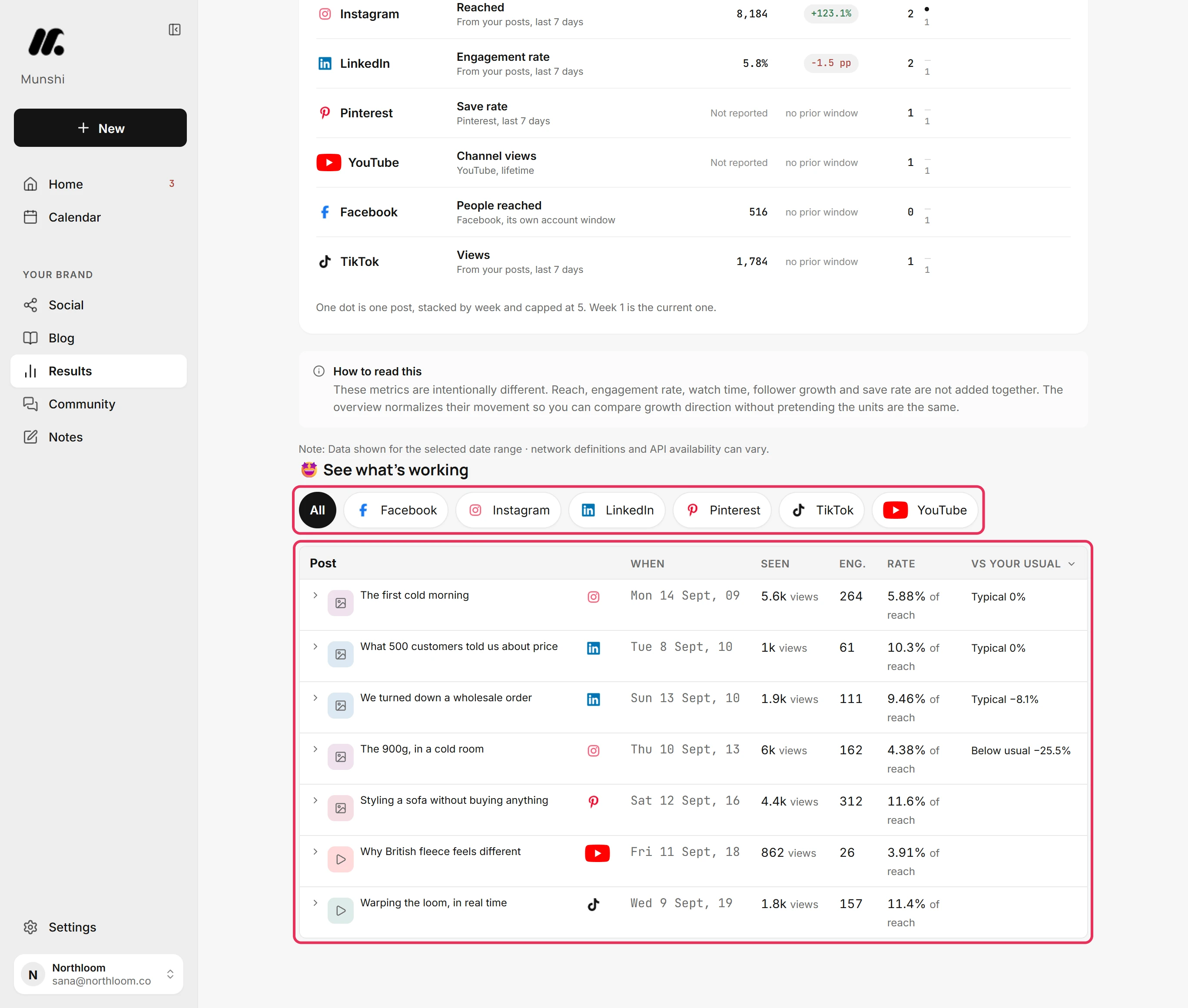
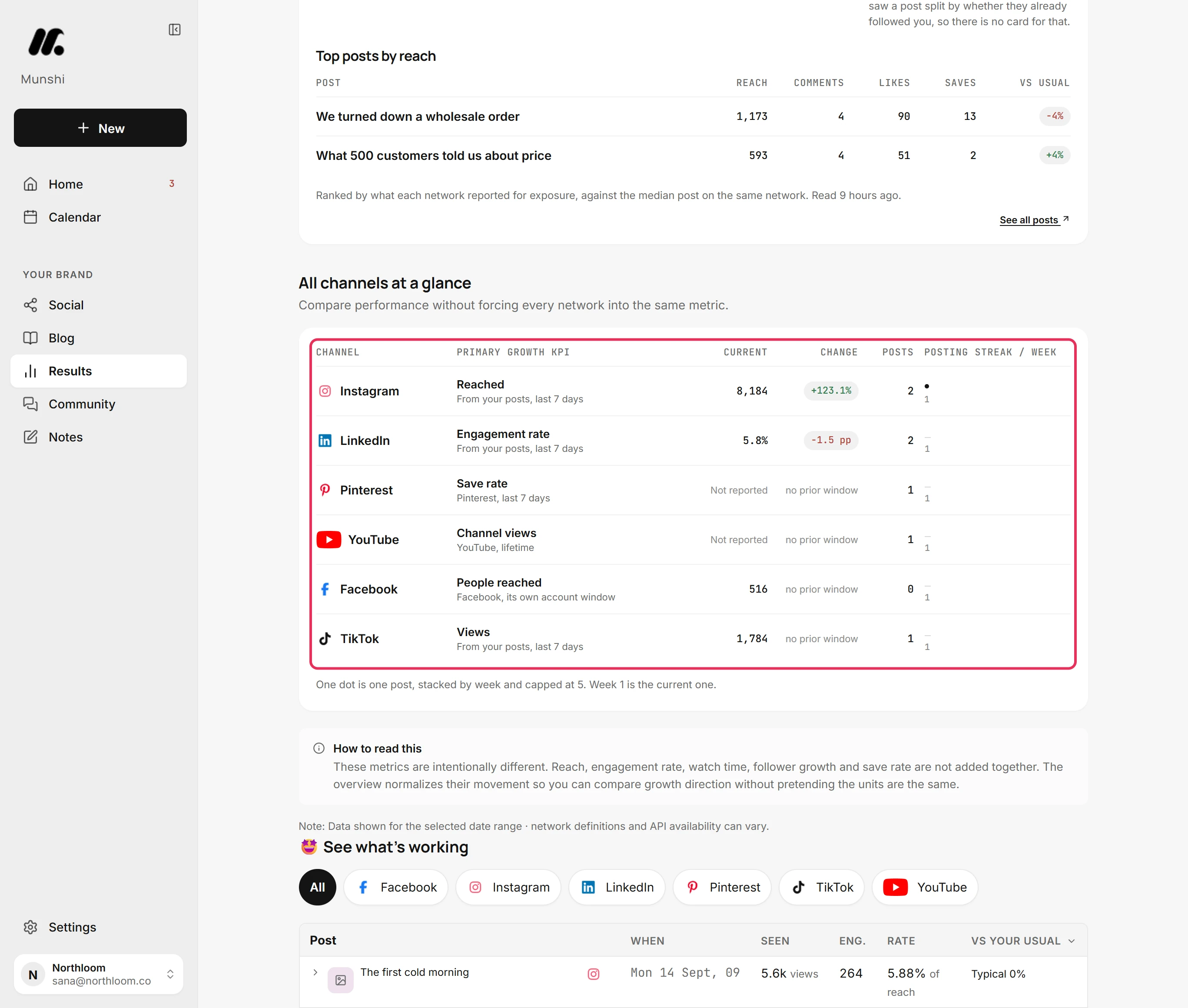
See what's working lists your posts from the window and shows which did best. For each post you see how many saw it, its interactions and its rate. It also shows how the post did against your usual on that network.
A post is only compared with your own, on the same network. A LinkedIn post is never judged against a Reel. Filter by network with the buttons above the table, or click a column heading to sort.
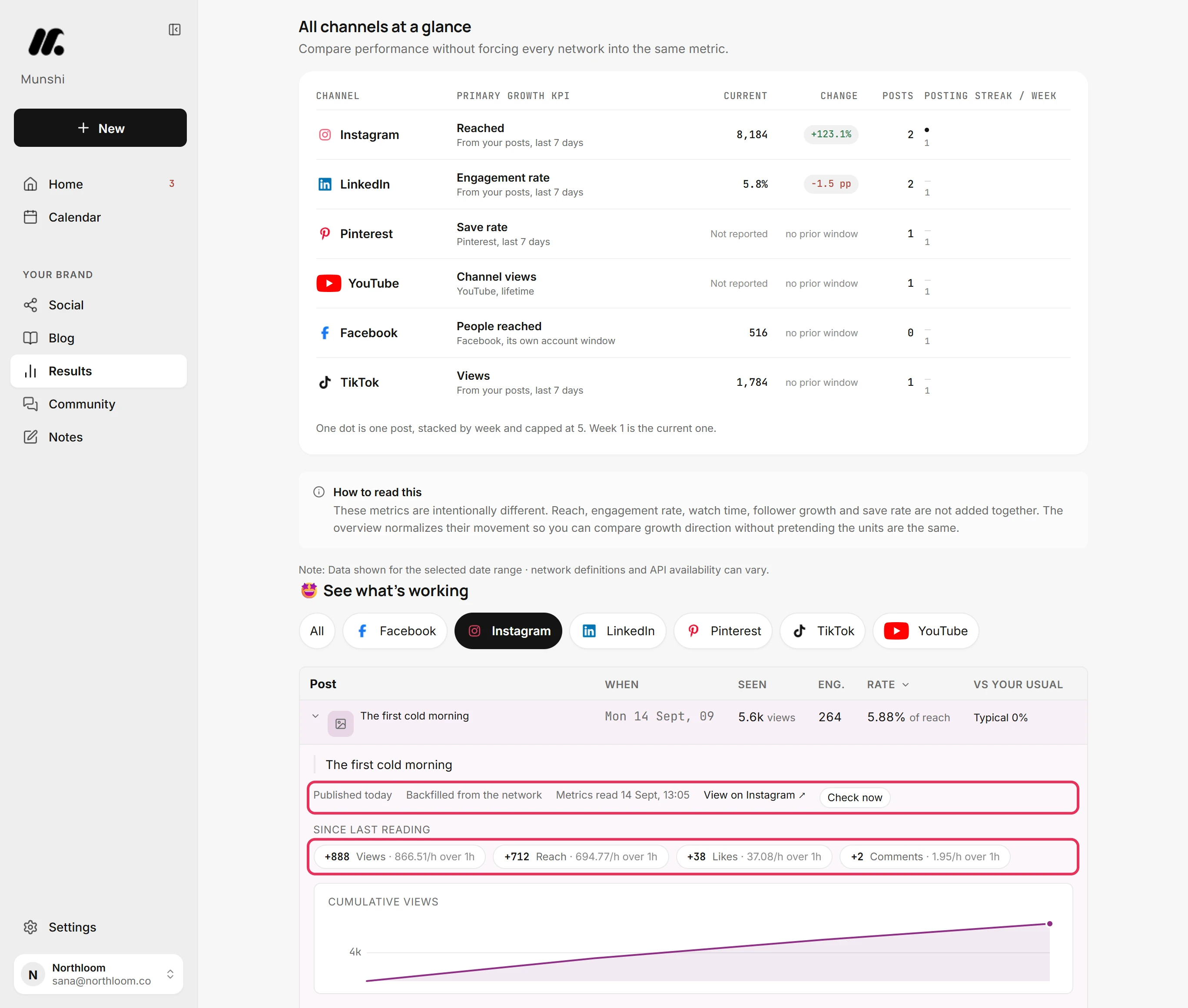
Click a post to open it. You see how old it is, when its numbers were last read, and a link to it on the network. You also see what changed since the last reading, and its running total.
All channels at a glance lines every account up in one table. Each row shows its headline measure, the current value and the change, and the posts in the window. A posting streak adds one dot per post for each week, so you spot the channel you forgot about.
Step by step: How to import your past posts
How your articles do in Google Search
The Blog tab shows how your articles do in Google Search. It reads Google Search Console.
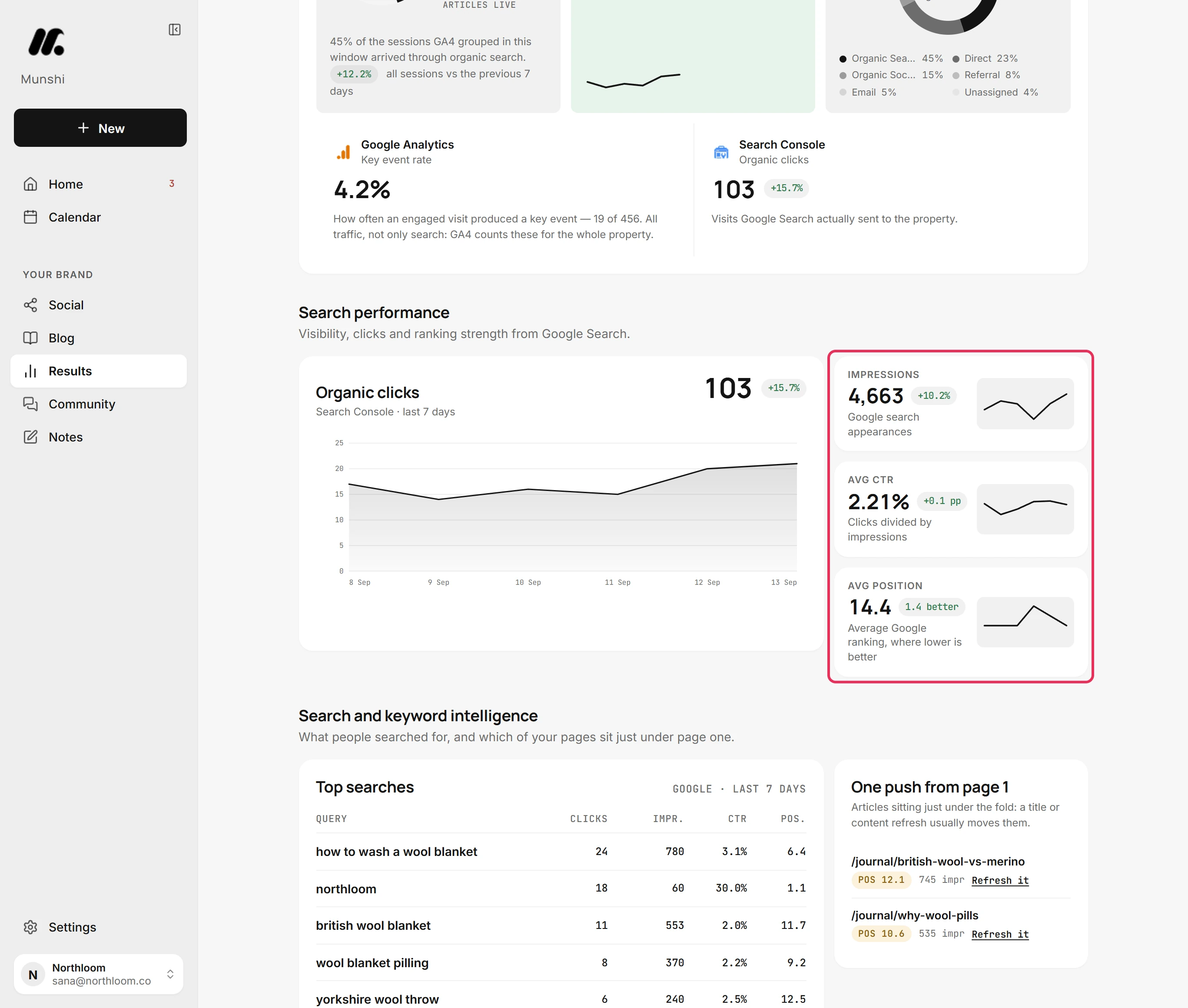
Organic clicks counts the visits Google Search sent your site in the window. It shows the change against the window before, with a line for each day. Point at the line to read one day's clicks and impressions.
Beside it, Impressions counts how often your pages appeared. Avg CTR is clicks divided by impressions. Avg position is your average ranking, where lower is better.
Top searches lists what people typed into Google before they found you, with clicks, impressions, CTR and position. Google sends ten rows for a window, so that is the whole list and rare searches never appear.
Under it, Write more about one opens the keyword editor in Blog, Strategy. A search you already rank for becomes your next article.
One push from page 1 lists up to five pages ranked between positions 10 and 20. Refresh it beside each one opens Blog, Published. It reads only the ten pages Google sent the most clicks to. So a page with few clicks can sit just under page one and not appear.
Search Console publishes two to three days behind. So every window on this tab really ends a couple of days before the dates shown.
Step by step: How to read your blog results
Traffic from ChatGPT and other AI assistants
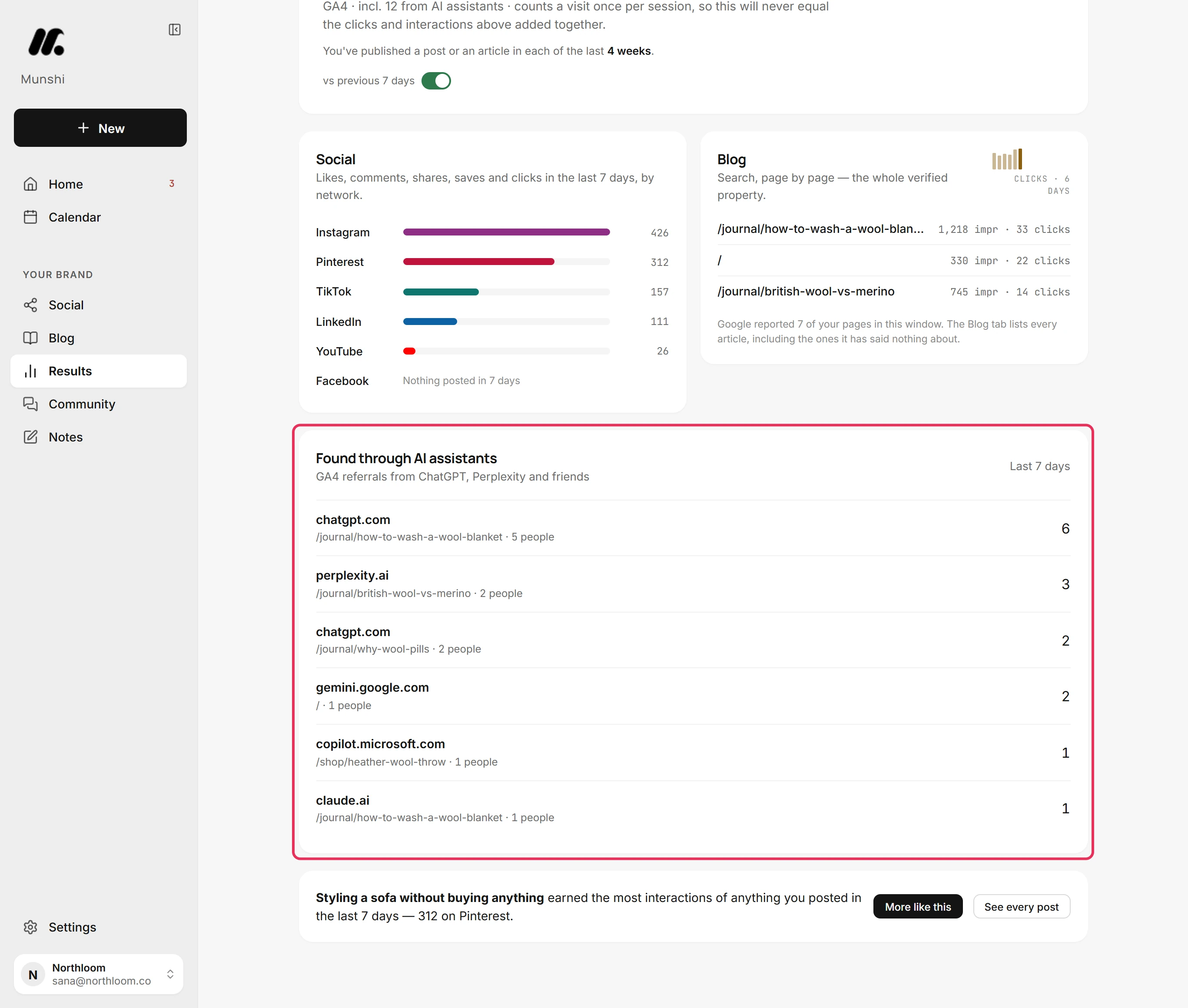
The Found through AI assistants panel shows the visits AI assistants sent to your site. It reads Google Analytics.
People ask an assistant, the assistant quotes a page, and someone clicks. That visit does not show up as search traffic anywhere, and most dashboards never separate it out.
Each row is one assistant and one page. It shows the assistant's address, the page its visitors landed on, how many people came, and their visits. Visits can be higher than people. The panel shows the six rows with the most visits.
A visit counts when its Google Analytics source is exactly one of seven addresses. They are chatgpt.com, chat.openai.com, perplexity.ai, gemini.google.com, copilot.microsoft.com, claude.ai or bing.com.
The card near the top of Overview also adds the count to its headline. The people who landed on your site read as, for example, incl. 12 from AI assistants.
Assistant visits are rare, so a 30 or 90 day window usually shows more than a week does.
Step by step: What the AI assistants panel counts
Missing numbers show a word, never a zero
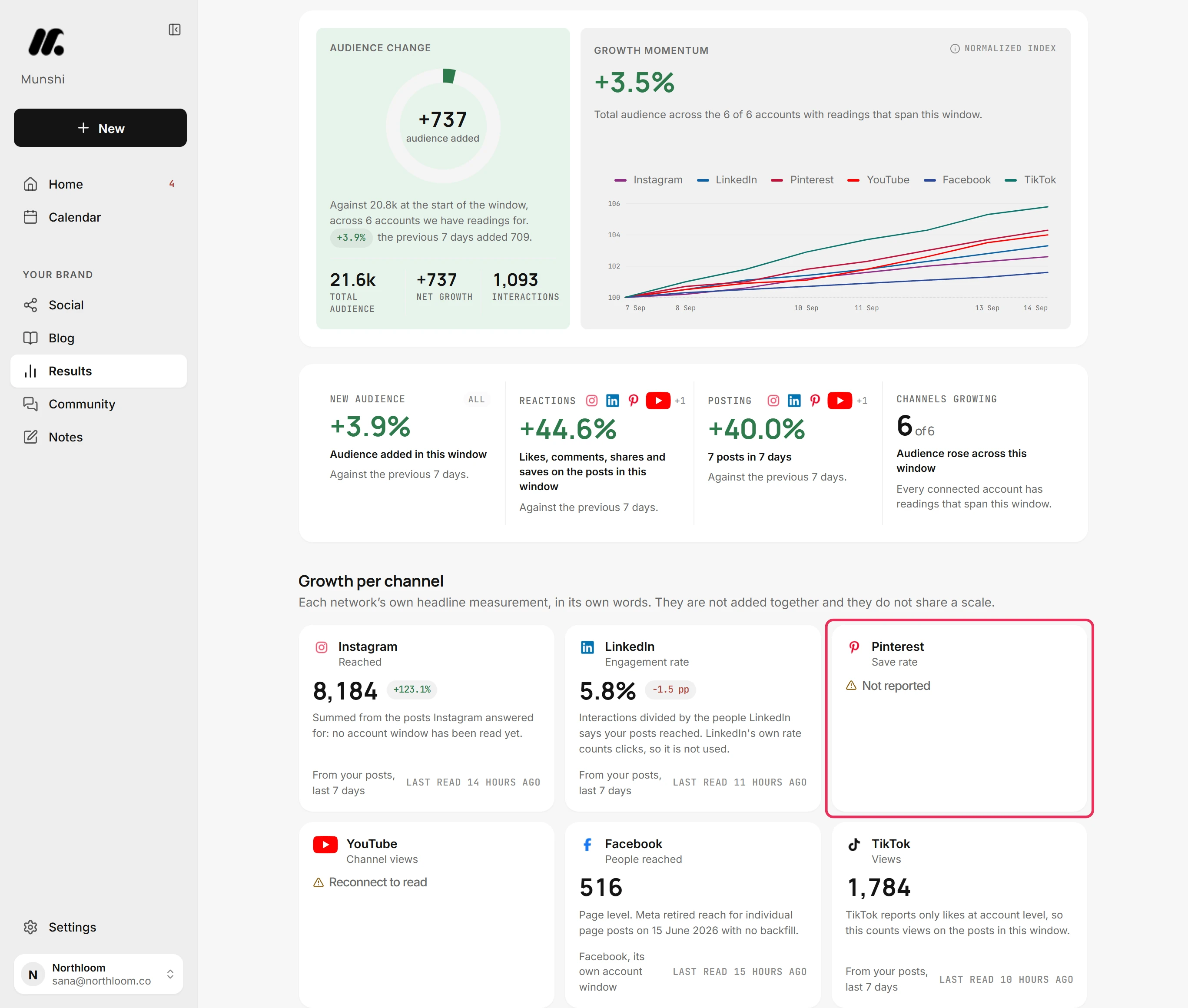
When a number is missing, Results writes a word in its place, and the word says why. A zero there would quietly mislead you.
Collecting means the source is connected but this window has not been read yet. It fills in on its own.
Not reported means the network answered but sent no figure for that measure in this window. So it is missing, not zero.
Nothing posted in 7 days means nothing went out on that network in the range. Didn't answer means the network did not respond to the last reading. Not connected means nothing sits behind that tile yet, and its link takes you to connect it.
Only one flag needs you. Reconnect to read means a network signed you out: its access expired, so nothing new can be read from that account.
To fix it, open Settings, Integrations and reconnect the network marked Reconnect. The card fills in at the next reading.
Step by step: How to read the health flags
Why do numbers differ from the network's app?
Results and a network's own app will not always match. That is expected, and the page tells you why instead of hiding it.
Timing is the first reason. Munshi reads each connected account on a schedule and keeps what it read. A post still collecting likes shows more in the network's own app until the next reading.
Windows differ too. Instagram keeps account windows of 7 and 30 days only, so on a longer range the card shows the 30-day figure and says so. YouTube channel views are a lifetime total, with no earlier period to compare against.
Some measures are counted rather than reported. Facebook sends no reach or impressions for individual Page posts, and TikTok reports only likes at account level. Threads reports nothing at account level. So Munshi adds those figures up from the posts it holds.
Reach summed across posts is not the same measurement as the reach a network reports for a whole account. Every card names which kind it is: the network's own figure, counted from your posts, or measured by Munshi.
Step by step: Why a number here differs from the network's own
How often do the numbers update?
Munshi reads account figures about twice a day, and new posts more often. Networks do not stream their figures as they change, so Munshi reads them on a schedule.
Account-level readings, such as follower counts and account windows, are taken about twice a day per account. A post is read about every six hours for its first two days. Then it is read daily to the end of its first week, and more slowly as it ages.
First numbers on a new post usually appear a few hours after publishing.
Google works differently. Search Console and Google Analytics readings are kept for half an hour before Munshi asks again. Those numbers move slowly, and Google's own processing runs hours behind. Search Console itself publishes two to three days late.
The stamp above the cards says when the figures were last read. Refresh asks your networks and Google again.
With Google connected, a second press within two minutes says Refreshed less than 2 minutes ago. It does not spend your quota on the same answer. An open post has its own stamp, and Check now asks that one network about that one post.
Step by step: How to read your first results
Export a social media report as PDF or Excel
You can export your social results as a PDF or an Excel file. Export social report sits at the top right of the Social tab, beside the window control.
Click PDF or Excel, and the report is built in the background for the window on screen. The jobs dock on the right follows the build and marks it Finished. You can carry on elsewhere in the app while it runs.
The Excel workbook has Summary, Channels and Posts sheets. It lists up to 5,000 posts from the window. Past that, it keeps the most recent 5,000, and its Summary sheet says so. The PDF is the same report, laid out to send to someone.
A built file stays available for an hour. The download link clears when you pick another window or leave the tab, because the file no longer matches the page. Build another brings the buttons back. A workspace can build 20 reports an hour.
Step by step: How to export a social report
What each source measures, and what it does not
Every figure on Results comes from one of ten sources, and each one reports something different. This table shows what each sends and what it leaves out, so nothing on the page is a guess.
| Source | Headline measure in Munshi | What it does not report |
|---|---|---|
| Reached, from Instagram's own window when it has been read, counted from your posts when it has not | Account windows are 7 and 30 days only. A longer range shows the 30-day figure | |
| Engagement rate, worked out by Munshi | LinkedIn's own engagement rate, which counts clicks, is not used | |
| People reached, from the Page's own account window | No reach or impressions for individual Page posts, so post totals count reactions, comments and shares | |
| TikTok | Views, counted from your posts in the range | Only likes at account level, so there is no account-level view count to read |
| Save rate, with a real day-by-day series | Past pins cannot be imported, so its numbers start from when you connected | |
| YouTube | Channel views, a lifetime total | No earlier period to compare against, so the card carries no change |
| Threads | A rate from views on your posts | Nothing at account level |
| Bluesky | Audience growth, measured by Munshi | No engagement numbers at all |
| Google Analytics | People who landed on your site, and the visits AI assistants sent | Nothing until the tracking tag is on your site and verified |
| Search Console | Clicks, impressions, CTR, average position, top searches and pages | Only ten search rows a window, and it publishes two to three days behind |
Each workspace connects one account per network. The full detail on sources and windows is in Why a number here differs from the network's own.
How often each source is read
| Reading | How often | What you can do |
|---|---|---|
| Account figures, such as followers | About twice a day per account | Refresh above the cards asks again |
| The numbers on one post | About every six hours for two days, then daily for the rest of the first week, and more slowly after that | Check now on an open post asks for that one |
| Google Analytics and Search Console | Kept for half an hour, then read again | Refresh, though a second press within two minutes says so instead |
| Search Console's own publishing | Two to three days behind, at Google's end | Pick a longer window if a short one looks empty |
Charts plot readings, not days. Except on Pinterest, a chart has one point for each day Munshi took a reading. Each point is the window total the network returned at that moment, not that day's own number. So a chart will not line up with a day-by-day chart in the network's app.
What it does not do
- It does not add different networks together. Reach, engagement rate, views and save rate stay apart, because a total across them would not mean anything. Growth momentum compares direction instead.
- It does not reach back before Munshi started reading. Importing brings in up to 100 recent posts per network on Bluesky, Facebook, Instagram, LinkedIn, Threads and YouTube. Pinterest does not allow it at all.
- It does not show assistant visits without Google Analytics. That panel reads GA4 and needs the tracking tag verified. It counts only the seven assistant addresses listed above.
- It does not export the blog side. The PDF and the Excel workbook cover your social accounts and posts, for the window on screen.
- It does not track competitors or paid ads. Results covers your own blog and your own accounts. If competitor benchmarks, ad results or a Looker Studio feed are the job, Metricool goes further, and that comparison says where.
- It does not promise rankings or traffic. Results reports what Google and the networks say happened. What happens next depends on your site, your competition and time.
Questions people ask
Can I see social media and blog analytics in one place?
Yes. Results is one page with three tabs. Overview shows both at once, Social covers every connected account, and Blog covers what Google Search did with your articles. One window control applies to all three: 7, 30 or 90 days, or a custom start date up to 365 days back.
Which social networks does Munshi measure?
Instagram, TikTok, LinkedIn, Facebook, Pinterest, Threads, YouTube and Bluesky, the eight networks that connect today. Each keeps its own headline measure instead of being forced into a shared metric. Every card says which source and window its number came from.
Why do Munshi's numbers differ from the network's own app?
For three reasons, and the page names which one applies. Munshi reads each account on a schedule, so a post still collecting likes shows more in the network's app until the next reading. The window can differ from the one the network's app shows. And some figures are counted from your posts, which is a different measurement from an account total.
How often does the data refresh?
About twice a day for account figures, and more often for new posts. A post is read about every six hours for its first two days, then daily for the rest of its first week, then more slowly. Google Analytics and Search Console readings are kept for half an hour. Refresh above the cards asks everything again on demand.
Do I need Google Analytics and Search Console?
Only for the blog half, and both connect through one Google sign-in in Settings, Integrations. Social results need only your connected social accounts. Search Console adds clicks, impressions, click-through rate, average position and the searches people typed. Google Analytics adds site visitors and AI assistant visits, once its tracking tag is installed and verified.
Can I see traffic from ChatGPT and other AI assistants?
Yes, in the Found through AI assistants panel, which reads Google Analytics. A visit counts when its source is exactly one of chatgpt.com, chat.openai.com, perplexity.ai, gemini.google.com, copilot.microsoft.com, claude.ai or bing.com. Each row shows the assistant, the page people landed on, how many people came and how many visits they made.
Can I export a report for a client?
Yes. Export social report on the Social tab builds a PDF or an Excel workbook for the window on screen. The workbook has Summary, Channels and Posts sheets and lists up to 5,000 posts. The file stays available for an hour, and a workspace can build 20 reports an hour.
Why does a tile say Collecting or Not reported instead of a number?
Because Munshi never shows a missing number as zero. Collecting means the source is connected but this window has not been read yet, and it fills in on its own. Not reported means the network answered but sent no figure for that measure. Reconnect to read is the only flag that needs you: the network signed you out, so reconnect it in Settings, Integrations.
Reading your results, step by step
Each one walks a single task through the real app, with a screenshot at every step.
- How to read your first results 3 min · 8 steps
- Results overview: what landed on your site and where it came from 3 min · 9 steps
- Social results: growth per channel and what worked 4 min · 8 steps
- Blog results: queries, pages, clicks and position 3 min · 7 steps
- Found through AI assistants: the panel explained 2 min · 6 steps
- How to read the health flags on Results 2 min · 6 steps
- How to export a social report as PDF or Excel 2 min · 7 steps
- Why a number here differs from the network's own 2 min read
- How to import your past posts 2 min · 6 steps
- How to connect Google Analytics 2 min · 7 steps
- How to install and verify the Google Analytics tag 3 min · 6 steps
- How to connect Search Console and submit your sitemap 2 min · 7 steps
- How to check whether Google has indexed an article 1 min · 5 steps