How to connect Search Console and submit your sitemap
In Settings > Integrations, connect Google Search Console and choose your site. Then submit your sitemap, or add a site Search Console does not list yet.
Before you start
- A Google account with access to your site in Google Search Console, or a site whose ownership you can prove to Google. Search Console is Google's tool that shows how your site does in Google Search.
-
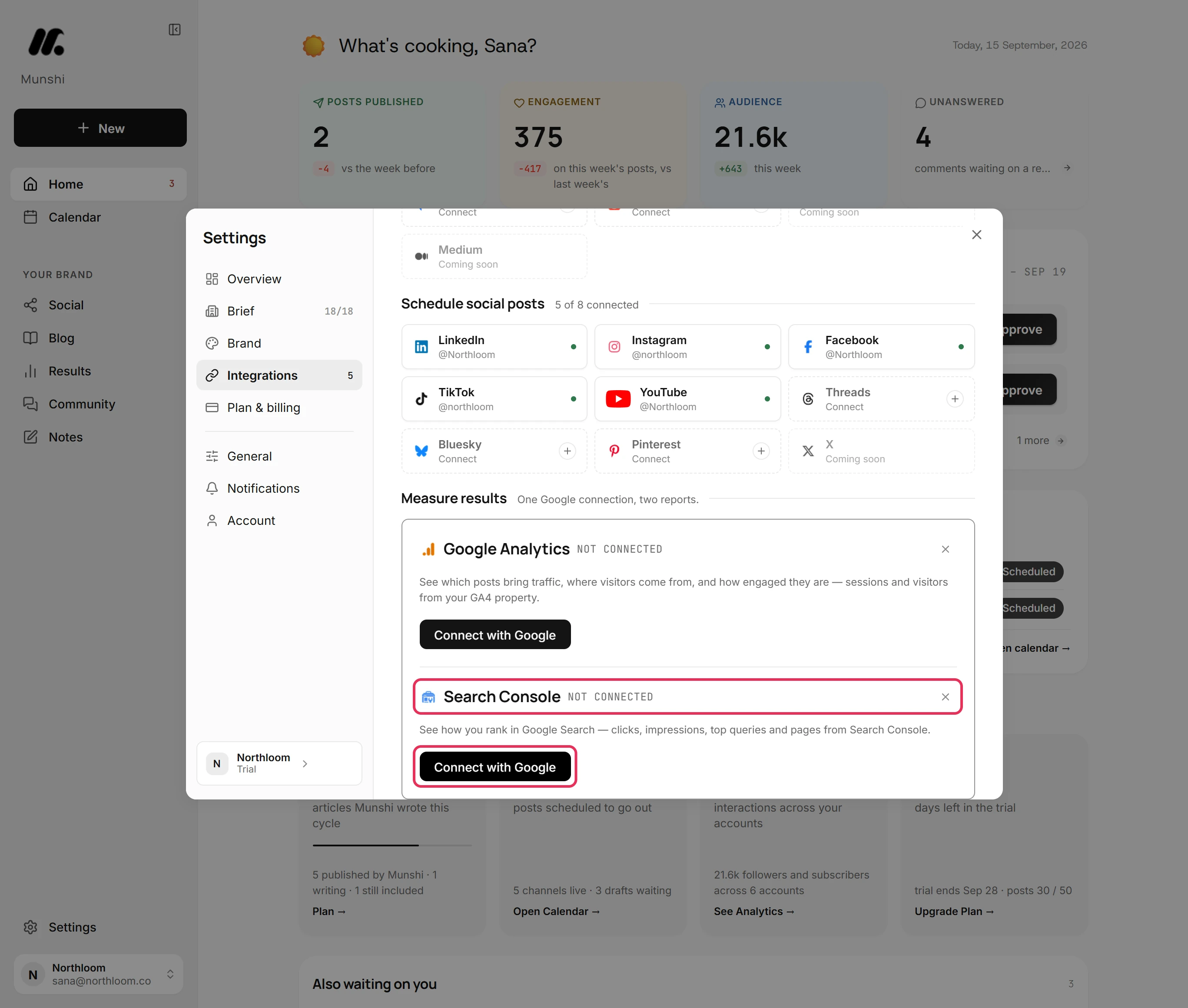
Click Settings at the foot of the sidebar, then Integrations. Under Measure results, click Analytics & Search Console. The Search Console panel opens below Google Analytics, with its own Connect with Google.
-
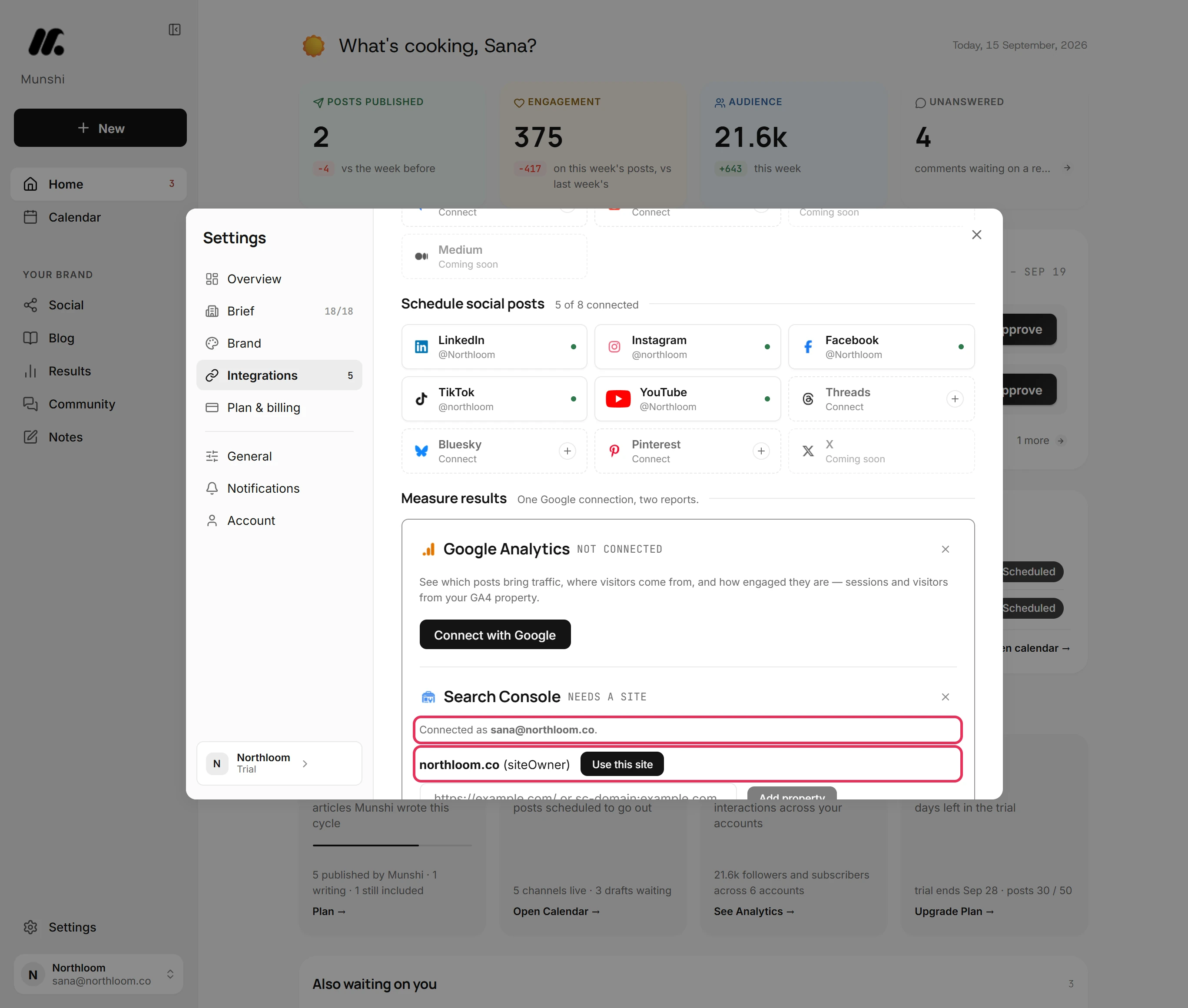
Click Connect with Google. In the Google window, choose your account and allow Munshi to see and manage Search Console for your sites. The window closes, Munshi says Account connected. and the panel lists your sites under Connected as and your Google address.
-
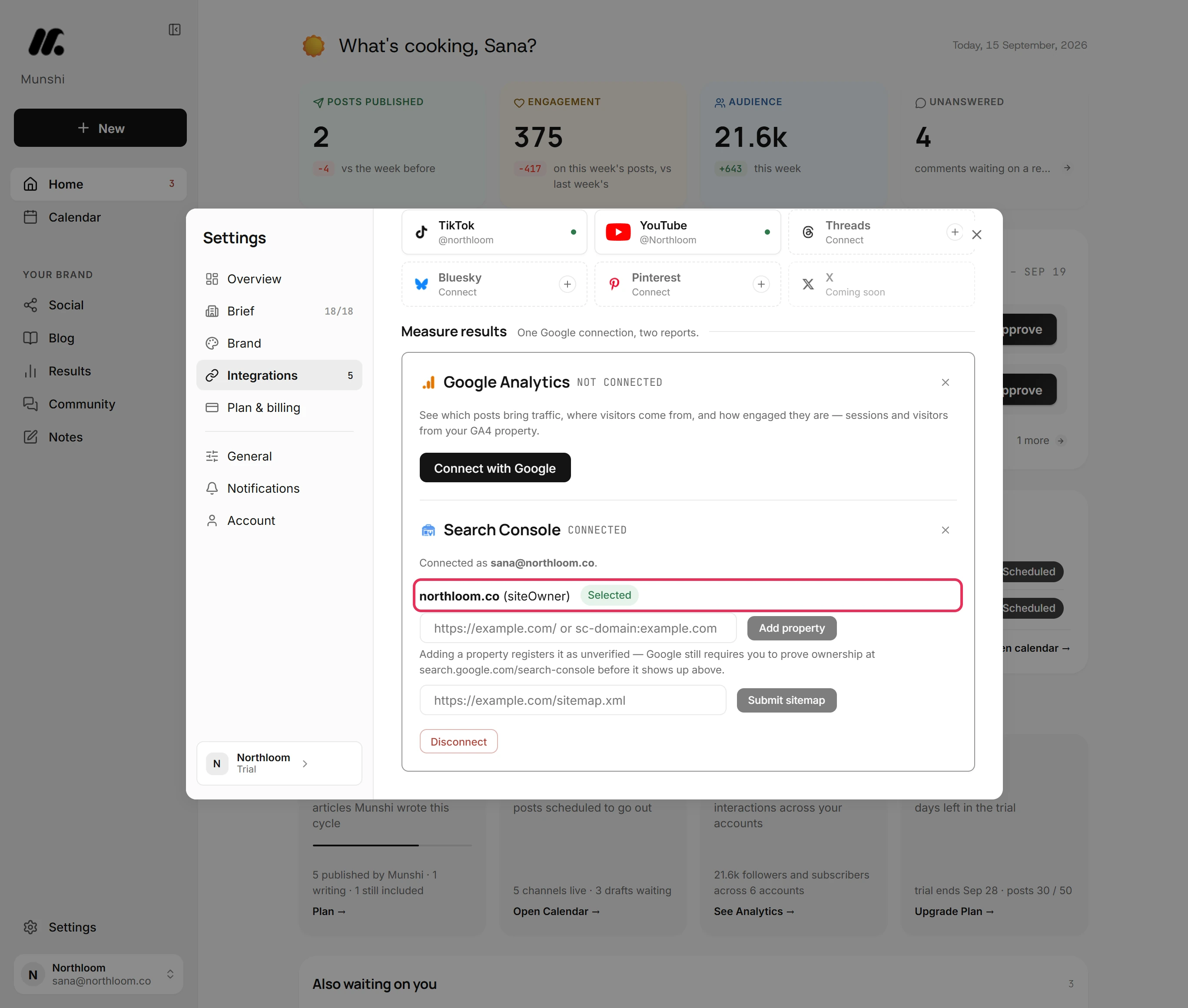
Click Use this site beside your site, and it reads Selected. If you have several sites, pick yours from the list and click Save. Each site shows your access level beside its address.
-
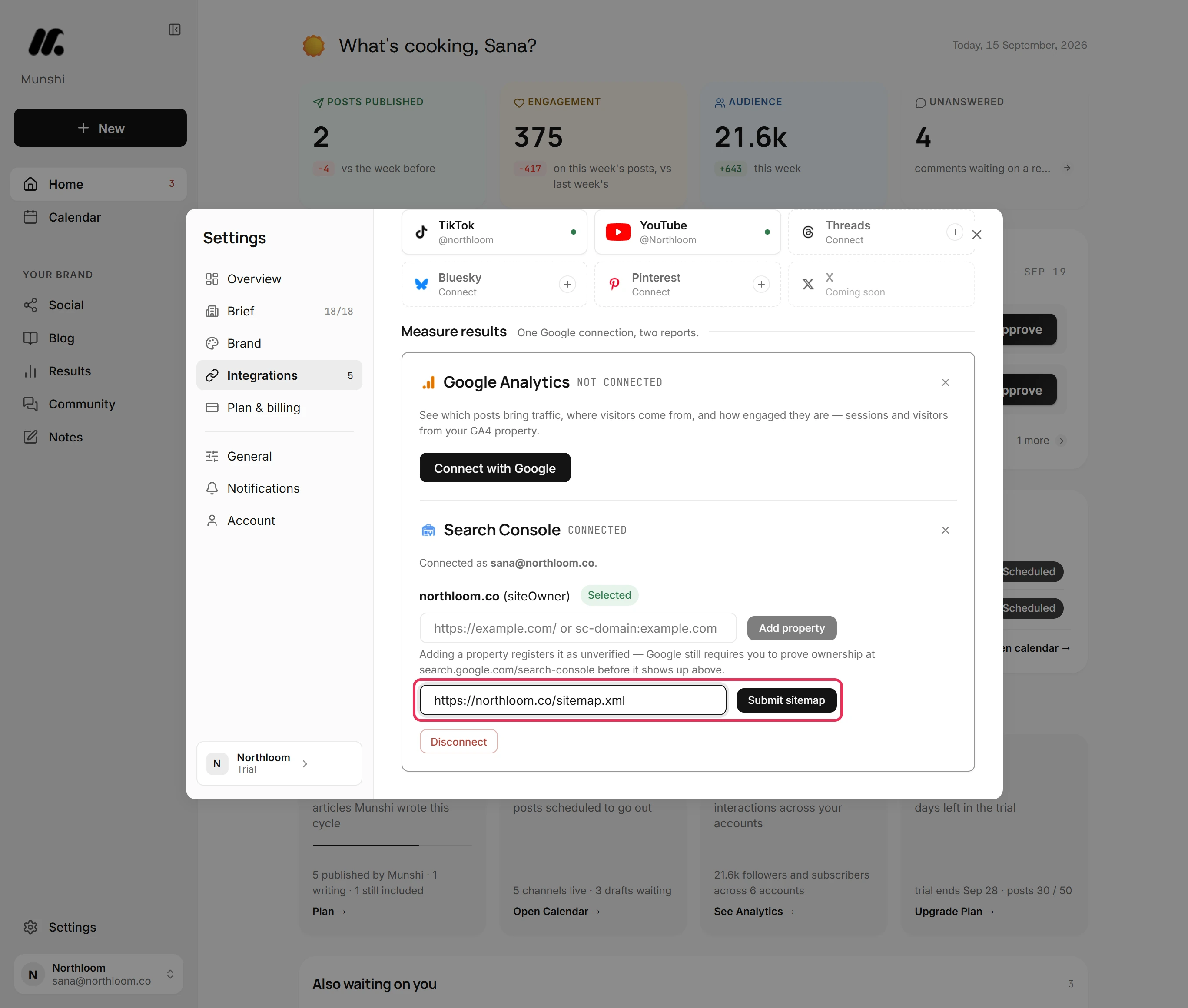
A sitemap is a file that lists the pages on your site. If Search Console has no sitemap for your site yet, the panel shows a field for one. Type its full address, such as https://northloom.co/sitemap.xml, and click Submit sitemap. Munshi says Sitemap submitted to Search Console.
-
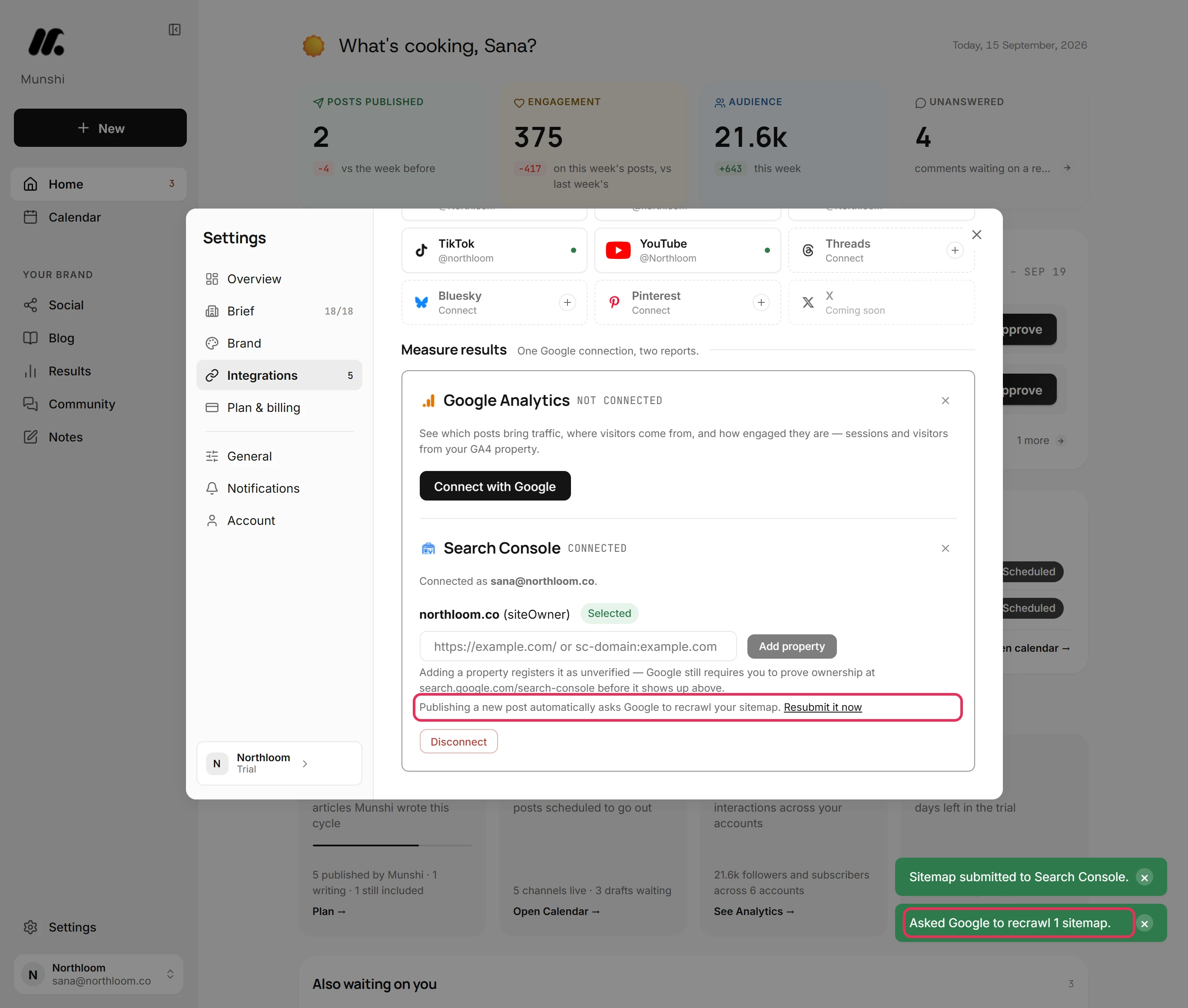
Once Search Console knows your sitemap, the field becomes a line with Resubmit it now. When you publish an article straight away from Munshi, Munshi asks Google to recrawl your sitemap by itself. Resubmit it now asks at any time and says how many it sent, such as Asked Google to recrawl 1 sitemap.
-
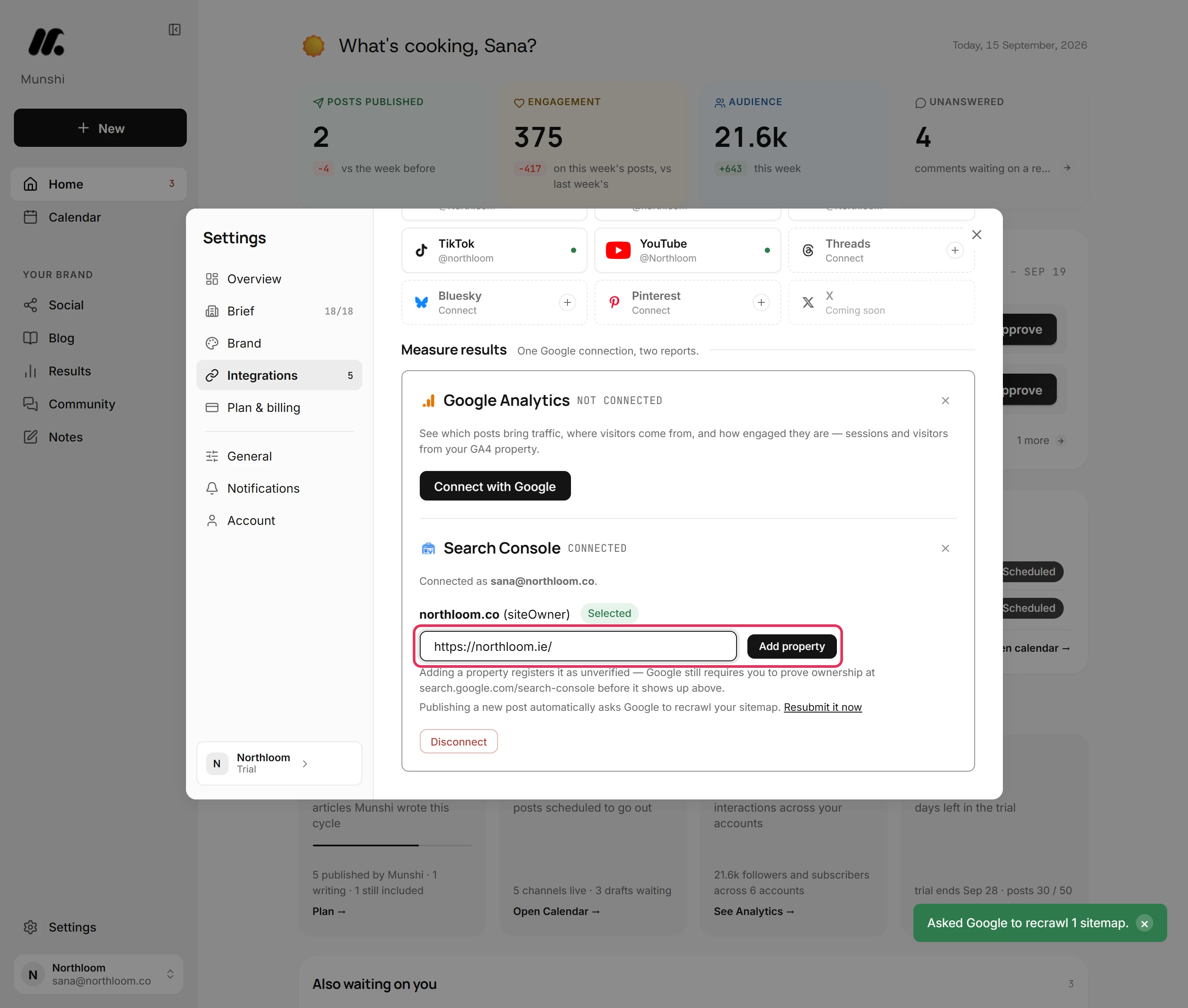
If your site is not in the list, type its address in the field below it. Start with https://, or type sc-domain: followed by the domain. Click Add property, and Munshi registers it with Google and says Property added.
-
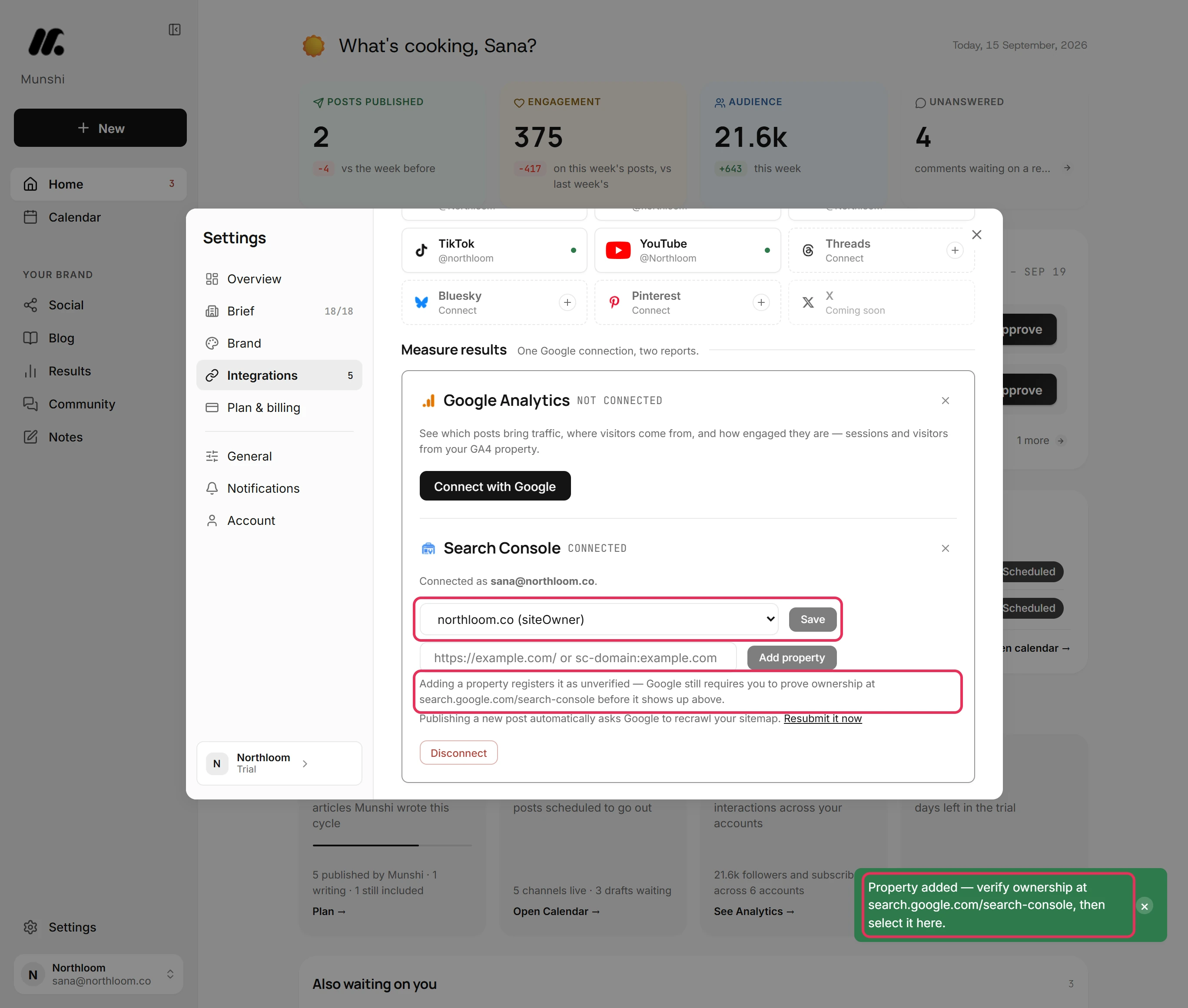
Google must confirm you own a new property before it shares any data. Verify it on Search Console's own site in a way Google offers, such as a DNS record or an HTML file. Until then, the list marks the site as needing verification and you cannot choose it. Once it is verified, pick it and click Save.
Where you are now
Search Console reads your site, and Google has your sitemap. Results, Blog > Strategy and Blog > Published show what people searched for and how your pages do in Google.
If something goes wrong
“Google didn't accept that sitemap. Check the URL is reachable and try again.”
Check that the address is complete and starts with https://. Open it in a browser to make sure it shows your sitemap. Then click Submit sitemap again.
“Could not add that site. Check the URL is exactly right (including https:// and any trailing slash).”
Type the address exactly as your site uses it, with https:// and the trailing slash. Or use sc-domain: followed by the domain.
The site I added cannot be chosen
Finish verifying it on Search Console's own site, then come back, pick it and click Save. Google has not confirmed that you own it yet.
“Your browser blocked the popup. Allow popups for Munshi and try again.”
Allow pop-ups for Munshi in your browser, then click Connect with Google again.
Try it on your own brand this week.
Munshi Social, the AI content marketing engine for small teams, plans, writes, publishes, and tracks your blog and socials. The guide above shows the real app, not a mock-up.
Start your workspace