How to connect Ghost with an Admin API key
Add a custom integration in Ghost and copy its Admin API key. Paste the key and your site address into Munshi, then check the connection in Integrations.
Before you start
- Access to your Ghost admin. That is where you add custom integrations, under Settings, Integrations.
-
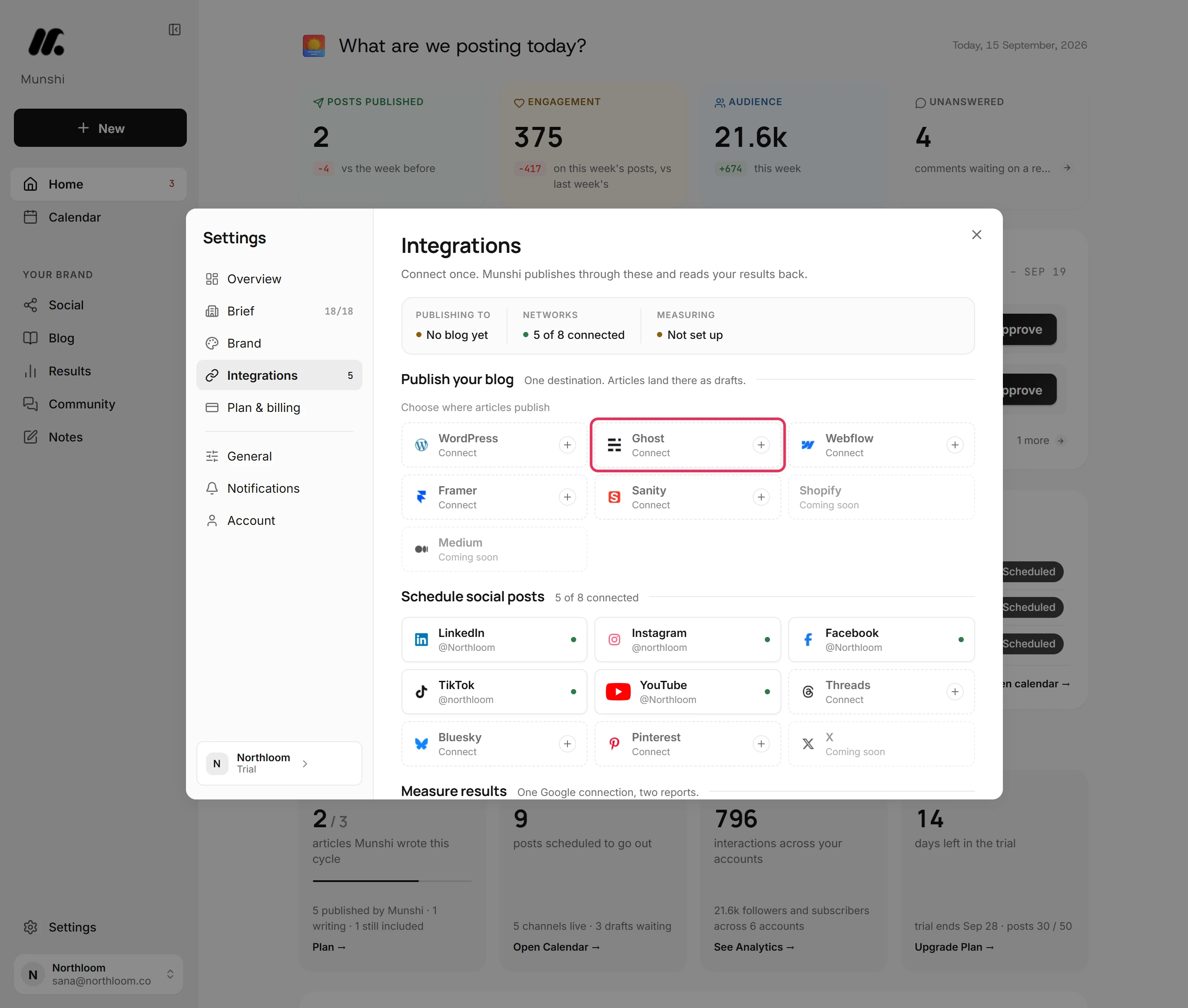
Click Settings at the bottom of the sidebar, then Integrations. Ghost is one of the blogs under Publish your blog.
-
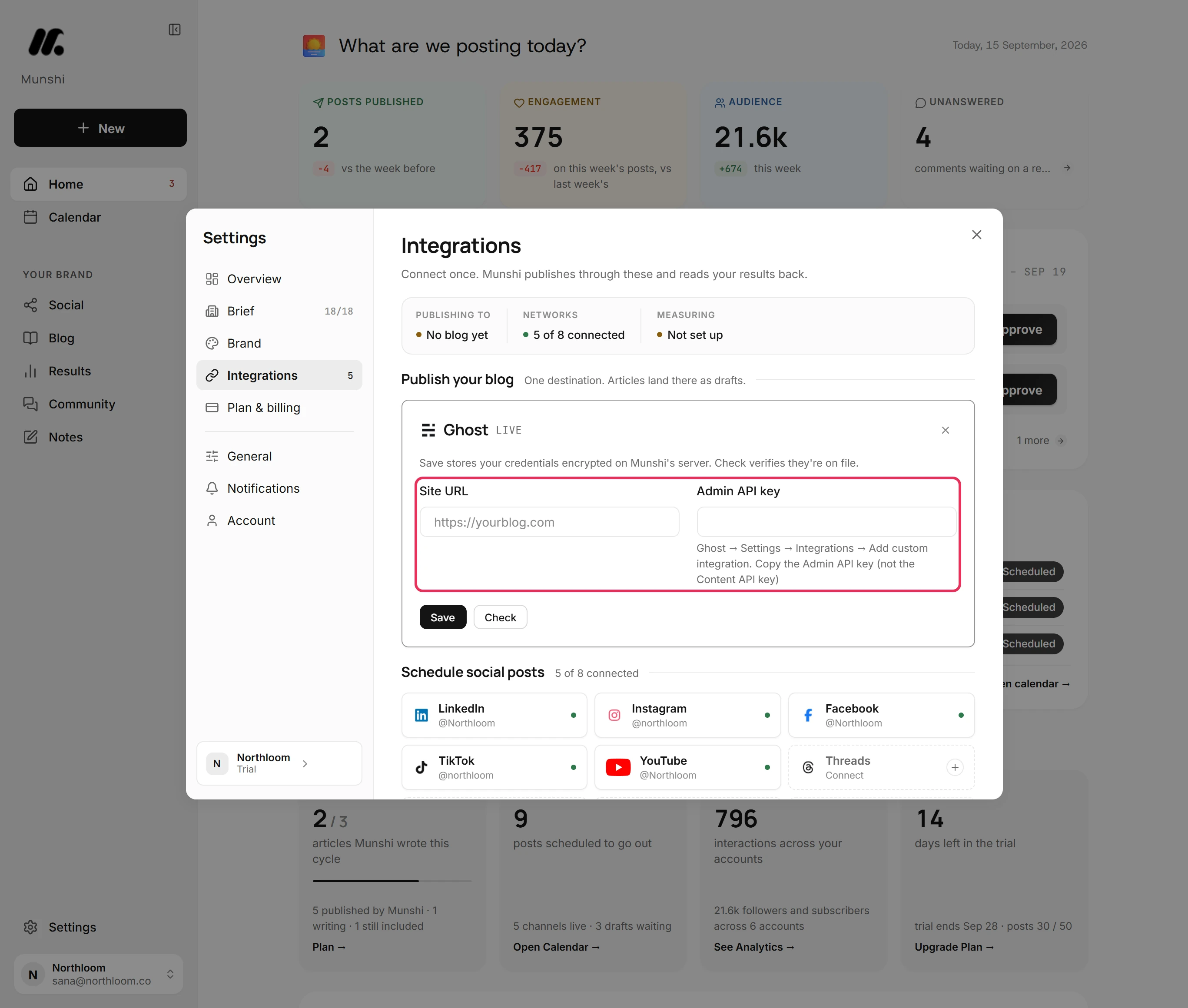
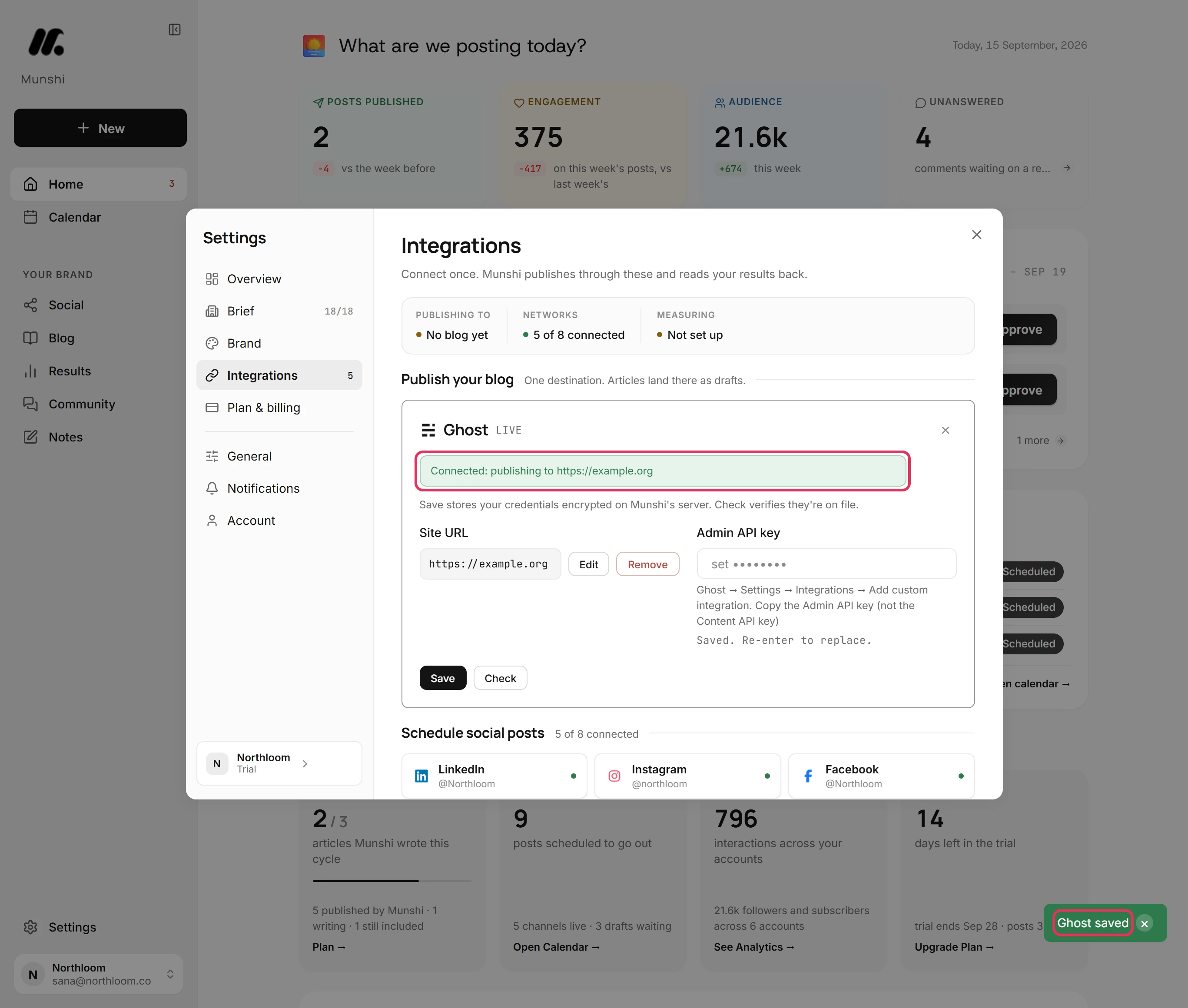
Click the Ghost tile. Its card asks for two things: your Site URL and an Admin API key.
-
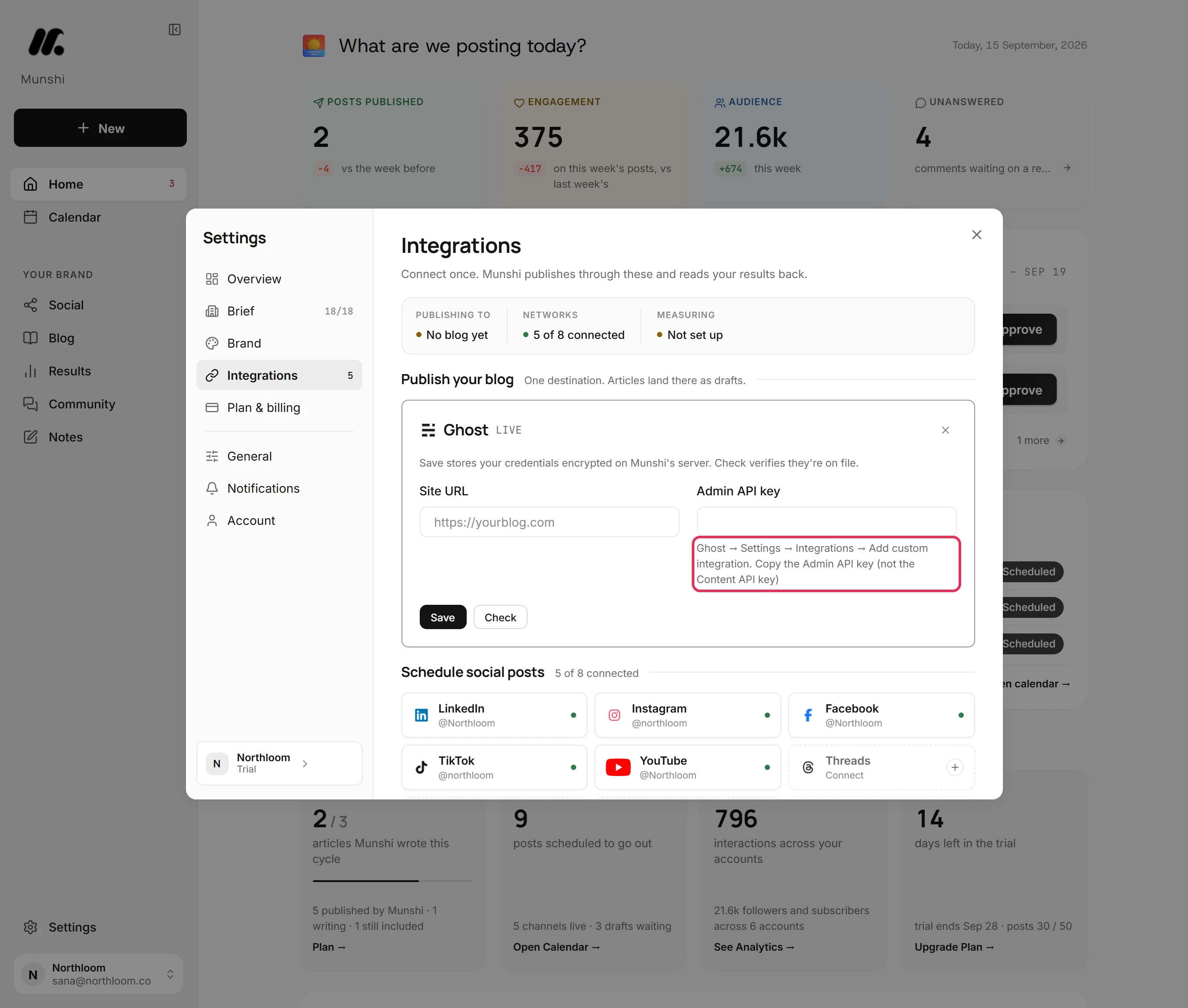
The Admin API key is a secret code that lets Munshi reach your Ghost site. In your Ghost admin, go to Settings, Integrations and add a custom integration. Copy its Admin API key, not its Content API key.
-
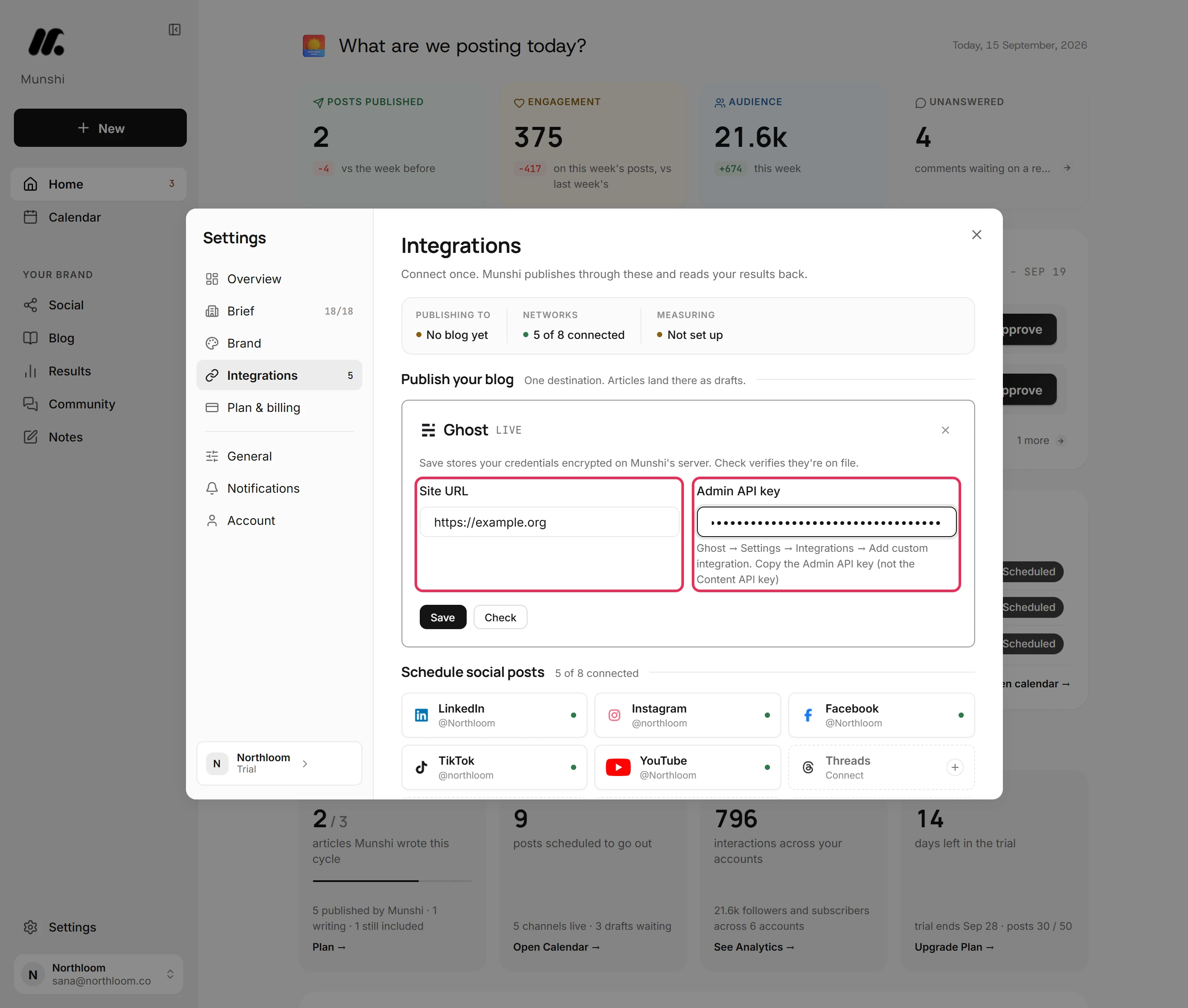
Type your Ghost site's address into Site URL. Paste the key into Admin API key.
-
Click Save. Munshi stores the key encrypted and reads your site with it. The card then reads Connected: publishing to your site.
-
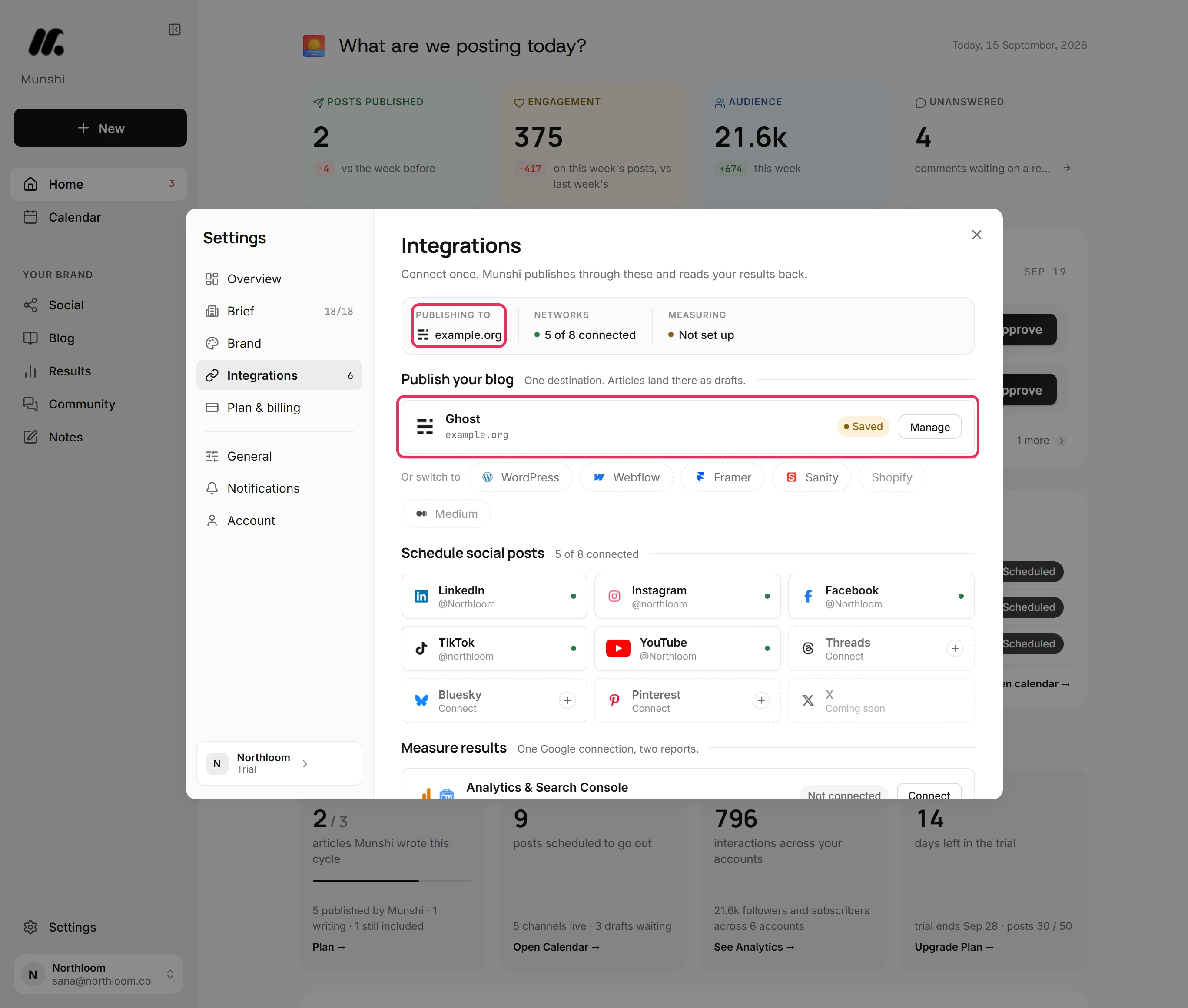
Close Settings and open Integrations again. Publish your blog shows Ghost with your site, and Publishing to names it. The badge reads Saved, because Integrations checks Ghost only when you ask.
-
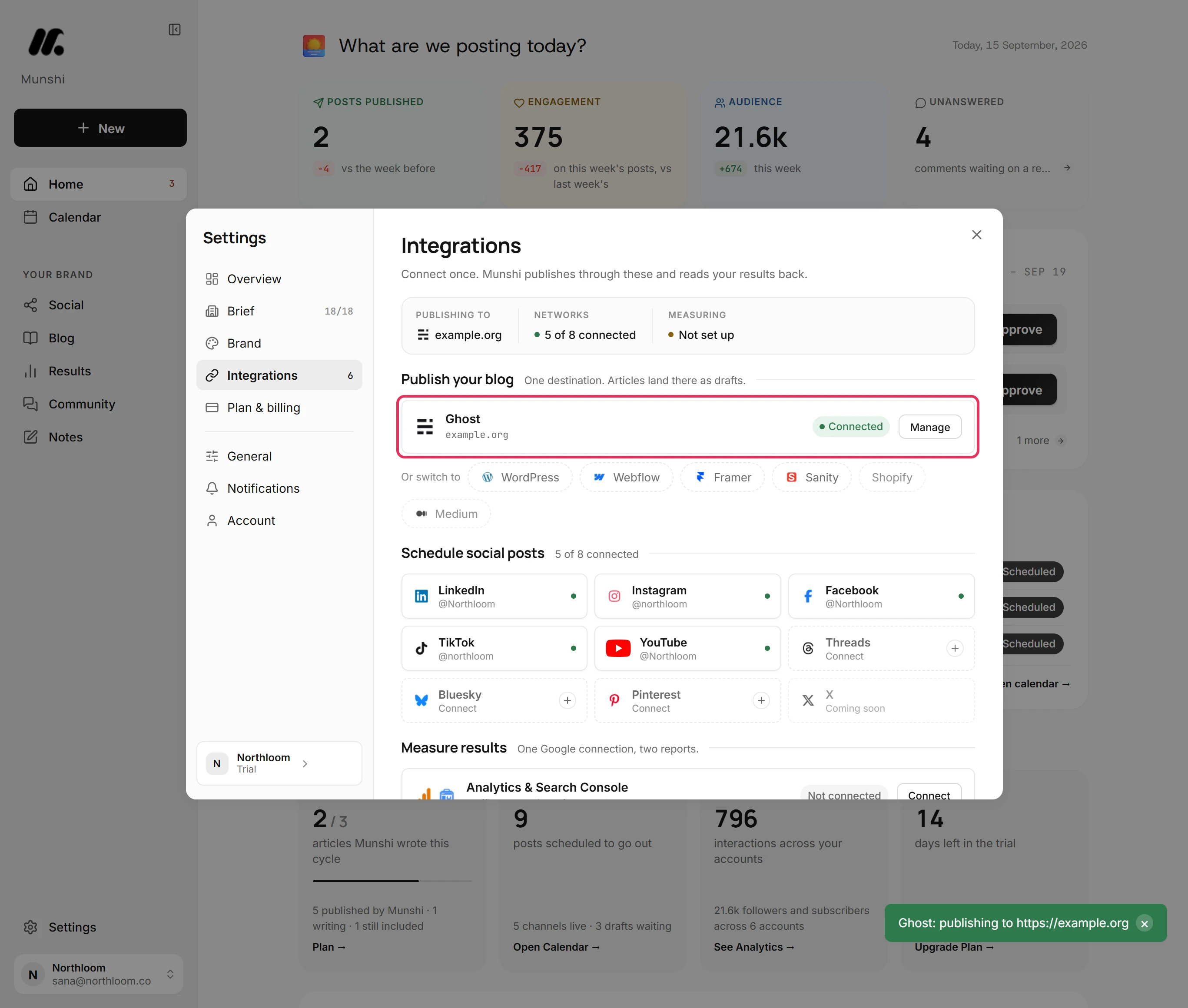
Click Manage, then Check. Munshi reads your site with the key and says Ghost: publishing to your site. Close the card, and the badge reads Connected.
Where you are now
Ghost is connected with an Admin API key. Articles you publish from Blog land in Ghost as drafts, and you publish them there.
If something goes wrong
“That doesn't look like a Ghost Admin API key.”
Copy the Admin API key from your custom integration in Ghost, save it, and click Check. An Admin API key is an id and a secret joined by a colon. This message usually means the Content API key was pasted.
“Ghost rejected that Admin API key.”
Add a new custom integration in Ghost, copy its Admin API key, and save it in Munshi. Ghost refused the key, usually because its integration was deleted.
“No Ghost Admin API at” your site address
Use your site's main address, such as https://yourblog.com, then save and check again. The address you entered does not lead to Ghost.
The badge reads Saved, not Connected
Click Manage, then Check. The badge turns Connected when the check passes. Saved means the key is stored but not checked since Integrations opened.
Try it on your own brand this week.
Munshi Social, the AI content marketing engine for small teams, plans, writes, publishes, and tracks your blog and socials. The guide above shows the real app, not a mock-up.
Start your workspace