Munshi and Ghost
Munshi Social, the AI content marketing engine for small teams, writes SEO articles intoGhost from the same weekly plan as every other channel. SEO articles land in your Ghost publication as drafts, with the cover image included.
14-day free trial · No card required · 7-day money-back
A finished article as a draft post in Ghost, with the cover image uploaded to Ghost's own media store. You read it in Ghost and publish from there.
How the connection works
You create a custom integration in Ghost (Settings, Integrations) and paste its Admin API key and your site URL into Munshi. You can delete the key in Ghost whenever you like. Munshi never asks for your Ghost login.
What comes back
Search Console and Google Analytics numbers for every article, on the Results page next to your social results.
How articles land
- Articles always land as drafts, and Munshi never publishes to Ghost for you
- If you edit the article in Munshi after it lands, the Ghost draft is updated in place, not duplicated
- Ghost, Webflow, and Framer receive articles as drafts you publish from your own dashboard. WordPress takes drafts too, except scheduled articles, which go live at their slot. Sanity goes live, now or on schedule.
What to know
- Publishing the draft is your step, in Ghost
- One Ghost publication per workspace
Munshi writes SEO articles and saves them in your Ghost publication as draft posts. Each draft arrives with its title, slug, excerpt, body, feature image and canonical URL. You read it in Ghost and press publish there.
Publish now or schedule, and the article arrives the same way: as a draft, with its cover uploaded into Ghost's own media store. Scheduling decides when Munshi sends the draft, not when your readers see it.
The connection is one key. Add a custom integration in your Ghost admin and copy its Admin API key, a password Munshi uses to publish. Paste it into Munshi with your site address. The key belongs to that integration, so deleting the integration in Ghost stops it working, and you can end access without asking anyone.
What you can post to Ghost
| Format | What goes out |
|---|---|
| The body | HTML, which Ghost turns into its own Lexical format on arrival. The post opens in the Ghost editor as a normal post, with real headings, lists and links. |
| Title and slug | The article's title, and the Slug from its SEO fields. The slug becomes the end of the post's address on your publication. |
| Excerpt | The Meta description you set in Munshi becomes the post's excerpt, trimmed to 300 characters. |
| Feature image | The cover is uploaded into Ghost's media store and set as the feature image, with its alt text. It is not linked back to Munshi. Images inside the body are brought across the same way. |
| Canonical URL | Sent with the article. Of the blogs Munshi publishes to, Ghost is the one that receives the Canonical URL. On the others it only counts toward the SEO score. |
| Published or scheduled | A draft, either way. Munshi says Saved in Ghost as a draft. Review and publish it from your Ghost dashboard. A scheduled article is sent again at its slot, still a draft. |
How to connect Ghost
-
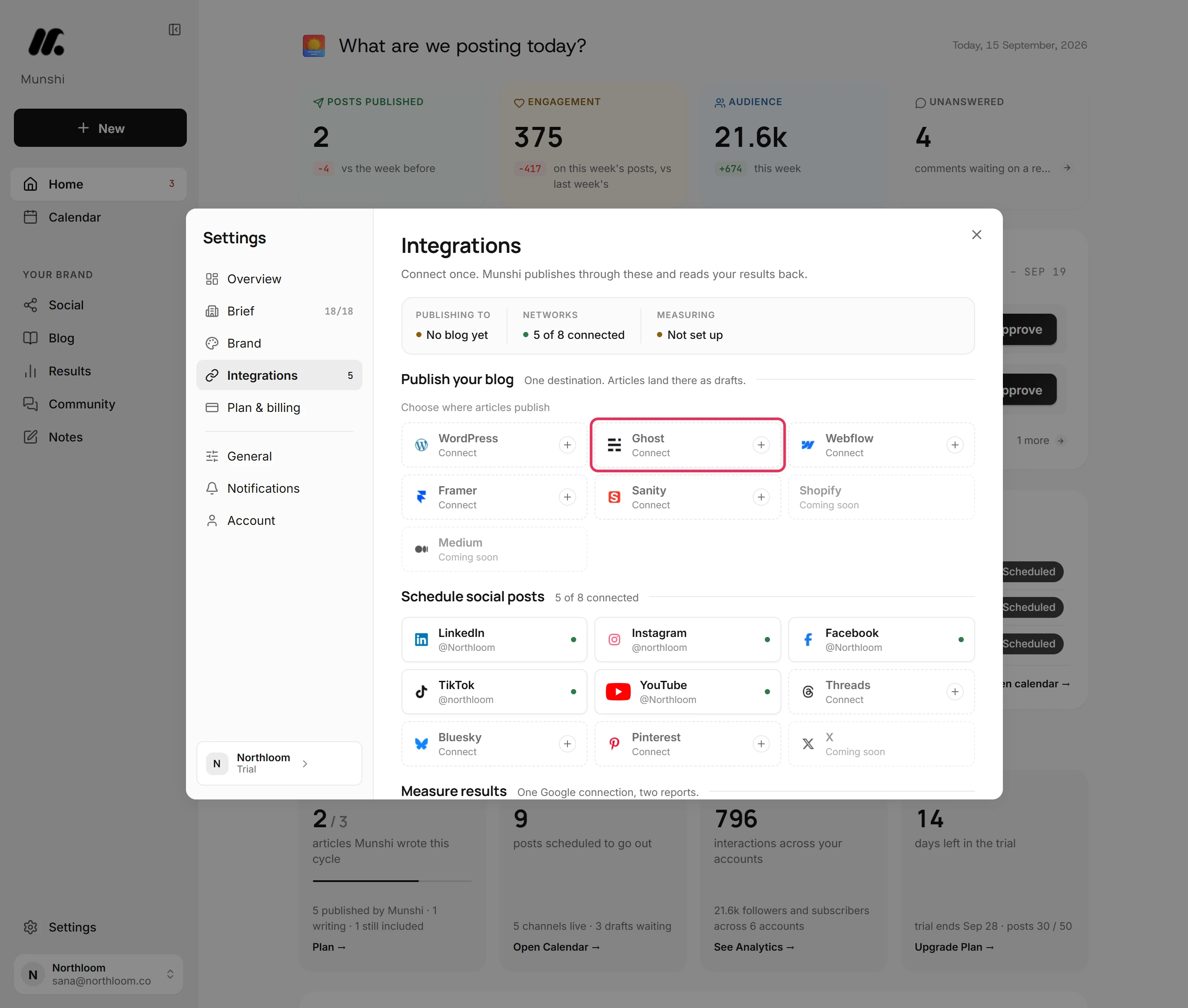
Open Integrations
Click Settings at the bottom of the sidebar, then Integrations. Ghost is one of the blogs under Publish your blog, above the networks and the Google connection. It reads Connect until it is set up.
-
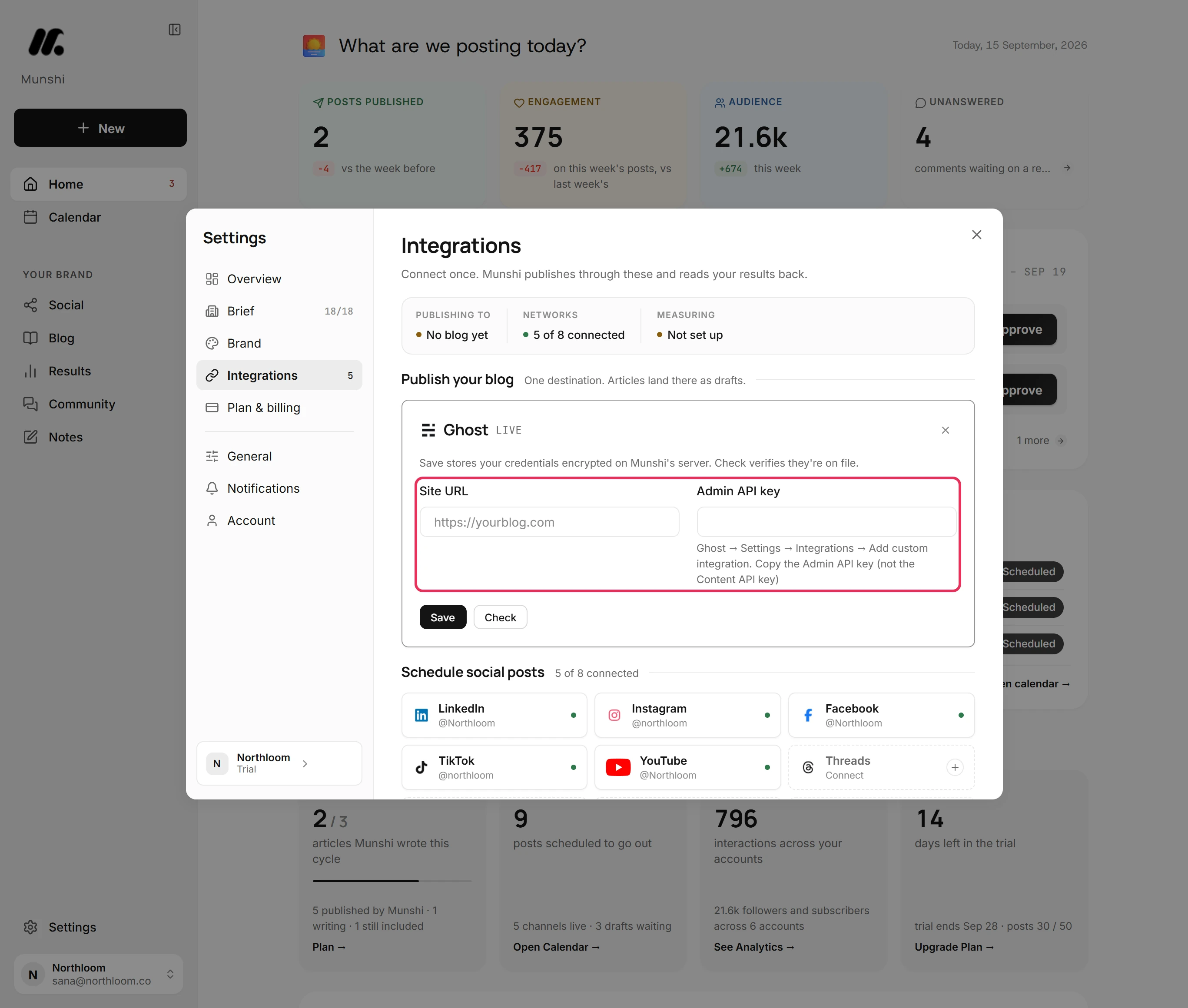
Open the Ghost card
Click the Ghost tile. The card asks for two things: your Site URL and an Admin API key. Save stores your details encrypted on Munshi's server, and Check confirms they are on file.
-
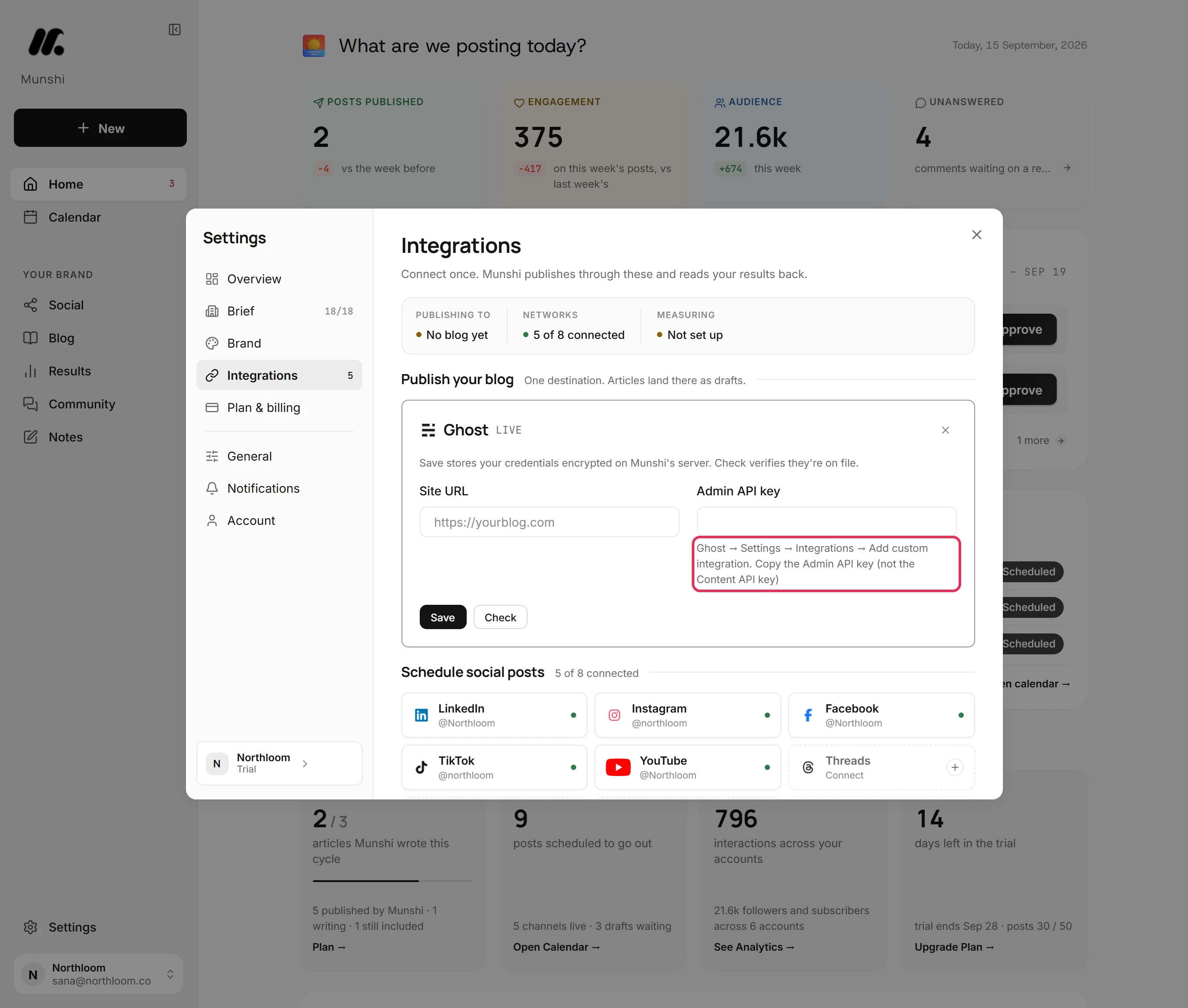
Make a custom integration in Ghost
In your Ghost admin, go to Settings, Integrations, and add a custom integration. Copy its Admin API key, which is an id and a secret joined by a colon. Do not use the Content API key beside it. Munshi tells you if that one arrives.
-
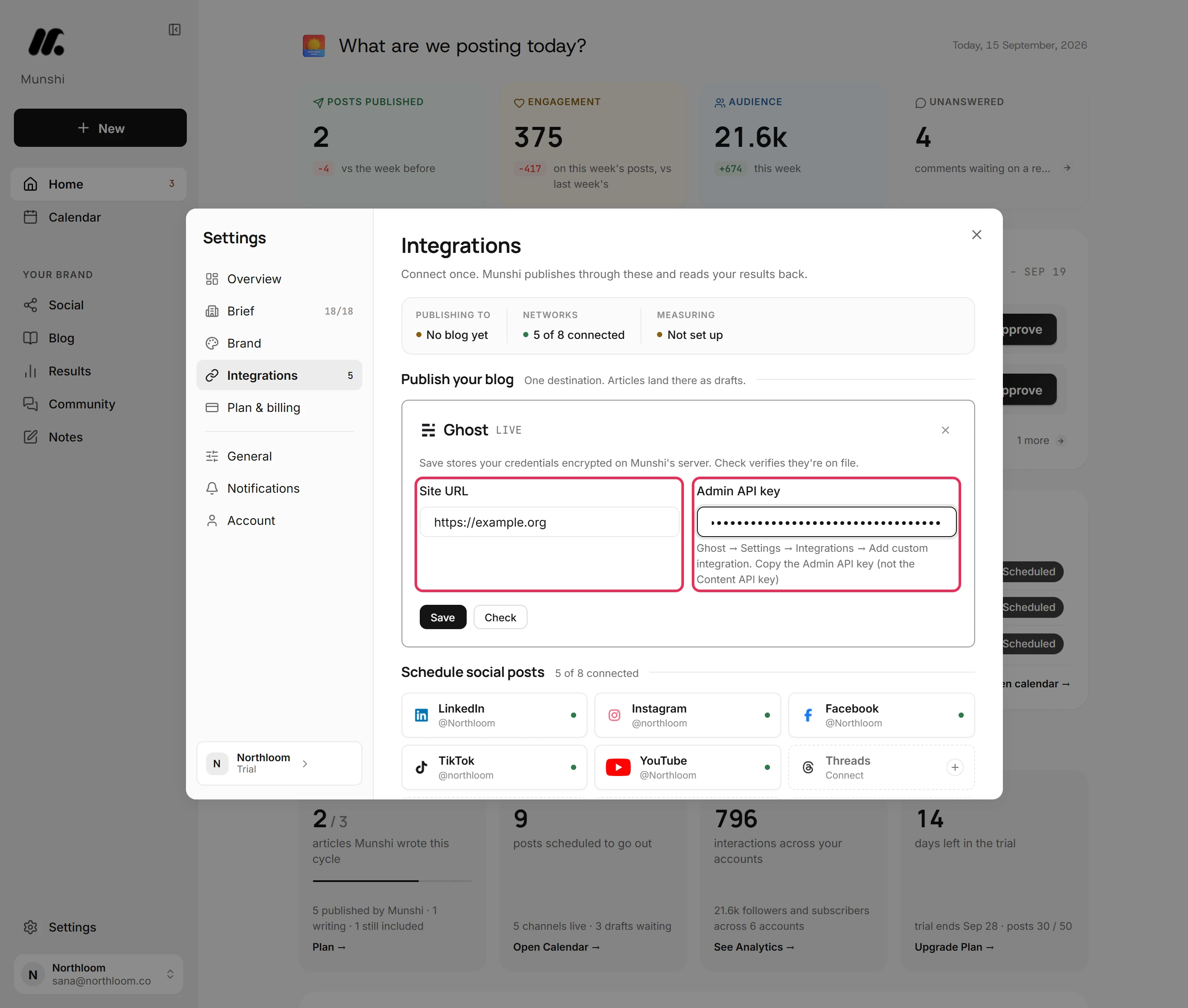
Paste the address and the key
Type your site into Site URL and paste the key into Admin API key, where it shows as dots. The address of your Ghost admin works too, because Munshi trims it back to the site. The address has to start with https://.
-
Save and let Munshi read your site
Click Save. Munshi stores the key encrypted and reads your publication with it. The card then reads Connected: publishing to your site. From here, articles you publish from Blog land in Ghost as drafts.
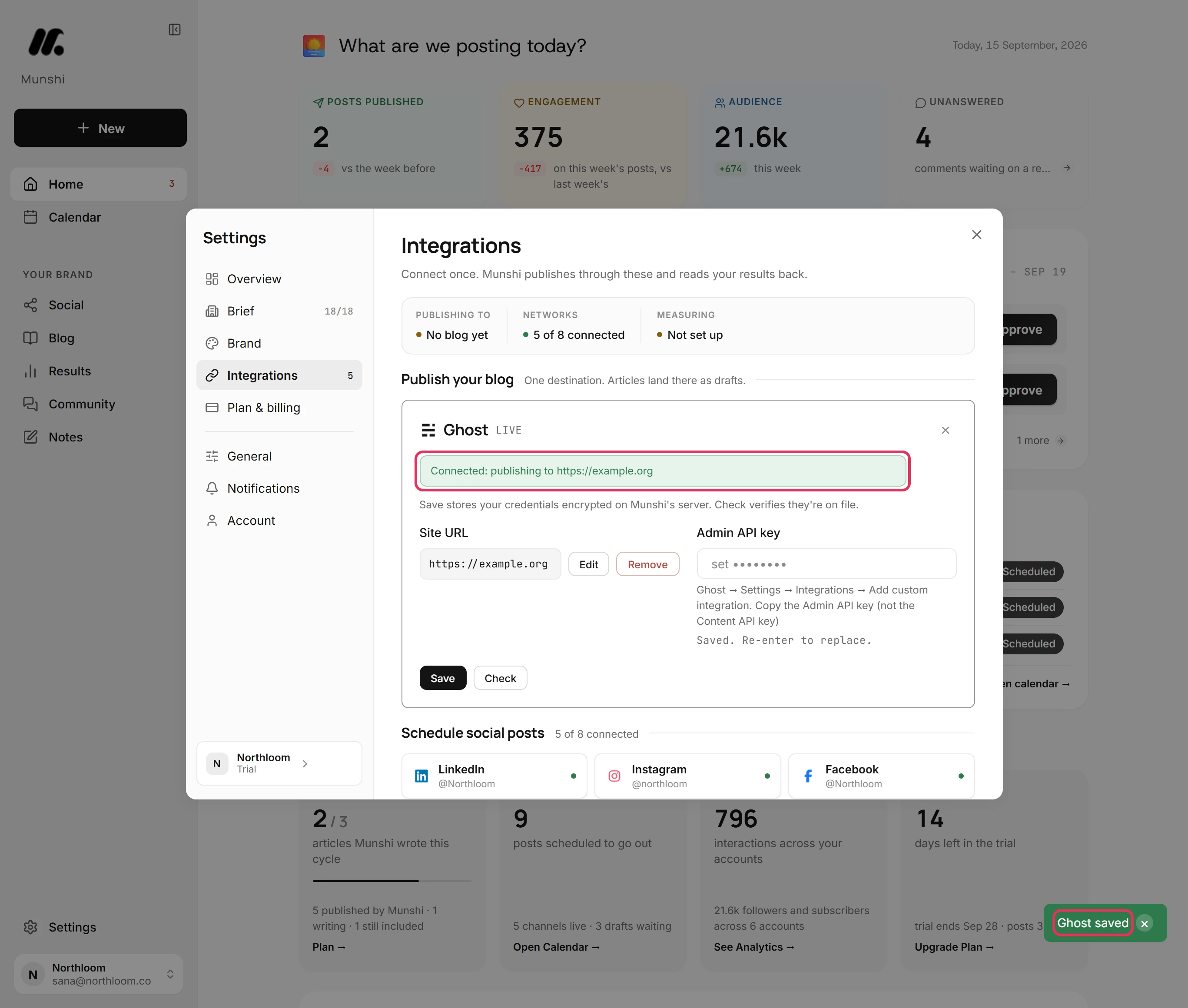
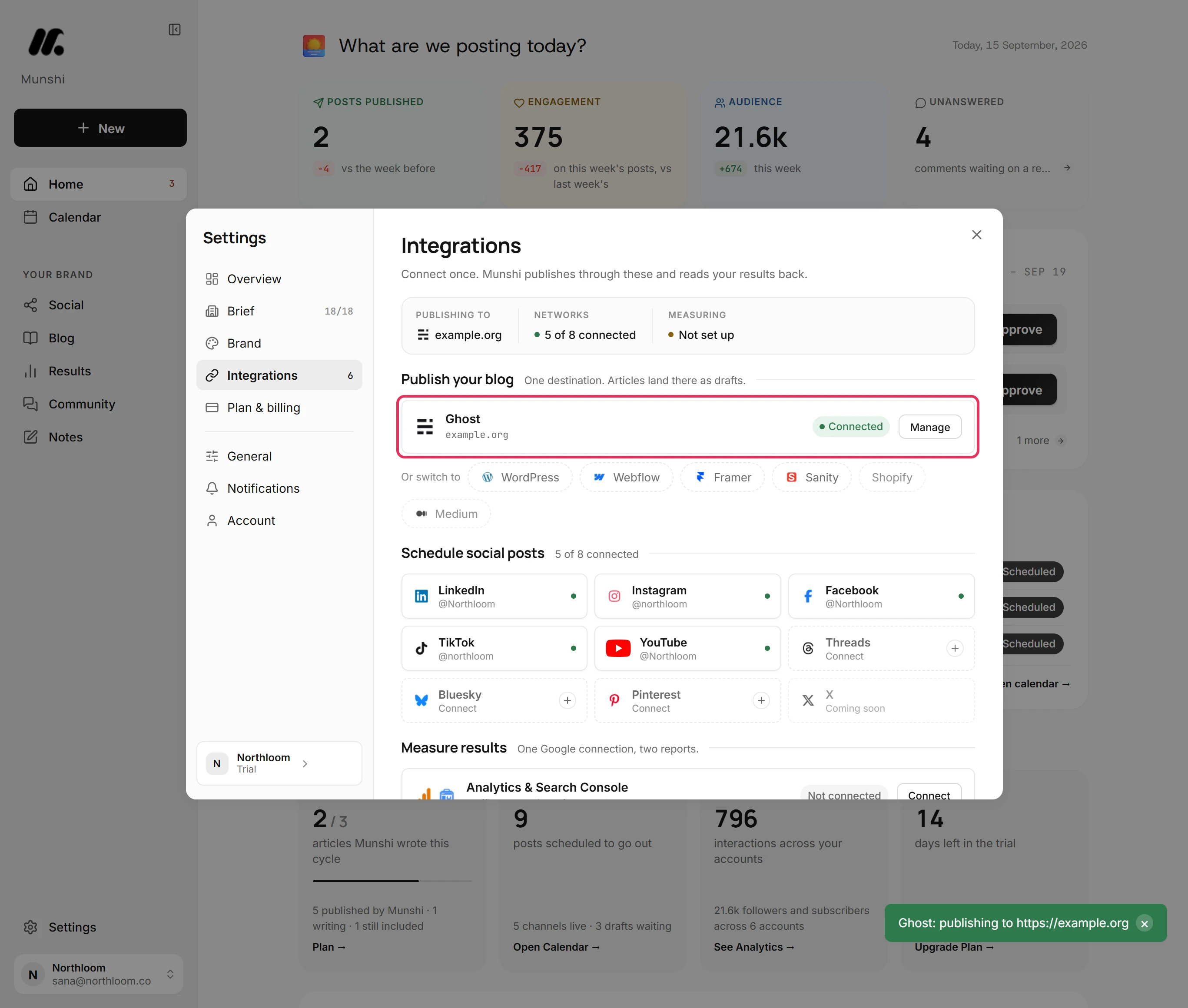
Saved or Connected: what the badge means
Integrations checks Ghost when you ask, not on every visit. So the destination row can read Saved when the key is fine. Click Manage, then Check: Munshi reads your site with the key, says Ghost: publishing to your address, and the badge turns Connected.
Run the check again after you change anything in Ghost. If it fails, the card gives the reason in Ghost's own words and the badge reads Check failed.
A publish can be refused over the key, or over a site that has moved. Integrations then marks the blog Reconnect needed and repeats the reason. A passing check clears it.
Publishing again updates the same draft
Publish an article twice and Ghost does not end up with two copies. Munshi keeps the post's id, reads the draft back before it writes, and updates it in place, which is how Ghost wants edits made. Fix a paragraph in Munshi, publish again, and the draft in Ghost changes to match.
The same holds for a scheduled article. At its slot the article is sent again, still a draft, so the version in Ghost is the one you approved, not an older copy.
The cover is uploaded into Ghost
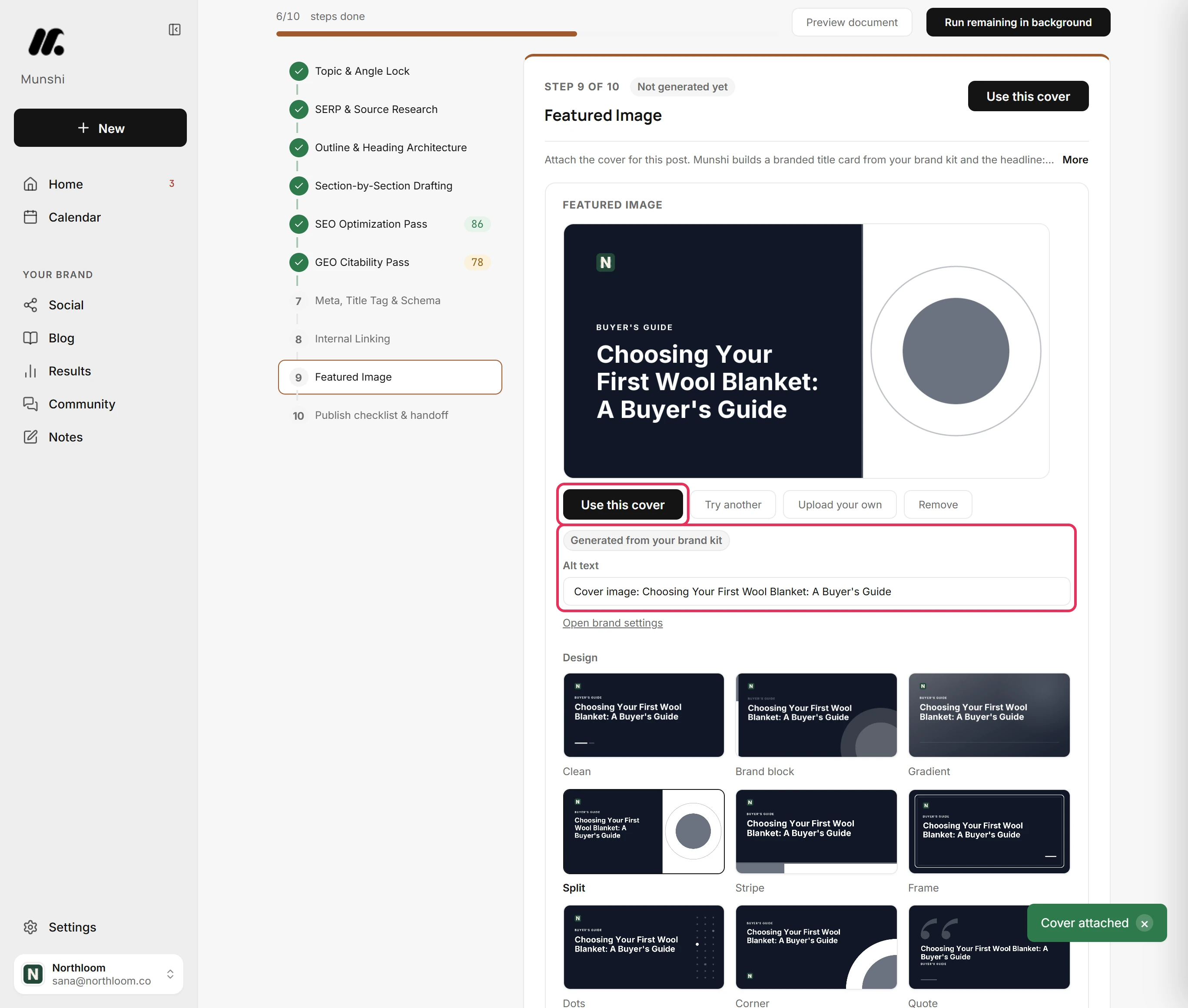
Munshi draws a cover for every article from your brand kit and the article's title, at the Featured Image step. You can pick a design, shorten the Headline, add a Kicker, and set the colour scheme and position. Or click Upload your own to use your own picture.
Covers Munshi builds are 1200 by 630 pixels, and the alt text comes filled in for you to edit. On the way to Ghost, the cover is uploaded into Ghost's media store and set as the feature image with that alt text.
It lives on your side from then on, so it does not break later. Publish an article with no cover chosen, and Munshi draws one from your brand kit on the way out.
How to see that Ghost is your blog
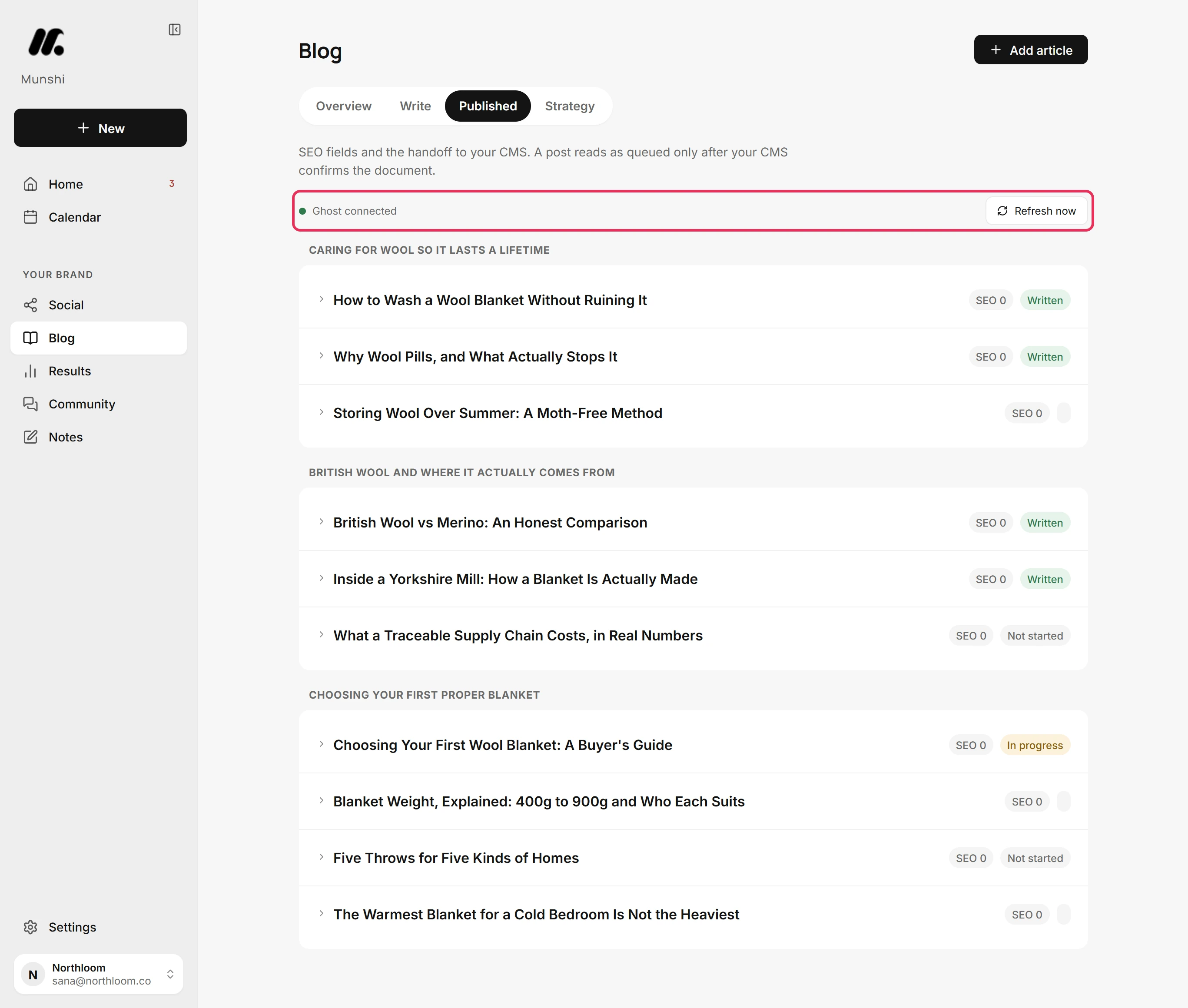
A workspace publishes to one blog. Open Blog, then Published, and the line at the top names it: Ghost connected. Articles you publish from that tab go there. Each row shows its SEO score and where it landed.
Connect a second blog and Munshi asks which one before it publishes anything. The article shows More than one blog is connected, and Integrations shows More than one is connected. Pick where articles land. Choose Ghost under Publish your blog, and the others wait one click away under Or publish to.
Munshi and Ghost, answered
Does Munshi work with Ghost?
Yes. A finished article as a draft post in Ghost, with the cover image uploaded to Ghost's own media store. You read it in Ghost and publish from there.
Does Munshi publish to Ghost, or only draft?
Only draft. Ghost receives the article as a draft post every time, whether you publish now or schedule it. You press publish in your Ghost dashboard, and Munshi never puts a post live on Ghost for you.
What does scheduling an article to Ghost actually do?
It decides when Munshi sends the draft. At the scheduled slot the article is sent again, still a draft. A finished piece is waiting in Ghost on the day you planned, not the day you wrote it.
Where does the Admin API key come from?
From a custom integration you add in your Ghost admin, under Settings, then Integrations. Copy its Admin API key, not its Content API key. Munshi stores it encrypted and never asks for your Ghost login.
How do I revoke Munshi's access to Ghost?
Delete the custom integration in Ghost. The key belongs to that integration, so it stops working at once. There is nothing to do on Munshi's side.
Does the cover image come across?
Yes. The cover is uploaded into Ghost's own media store and set as the feature image, with its alt text. It keeps working after the article is published, because it does not point back at Munshi.
Does Ghost get the canonical URL?
Yes. Of the blogs Munshi publishes to, Ghost is the one that receives the Canonical URL you set. On the others, that field only counts toward the SEO score.
If I edit the article and publish again, do I get two drafts?
No. Munshi updates the same Ghost post in place rather than creating a second one.
Can I connect two Ghost publications?
Not in one workspace. A workspace holds one blog connection per platform and publishes to one destination. The Studio plan covers three brands, each with its own connected blog and calendar.
When Ghost says no
These are the messages people see most often, and what each one means.
“That doesn't look like a Ghost Admin API key.”
This usually means the Content API key was pasted. An Admin API key is an id and a secret joined by a colon. Copy the Admin API key from your custom integration in Ghost, save it, and click Check.
“Ghost rejected that Admin API key.”
Ghost refused the key, usually because its integration was deleted. Add a new custom integration in Ghost, copy its Admin API key, and save it in Munshi.
“No Ghost Admin API at” your site address
The address does not lead to Ghost. Use your site's main address, such as https://yourblog.com, then save and check again.
The badge reads Saved, not Connected
The key is stored but has not been checked since Integrations opened. Click Manage, then Check. The badge turns Connected when the check passes.
I scheduled an article to Ghost and it is still a draft
That is how Ghost works here. Ghost, Webflow and Framer keep the article as a draft at its slot. Publishing it is your step, in the platform's own dashboard.
“More than one blog is connected”
Two or more blogs are connected and none is chosen, so Munshi stops rather than publish to the wrong site. Open Integrations and click Ghost under Publish your blog. Then publish the article again.
Ghost, step by step
Each guide walks through one task in the real app, with a screenshot at every step.
- How to connect Ghost with an Admin API key 3 min · 7 steps
- Draft or live: how an article lands in each CMS 3 min read
- How to set the SEO fields and publish, now or on a schedule 3 min · 10 steps
- How to choose a cover for an article 2 min · 8 steps
- How to choose where articles publish when two blogs are connected 2 min · 6 steps
- “More than one blog is connected” and other CMS refusals 2 min read
- Everything Munshi connects to today 2 min read
- How to copy or download an article for a platform Munshi does not connect to 2 min · 7 steps
Other blog platforms: WordPress · Webflow · Framer · Sanity · all integrations