Munshi and Sanity
Munshi Social, the AI content marketing engine for small teams, writes SEO articles intoSanity from the same weekly plan as every other channel. SEO articles are written into your Sanity dataset and go live, now or on schedule.
14-day free trial · No card required · 7-day money-back
A finished article as a document in your Sanity dataset, with the cover image uploaded to your asset store. Publish now and it is the live document. Schedule it and Munshi writes a draft that goes live at the slot, so your Studio shows it coming.
How the connection works
You paste your project ID, dataset name and a write token from Sanity's manage console into Munshi. You create and revoke the token in Sanity. Munshi never asks for your Sanity login.
What comes back
Search Console and Google Analytics numbers for every article, on the Results page next to your social results.
How articles land
- The document type is post, with title, body and slug fields
- A scheduled article waits as a Sanity draft until its slot, then goes live
- Ghost, Webflow, and Framer receive articles as drafts you publish from your own dashboard. WordPress takes drafts too, except scheduled articles, which go live at their slot. Sanity goes live, now or on schedule.
What to know
- Custom document types and field names are not mapped yet, so if your blog schema differs from a plain post, tell us before you connect
- One Sanity dataset per workspace
Munshi writes SEO articles and publishes them into your Sanity dataset as documents of type post. Each one has a title, slug, excerpt, body and main image. The body is Portable Text, Sanity's own format for rich text. Click Publish now and the document goes live.
Schedule the article instead and Munshi writes a draft document, so Studio shows the piece coming. At the slot, Munshi publishes it and clears the staged draft. Besides WordPress, Sanity is the only blog platform that goes live rather than waiting as a draft for you.
Connecting takes three values from your own project: the project ID, the dataset name and an API token with write access. An API token is a password Munshi uses to publish. Munshi runs a real query against the dataset before it calls Sanity connected, so a green badge means Sanity answered.
What you can post to Sanity
| Format | What goes out |
|---|---|
| The document | A document of type post, with the article's title, its body, a slug holding the slug from the SEO fields, and an excerpt. |
| The body | Portable Text blocks, not a string of markdown. The article opens in Studio as editable content with real headings, lists and links. |
| Excerpt | The Meta description you set in Munshi, as plain text trimmed to 300 characters. |
| Main image | The cover is uploaded into your project's asset store and referenced as the document's mainImage, with its alt text. Images inside the body are uploaded first, then the blocks that point at them are built. |
| Published now | The live document. Munshi says Published to Sanity. |
| Scheduled | A draft document until the slot. Munshi says Staged in Sanity as a draft until the scheduled slot., then publishes it at that time. |
How to connect Sanity
-
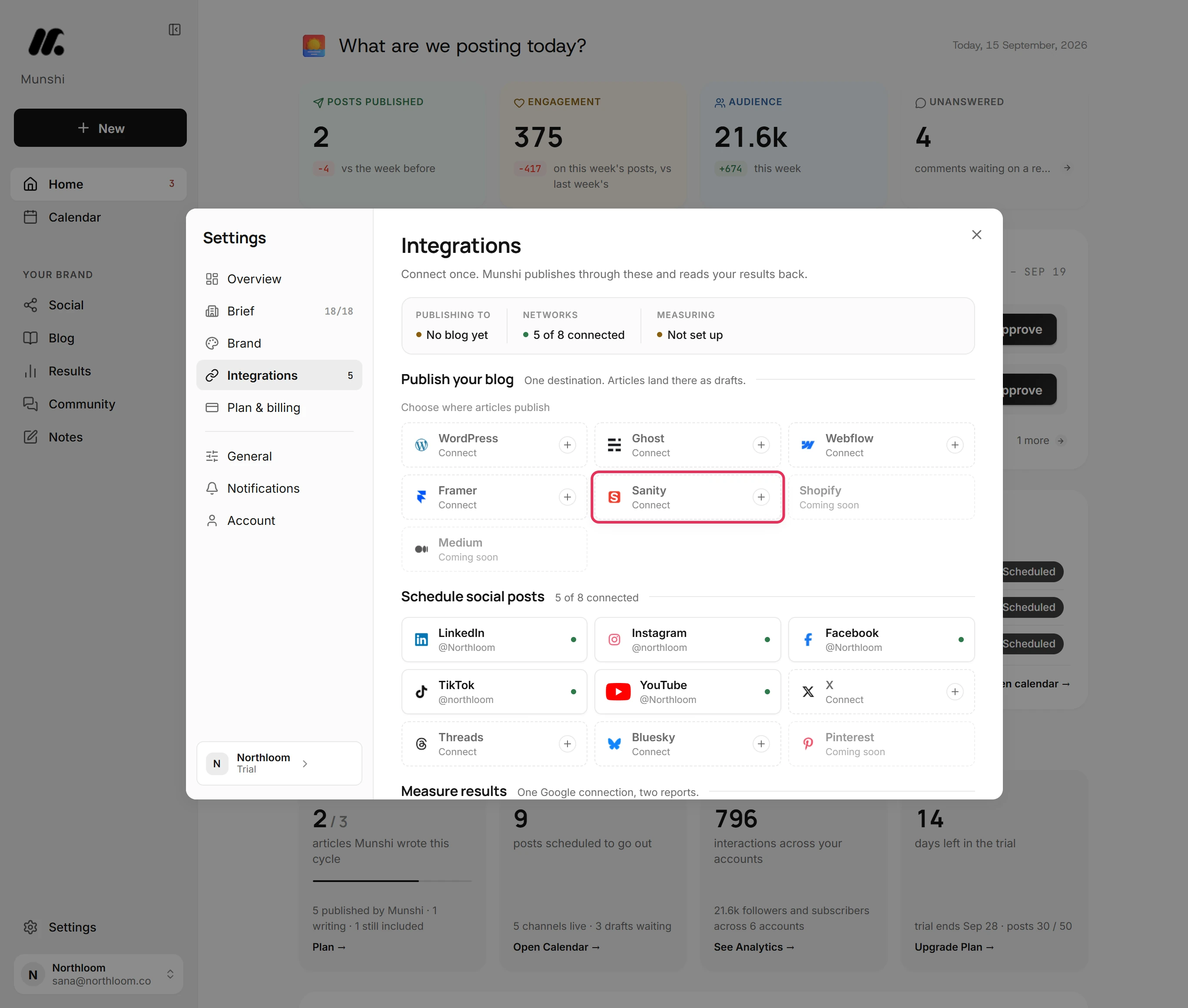
Open Integrations
Click Settings at the bottom of the sidebar, then Integrations. Sanity is one of the blogs under Publish your blog. Only the workspace owner can save a blog connection.
-
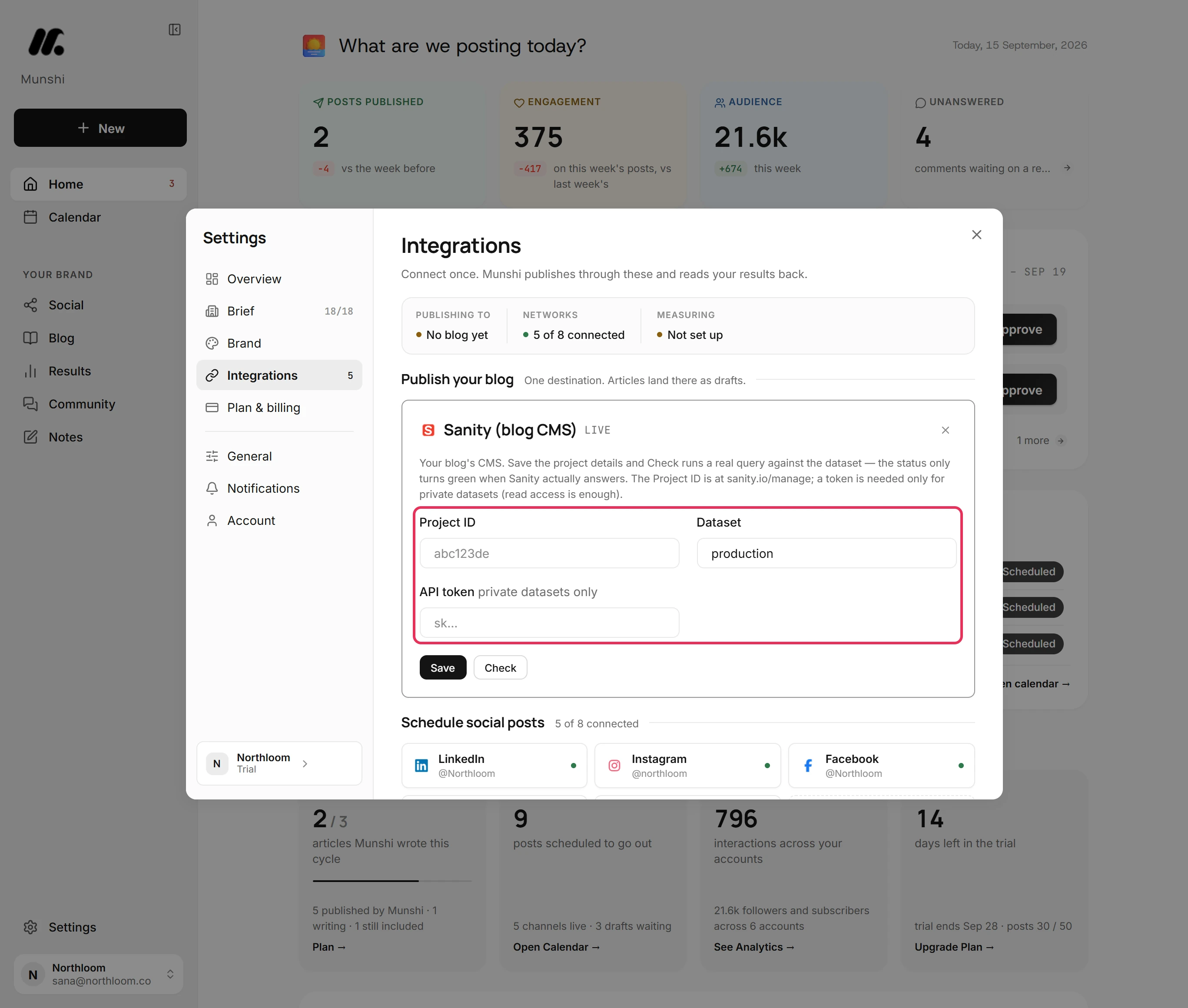
Open the Sanity card
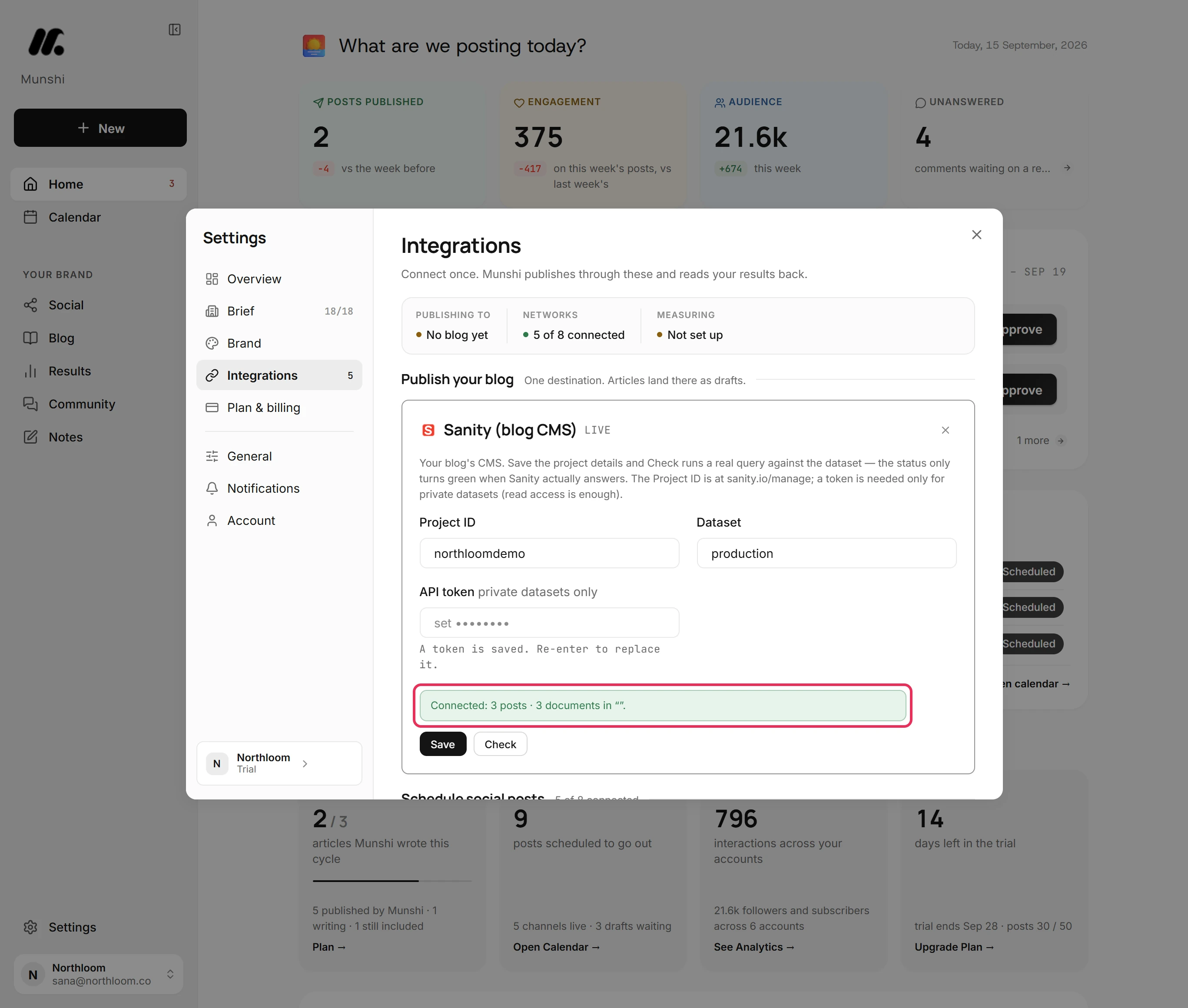
Click Sanity. The card asks for a Project ID, a Dataset and an API token. It also says what Check does: it runs a real query against the dataset, and the status only turns green when Sanity answers. Your project ID is in the manage console at sanity.io/manage.
-
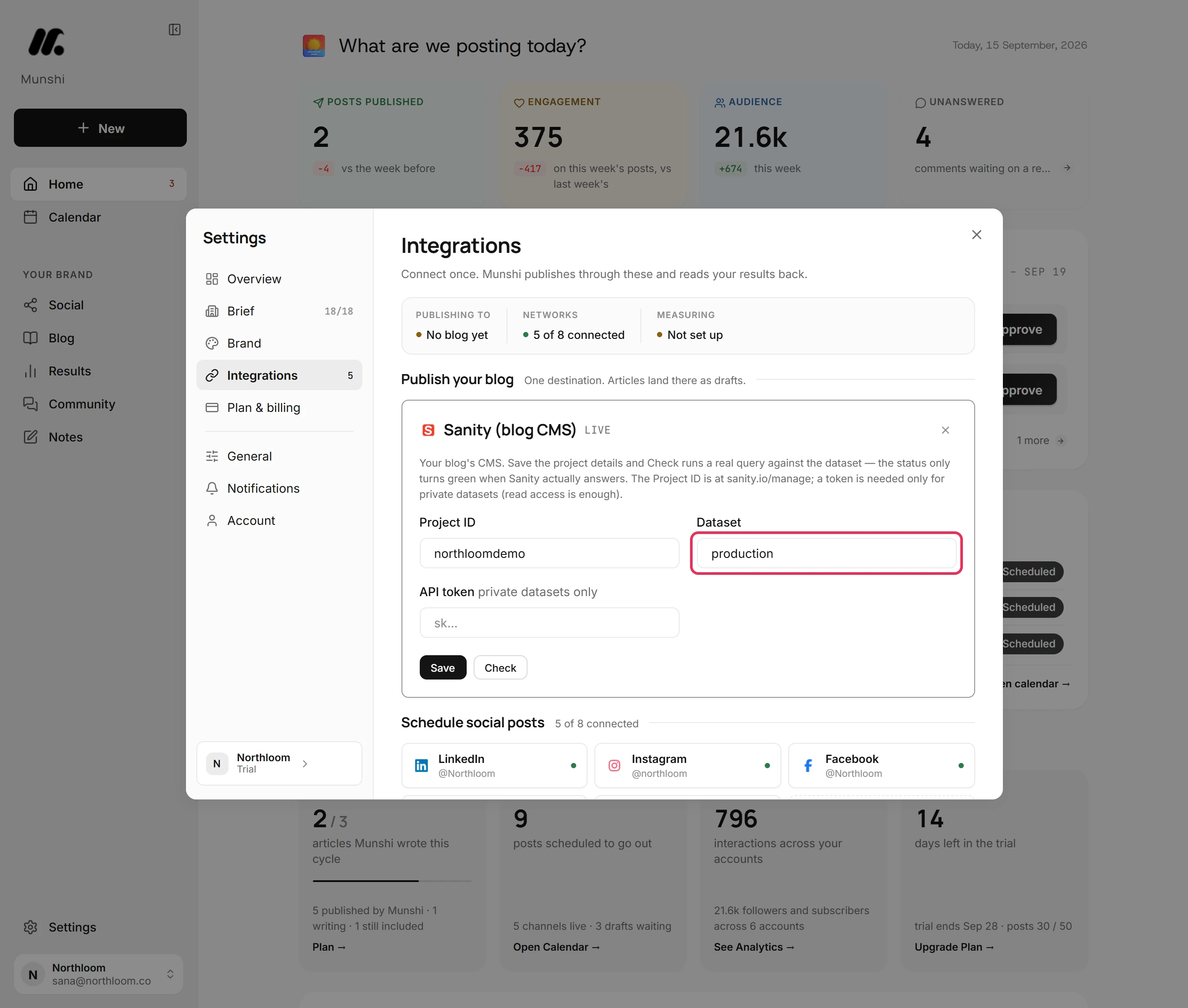
Check the dataset name
Dataset starts as production, which is right for most projects. If your blog's documents live in another dataset, type its name instead. A dataset name starts with a letter or a digit. It uses lowercase letters, digits, hyphens and underscores, up to 64 characters.
-
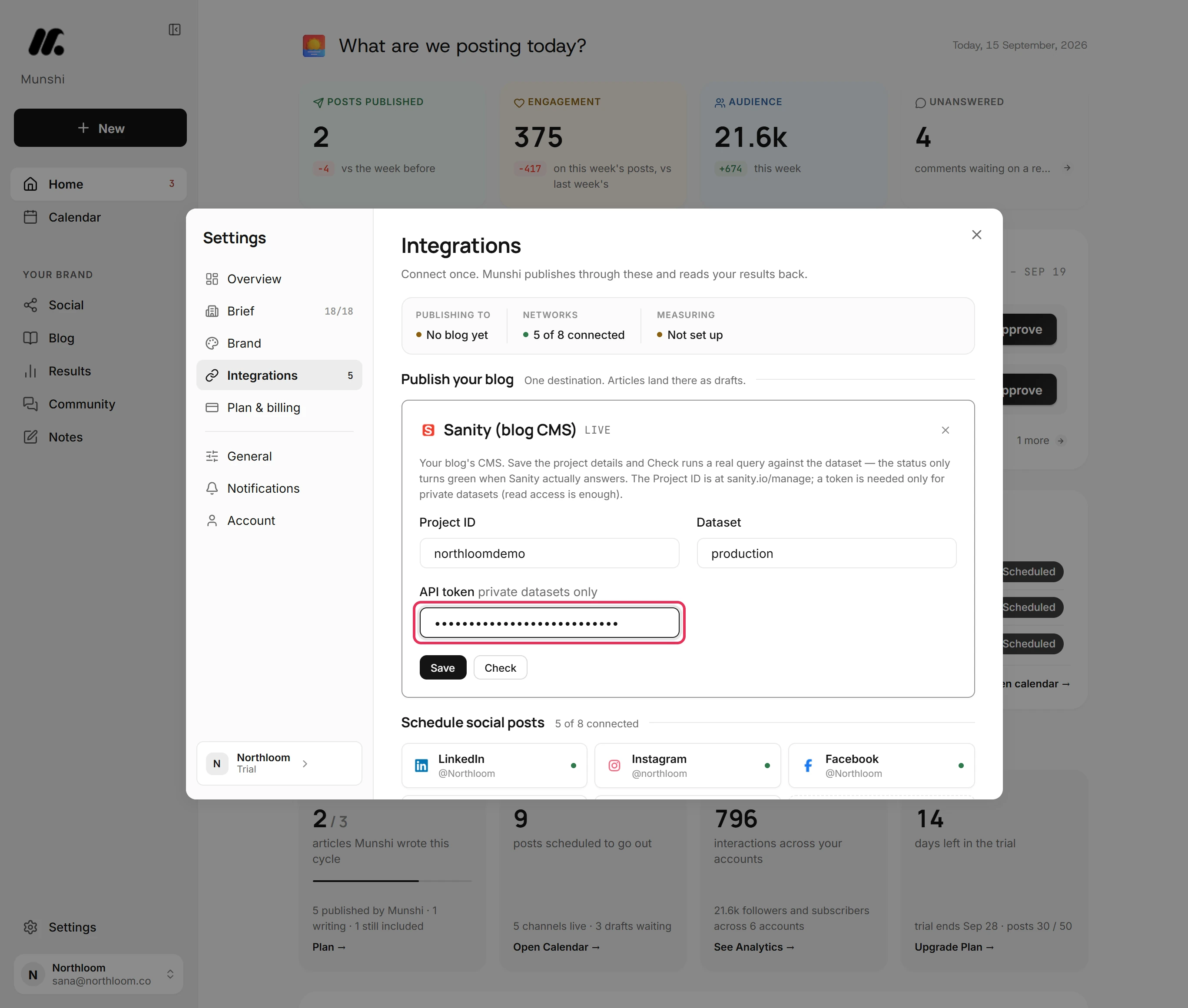
Paste a token with write access
Paste the token into API token, where it shows as dots. Its label says private datasets only, but fill it in either way. Munshi reads the dataset with it and writes your articles into it, so the token needs write access, not just read.
-
Save, and watch Sanity answer
Click Save. Munshi stores the details and queries the dataset. When Sanity answers, the card reads Connected with the number of posts it found. That is the quickest proof the token reaches the right dataset, not an empty one.
Does it publish live or as a draft?
Publish now goes live, and a scheduled article waits as a draft until its slot. Publish now writes the published document straight into your dataset, and Munshi says Published to Sanity. There is no second step on your side.
With Schedule…, the article is written as a draft document now. Studio shows it coming, and anyone with access can read it. At the slot, Munshi publishes that document and clears the staged draft. The time follows your workspace clock and has to be at least 10 minutes away.
What the document looks like in Studio
The document is of type post. Its title is the article's title, and its slug holds the slug from the SEO fields.
Its excerpt is the meta description as plain text. Its body is Portable Text blocks, not a lump of markdown. It edits in Studio like anything else.
The article publishes only when it is finished and its SEO score reaches 60. Meta title, Meta description and Slug come filled in from the article's Meta, Title Tag & Schema step. Target keyword and Canonical URL are yours to set before the score gets there.
The cover uploads to your asset store
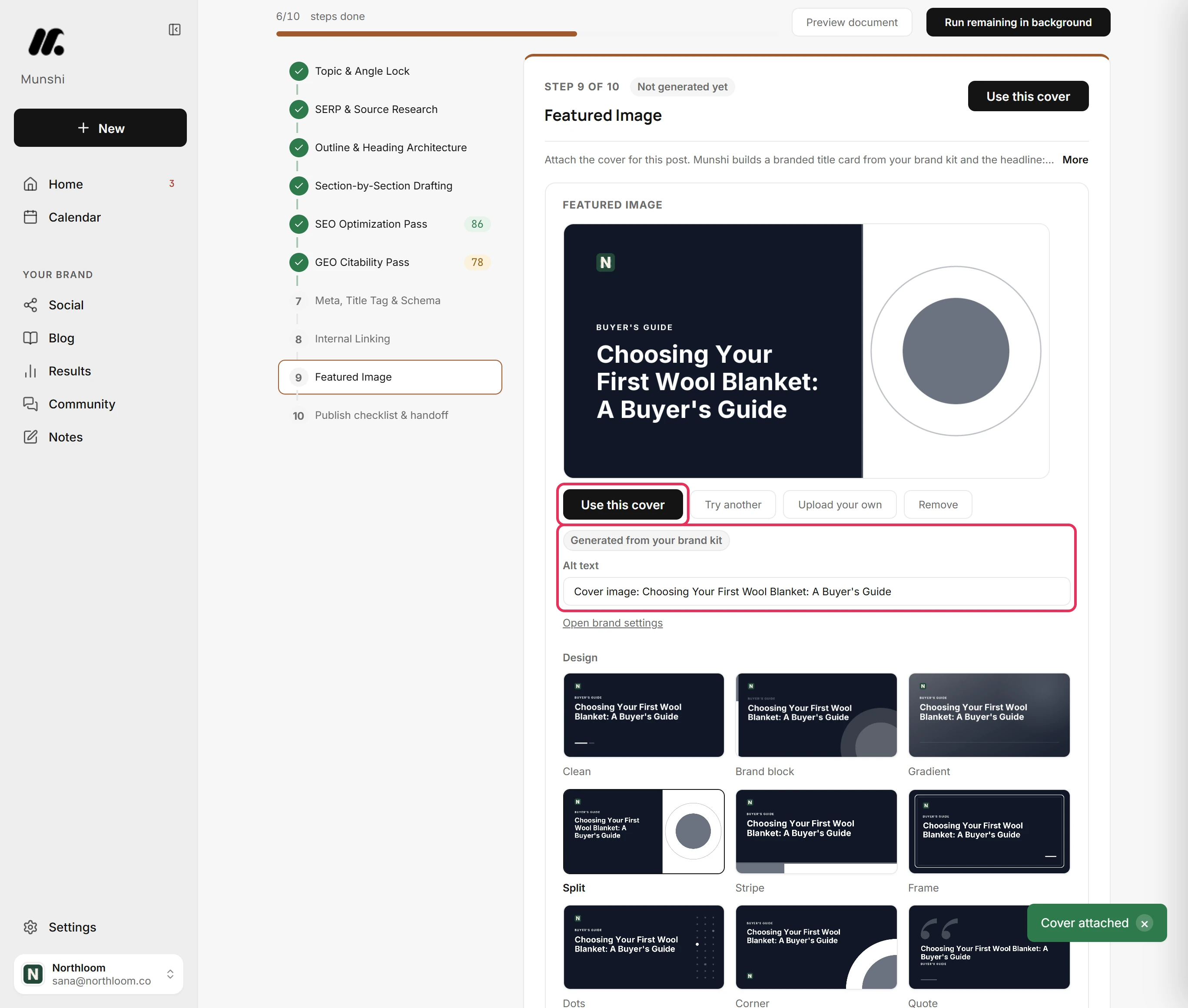
Munshi draws a cover for every article from your brand kit and the article's title, at the Featured Image step. You can pick a design, shorten the Headline, add a Kicker, and set the colour scheme and position. Or click Upload your own.
Covers Munshi builds are 1200 by 630 pixels, and the alt text comes filled in for you to edit. On the way to Sanity, the cover is uploaded into your project's asset store and referenced as the document's mainImage with that alt text.
Pictures inside the body are uploaded first, then the blocks that point at them are built. So the document uses your own assets, not a link back to Munshi.
Custom schemas are not mapped yet
Munshi writes the document shape above, and only that shape. If your blog is a plain post type with title, body, slug and excerpt, it fits.
If your schema uses a different type name or different field names, the article will not land where your site reads it. Tell us before you connect, not after.
A content type picker and field mapping would fix this, and they are not built. Until they are, copying or downloading the article is the honest fallback for an unusual schema.
One blog per workspace, and you pick it
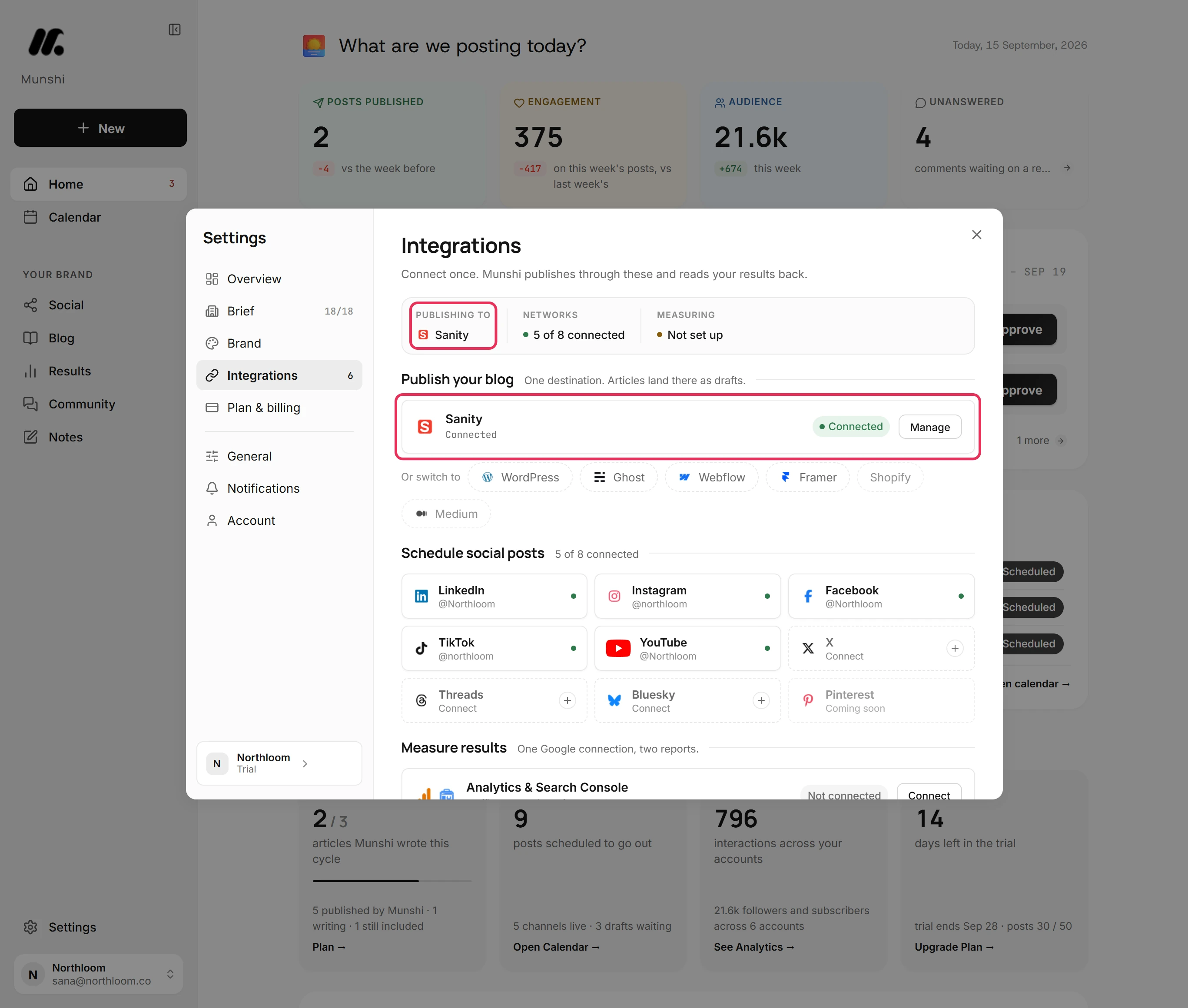
A workspace publishes its articles to one blog. With only Sanity connected, articles go there. Munshi checks Sanity again each time you open Integrations, so the destination row usually shows a green Connected badge.
Connect a second blog and publishing stops with More than one blog is connected until you choose one under Publish your blog. The others stay one click away under Or publish to.
Munshi and Sanity, answered
Does Munshi work with Sanity?
Yes. A finished article as a document in your Sanity dataset, with the cover image uploaded to your asset store. Publish now and it is the live document. Schedule it and Munshi writes a draft that goes live at the slot, so your Studio shows it coming.
Does Munshi publish live to Sanity?
Yes. Publishing now writes the published document into your dataset. Scheduling writes a draft document instead, so Studio shows the article coming. Munshi publishes it at the slot and clears the staged draft.
What document does Munshi write?
A document of type post, with the article's title, a slug field and an excerpt from the meta description. The body is Portable Text blocks. The cover is referenced as mainImage, with its alt text.
Does the body arrive as Portable Text or as markdown?
Portable Text. The article is turned into blocks before it is written, so it edits in Studio like any other document, not as a string of markdown.
What sort of token does Munshi need?
An API token with write access, created in your project at sanity.io/manage. Munshi reads the dataset with it and writes your articles into it, so a read-only token is not enough. You can revoke it in Sanity at any time.
Does the cover image come across?
Yes. The cover is uploaded into your project's asset store and set as the document's mainImage, with its alt text. Images inside the body are uploaded the same way, so nothing points back at Munshi.
Will Munshi work with my custom blog schema?
Not yet. Munshi does not map custom document types or field names, so it writes a plain post type with title, body, slug and excerpt. If your schema differs, tell us before you connect.
If I edit the article and publish again, do I get two documents?
No. The document id comes from the article, so publishing again writes over the same document rather than creating a second one.
Can I connect two Sanity datasets?
Not in one workspace. A workspace holds one blog connection per platform and publishes to one destination. The Studio plan covers three brands, each with its own connected blog and calendar.
When Sanity says no
These are the messages people see most often, and what each one means.
“That doesn't look like a Sanity project ID.”
A project ID is at least six lowercase letters and digits. Copy it again from your project at sanity.io/manage and click Save. Munshi lowercases what you paste.
“That doesn't look like a Sanity dataset name.”
A dataset name starts with a letter or a digit. It uses only lowercase letters, digits, hyphens and underscores, up to 64 characters. Check the name in Sanity and type it again.
“Sanity: check failed”
Sanity did not answer the query with those details. Check the project ID, the dataset name and the token, then click Save again.
“Enter the Project ID and dataset”
Save needs both. Fill in Project ID and Dataset, then click Save.
The token field says private datasets only. Do I need one?
Yes. Fill it in whatever your dataset's visibility. Without a token, Munshi can neither check the dataset nor write your articles into it. The token needs write access, not just read.
The article landed but my site does not show it
Munshi writes a document of type post with title, body, slug and excerpt. A blog built on a different type name or different field names will not read it. Tell us your schema, and copy or download the article in the meantime.
Sanity, step by step
Each guide walks through one task in the real app, with a screenshot at every step.
- How to connect Sanity with a project, dataset and token 3 min · 7 steps
- Draft or live: how an article lands in each CMS 3 min read
- How to set the SEO fields and publish, now or on a schedule 3 min · 10 steps
- How to choose a cover for an article 2 min · 8 steps
- How to choose where articles publish when two blogs are connected 2 min · 6 steps
- “More than one blog is connected” and other CMS refusals 2 min read
- How to copy or download an article for a platform Munshi does not connect to 2 min · 7 steps
Other blog platforms: WordPress · Ghost · Webflow · Framer · all integrations