Munshi and Webflow
Munshi Social, the AI content marketing engine for small teams, writes SEO articles intoWebflow from the same weekly plan as every other channel. SEO articles land as draft items in your Webflow CMS collection, for you to publish.
14-day free trial · No card required · 7-day money-back
A finished article as a draft item in the Webflow CMS collection you choose. The body goes into the collection's rich text field. You review it in Webflow and publish the site from there.
How the connection works
You create a site token in Webflow (Site settings, Apps and integrations) with CMS read and write access. Paste it into Munshi, which lists your collections so you can pick the blog. You can revoke the token in Webflow at any time.
What comes back
Search Console and Google Analytics numbers for every article, on the Results page next to your social results.
How articles land
- Articles always land as drafts, and publishing the site is your step in Webflow
- Edits made in Munshi after the article lands update the same item, not a second one
- Ghost, Webflow, and Framer receive articles as drafts you publish from your own dashboard. WordPress takes drafts too, except scheduled articles, which go live at their slot. Sanity goes live, now or on schedule.
What to know
- The cover image is written into the collection's Image fields, so a collection with no Image field receives the text only
- One Webflow site per workspace
Munshi writes SEO articles and saves them in your Webflow CMS as draft items, in the collection you choose. Each item gets the title, slug and body, plus the meta description and the cover where the collection has fields for them. Publishing the site stays your step, in Webflow.
That is the right way round for a designed site. Nothing Munshi writes can appear before you have looked at it in the Designer.
Connecting takes a site token and a collection ID. A site token is a key you create in Webflow with CMS read and write access. Paste it into Munshi, and Munshi lists every collection it reaches with its ID, so you copy the one that holds your blog.
What you can post to Webflow
| Format | What goes out |
|---|---|
| The body | HTML, written into the collection's first rich text field. Munshi finds that field from the collection's own schema, so you do not have to name it. |
| Name and slug | The article's title goes into the item's Name, and the Slug from its SEO fields becomes the item's slug. If the collection has a second plain text title field, that gets the title too. |
| Intro or summary | A plain text field named for an intro, excerpt, summary or description gets the article's Meta description. |
| Code blocks | Unwrapped to plain text. Webflow's rich text fields cannot hold code blocks, and a single one can empty the whole field. Unwrapping means your words arrive instead of a blank body. |
| Published or scheduled | A draft item, either way. Munshi says Saved in Webflow as a draft item. Publish it from your Webflow CMS. A scheduled article is sent again at its slot, still a draft. |
How to connect Webflow
-
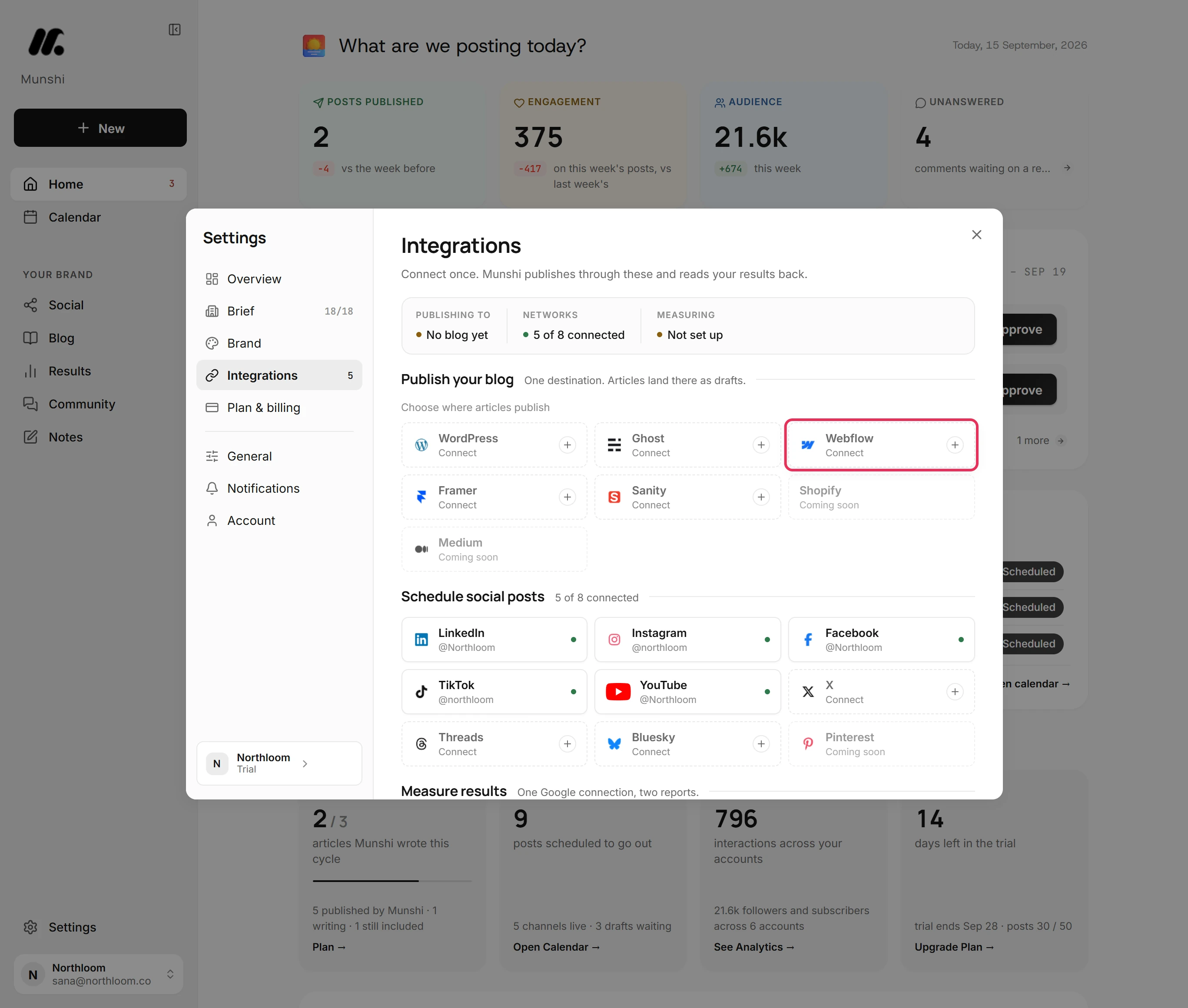
Open Integrations
Click Settings at the bottom of the sidebar, then Integrations. Webflow is one of the blogs under Publish your blog. Only the workspace owner can save a blog connection.
-
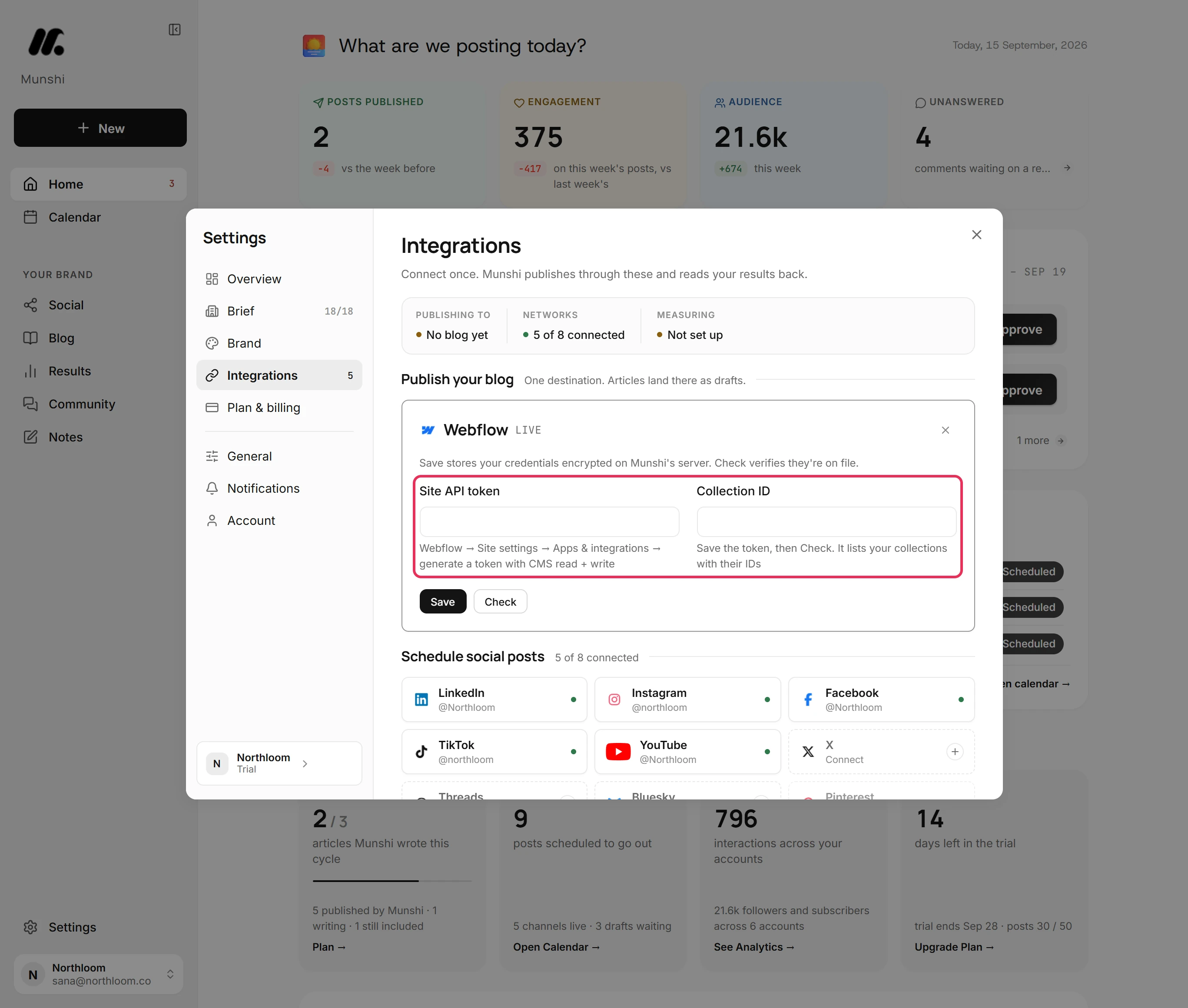
Generate a site token in Webflow
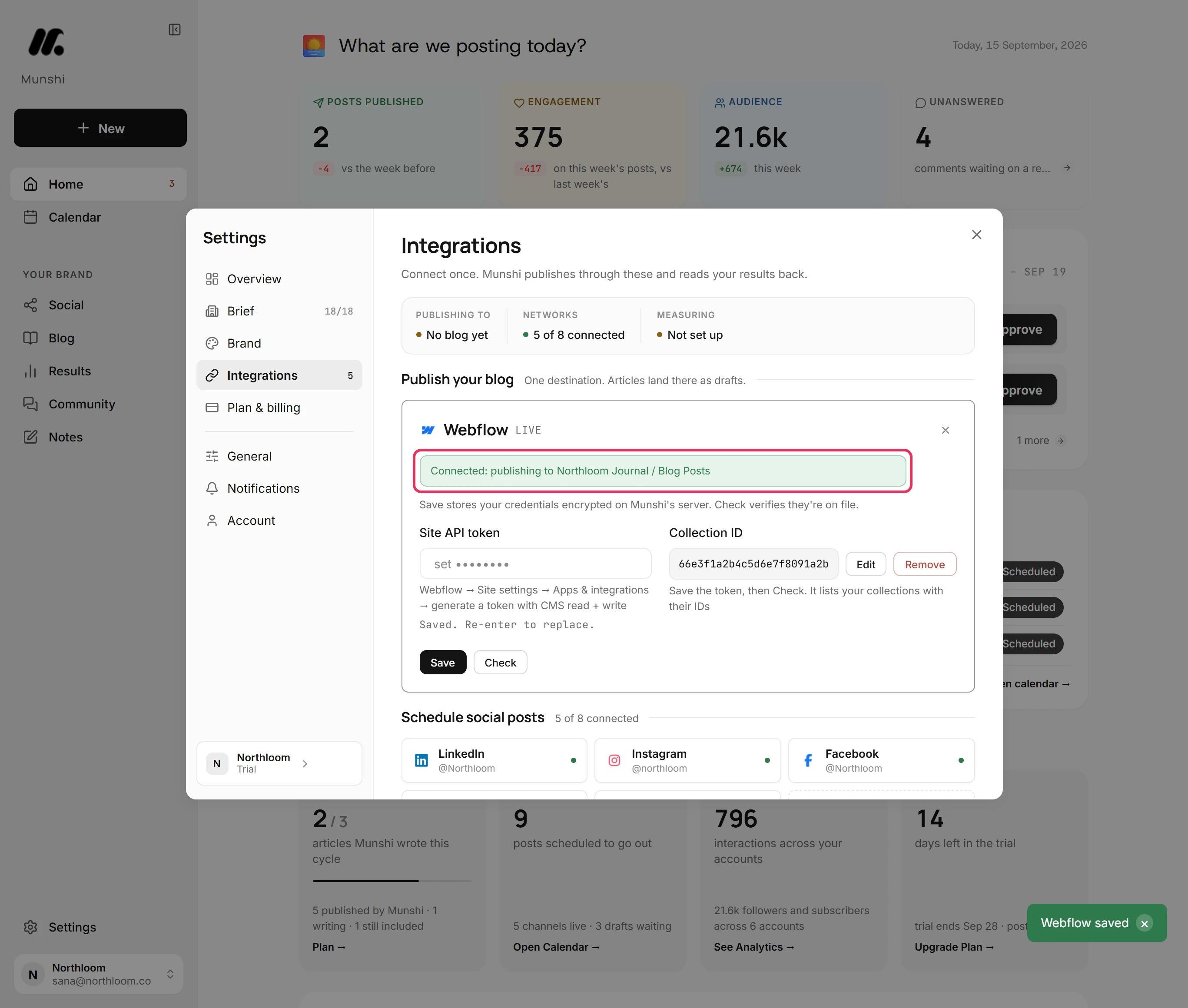
Click Webflow. The card asks for a Site API token and a Collection ID. To get the token, open the site's Site settings in Webflow, then Apps & integrations. Generate a token with CMS read and write access. It works for that one site, and you can revoke it in Webflow whenever you like.
-
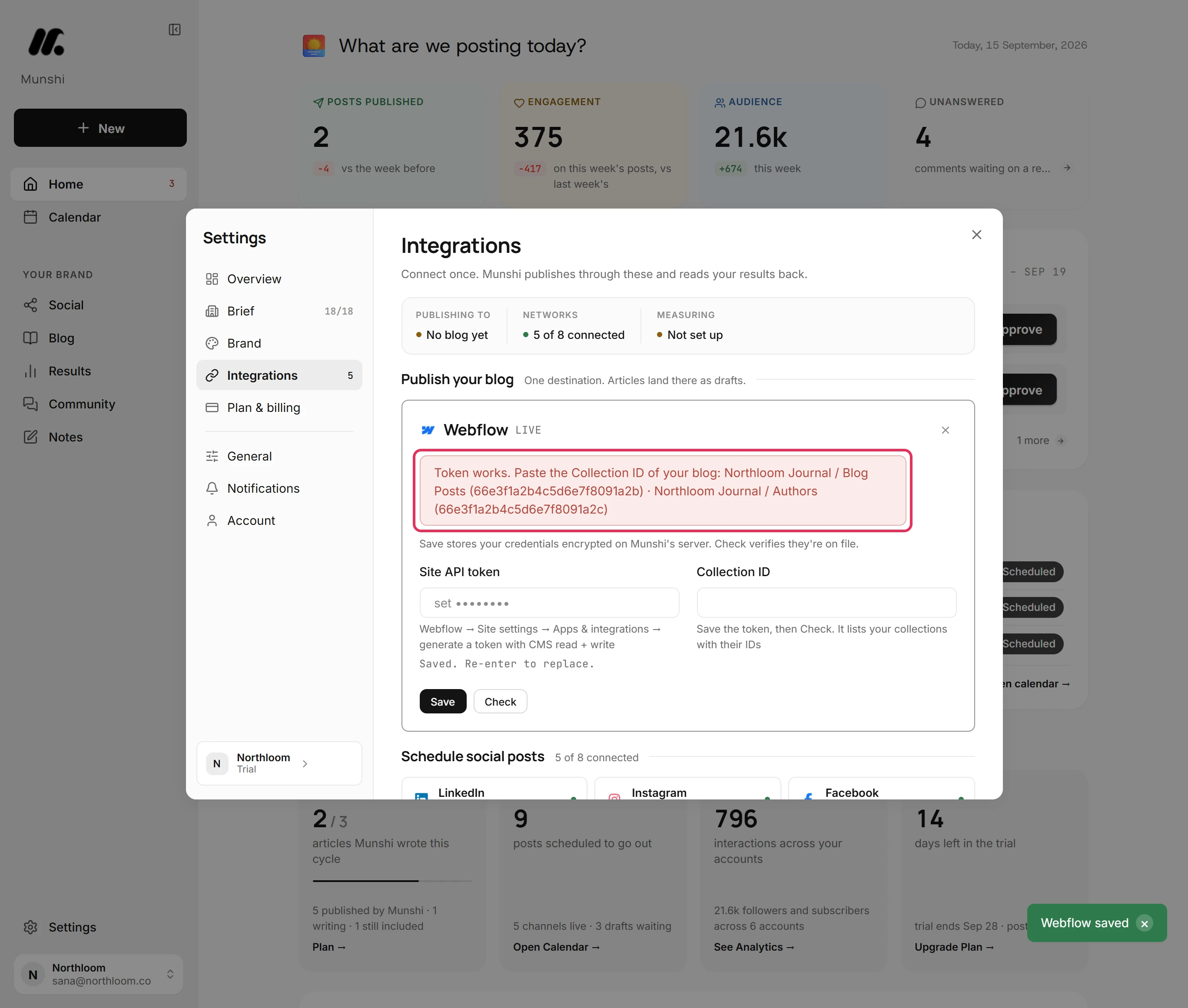
Save the token and read the list
Paste the token, where it shows as dots, and click Save. Munshi stores it encrypted and tries it against Webflow. While no collection is chosen, the card answers Token works. Paste the Collection ID of your blog. Below that, it lists every collection the token reaches, each with its ID in brackets.
-
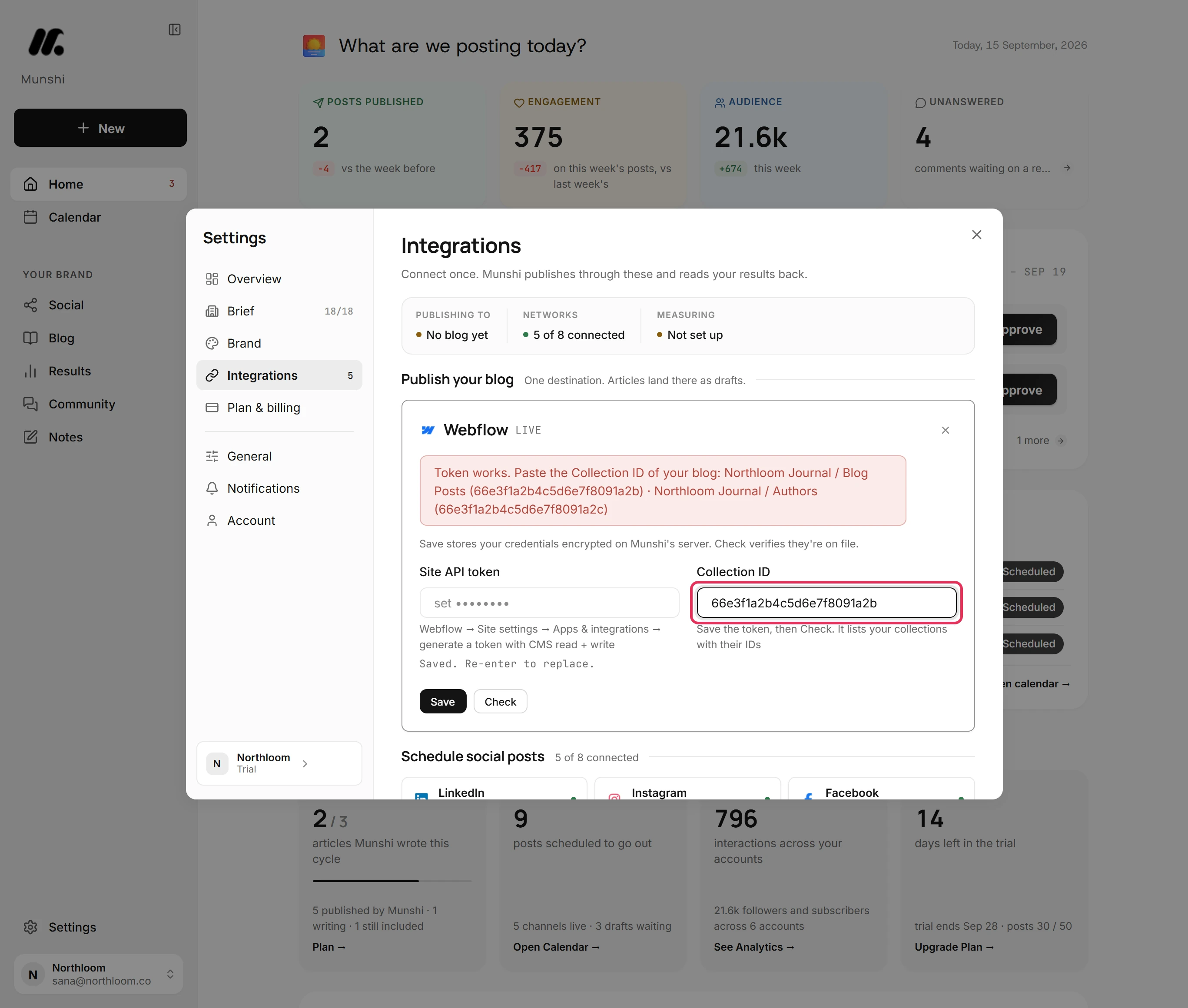
Paste the blog collection's ID
Copy the ID in brackets after the collection that holds your posts, such as Blog Posts. Paste it into Collection ID. This choice decides where every article lands. Take the collection your blog template reads from, not an Authors or Categories collection.
-
Save again to finish
Click Save a second time. If the ID belongs to a collection the token reaches, the card reads Connected: publishing to with the site and the collection. Webflow becomes the destination under Publish your blog.
Drafts only: you publish the site
Every article arrives as a draft item, whether you clicked Publish now or scheduled it. Scheduling sets when Munshi sends the item, not when it goes live. At the slot the article is sent again, still a draft, and readers see it once you publish the site in Webflow.
Munshi records this honestly. An article Webflow has accepted is marked as landed as a draft, not published. Your calendar in Munshi never claims something is live while it waits in the CMS for you.
Which Webflow fields Munshi fills in
Munshi reads the collection's own schema and maps the article onto it. The title goes into Name, the slug into the item's slug, and the body into the first rich text field. A collection built from Webflow's blog template takes the article with no setup.
A plain text field named for an intro, excerpt, summary or description gets the meta description.
Munshi leaves any other required field to you, and says so rather than guessing. A reference field such as Author or Category points at an item in another collection you own, and a guess would credit every post wrongly. When one is empty, the message on the article names the fields to fill in before Webflow lets you publish the item.
Why code blocks arrive as plain text
Webflow's rich text fields do not support code blocks. Webflow's own field reference says that passing one results in an empty string. One code block, or even one inline code span, can empty the whole body, while the same article publishes fine to WordPress and Ghost.
So Munshi unwraps code to plain paragraphs before it sends an article to Webflow. Your sentences arrive, without the monospace styling. If your blog leans on code samples, read the item in Webflow before you publish the site.
The cover goes into the Image fields
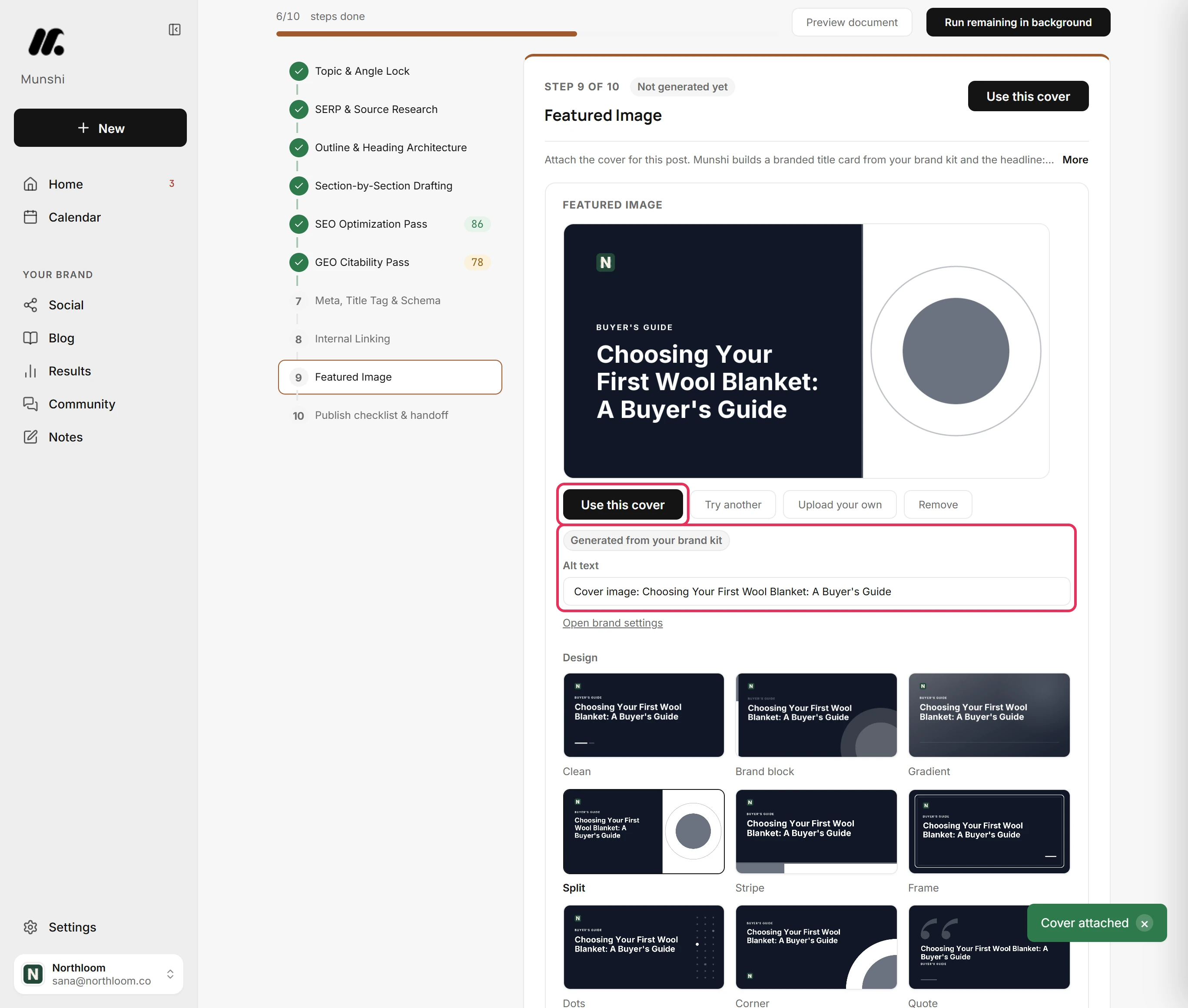
Munshi builds a cover for every article from your brand kit at the Featured Image step, and sends it with the article. It writes the cover and its alt text into each Image field in your collection. A template with a thumbnail and a main image gets both filled.
A collection with no Image field has nowhere to hold the cover. If your blog template shows a picture, add an Image field in Webflow first. Without a chosen cover, Munshi uses the first image in the article.
One blog per workspace, and you pick it
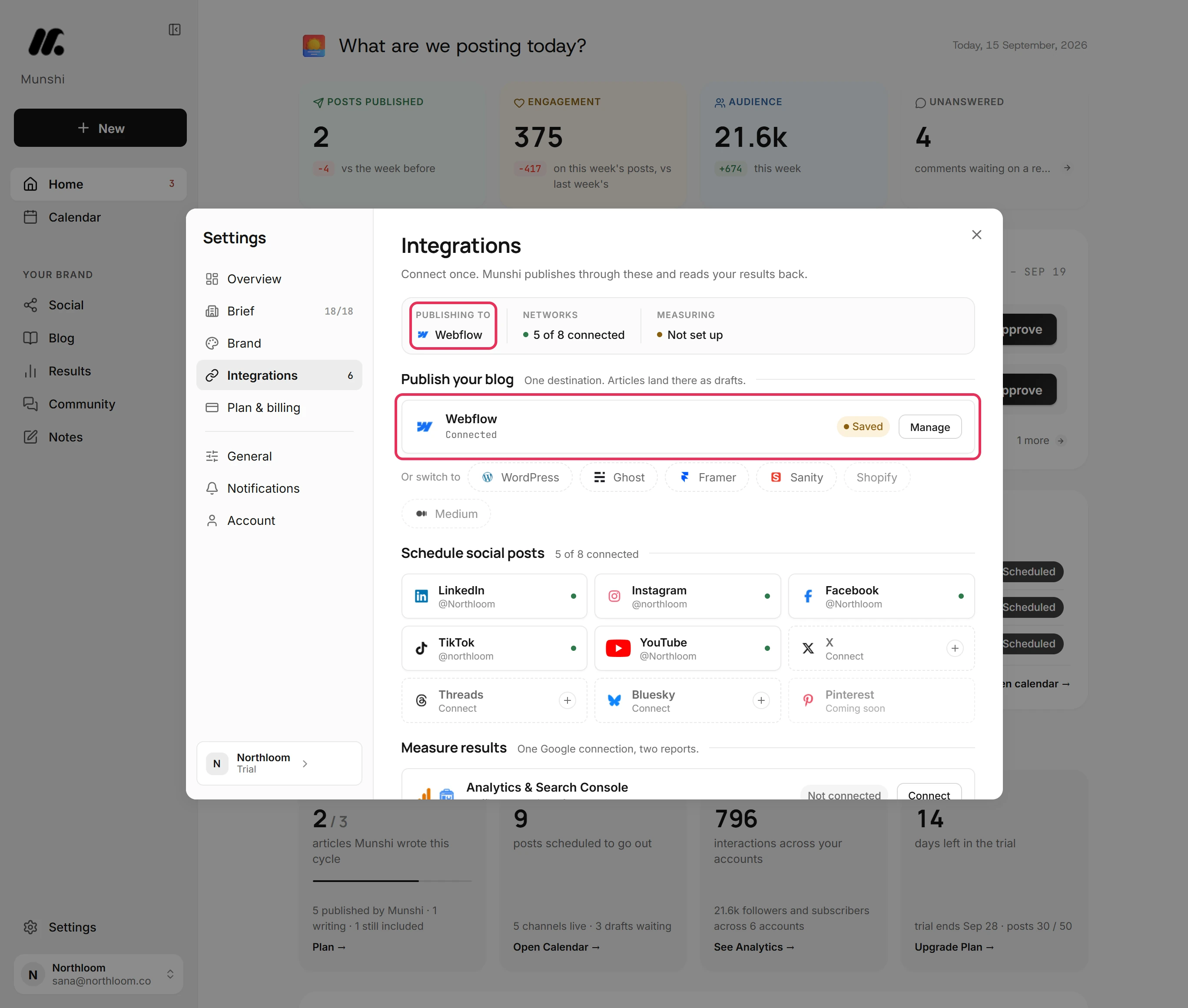
A workspace publishes its articles to one blog. With only Webflow connected, articles go there.
Connect a second blog and publishing stops with More than one blog is connected until you choose one under Publish your blog in Integrations. The rest stay under Or publish to.
The badge beside the destination reads Connected once a check has passed, and Saved while it has not. Saved is normal after you close Settings. Click Manage, then Check, and Munshi asks Webflow again.
Munshi and Webflow, answered
Does Munshi work with Webflow?
Yes. A finished article as a draft item in the Webflow CMS collection you choose. The body goes into the collection's rich text field. You review it in Webflow and publish the site from there.
Does Munshi publish my Webflow site?
No. Articles arrive as draft items in your CMS collection, and you publish the site in Webflow. That is the same whether you publish now or schedule the article.
How does Munshi know which collection is my blog?
You tell it once. After you save the token, Munshi lists every collection that token reaches with its ID. You paste the ID of your blog's collection into Collection ID.
Do I need a Webflow app or an OAuth review?
No. You connect with a site token you generate yourself in Site settings, then Apps and integrations, with CMS read and write access. You can revoke it in Webflow at any time.
Which fields does Munshi fill in?
The item's Name and slug, and the first rich text field for the body. A plain text intro, excerpt, summary or description field gets the meta description. The message names any other required field, such as Author or Category, for you to fill in.
Will the cover image appear in Webflow?
Yes, when the collection has an Image field. Munshi writes the article's cover and its alt text into every Image field in the collection. A collection without one receives the text only.
What happens to code samples in an article?
They arrive as plain paragraphs. Webflow's rich text fields do not support code blocks, and passing one can empty the whole field. Munshi unwraps code before sending rather than risk a blank body.
If I edit the article and publish again, do I get two items?
No. Munshi keeps the item's id and updates the same draft item rather than creating a second one.
Can I connect two Webflow sites?
Not in one workspace. A workspace holds one blog connection per platform and publishes to one destination. The Studio plan covers three brands, each with its own connected blog and calendar.
When Webflow says no
These are the messages people see most often, and what each one means.
“Webflow refused the token.”
Webflow did not accept the token, or the token has no CMS access. Generate a new site token in Site settings, then Apps and integrations, with CMS read and write access. Paste it and click Save.
“Token works. Paste the Collection ID of your blog”
The token is fine, but no collection is chosen, or the saved ID is not one this token reaches. Copy an ID from the list in the message into Collection ID and click Save.
“Add your Webflow site token first.”
Check ran with no token saved. Paste the token and click Save.
The article's cover is not in Webflow
Either the collection has no Image field, or the article had no cover and no image in its body. Munshi writes the cover into the collection's Image fields, so it needs one. Add an Image field in Webflow, choose a cover on the Featured Image step, and publish the article again.
“Saved in Webflow as a draft item” but the collection also requires other fields
The collection marks fields such as Author or Category as required, and Munshi has nothing to fill them with. The message names them. Fill them in on the item in Webflow, and its own Publish action works from then on.
The body is empty in Webflow
Webflow's rich text fields cannot hold code blocks, and one of them empties the field. Munshi unwraps code to plain paragraphs before sending. If the article landed before that, read the item and publish the article again from Munshi.
Webflow, step by step
Each guide walks through one task in the real app, with a screenshot at every step.
- How to connect Webflow and choose your blog collection 2 min · 5 steps
- Draft or live: how an article lands in each CMS 3 min read
- How to choose where articles publish when two blogs are connected 2 min · 6 steps
- “More than one blog is connected” and other CMS refusals 2 min read
- How to set the SEO fields and publish, now or on a schedule 3 min · 10 steps
- How to choose a cover for an article 2 min · 8 steps
- How to copy or download an article for a platform Munshi does not connect to 2 min · 7 steps
Other blog platforms: WordPress · Ghost · Framer · Sanity · all integrations