How to connect Pinterest
Connect Pinterest in Settings > Integrations through Pinterest's own sign-in. Then the Pinterest card lists your boards, their pins and your best pins.
Before you start
- A Pinterest account you can sign in to.
-
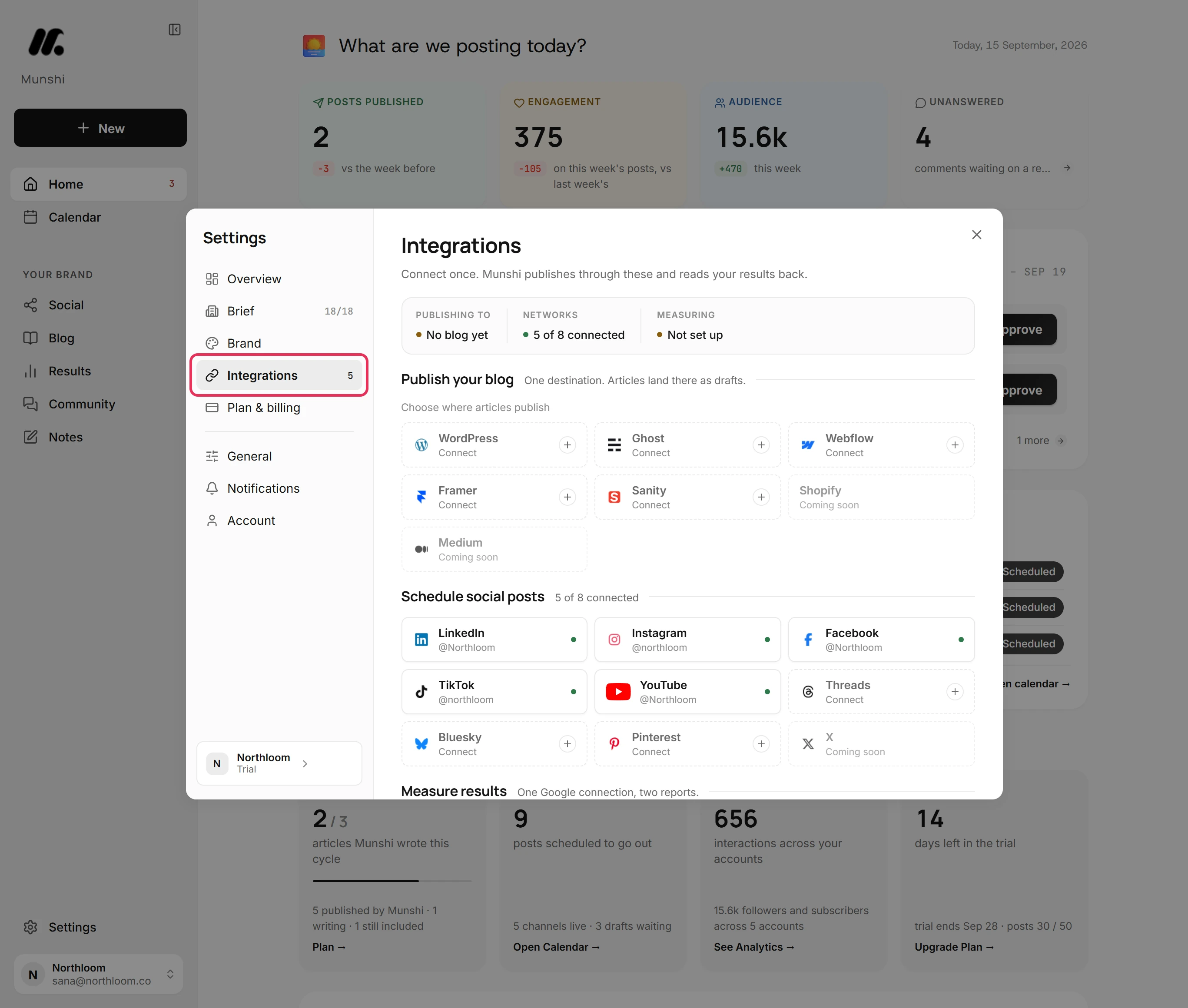
Click Settings at the bottom of the sidebar, then Integrations. The networks you can connect are listed under Schedule social posts.
-
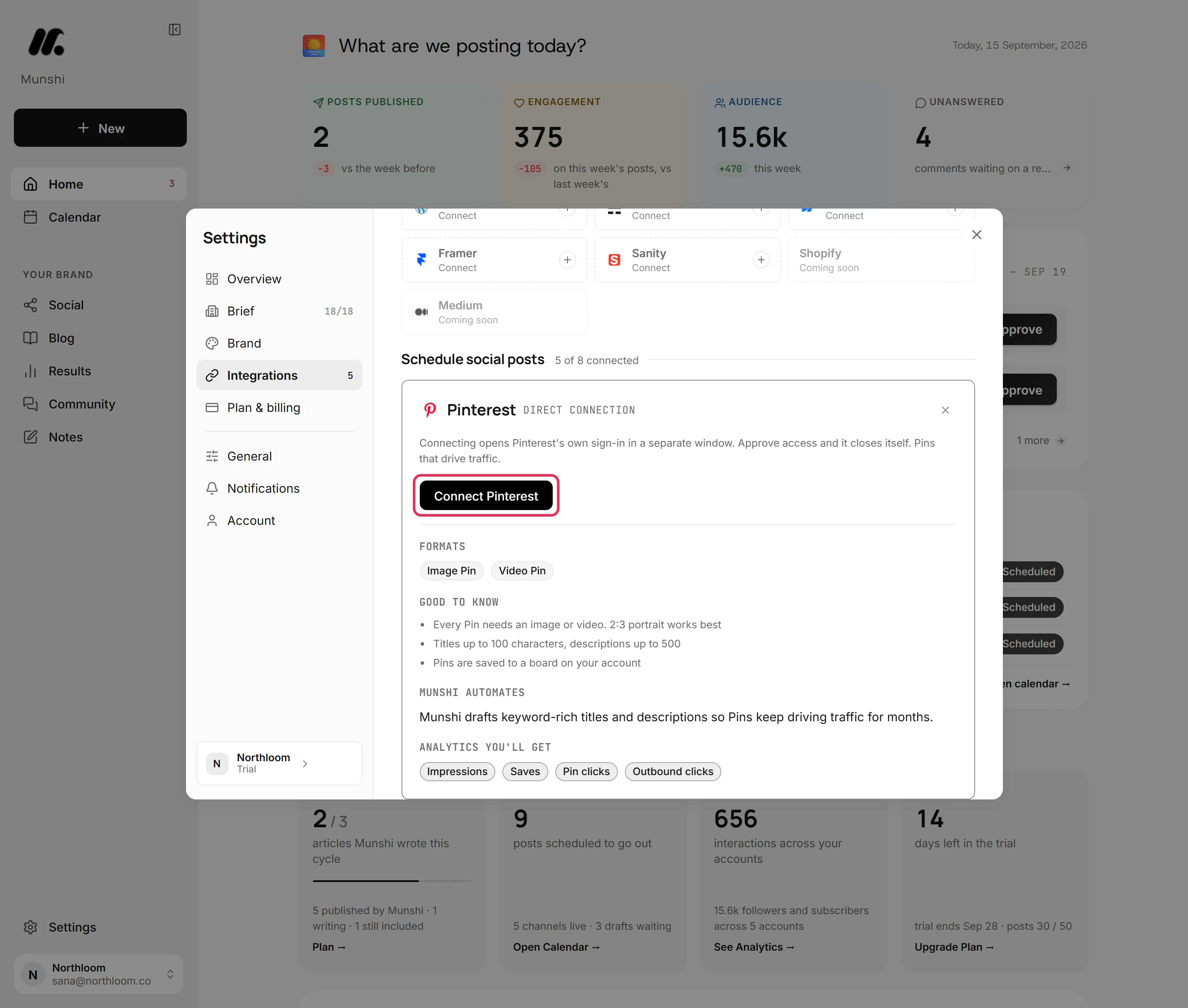
Click the Pinterest tile, which reads Connect. Its card says Pinterest's own sign-in opens in a separate window. The window closes itself once you approve access.
-
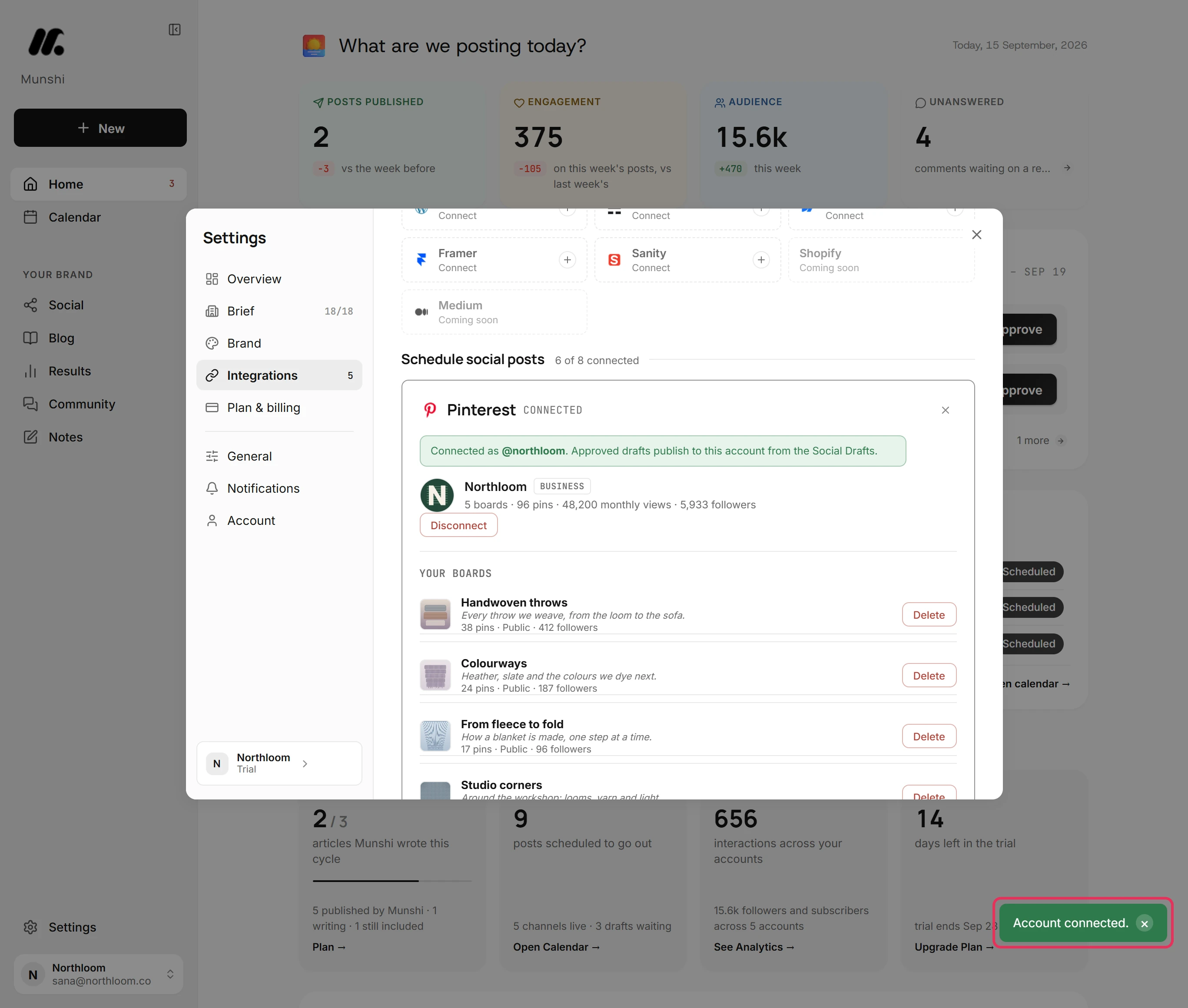
Click Connect Pinterest. In Pinterest's window, sign in if it asks, and approve access for Munshi. The window closes itself and Munshi says Account connected.
-
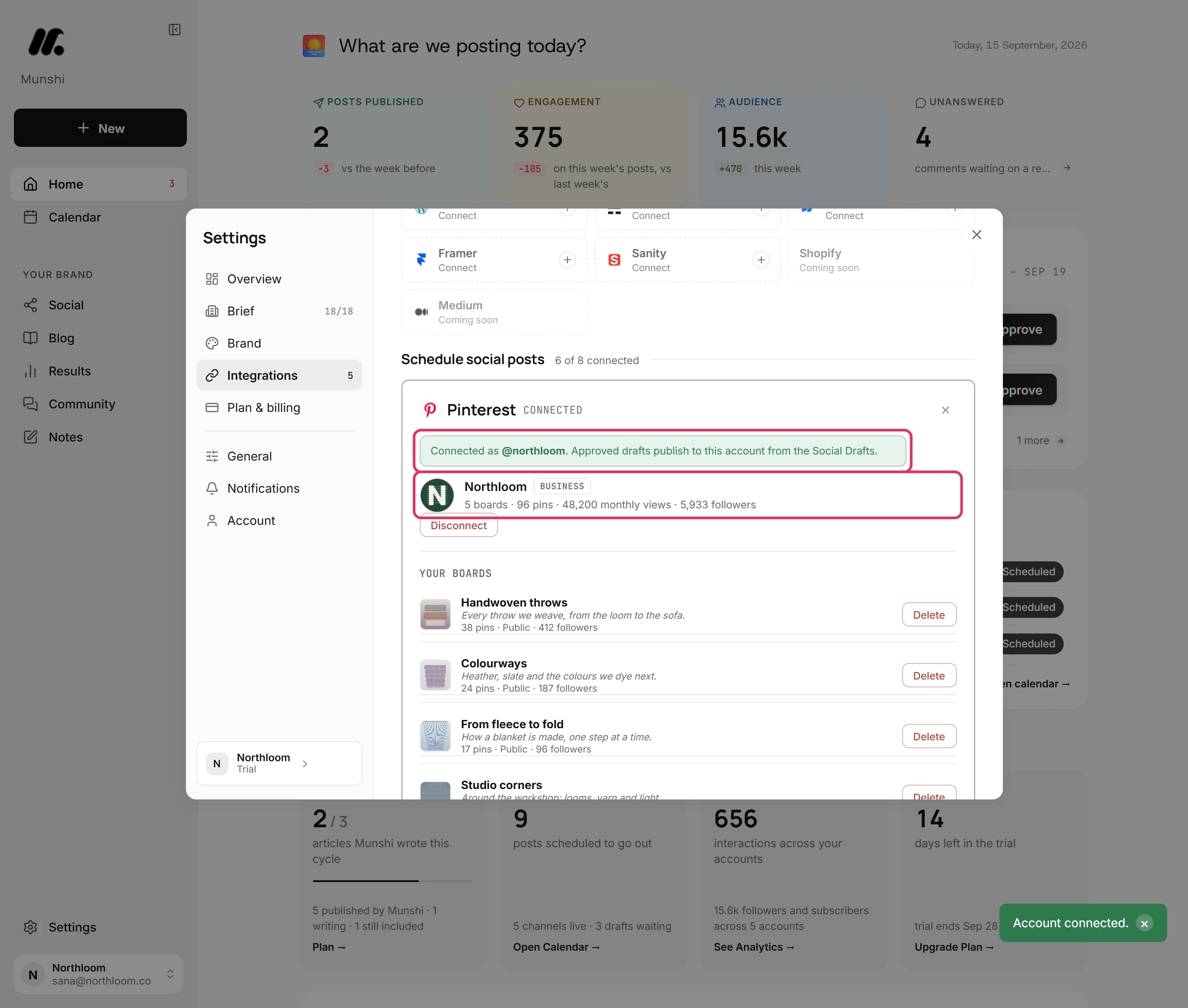
The card reads Connected as your Pinterest handle. Under it, Munshi shows the account's name and type. It also shows how many boards, pins, monthly views and followers the account has.
-
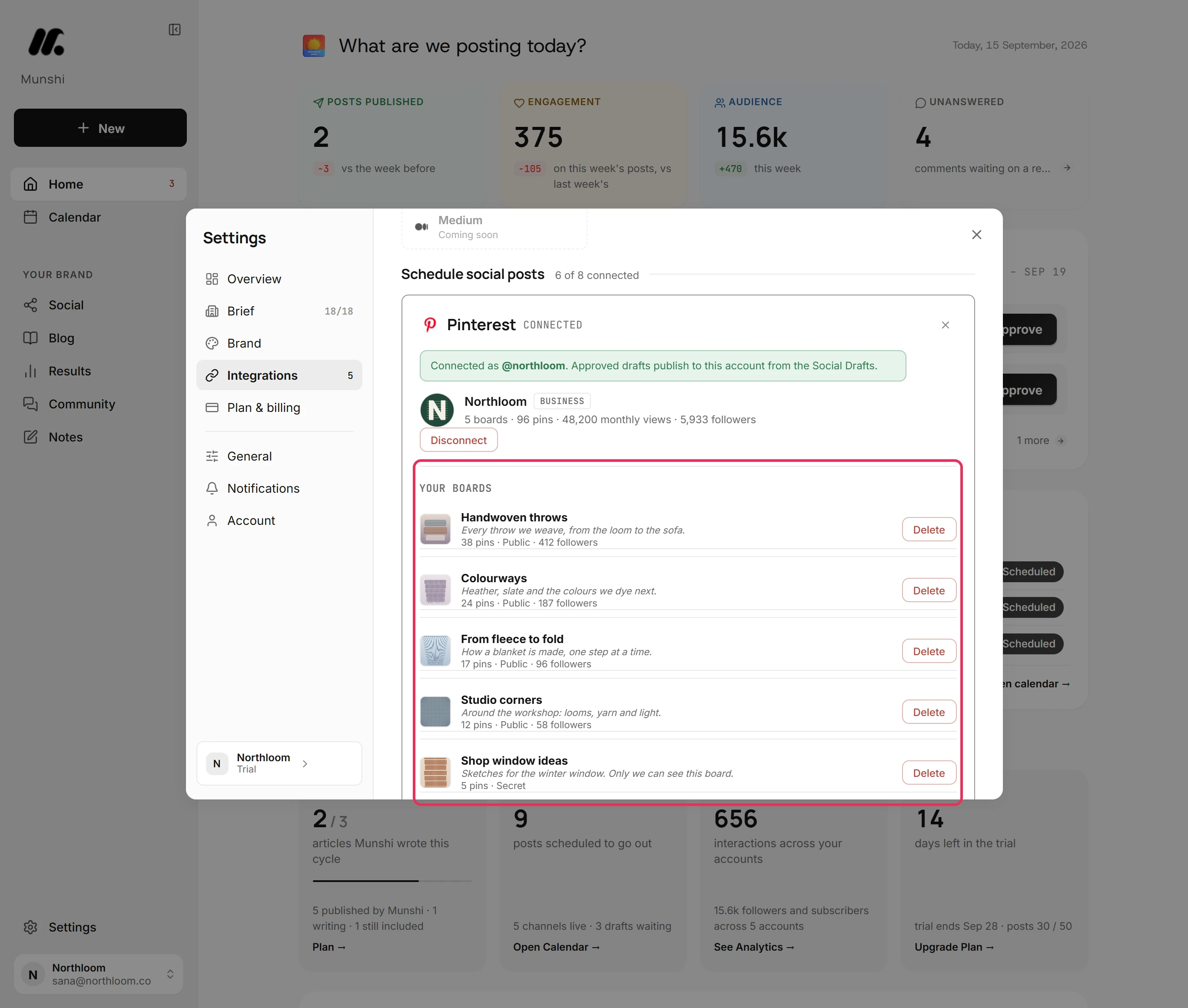
Your boards lists every board on the account with its description, pins and followers, and whether it is Public or Secret. When you post a pin, the composer's Pinterest tab offers these boards. It leaves out any board marked ads only.
-
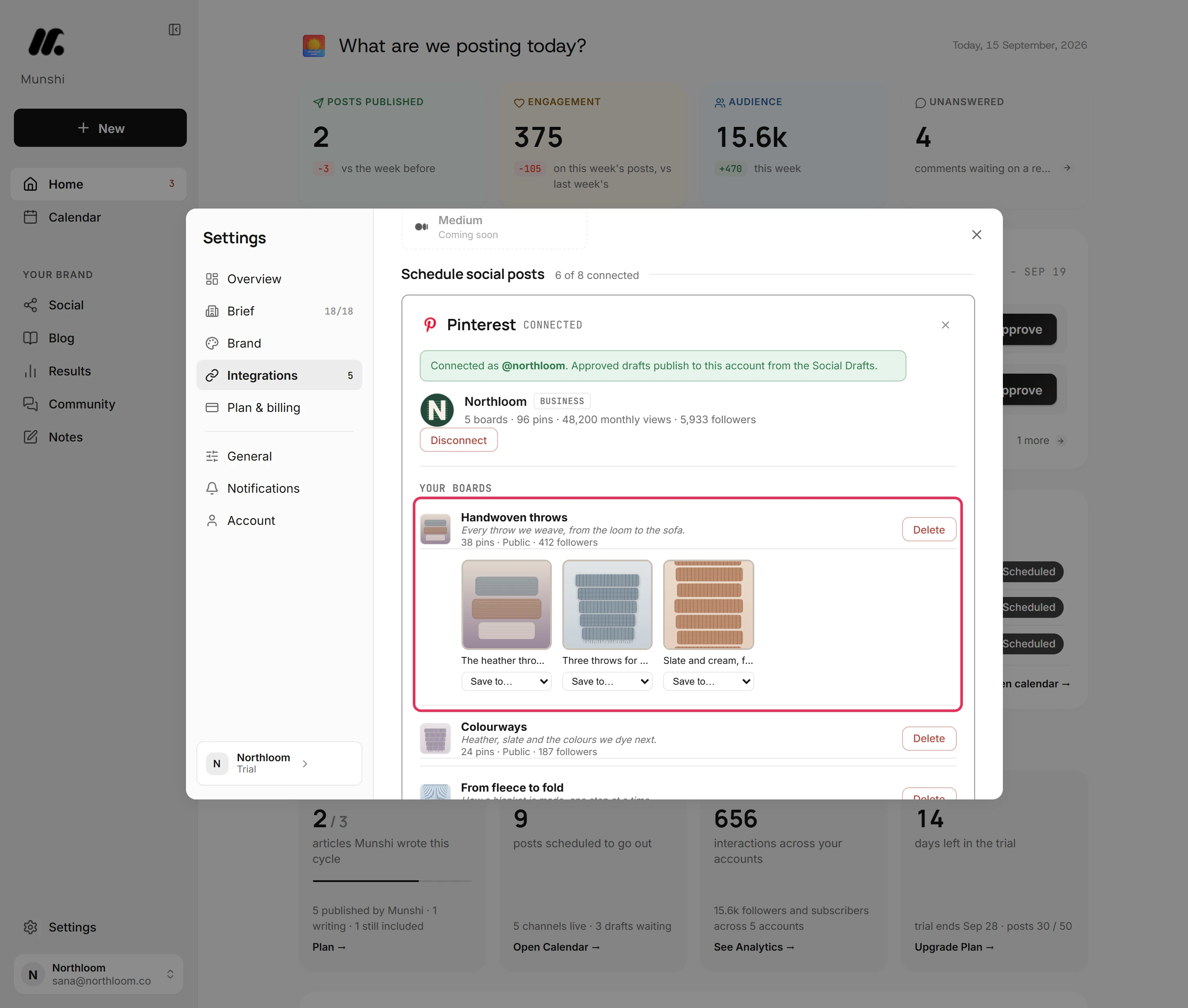
Click a board to see its pins. Save to… under a pin also saves it to another of your boards.
-
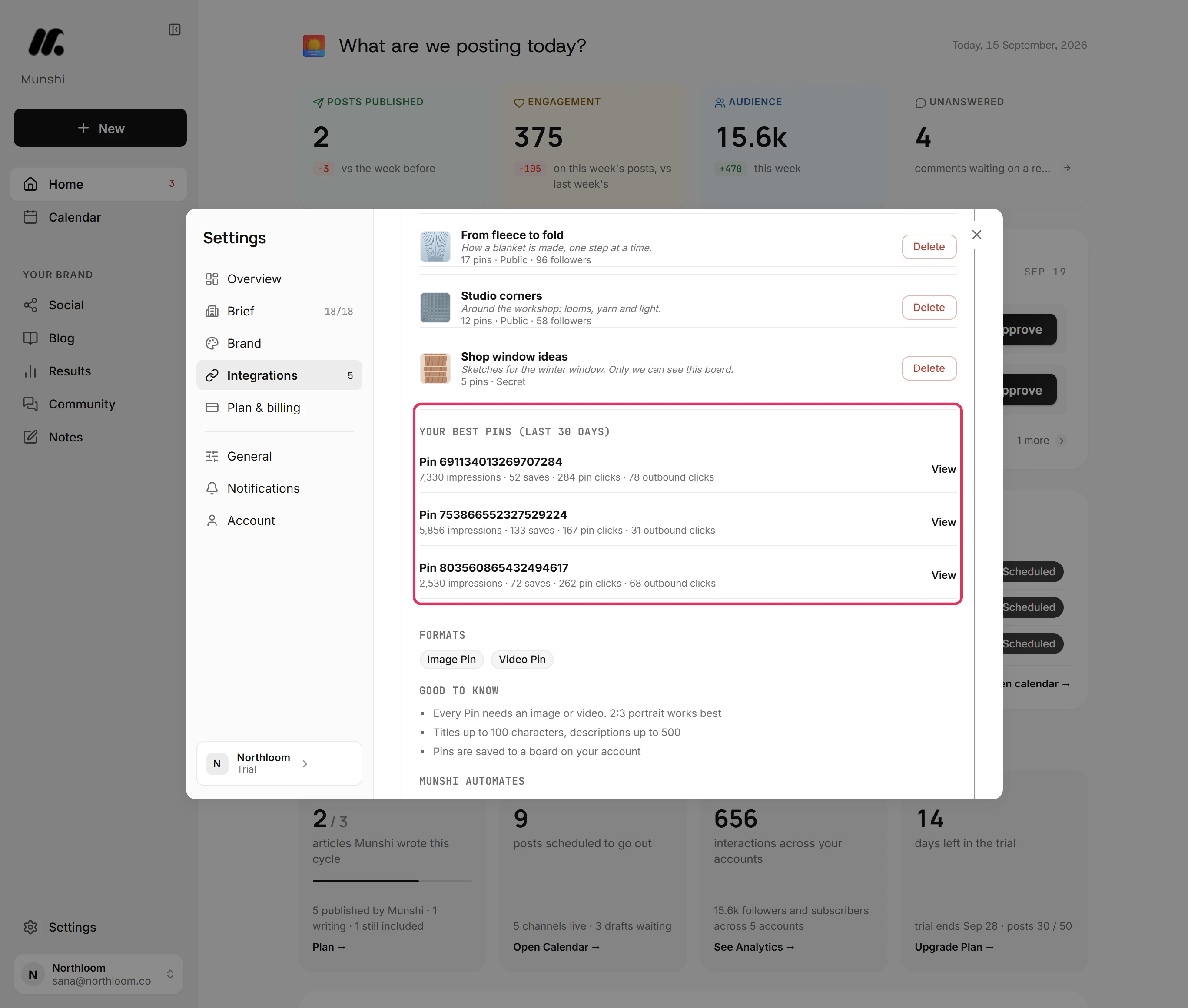
Your best pins (last 30 days) lists the pins with the most impressions in the last 30 days. Each shows its saves, pin clicks and outbound clicks. View opens a pin on Pinterest.
-
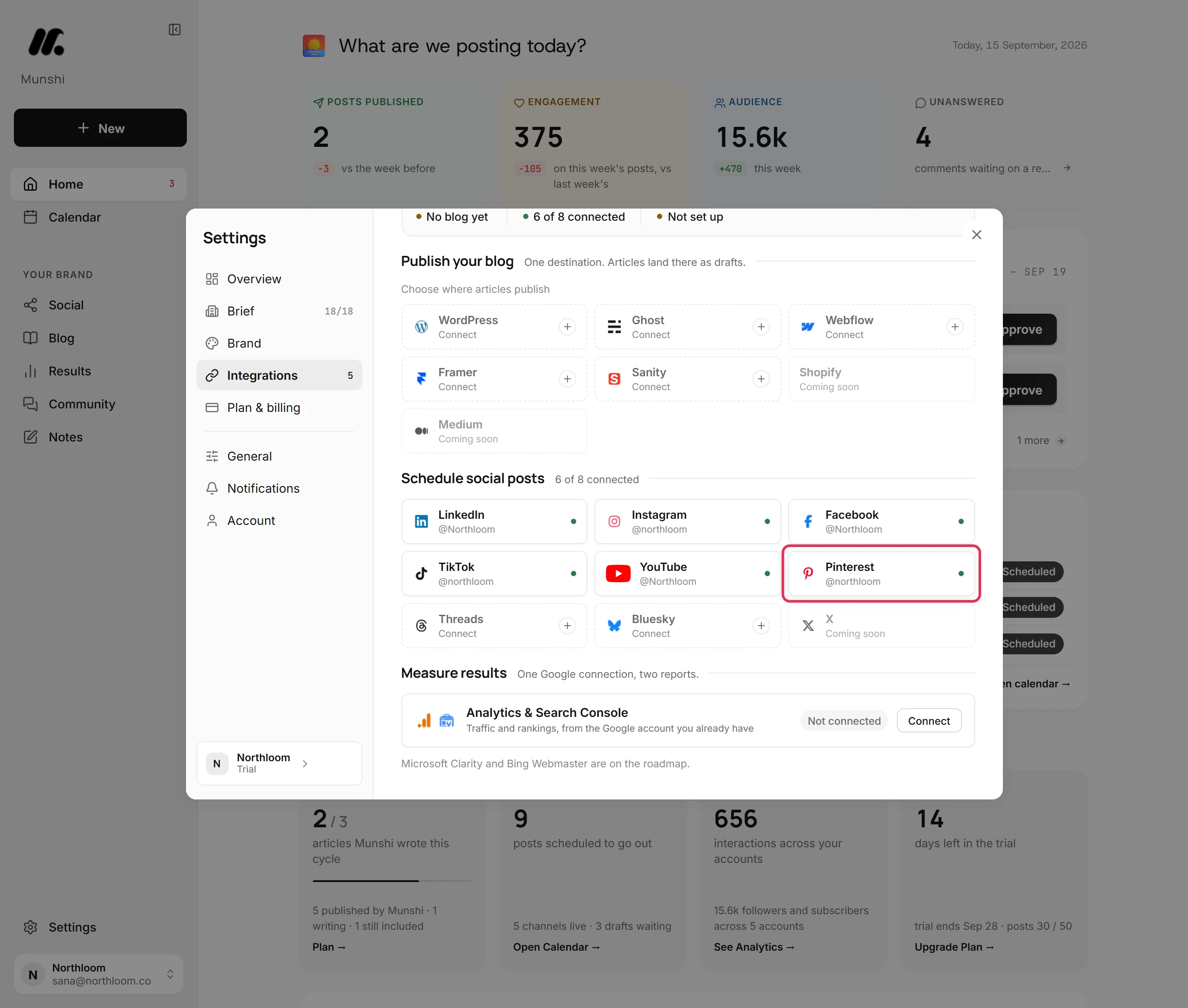
Close the card. The Pinterest tile shows your handle with a green dot. The count beside Schedule social posts goes up by one.
Where you are now
Pinterest is connected. The composer's Pinterest tab lists your boards for every pin you post. The Pinterest card keeps your boards and best pins in one place.
If something goes wrong
“Your browser blocked the popup. Allow popups for Munshi and try again.”
Allow popups for Munshi in your browser, then click Connect Pinterest again. Pinterest's window could not open.
“Pinterest did not accept the sign-in. Try connecting again.”
Click Connect Pinterest again and approve access in Pinterest's window. Pinterest did not finish the connection, so nothing was saved.
“Couldn't load your boards right now.”
Close the card and open it again in a moment. Munshi could not reach Pinterest to list your boards.
The window closed and Pinterest did not connect
Nothing was saved, so connect again. The connect window did not finish explains each message the window can give.
Try it on your own brand this week.
Munshi Social, the AI content marketing engine for small teams, plans, writes, publishes, and tracks your blog and socials. The guide above shows the real app, not a mock-up.
Start your workspace