How to connect Bluesky with an app password
Connect Bluesky with your handle and an app password from Bluesky's settings. No sign-in window opens, and it takes about two minutes.
Before you start
- A Bluesky account you can sign in to, so you can create an app password in its settings.
-
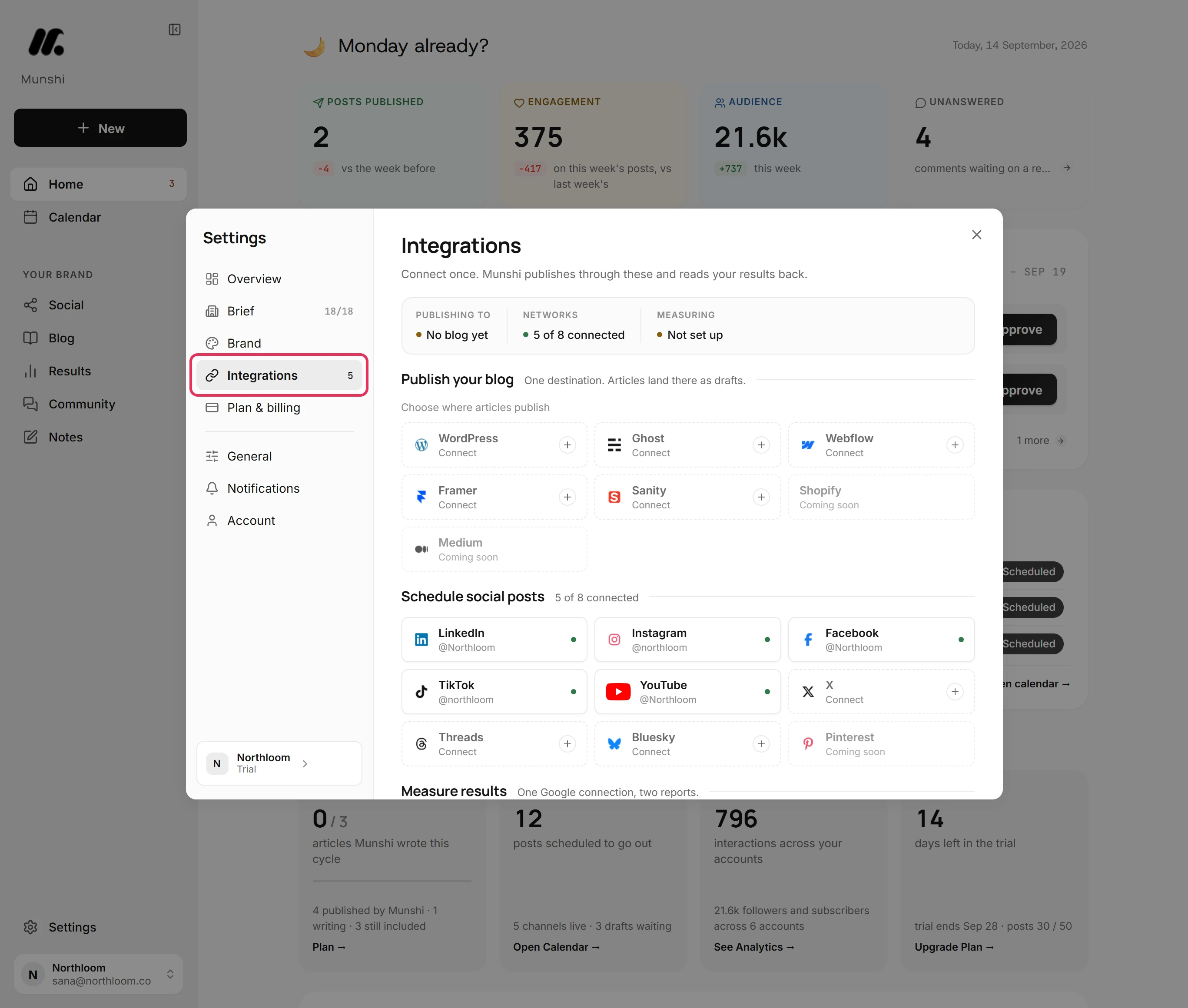
Click Settings at the bottom of the sidebar, then Integrations. The networks you can connect are listed under Schedule social posts.
-
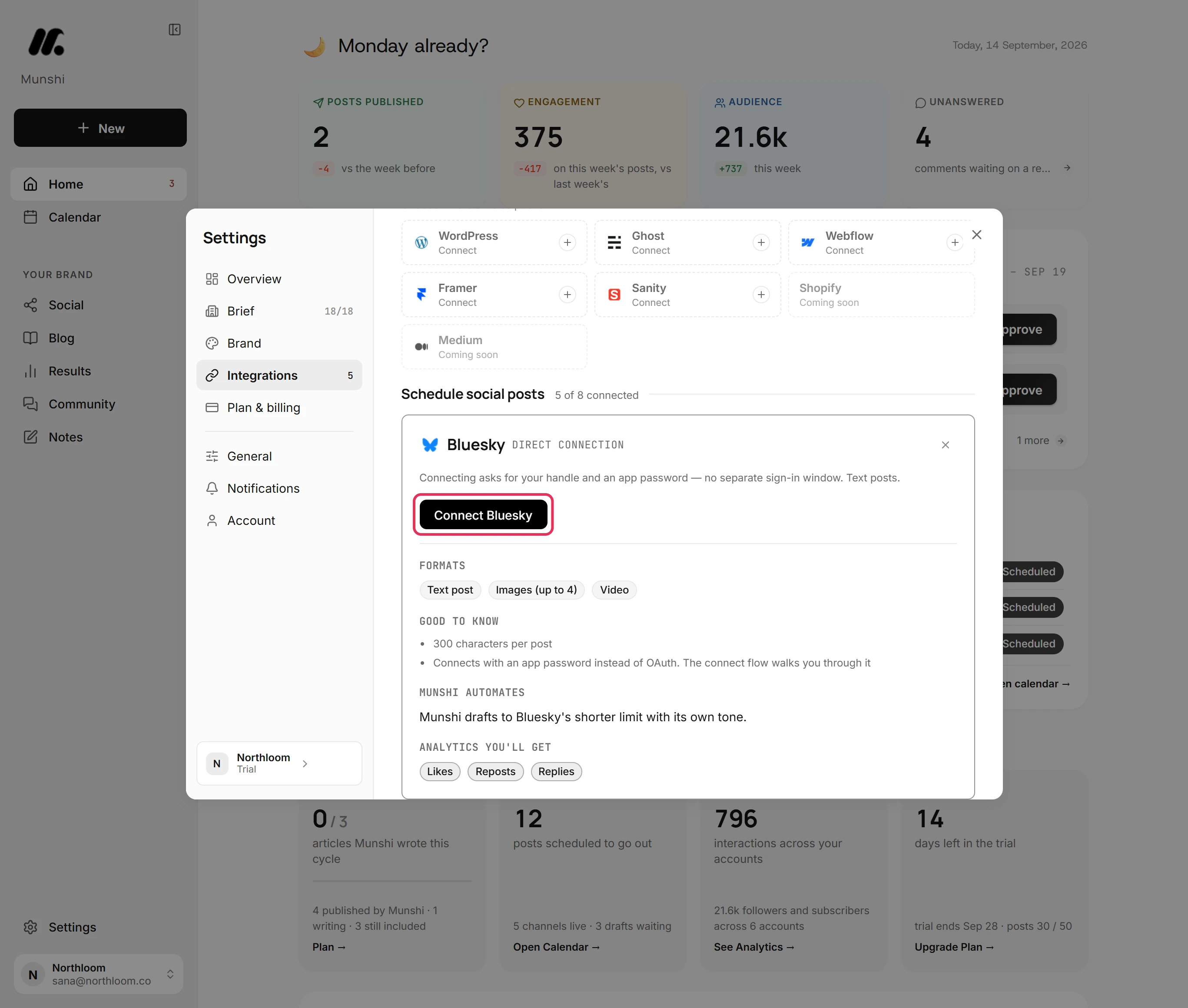
Click the Bluesky tile, which reads Connect. Its card says Bluesky connects with your handle and an app password. No separate sign-in window opens.
-
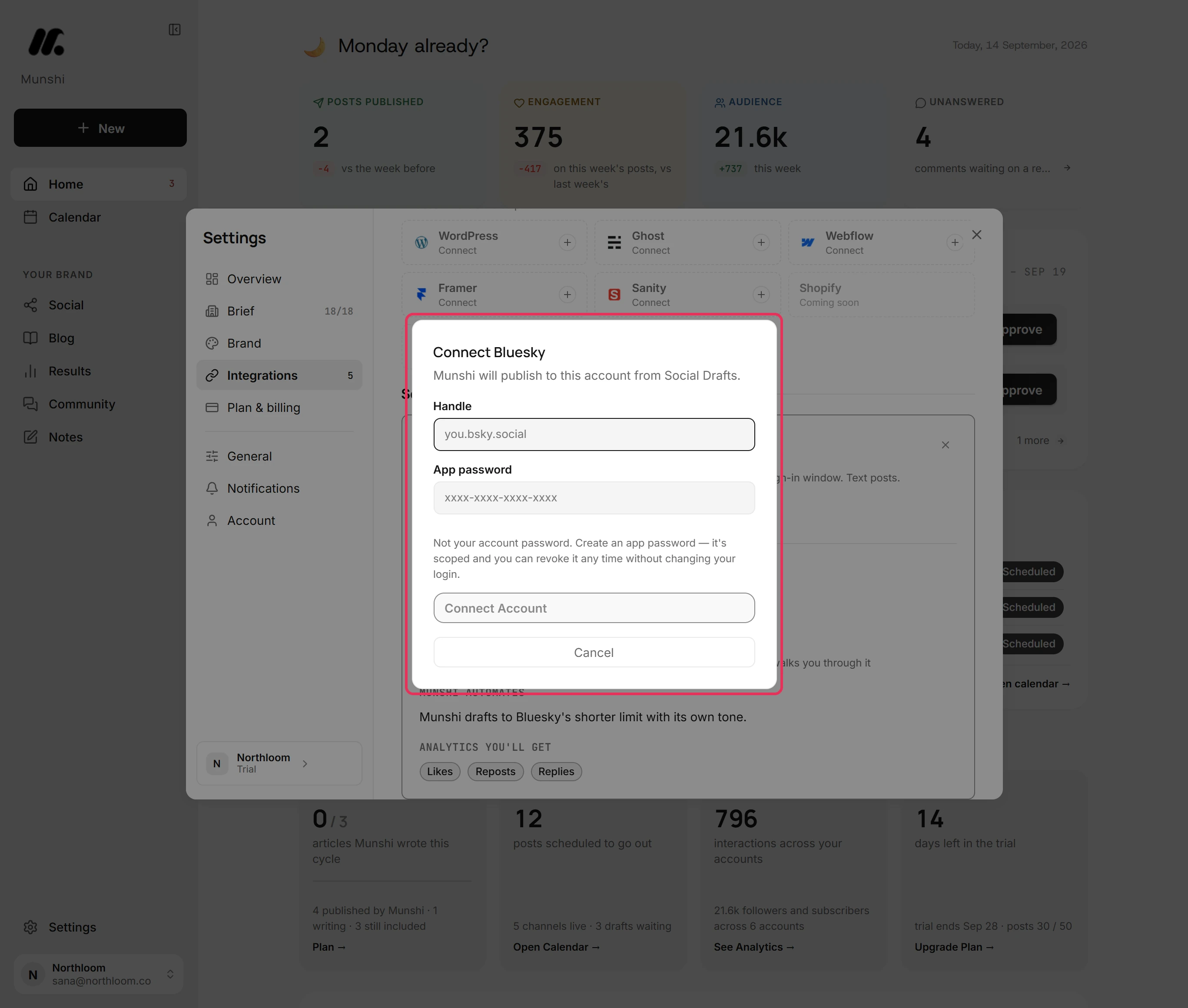
The Connect Bluesky dialog opens inside Munshi. It asks for two things: your Handle and an App password.
-
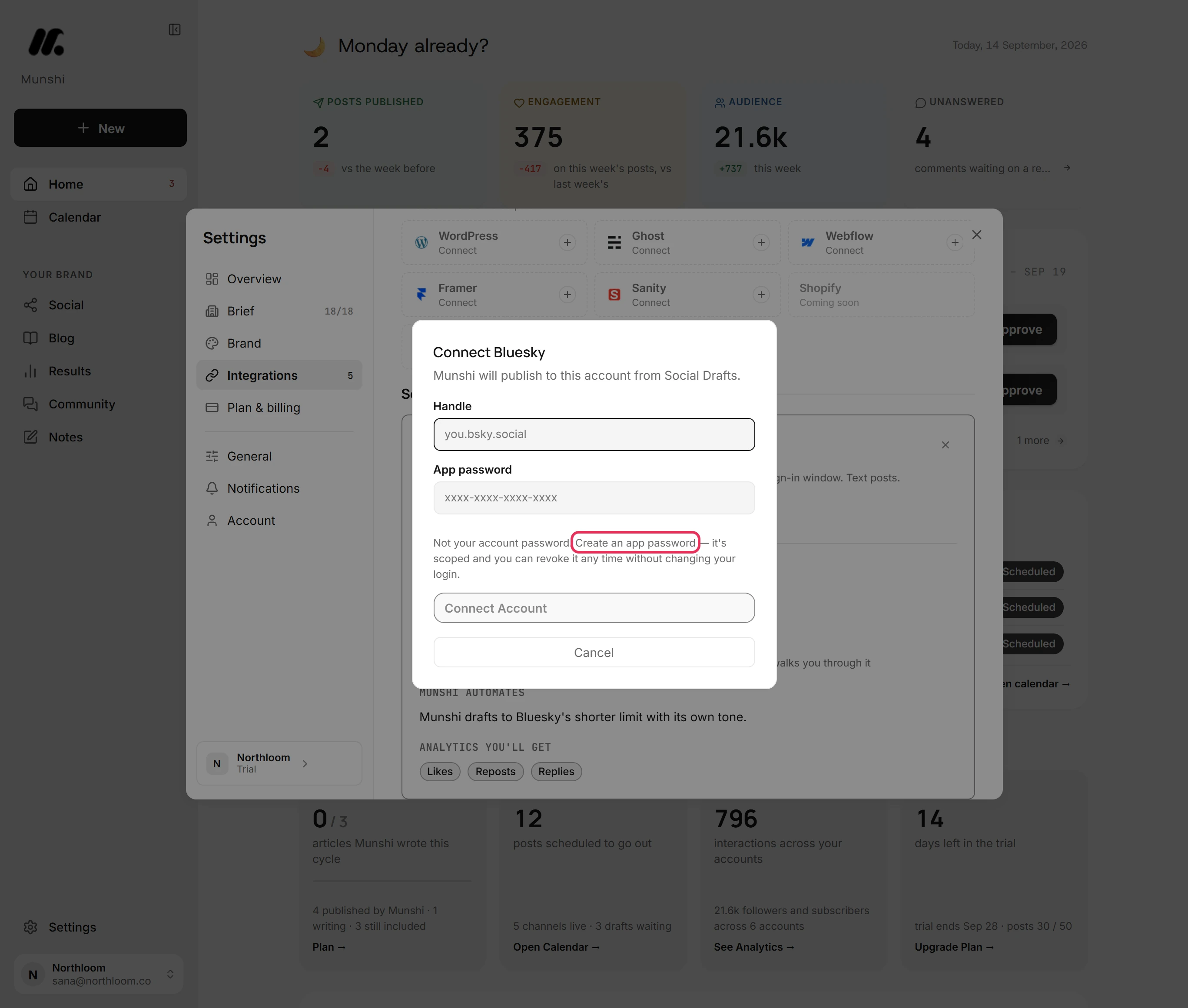
An app password is a separate password for one app, not your account password. The dialog's Create an app password link opens Bluesky's App passwords page in a new tab. Create one there and copy it.
-
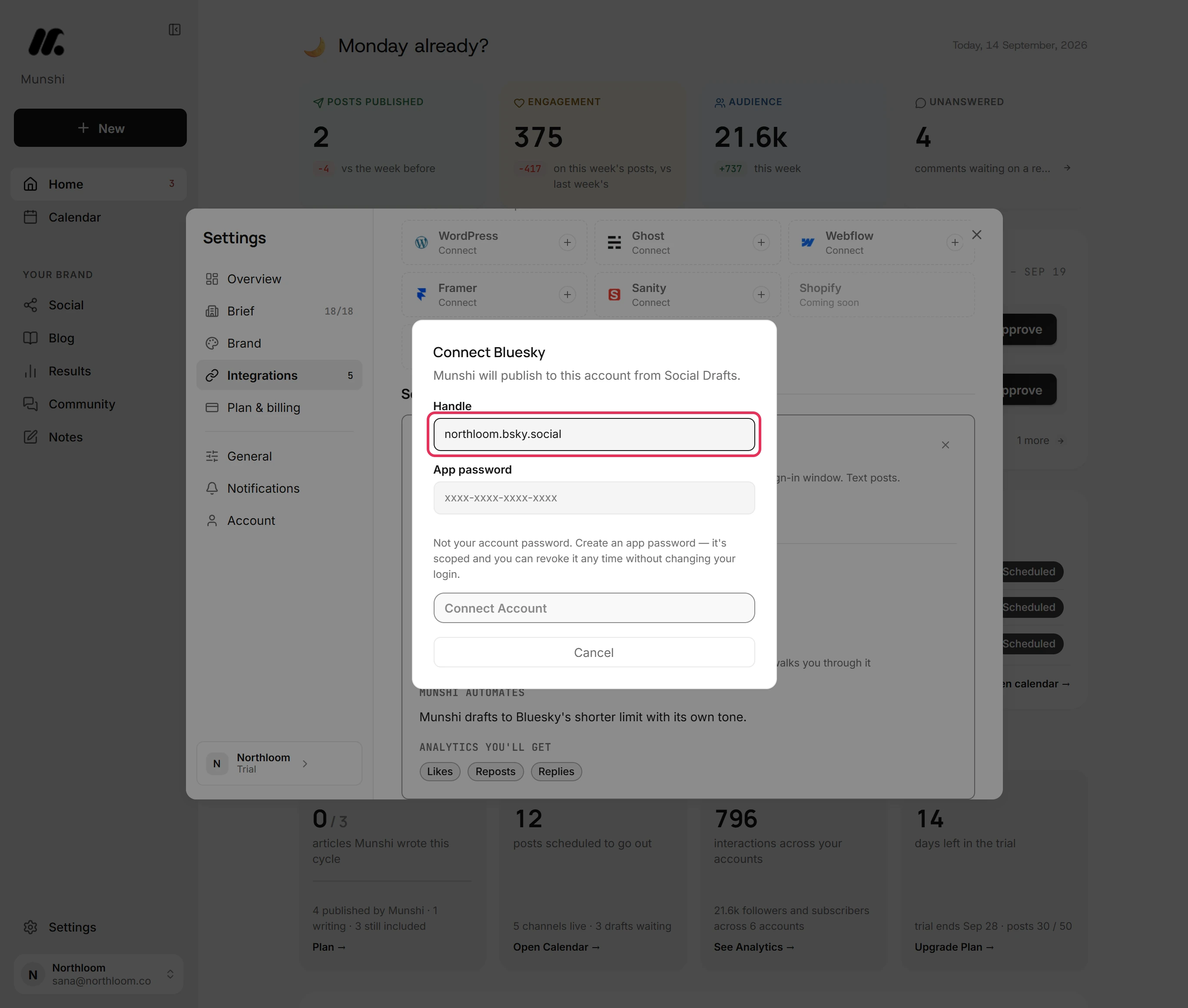
Type the handle you use on Bluesky, such as northloom.bsky.social. If you type the @ in front of it, Munshi leaves it off.
-
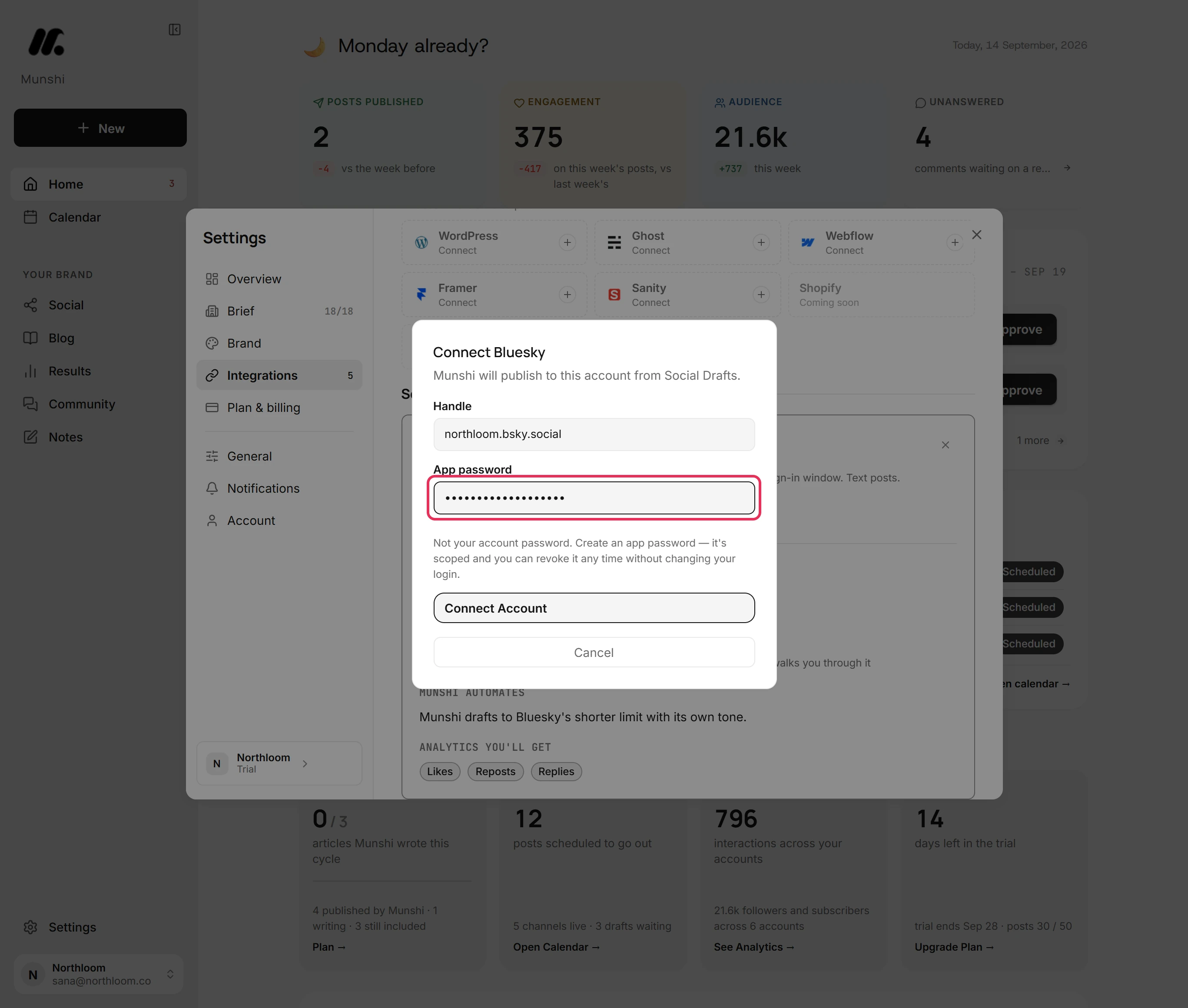
Paste the app password into App password. Connect Account stays greyed out until both fields are filled in.
-
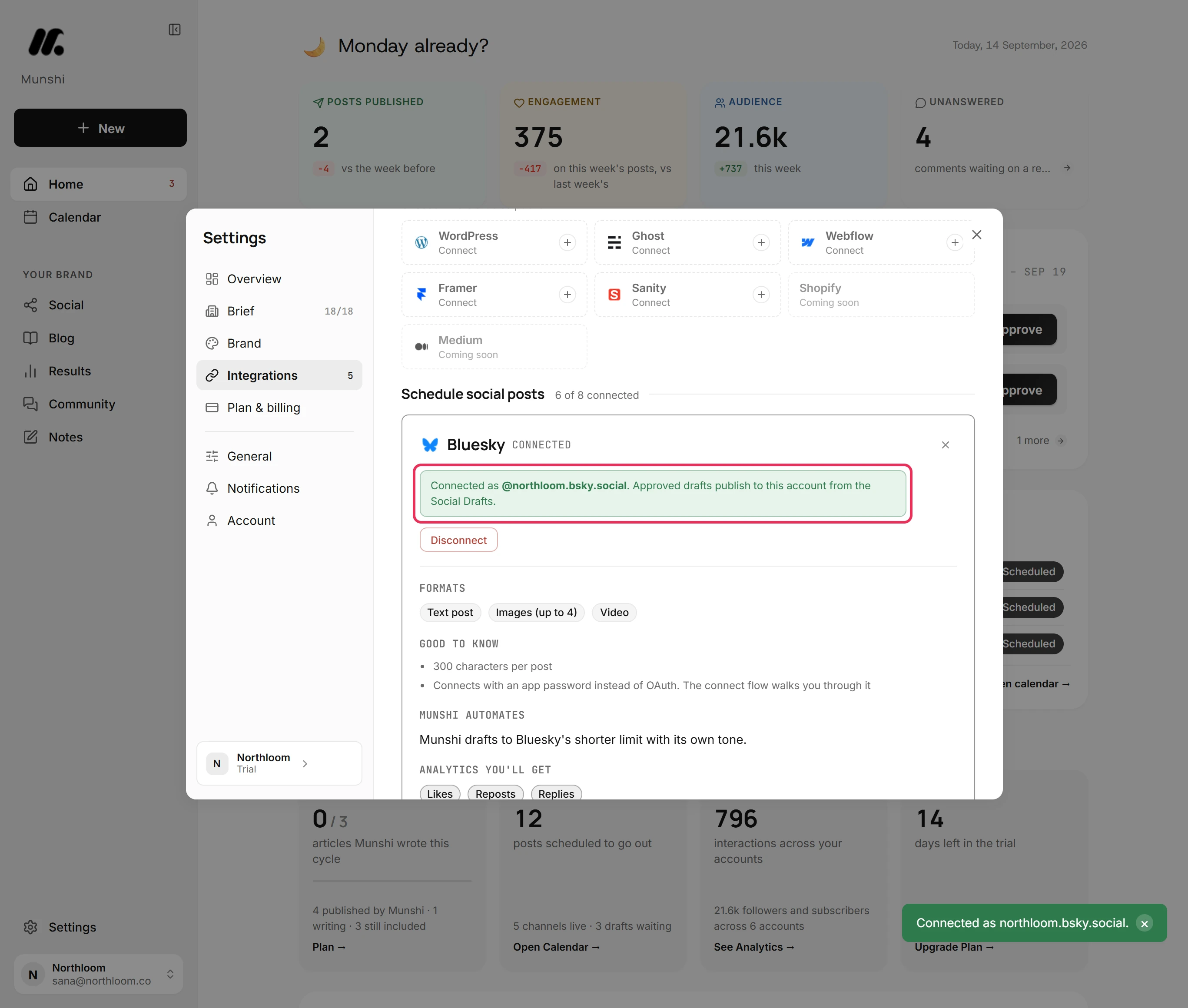
Munshi checks the handle and the app password with Bluesky. If they work, the dialog closes and Munshi says Connected as your handle. If not, the reason shows in the dialog and nothing is saved.
-
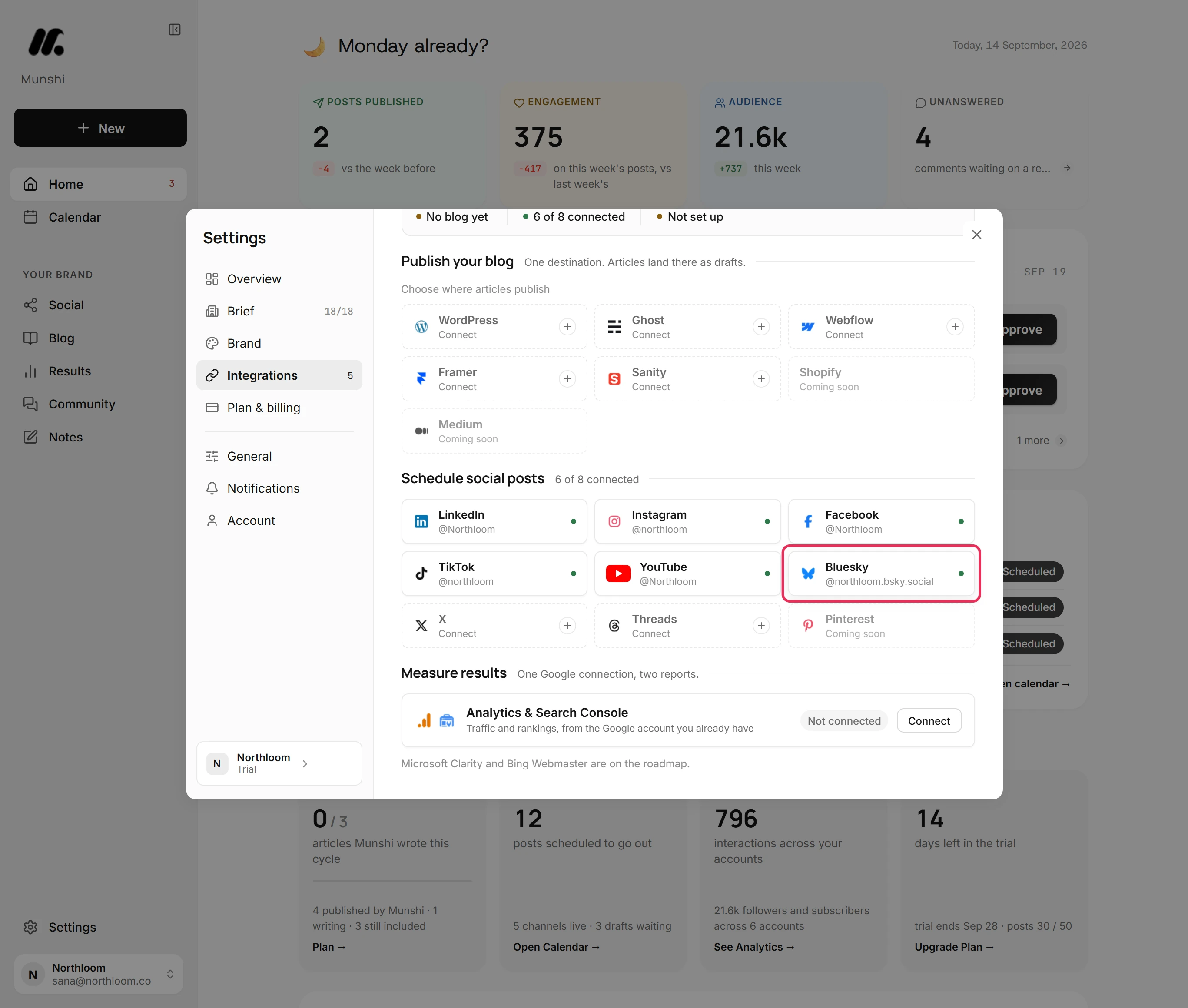
The Bluesky tile now shows your handle with a green dot. The count beside Schedule social posts goes up by one.
Where you are now
Bluesky is connected. Drafts you approve can publish to it. Munshi starts bringing in the account's past posts in the background.
If something goes wrong
Connect Account stays greyed out
Fill in both the handle and the app password, and the button turns on.
“Could not connect. Check the handle and app password.”
Check that the handle is the full one, such as you.bsky.social. Check that you pasted an app password, not your account password. If the app password was revoked in Bluesky, create a new one.
“That Bluesky account is already connected to another workspace.”
Disconnect it in the workspace that has it, then connect it here. An account belongs to one workspace at a time, including your own other workspaces.
Try it on your own brand this week.
Munshi Social, the AI content marketing engine for small teams, plans, writes, publishes, and tracks your blog and socials. The guide above shows the real app, not a mock-up.
Start your workspace