How to connect Instagram
You need an Instagram Business or Creator account. In Settings > Integrations, check the three things Meta looks for, then sign in to Instagram.
Before you start
- An Instagram Business or Creator account, also called a professional account. A personal account, including any private account, cannot connect. Switch it to a professional account first.
- The account's password. Instagram asks for it even when you are already signed in.
-
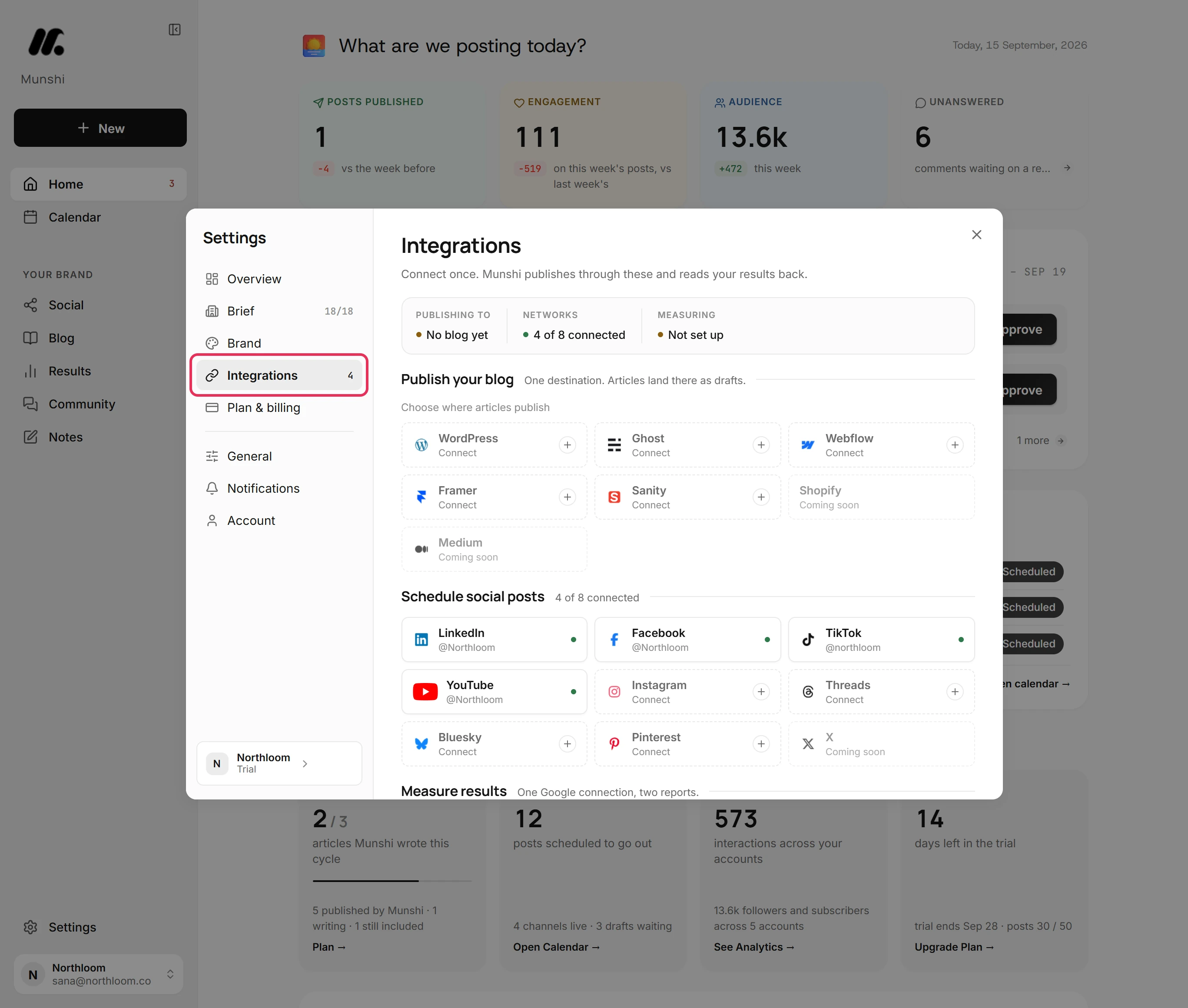
Click Settings at the bottom of the sidebar, then Integrations. The networks you can connect are listed under Schedule social posts.
-
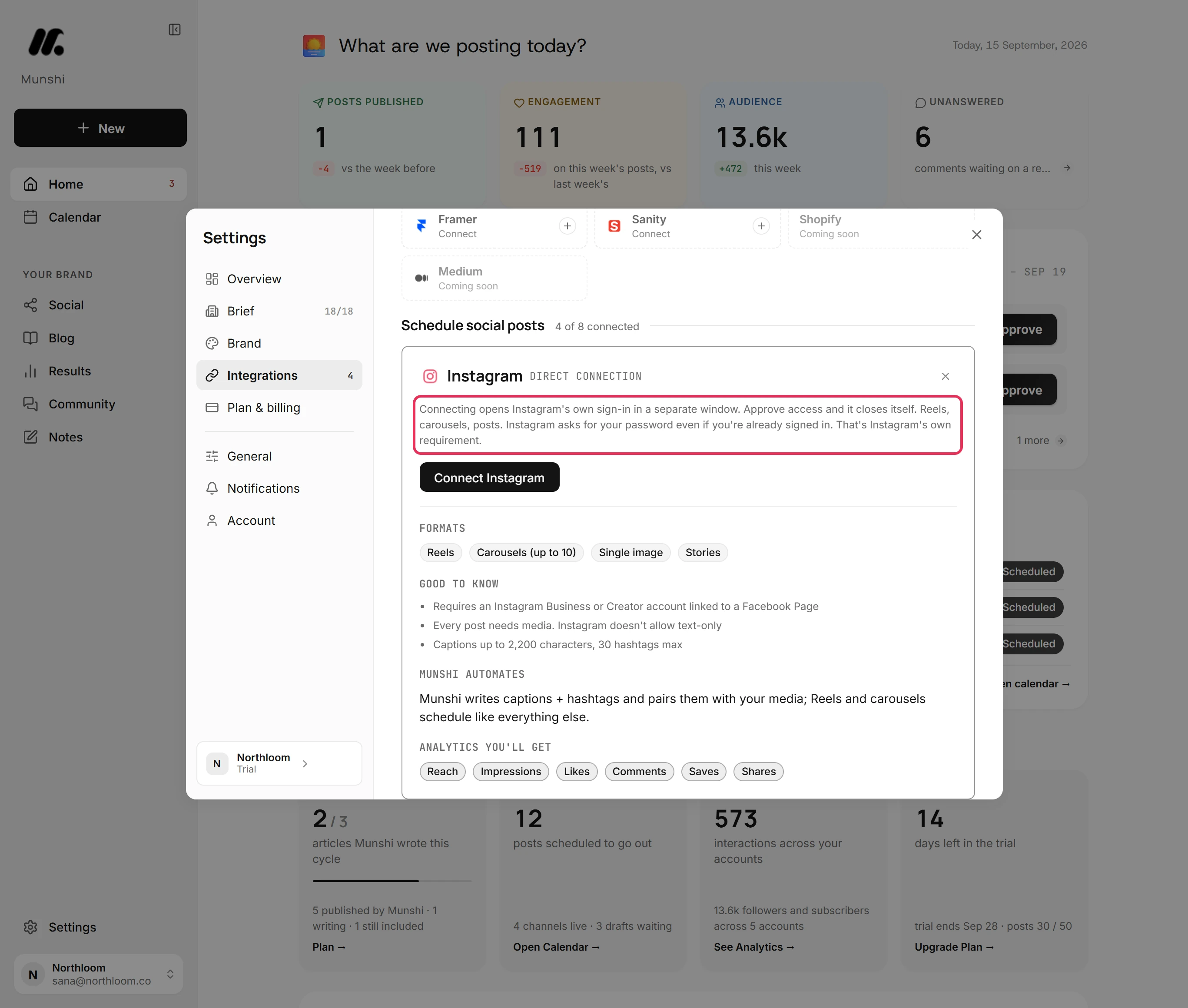
Click the Instagram tile, which reads Connect. Its card says Instagram's own sign-in opens in a separate window. It also says Instagram asks for your password even if you are already signed in.
-
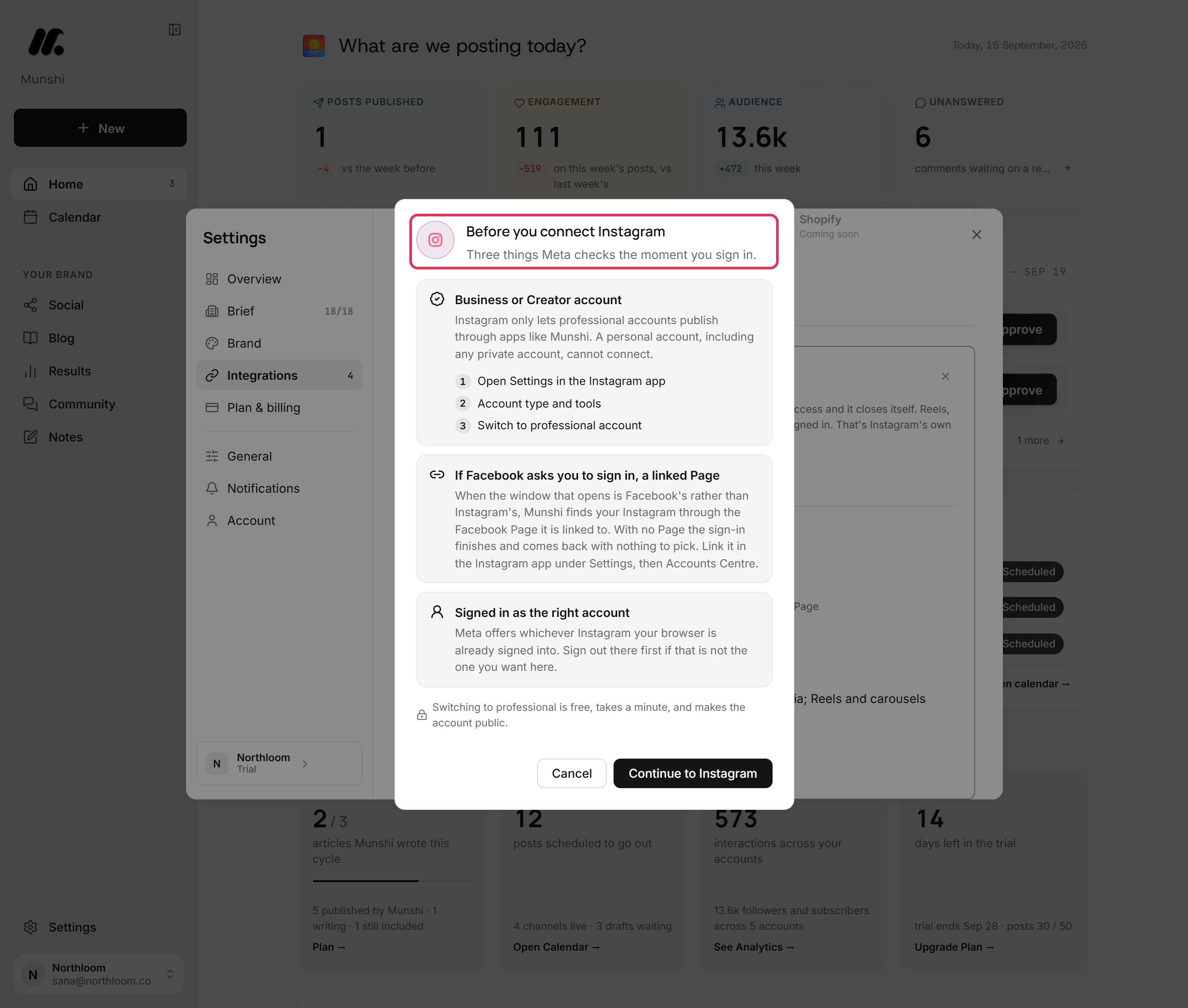
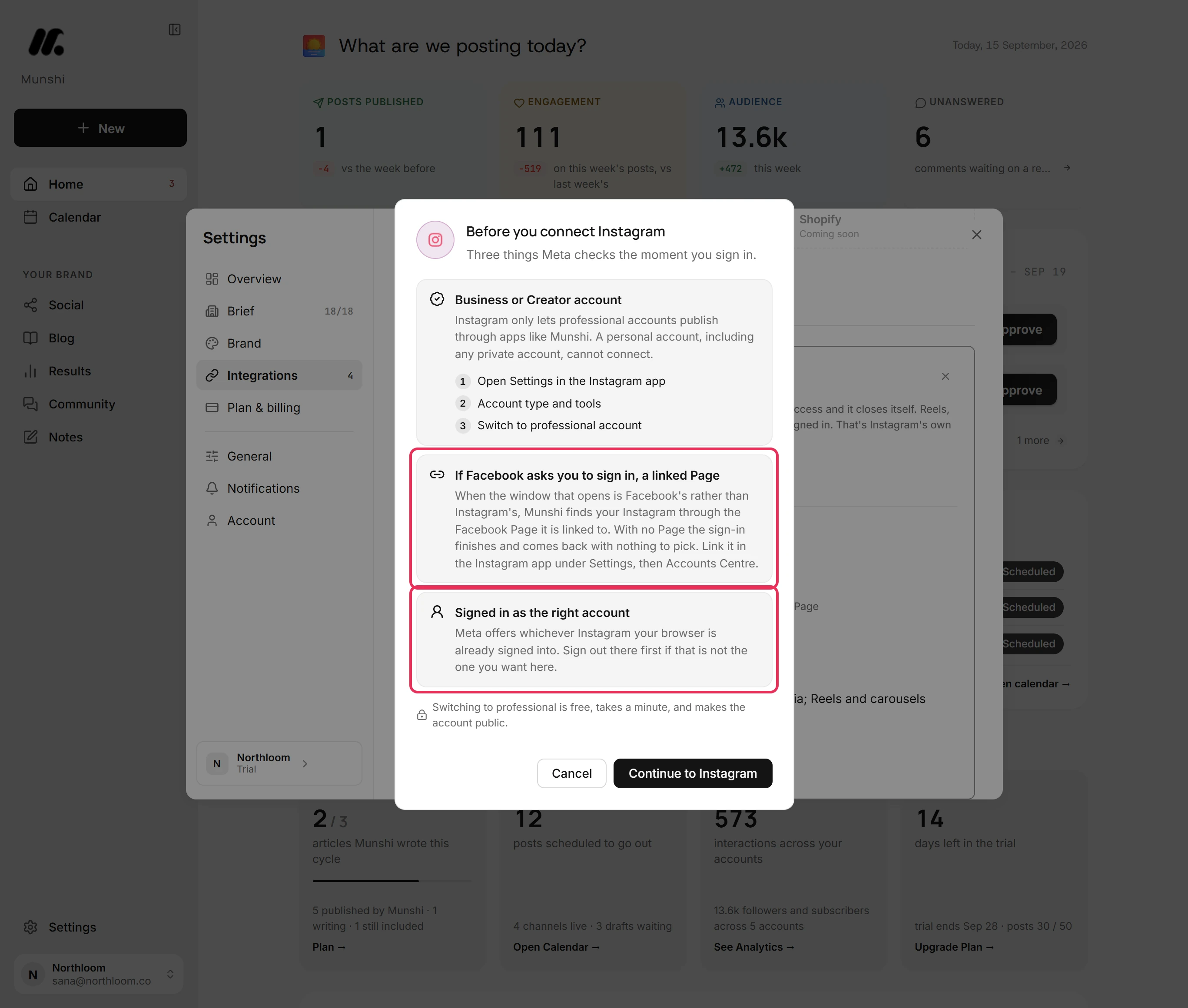
Before any window opens, Munshi shows Before you connect Instagram. It lists three things Meta checks the moment you sign in.
-
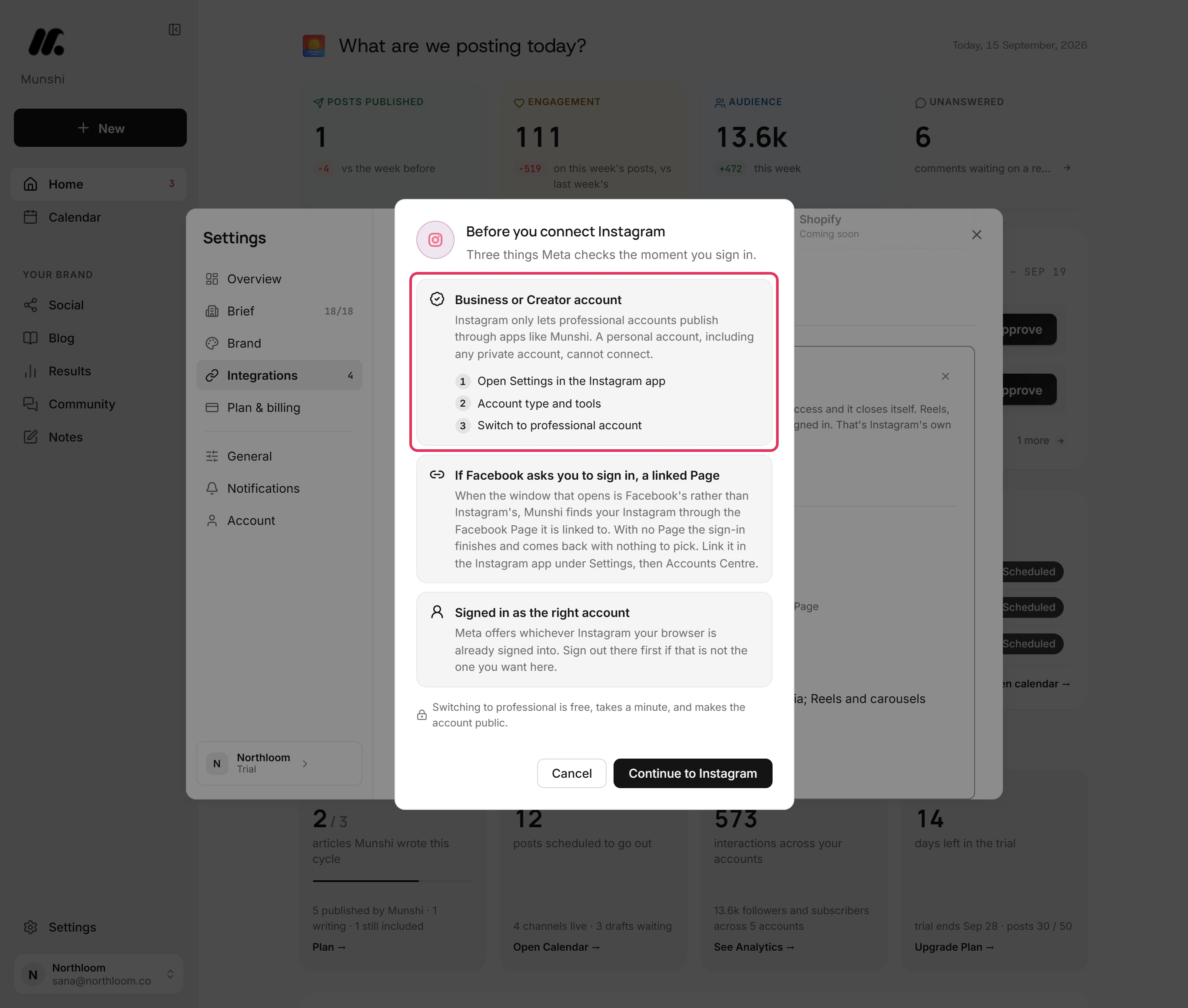
Instagram only lets professional accounts publish through apps like Munshi. To switch a personal account, open Settings in the Instagram app. Then tap Account type and tools, then Switch to professional account.
-
If Facebook's window opens instead of Instagram's, Munshi finds your Instagram through its linked Facebook Page. Link one in the Instagram app under Settings, then Accounts Centre. Meta also offers whichever Instagram account your browser is signed in to, so sign out first if it is the wrong one.
-
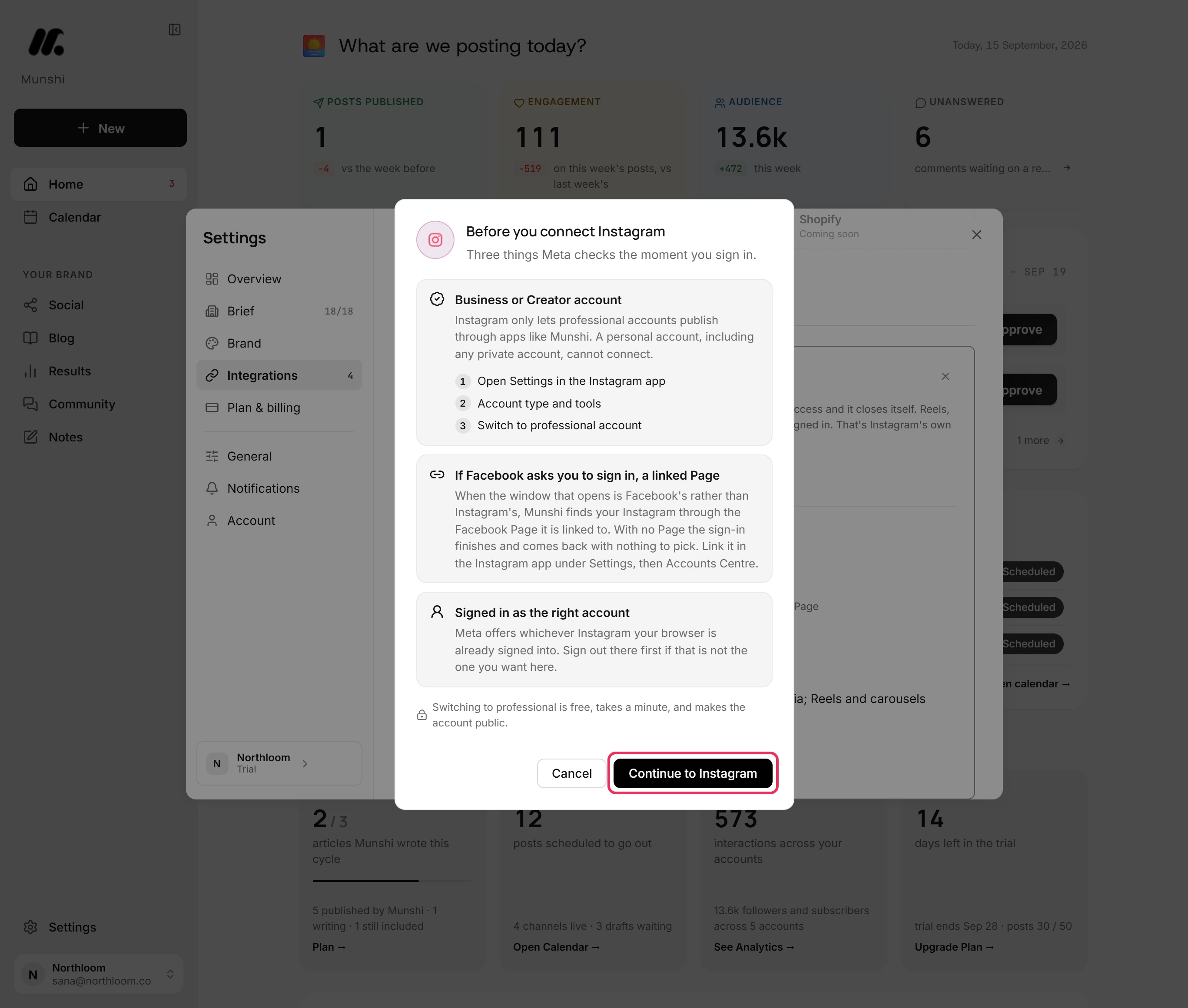
Click Continue to Instagram. In Instagram's own window, sign in with the account's password and approve the access Munshi asks for. The window closes itself when you are done.
-
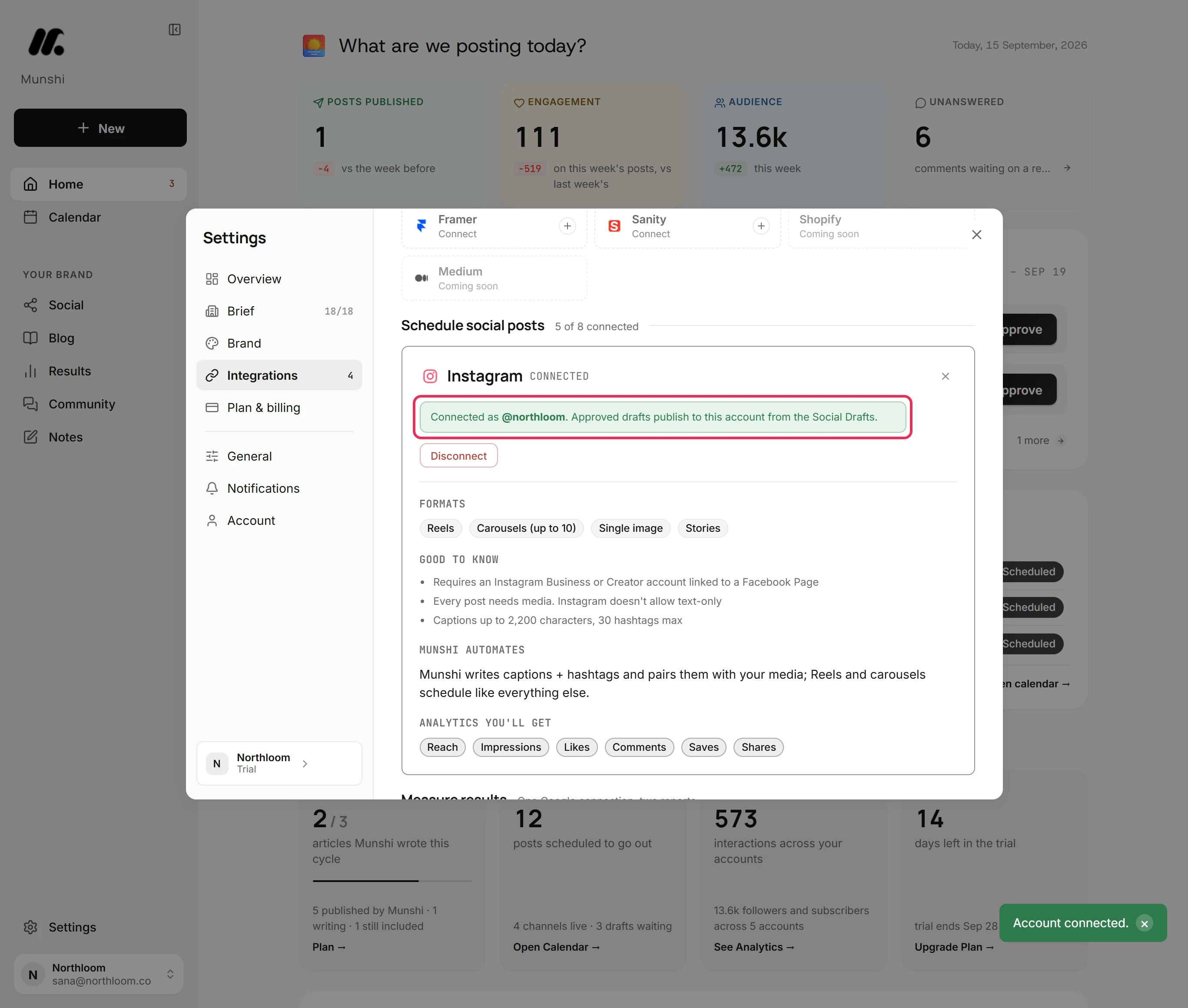
Munshi says Account connected. and the card says Connected as the account's handle. Drafts you approve publish to this account.
-
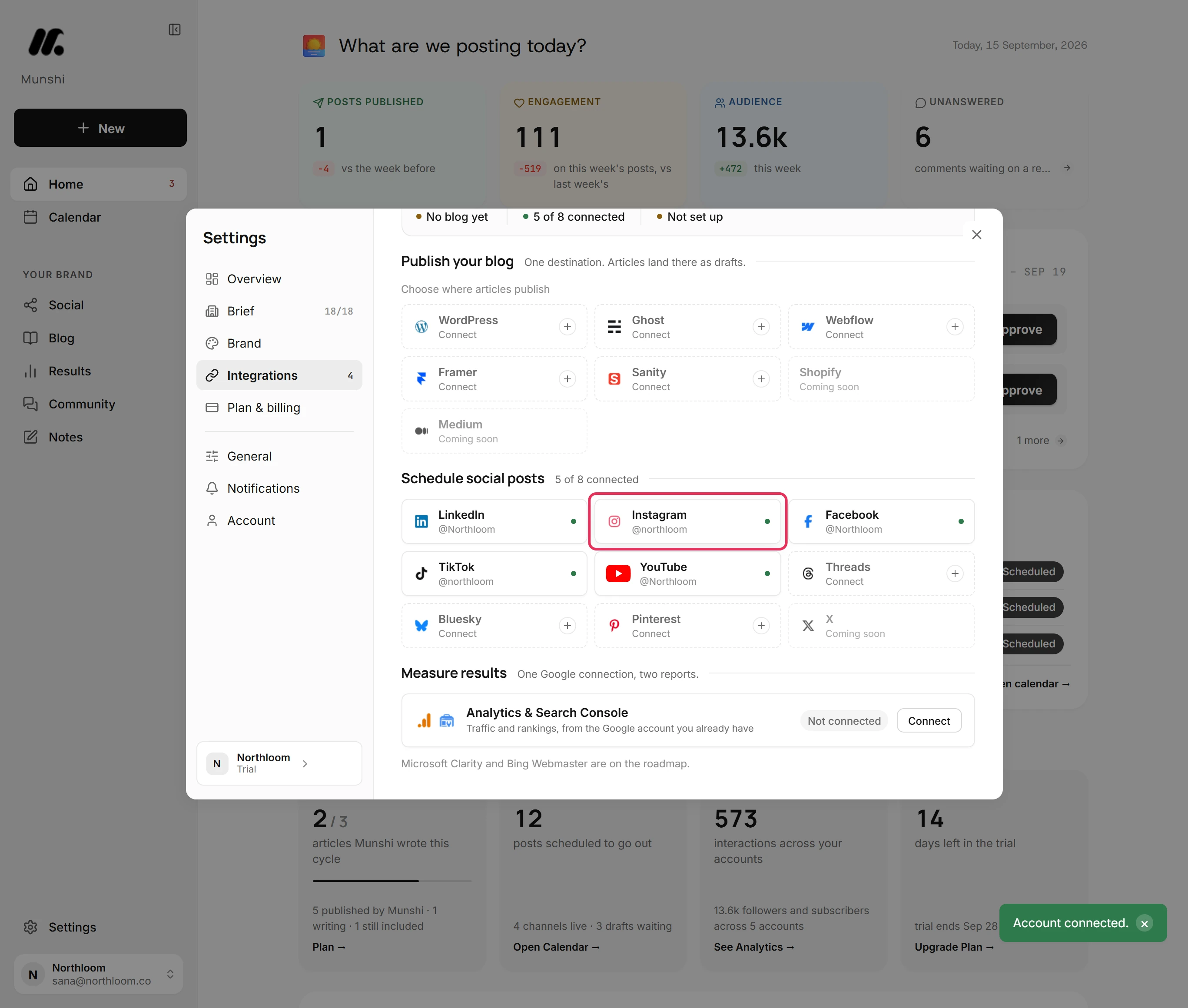
Close the card. The Instagram tile now shows the account's handle with a green dot. The count beside Schedule social posts goes up by one.
Where you are now
Instagram is connected. Drafts you approve can publish to it. Munshi starts reading the account's numbers and bringing in its past posts.
If something goes wrong
“Your browser blocked the popup. Allow popups for Munshi and try again.”
Allow popups for Munshi in your browser, then click Continue to Instagram again. Instagram's window could not open.
Instagram's window shows an error and never comes back to Munshi
Switch the account to professional in the Instagram app and connect again. This is how Meta turns away a personal account: the refusal stays on its own screen.
“None of your Facebook Pages has an Instagram professional account linked to it.”
Link the account to a Page, then connect again. The sign-in went through Facebook, and none of your Pages has a professional Instagram account linked to it.
“That account is already connected to another workspace.”
Disconnect it in the workspace that has it, then connect it here. An Instagram account belongs to one workspace at a time, including your own other workspaces.
Try it on your own brand this week.
Munshi Social, the AI content marketing engine for small teams, plans, writes, publishes, and tracks your blog and socials. The guide above shows the real app, not a mock-up.
Start your workspace